
User Accounts
Overview
Prior to any of your users being able to access the Passwordstate website, you must first add their accounts in the User Accounts screen.
There are 3 different types of accounts that can be added, and they Local, Active Directory and Entra ID accounts.
Adding user accounts into the system can be achieved by one of the following options:
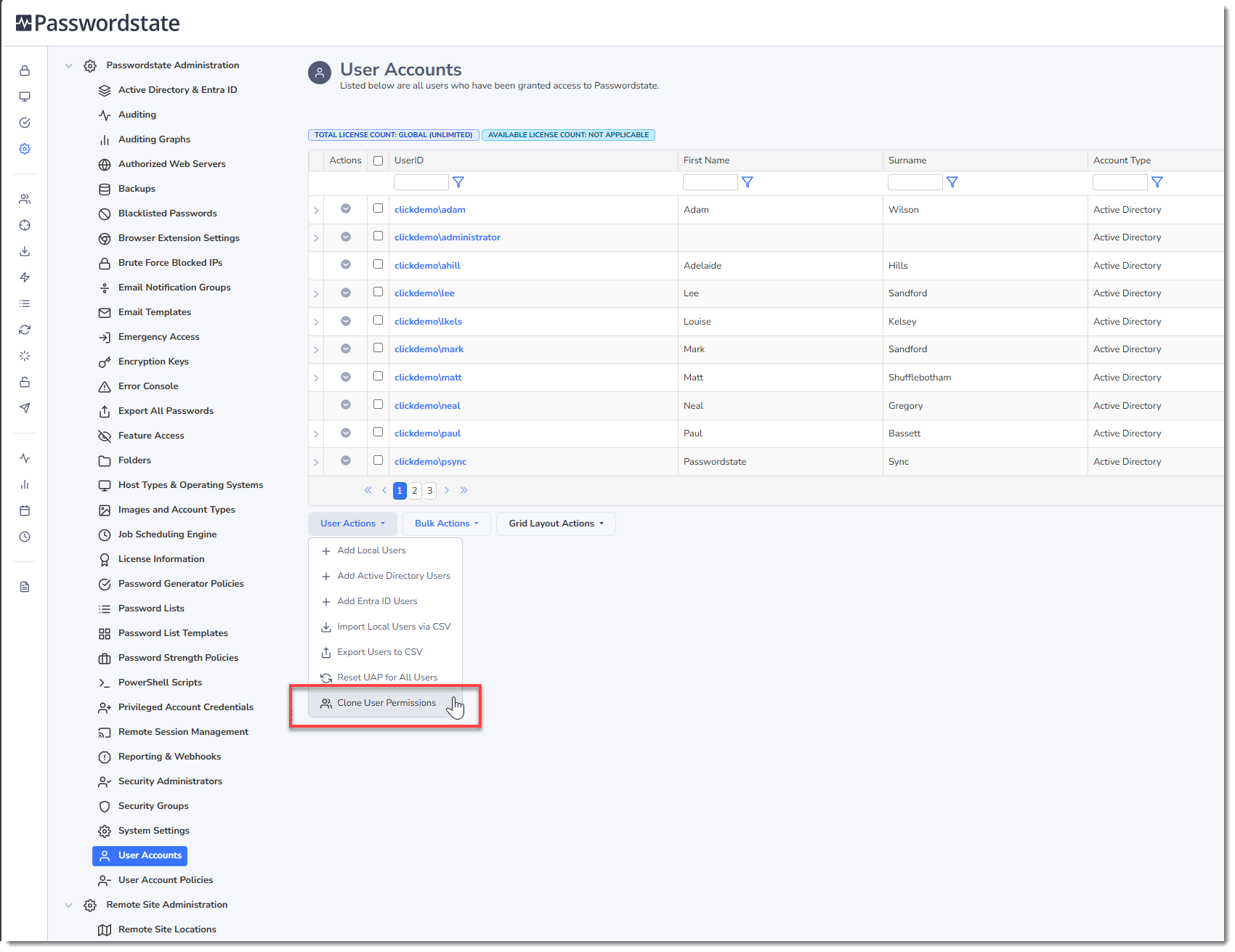
- Adding them one at a time manually from the User Actions button in the screenshot below
- Importing them from a csv file, as initiated from the User Actions button below
- When an Active Directory or Entra ID Security Group is synchronized from the Administration -> Security Groups screen
- Via a script using the API (Application Programming Interface)
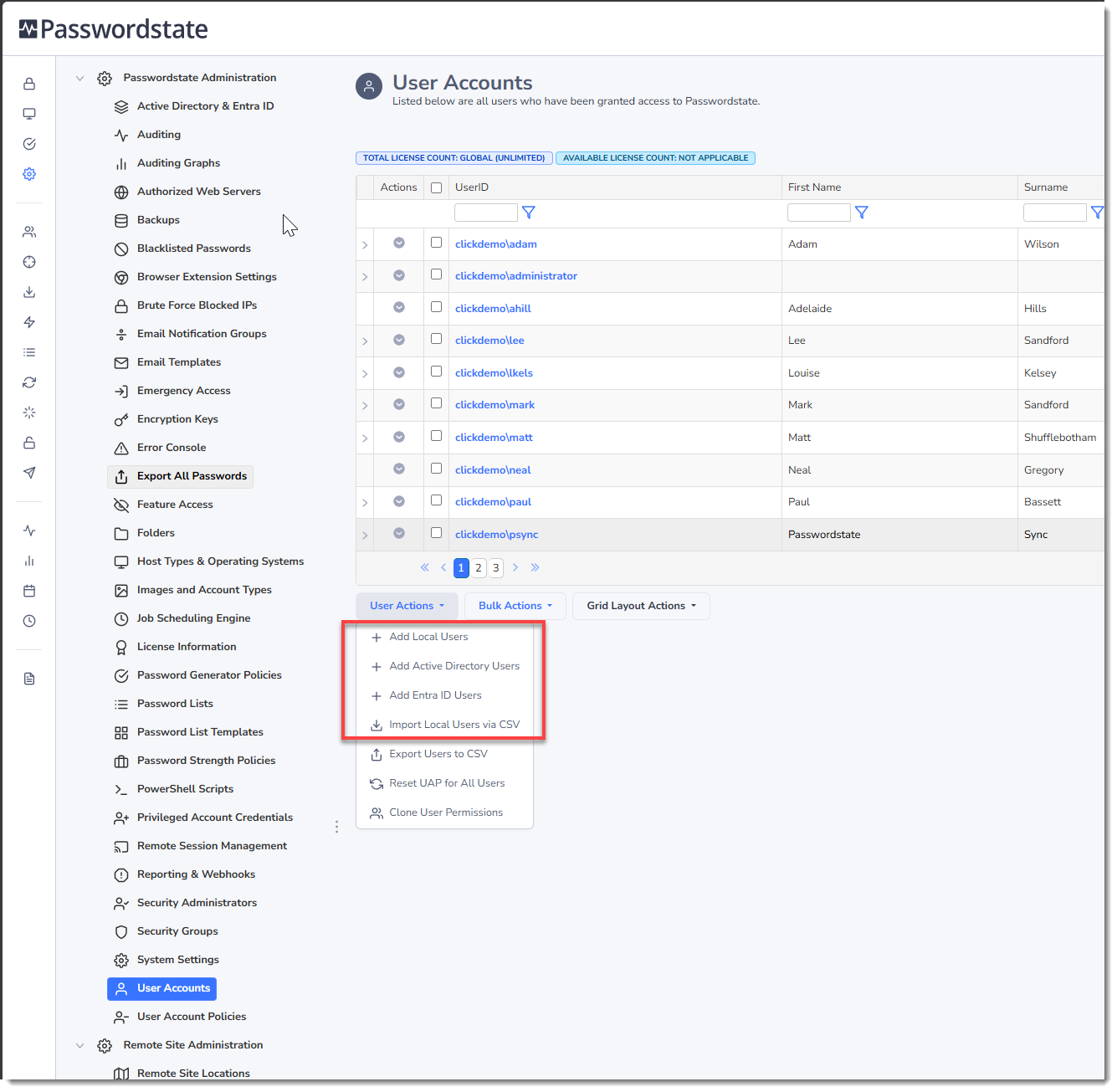
Note: When you first add a user's account to Passwordstate, they will receive an email informing them they have access, and what URL to access the site with - assuming the email notifications are set up correctly within the system.
Local Login Accounts
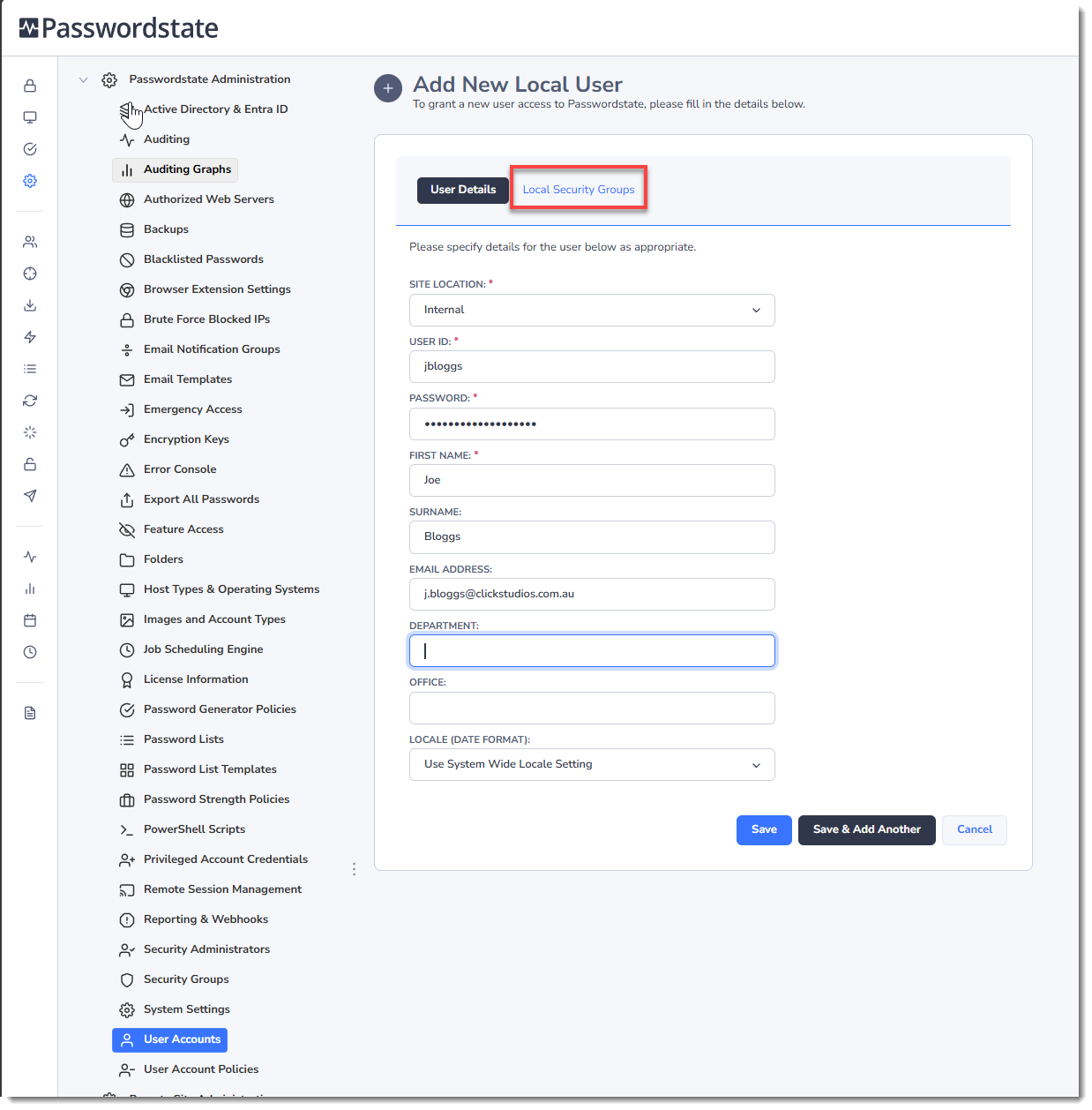
When adding in a Local Account, you set the user ID to any value of your choice, and set a password that the user will use to log in with for the first time. This password is stored in Passwordstate, and the user can update their password at any stage from their own personal Preferences screen. The user will also be forced to reset their password when logging in for the first time.
You can also immediately add the new user to any Local Security Groups you may have in the system at this time:
Active Directory and Entra ID Accounts
When adding in Active Directory or Entra ID accounts, the following attributes for the accounts are synchronised into Passwordstate. Note that the passwords for these accounts are never stored within Passwordstate.
| Active Directory | Entra ID |
|---|---|
| GivenName | First Name |
| SN (Surname) | Last Name |
| userPrincipalName | User Principal Name |
| Email Address | |
| department | Department |
| physicalDeliveryOffice | Office |
| ObjectSID | Object ID |
User Account Actions Menu
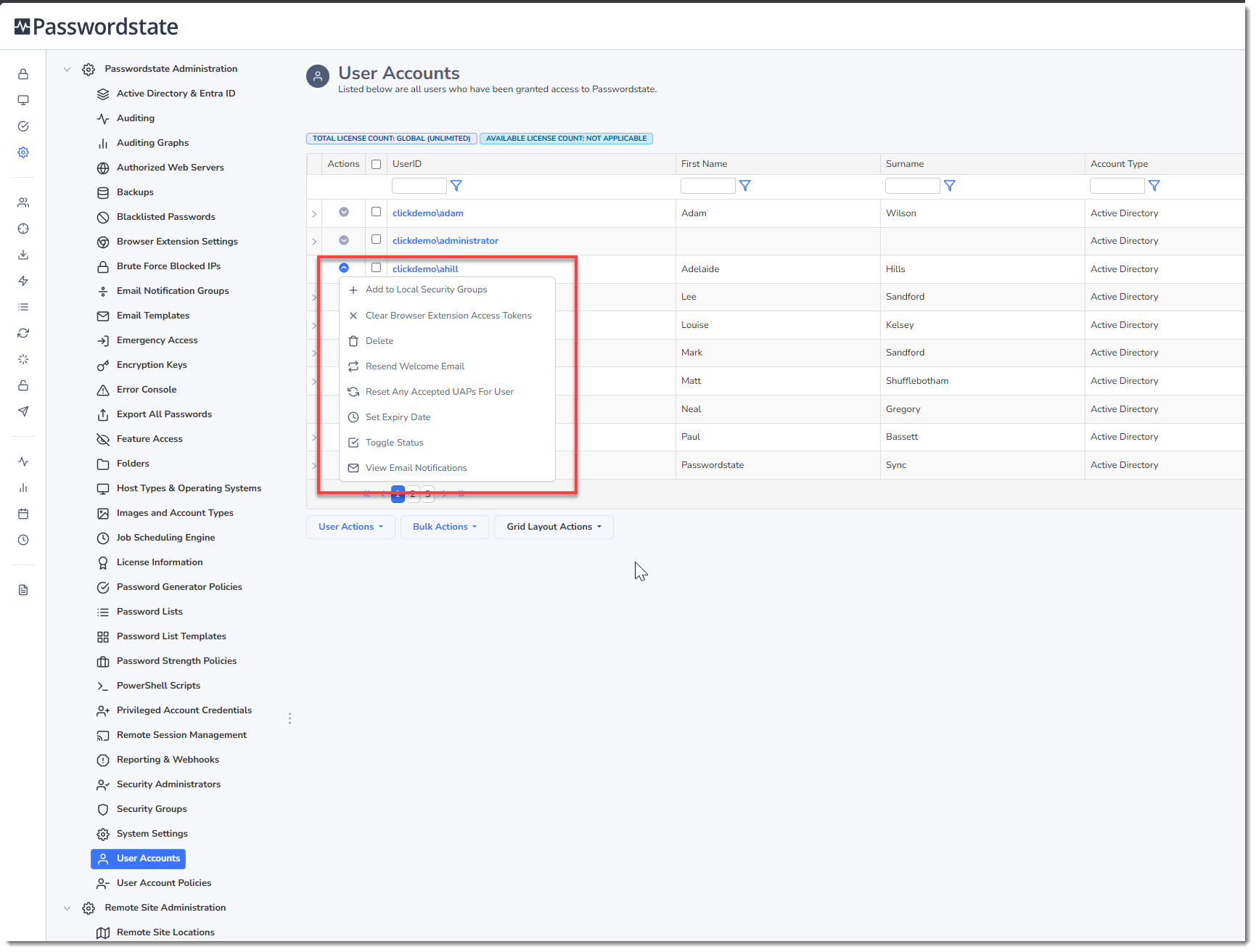
The following Actions menu items are available for a user's account:
- Add to Local Security Groups - As implied, this screen allows you to quickly add the user to one or more Local Security Groups in Passwordstate
- Clear Browser Extension Access Tokens - This setting immediately logs the user out of the Browser Extension, requiring them to log back in to the extension again if they wish to use it.
- Delete - Deleting a user's account will remove all access for them, and will also delete any Private Password List if they have any in the system. Use with caution.
- Resend Welcome Email - if you need to resend the initial Welcome email to the user (the email they first receive when their account is first added to Passwordstate), then you can use this menu item
- Reset any Accepted UAPs for User - If needed, it's possible to reset the 'accepted' status of the User Acceptance Policy for a user. The User Acceptance Policy can be configured on the screen System Settings -> User Acceptance Policy tab
- Set Expiry Date - it is possible to set a date in which the user's account can either by disabled, or deleted from Passwordstate. This is a useful feature if you know an employee is leaving the organization on a specific date
- Toggle Status - Enabled or Disabled - this will either enable or disable the user's account, preventing them from accessing the Passwordstate website. Disabling a user account frees up a license.
- View Email Notifications - allows you to enable/disable email notifications for the user, assuming an Email Notification Group hasn't been applied to their account from the Administration -> Email Notifications Groups page
Note 1: The status (enabled or disabled) of a user's account may also change depending on the Active Directory synchronization settings on the screen Administration -> System Settings -> Active Directory & Entra ID tab.
Note 2: When a user's account has been disabled, it no longer counts towards the number of licenses used.
Editing User Account Settings
By clicking on the UserID hyperlink in the grid, you will be directed to a screen where you can edit multiple properties for the user's account.
Note 1: Any changes to a user's account will not be in effect until the user logs off, then back in to the Passwordstate website.
Note 2: The Miscellaneous, Email Notifications and Authentication Options tabs are almost identical to what the user sees when they view their own Preferences.
Note 3: User Account Policies may override any number of settings for the user, in which case the relevant controls on each of the tabs will be disabled.
Account Details Tab
The Account Details Tab has some basic information about the user's account which you can edit, but should rarely need to be touched.
Note: At this stage it's not possible to rename a user's UserID value due to the way this field is encrypted throughout a lot of the tables in the Passwordstate database.
Miscellaneous Tab
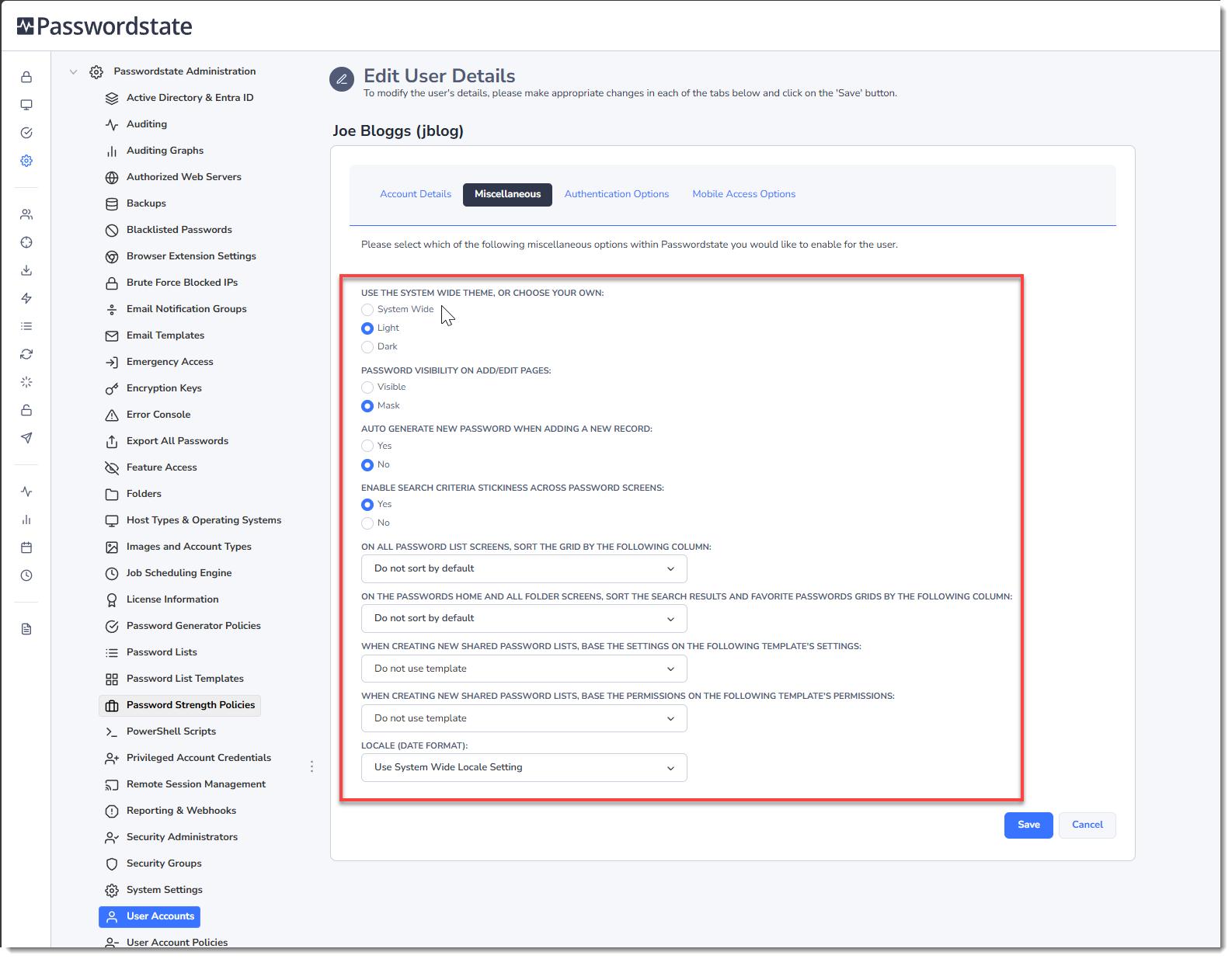
The Miscellaneous tab has the following settings you can choose for the user:
| Menu Item | Description |
|---|---|
| Use the System Wide theme, or choose your own | Display the Passwordstate website in Light or Dark mode, or just use the System Wide value |
| Password Visibility on Add/View/Edit Pages | When you add a new Password or edit an existing one, by default the password value is masked i.e. ****** If you choose, you can instead show the password value instead of the masked one |
| Auto Generate New Password When Adding a New Record | When adding a new Password record, you can automatically generate a new random password instead of having to specify one yourself. The format/complexity of the new random password will be determined by which Password Generator Policy is applied to the Password List |
| Enable Search Criteria Stickiness Across Password Screens | When using the search textbox found at the top of most Password screens, you can choose to make this search value you type sticky across different Password Lists i.e. if you search for 'test' in one Password List, when you click on another Password List in the Navigation Tree, the contents of the Passwords grid will also be filtered by the term 'test'. You can also clear the search criteria by clicking on the icon |
| On all Password List screens, sort the grid by the following column | If you would like all Password grids to be sorted by default on a selected column, you can choose the column here. Note: this will override you manually sorting a column and then selecting the save the Grid layout |
| On the Passwords Home and all Folder screens, sort the Search Results and Favorite Passwords grids by the following column | Similar to the option above, but this sort order applies to the Search Results and Favorite Passwords grids on the Passwords Home page and and Folder pages |
| When creating new Shared Password Lists, base the settings on the following Template's settings | When creating new Password Lists, you can choose to automatically specify all the settings based on one of the Templates you select here |
| When creating new Shared Password Lists, base the permissions on the following Template's permissions | When creating new Password Lists, you can choose to automatically base all the permissions on one of the Templates you select here |
| Locale (Date Format) | Allows you to specify a date format for any date fields - you may need different format based on your region, compared to that of what Passwordstate is current set to use system wide |
Authentication Options Tab
The Authentication Options tab allows you to:
- Specify which Authentication Option should be used for the user's account - details for each of the different authentication options can be found on the screen System Settings -> Authentication Options tab.
- Varius settings for different authentication options can be manually set on this page, depending on what your company uses to authenticate into Passwordstate with.
- Clearing any One Time Password or Google Authenticator key on this page, will allow the user to generate a new QR code next time they attempt to log into Passwordstate. This option would be used if the user lost their phone, or purchased a new one, and needed to set this two factor authentication up again
Mobile Access Options Tab
The Mobile Access Options tab allows you to control how long the users offline cache can last in their iOS or Android Mobile apps. Once this time expires, all data within their mobile app is wiped, and the user must pair their mobile app with Passwordstate again, to pull down their data.
Clone User Permissions
It's possible to clone one user's permissions to another, by using the 'Clone User Permissions' feature.
Cloning permissions for a user would typically be used if you are migrating the users to a new domain, or to Entra ID as an example
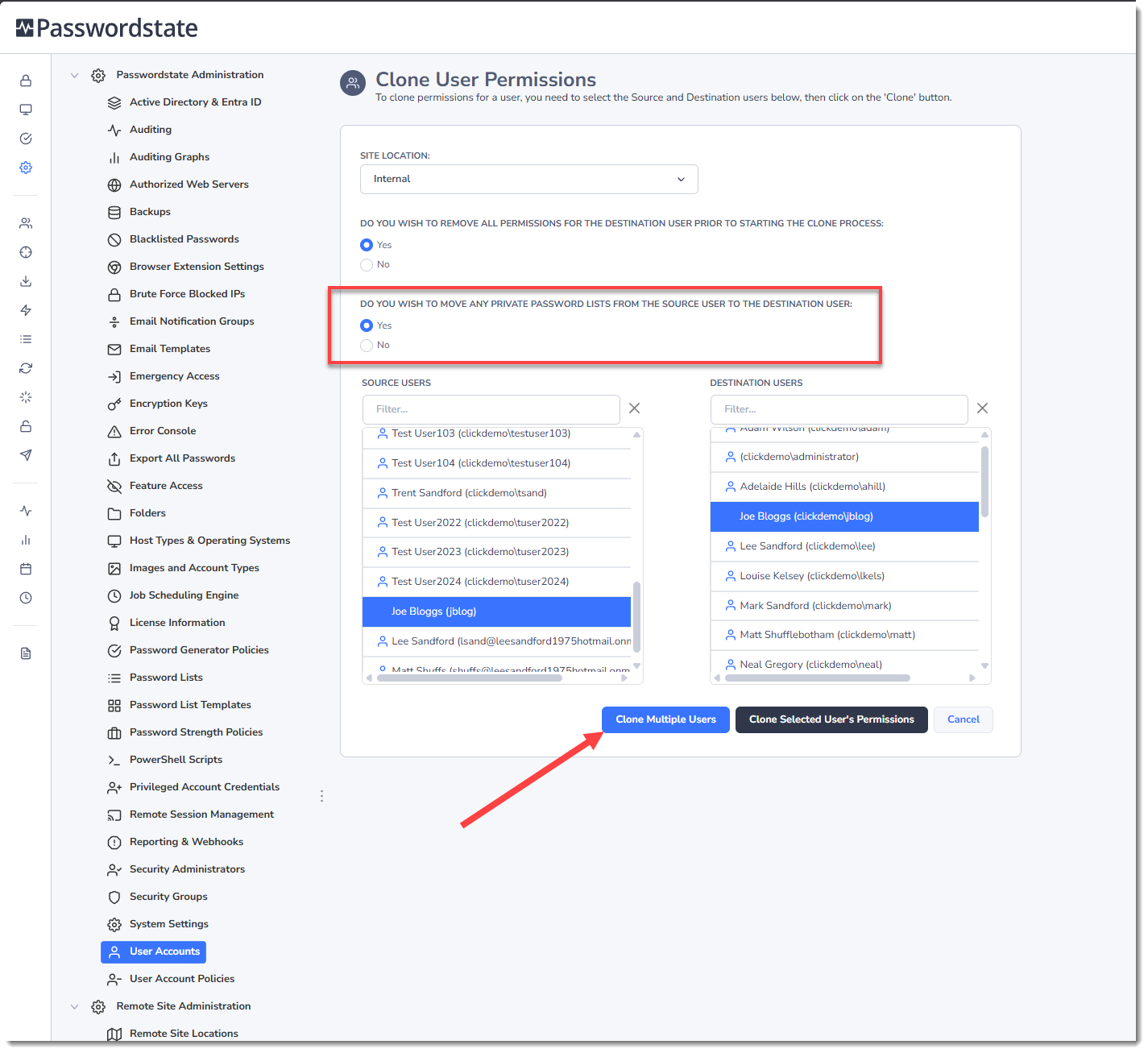
Note 1: When cloning occurs, you have the option of first deleting all the existing permissions the Destination User has, or you can retain them and simply clone across additional permissions.
Note 2: Active Directory or Entra ID Security Group Memberships will not be cloned with this process, as you need to manage these memberships within Active Directory.
During the cloning process, the following types of permissions will be cloned:
- Any Blocked Email Notification settings
- Any memberships to Email Notification Groups
- Any Favorite Passwords
- Any of the Features permissions for what menus the user is allowed access to at the bottom of the screen
- Any Grid Settings – which columns to see, width, etc.
- Any permissions to Shared Password Lists (auditing records are added)
- Any Password Permissions (auditing records are added)
- Any permissions to Password Lists Templates (auditing records are added)
- Any Security Admin Roles (auditing records are added)
- Any membership to Local Security Groups (auditing records are added)
- The expand/collapse status of the Password Lists Navigation Tree
- Any User Account Policy permissions
- Any Scheduled Reports
- Potentially any Private Password Lists the user has
Note 1: If you need to clone more than one user's permissions at a time, you can use the 'Clone Multiple Users' button. This will allow you to import a CSV file to process multiple users.
Note 2: The ability to move Private Password Lists from the source to the destination user is not enabled by default, and is a restricted feature.
Reset Accepted UAPs for All Users
It's also possible to reset the status of accepted User Acceptance Policies for your users as well. It's possible you will want to do this periodically, as you may need to modify the policy based on business requirements. Resetting this accepted value means the user will be prompted again to read and accept the updated policy - assuming you have this option enabled on the System Settings System Settings -> User Acceptance Policy tab . In the User Accounts grid as well, you can see the data and time each of the users last accepted the User Acceptance Policy.
Managed Service Accounts (MSA) and Group Managed Service Accounts (gMSA)
You can also import/add either MSA or gMSA accounts into Passwordstate, and then grant these accounts access to various Password Lists or Password records.
The primary reason you would do this, is to use the service accounts in conjunction with our Windows Integrated API. You cannot log into passwordstate using these types of service accounts, but you can execute PowerShell scripts against the API, under the security context of these accounts.