
Browser Extension Settings
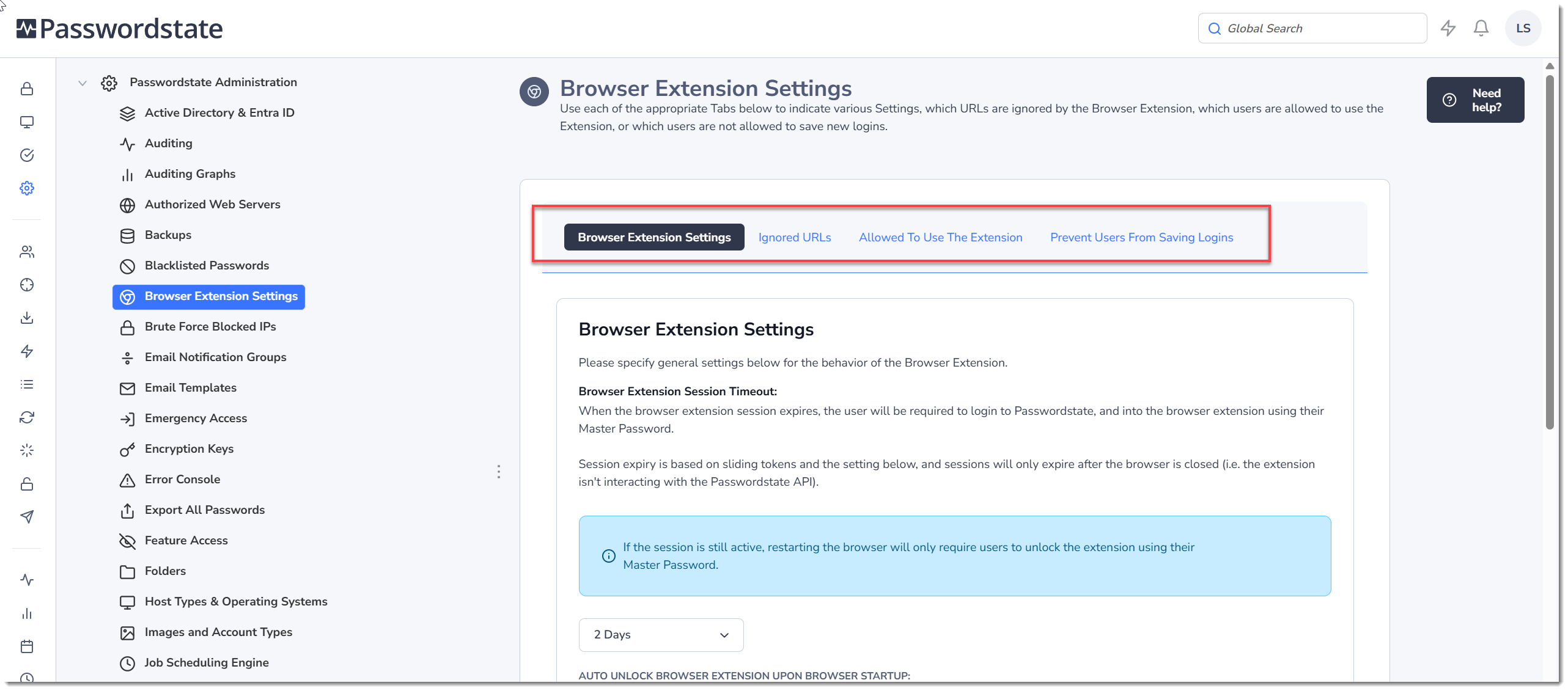
The Browser Extension Settings area allows you to specify various settings, for all users, on how the Browser Extension feature is used. In particular:
- Browser Extension Settings - various settings for session timeout, logging out of the extension, form-filling behaviour, etc. See examples of how Session Timeouts work below the screenshot below.
- Ignored URLs - if you don't want users to save login credentials for certain websites, you can add them as 'Ignored URLs' - this will also prevent automatic form-filling, and the icon overlay on fields
- Allowed to Use the Extension - If you don't want to allow certain users, or members of a security group, to use the Browser Extension feature, then you can specify them on this tab
- Prevent Users From Saving Logins - if you only want certain users to use the Browser Extension to form-fill website logins, and not allow them to save any new records, you can do so on this tab
Important Browser Extension Settings Explained
There are multiple settings which can be selected, to change the behaviour of how authenticated sessions in browser extensions operate. Below are some of the more important settings on this page to help you understand what they do.
Browser Extension Session Timeout
Session Timeout is based on sliding authentication tokens, and how long the users browser has been closed for. By default, if the user leaves their browser open throughout the day, then the extensions will not "lock" due to the browser extension being constantly active. Activity could include the automatic sync which occurs once per hour, or even just retrieving a set of credentials to autofill into a website.
If their browser has been closed longer that the Session Timeout setting, then the users will need to both log into Passwordstate, and then the browser extension with their Master Password, in order to use the extensions again. Below are a few examples of how the session timeout setting could work:
- Scenario 1: Session Timeout set to 1 hour, and browser closed for 30 minutes. User re-opens their browser, and only needs to enter their Master Password to "unlock" the extension
- Scenario 2: Session Timeout set to 1 hour, and browser closed for 2 hours. User re-opens their browser, and will need to log into Passwordstate, and then the browser extension with their Master Password
- Scenario 3: Session Timeout set to 4 hours, and user closes browser at 5pm at the end of the work day. The following morning at 8am, the user re-opens their browser, and will need to log into Passwordstate, and then the browser extension with their Master Password
- Scenario 4: Session Timeout set to 18 hours, and user closes browser at 5pm at the end of the work day. The following morning at 8am, the user re-opens their browser, and only needs to enter their Master Password to "unlock" the extension
- Scenario 5: Session Timeout set to 3 days, and user closes browser at 5pm, on a Friday, at the end of the work day. The following Monday morning at 8am, the user re-opens their browser, and only needs to enter their Master Password to "unlock" the extension.
These timings above are based on the last time authentication tokens were refreshed, which can be at different intervals when the browser is open, based on browser activity.
Auto Unlock Browser Extension upon Browser Startup
With this option set to Yes, the user is not required to enter the Master Password to "unlock" the extension, if their session timeout token is still valid.
In the examples given above for Session Timeout, if the user is required to log both into Passwordstate, and the browser extension, then this option will not change that behaviour.
If you need your browser extensions to communicate to a different URL compared to your main Passwordstate URL, please specify it here
By default, the browser extension uses the Base URL found under Administration -> System Settings -> Miscellaneous. If needed, you can specify a different URL in this field for your browser extensions to connect to. This may be handy with reverse proxies or load balancers as an example.
Various menus in the Browser Extension navigate users back to your Passwordstate Website
In the browser extension user interface, there is an option on the main menu called "Passwordstate Website". Clicking on that button will open a new tab in your browser with your Passwordstate URL, giving your users quick access to the Passwordstate website. This setting can let you control which URL this button redirects the user to.
Clearing Browser Extension Access Tokens
There are two ways to clear Access Tokens used for Browser Extensions. On this screen you can clear all tokens for all user accounts in the system. Or, if you only want to clear an access token for a single user, you can do this from the screen Administration -> User Accounts, and then select the Actions menu for the appropriate user, and select Clear Browser Access Tokens.
Clearing tokens would result in users browser extension automatically logging out, next time the browser extension tries to communicate with Passwordstate, which would happen by simply browsing different websites, or on the default 1 hour automatic synchronization process.