Password Lists
This screen shows all Shared or Private Password Lists created in Passwordstate. The purpose of this page is to allow a Passwordstate Security Administrator to modify settings and permissions on these Password Lists, even if their account has not been granted any kind of access to the Lists under the main Passwords Menu.
Note 1: You can view the owners of any Private Password Lists in the system, but you cannot manage any permissions or settings for these. All you can do form this page is delete a Private List, assuming the owner has left the company as an example.
Note 2: You cannot grant yourself access to any Shared Password Lists you do not already have access to. This is to prevent a Passwordstate Security Administrator from granting themselves access and viewing the passwords from under the main Passwords Menu.
Note 3: When clicking on a Shared Password List, all passwords will be hidden and some features will be disabled for you.
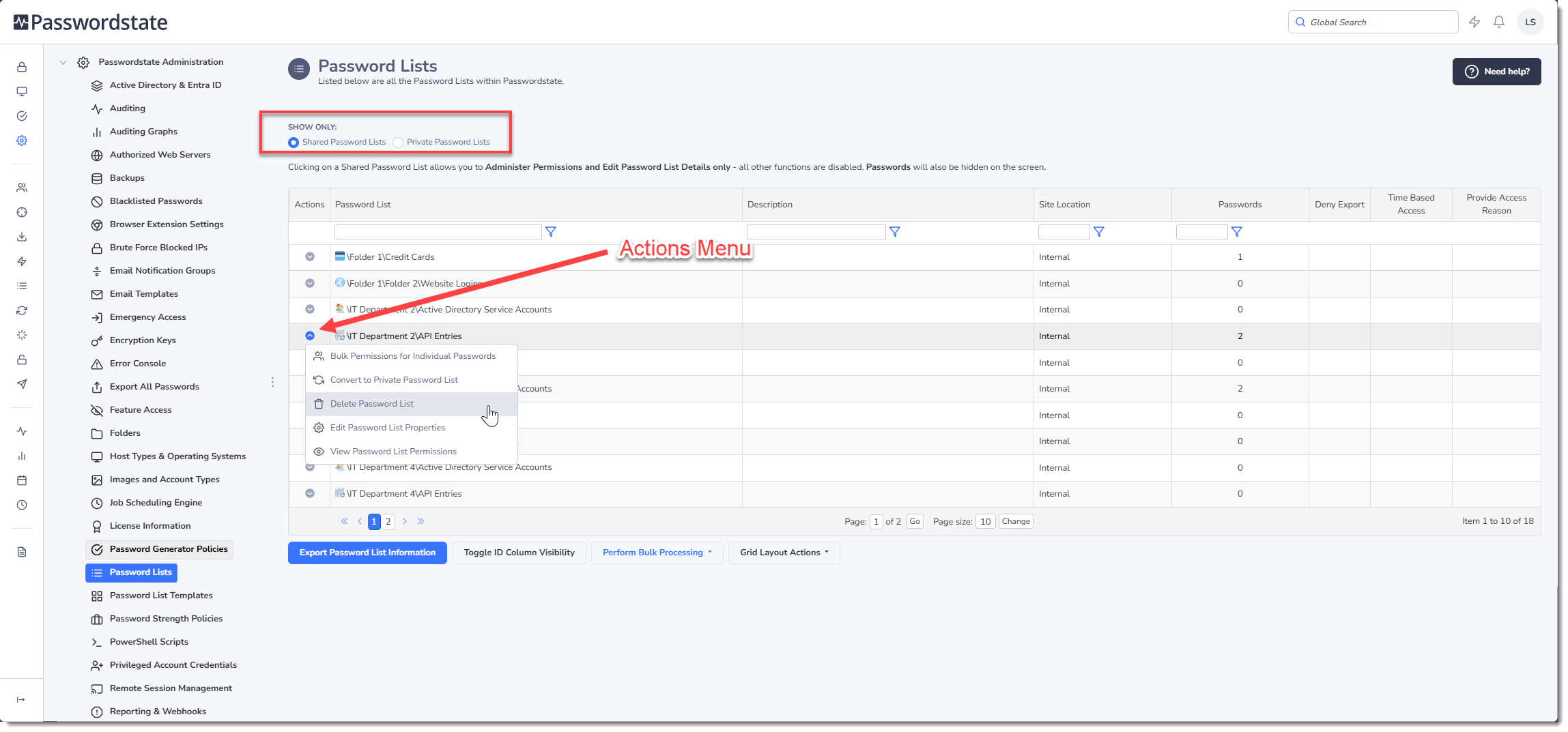
The next few sections of this guide will explain what each Actions Menu button does, and we'll also explore any other options on this page that you can use to administer the Password Lists in the system.
Actions Menu - Bulk Permissions for Individual Passwords
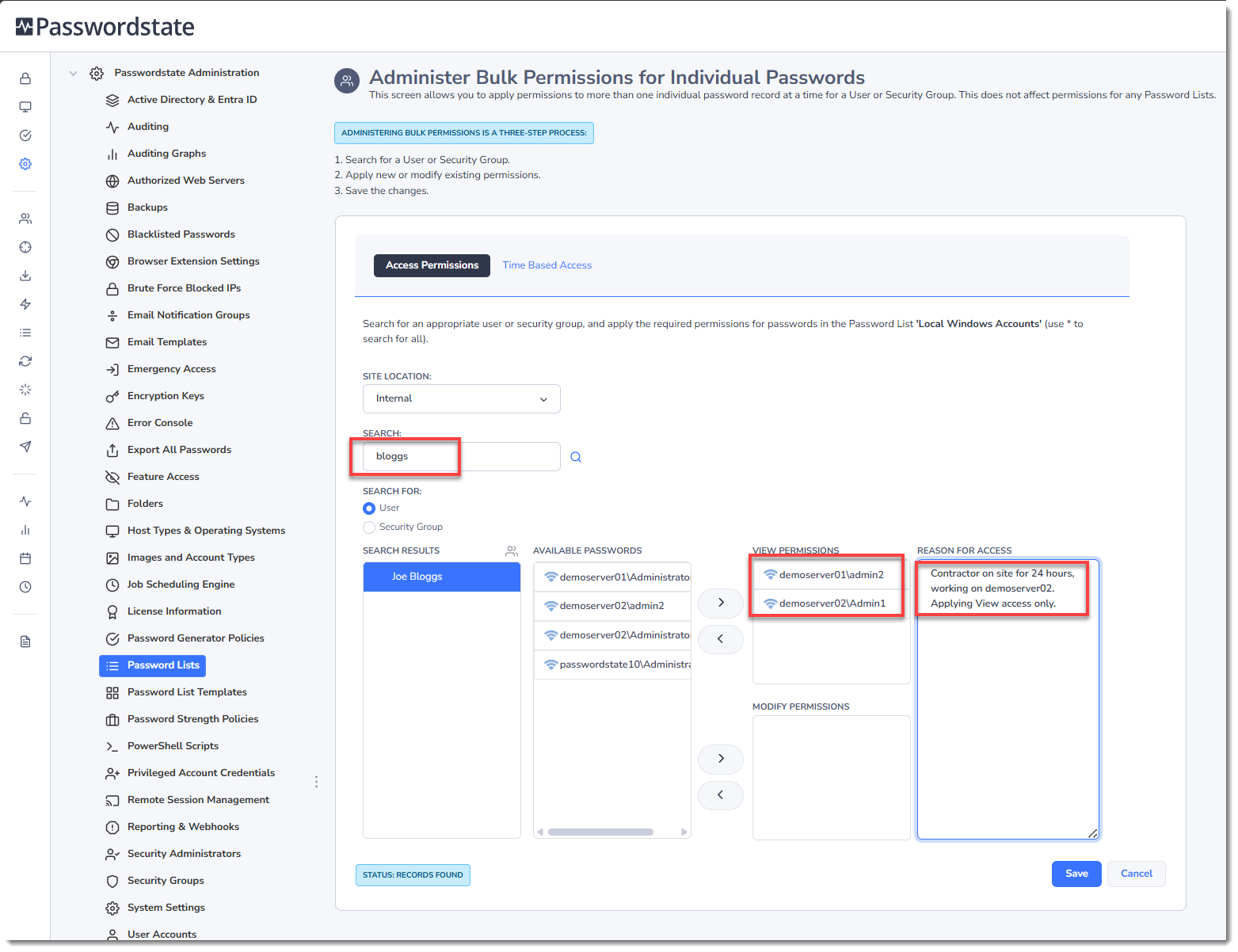
By clicking on the Bulk Permissions for Individual Passwords menu option in the Actions dropdown menu, you will be able to apply permissions for a user account or security group, to multiple individual password records at once.
After selecting an appropriate user, hold Control or Shift to select multiple passwords at once, and then choose whether to give the View, or Modify access. Time Based Access, and Reason for Access are optional settings you can configure during this process.
You can also remove permissions to individual passwords from this page:
Actions Menu - Edit Password List Properties
By clicking on the Edit Password List Properties menu option in the Actions drop-down menu on this page, you will be able to edit Settings for the selected Password List without being able to see any of the passwords it contains.
The benefit of this is you can administer settings on Password Lists for other departments, without having the ability to view any of their sensitive passwords.
Note: Please refer to the Passwordstate User Manual for detailed instructions on settings which can be applied to a Password List or Template.
Actions Menu - View Password List Permissions
By clicking on the View Password List Permissions Action menu, you can view all permissions which are applied to the Shared Password List. From here you can make any number of changes to permissions as required.
Note: Only applicable if using the Standard Permission model, where permissions are applied at a Password List Level, and not using the Advanced Permission model, where permissions are configured on each Folder.
Actions Menu - Convert to Private Password List
Under certain circumstances, you may want to change a Shared Password List into a Private one. An example could be a user has accidentally created a Shared List and started storing all their personal passwords in it, and has put in a request to convert it to a Private List, so no other users can gain access to their passwords.
Warning: Please use this feature with caution, as it is an irreversible process once complete - you will need to restore a copy of your database if you wish to undo any changes with this feature.
In order to use this feature, you must first apply permissions to only the intended recipient of the Private Password List - meaning you must remove all Security Group permissions, and any other user account based permissions which are not appropriate for a Private Password List.
Once permissions are set correctly, leaving only the single user who will be the new owner of the Private List, the following processes on this Password List will occur:
- Delete any permissions applied to any individual password record within the list
- Delete any Favorite password records for the list
- Delete any linkages to Password List Templates
- If any users have the Password List set as their Default Home Page, then it will be changed to the Passwords Home node in the Navigation Tree
- Finally, it will mark the Password List as private
Actions Menu - Delete Password List
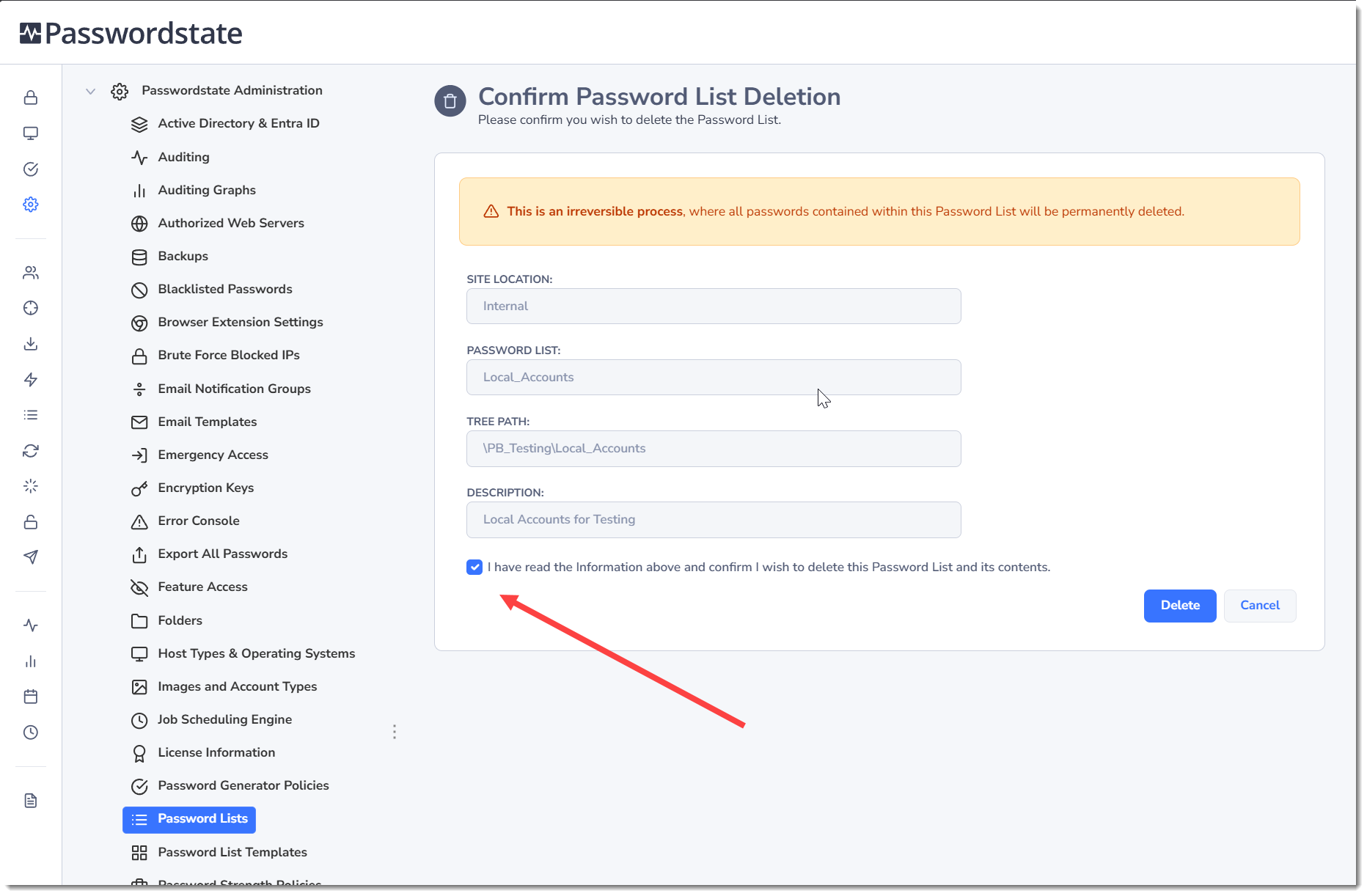
By selecting the Delete Password List menu option in the Actions drop-down menu, you will be given the opportunity to delete the selected Password List. This is an irreversible process once done, and the only way to retore the list is from a backup of your system. You will be asked to confirm the deletion as part of this delete process:
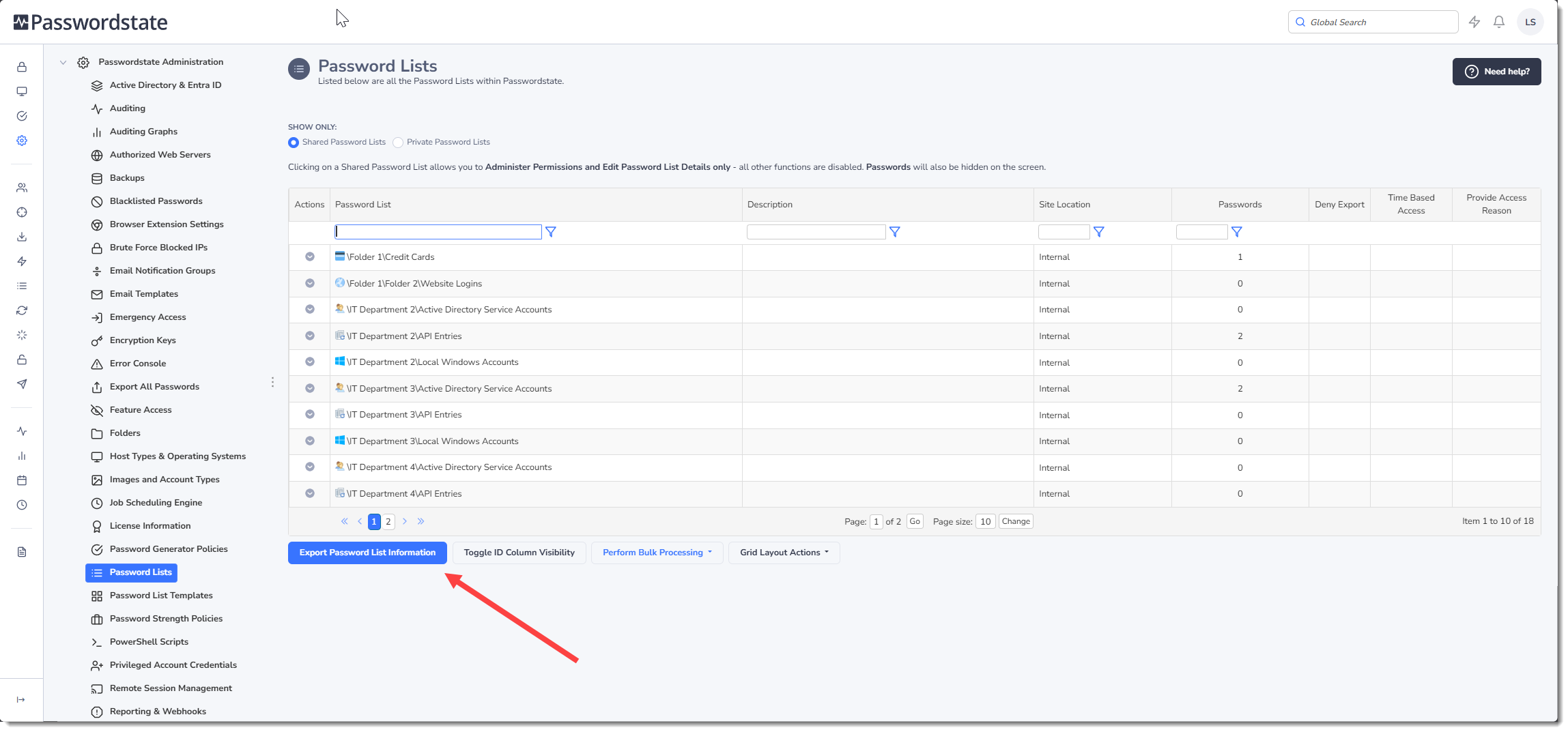
Export
The Export button simply allows you to export the list of Password Lists to a csv file - no passwords are exported during this process, just basic information about the Password Lists themselves.
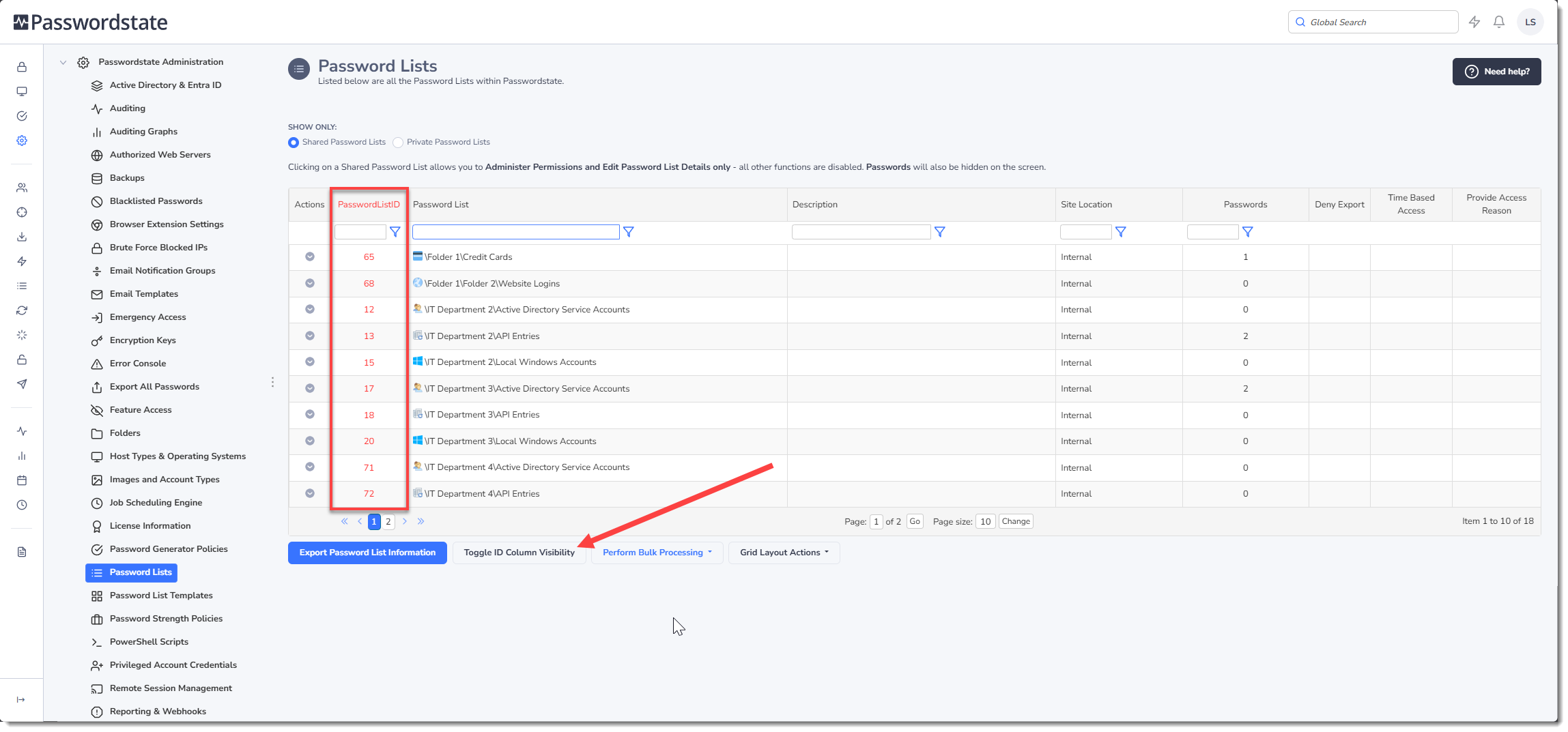
Toggle ID Column Visibility
The Toggle ID Column Visibility button will either show or hide the PasswordListID value for each of the Password Lists. These PasswordListID values may be required if you are using the Passwordstate API, or the Bulk Password Import feature.
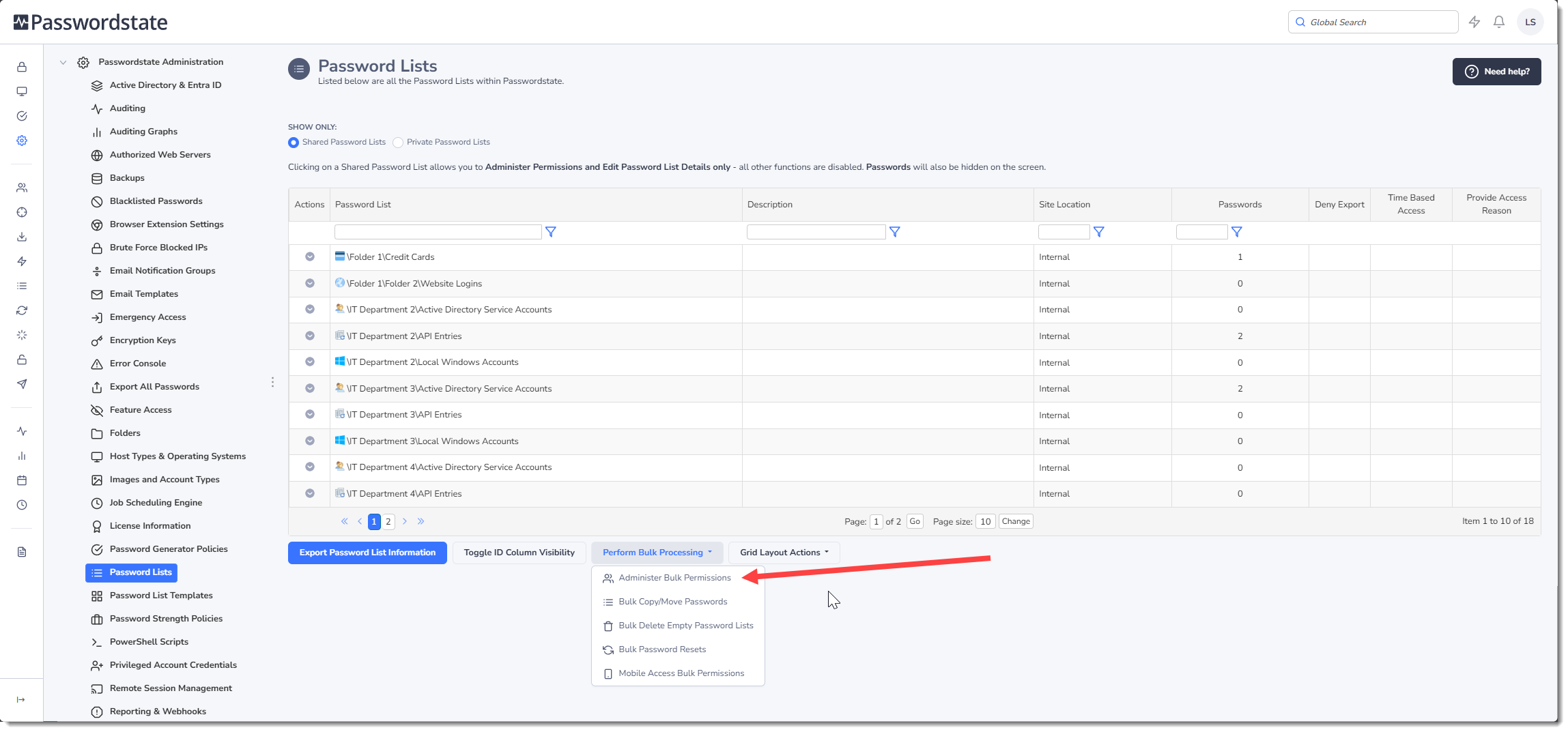
Perform Bulk Processing - Administer Bulk Permissions
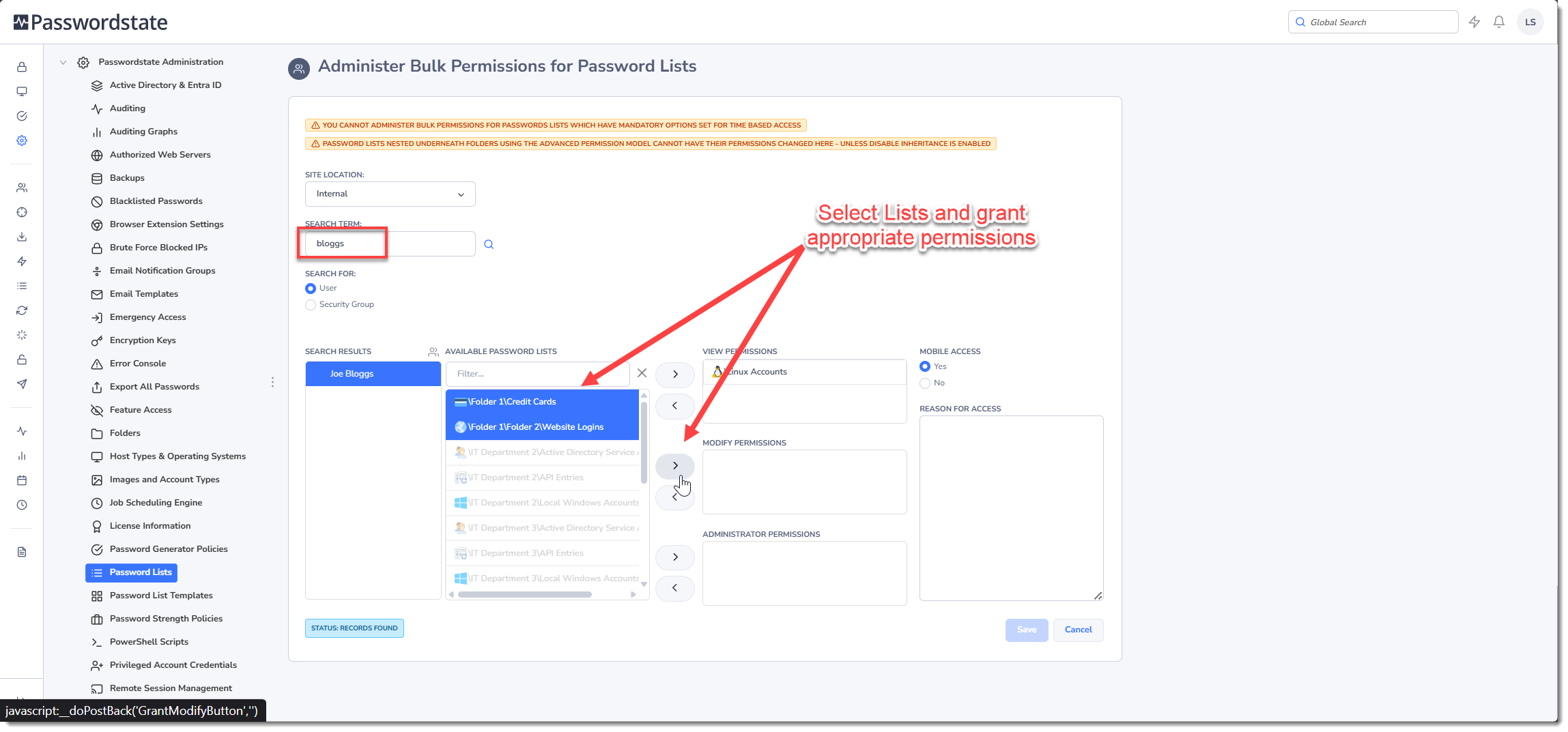
Administer Bulk Permissions allows you to add, remove or change permissions, for a user account or security group to multiple Password Lists at once.
The first step in this process is to search for either a User Account, or a Security Groups. The Available Password Lists listbox will then show which Password Lists the user/security group does not have access to, and the View/Modify/Administrator Permissions listbox shows what Password Lists the user/security group already has access to.
To apply new permissions, or remove existing permissions, simply move the Password Lists between the different listboxes using the various arrow buttons, then click on the Save button.
Note 1: You cannot manage permissions here for Password Lists which have mandatory options set for Time-Based Access.
Note 2: Any Password List that is greyed out on this screen means it has the Advanced Permission model applying to it, which means you cannot modify permissions directly on these Password Lists. These Lists instead inherit their permissions from the folder they are nested in.
Perform Bulk Processing - Bulk Copy/Move Passwords
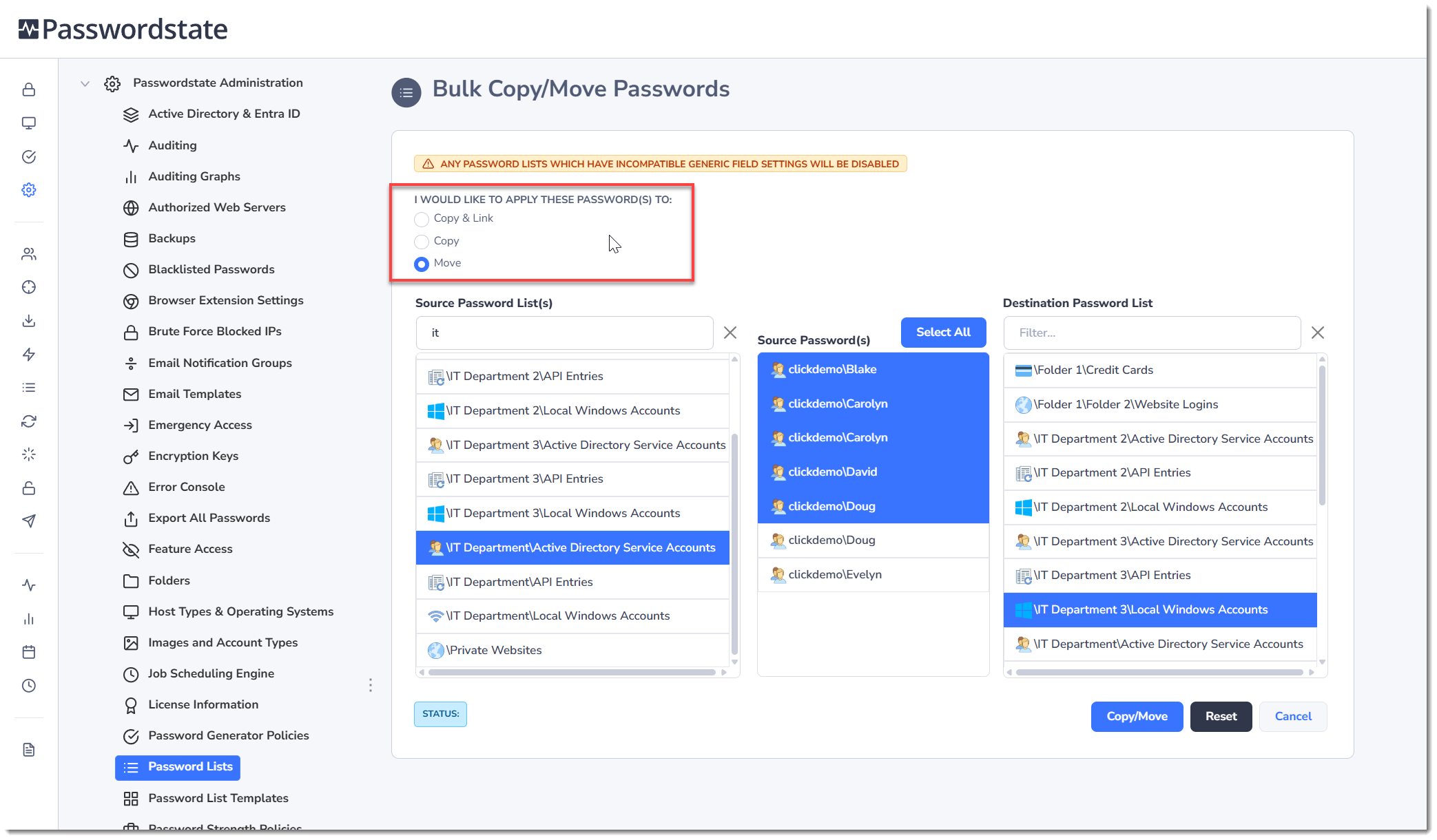
The Bulk Copy/Move Passwords feature allows you to Copy, Move or Copy & Link multiple passwords from a Password List into a different Password List quickly, instead of doing one record at a time which users can do through the Actions Menu on individual password records. This feature is useful if you are reorganizing your Password Lists, and need to move records around en masse.
Note: You can only copy/move records between Password Lists which have similar fields configured. If the fields are not compatible, then the destination Password List will be disabled, preventing you from copying/moving records to it.
When using this feature, first set the action you want to do, such as Copy & Link, Copy or Move. Now you can search for the Password List you wish to move passwords from, and you'll see the passwords appear in the Source Passwords listbox. You can select one or more passwords by holding down the Shift or Control key, and finally choose a destination List to move the passwords to:
Perform Bulk Processing - Bulk Delete Empty Password Lists
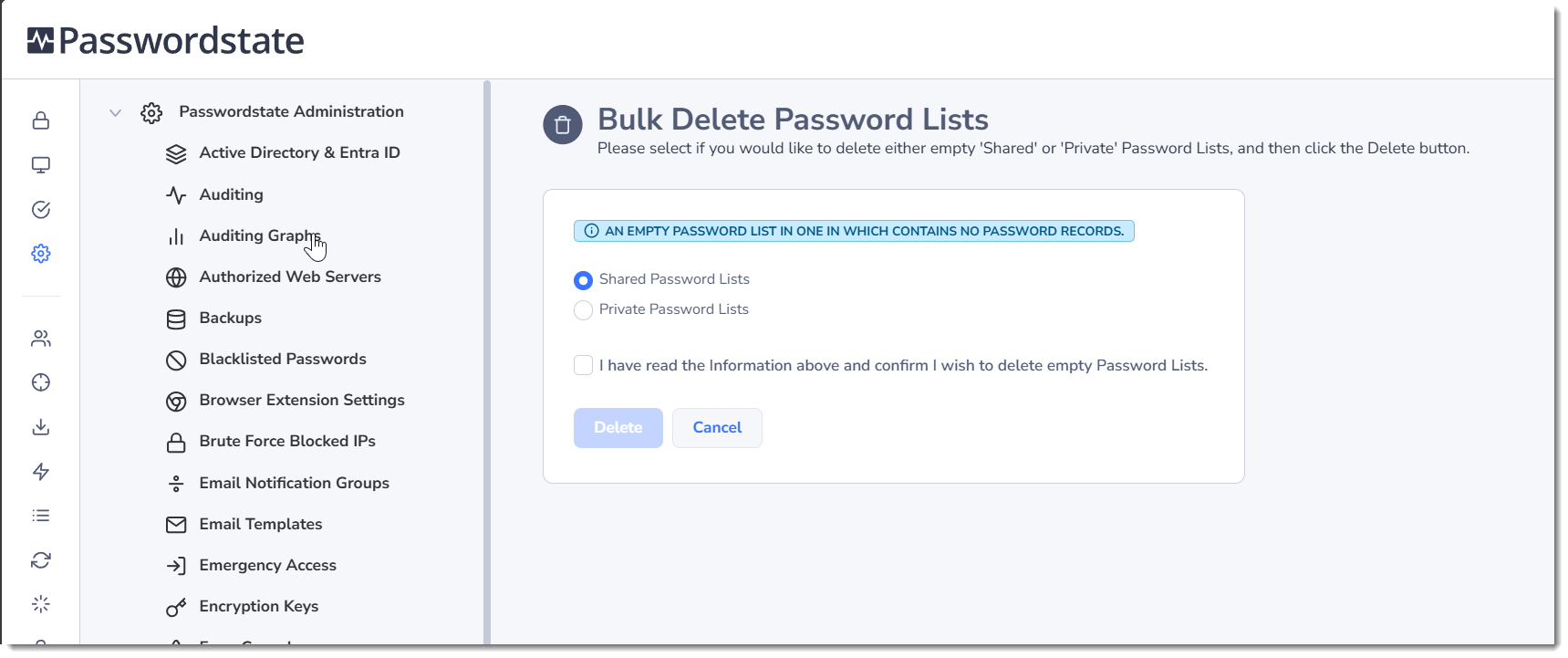
This is a simple function to clean up Password Lists in the system that have no data in them. This can potentially help with performance of your website. You can delete either empty Shared, or Private Lists using this feature:
Perform Bulk Processing - Bulk Password Resets
The Bulk Password Resets features allows you to reset multiple passwords at once, based on a set of criteria of your choice.
This feature is useful if you have an employee leave the company. You can filter on password records the user has access to, as well as ones which are recommended to be reset based on the user's previous activity. i.e. if the user has seen the value of the password since it was last reset.
If the password record is set up for automatic resets, this will also trigger a reset out on the system where it resides. For example, it will update the password in Passwordstate, and also in Active Directory at the same time, if configured correctly.
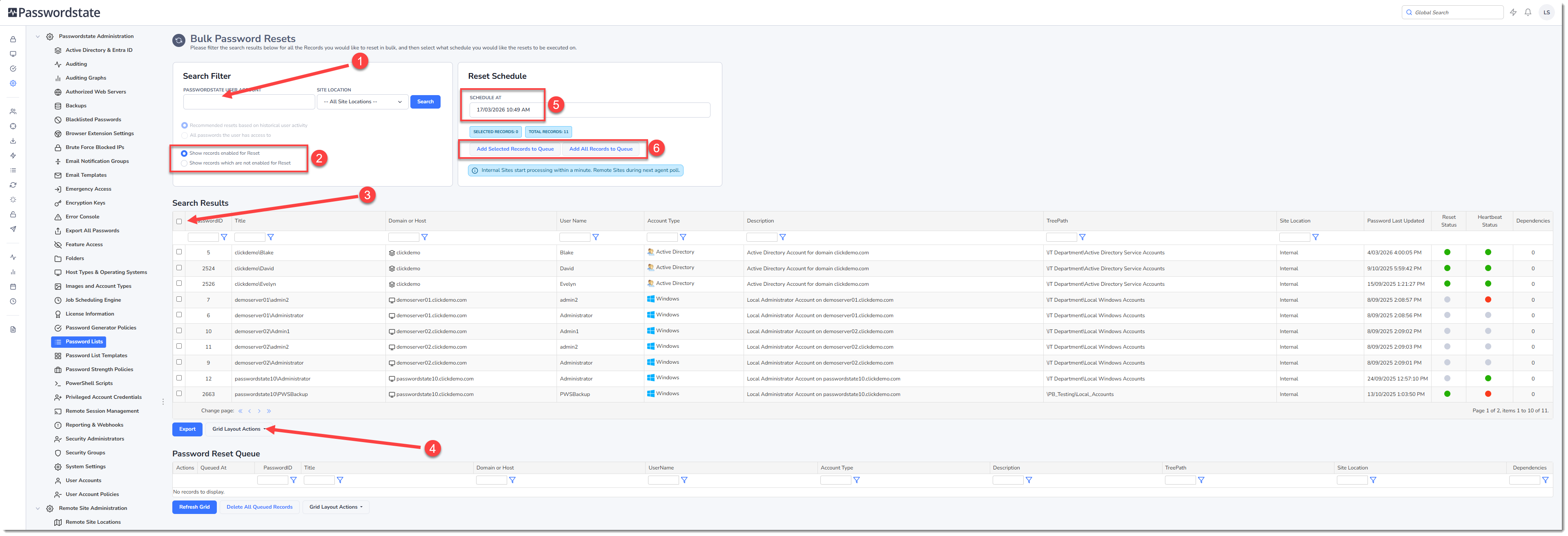
Below is are some tips on how to use this page:
- Optionally filter on a user account
- Show passwords that are either enabled for automatic resets with external systems or not
- Select all records you see on the page
- Display more records on the page, so you can select more at once
- Set the schedule immediately, or some time in the future to perform all the resets
- When hitting either of these buttons, the passwords will be added to the queue and the resets will being as soon as your schedule is met
Perform Bulk Processing - Mobile Access Bulk Permissions
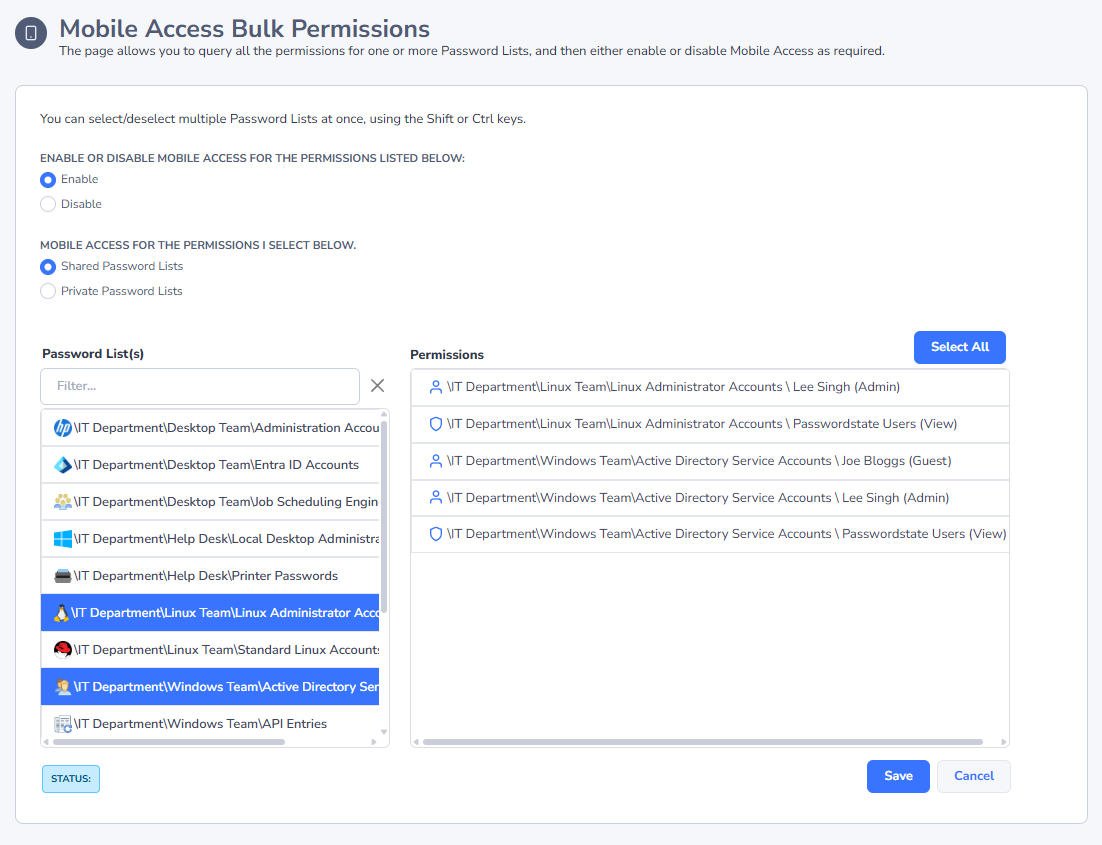
If you need to either enable or disable Mobile Access Permissions quickly, you can use this Mobile Access Bulk Permissions feature.
By default, mobile Access is enabled for all Password Lists. You would disable these mobile permissions if you wanted to prevent users from syncing the passwords in these lists, into their Apple iOS or Android mobile apps.
In this example below, we are enabling mobile access for all passwords in three specific shared password lists: