
Remote Session Management
The Remote Session Management screen has settings related to both Client Based Launcher, and Browser Based Launcher features.
Remote Session Credentials
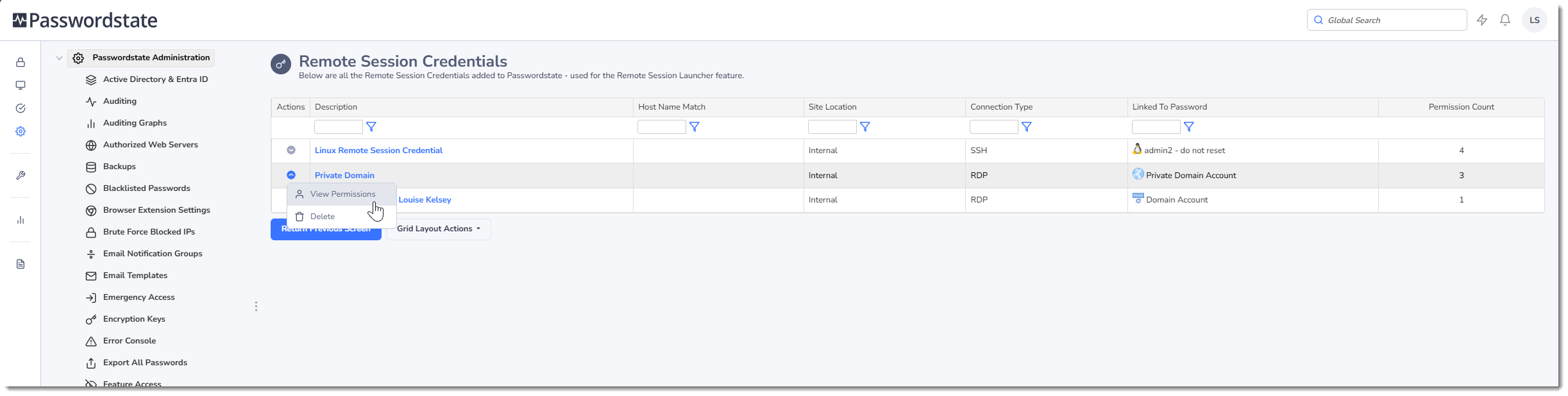
By default, users can add in Remote Session Credentials, which allows them to automatically connect to hosts and servers on their network, and these are added under the Hosts menu. This Remote Sessions Credentials page under the Administration area is used so a Security Administrator can see all Remote Session Credentials which have been added into Passwordstate, regardless of whether their account has been given access to them or not.
The Actions Menu on each Remote Session Credential allows you to Delete the credential, or modify the Permissions on them. Please note, any user you assign permissions to will then be able to use those credentials to connect into machines on your network.
You can also adjust the settings for each Remote Session Credential on this page, by clicking on the Hyperlink of any given entry.
Note: For Remote Session Credentials via this page, if you are changing the 'Link to Credential' field for the record, only Password records that your account has access to will show here - just the same as on the Hosts tab as well.
Recorded Sessions
The Browser Based Launcher has the ability to record sessions. This page is where you will view and play back recorded remote sessions .
You can Delete recorded sessions from this page too, if you no longer require them. By deleting the sessions on this page, this will also delete the related file off disk.
Browser Based gateway Settings
Configure various settings for the Gateway for the browser based version of the Remote Session Launcher. Below is an explanation for some of the important settings:
- Gateway URL - This setting is only required if you have installed the Browser Base Gateway Launcher on a separate server to your main Passwordstate website.
- Gateway Port - When a user launches an RDP or SSH session through their browser, it will need to connect to the Gateway server on this port. The Gateway then reaches out to the remote machine on either port 3389 (RDP) or 22 (SSH). This means the users computer where they are launching the session from does not need direct access to the remote machines they are connecting into on port 3389 or 22. If you change he default port on this page, it must also be updated in the gateway.conf file in your Browser Based Gateway server.
- Folder for Recorded Sessions - If you change the path to the Recorded Sessions on this page, it must also be updated in the Gateway.conf file, where you have the Browser Based Gateway installed. There are three formats you can set this folder Path to:
rec - to save recordings in the default folder of c:\inetpub\passwordstate\hosts\gateway\rec
d:\recordings\passwordstate - to save recordings to a different disk on your Passwordstate web server
//servername/sharename - to save recordings to a network share
- For network share recordings, select a domain account to delete sessions as needed - If you set the option to automatically purge recorded sessions after a certain period of time, you will need to specify an account that has permissions to reach out to your recording path and delete any files from that location. In order to set an account in this setting, you must first create a password record in a Password List under the Passwords tab, and add your account in there. You can then search for that account in this setting.
Passwordstate URL for Gateway Communication
For the Remote Session Launcher to function, it must be able to communicate back to your Passwordstate instance. When using the "Embedded" version of the Gateway i.e. from within your Passwordstate folder, no additional configuration is required here.
If using they Gateway where it is installed externally to Passwordstate, or when using in conjunction with the Remote Site Locations agent, a file called psconfig.js is used which is stored in the /html folder where the gateway is installed. In this instance, the Passwordstate URL is automatically added to this psconfig.js file, and no further configuration is generally required.
If however you need the gateway to communicate back to a alternate Passwordstate URL, possibly because of the use of load balancers or proxies, then you will need to add your alternative URL to this configuration file. This will also work if you are using the "embedded" installation within your normal Passwordstate folder.
Default folder locations for the psconfig.js file are:
- Embedded install in Passwordstate folder: C:\inetpub\Passwordstate\hosts\gateway\html\psconfig.js
- External install to your Passwordstate folder: C:\Program Files (x86)\Passwordstate Remote Session Gateway\gateway\html\psconfig.js
- Remote Site Locations install: C:\Program Files (x86)\Passwordstate Agent\gateway\html\psconfig.js