
Reporting & Webhooks
The Reporting and Webhooks screen is used for three purposes:
- You can run any report immediately from the Standard Reports tab, and get results right within the browser. These results can be exported to a csv file if desired
- The Scheduled Reports tab allows you to see and manage any scheduled report that any user has created, as well as any report that any Security Administrator may have added
- Add or manage Webhooks to be used with third party products
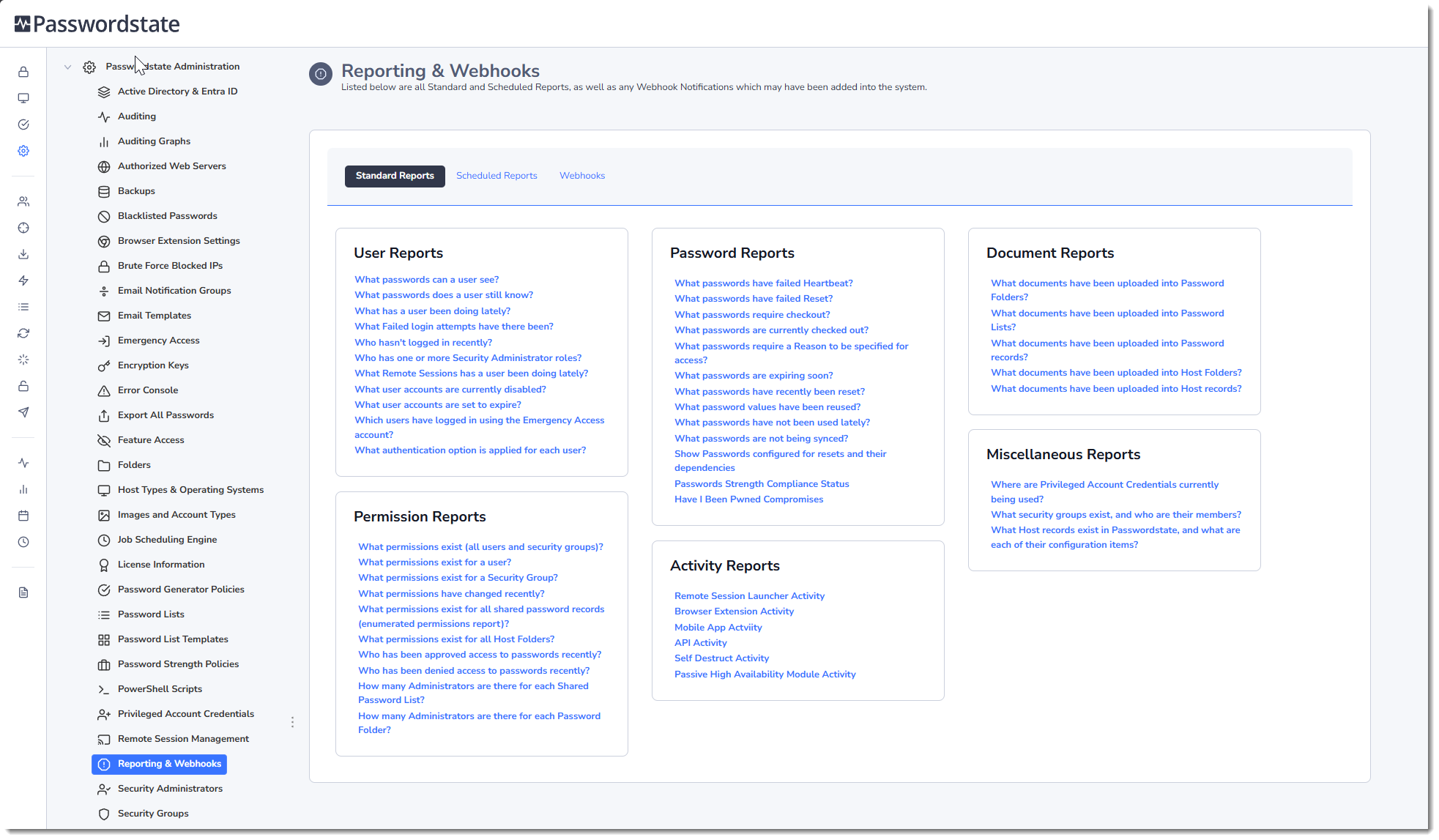
Standard Reports
There are many pre-defined reports you see below which can be run. Each report will allow for different filtering on various fields, and data can also be exported to Excel if required.
Scheduled Reports
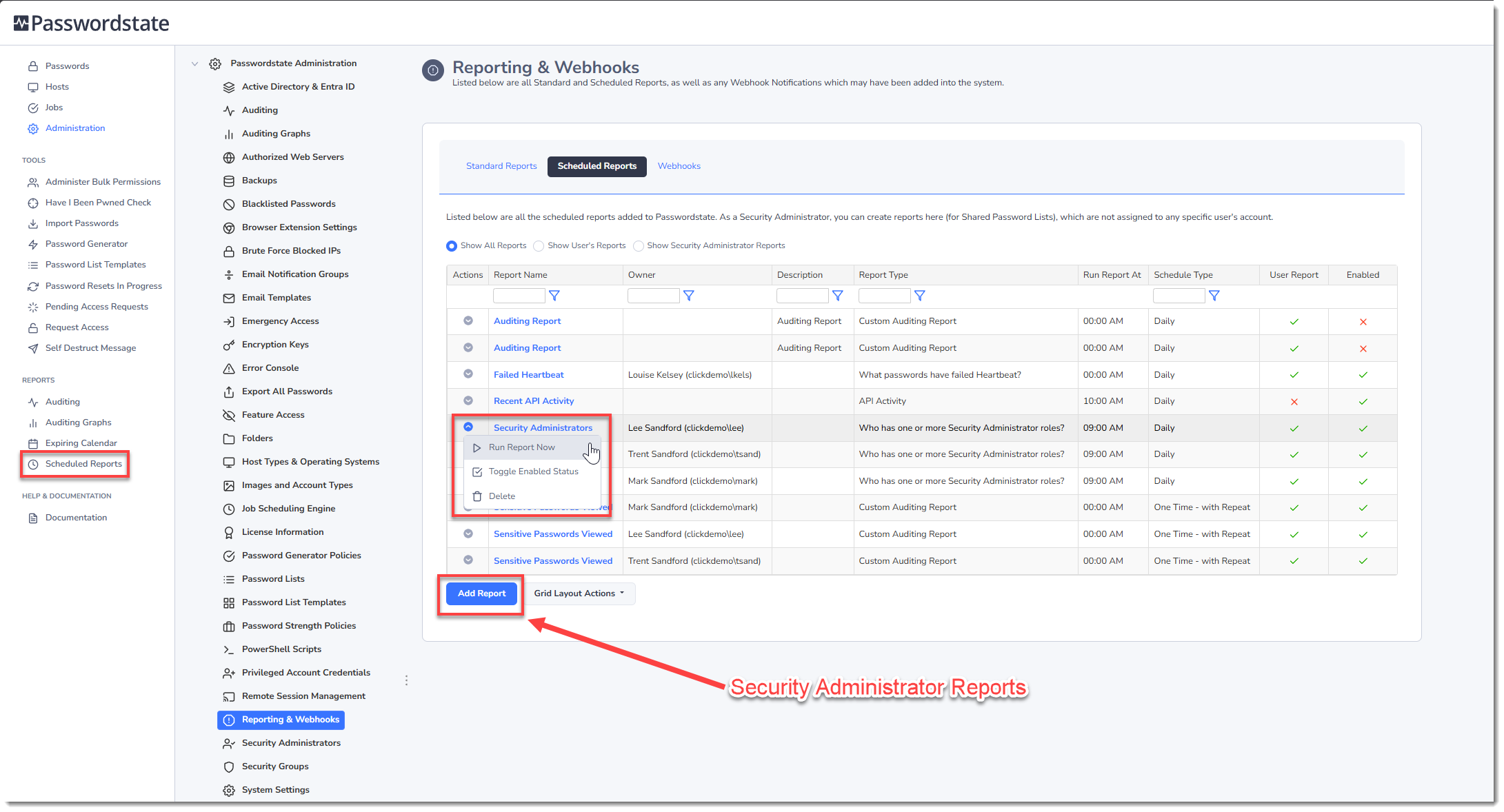
By default, all users who log into Passwordstate will have the ability to set up scheduled reports, from the Scheduled Reports menu in the screenshot below. This Scheduled Reports tab under the Administration area allows you to manage and modify those reports, if required.
Each report can be managed from the Actions Menu, and you have the option to Run the report immediately, Enable or Disable a report, or Delete a report permanently. Clicking on the Report Name will allow you to modify the settings of any existing report.
Report Owners
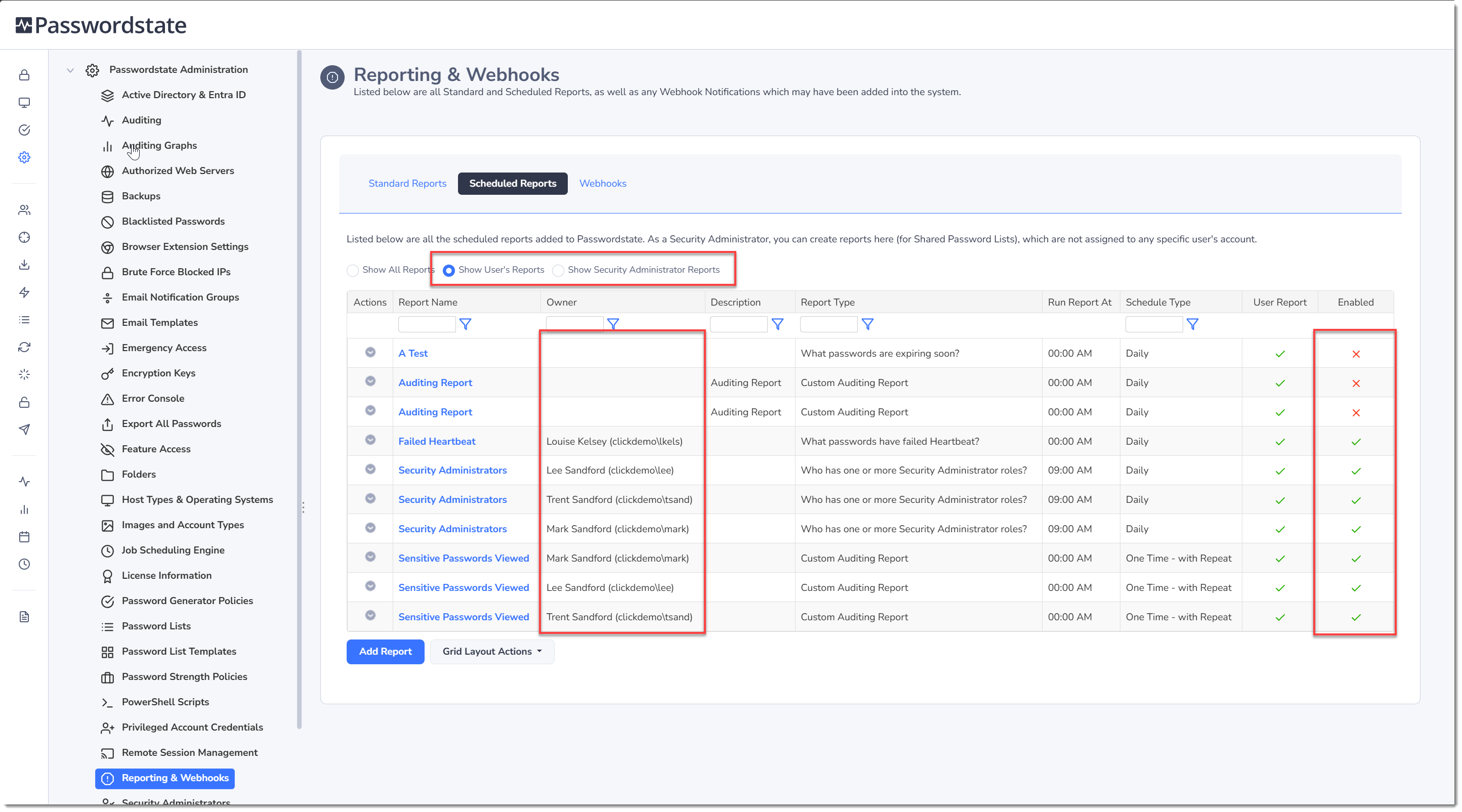
If a report does not have an owner, there are two possible reasons for this:
- The report from created this Administrator page, and is a Security Administrator Report. A Security Administrator is able to create and schedule any report found under the Standard Reports tab, whereas a standard user has limited reports to run. This is because a Security Administrator has complete access to almost everything in the system including backend maintenance of Passwordstate, but a standard user only has access to data such as passwords.
- A Standard User who has previously created a report has left the company, and their user account has been deleted. When a user account is deleted, the report is deliberately left in the system so a Passwordstate Security Administrator can choose what to do with it. They may want to simply delete the report, or perhaps they want to copy the settings of the report, and set it up for another new user.
You can tell if the report is created by a Standard user, or a Passwordstate Security Administrator, by toggling the setting in the screenshot below. This screen also shows you who the owner of the report is, and whether it is enabled or not:
Custom Auditing Report
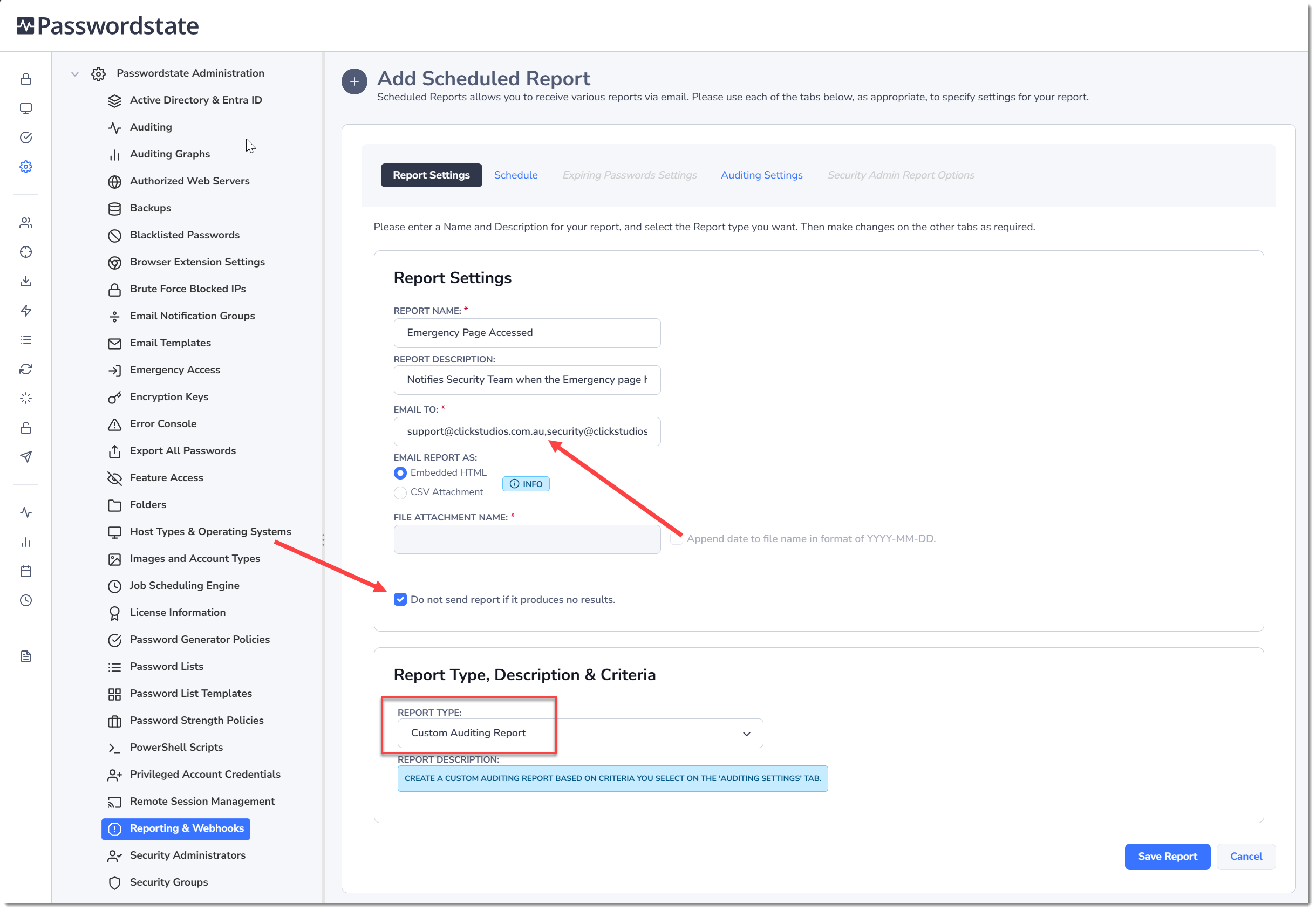
In this section we'll explain how create a Custom Auditing report, which can be quite powerful as you can report on any of the 150+ activities that Passwordstate records. In this example, we'll set up a report that will alert a specific mailbox when the Emergency Page has been accessed.
On the Reporting and Webhooks page, click the Scheduled Reports tab, and then click Add Report. You can now choose the Custom Auditing Report type, give the report a Title and Description, and set one or more Email Addresses you would like the report sent to.
If sending to multiple email addresses, use a comma to separate them. Potentially you can configure a mail box that is linked to your IT Ticket Managing System, so when an email is received from this custom report, it will automatically log a ticket in your ticketing system.
The option to not send the report if it produces no results can be quite handy, if you are running your report frequently. Setting this option really depends on the type of report you are creating.
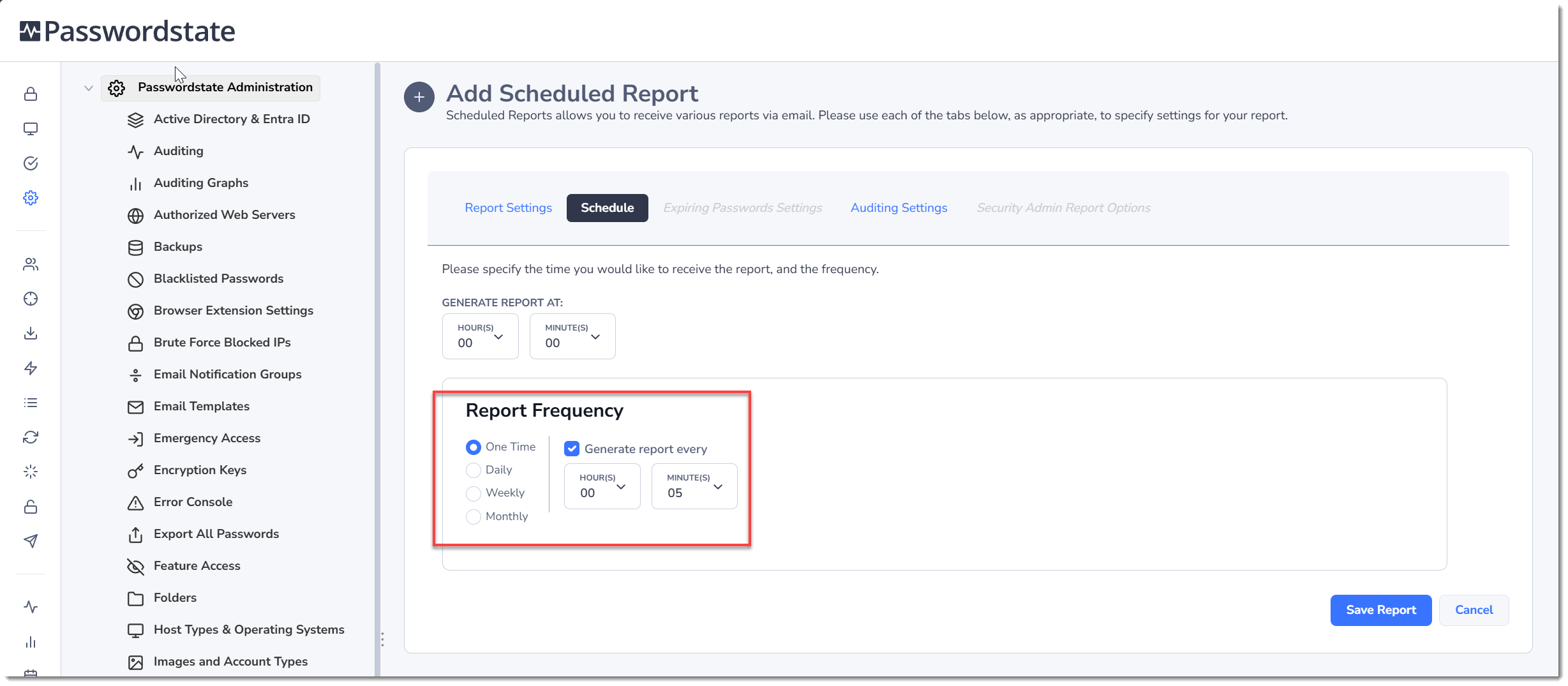
Now we will set up a schedule for the report, and for this particular report we will run it frequently, as we want to know quickly if the Emergency Page has been accessed in any way. Set the Report Frequency to One Time, and generate the report every 5 minutes. With this schedule, the report will run every 5 minutes, but won't actually be sent out to the email address unless the report returns some results.
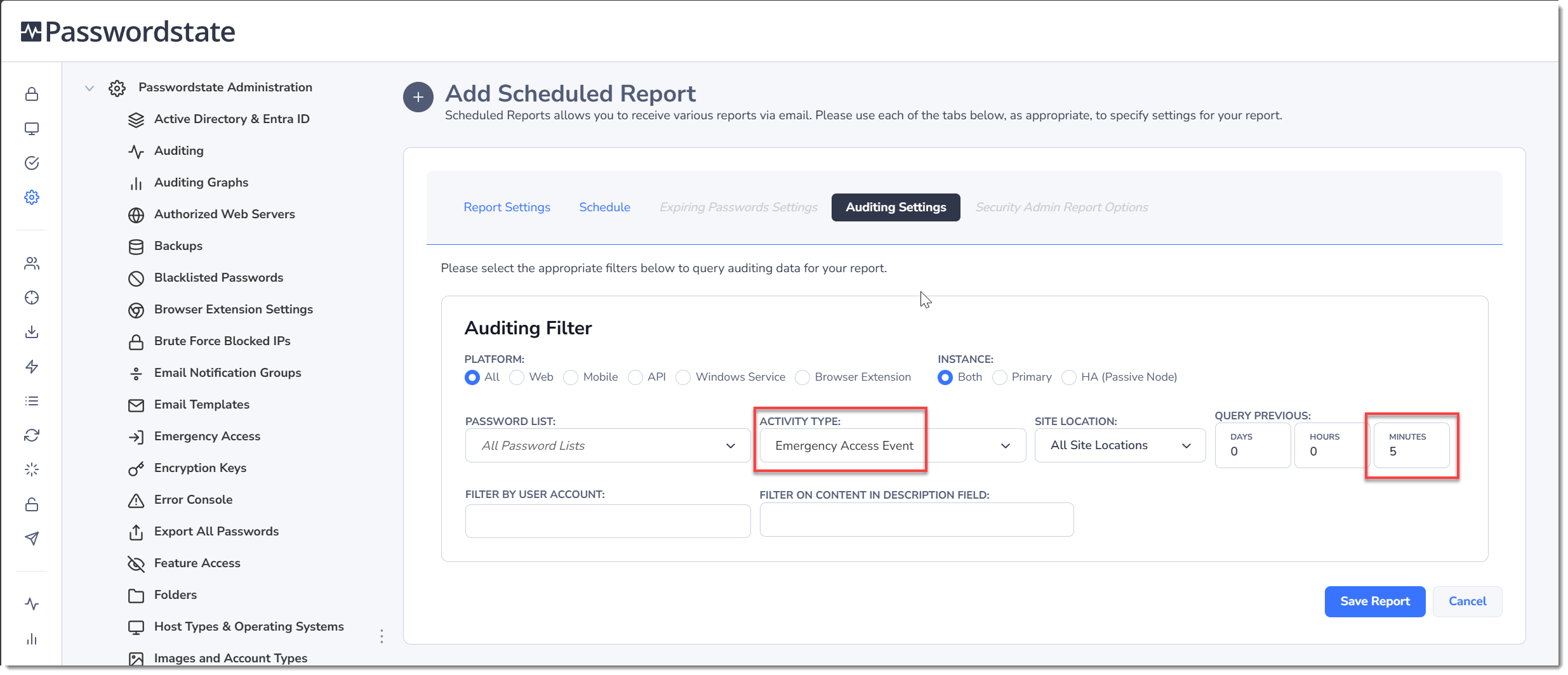
Finally, we configure the Auditing Filter to report on the Emergency Access Event type, and only query the previous 5 minutes of auditing activity. This aligns with the report schedule of every 5 minutes.
The report will not run every 5 minutes, and only email the Security Team and Support team if there has been any kind of activity related to the Emergency access page.
Note 1: No password values are exported in any of the reports on this screen.
Note 2: These reports can also be executed via the API using a script. Check API documentation for how to use this feature.
Webhooks
Passwordstate provides the ability to send selected auditing events directly to external platforms using Webhook integrations. This enables organizations to stream security events, credential activity, and operational alerts into their existing monitoring, automation, and security infrastructure.
By forwarding audit events to webhook providers, enterprises can integrate Passwordstate with security operations platforms, workflow automation tools, incident response systems, or custom applications. This ensures critical password management events are immediately visible across your organization.
Below is an example of how to set up Webhooks in Passwordstate for Slack. For all other third party apps that support Webhook Integration, please refer to their own documentation for how to set this up.
In Slack, create a new channel and give it an appropriate name
Browse to https://api.slack.com/apps?new_app=1 and login with a Slack Administrator, if you aren't logged in already
Click the option to build From Scratch
Give the App a name of your choice, and select the appropriate workplace the App will be created in
In the Basic Information page, set a short description for the App, and select a 512 x 512 pixel icon of your choice
Go to the Incoming Webhooks page, and turn it on
Select the Add New Webhook button, and choose the new channel you created above. Take a copy of the webhook URL that is created for you
Log into Passwordstate, go to the Administration -> Reporting & Webhooks page, and select the Webhooks tab
Click Add Web Hook Notification
Under Webhook Settings, give the Webhook an appropriate name, description and paste in the Webhook URL you copied in Step 7 above
In the Webhook payload field, enter this example JSON object. Note the [description] text in the example below will be replaced by Passwordstate when sending over auditing data to your Slack application.
{
 "text": "[Description]"
}
Click the Auditing Settings tab and filter on any sort of auditing data you like. When someone triggers this auditing activity, the description of this auditing event is what is sent over to your Slack channel. An example of this could be you want your webhook to monitor Emergency Access logins into Passwordstate, this way you can be immediately notified when that event occurs.
Once set up, test triggering the auditing event of your choice within Passwordstate, and you should see that information get sent over to Slack some time in the next 60 - 90 seconds.