SQL Server 2022 Express Installation
Instructions to download and install SQL Express 2022.
Please note these instructions are only a guide. If you have issues installing or using SQL Server, please refer to Microsoft's documentation.
SQL Server 2022 Express Install
Ensure the server you intend to install SQL Express 2022 has access to the internet. Part of this installation process requires SQL to download some source files automatically. If you don’t have internet access, you can run this same installer on another machine that does, but choose the “Download Media” link in the first screenshot below. You can then transfer the full source files to your database server and perform the install manually.
If you haven’t done so already, please download SQL Server 2022 Express installer from the following link - https://www.microsoft.com/en-us/sql-server/sql-server-downloads
Installation Instructions
- Run the SQLServer2022-SSEI-Expr.exe
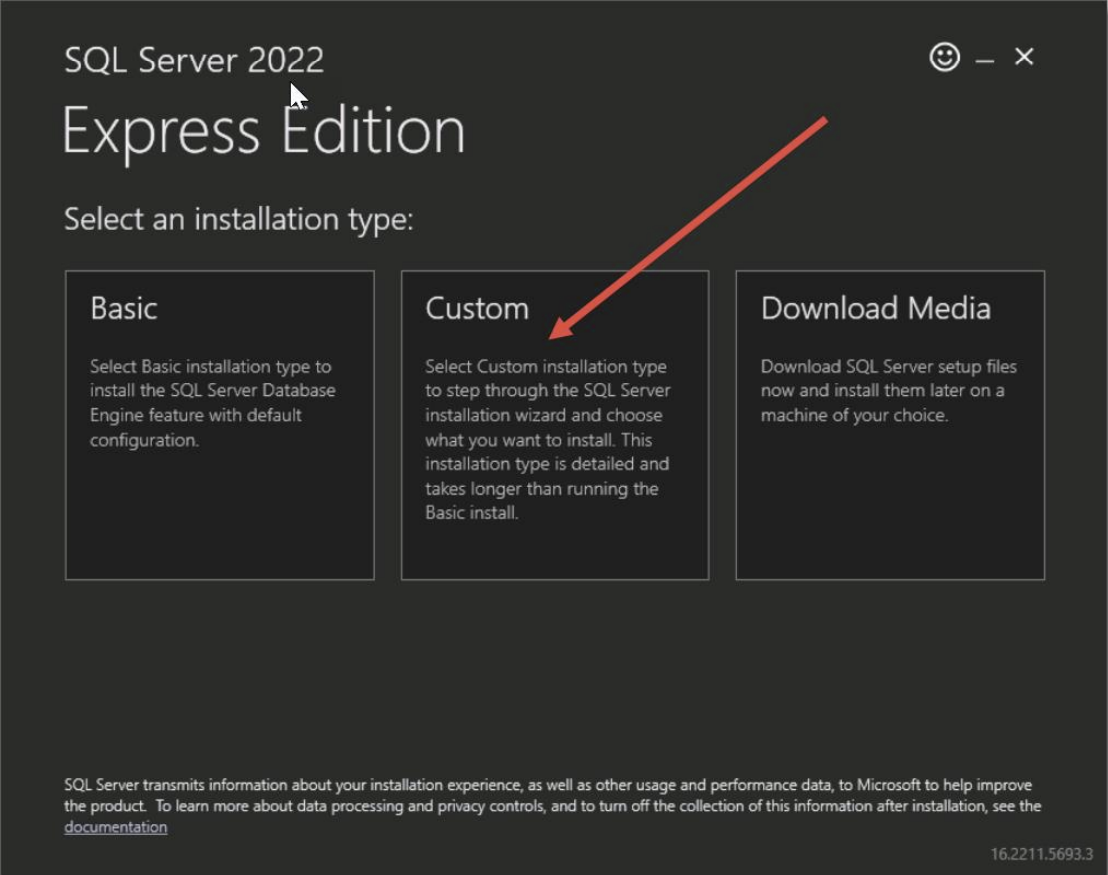
- At the ‘Installation type’ screen, select ‘Custom’
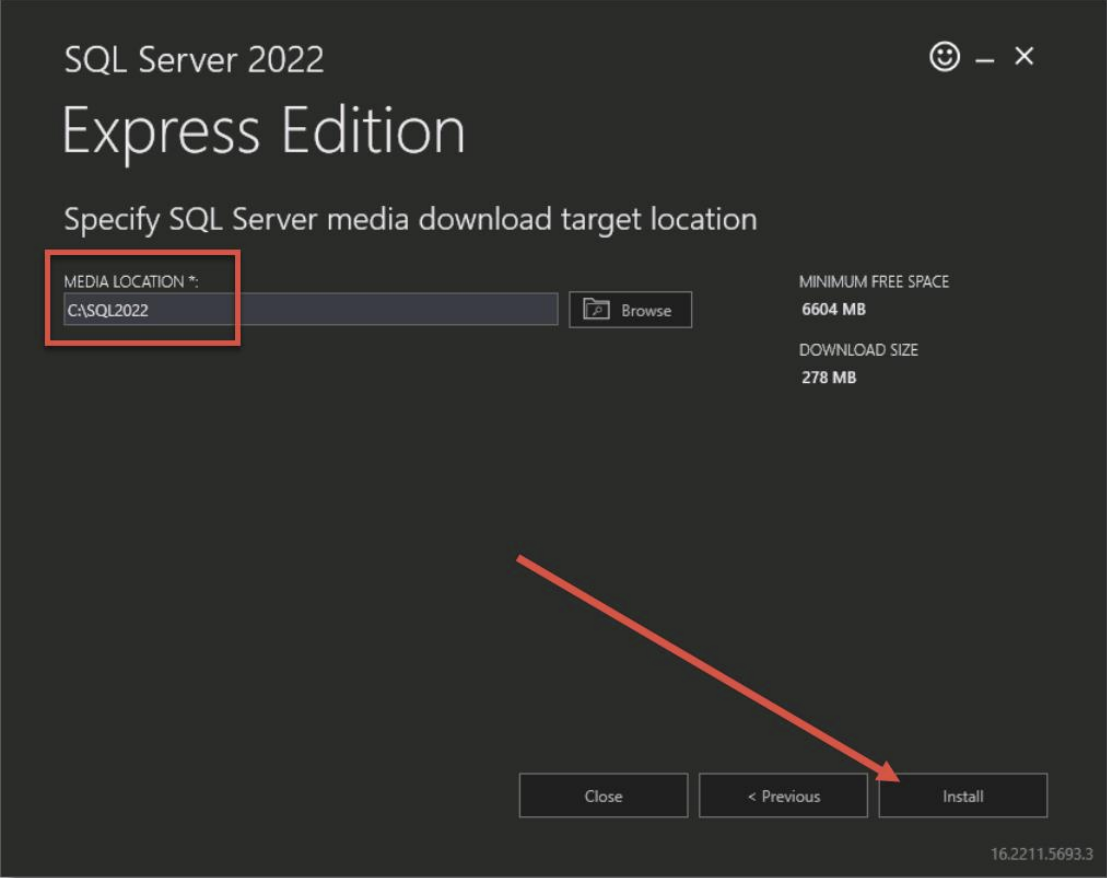
- Choose a location where the SQL 2022 Source files will download to, and click Install:
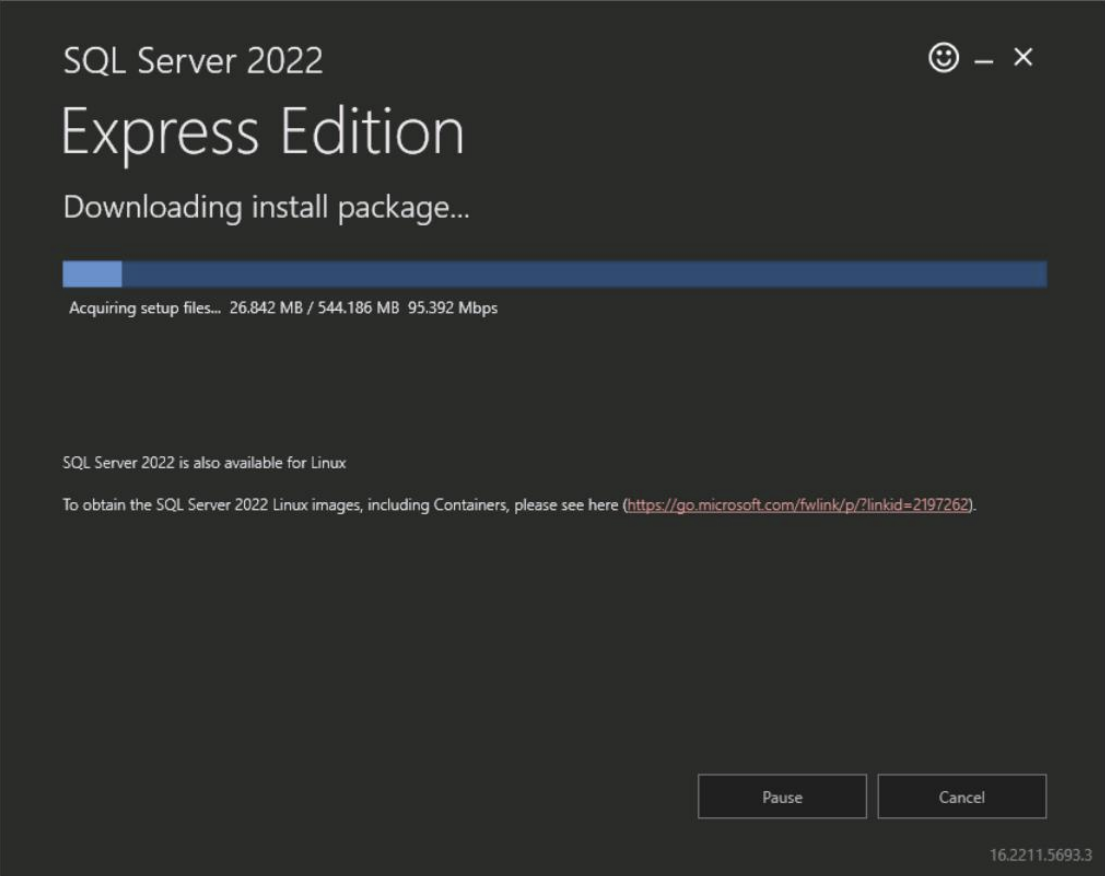
- The installer will now download the necessary source files:
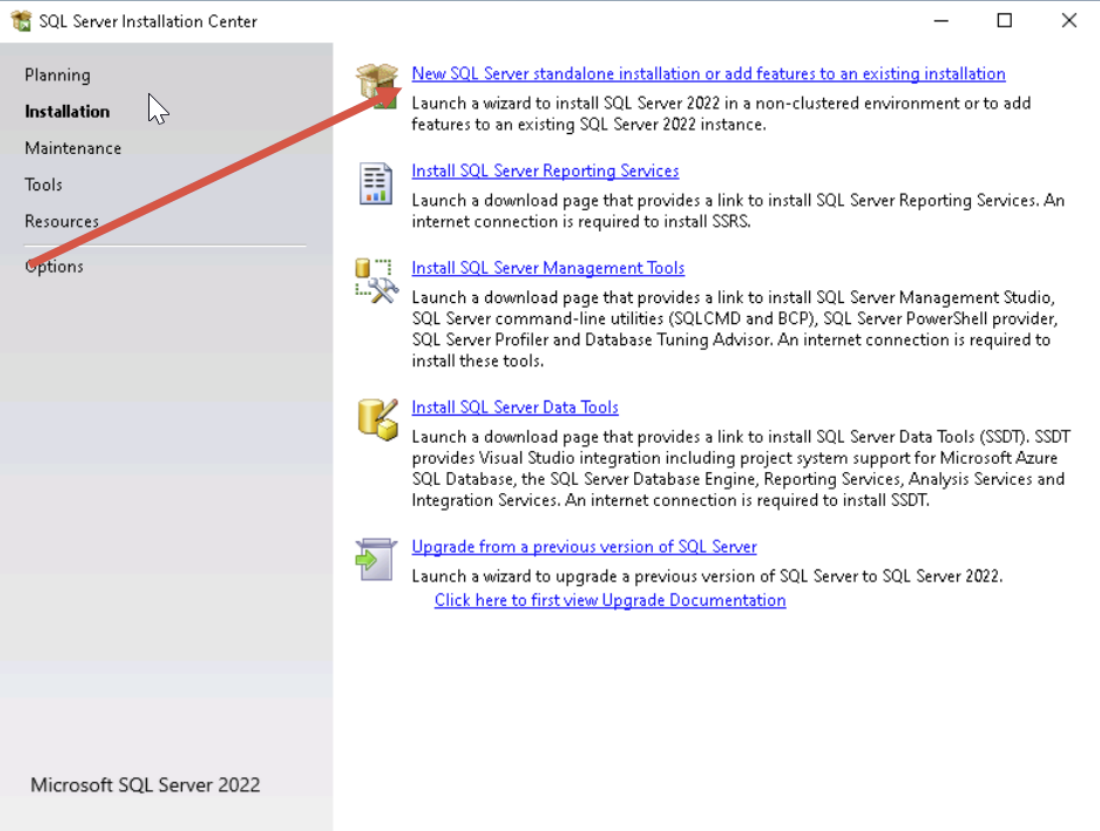
- At the Installation Screen, select the “New SQL Server stand-alone installation or add features to an existing installation”
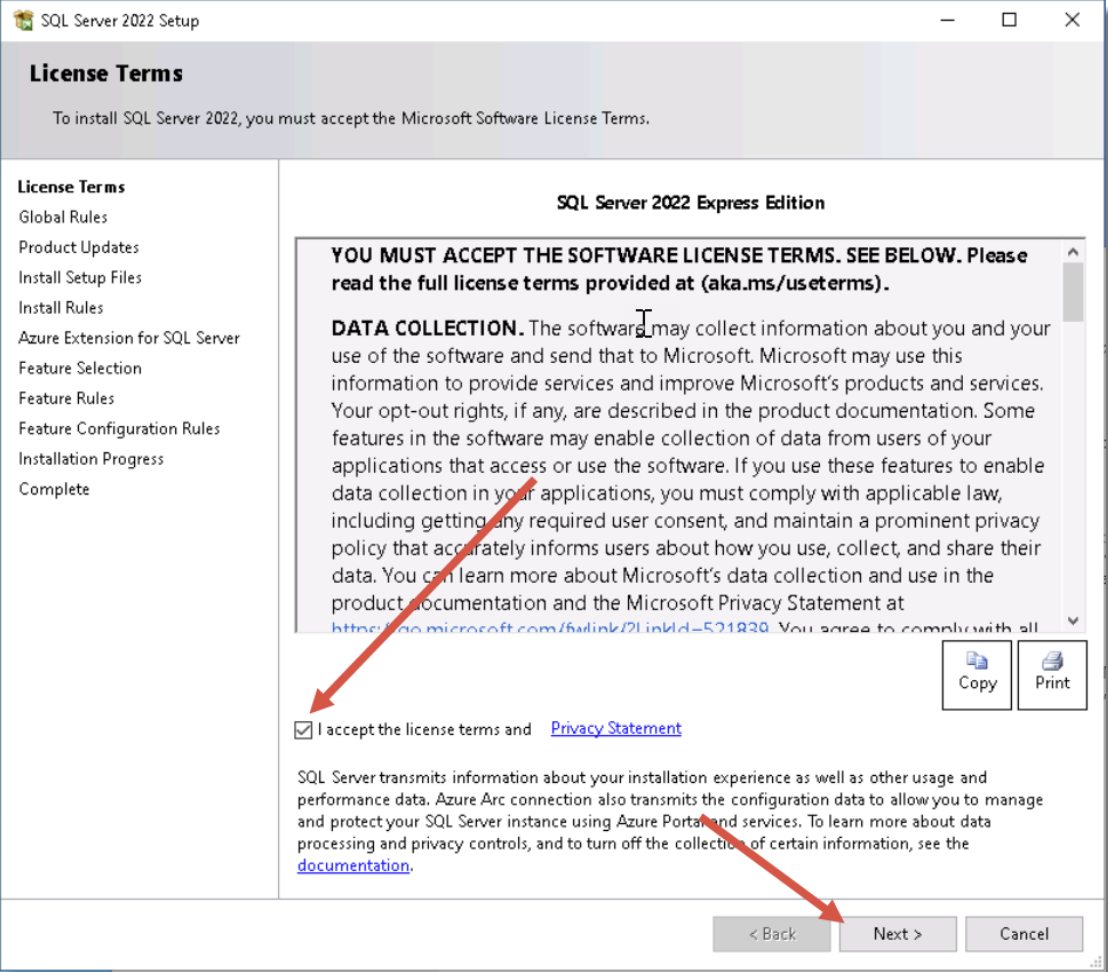
- Accept the terms of the licensing and click Next
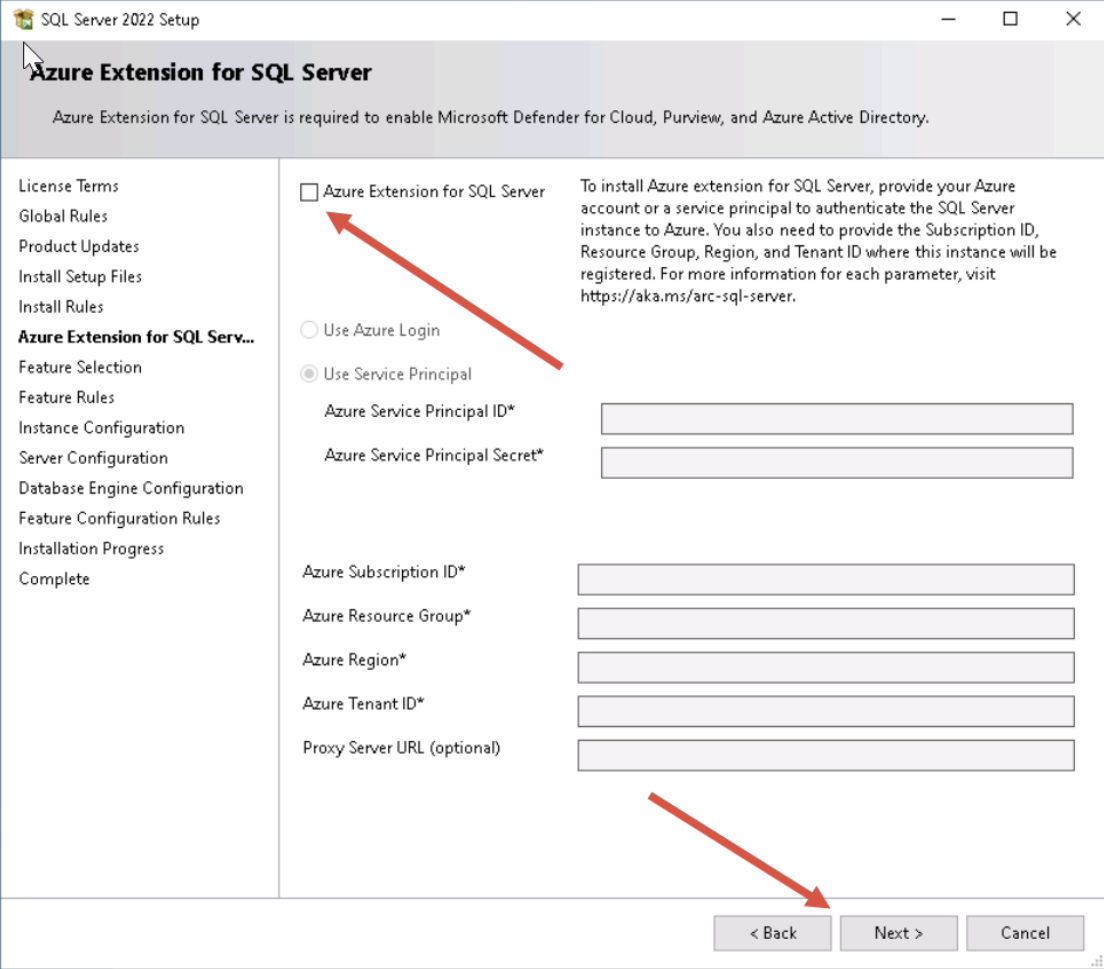
- Deselect the Azure Extension for SQL Server option, and click the ‘Next’ button
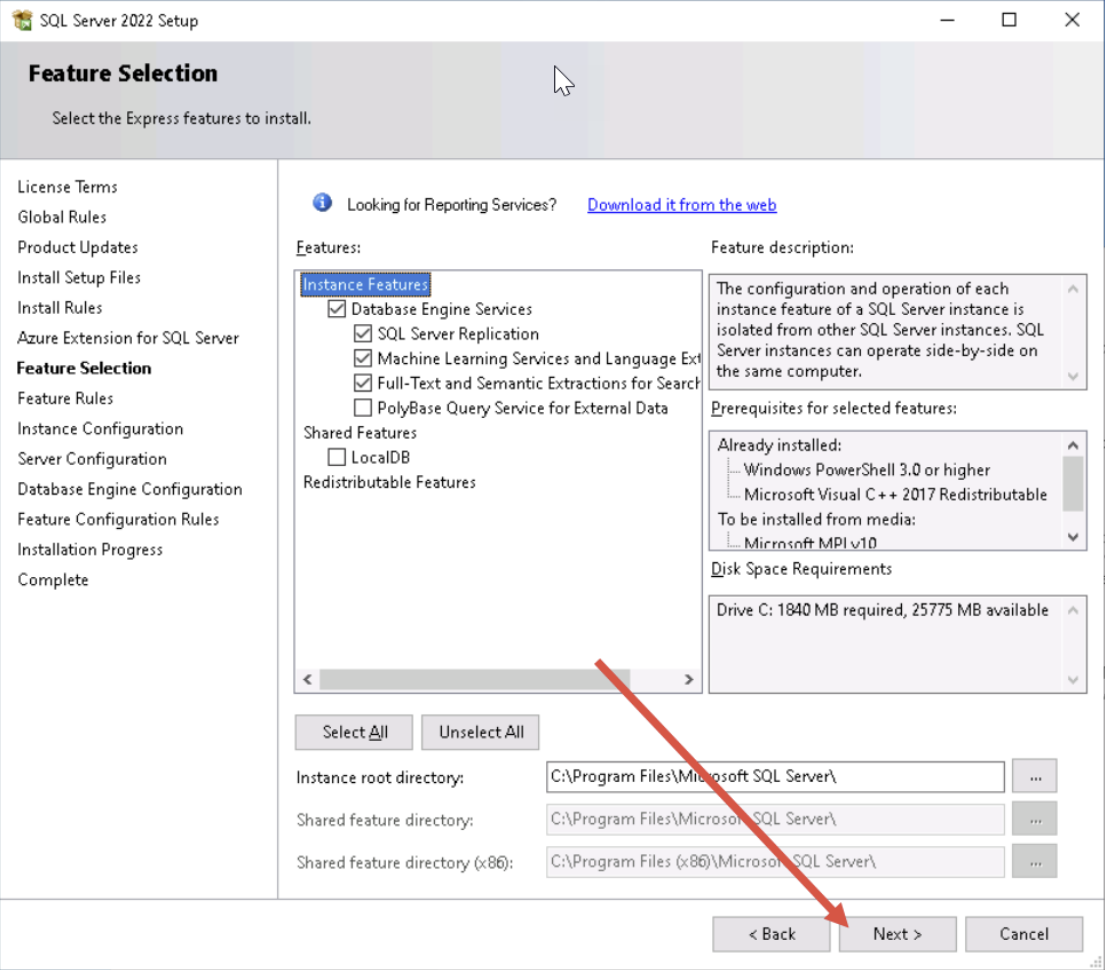
- At the ‘Feature Selection’ screen, accept the default checked options then click on the ‘Next’ button
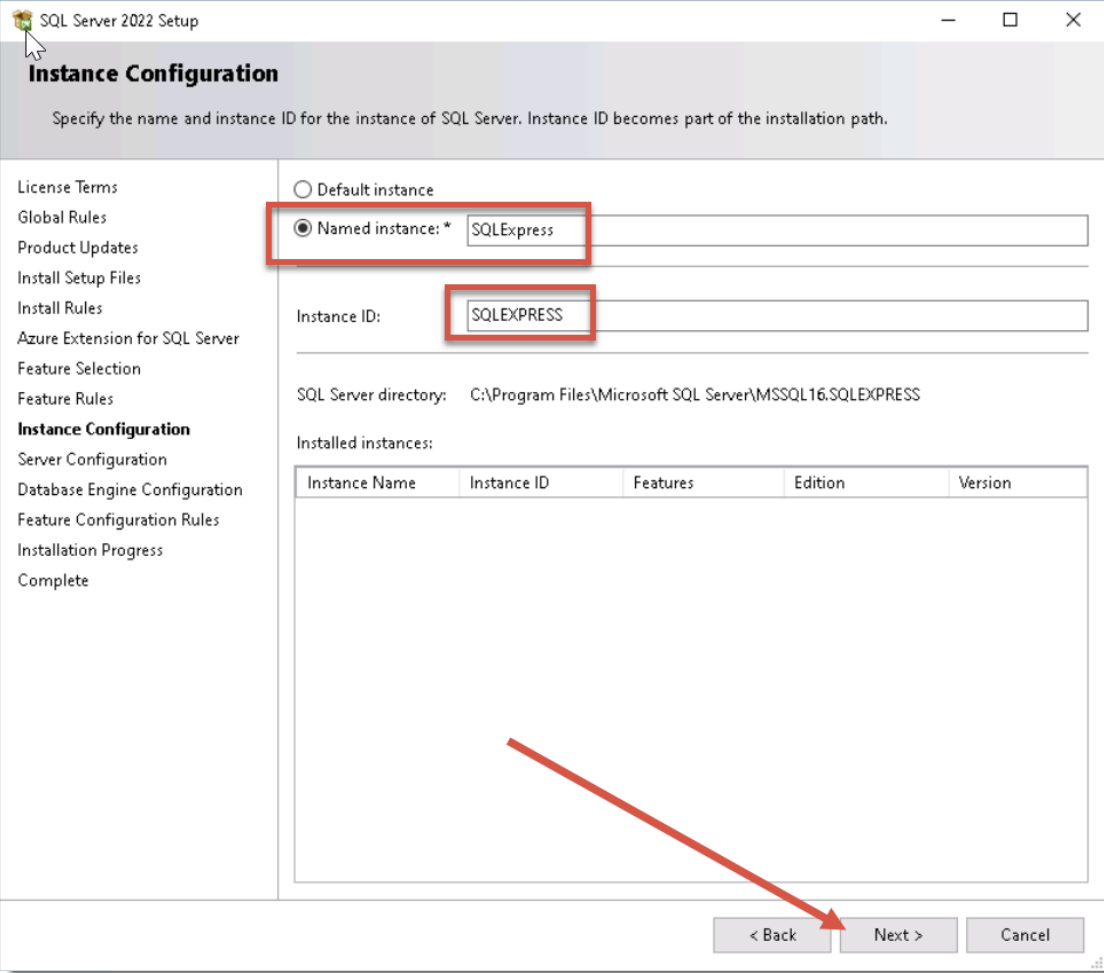
- At the ‘Instance Configuration’ screen, accept the default SQLExpress instance and click on the ‘Next’ button
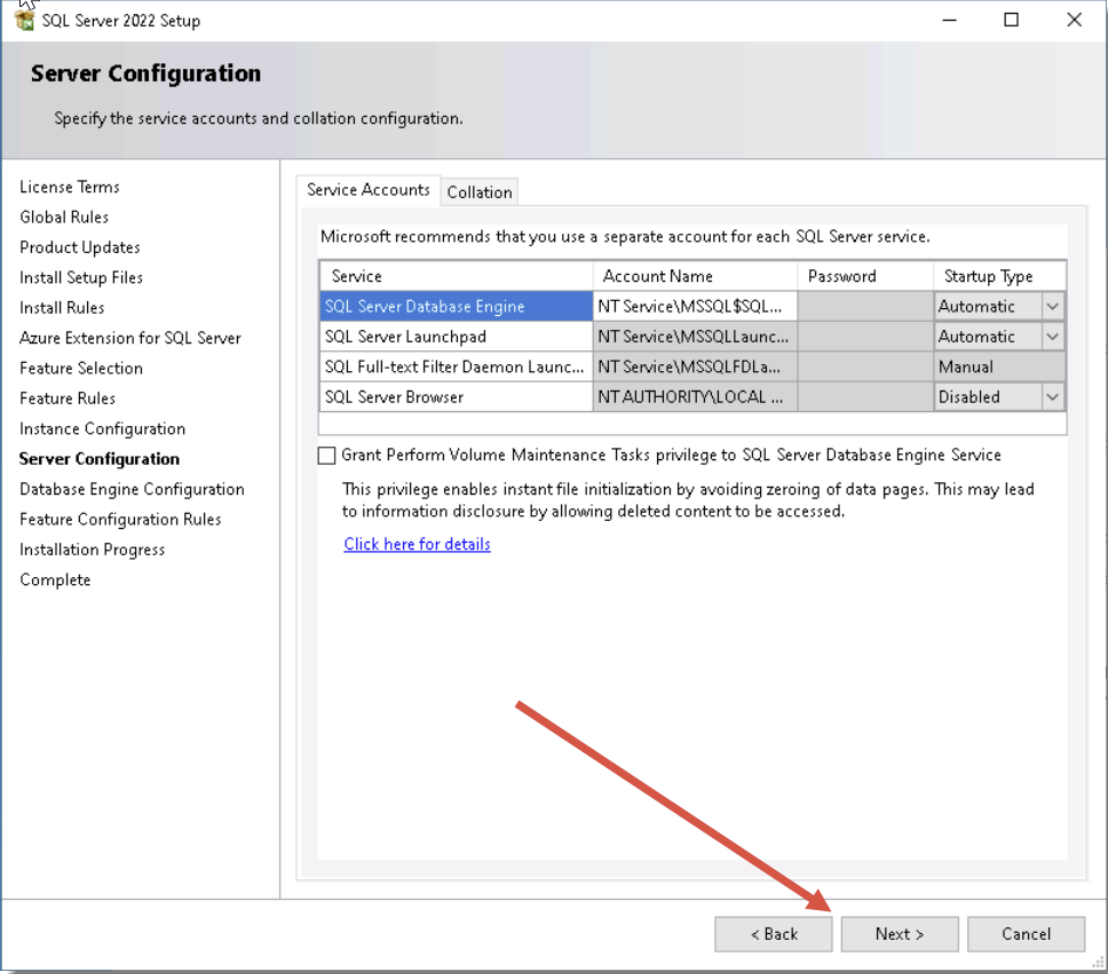
- At the ‘Server Configuration’ screen, accept the default settings and click on the ‘Next’ button
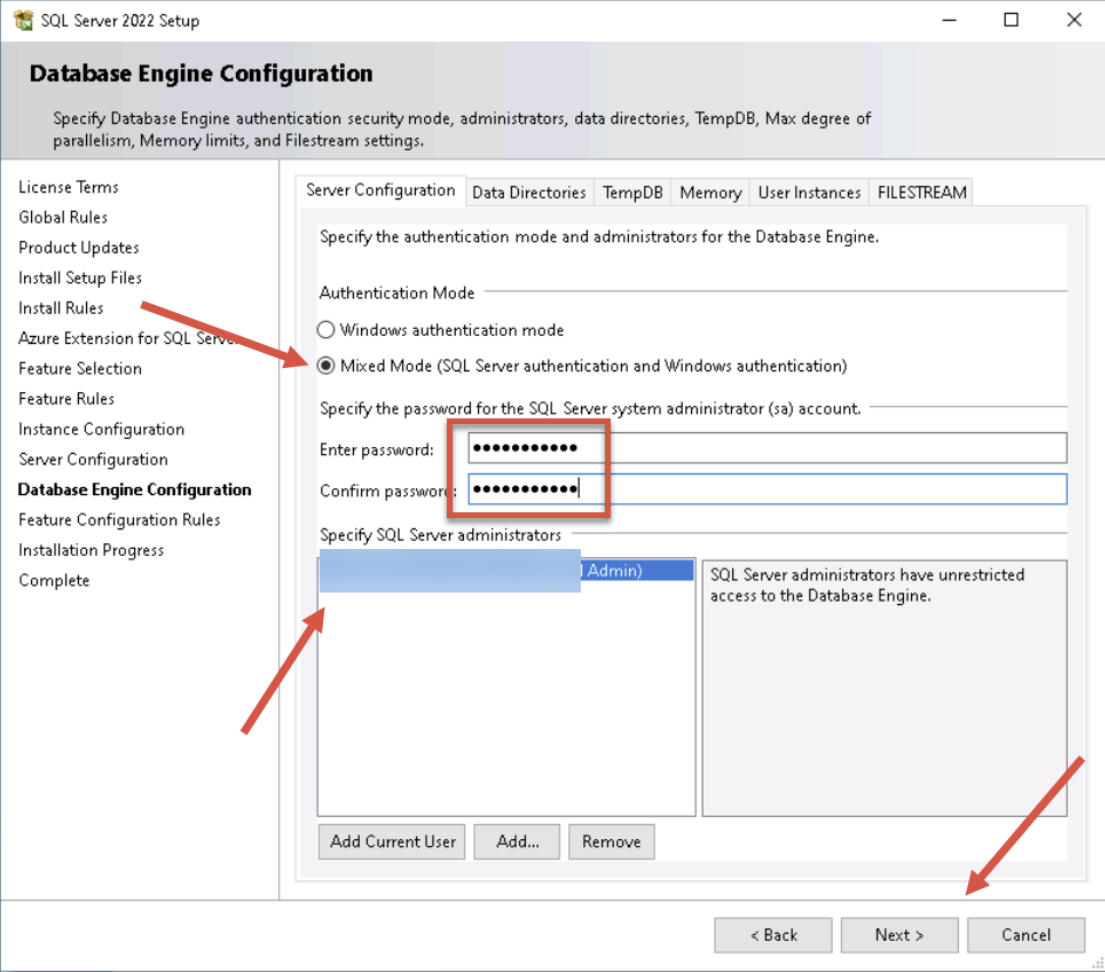
- At the ‘Database Engine Configuration’ screen, check ‘Mixed Mode’ authentication, specify a strong password for the ‘sa’ account. The ‘Server Administrator’ account is a local SQL account with full permissions to administer your databases and settings within SQL. Note this password down, and save it into Passwordstate when you can access it.
Your own Active Directory account will also be added in here with full permissions, and if desired you can add more Active Directory accounts on this screen. You should now click on the ‘Next’ button
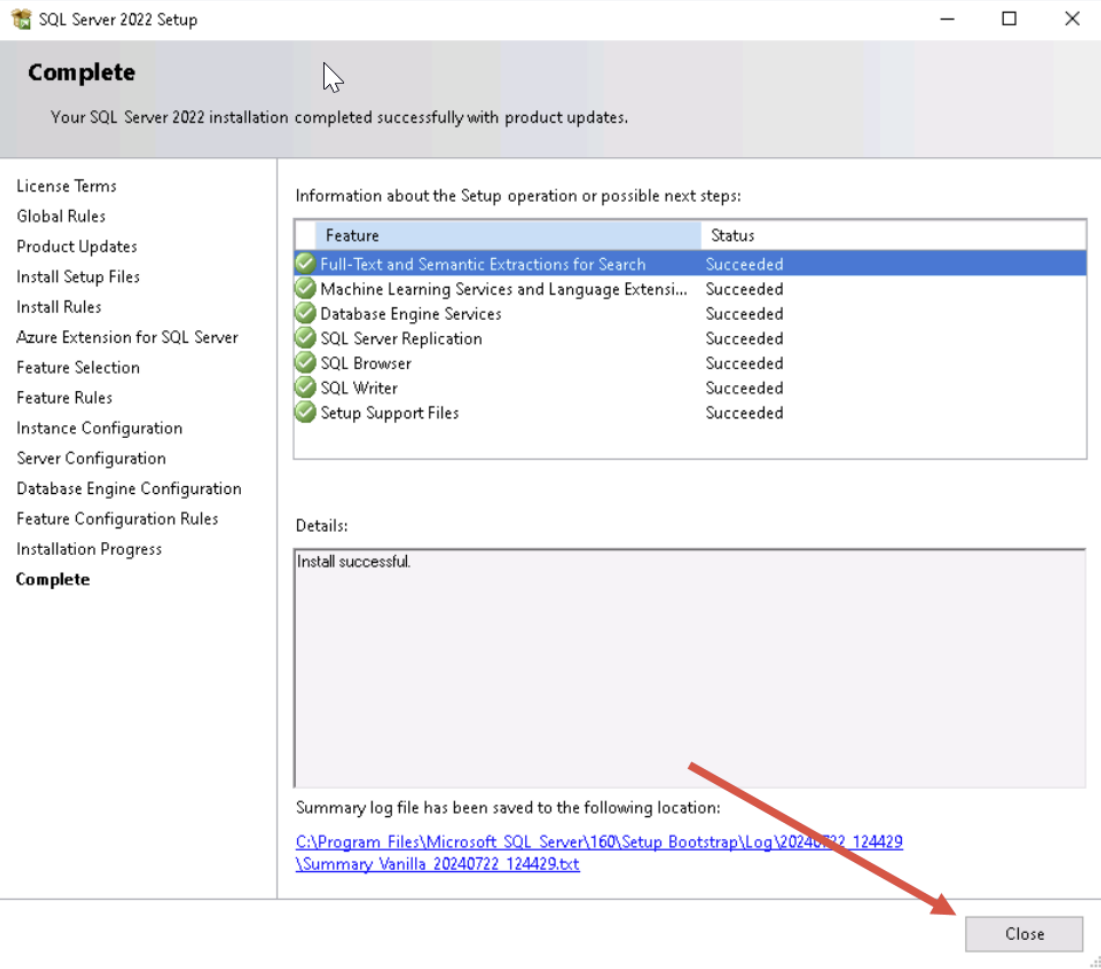
- SQL Server Express will begin installing and within a few minutes you’ll be presented with the ‘Complete’ screen. You can Close to finish the install
Installing the SQL Server Management Tool
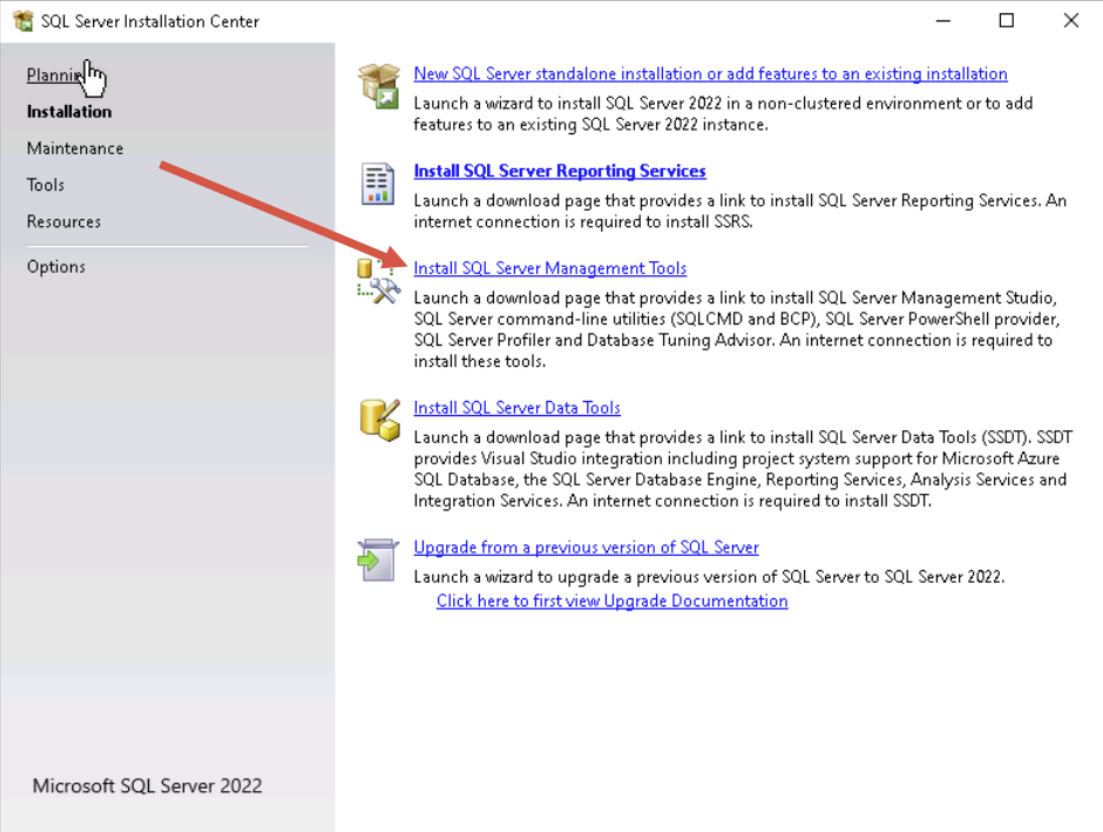
- On the Installation screen run the Install SQL Server Management Studio Tools (If you need to launch the installer again, you can run setup.exe from C:\SQLServer2022\ExpressAdv_ENU (or wherever you specified to download the source files to earlier in this guide)
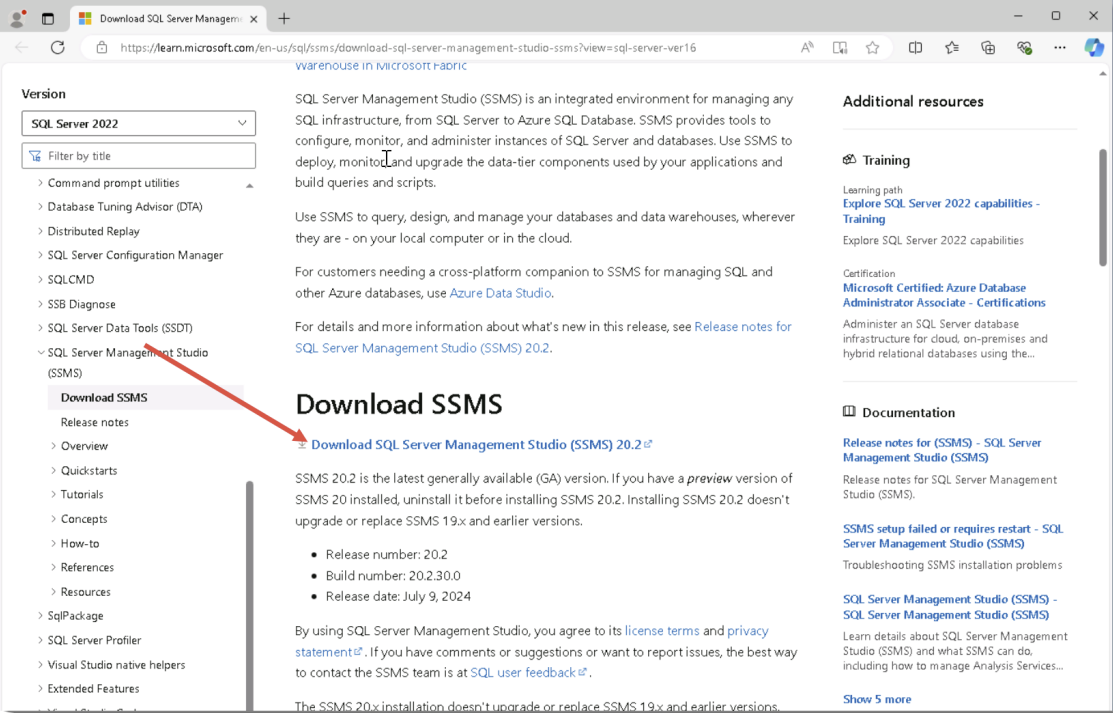
- A web page will launch, and you’ll need to click the following download link (Name may change slightly compared to the below screenshot) and run the SSMS-Setup-ENU.exe file that is downloaded
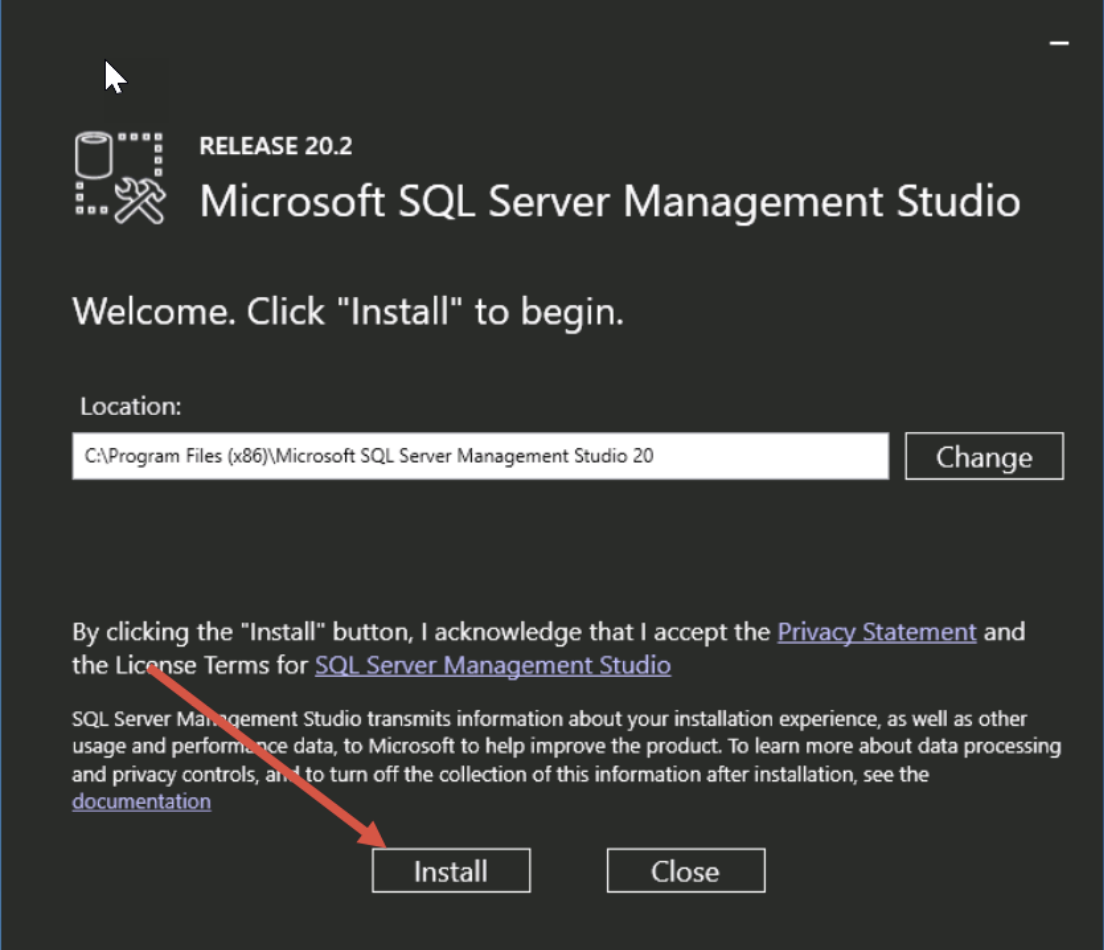
- Click the Install button
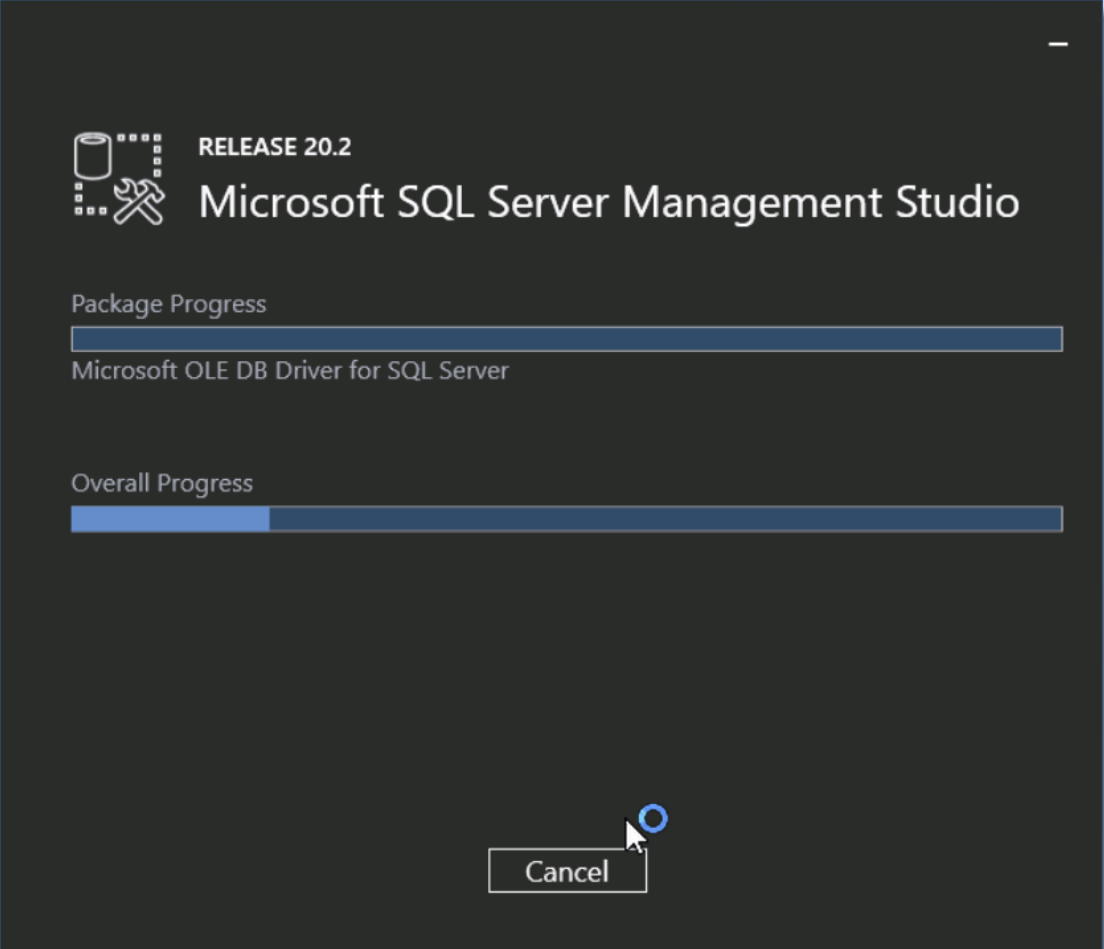
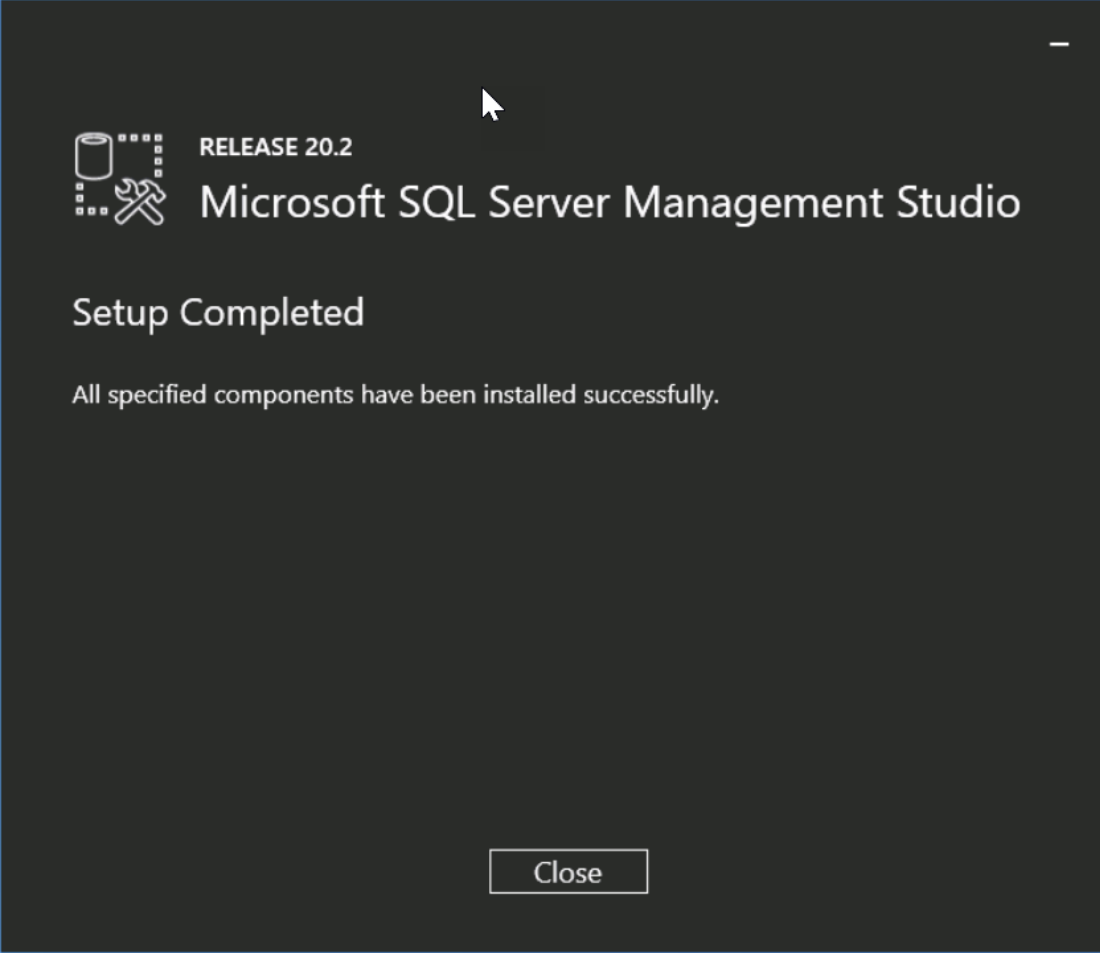
- The SQL Management Studio Tools will now begin installing
- Click Restart to finish the install if required, otherwise the installation is complete
SQL Server Express Considerations
If you intend to use SQL Server Express to host your Passwordstate database, please consider the following before installing Passwordstate:
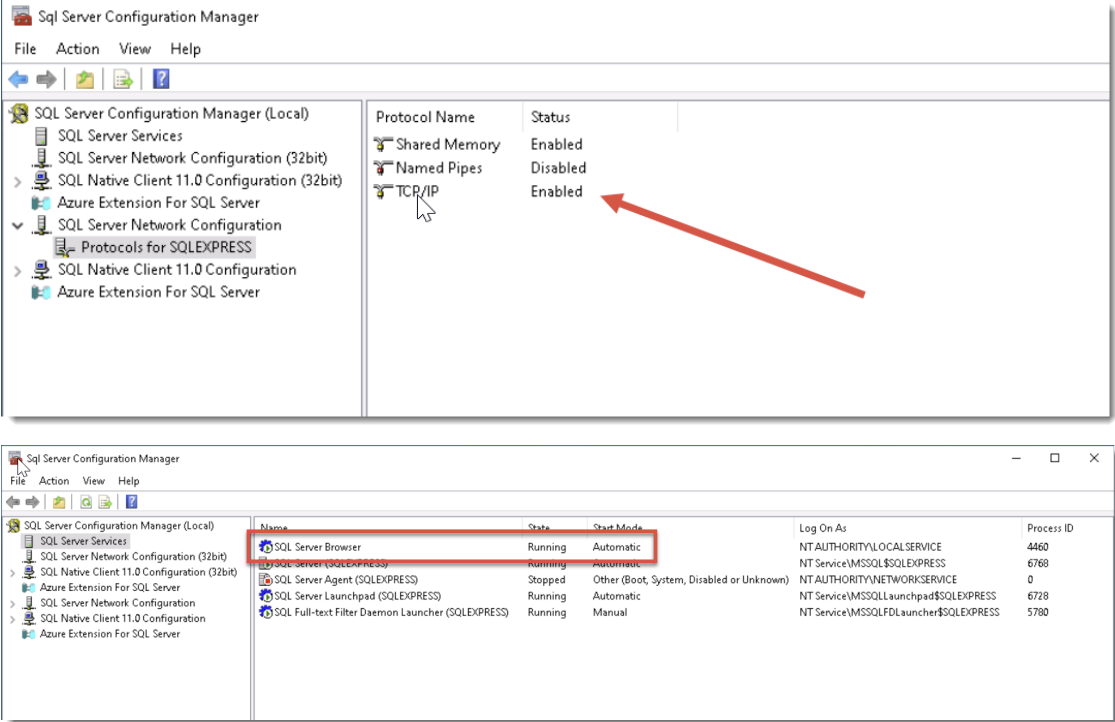
- If you're using SQL Server Express on a different server to where you installed Passwordstate, please ensure the TCP/IP Protocol is enabled (use SQL Server Configuration Manager -> SQL Server Network Configuration), and also the Windows Service 'SQL Server Browser' is set to 'Automatic' Startup Type and has been started. You will need to restart SQL Server Express after changing these settings
- By default, SQL Server Express installs with an ‘instance’ name of SQLExpress. When you’re configuring Passwordstate for first time use, under the ‘Database Settings’ page, please ensure you have specified the name of the instance correctly i.e. HostName\SQLExpress
- If you intend to also install the High Availability instance of Passwordstate, SQL Server Express can only be used as the Subscriber for data replication, not the Publisher or Distribution database.
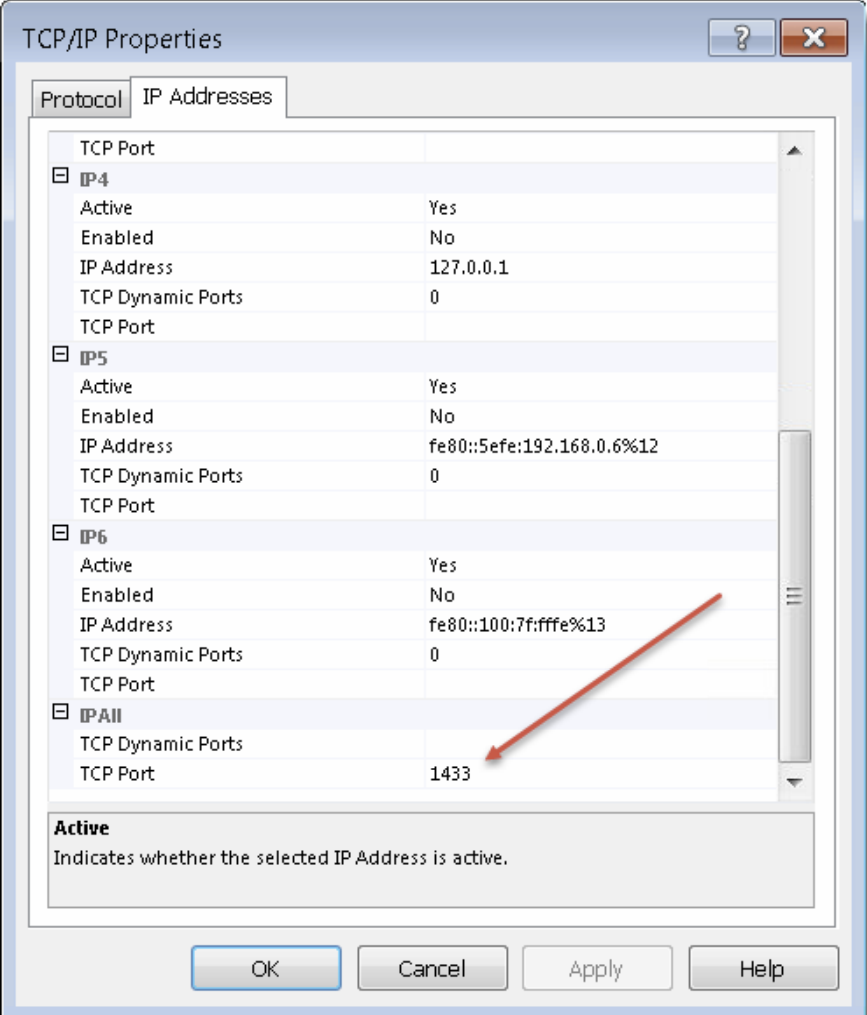
- By default, SQL Express configures the TCP/IP Protocol to communicate on a dynamic port. If you have a firewall enabled on your database server, you may need to set a static port in the TCP/IP properties which will match your firewall rule. Restart the service again after configuring the option in the screenshot below:
SQL Server Memory Size Management
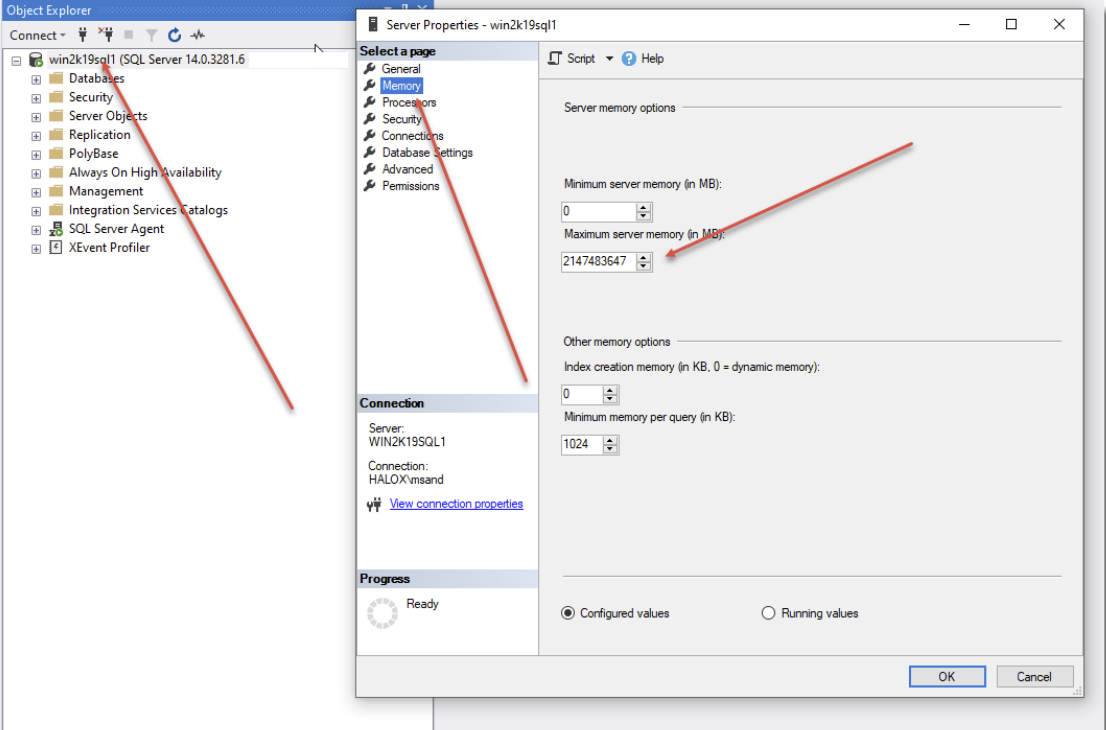
By default, SQL Server is configured to consume all available memory. If you have SQL Server installed on the same machine as where Passwordstate is installed, it’s recommended you cap the amount of memory SQL Server uses, as we generally recommend keeping up to 2GB of memory free at all times.
Below is a screenshot of the ‘Properties’ of your SQL Server, where you can modify the memory settings. The SQL Server Windows Services should be restarted after making any changes here.