Password Generator Policies
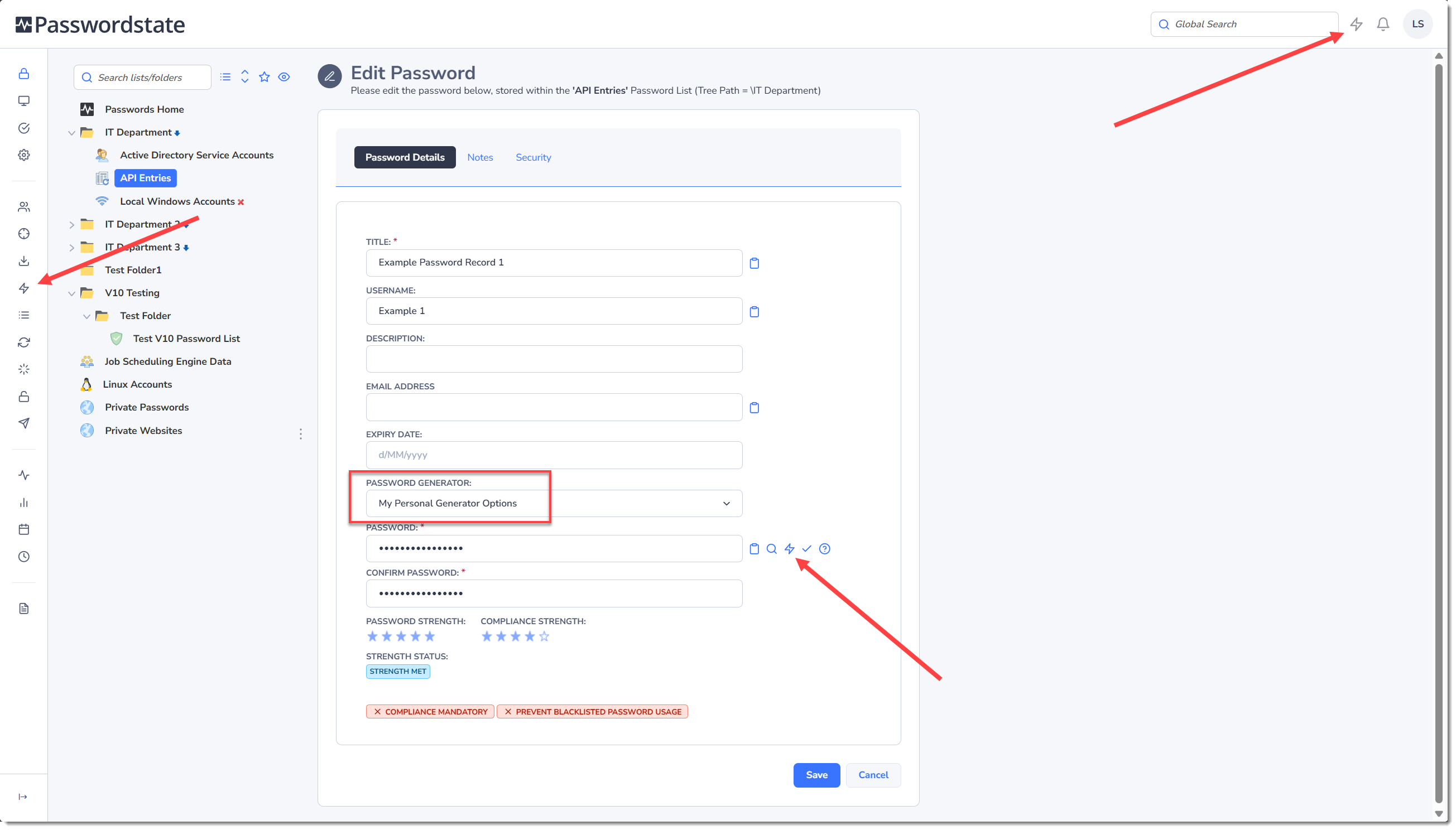
The Password Generator Policies screen allows you to create and manage one or more Password Generators, which can be used throughout the software. You can assign different strength Password Generators Policies to different Password Lists for example, or use them to quickly generate random passwords quickly. You can do this anywhere where you see this lightning icon in the screenshot below:
Note: The Default Password Generator policy cannot be deleted - it can be renamed and its settings modified, but it cannot be deleted.
When adding or editing a Password Generator Policy, you have the following options available to you:
Password Generator Details
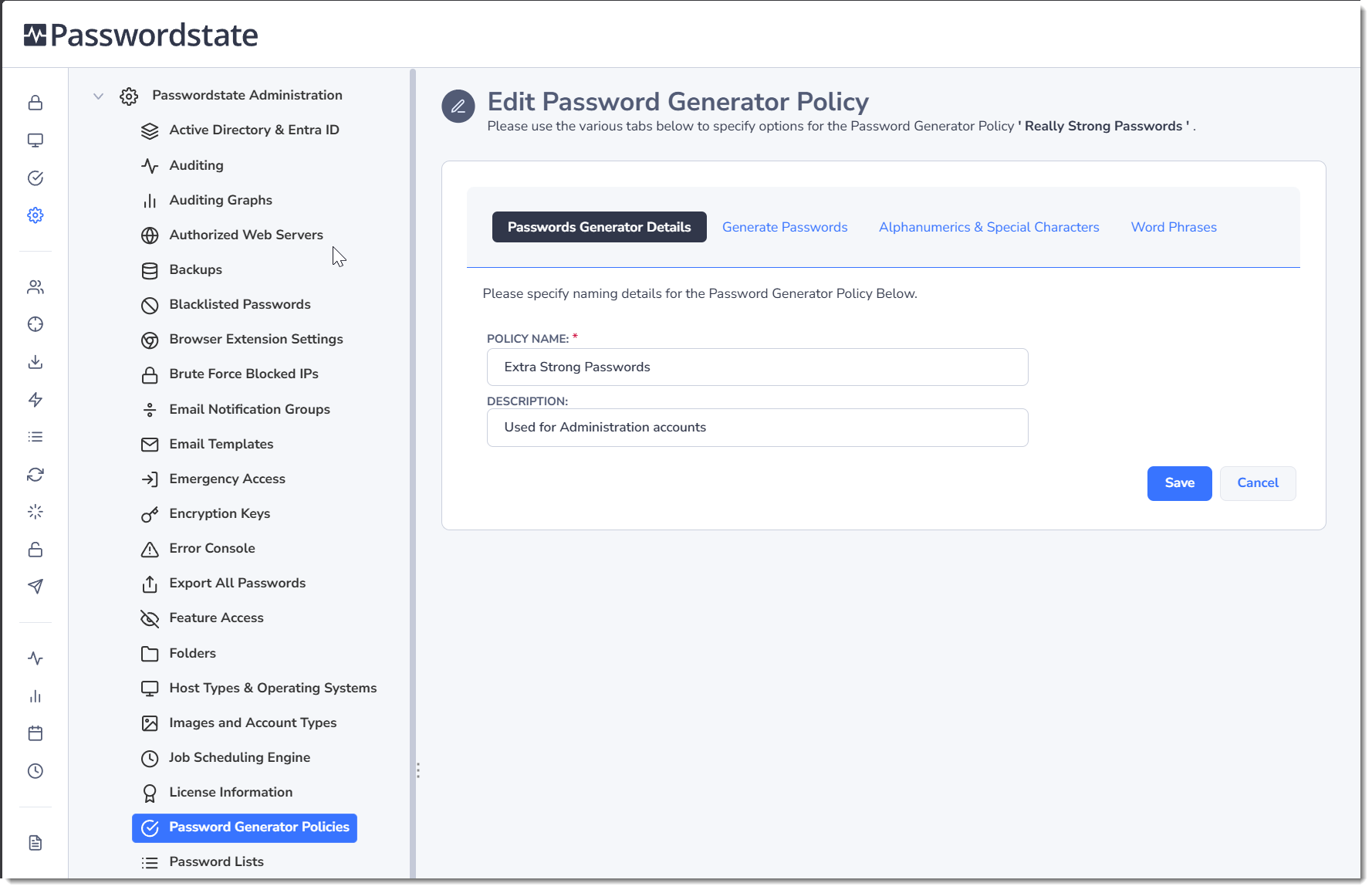
Give the policy a suitable name and description:
Generate Passwords
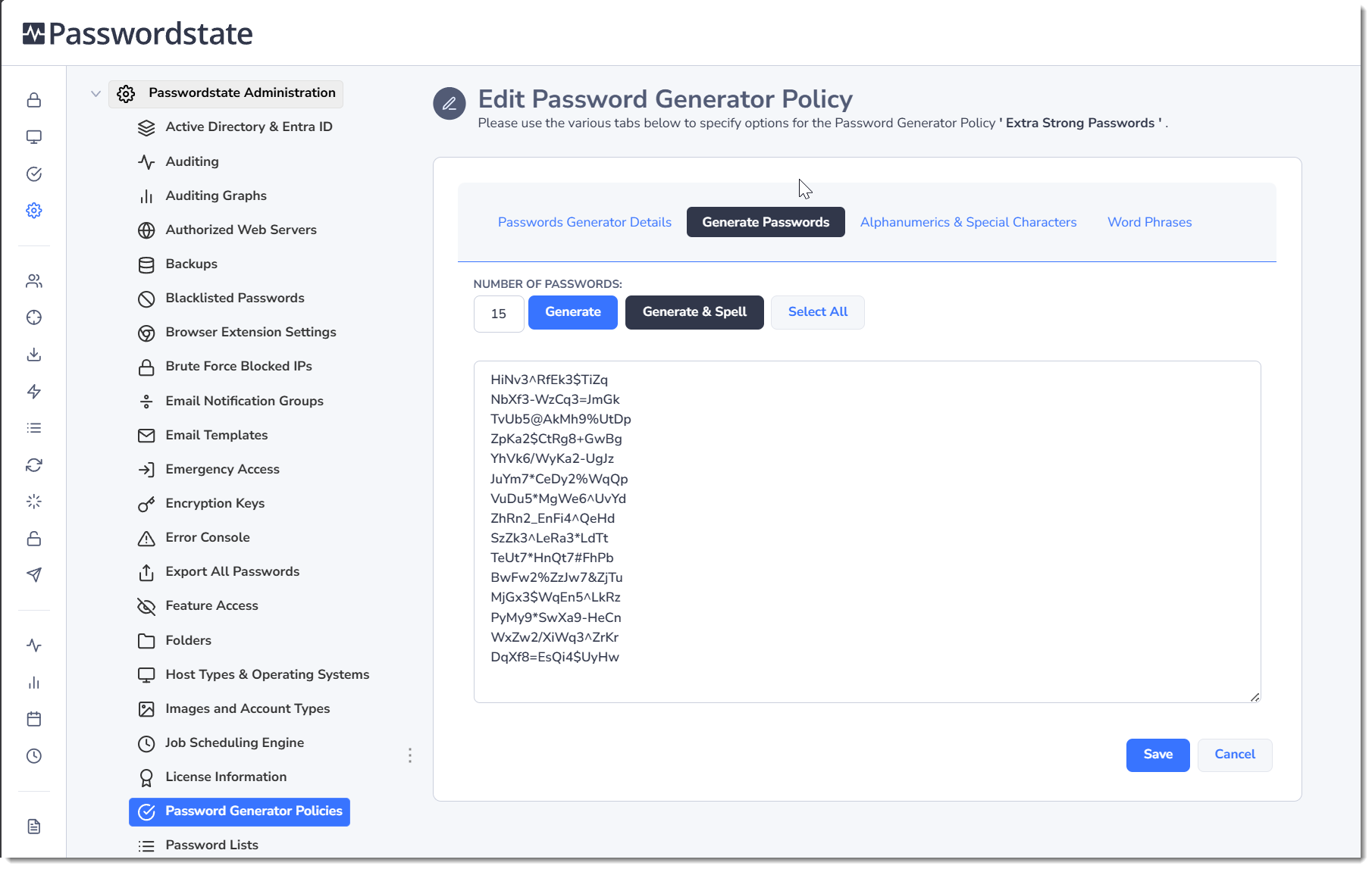
To test your policy generates passwords that suit your requirements, use this screen to generate 15 or more passwords all at once, using the settings you have configured in this policy overall. If you use the Generate & Spell button, this will also spell out the password phonetically making it easy to identify each character:
Alphanumerics & Special Characters
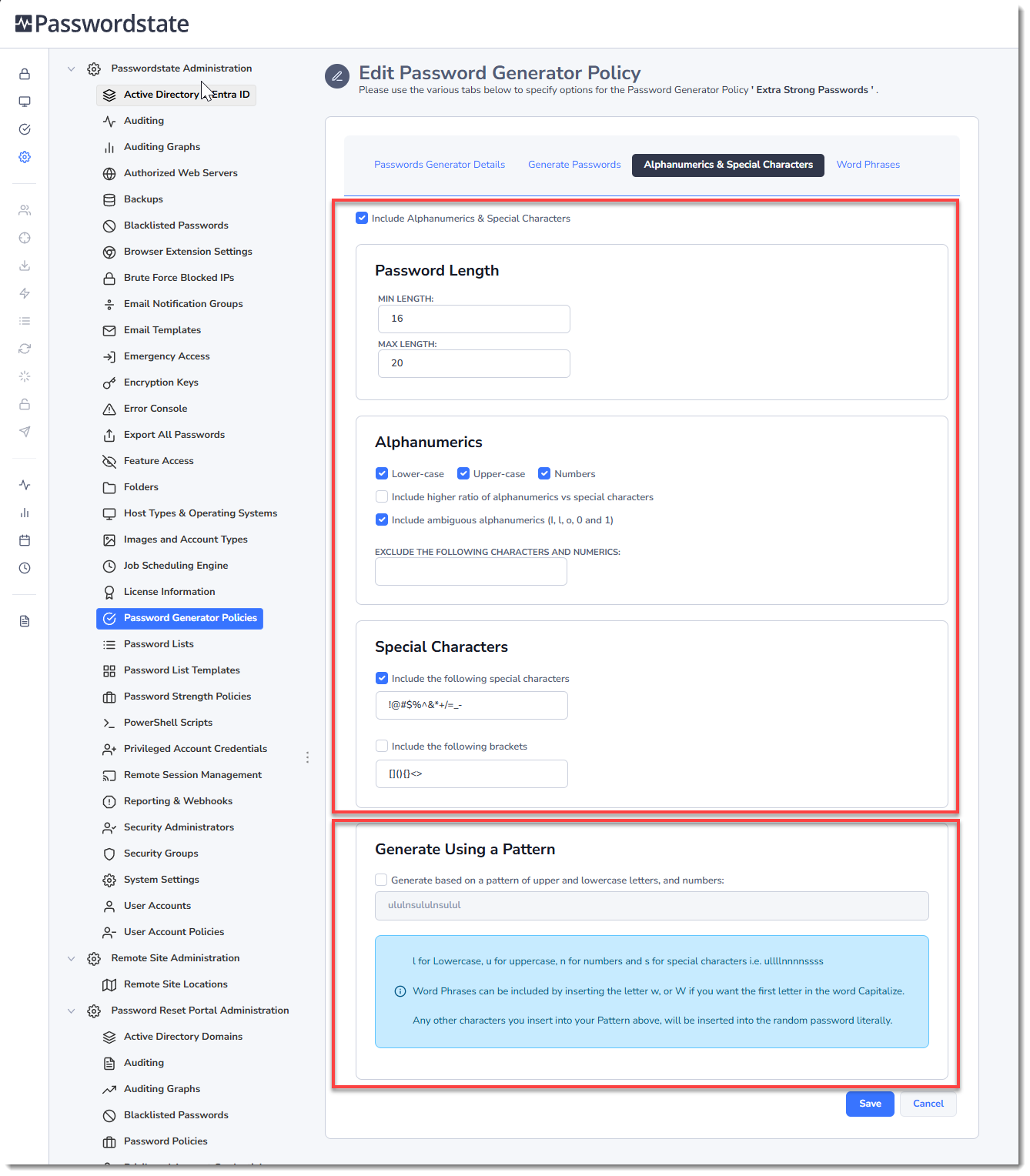
The Alphanumeric & Special Characters tab allows you to specify the desired length of the password you wish to generate, as well as settings for letters, numbers, special characters and various forms of brackets.
Alternatively, you can use the option to Generate Using a Pattern on this screen. This will allow you to build a policy based on a pattern of your choice, using words, upper and lower case letters, numbers and special characters.
l = lowercase
u = uppercase
n = number
s = special character
w = word
W = word with the first letter capitalized
Word Phrases
The Word Phrases tab allows you to insert a random word at the beginning of the password, somewhere in the middle, or at the end. You can specify how many words to create, what length, and what form of separation you would like between the word and the rest of the random password - either dashes, spaces or nothing.
Passwordstate has 10,000 different words it can choose from, all of different lengths. When enabling the option Include Word Phrases under this tab, a random word will be inserted into any password generated by this policy.
Password Record Functionality
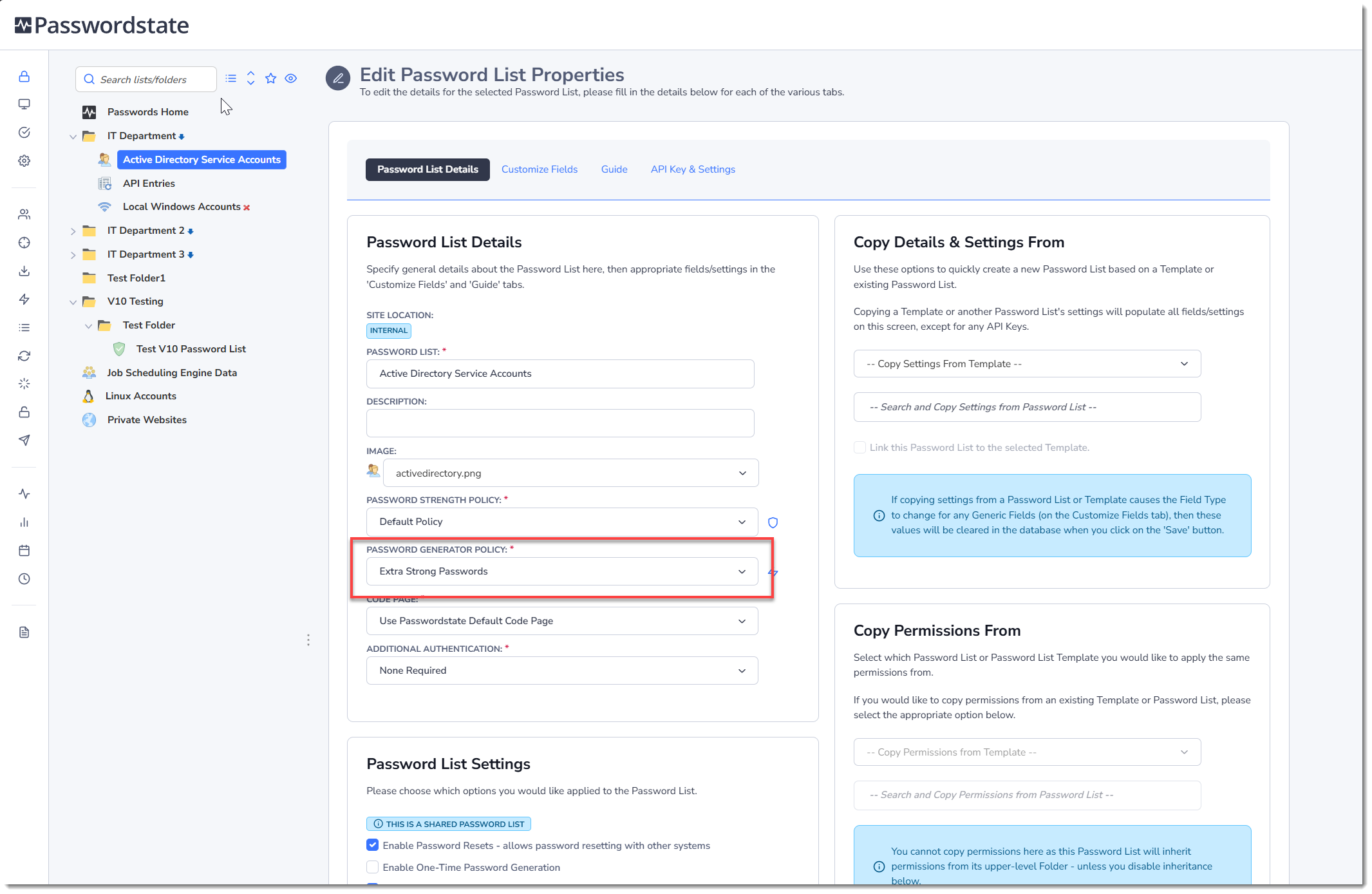
Once a Password Generator Policy has been created, it can be assigned to a Password List or Password List Template, as per this screenshot below:
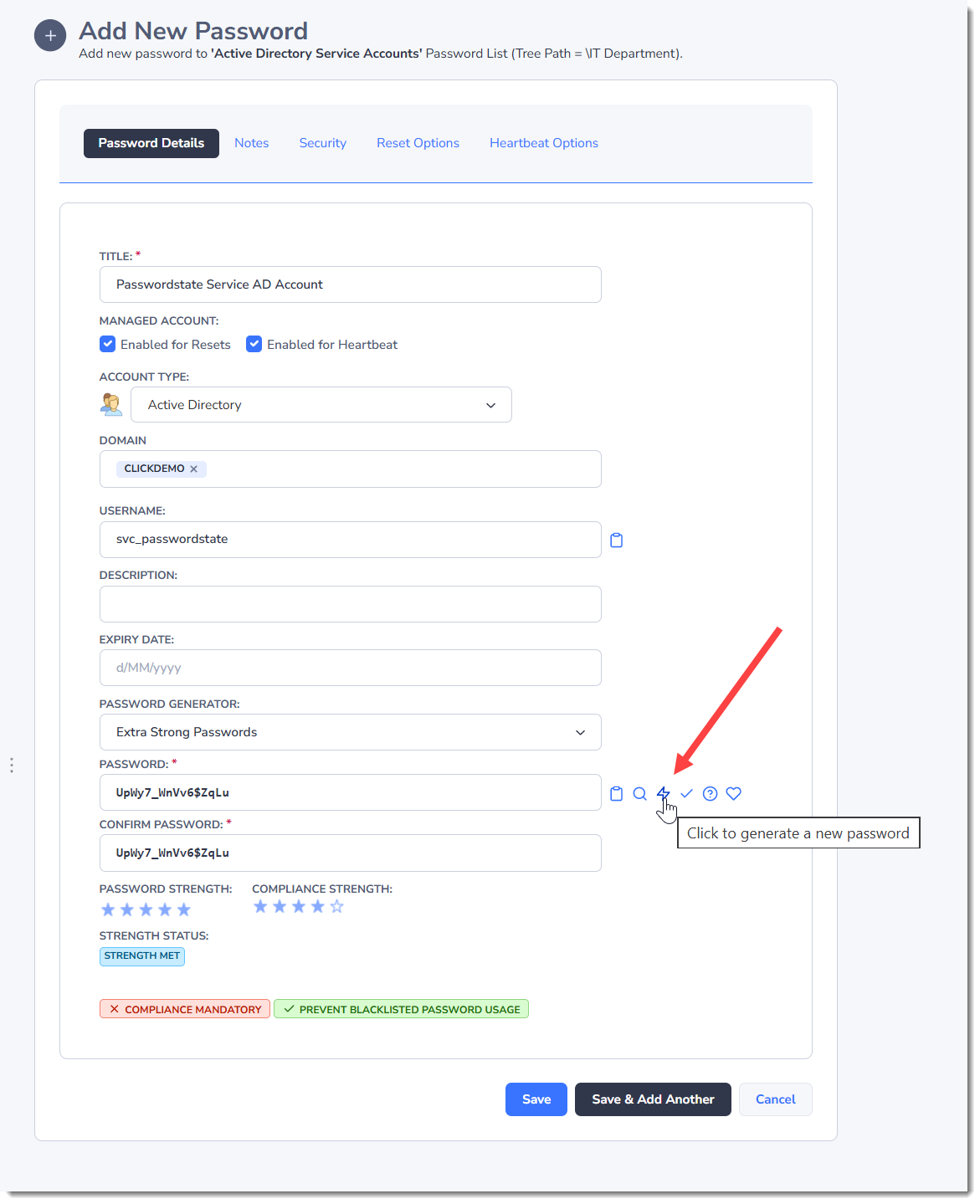
Now when your users now click on the lightning icon on any password record within that list, a random password generated will be based on the selected Password Generator Policy settings:
Toggle Visibility of Web API IDs
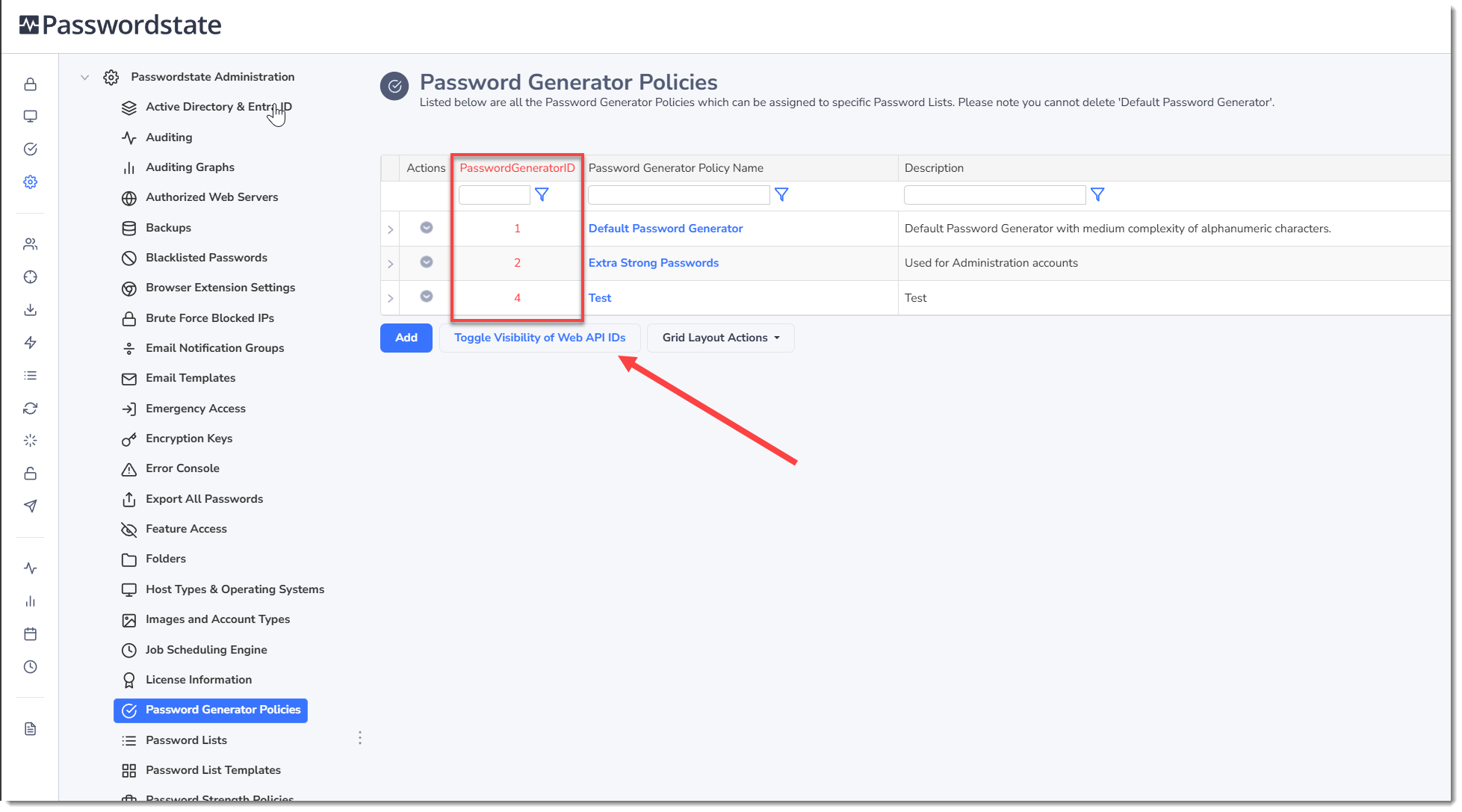
When using the Passwordstate Web API, there are certain API calls which can also automatically generate passwords. In order to specify which policy to use when making these API calls, you need to know the PasswordGeneratorID value - a unique identifier for each policy. By clicking on the Toggle Visibility of Web API IDs button, you will see the PasswordGeneratorID values as per this screenshot: