User Account Policies
User Account Policies allow you to manage a specific set of settings for a groups of users at a time. The settings relate to various User Preferences, and how the Password Lists, and Home Page screens appear to the user.
An example of how User Account Policies can be used is to hide all graphs on all screens from the users. Or turn on Load on Demand for example, to increase performance for users.
When a User Account Policy is applied to a user's account, the controls/settings on the screen will be disabled, informing the user a User Account Policy is in effect for their account.
Adding a User Account Policy
When you add a User Account Policy, you can choose to set any number of the following settings:
User Preferences
| Mask Password Visibility on Add/View/Edit Pages |
| Auto Generate New Password When Adding a New Record |
| Enable Search Criteria Stickiness Across Password Screens |
| Locale (Date Format) |
| Specify which Authentication option will apply to the user's account |
| In the Passwords Navigation Tree, use the following Expand status for Nodes |
| In the Passwords Navigation Tree, show or hide all Nodes |
| In the Passwords Navigation Tree, Limit the number of displayed Nodes |
| In the Passwords Navigation Tree, Use Load On Demand Feature |
| In the Hosts Navigation Tree, limit the number of displayed Nodes |
| In the Hosts Navigation Tree, Use Load On Demand Feature |
| Show the Permission Model icon indicators next to Folders and Password Lists in the Passwords Navigation Tree |
| For RDP Sessions, use the following performance settings |
| For SSH Sessions, select the font size you would like to use in the terminal |
| Specify the Background Color for SSH Session |
| Specify the Font Color for SSH Sessions |
Password List Screen Options
| Show the 'Header' row on all Passwords Grids |
| Show the 'Filter' controls in the Header of the Passwords Grids |
| Show the 'Header' row on all Recent Activity Grids |
| Make the Recent Activity Grid visible to the user |
| Selects the Paging Style controls for Password and Recent Activity grids |
| Make the Pie Charts visible to the user |
| Sort the grid by the following column |
Home Page Screen Options
| Dashboard Layout Settings |
| Show the Password Statistics Chart |
| Sort the Search Results and Favorite Passwords grids by the following column |
Password List Options
| When creating new Shared Password Lists, base the settings on the following Template's settings |
| When creating new Shared Password Lists, base the permissions on the following Template's permissions |
| If copying settings from a Template to a Shared Password List, also link them |
| When creating new Private Password Lists, base the settings on the following Template's settings |
| If copying settings from a Template to a Private Password List, also link them |
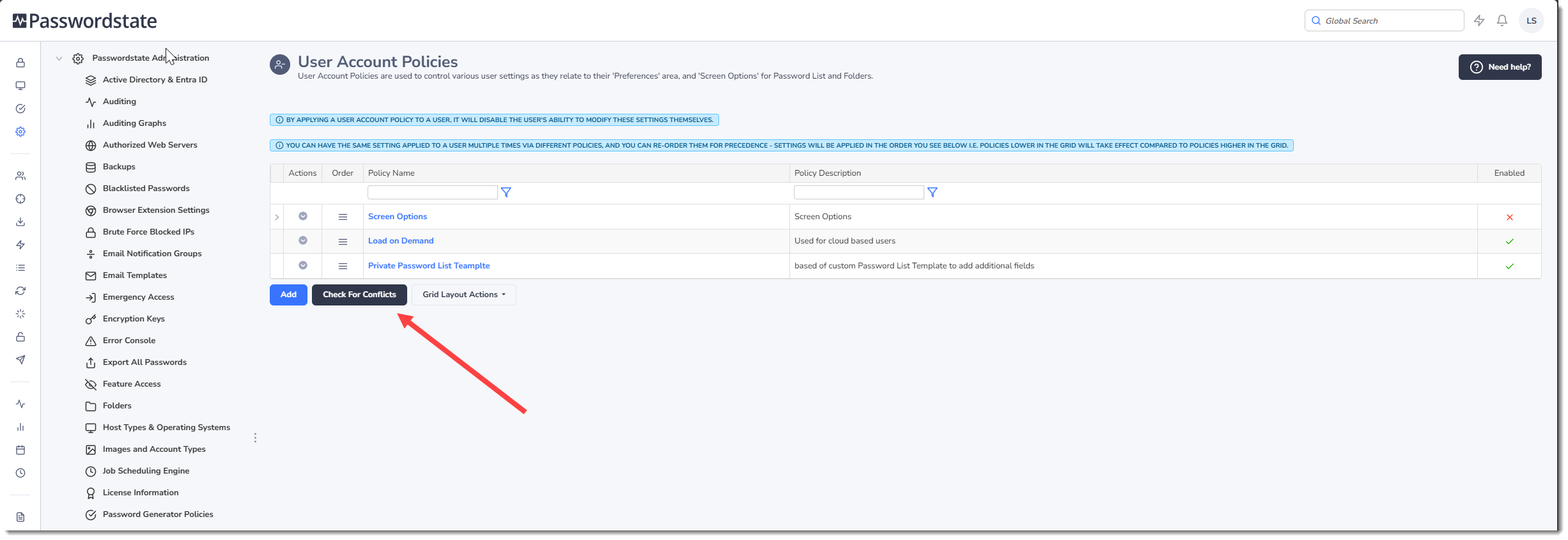
Note: When you first add a new User Account Policy, it is recommended that before you enable the policy, you apply the permissions required, then click on the Check for Conflicts button. The Check for Conflicts process will ensure that there are no two settings with different values assigned to a user's account - this could cause confusion for the user, and for Security Administrators if this is the case.
User Account Policy Actions
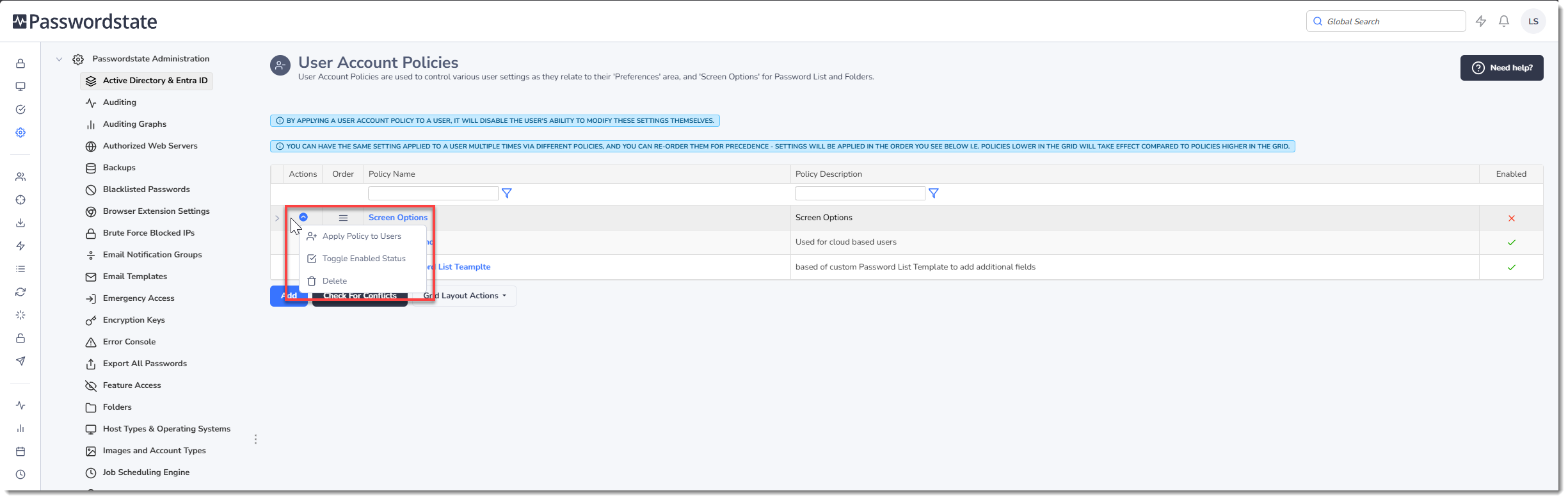
Once you have created a Policy with the desired settings, the following Actions Menu items are available to you:
- Apply Policy to Users - allows you to assign the selected policy to a group of users, or security groups
- Toggle Status - either enable or disable the policy
- Delete - delete the policy
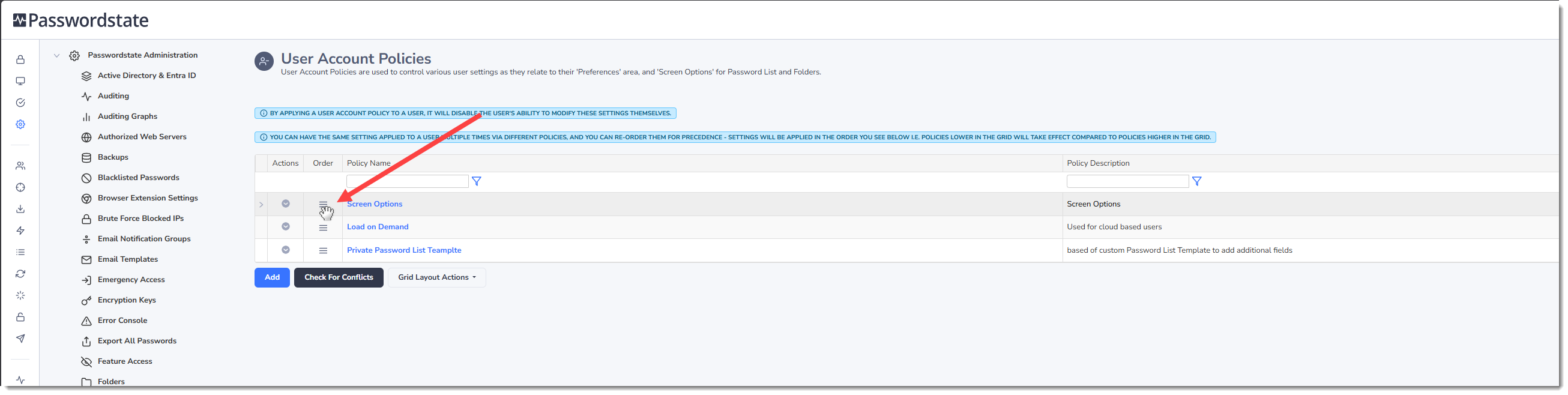
Re-Ordering Execution of Policies
You can drag and drop the rows within the User Accounts Policies screen, and re-order the execution of policies. This way, it is possible to have 'conflicting' settings for a user, and it will be the last (most bottom) policy which will be in eUserPolociesffect for the setting.
br>