Password List Templates
Password List Templates can be used to apply consistency to settings for your Password Lists, and accessing the Templates from within the Administration area allows you to see all Templates created by all users. Templates can be used in the following way:
- You can Add a new Template, or Modify the settings of an existing Template's
- Delete Templates that are no longer required
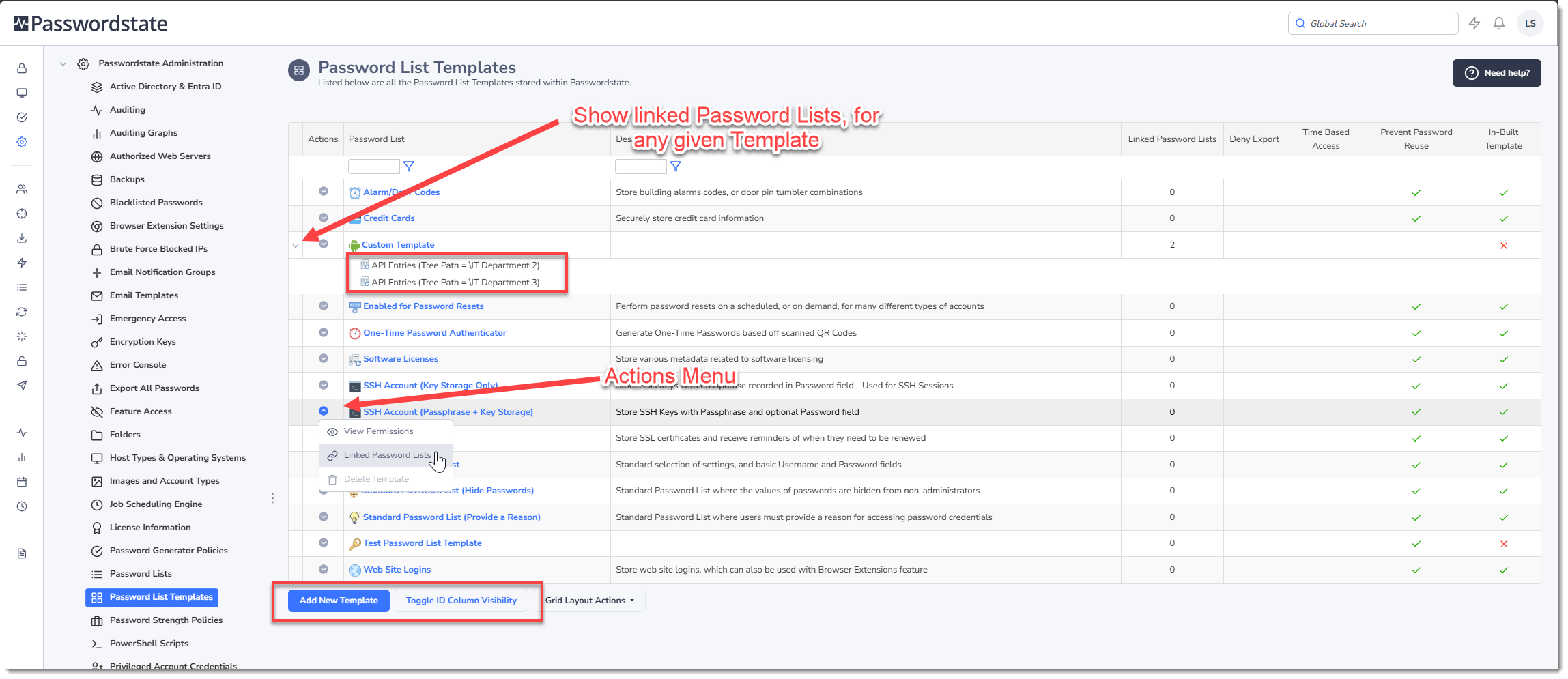
- Toggle the visibility of the TemplateIDs, which can be used in API scripts
- You can Link Password Lists to a Template, which allows you to manage settings for linked Lists from the Template. For example, if you link 10 x Password Lists to a Template, then updating a setting on the Template will automatically apply to all 10 linked Password Lists.
- You can also apply permissions to a Template, and these permissions can be used to:
- Allow other users to see the Templates via the Password List Templates menu option
- Allow other users to modify the settings for the Template via the Password List Templates menu option
- Copy the permissions from the Template at the time of creating a new Password List. Permissions are never synchronized from the Template after the initial creation of Password List, regardless if they are linked or not.
Adding and Editing Templates
Adding or editing templates in the Administration area is identical to the normal Password List Templates screens which standard user accounts have access to. For information on each of the settings which can be applied to a Template, please refer to the Passwordstate User Manual for creating Password Lists.
Caution: When editing a Template's settings when it is linked to other Password Lists, if you change any of the Field Types for any Generic Fields, these fields will have their data cleared/blanked in the database when you click on the Save button. This is due to potentially different data formats across these Generic Fields. There are multiple warning messages within Passwordstate to help you be aware.
Password List Template Actions
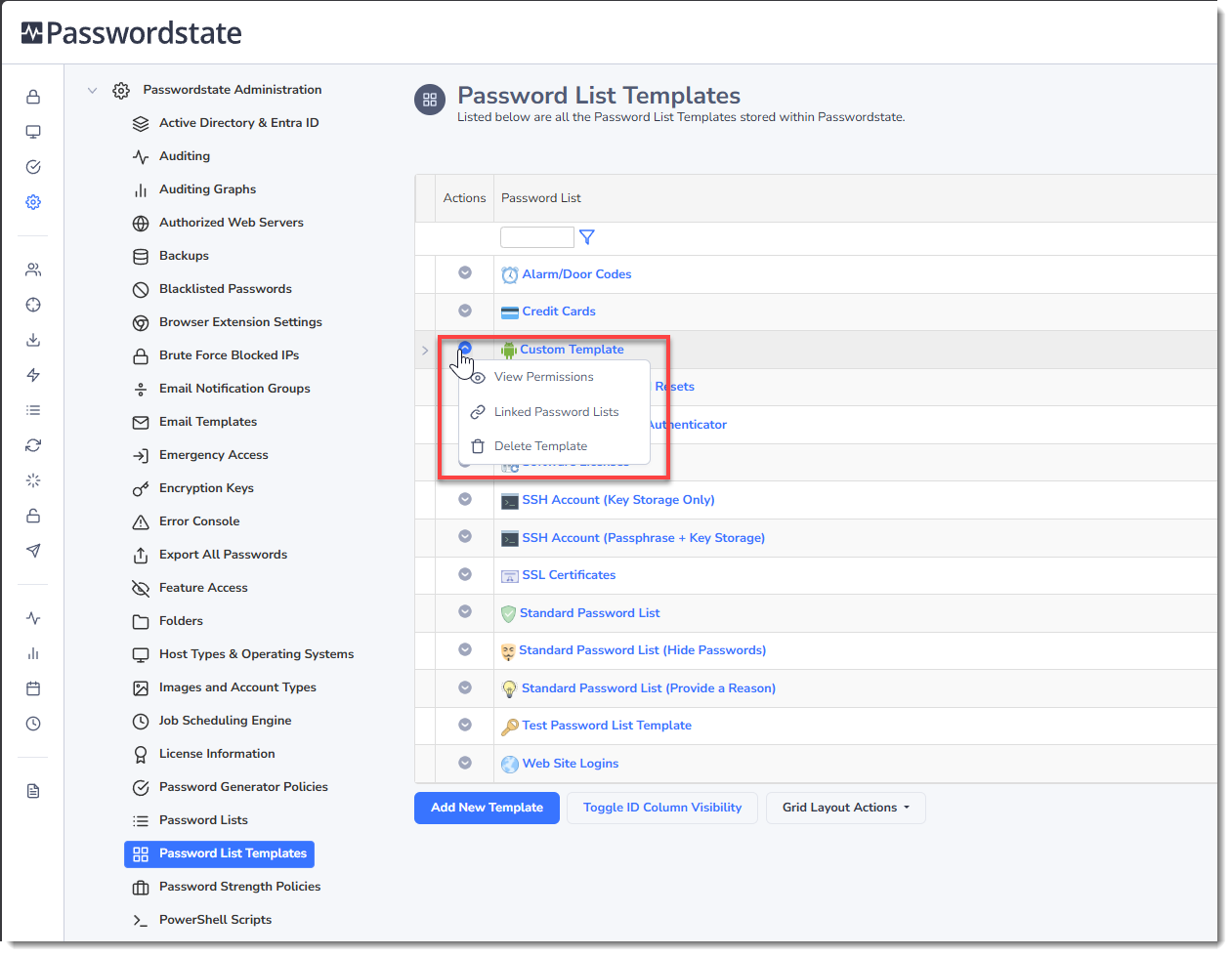
From the Actions drop-down menu, you have various features available:
- View Permissions applied to the Template - this also allows you to add/update/delete permissions as required
- You can Link Password Lists to the Template
- You can Delete the template, if it is not an in-built one
Note: If you delete a Template which is linked to one or more Password Lists, these Password Lists settings will not change and will remain as is.
Linked Password Lists
When you link one or more Password Lists to a Template, the majority of settings for the linked Password Lists are then managed via the Template - with the exception of the details on the API Key Tab.
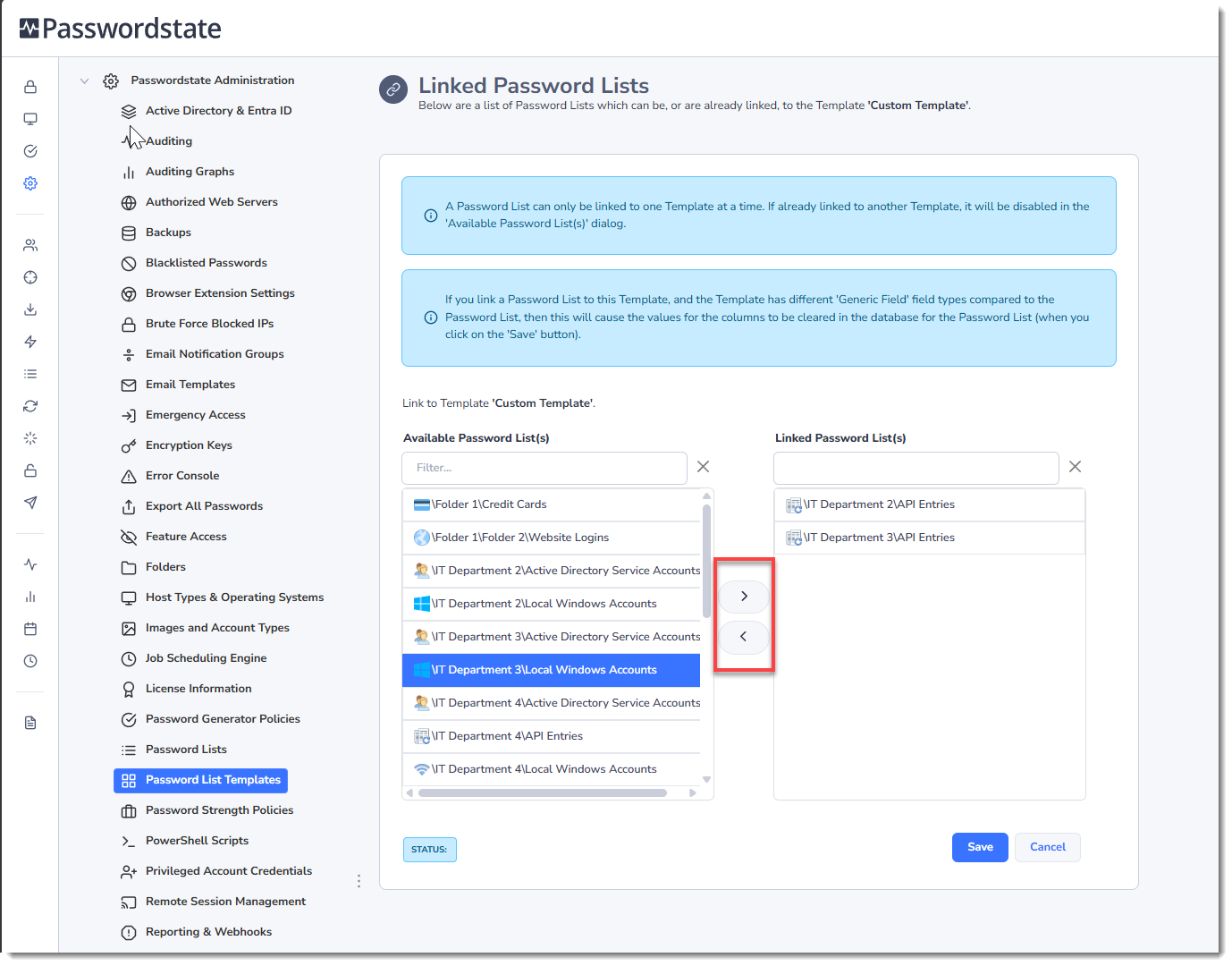
Linking Password Lists to a Template is a very simple process - move the Password List you want to link into the Linked Password List(s) text box, and click on the Save button. Reverse this process to unlink a Template from a Password List.
When linking an existing Password List to a template for the first time, all settings will be mirrored, including any Standard or Generic fields. If the Password List was already using any generic fields, the data in these will be cleared when finalizing the linkage. It's important to consider this when linking existing lists to a template.