
Security Groups
On the Security Groups page, you can manage either Local groups to Passwordstate, Active Directory security groups, or EntraID groups. These groups can then be used for applying permissions throughout the software, including on Folders, Password Lists, individual Passwords,or you can give/deny access to various other features.
If adding in a new Active Directory or EntraID Security Group on this page, this will immediately synchronize all members of that group into Passwordstate, giving each user a valid login to start using the software. Passwordstate will then continue to synchronize the members of the group on the schedule you have set under Administration -> System Settings -> Active Directory & Entra ID tab.
There are various settings on this page that allow you to control the behaviour of the synchronization process, and more information about this can be found on the Active Directory & Entra ID page.
On the Administration -> Security Groups screen, you have the following options available:
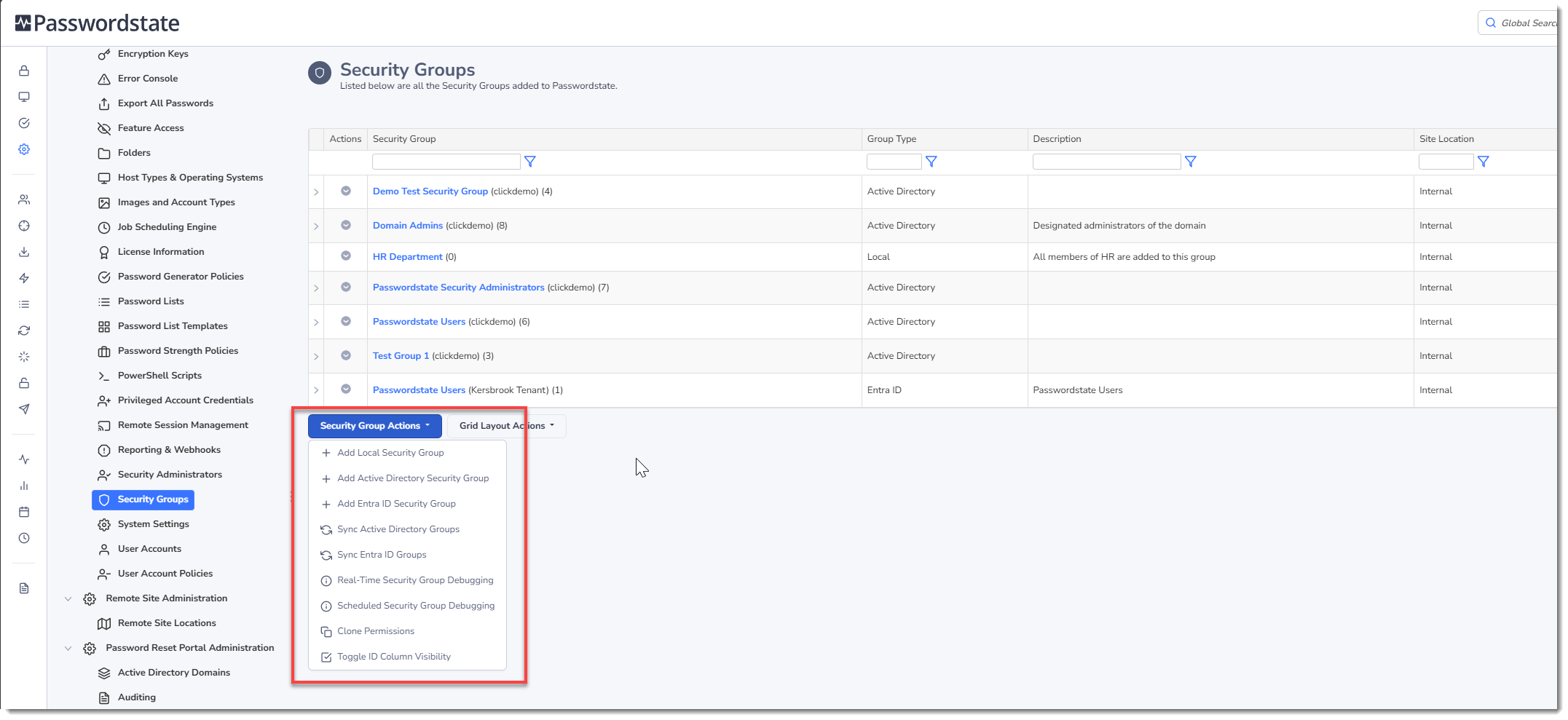
Add Local Security Group
Allows you to add a Local security group to Passwordstate, which you can then assign one or more user accounts to the security group.
It's possible to add in Local users, Active Directory users, or Entra ID users into these Local groups. Any user you add needs to already exist in Passwordstate.
Once you have added the Local security group, you can assign user account membership by selecting the Manage Members menu item from the appropriate Actions menu.
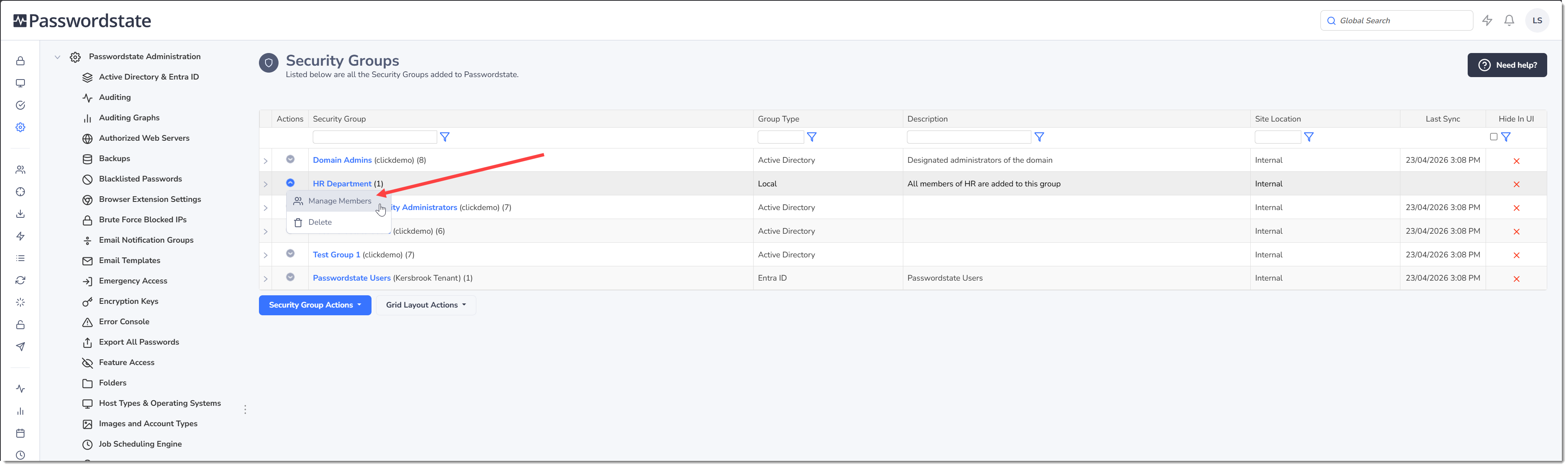
Note: Local Security Groups memberships need to be managed manually, either through the Manage Members button on the screenshot above, or possibly even using the API. These Local groups do not synchronize with any other system, which is why the Last Sync column in the screenshot above is empty for the highlighted group.
Add Active Directory Security Group
To add an Active Directory Security Group, you simply need to search for the group you require, highlight the resulting group and click Save. If needed, you can view the members of the group before adding. Once the Security Group is added, any member of that group will automatically be added on to the Administration -> User Accounts page if they are not already preset there. This will give them a valid login into Passwordstate so they can start using the software.
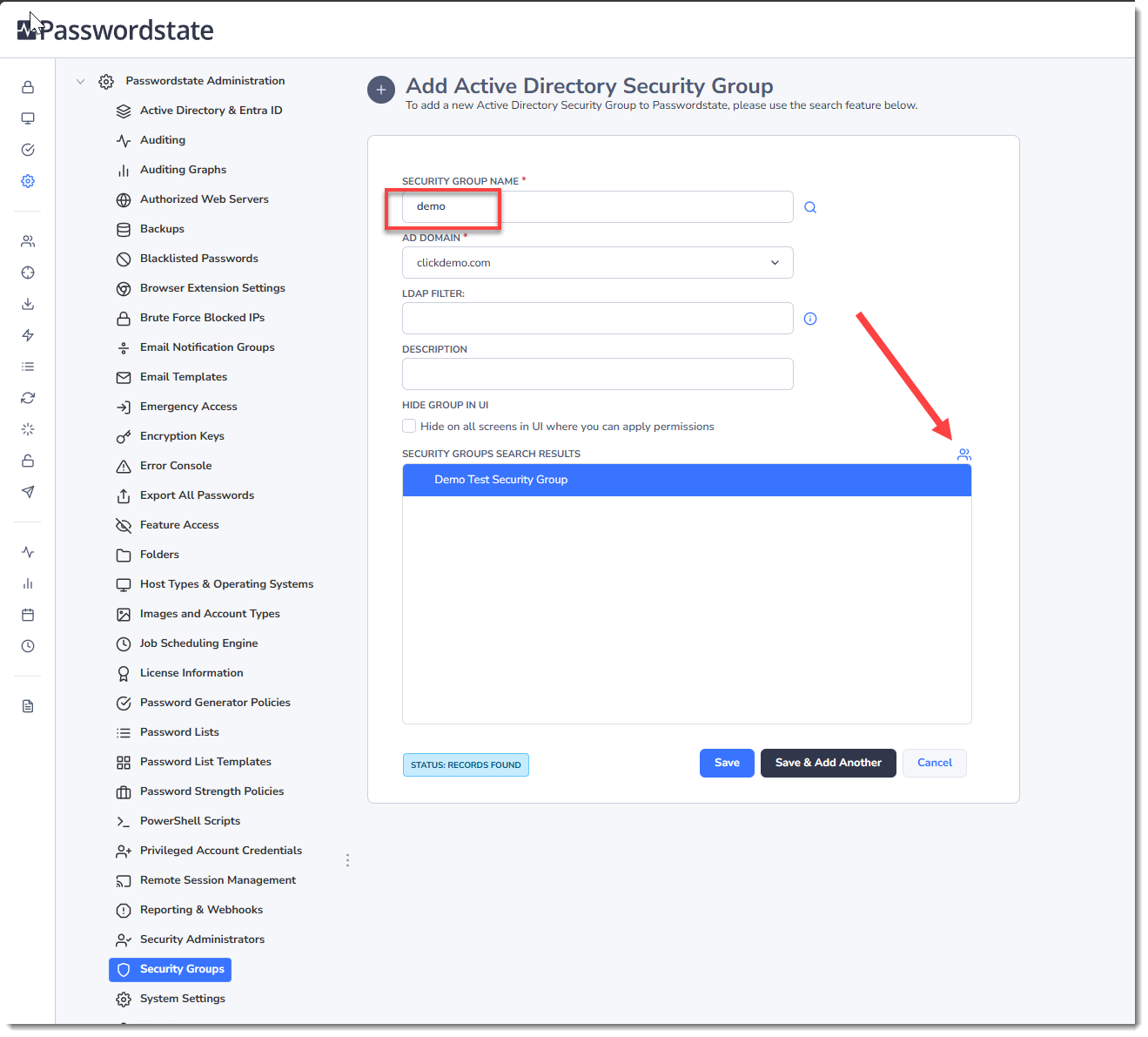
Note 1: Cross domain membership in Security Groups is not supported.
Note 2: Make sure you have already added your domain on the Administration -> Active Directory & Entra ID page before trying to add a Security Group in on this page.
Add Entra ID Security Group
To add an Entra ID Security Group, you simply need to search for the group you require, highlight the resulting group and click Save. If needed, you can view the members of the group before adding. Once the Security Group is added, any member of that group will automatically be added on to the Administration -> User Accounts page if they are not already preset there. This will give them a valid login into Passwordstate so they can start using the software.
Note 2: Make sure you have already added your Tenant on the Administration -> Active Directory & Entra ID page before trying to add a Security Group in on this page.
Synchronizing Groups
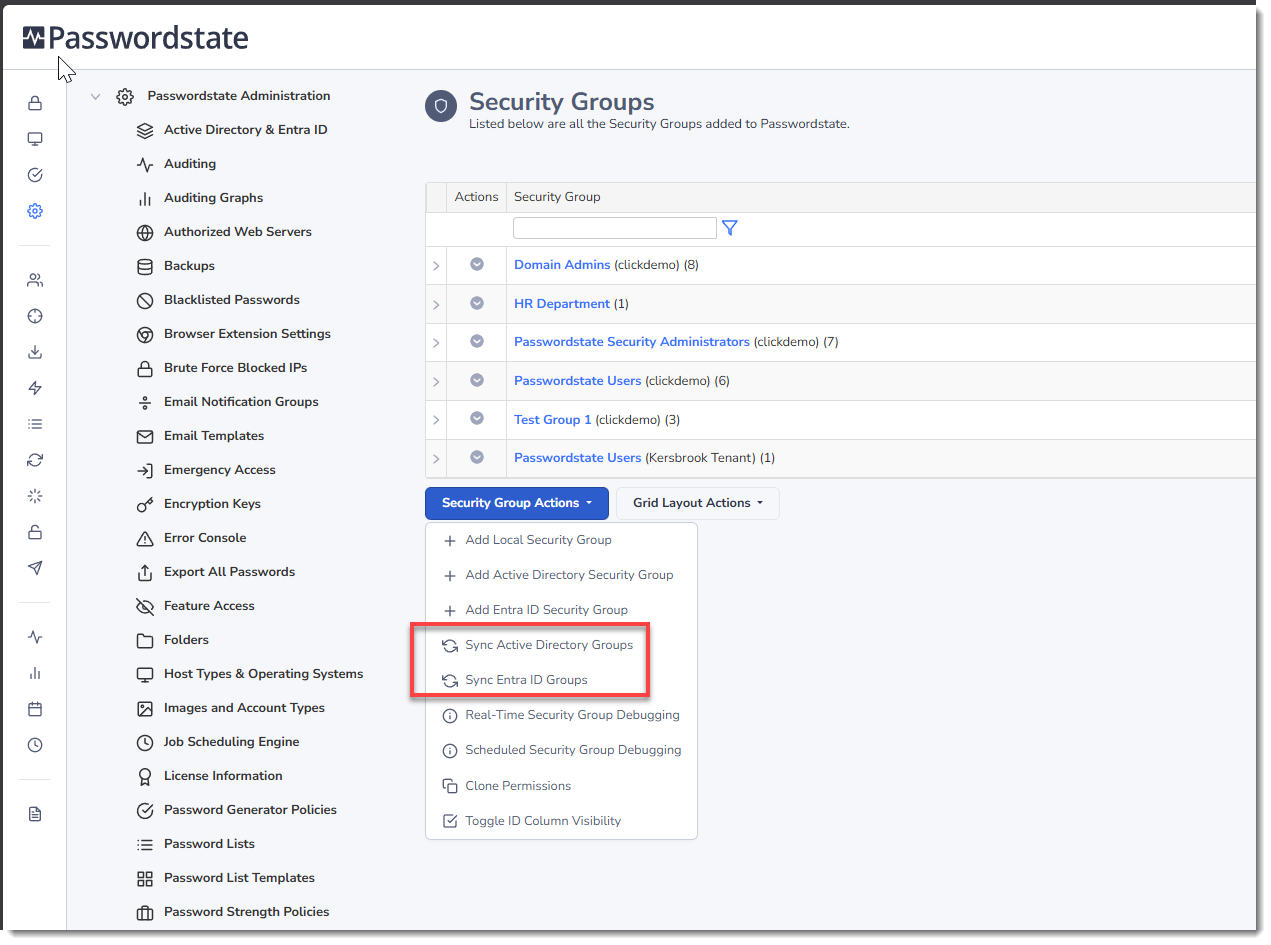
For Active Directory or Entra ID Security groups, they will automatically synchronize group members on the schedule you have set under Administration -> System Settings -> Active Directory & Entra ID tab. This Sync process will mirror the security group membership in Passwordstate so it has the same user membership that is in Active Directory, or Entra ID.
If needed, you can initiate a sync immediately, by selecting the appropriate option in the screenshot below. This will start the sync process within one minute, and you will be alerted in the notification center once complete:
Debug Security Group Membership
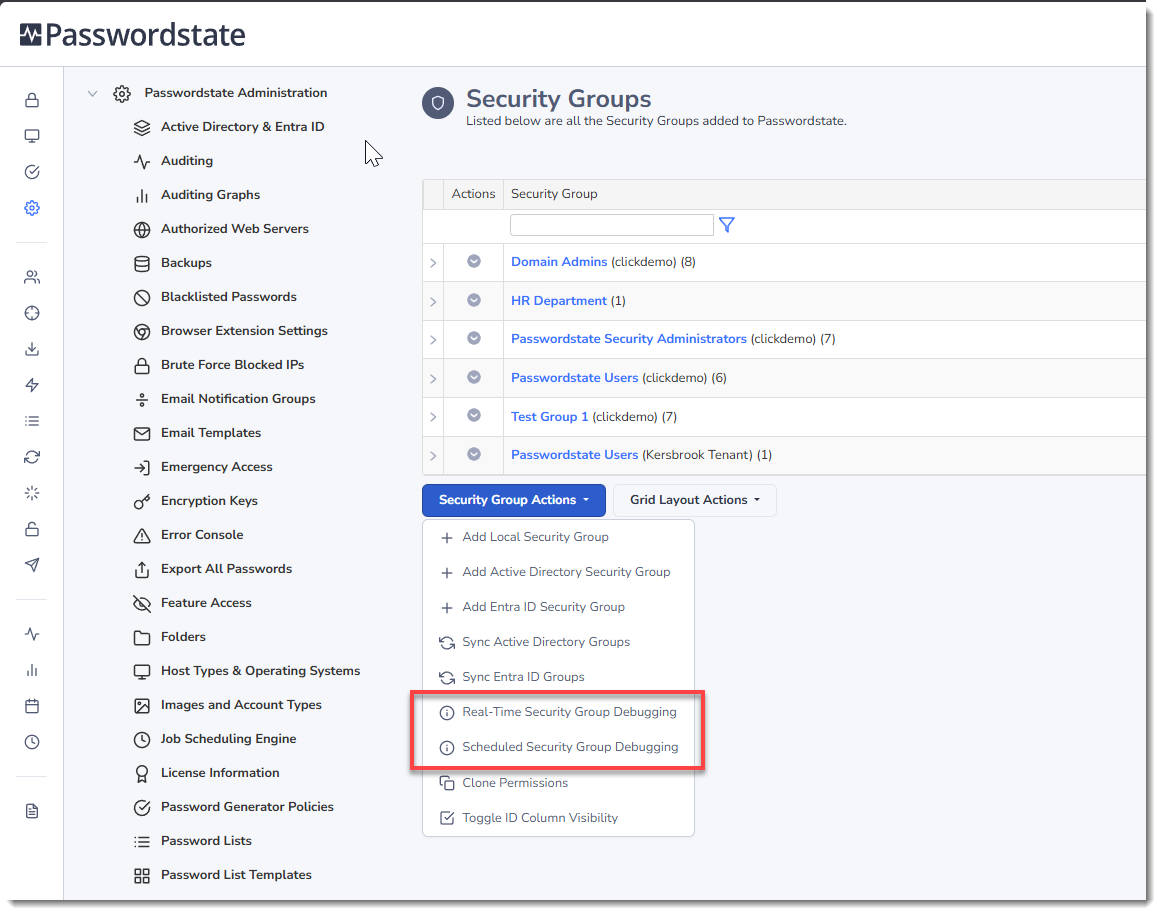
In the event you are having some issue synchronizing the membership of an Active Directory Security Group, the Real Time Security Group Debugging tool allows you to query the members of the security groups, and provide some additional debug information which may be useful for determining the cause of the issue.
You can also turn on the Scheduled Security Group Debugging option, and this queries not only Active Directory but also Entra ID groups during the next scheduled sync process.
Clone Permissions
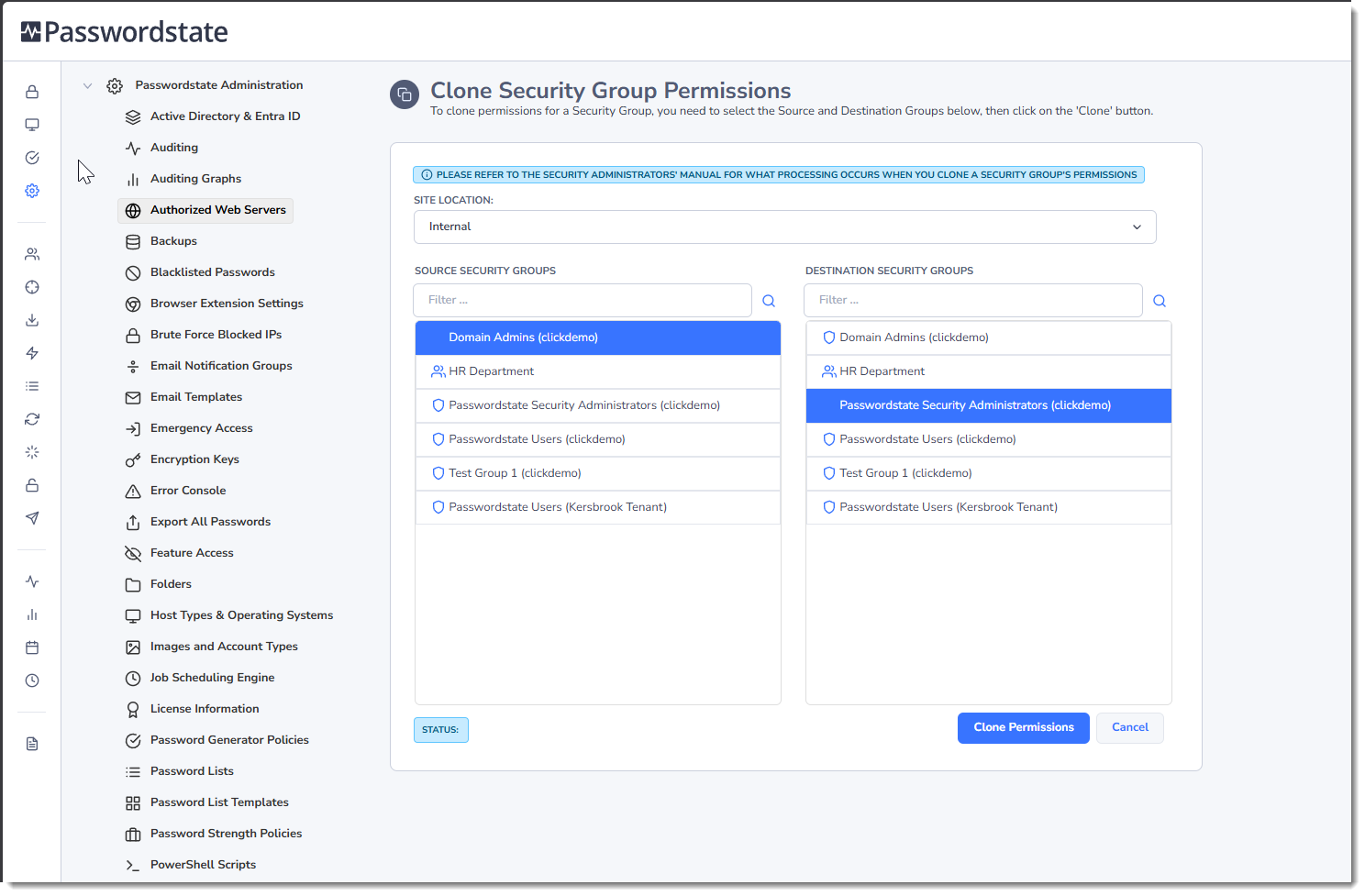
It's possible to clone the permissions from one Security Group to another using the Clone Permissions feature.
Note 1: When cloning occurs, the destination Security Group's permissions are first removed – otherwise duplication would occur.
Note 2: Security Group Memberships will not be cloned with this process, as you need to manage these memberships yourself - either manually for Local Security Groups, or by the AD or Entra ID synchronization process.
During the cloning process, the following types of permissions will be cloned:
- Any memberships to Email Notification Groups
- Any of the Features permissions for what menus the user is allowed access to
- Any permissions to Password Lists or Folders (auditing records are added)
- Any Password permissions (auditing records are added)
- Any permissions to Password Lists Templates (auditing records are added)
- Any Security Administrator roles (auditing records are added)
- Any User Account Policy permissions
When cloning Security Group permissions, simply select the Source and Destination group, and click the Clone Permissions button:
Toggle ID Column Visibility
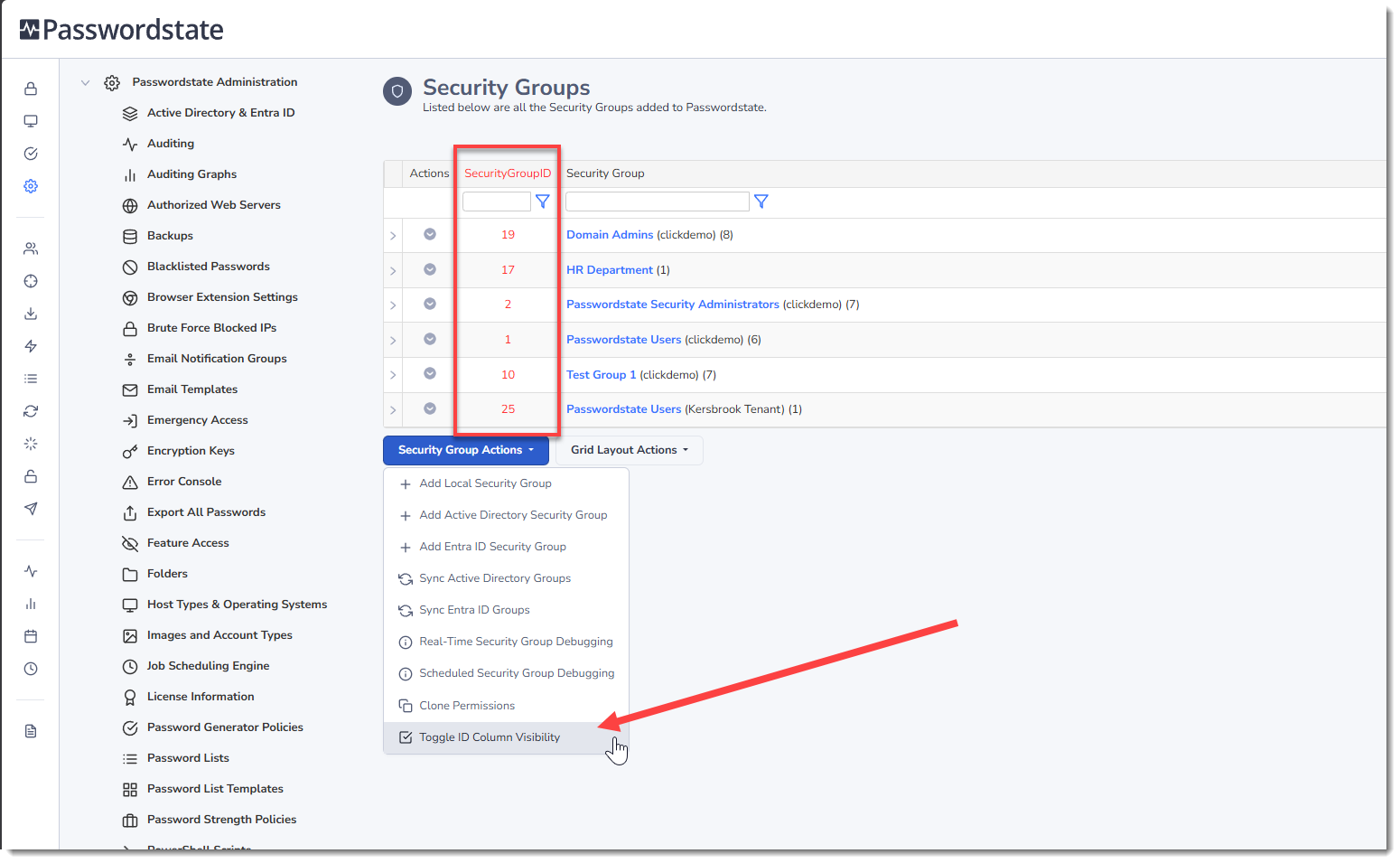
The Toggle ID Column Visibility option allows you to quickly see the ID value for each Security Group, in case you need to use it in API scripts:
Deleting Security Groups
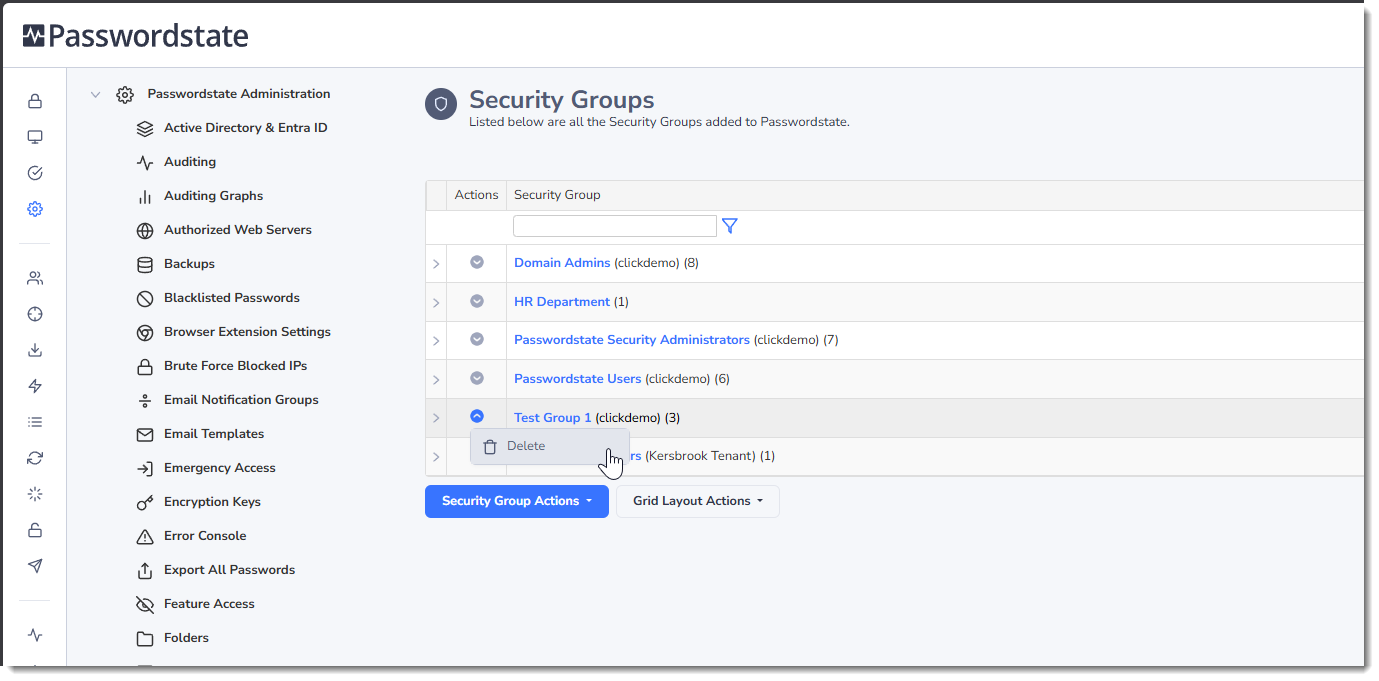
On the Actions Menu for each group, you can choose the option to Delete the group. By performing this action, the group will be removed from Passwordstate and anywhere where that group is used to apply permissions, such as on Password Lists, or Folders.
By default, deleting the group does not delete them members of that group out of Passwordstate, and they will remain active on the Administration -> User Accounts page. There is a setting on the Administration -> System Settings -> Active Directory & Entra ID tab that can potentially disable the User Account when deleting a Security Group, so it's important to investigate this setting first. For reference, the setting is called "When a user is no longer in any security groups, apply this action in Passwordstate"
Nested Security Groups
Nested Security Groups are supported in Passwordstate, but we do not maintain the nesting structure of those security groups. Instead, all the members of the nested Security Groups, will show in Passwordstate as members of the "parent" security group.
Please Note: Nested Security Groups are only supported within the same Active Directory Domain i.e. you cannot nest a Security Group from Domain B, beneath a Security Group from Domain A.