
Moving Passwordstate To A New Web Server
Instructions for moving your Passwordstate Website installation to a new server.
Overview
Please use the following instructions as a guide for moving an existing Passwordstate web installation to a new server.
Prior to moving your install, you will need to decrypt the database Connection string and AppSettings sections of your web.config file. Please refer to the following documentation Encrypt/Decrypt Web.config
Installing Passwordstate
Prior to installing Passwordstate on your new web server, if the name of your new web server is changing, then you must add the new web server name to the list of authorized web servers within Passwordstate. You can do this from the screen Administration -> Authorized Web Servers.
If you do not do this step, you will be presented with an “Unauthorized Web Server” page the first time you log into your new website. If you get this page, simply enter your Emergency Password and it will automatically enter the server name into the Authorized Web Server page for you.
Note: Your emergency password can be retrieved from Administration -> Emergency Access on your old server. Alternatively, request assistance from Click Studios Support to recover your emergency password by following this process: Recover Emergency Access Password
You will now need to download the latest version of the Passwordstate installer files from Click Studios check sums page: https://www.clickstudios.com.au/passwordstate-checksums.aspx. If you current install is older, you will be prompted to upgrade the database after the move is complete
Now you can follow the General Installation Instructions to install Passwordstate, stopping when you complete section Installing Passwordstate - you should not proceed past this section of the install guide
If you are using a custom SSL Certificate with your existing installation of Passwordstate, then you will need to install this certificate on your new web server, and assign it to your HTTPS binding in IIS. More information about SSL Certificates can be found here: Passwordstate Certificates Explained
You will most likely be using a CNAME DNS entry to resolve the URL binding for your website. You will now need to edit the DNS entry and update the host name of your new web server. Examples of a DNS entry and corresponding IIS bindings can be found in this KB Article: Changing The Passwordstate URL
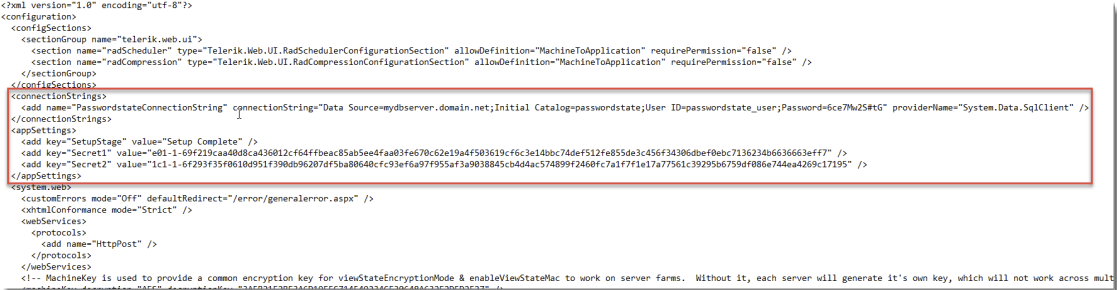
Next you need to copy the entire ConnectionStrings and AppSettings sections from your existing installation’s web.config file into the new website. (The default location for the web.config file is C:\inetpub\Passwordstate\web.config)
Example of these lines that need copying can be seen in screenshot below
Restart the Passwordstate Windows Service on your new web server (after the Service has been restarted, it will recreate any custom Logos or images you have uploaded into Passwordstate - you may need to give it a minute or two to do this)
Now you can attempt to log into Passwordstate for the first time after this migration, and you will most likely be prompted to upgrade the database. This is normal, and you can continue at this point until the upgrade process finishes.
At this point, your Passwordstate website has now been moved and is ready to be logged into and start using. If you see any errors, please ensure you have followed this process correctly, and if needed log a support call with Click Studios to help you resolve any errors.