Feature Access
The Feature Access screen allows you to grant or deny access to various features and menus, for either User Accounts or Security Groups. Below is a brief description of the purpose for each tab under the Feature Access page.
API
On the API Tab, you can specify the following:
- Restrict which users are allowed to make calls to the Windows Integrated API, or the Standard API
- Each user can have their own User Based API key, which they can use to add, retrieve and read data from Passwordstate. This setting allows you to restrict who can create their own API key under their Personal Preferences page
- Which users are allowed to make changes on the API Keys, Settings and Allowed IP Ranges at a Password List level
Folder Options
- On the Folder Options tab, you can set permissions for which users are allowed to create folders in the root of the Navigation Tree (Password Home). This can be useful if you want to restrict users to only be able to create new folders only within the existing folders
- You can also restrict any user from creating new folders under existing folders
- Specify which users, who have Administrator rights on folders, to be able to convert between the Advanced and Standard permission models
Note: For the converting of Permission Model setting above, if you allow users to convert the Permissions Model from Standard to Advanced, then you are giving them adequate rights to manage permissions on all nested Folders and Password Lists. It is possible they may not have previously had access to some nested Password Lists, prior to converting the permissions model.
Hosts
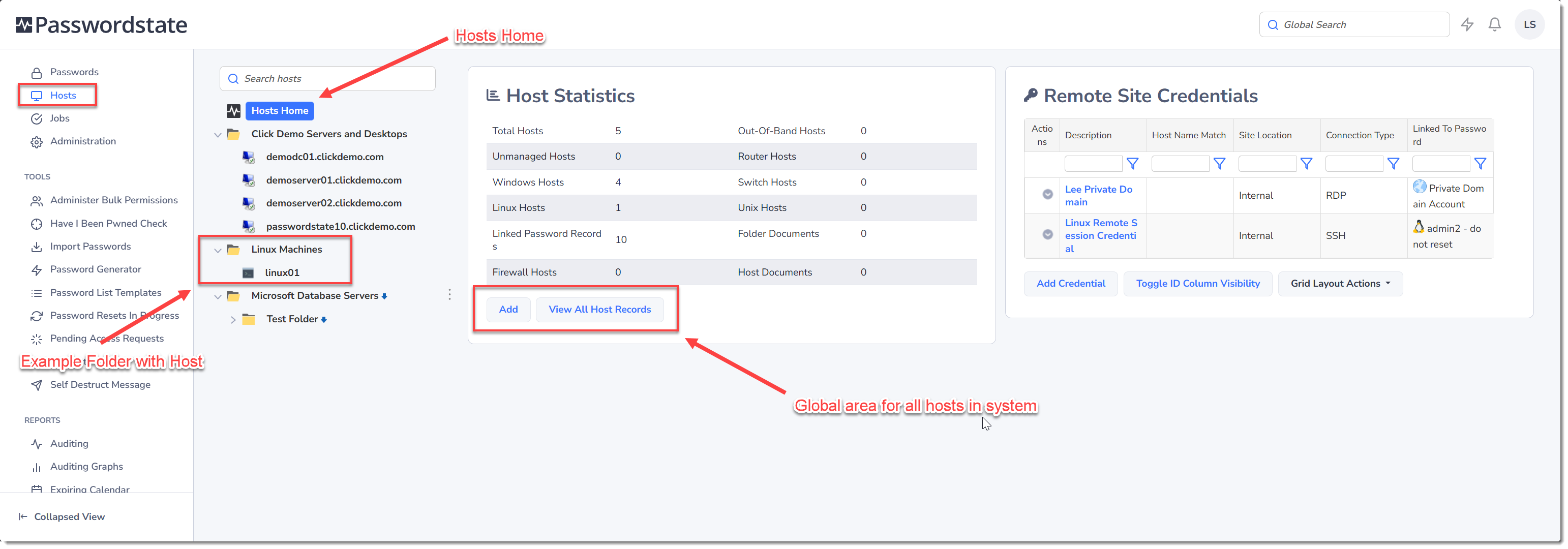
The Hosts tab allows you to control various features under the Hosts Menu. The features are:
- Which users have access to the Hosts Menu itself. Removing permissions for a user with this setting completely hides the Hosts menu in the UI
- Which users are responsible for managing Hosts ie. Adding, Editing or Deleting hosts from the system
- Which users are allowed to manage Folders in the Hosts Menu. This prevents users from adding or removing hosts from folders, and changing settings or permissions on folders
- Which users are allowed to see the buttons under the Host Statistics area for the Hosts Home screen. Removing access to this feature prevents users from seeing all Hosts in the system. An example where this setting would be used, is if you gave a contractor access to the Hosts page so they can RDP or SSH into one or two machines, but you do not want them to be able to see the names of any other server on your network
- Which users are allowed to manage Documents and External Links within the Hosts menu
Jobs
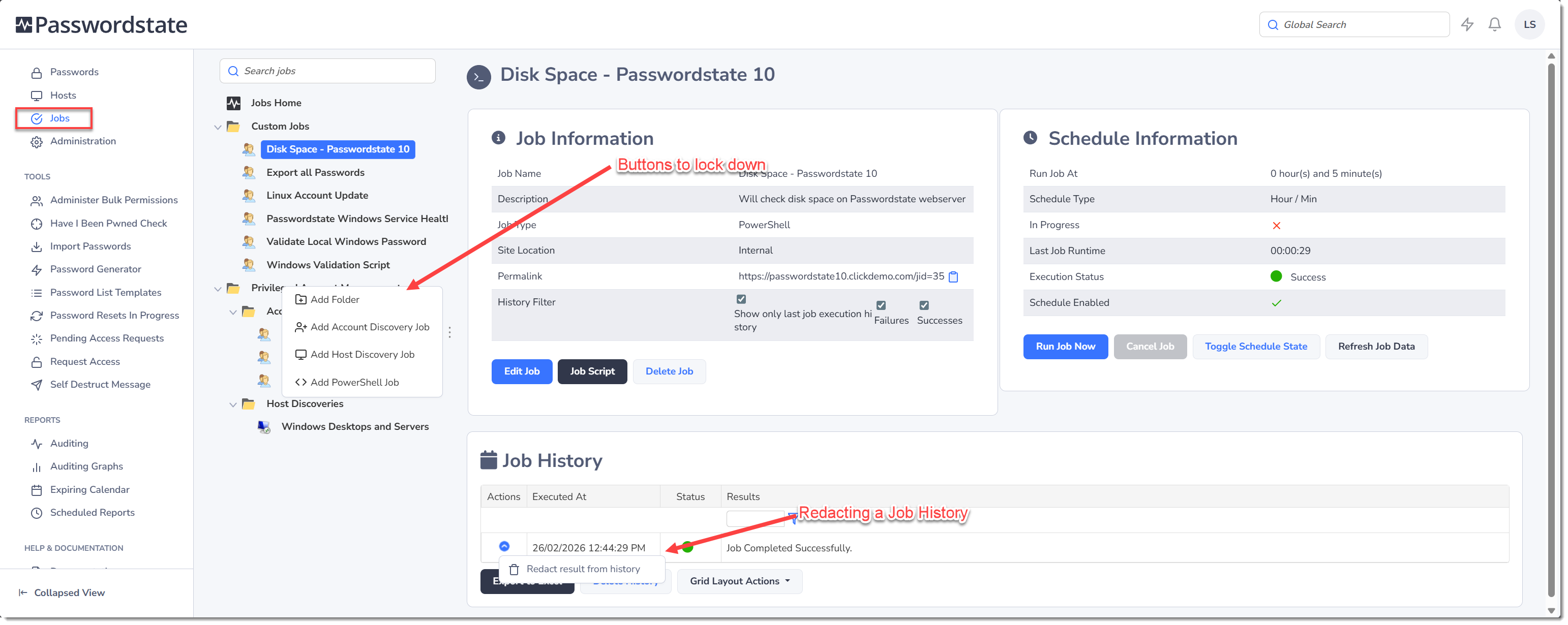
Jobs in Passwordstate can be any kind of built-in Job, such as an Account or Host Discovery Job for many different types of systems, or you can run custom Powershell jobs from under the Jobs Menu. This Jobs tab under Feature Access allows you to control how users interact with these jobs. The options are as follows:
- Which users have access to the Jobs Menu itself. Removing permissions for a user with this setting completely hides the Jobs menu in the UI
- Which users are able to Add job Records under the Jobs page, and drag and drop these records into new folders
- Which users are allowed to Add job Folders, and drag and drop folders into other folders under the Jobs page
- Which users are allowed to Redact the history of Jobs that have been run. If you open any Job from the Jobs page, you'll see a Job History grid which outputs the last result of the Job. Redacting the results can prevent sensitive information from being displayed in this grid, if the custom job outputs some sensitive information
- You can remove permissions to Delete Job History entries in that same grid mentioned above
Menu Access
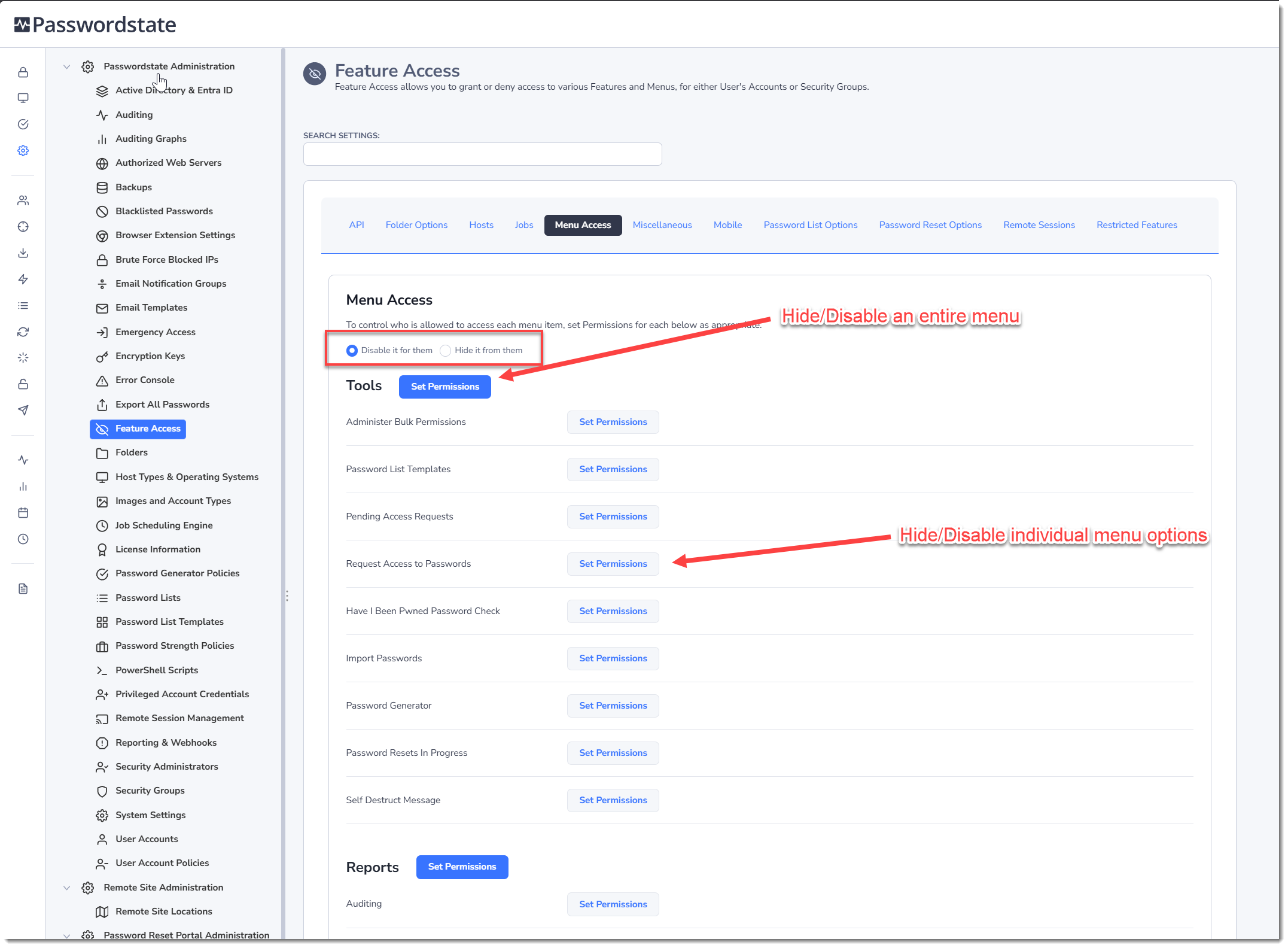
The Menu Access tab allows you to specify which users or security groups are allowed to access the various main navigational menus in Passwordstate. By clicking on the appropriate 'Set Permissions' button, you can restrict which users can see or use certain menus
You can choose to either Disable the menu for users who do not have access, or hide it from them completely.
Miscellaneous
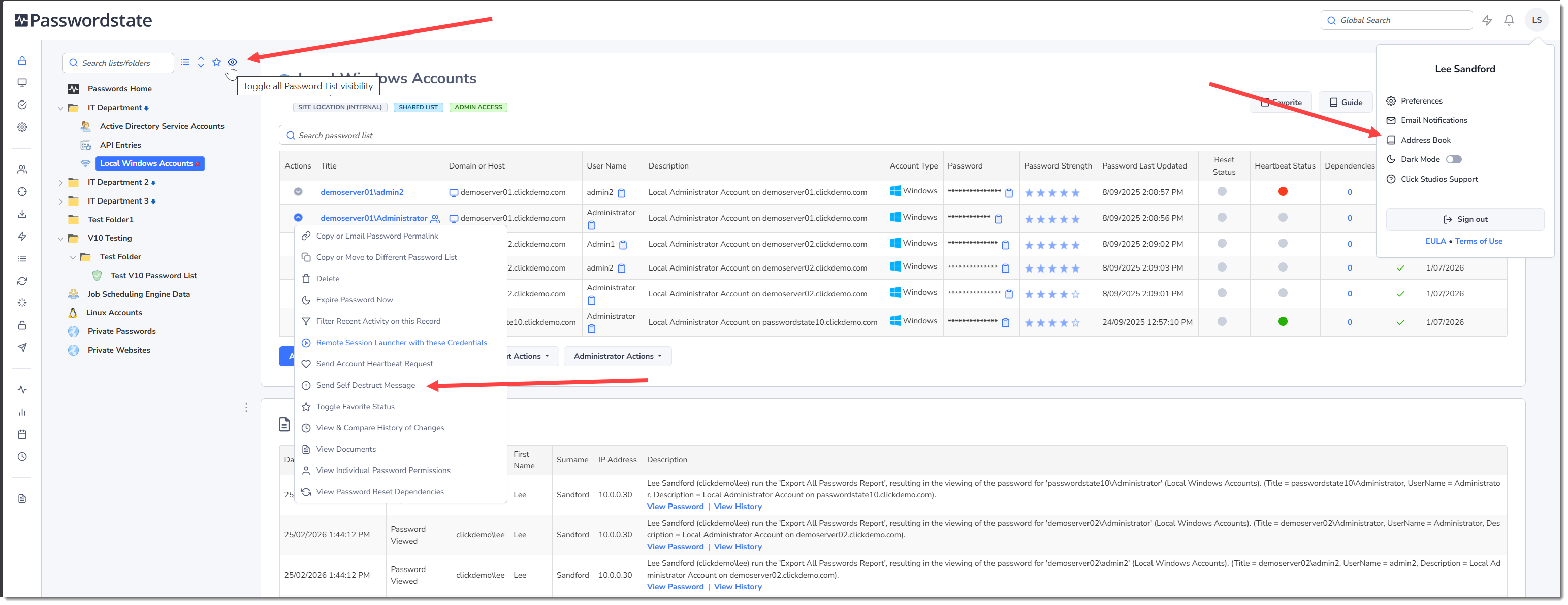
The Miscellaneous tab allows you to specify which users are allowed to send Password Records as Self Destruct messages, manage Global contacts for the Address Book feature, restrict users from seeing Password Lists& in the system that they do not have access to, and specify which users are allowed to use the SAML Override feature.
Mobile
The Mobile tab allows you to specify which users are allowed to use the native iOS and Android Apps for Passwordstate.
Remove permissions for users on this page to deny them being able to connect and sync data from the mobile apps. This setting doesn't prevent users from downloading and installing the apps, but they won't be able to use them.
Password List Options
On the Password Lists options tab, you can specify which users are allowed to have access to various Password List features. The features are:
- Which users are allowed to create Shared Password or Private Lists in the root of the Passwords Navigation Tree
- You can restrict which users can create Shared or Private Lists in Folders. Even if the user has Admin rights to a folder, this setting will override that permission and deny them the ability to create new Lists.
- Which users are allowed to Drag-n-Drop around Password Lists and Folders in the Passwords Navigation Tree. By default, any user who has Admin rights to the Password List or Folder can do this, but using this feature you can further restrict this ability
- Specify which users are to use the Add Password List Wizard: (this is not applicable if a User Account Policy is forcing the use of Password List settings)
- If users are using the Add Password List Wizard, do you want to allow them to disable the use of the Wizard?
- Specify additional Approvers of Access Requests for Password Lists and Password records, in addition to Administrators of the Password Lists. If you add a user to this setting, they will be able to approve any request for passwords or Password Lists in the system, even data they cannot see in the Passwords Navigation tree.
- With the additional approvers setting above, you can specify if you want them included in all Access Requests, or only when there are no Administrators configured on the Password List(s)
Password Reset Options
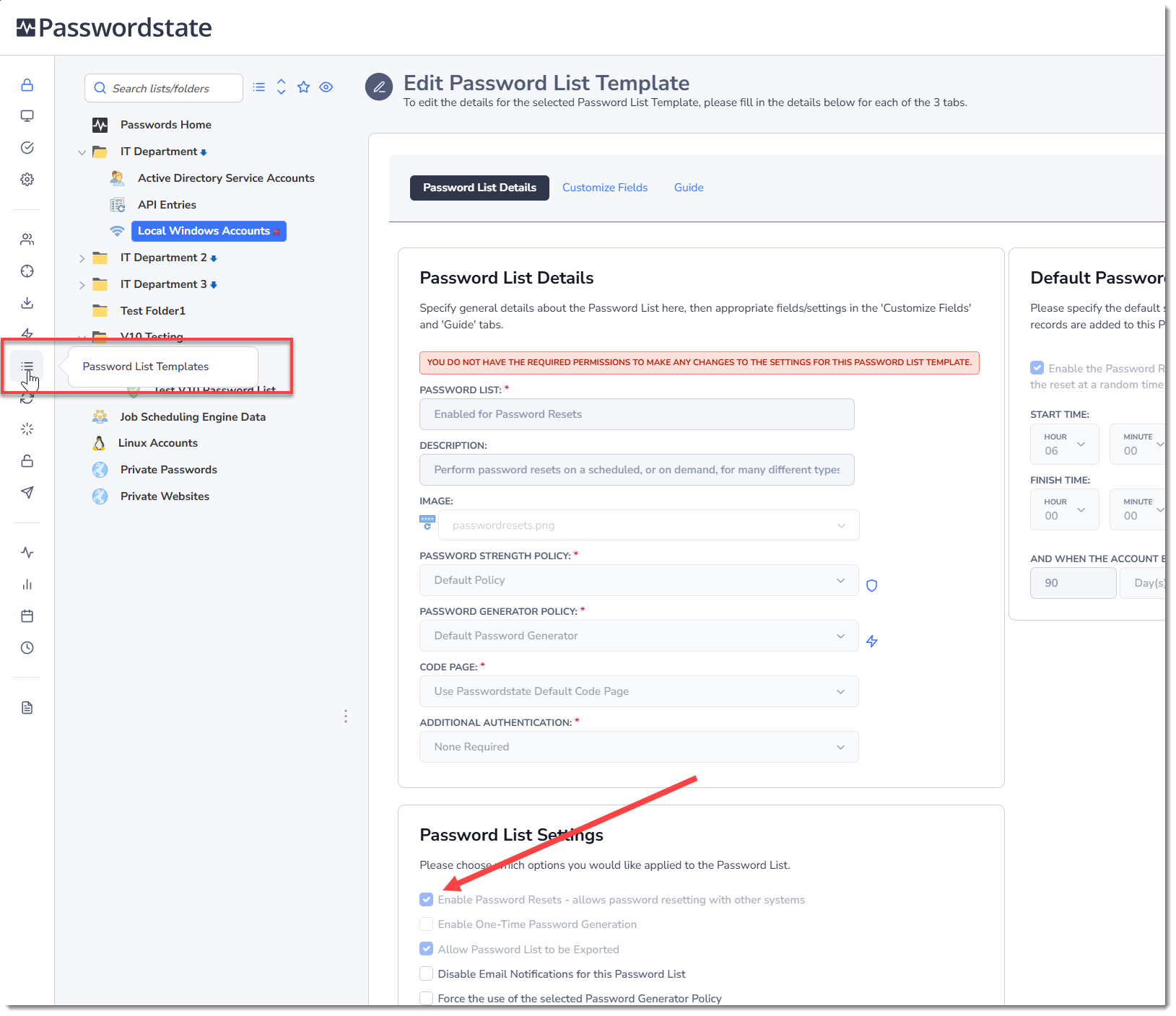
On the Password Reset Options tab, you can specify which users are allowed to see either Password Lists or Password List Templates which have the Enabled Password Resets option enabled, when they are creating new Password Lists.
Remote Sessions
Passwordstate has two types of Remote Session Launchers - one is Client Based, and requires an install on your Windows PC. The other is Browser Based which launches sessions to hosts in new tabs in your browser, and can be used from any operating system.
The Remote Sessions tab allows you to specify various levels of access and features for our Remote Session Launchers, in particular:
- Which users are allowed to use the Client based version of the Remote Session Launcher
- Which users are allowed to use the Browser based version of the Remote Session Launcher
- Do you want to hide any buttons and configuration screens for one of the Remote Session Launcher types that the user may not have access to?
- If using the browser based version, you can record the user's sessions for later playback.
- You can display a Session Recording Warning to all users so they know their remote sessions are being recorded
- For the Browser Based Remote Session Launcher, you can modify the default Keyboard layout for RDP sessions - United States (English) is the default
- Which users are allowed to add/edit/delete Remote Session Credentials from within the Hosts Menu
- Which users are allowed to manage permissions on any Remote Session Credentials they have access to
- Specify which users are allowed to authenticate remote sessions using Local Accounts they have access to under the Passwords tab
- Specify which users are allowed to see the Manual Launch buttons for the hosts. Removing this privilege denies the user from manually typing in a set of credentials when connecting to Hosts
Note 1: If you are using the High Availability module for Passwordstate, it is recommended you save recorded sessions to a network share so both Passwordstate web servers are able to replay those session recordings.
Note 2: If you are using an active/passive configuration for Passwordstate with the High Availability module, then session recording is not possible on the Passive Node of Passwordstate, as you cannot write to the database with this read-only instance - and DB access is require for session recording.
Restricted Features
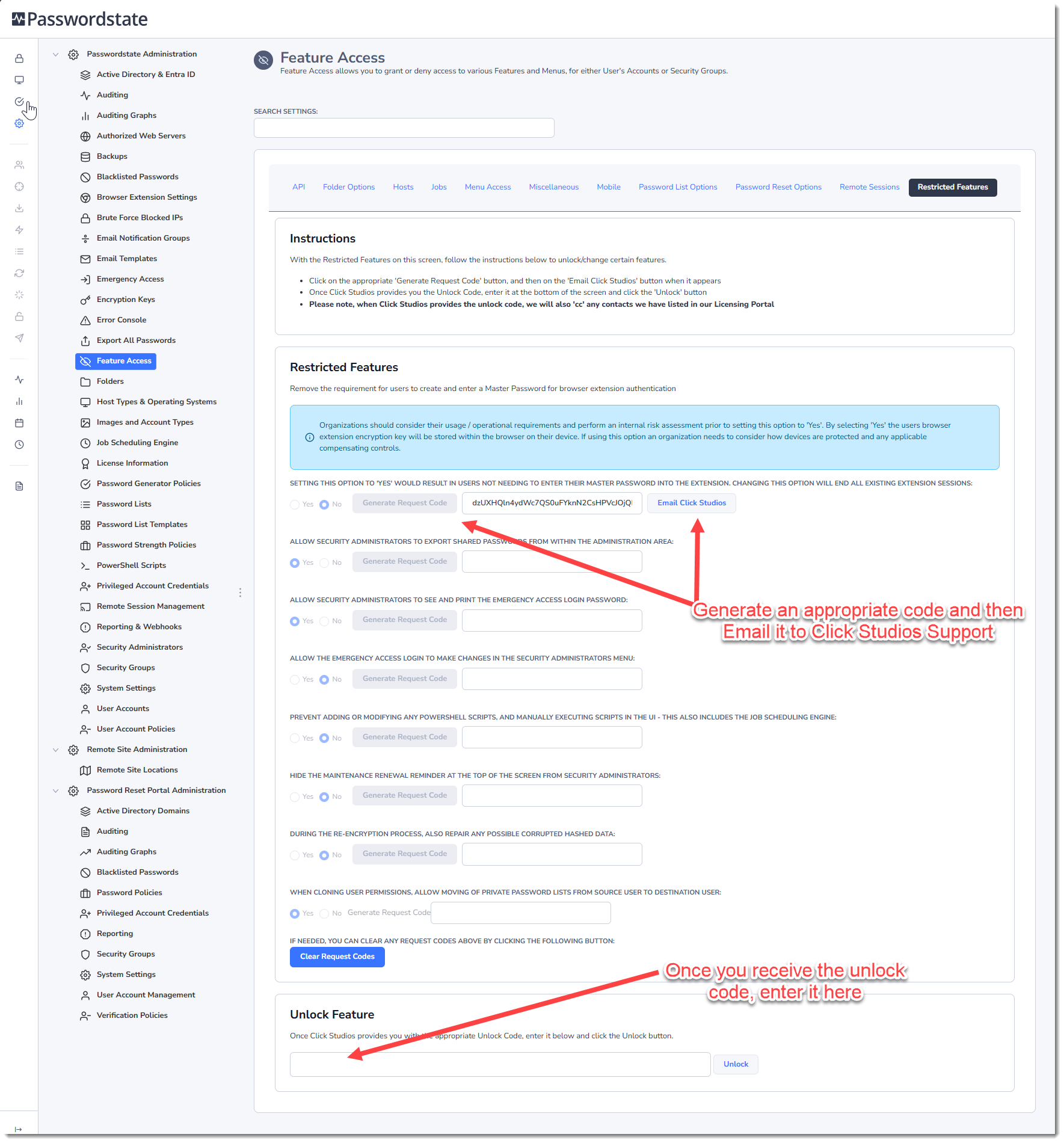
Passwordstate has a number of different features that are hidden, and locked down by default. On the Restricted Features tab, you are able to unlock these features by generating a unique code, and sending it to Click Studios support.
Click Studios will respond with an unlock code, and will also include any contacts they have stored for your company on any email correspondence. Given the nature of these restricted features, it's important to make more than one person at your company aware this change is being made.
Once you receive the unlock code from Click Studios, enter it into the Unlock Feature section of this page to reveal the hidden feature. It's possible to also reverse this process, and lock down features again, by following the same process.
The screenshot below describes which features can be changed, and the process for changing them:
- Remove the requirement for users to create and enter a Master Password for Browser Extension authentication
- Allow Security Administrators to export shared passwords from within the Administration area
- Allow Security Administrators to see and print the Emergency Access login password
- Allow the Emergency Access login to make changes in the Security Administrators menu
- Prevent Security Administrators from adding or modifying any PowerShell scripts
- Hide any Passwordstate maintenance renewal notifications within the User Interface
- When rotating encryption keys, which re-encrypts all data, you can attempt to repair any corrupt data. Typically only used if you had any issues when performing an encryption key rotation
- You can unlock a feature to move Private Password Lists across to the destination user, when cloning a user account
Note: Making any changes here adds an auditing record under the Activity Type of 'Restricted Feature Changes'.