
Encryption Keys
From the Encryption Keys screen, you can do the following:
- Set the reminder period for how often you should be rotating the encryption keys, and re-encrypting all data in the database. Users who have access to this Encryption Keys screen, will receive a notification in the Notification center
- Export your Encryption Keys to a password protected zip file
- Generate new encryption keys, and re-encrypt all data
What are the Encryption Keys?
All sensitive data in the Passwordstate database such as passwords, documents and authentication options are encrypted within the database using AES-256 or FIPS encryption. In order to decrypt this data in the user interface to make it readable to an authorized user, Passwordstate uses two encryption keys.
One half of these encryption keys resides in the database, and the other half in the web.config file. When you log into Passwordstate, these keys are joined and then used to decrypt sensitive data, which makes it readable to you in the user interface.
These split encryption keys are referred to as Secret 1 and Secret 2 in the web.config file, and Secret 3 and Secret 4 in the database.
Export Keys
In order to restore your Passwordstate environment after a disaster, the minimum you need is a copy of the encryption keys in the web.config file, and a copy of the database. For safe keeping, you can also export your encryption keys and store them away safely.
You can export your encryption keys, in the format of split secrets, to a password protected zip file by using the Export Keys button on this page.
Note 1: If you were to lose the split secrets in the web.config file, you would not be able to restore your environment in the event of a disaster - it is critical you have a securely stored copy of these encryption keys at all times.
Note 2: Passwordstate has a built in backup feature, that can backup your web.config file and your encryption keys.
Key Rotation
The encryption key rotation feature will update your encryption keys in the web.config file, and in the database. This process will also re-encrypt all your data ine the system with these new encryption keys. When performing key rotation, it's very important your follow the on-screen instructions so that the re-encryption process is not interfered with in any way.
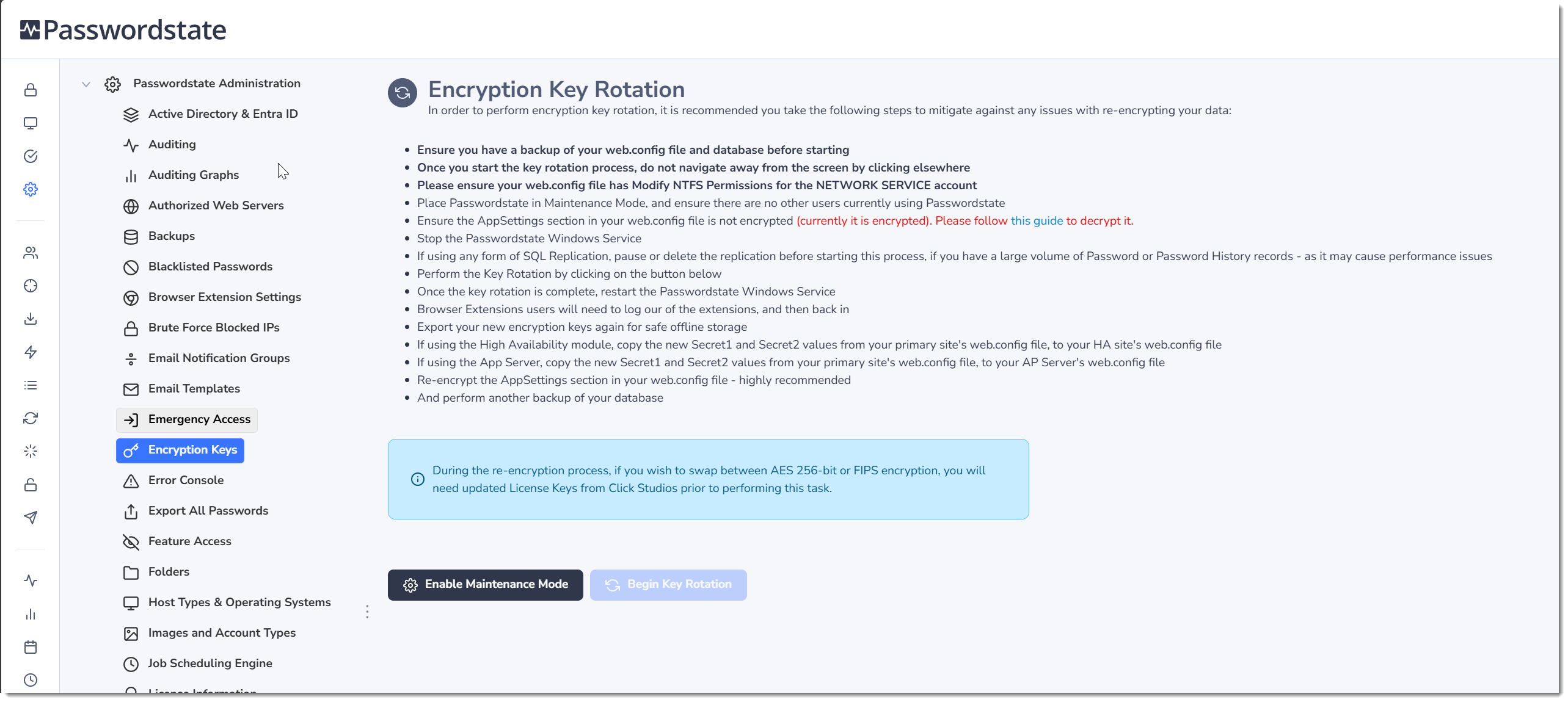
When generating new encryption keys, and re-encrypting all your data, it is also possible to swap between the two types of encryption standards that Passwordstate supports ie. AES-256 bit and FIPS 140-2. Changing Encryption model is not normally required unless you have a specific directive by management or your company to do so.
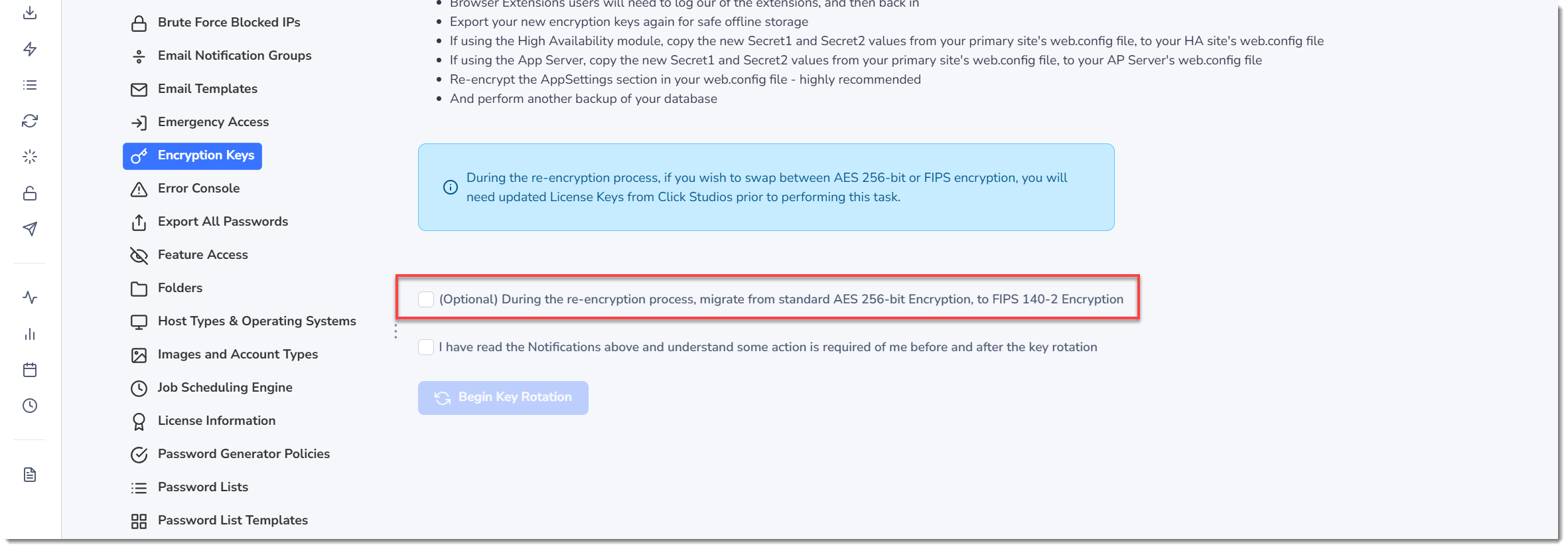
Note: If you do wish to change encryption methods, you first need to contact Click Studios and request updated License Keys for your software - as they will need to be updated on the screen, during this re-encryption process.
Encryption Key Rotation Timings
Rotation your encryption keys will require an outage of Passwordstate, and the time it takes to re-encrypt all data depends on how much data you have in the system. Typically, the entire process should take a few minutes on average. The more passwords you have stored in the system, and the amount of times your passwords have been changed will extend this re-encryption process.
As a guide, see table below for timings:
| Passwords Count | Password History Count | Total Time |
|---|---|---|
| 2,500 | 2,500 | 1 Minute |
| 250,000 | 1,000,000 | 27 Minutes |
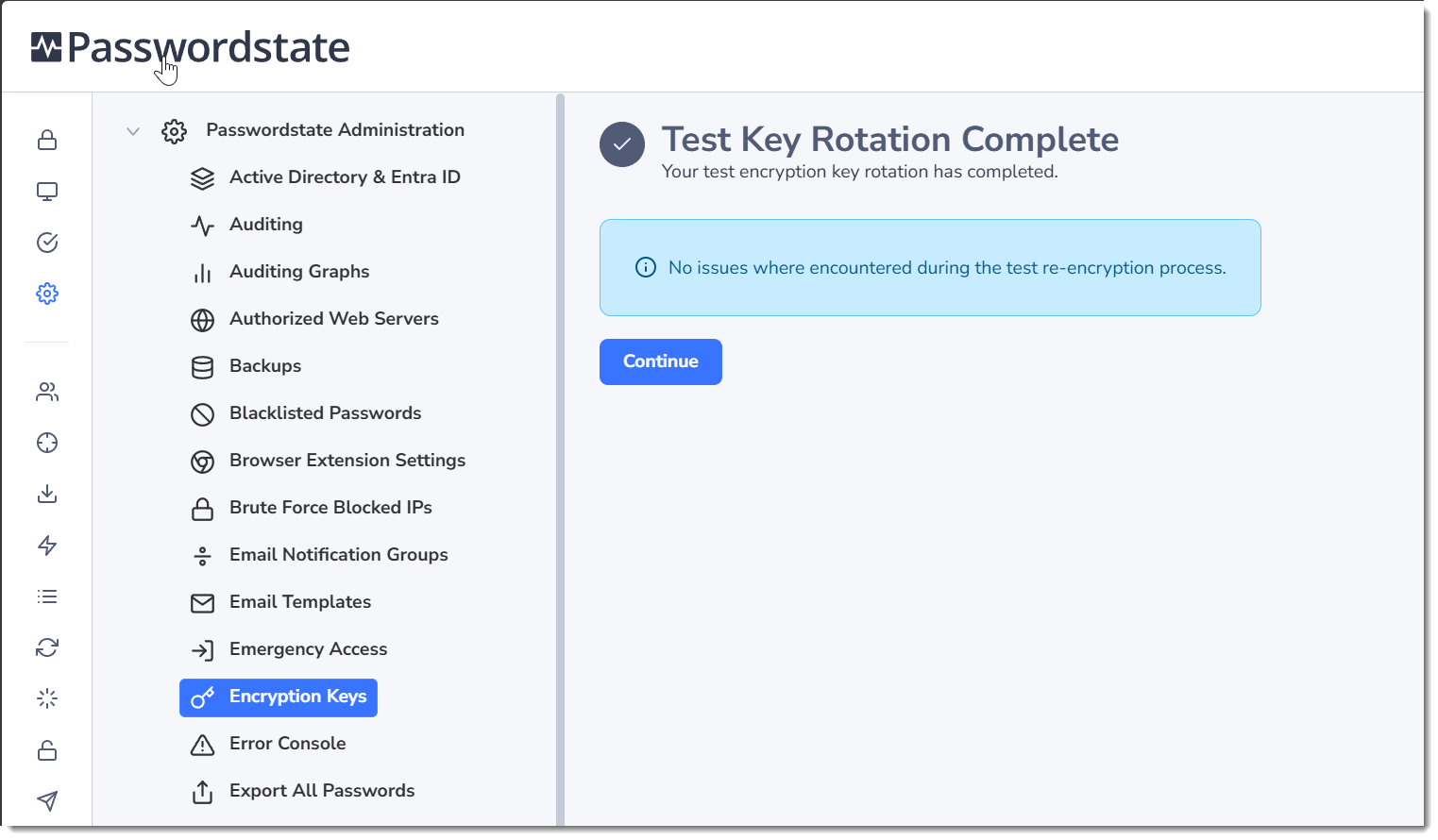
If you want to test the re-encryption process before scheduling your outage, you can use the Test Key Rotation button on this page, and this process is non-disruptive to your end users. There's no need to follow the on-screen instructions to prepare your system for a re-encryption, as per the screenshot in the Key Rotation section above.
This test will give you an idea of how long the process will take, and report any potential issues if there is anything wrong with your data.
Note: If using a cloud based database such as Azure SQL Database or Amazon RDS, this re-encryption process can take significantly longer.