Email Templates
The Email Templates screen allows you to customize the emails sent from Passwordstate, or to enable/disable notifications as required.
Enabling/Disabling Email Notifications
This page is where email notifications can be globally disabled, or enabled. If an email template is disabled on this page, then this overrides any other setting in Passwordstate, such as Email notification Groups, or any personal email preferences any user has set up. An email will not be sent out under any circumstances if it is disabled on this page.
You can enable/disable email notifications in one of either two ways:
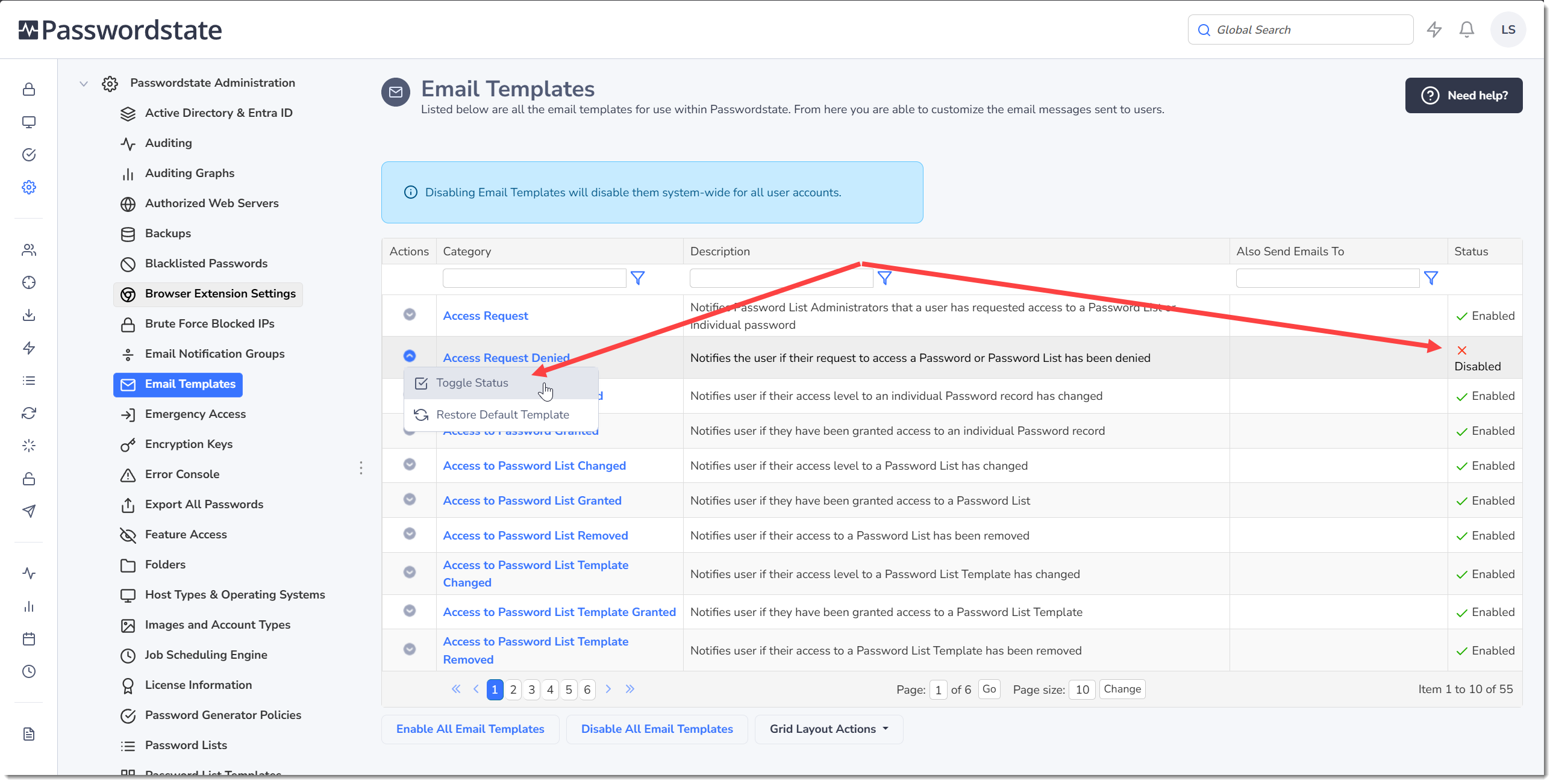
- Individually by the appropriate 'Actions' drop-down menu
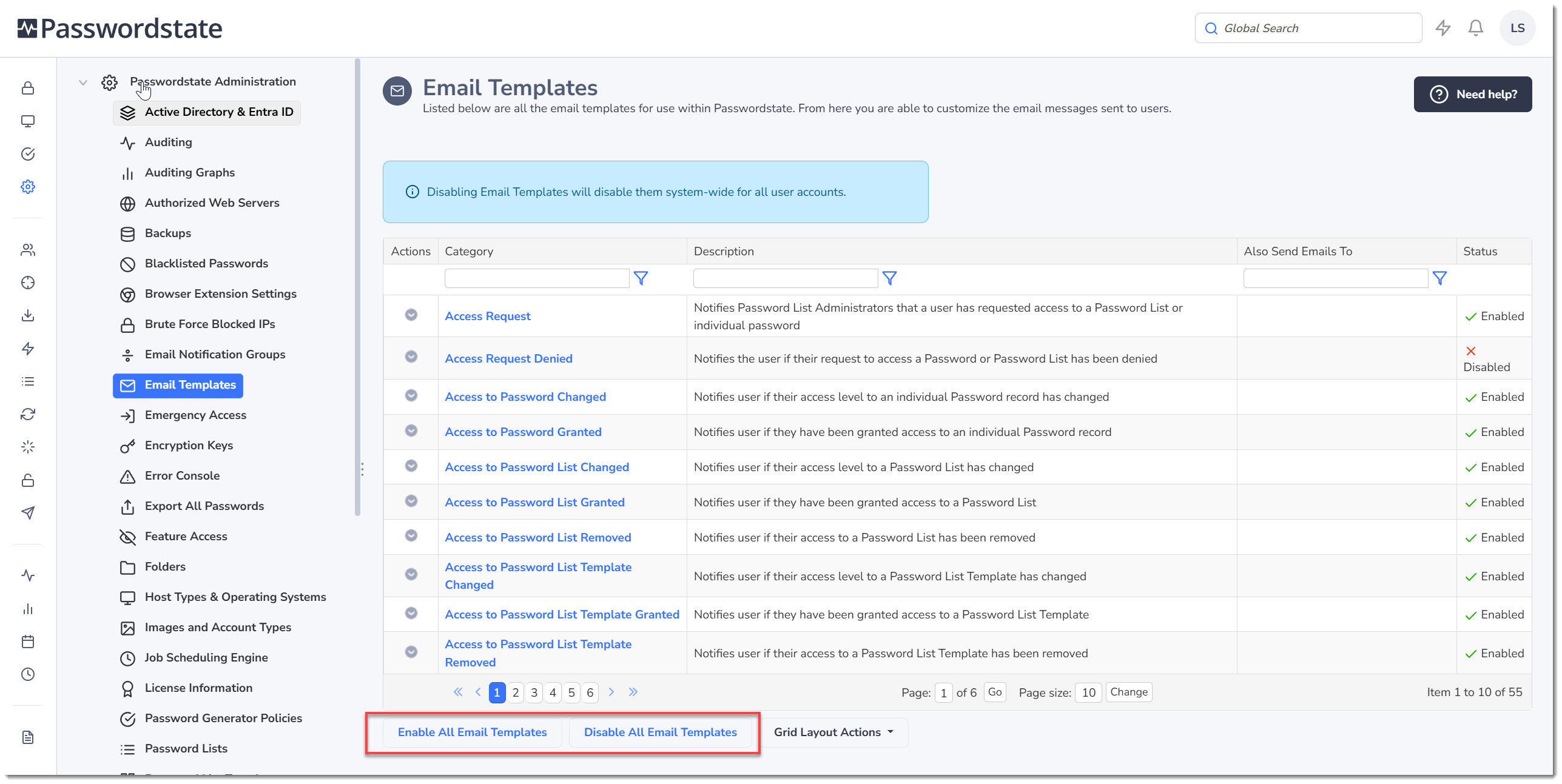
- Enabling/disabling all email notifications at once by clicking on the appropriate 'Enable All' or 'Disable All' buttons at the bottom of the grid
Editing Email Template Content
By clicking on the 'Category' hyperlink in the grid, you can edit the content of the email template - specifying your own words, and formatting options.
Below is a list of variables that you can insert into your templates, and these variables will be replaced with the relevant data when the email is sent out.
- [ToFirstName] - the First Name of the user who is receiving the email
- [ToUserID] - the UserID of the user who is receiving the email
- [SiteURL] - the URL of your Passwordstate website
- [PermissionType] - the permission being applied to a Password List or Password record for the user
- [PasswordList] - the name of the Password List
- [Password] - the title of the Password record
- [Version] - the Version number of your Passwordstate install
- [UserName] - A combination of the Firstname and Username of the user
- [ExpiresAt] - the date at which a users permissions to a Password List or Password will be removed
- [AdditionalBodyText] - reserved by Click Studios for various custom text messages
- [AuthenticationMethod] - which Authentication method was used to authenticate to the Passwordstate website, or to a Password List
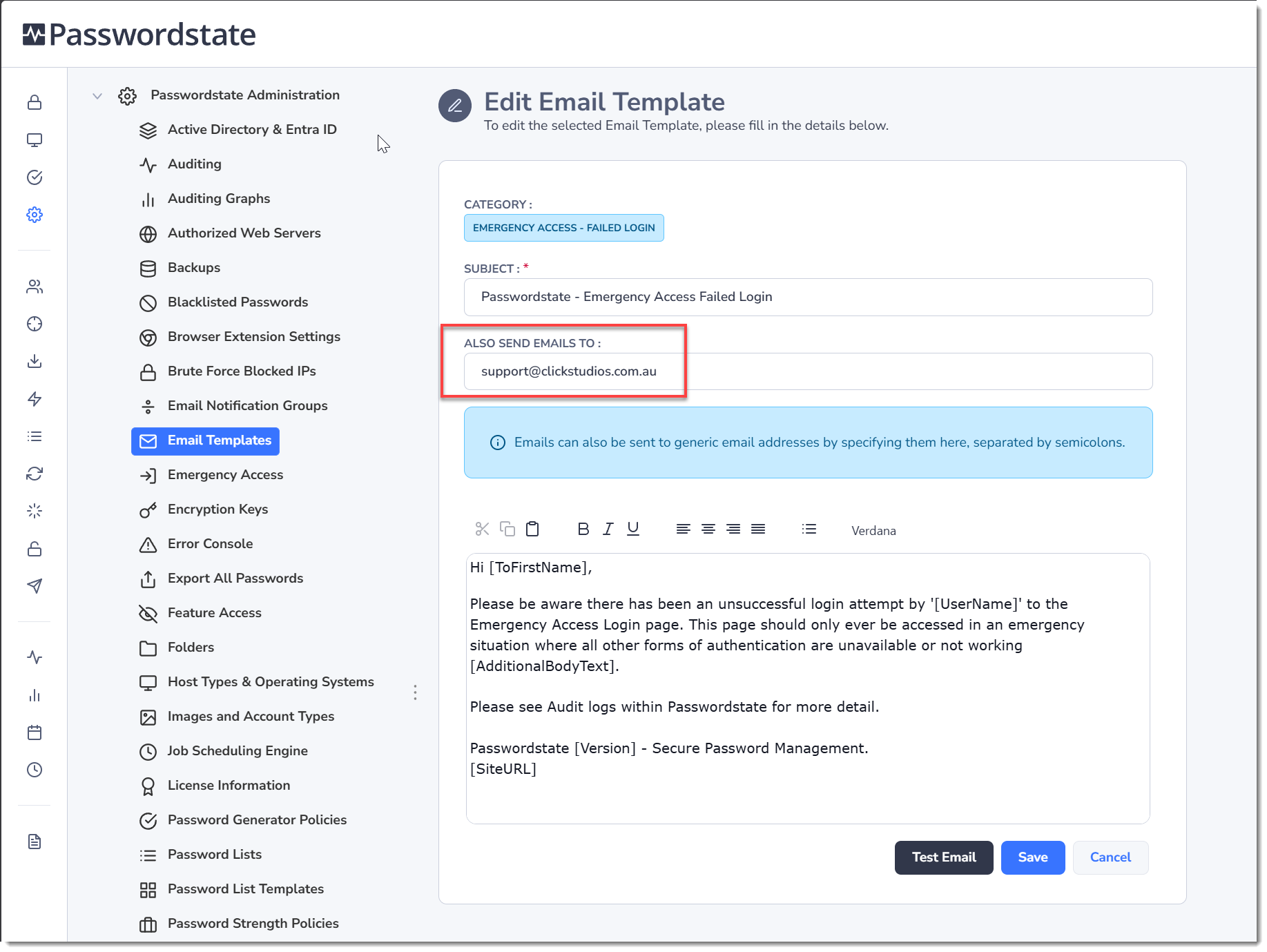
In addition to the emails being sent to the relevant intended users, you can also send each email to a second email address as well, effectively CC'ing the email address of your choice. The screenshot below shows where to set this additional email address. This is useful if you want to send specific email types to a shared mailbox for important events.
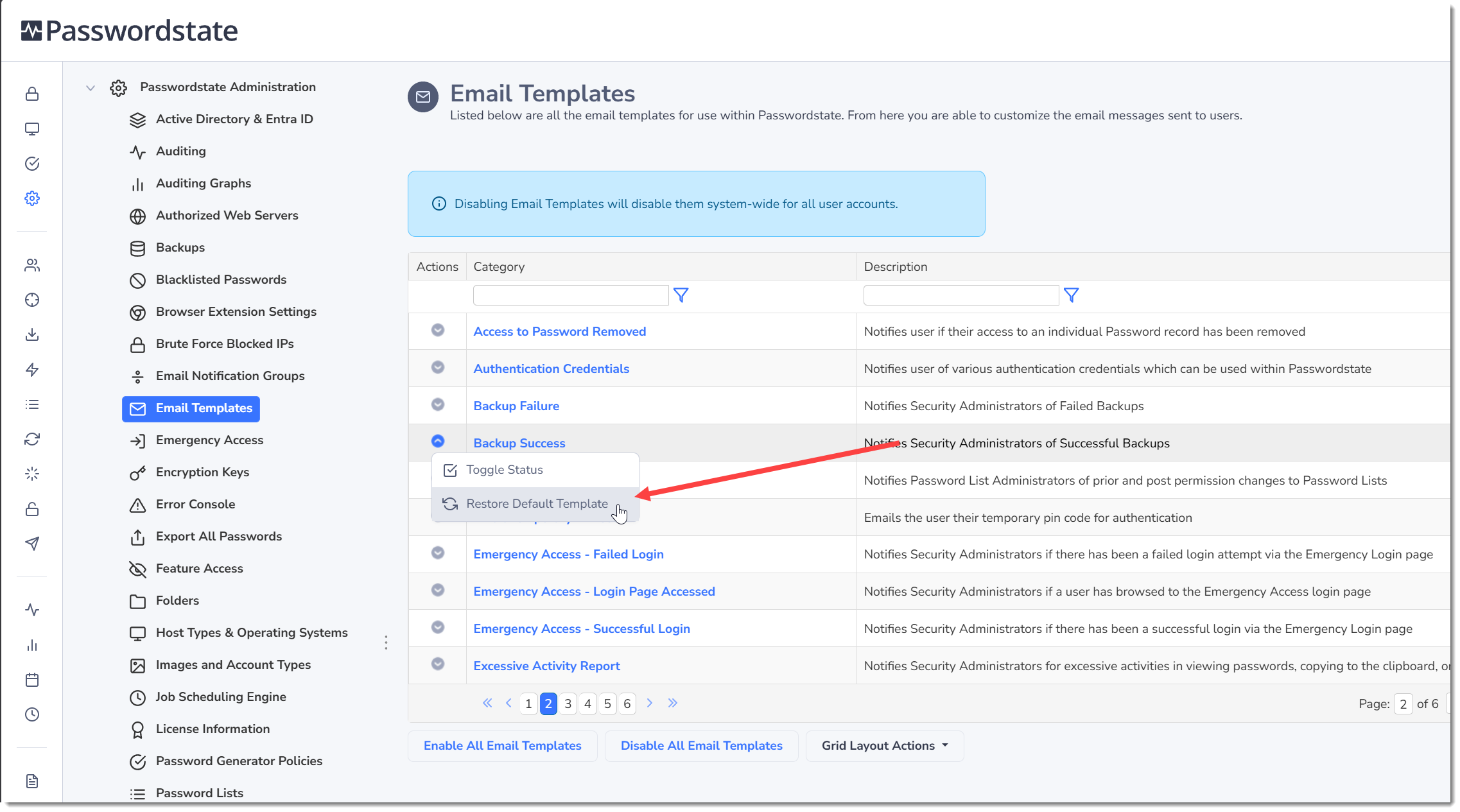
If while editing the contents or formatting of an Email Template you decide you don't like the changes you've made, you can restore back to the original content as supplied by Click Studios by selecting 'Restore Default Template' from the appropriate Actions drop-down menu:
Testing and Troubleshooting Emails being Sent
When editing an Email Template, there is a button called 'Test Email'. This button will immediately test sending the email template to your own email address of the account that you are logged into Passwordstate with.
If you do not receive the email in your inbox, below are some troubleshooting steps you can follow to resolve this issue:
- Ensure the account you are logged into Passwordstate with has a valid email address assigned to it on the User Accounts page
- Ensure you have a valid email server configured under the System Settings page
- If Passwordstate doesn't report any errors when sending the email, check your email server logs and spam folder
Scheduled Emails Explanation
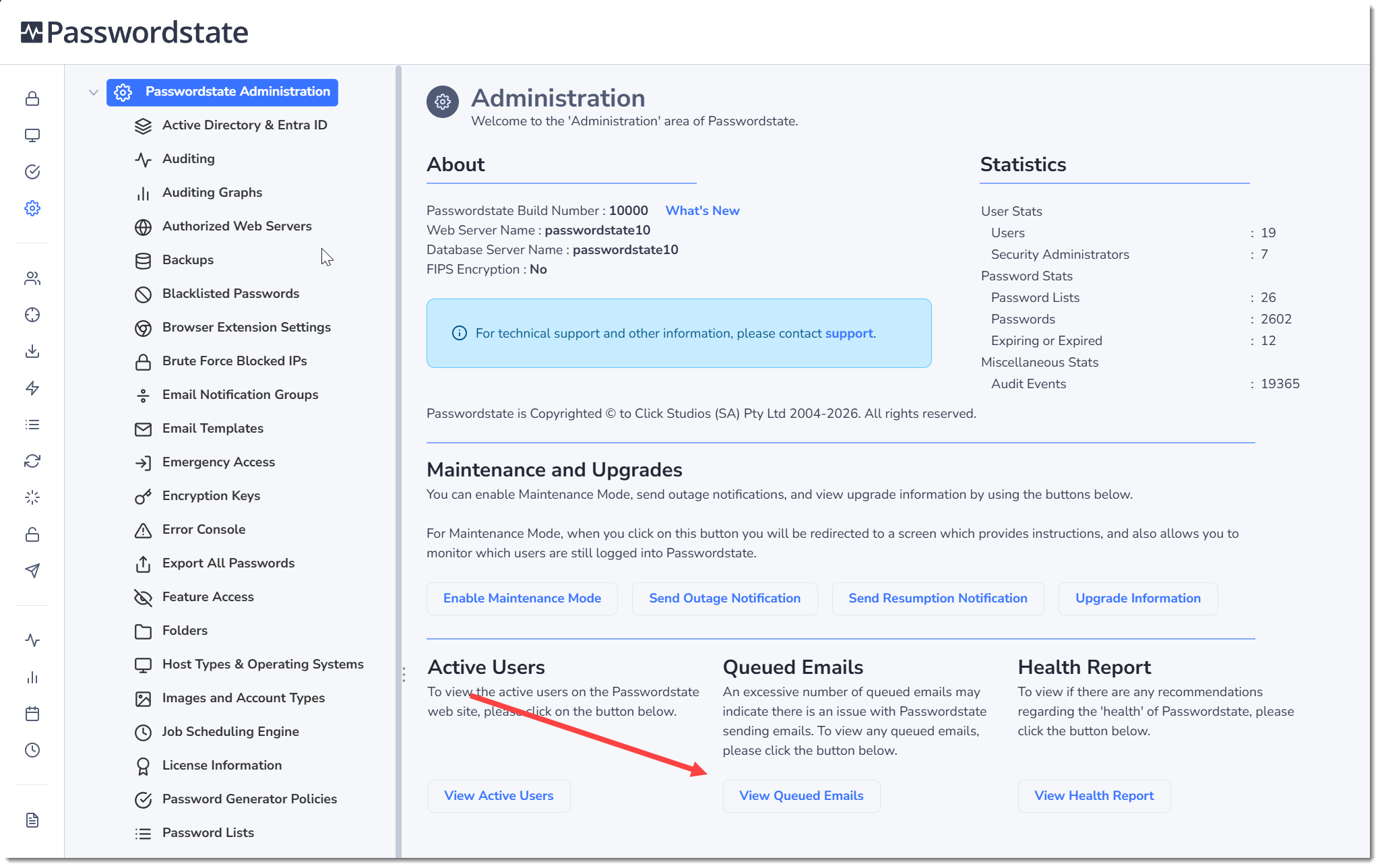
When ever an event in Passwordstate triggers an email, a task is stored in a Queued Emails table directly in the Passwordstate database. Once per minute, the Passwordstate Window service will check that table for any mails, and will send them out at that point.
This means that the email notifications could potentially take anywhere up to a minute to be sent out from Passwordstate. What it also means, is if your Passwordstate Windows Service is not working for any reason, emails could potentially be queued up in the system. When you fix or start the Passwordstate Service, then this could result in a bunch of emails being sent out, all at once by the service.
You can check if there are any queued emails in the system by going to the Administration -> Passwordstate Administration home page, and click on the View Queued Emails button. Emails can be purged on this page, prior to restarting the Passwordstate Service, if needed: