
Jobs - PowerShell
PowerShell Jobs allows you to create your own custom PowerShell scripts, to perform any functionality required. From executing stand-alone scripts, or executing scripts against hosts, or making calls to two of Passwordstate API's.
All PowerShell Jobs can interact with data within Passwordstate securely, and API Keys can be automatically rotated on Job completion.
Jobs Home
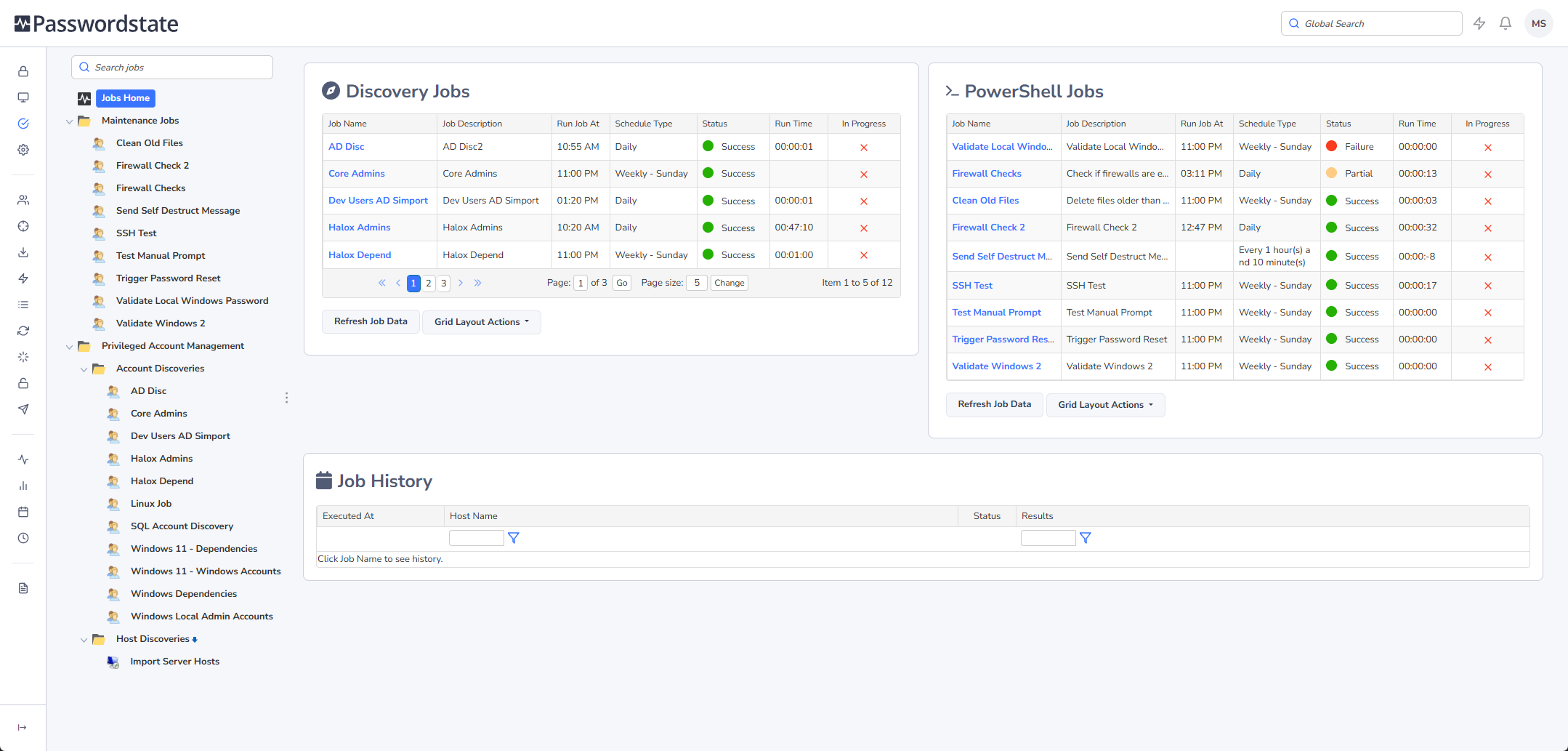
The main Jobs Home screen shows you a dashboard view for the status of any Account and Host Discovery Jobs, as well as any custom PowerShell Jobs you may have access to.
From here you can click on the Job Name, and quickly see the Job History.
Job View
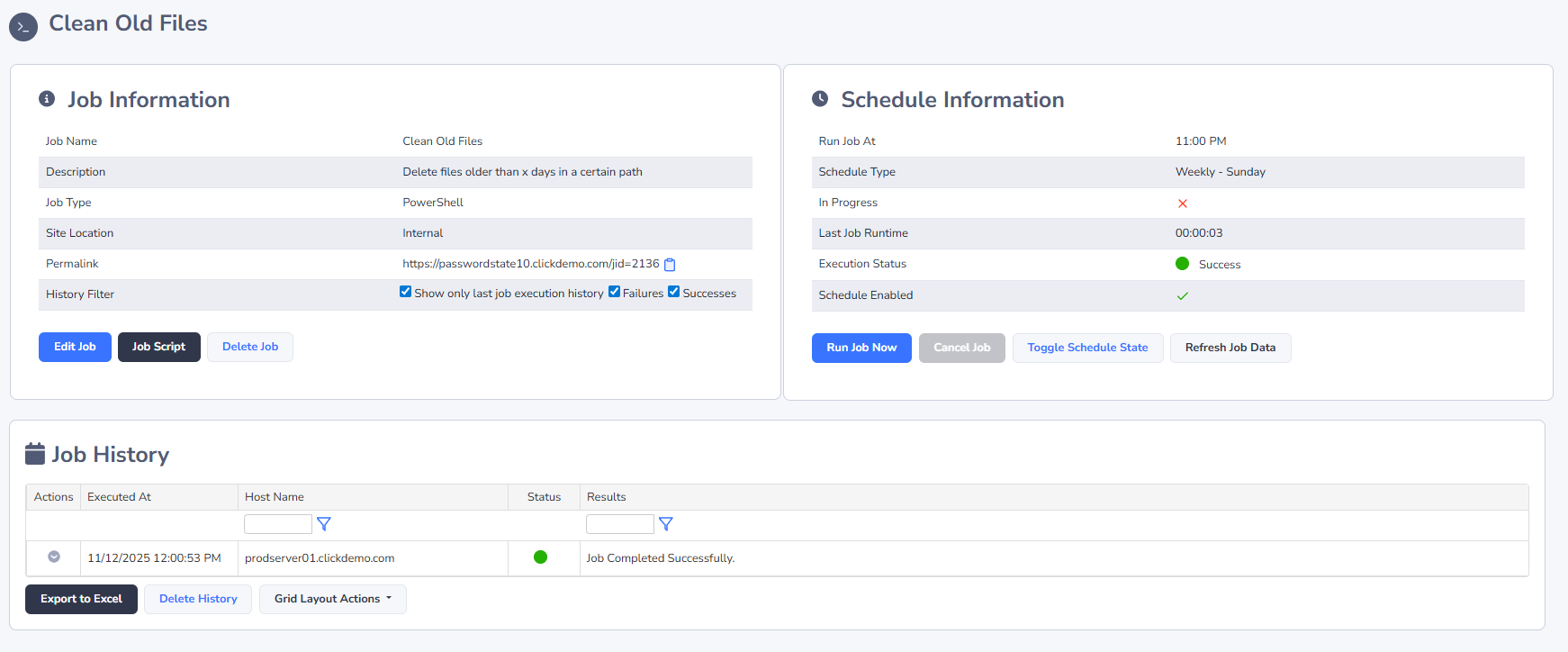
Clicking on a Job in the Navigation Tree will provide an overview of Job settings, as well as execution status and Job History.
Job Settings
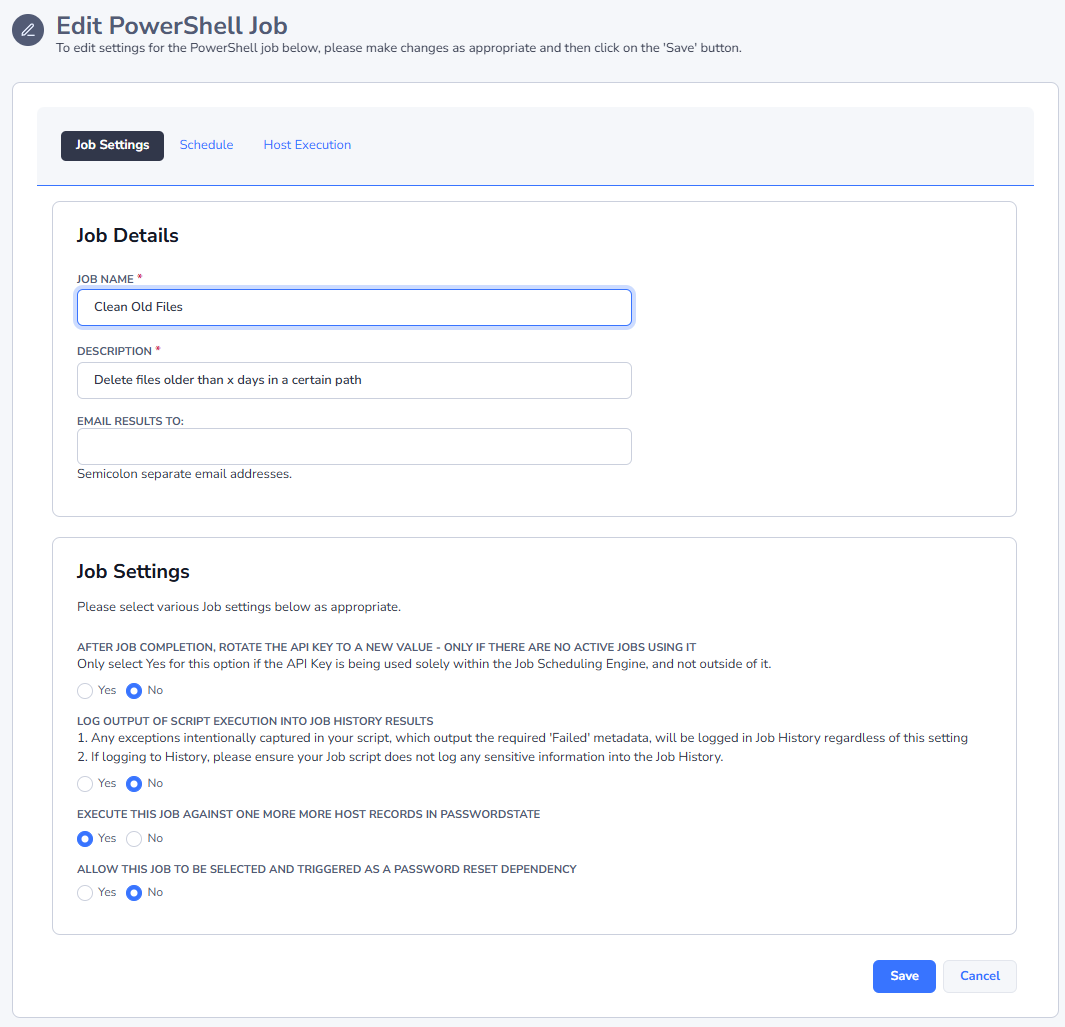
When adding/editing a PowerShell Job, there are various settings which can affect the behaviour/functionality:
- Rotating any API Keys in use - PowerShell Jobs can execute calls against the Standard API or User Based API. Once the Job completes execution, and as long as there are no other running jobs using the same API Key, the key can automatically be rotated to a new one. This improves on security, making any older API Keys invalid if used or documented outside of Passwordstate
- Logging execution output - Depending on what your scripts output as part of their execution, you may not want that data to be logged in Job History
- Execute Job against Hosts - When selecting this option, you can specify criteria under the 'Host Execution' tab, as to which hosts the PowerShell Job should be executed against. An example usage of this could be "Connect to 100 hosts, and clean up (delete) data from a certain folder"
- Trigger after Password Reset - When enabled, you can select the Job as a Password Reset Dependency, whereby once a Password Reset has occurred, the Job can be executed. An example usage of this could be to reset the value of a Password record, and then send a Passwordstate Self Destruct message to one or more users with the updated password details
Job Script
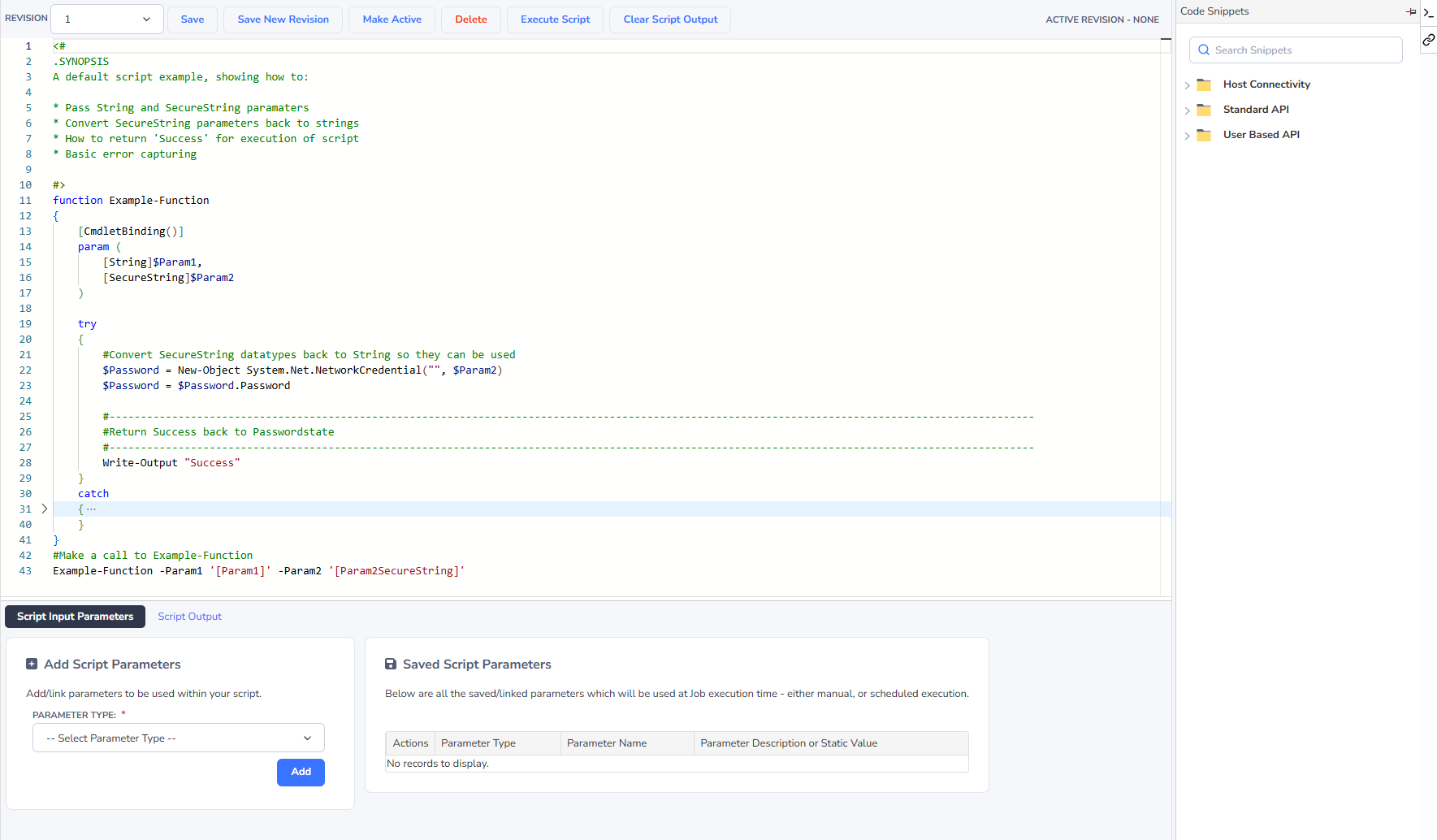
When your first add a new PowerShell Job, you are given a default script "structure" which you can use as a basis for further development. It is recommended you use, where possible, the provided structure as it provides a framework for function calling, error capturing, and script output.
Script Revisions
It is possible to keep different revisions of the PowerShell scripts as you are developing, so you can refer back to older versions if required.
To save changes to your scripts, you can either use the Save button, or Ctrl-S keyboard combination. These saves will overwrite what is currently stored for that revision. If you want to start a new revision, you use the 'Save New Revision' button.
For Jobs which are scheduled to be executed, the 'Make Active' button is very important, as only the 'Active' script will be executed as part of the schedule. If no script revision is set to active, the scheduled execution will fail.
Once a script is marked as Active, you cannot save changes to it - you need to create a new revision to do this.

Jobs can also be executed on this screen using the 'Execute Script' button. If a user is given 'View & Execute' permissions to the folder where the Job is nested within, they cannot make any changes on this screen - all they can do is execute the Job.
Script Input Parameters
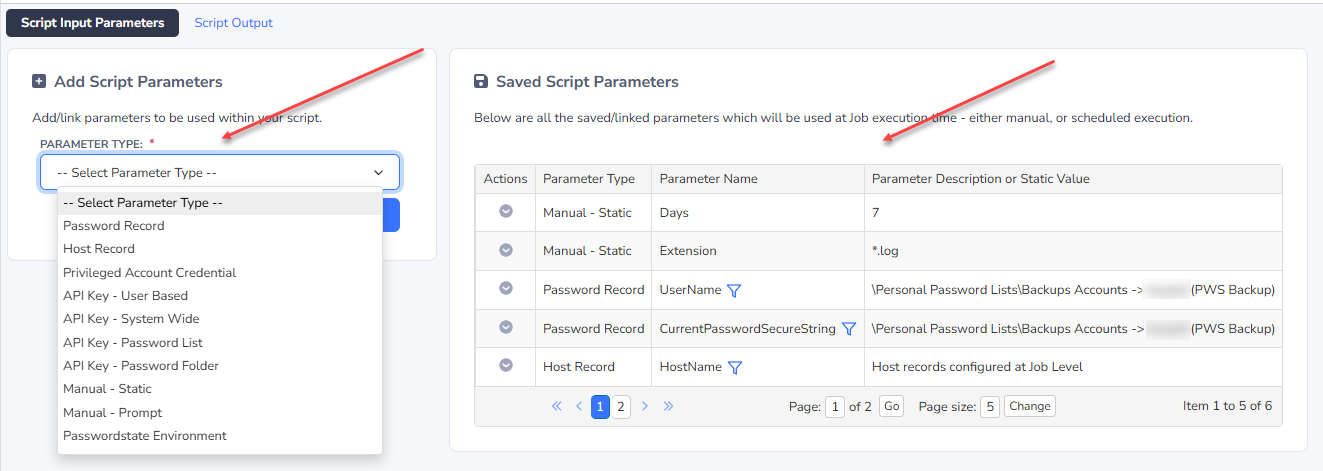
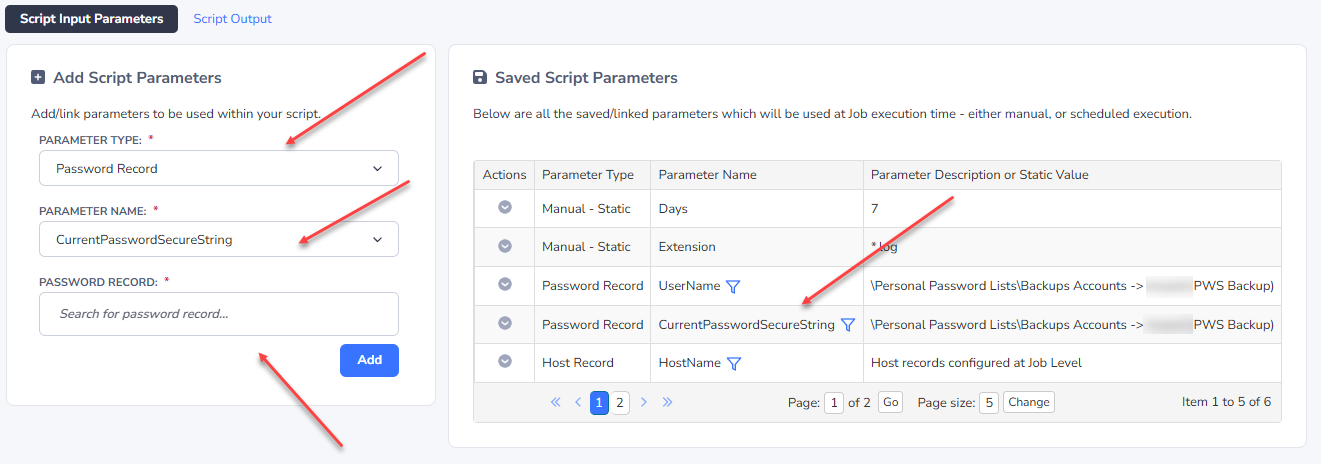
When developing the PowerShell scripts, you can automatically include data from within Passwordstate, into your PowerShell script. At execution time, it dynamically replaces the values of variables specified.
As per the screenshots below, different data sources can be selected from, and every option shown in the Parameter Type dropdown list, considers the permissions your account has on the selected data source i.e. if you don't have access to a certain password record, it will not be available here.
Note : If you select 'Manual - Prompt' here as a script parameter, the Job cannot be scheduled as it requires manual user input for the value during execution - these types of scripts are designed to be run in the UI only.
Function Parameter Code Snippets
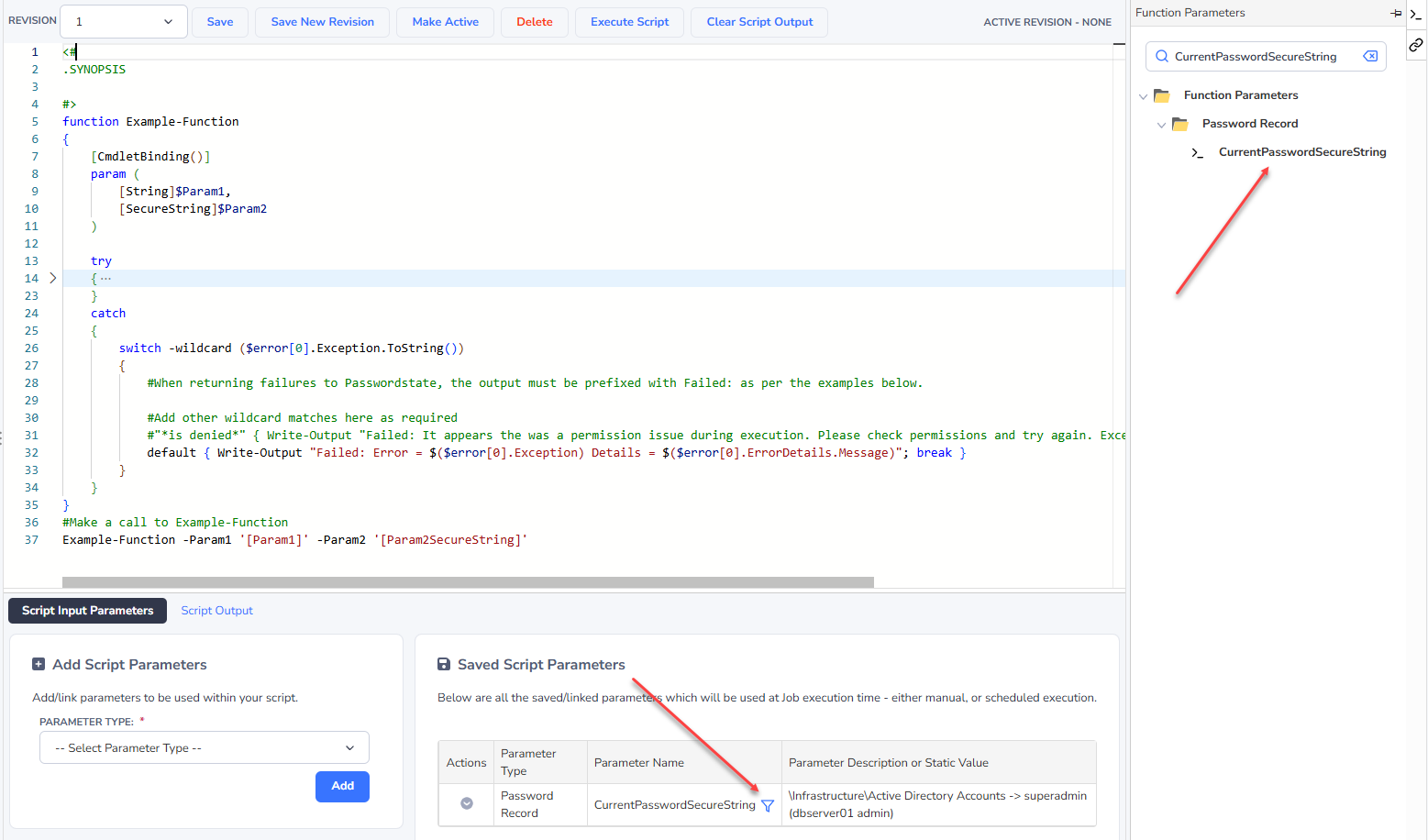
When including parameter definitions in your PowerShell scripts, you must use the format where the parameter name is inclosed in brackets i.e. [CurrentPasswordSecureString]
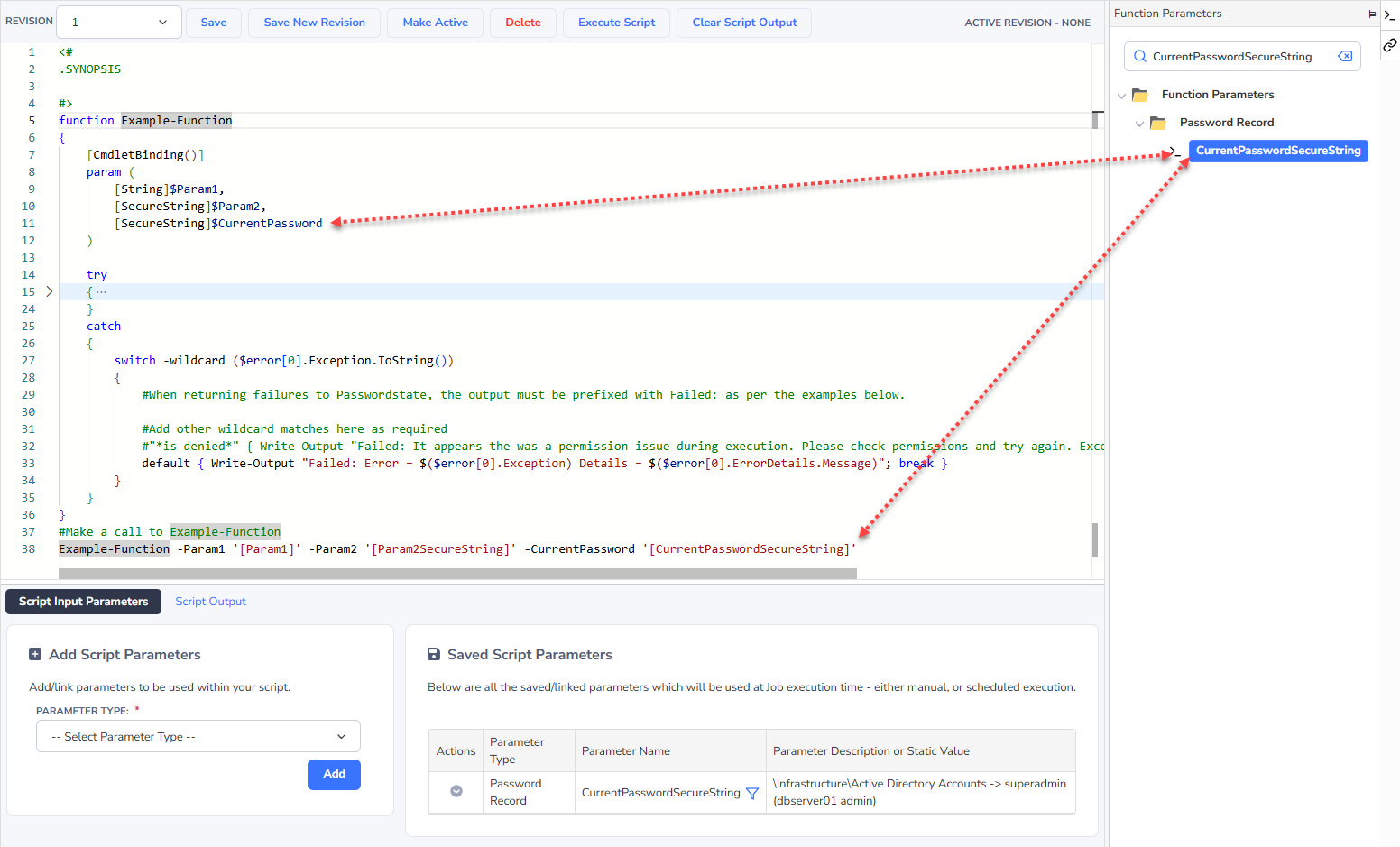
The Code Snippets functionality on the Job Scheduling Engine makes this a simple process for including parameters within the function call itself, and also in the definition of your function.
The below screenshots shows how you can filter the code snippets based on the parameter name, and then drag and drop them into your script in the correct location.
Note : When dragging the parameter code snippet into the function definition itself (at the top), you first need to add a new line, before you drag and drop onto this new line - and don't forget to put a comma on the end of the previous line, where the last parameter was previously defined.
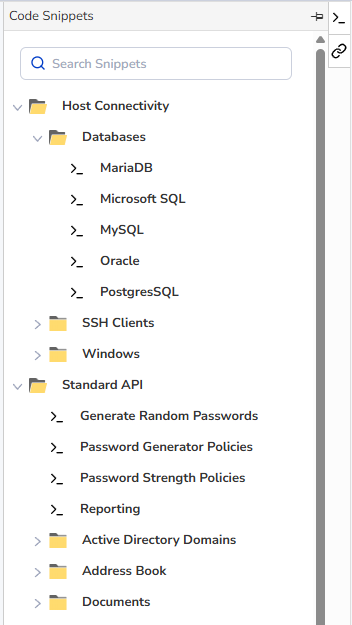
Code Snippets
In addition to the code snippets for the parameter names, other code snippets have also been provided for:
- Host connectivity i.e. PowerShell Remoting, SSH sessions, and connecting to various database servers
- All API code examples for the Standard API, and User Based API.
Each of these code snippets can also be drag and dropped into your PowerShell script.
Jobs and Password Reset Dependencies
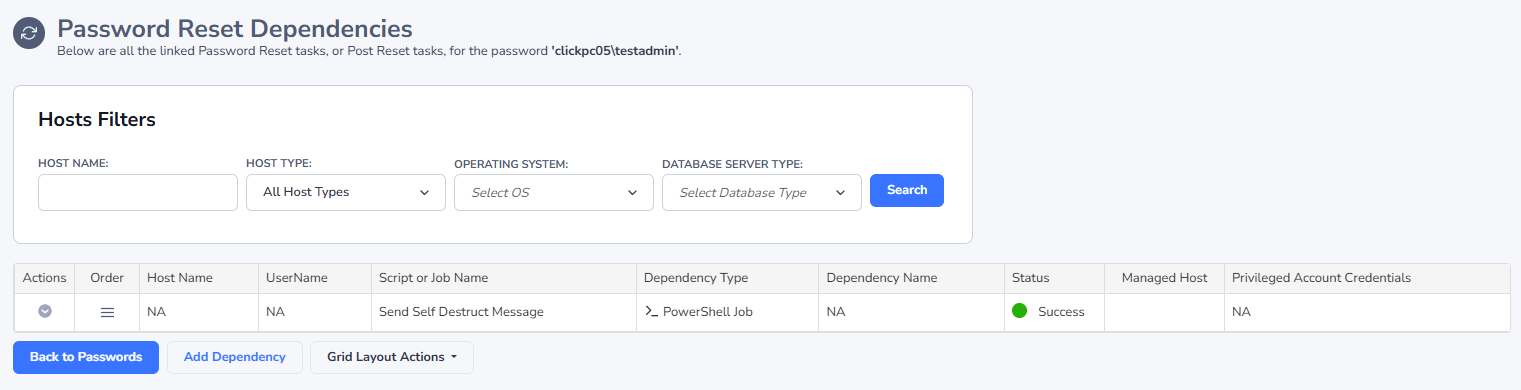
With Passwordstate's Privileged Account Management feature, it is also possible to add one of these PowerShell scripts as a dependency on a password reset.
Below is an example where after a Password reset has successfully occurred, a Self Destruct Message is sent to a user - which includes details for the updated record.
For more information about Password Reset Dependencies, see Password Reset Dependency Records section of the Privileged Account Management manual.