Scheduled Reports
The Reports Menu allows you to schedule one or more reports to be emailed to your account, either as an embedded HTML report within the email, or as a CSV attachment.
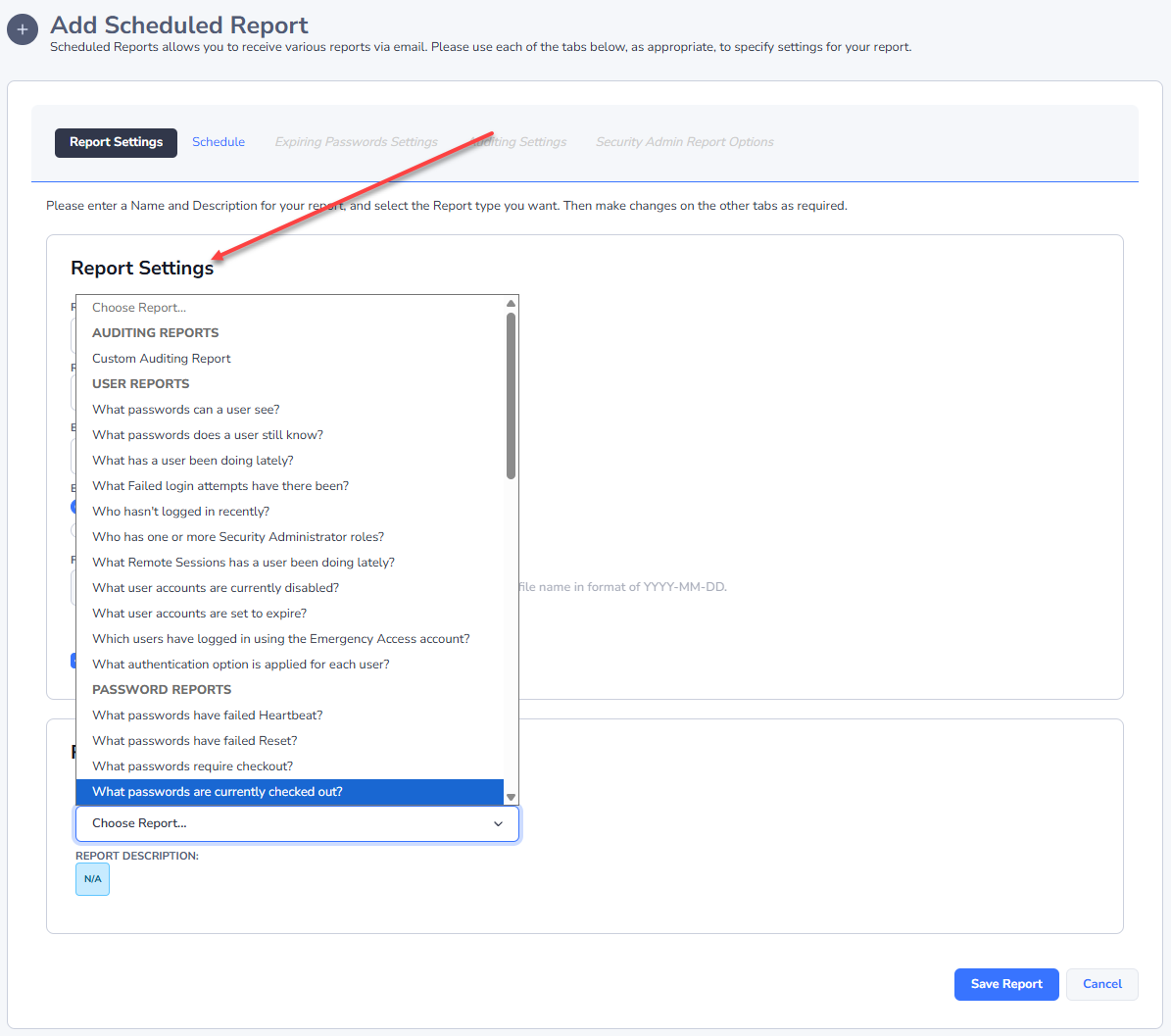
Choosing the Report Type
As a standard user account, there are two types of reports available:
Custom Auditing Report - Allows you to specify a custom filter for reporting on audit activities for Password Lists that your account has access to.
Expiring Passwords - produces a report of password records which have already expired, or are about to expire within the next number of days you specify - for password credentials your account has got access to.
If your account has also been granted the 'Reporting' Security Administrator's role, then there are many more reports available in addition to the Custom Auditing and Expiring Passwords report. If you are a Security Administrator and select Custom Auditing or Expiring Passwords, then all Shared Password Lists will be available to you.
Below are a list of all the Security Administrator reports available as well:
User Reports
- What passwords can a user see?
- What passwords does a user still know? (Last Access vs Viewed)
- What has a user been doing lately? (all auditing data for the user)
- What Failed login attempts have there been?
- Who hasn't logged in recently?
- Who has one or more Security Administrator roles?
- What Remote Sessions has a user been doing lately?
- What user accounts are currently disabled?
- What user accounts are set to expire?
- Which users have logged in using the Emergency Access account?
- What user account impersonation has been occurring?
Passwords Reports
- What passwords have failed Heartbeat?
- What passwords have failed Reset?
- What passwords require checkout?
- What passwords are currently checked out?
- What passwords require a Reason to be specified for access?
- What passwords are expiring soon?
- What passwords have recently been reset?
- What password values have been reused?
- What passwords have not been used lately? (Aged Password Report)
- What Passwords are not being synced?
- Passwords Strength Compliance Status
Permissions Reports
- What permissions exist (all users and security groups)?
- What permissions exist for a user?
- What Permissions exist for a Security Group?
- What permissions have changed recently?
- Who has been approved access to passwords recently?
- Who has been denied access to passwords recently?
Audit Activity Reports
- Remote Session Launcher Activity
- Browser Extension Activity
- Mobile App Activity
- API Activity
- Self Destruct Activity
- Passive High Availability Module Activity
Once you've chosen the required type of report, you must specify a schedule for when the report is sent, and also any other additional settings for the Expiring Passwords report, Custom Auditing or Security Admin Reports.
Setting the Schedule
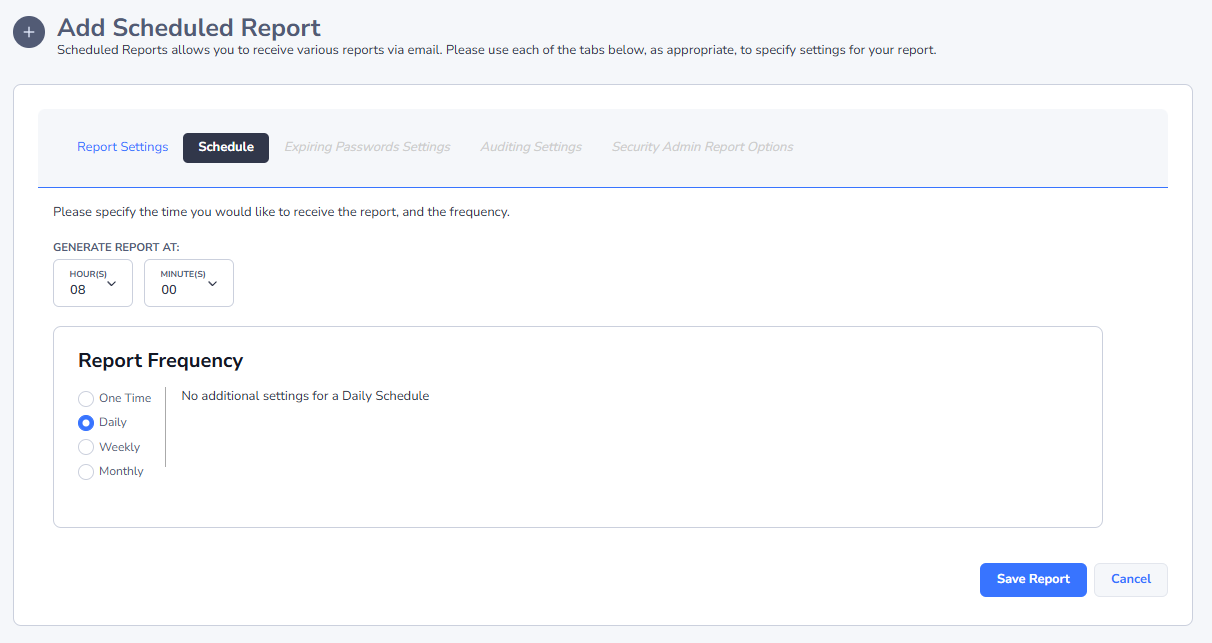
When setting the schedule, you can choose the time of the day the report is sent, and also the frequency - Daily, Weekly, or Monthly. A One-Time option is also available, which can be repeated at different intervals as well.
Expiring Passwords Settings
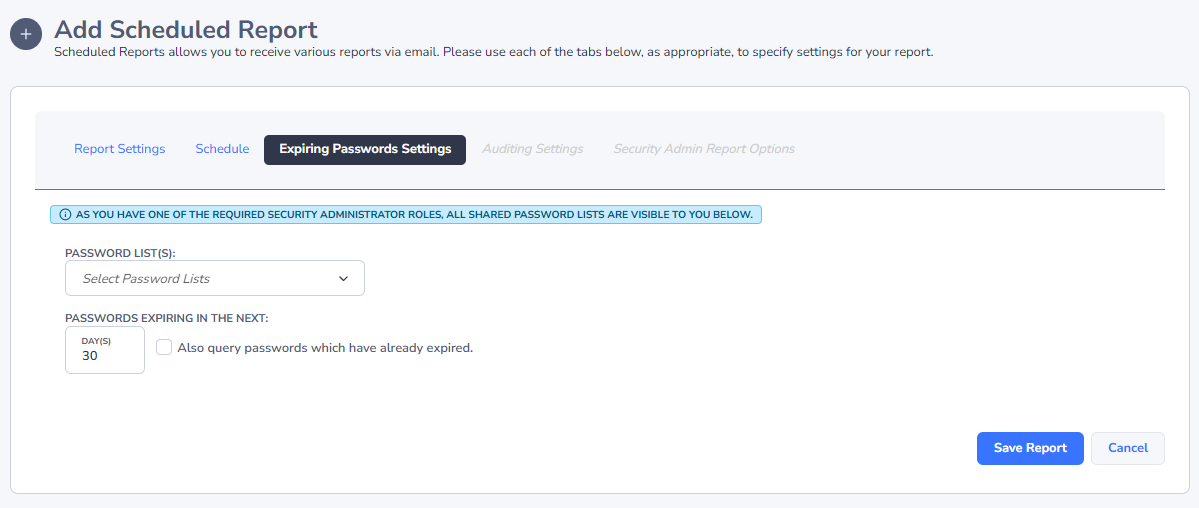
If you have chosen the Expiring Passwords Report, you can choose how many days ahead to look for passwords which are due to Expire - this is based on the value of the Expiry Date Field. This report will look ahead the number of days you've specified, and also include any passwords which have already expired if you choose.
Auditing Settings
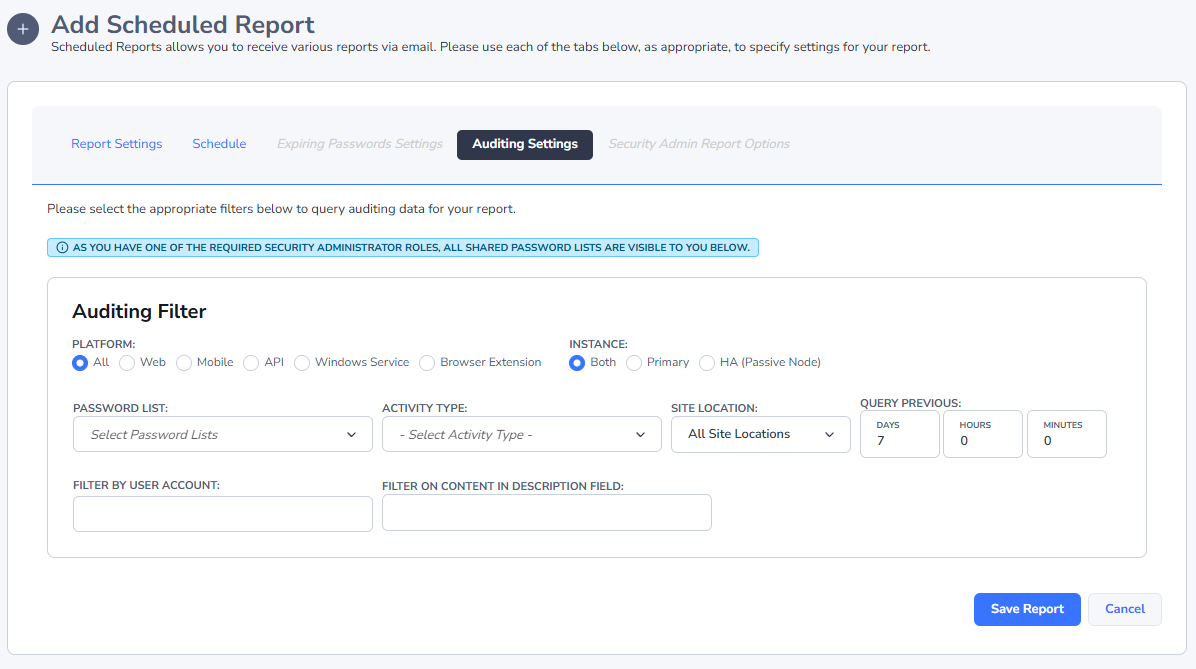
If you have chosen one of the 'Custom Auditing Reports', you can create your own filter for the auditing data, and specify how many days, hours and minutes into the past you wish to query the data.
Note: You can select one or more Password Lists or Audit Activities by checking the appropriate options in each of the relevant dropdown lists.
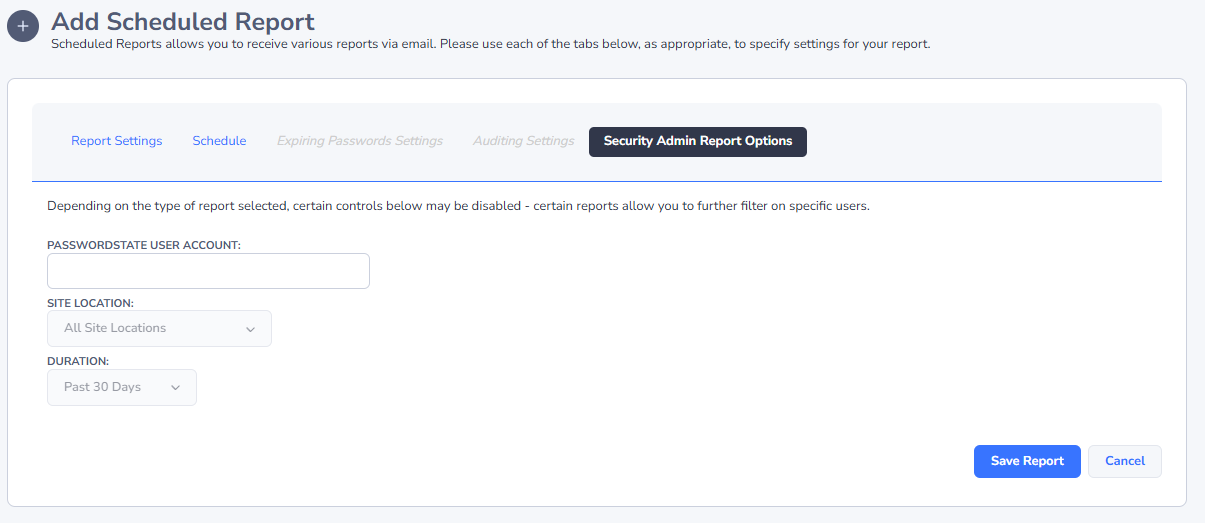
Security Admin Report Options
Depending on which Security Administrator's report you have selected, various fields will either be enabled or disabled on the 'Security Admin Report Options' tab, allowing filtering as required.