Preferences
The Preferences screen is where you can specify many different settings specific to just your Passwordstate user account.
Note: The Security Administrators of Passwordstate can use a feature called 'User Account Policies', which may override any settings you specify here. If a User Account Policy is applied to your account, certain settings on the Preferences screen will be disabled. |
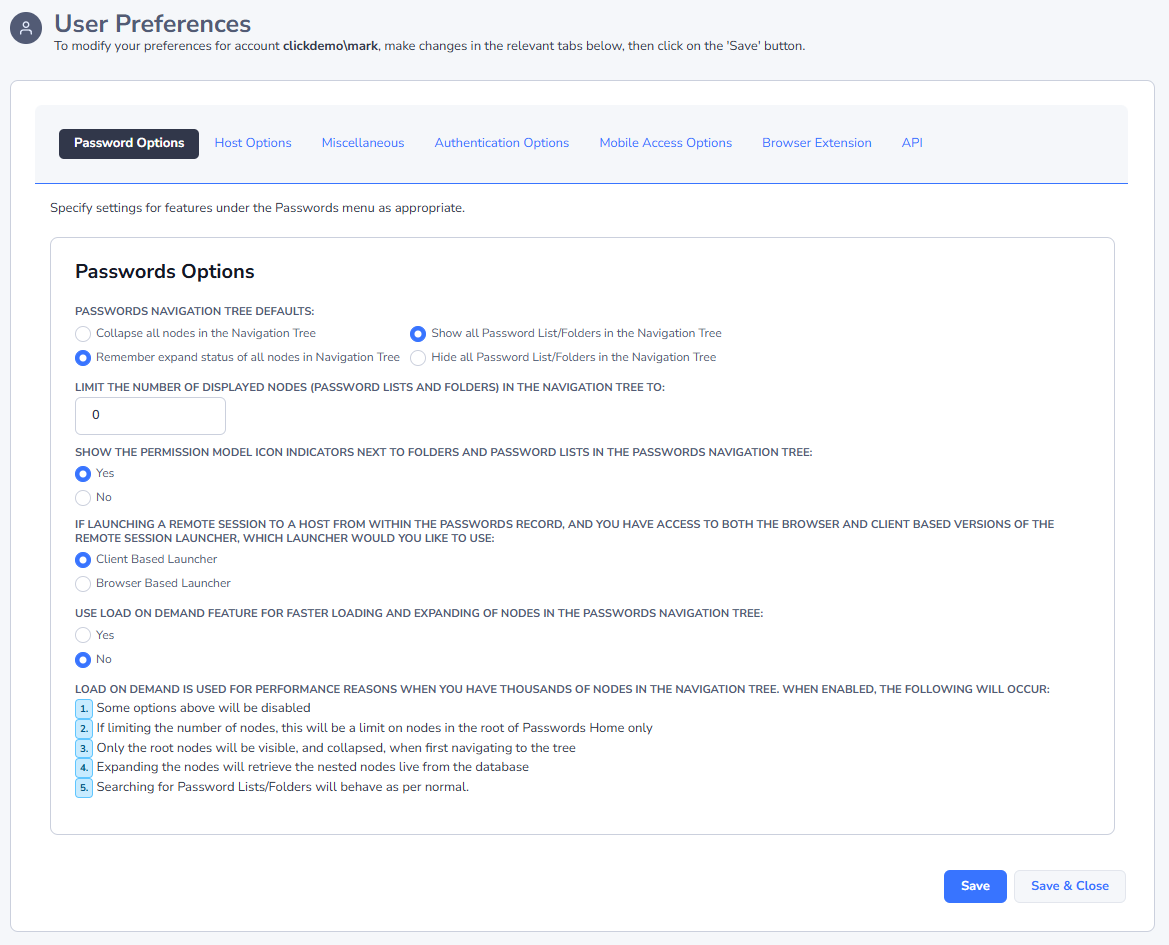
Passwords Tab
The Passwords Tab allows you to select various options for the Passwords Navigation Tree.
If you have thousands of Folders and Password Lists showing in the Passwords Navigation Tree, it is recommended you either limit the number of nodes displayed, and/or select the Load On Demand feature. The Load On Demand feature will only show the Password Lists/Folders in the root of the Navigation Tree, and when you expand a Folder, it will retrieve nested objects from the database at that time - dramatically improving performance.
These options are recommended, because downloading and rendering all the HTML required for thousands of nodes, can cause performance issues.
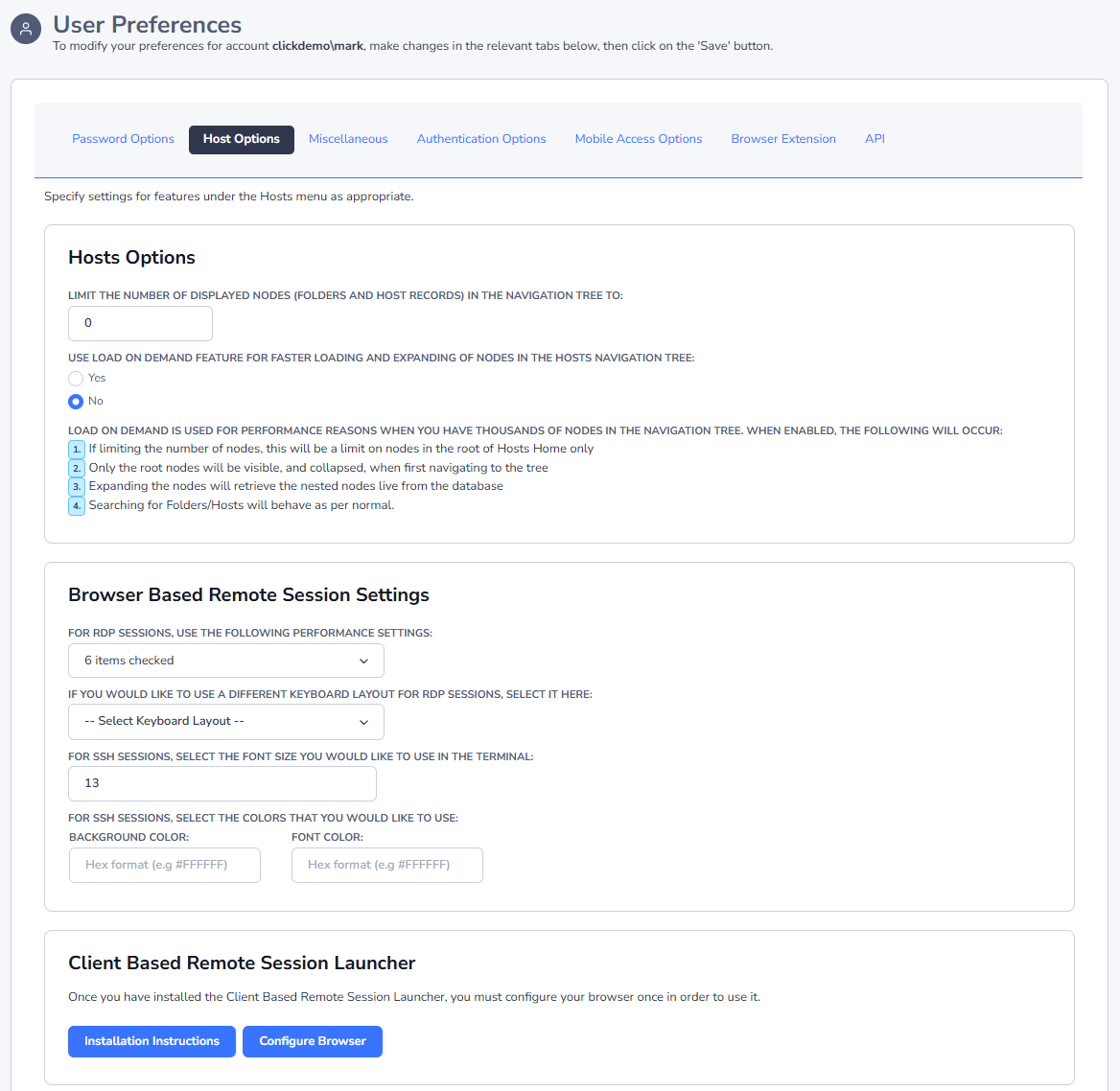
Hosts Tab
The Hosts Tab allows you to select various options for the Hosts Navigation Tree under the Hosts menu. In particular, you can limit the number of Nodes displayed in the Hosts Navigation Tree, or use the Load On Demand feature, similar to the Passwords Navigation Tree.
Miscellaneous Tab
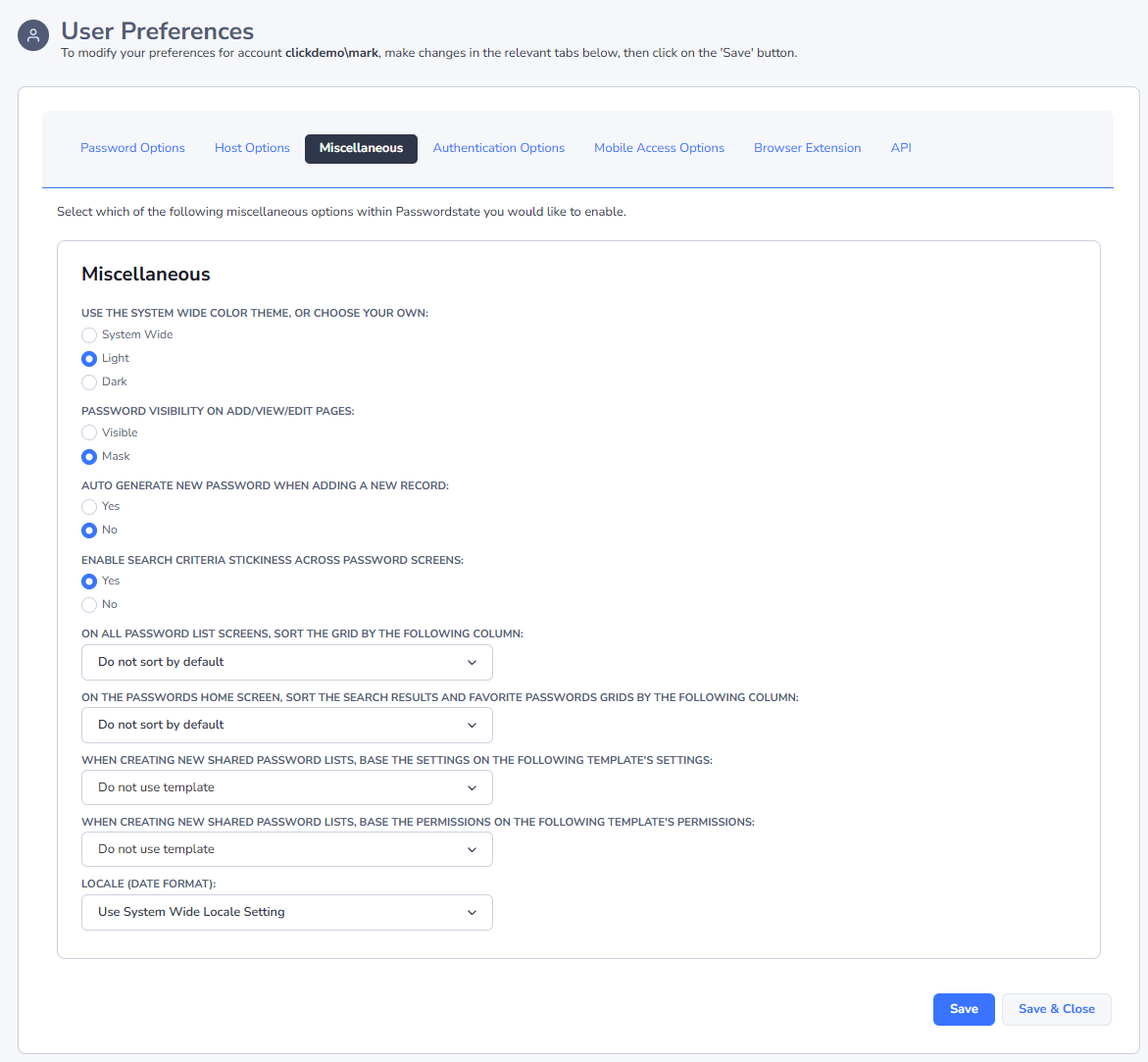
The Miscellaneous Tab has the following settings you can choose for your account:
| Menu Item | Description |
|---|---|
| Color Theme | You can accept the color theme specified system wide for all users, or choose your own |
| Password Visibility on Add/View/Edit Pages | When you add a new Password or edit an existing one, by default the password value is masked i.e. ****** If you choose, you can instead show the password value instead of the masked one |
| Auto Generate New Password When Adding a New Record | When adding a new Password record, you can automatically generate a new random password instead of having to specify one yourself. The format/complexity of the new random password will be determined by which Password Generator Policy is applied to the Password List |
| Enable Search Criteria Stickiness Across Password Screens | When using the search textbox found at the top of most Password screens, you can choose to make this search value you type sticky across different Password Lists i.e. if you search for 'test' in one Password List, when you click on another Password List in the Navigation Tree, the contents of the Passwords grid will also be filtered by the term 'test'. You can also clear the search criteria by clicking on the icon |
| On all Password List screens, sort the grid by the following column | If you would like all Password grids to be sorted by default on a selected column, you can choose the column here. Note: this will override you manually sorting a column and then selecting the save the Grid layout |
| On the Passwords Home screen, sort the Search Results and Favorite Passwords grids by the following column | Similar to the option above, but this sort order applies to the Search Results and Favorite Passwords grids on the Passwords Home page |
| When creating new Shared Password Lists, base the settings on the following Template's settings | When creating new Shared Password Lists, you can choose to automatically specify all the settings based on the selected Template |
| When creating new Shared Password Lists, base the permissions on the following Template's permissions | When creating new Shared Password Lists, you can choose to automatically apply permissions based on the permissions set on the selected Template |
| Locale (Date Format) | Allows you to specify a date format for any date fields - you may need different format based on your region, compared to that of what Passwordstate is current set to use system wide |
Authentication Options Tab
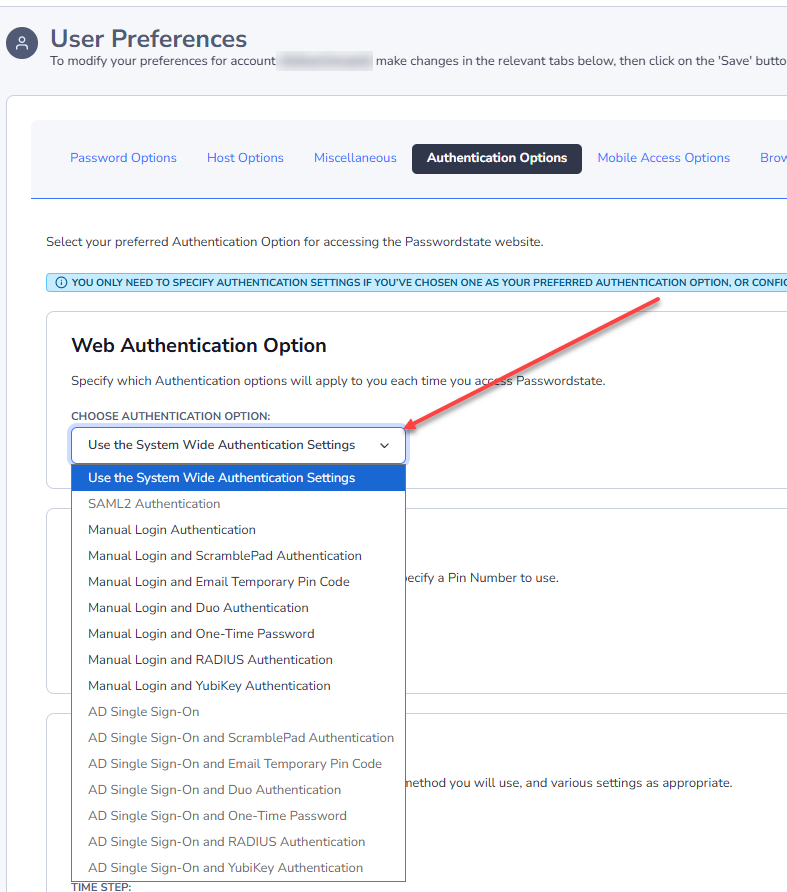
There are a variety of different Authentication Options available when you first browse to the Passwordstate website. By default, you will use the 'System Wide' authentication option as specified by your Security Administrators, but you can elect to use a different authentication option if you like by specifying it as part of your Preferences.
Note: The Security Administrators of Passwordstate can use a feature called 'User Account Policies', which may disable any authentication options you have specified for your Preferences.
Web Authentication Option
There are multiple authentication options available to you, and they will vary depending on whether your Passwordstate Administrators have enabled Active Directory Single Sign-On for the Passwordstate website.
The following table describes each of the Authentication Options:
| Use the System Wide Authentication Settings | Any one of the below authentication options as set by your Security Administrators |
| SAML2 Authentication | Authenticate against a SAML 2.0 provider. Note: Your Passwordstate email address must match what's configured for your account on the SAML2 provider's website |
| Manual Login Authentication | This options will present you with a screen where you can manually specify your domain username and password. Passwordstate will then validate this against Active Directory. |
| Manual Login ScramblePad Authentication | ScramblePad Authentication requires you to match a pin number which is assigned to your account, to a randomly generated string of letters - see below for a screenshot |
| Manual Login and Email Temporary Pin Code | This authentication option will send you a temporary Pin Code to any email address you specify - which could also be an SMS Gateway if required. The temporary Pin Code expires after a set period, set by the Security Administrator(s) of Passwordstate, and cannot be reused after it expires. This authentication option requires you to validate both your Active Directory account credentials, plus the temporary Pin Code |
| Manual Login and Duo Authentication | In additional to manually specifying your AD username and Password, you must also specify your Duo Username, which then allows you to use the various Duo Authentication options |
| Manual Login and One-Time Password | In additional to manually specifying your AD username and Password, you can use a software or hardware based On-Time Password Authentication option, based on either the TOTP or HOTP algorithms |
| Manual Login and RADIUS Authentication | Authenticate your AD Account, as well as to a RADIUS server |
| Manual Login and YubiKey Authentication | In additional to manually specifying your AD username and Password, you can also authentication using YubiKey Authentication - either Yubico Cloud OTP, or TOTP & HOTP |
| AD Single Sign-On | If Passwordstate is installed and configured correctly, you should not be prompted with a browser authentication window when using this option. The browser should "passthrough" your domain credentials to the IIS web site, and the 'Windows Authentication' within IIS will validate your credentials against AD. If you are being prompted to enter your username and password, please ask your Security Administrators to investigate |
| AD Single Sign-On and ScramblePad Authentication | ScramblePad Authentication with Passthrough AD Authentication |
| AD Single Sign-On and Email Temporary Pin Code | This authentication option will send you a temporary Pin Code to any email address you specify - which could also be an SMS Gateway if required. The temporary Pin Code expires after a set period, set by the Security Administrator(s) of Passwordstate, and cannot be reused after it expires. |
| AD Single Sign-On and Duo Authentication | You must specify your Duo Username, which then allows you to use the various Duo Authentication options |
| AD Single Sign-On and One-Time Password | You must specify your One-Time Password based on the use of either a software or hardware token, for either the TOTP or HOTP algorithms |
| AD Single Sign-On and RADIUS Authentication | Authenticate against a RADIUS server |
| AD Single Sign-On and YubiKey Authentication | Authentication using YubiKey Authentication - either Yubico Cloud OTP, or TOTP & HOTP |
Note: If required, your Security Administrators can reset your Preferences settings, so there is no chance you can permanently lock yourself out of Passwordstate.
If using SAML authentication, you may need to log into different SAML providers, assuming you have multiple accounts. If you need to swap to a new SAML IDP provider, you must clear this configuration cookie in the screenshot below before logging out of yoru original SAML provider:
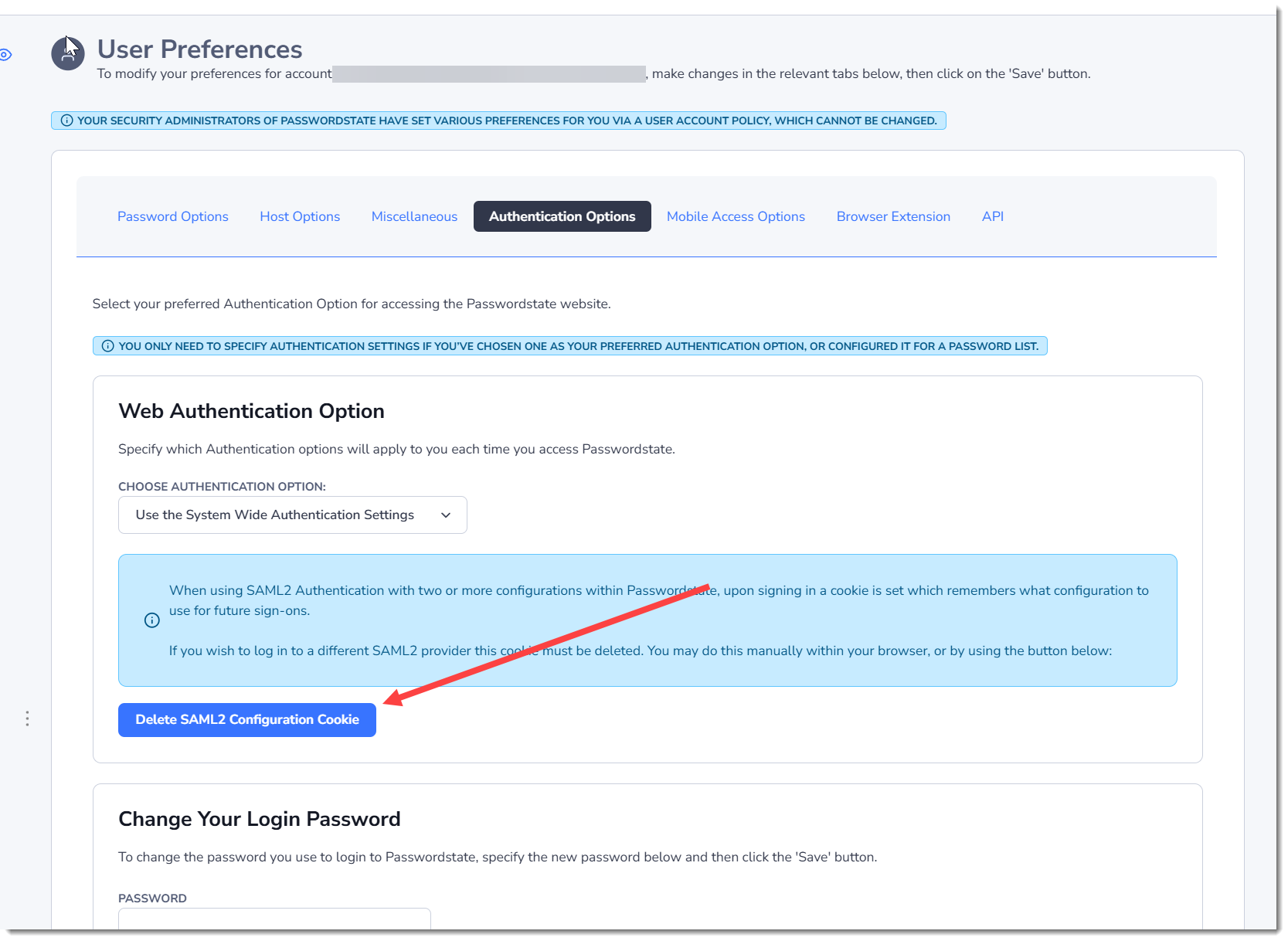
Once this is cleared, next time you log in you will be presented with a Passwordstate login screen, where you will enter the Email Address of your SAML account. This tells Passwordstate which SAML provider to connect to, as you have multiple providers in the system.
ScramblePad Pin Number
You must associate a ScramblePad Pin Number with your account if you wish to use ScramblePad Authentication.
When authenticating, you must match your pin number digits, to the randomly generated letters you see on the screen.
Email Temporary Pin Code
When you select a Temporary Pin Code Authentication option, you must also specify the email address where you want the Pin Code sent to. This email address could either be your work email address, a personal one, or the email address of an SMS Gateway so you can receive the Pin Code via a SMS message.
Note: The Expiry Time, and length of the Pin Code can be modified by your Passwordstate Security Administrator(s).
YubiKey Authentication
Passwordstate can support the following YubiKey authentication methods:
- Yubico OTP (this queries Yubico's API on the internet)
- OATH - HOTP (counter-based algorithm which does not require internet connectivity)
- OATH - TOTP (time-based algorithm which does not require internet connectivity)
By default, new YubiKey's are configured for Yubico OTP, but the configuration can be changed using Yubico tools. Below are instructions for configuring your YubiKey for each of the authentication options above. The following tools will need to be downloaded and installed on your desktop:
To configure for Yubico OTP or HOTP, you need this tool - https://www.yubico.com/products/services-software/download/yubikey-personalizationtools/
To configure and authenticate using TOTP, you need this tool - https://www.yubico.com/products/services-software/download/yubico-authenticator/
Configure YubiKey for Yubico OTP Support
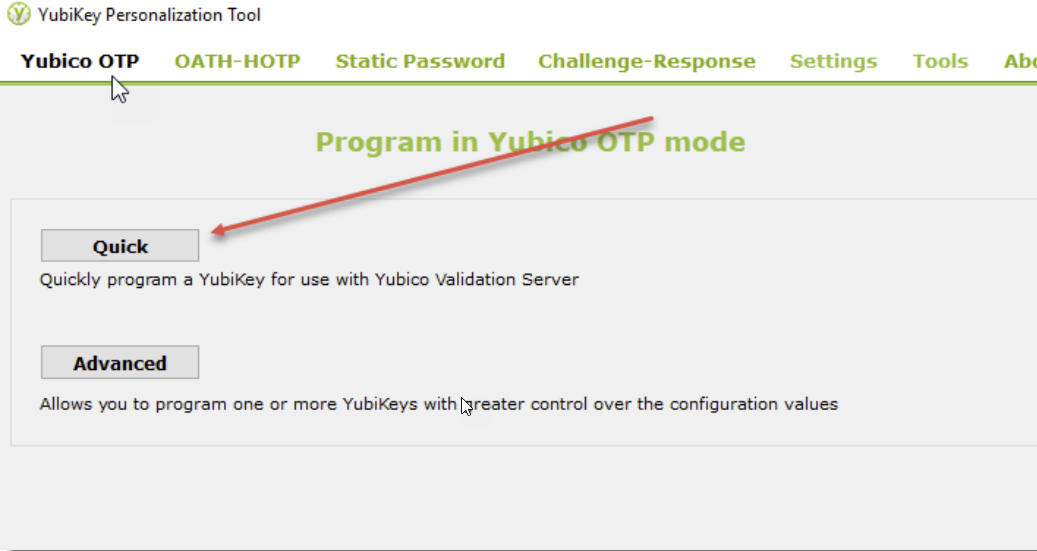
As mentioned, this step may not be required as your YubiKey should be configured for this option by default. Follow the instructions below if this is required, and changing the Identities here on your YubiKey requires you to upload those changes to Yubico's website.
You also need to select which Slot you want the configuration written to.
 | 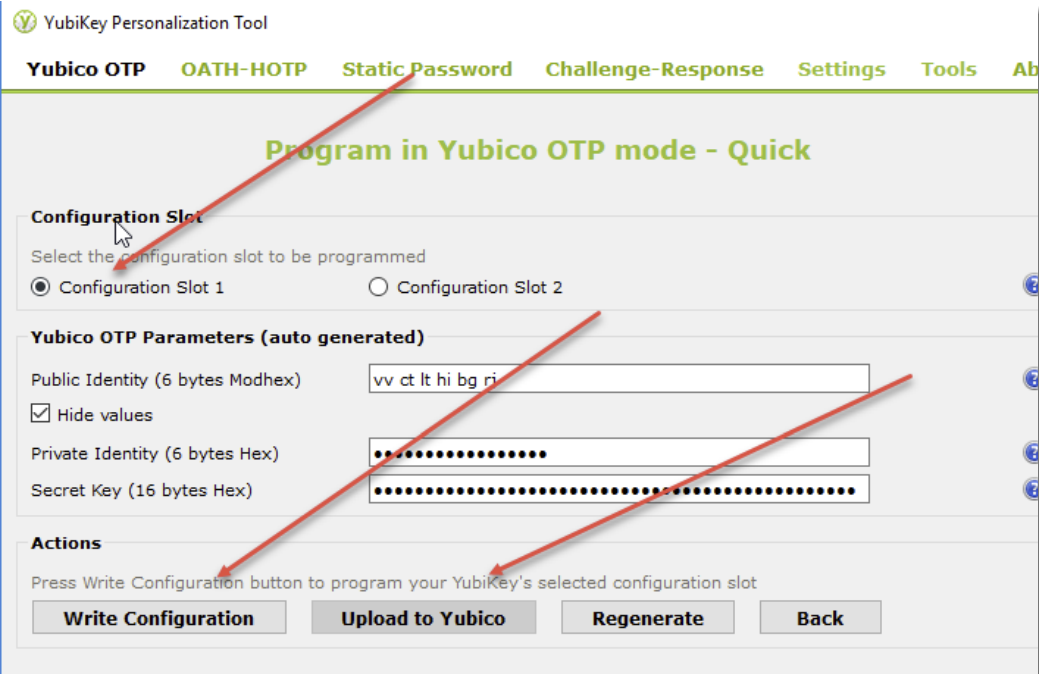 |
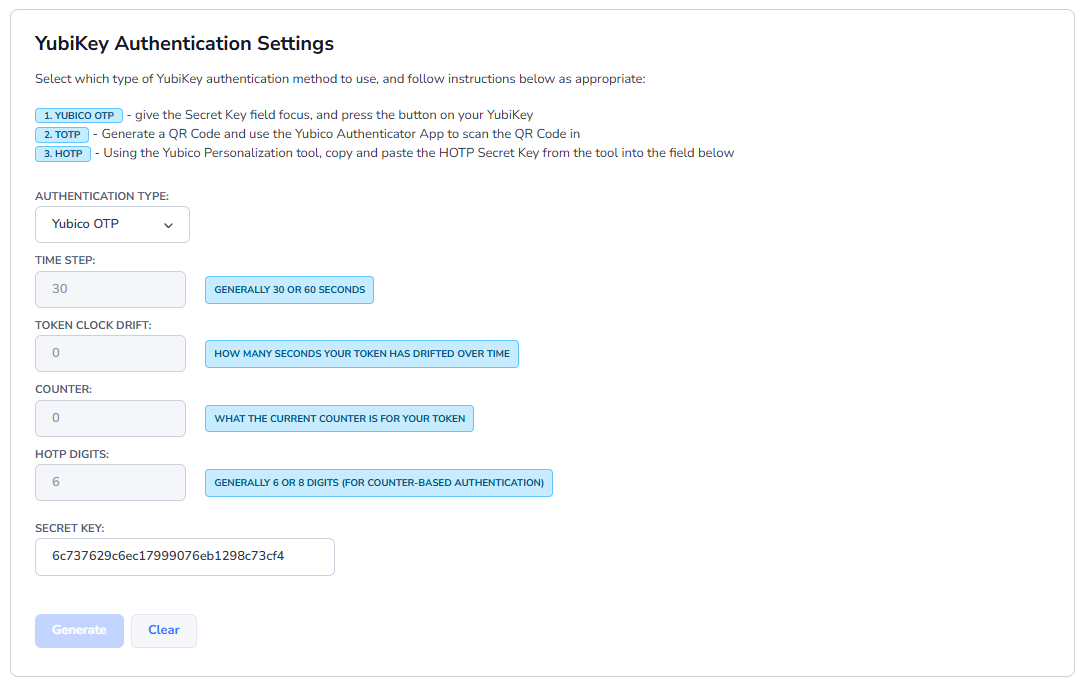
And then in Passwordstate, on your Preferences screen, you select Yubico OTP, select the Secret Key field, and then press the button on your YubiKey to populate your secret key - and 'Save' your Preferences.
Configure YubiKey for OATH - HOTP Support
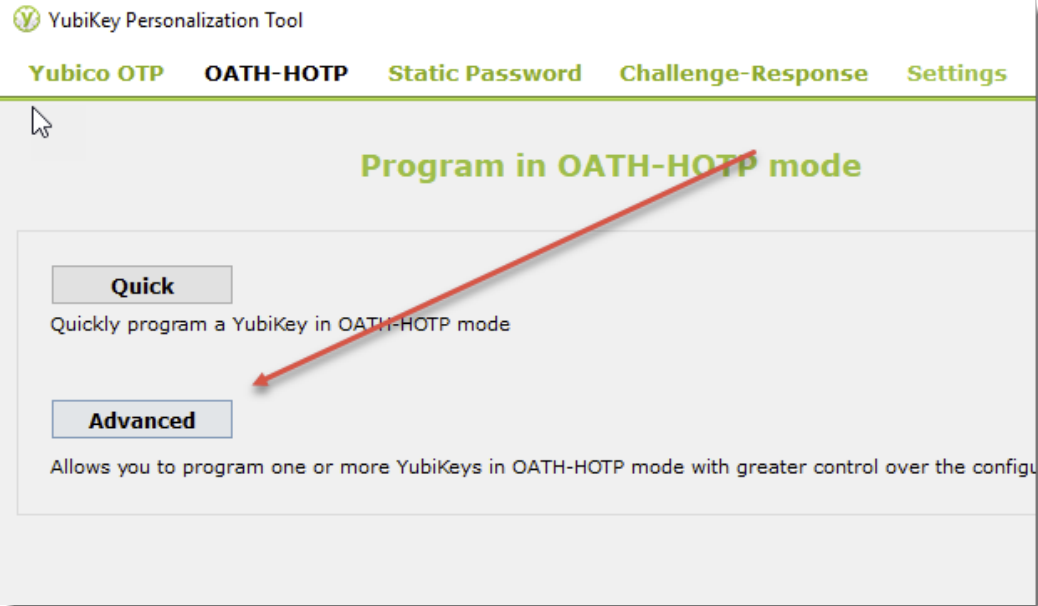
To configure your YubiKey for HOTP support, you need to click the 'Advanced' button, as per the screenshot below, as you need to deselect the 'OATH Token Identifier (6 bytes) option. Generate your Secret Key, and then write the configuration to the required Slot.
 | 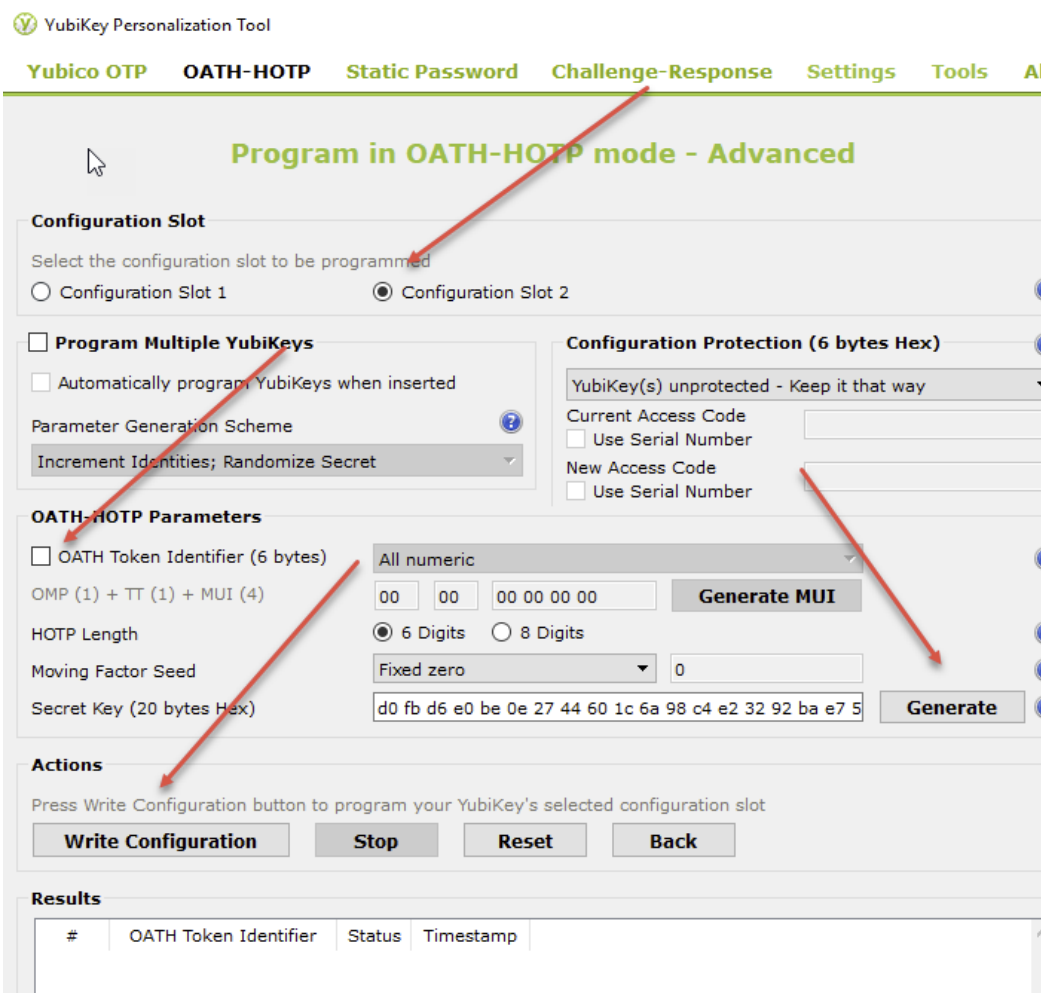 |
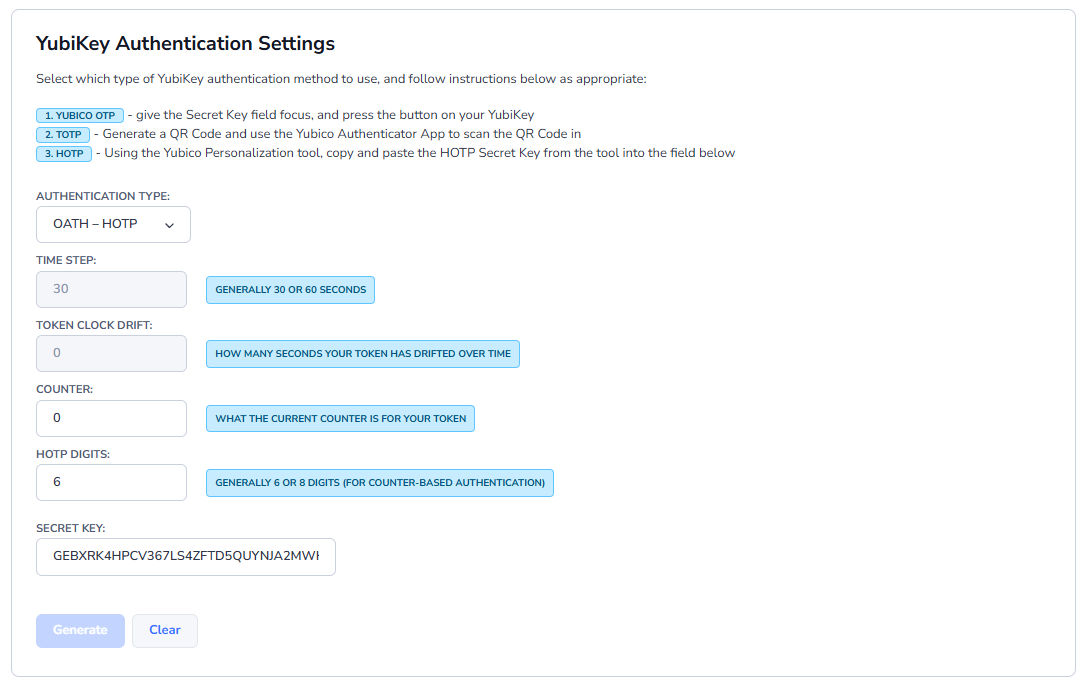
And then in Passwordstate, on your Preferences screen, you select OATH - HOTP, and copy and paste the 'Secret Key (20 bytes Hex)' you see in the screenshot above, into the Secret Key field below - and 'Save' your Preferences.
Configure YubiKey for OATH - TOTP Support
To configure your Yubikey for OTP support, you need to use the Yubico Authenticator application. It is also this application which is used to generate your One-Time Passwords for authentication.
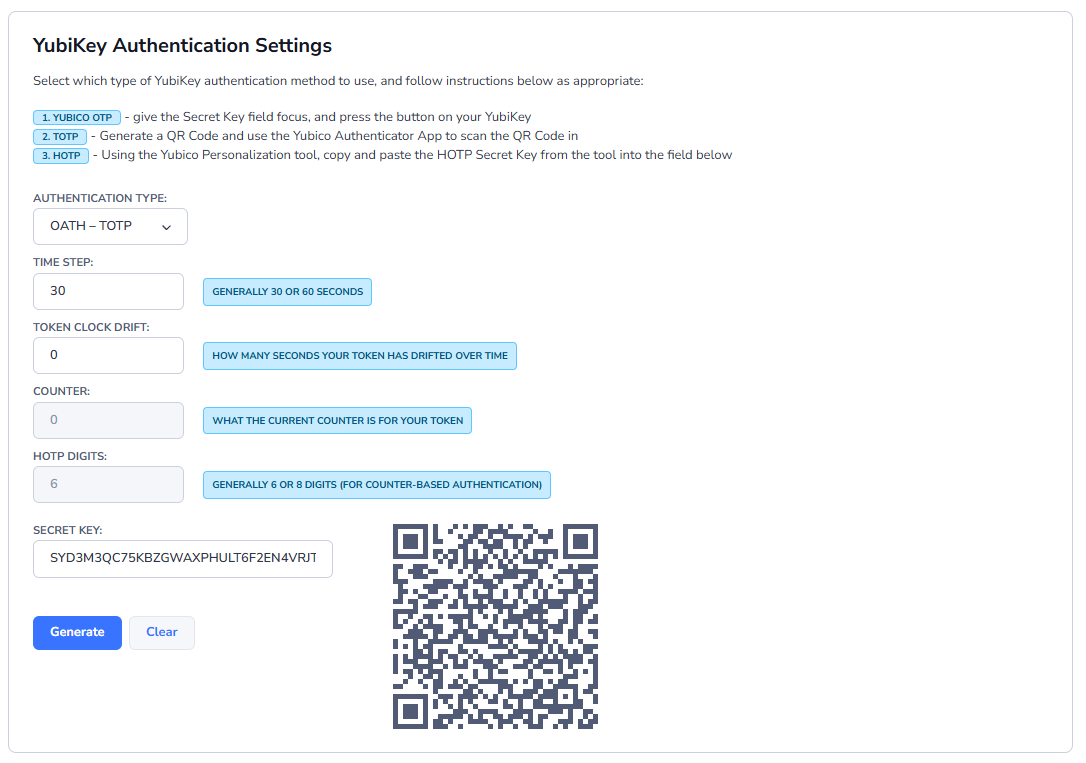
In Passwordstate, on your Preferences screen, you need to select 'OATH - TOTP', and click the Generate button so the QR Code is displayed. Do not save these changes just yet.
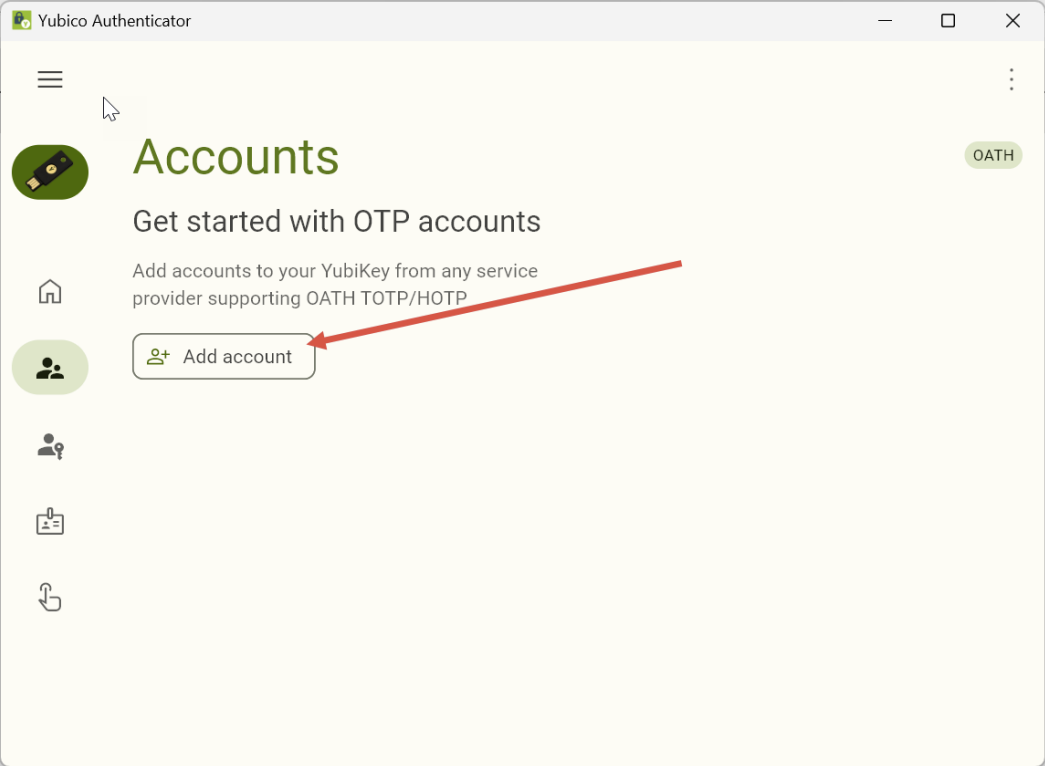
Insert your Yubikey into your workstation, launch the Yubikey Authenticator software and select Accounts -> Add Account:
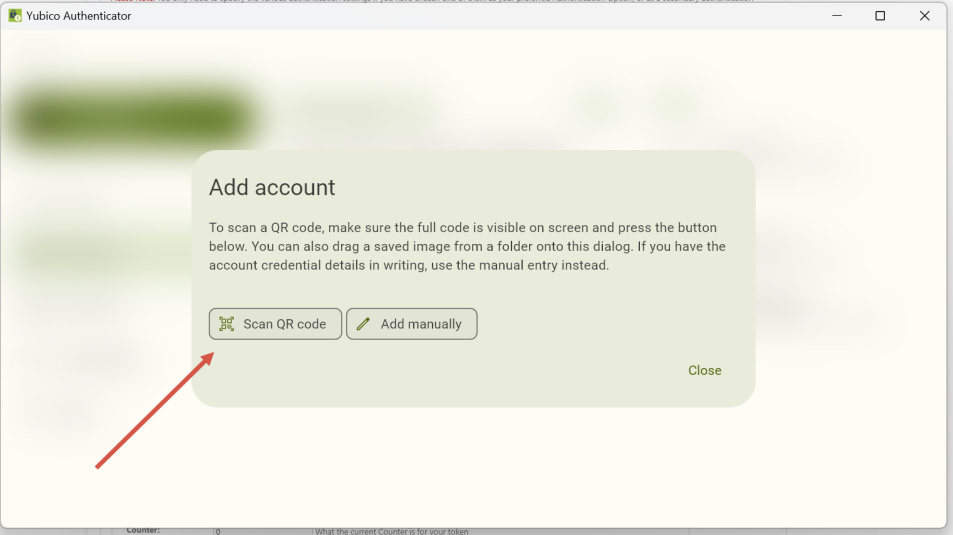
Make sure the QR code from your Passwordstate preferences screen is visible somewhere on the screen and click the Scan QR Code button:
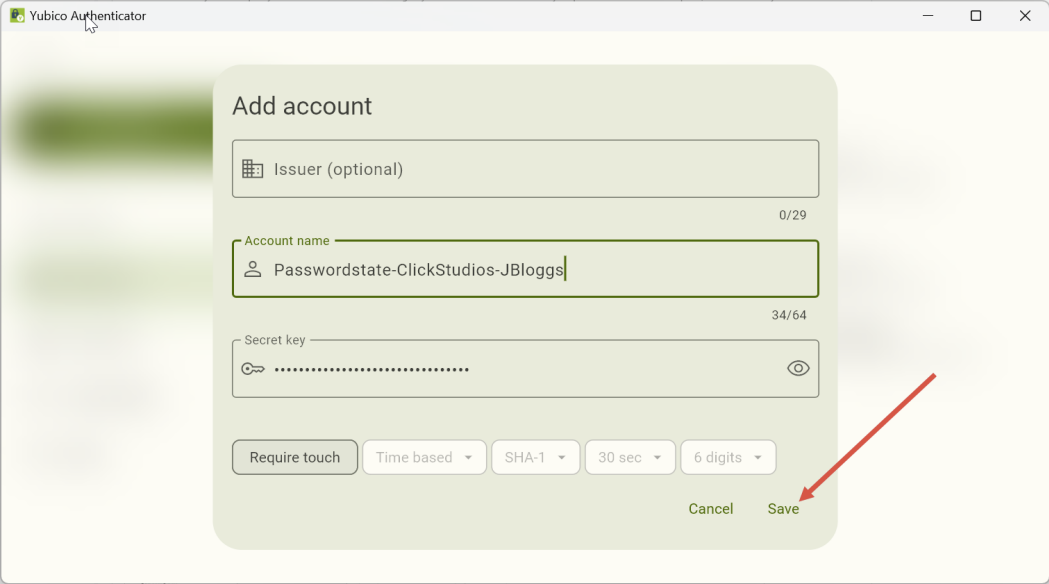
Click Save
Back in Passwordstate, click save on your Preferences screen to save that Secret key/QR code that you generated in the step above.
Duo Authentication
You must specify your Duo Username, and then you can use one of the multiple Duo Authentication options. If you have more than one device assigned to your Duo account, then you will be presented with a list of devices to use.
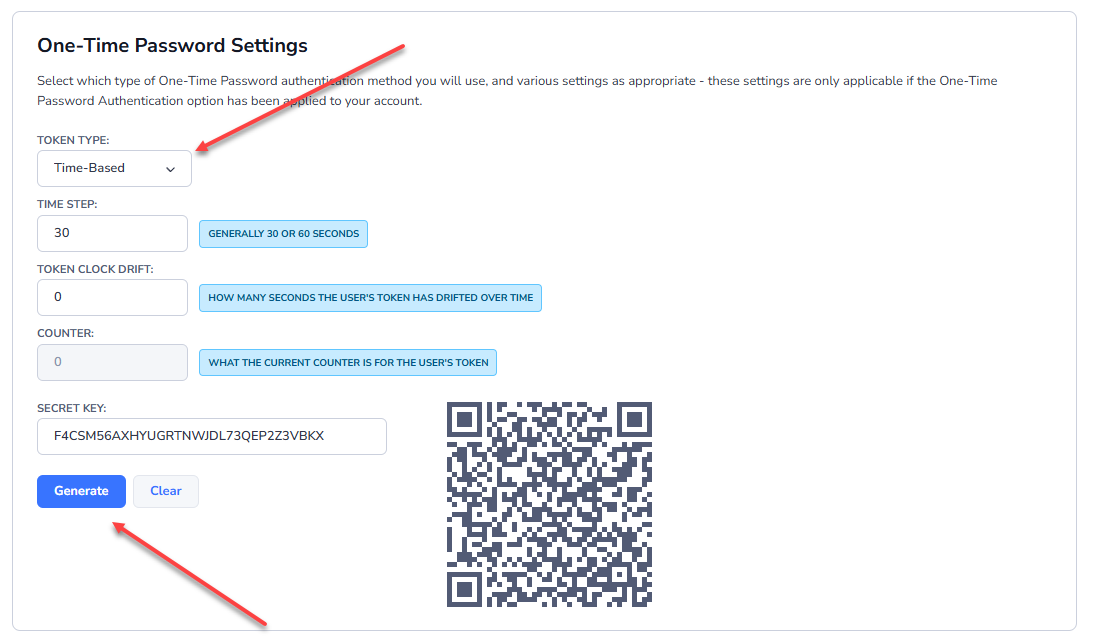
One Time Password
One-Time Password authentication supports the TOTP and HOTP algorithms - TOTP being time-based, and HOTP being counter-based. Both hardware and software tokens can be used for this authentication method.
In order to use this authentication option, you must select the Password Type, and then select various settings for your token.
The Secret Key needs to be specified in Base32 format, which is a string of 32 characters in length. If you are using a software token, then you can generate a random Secret Key in Passwordstate, and then specify this key in your software token software. If you are using hardware tokens, you should have been provided with the Base32 Secret Key when you were provided your token.
Note: If someone enables this authentication method for you, but you have not configured the settings below, you will be prompted to configure them when you first try and authenticate to the Passwordstate website.
RADIUS Authentication
RADIUS Authentication allows you to authenticate against a RADIUS server, where the RADIUS server can be configured for different types of authentication per user - even various two-factor methods.
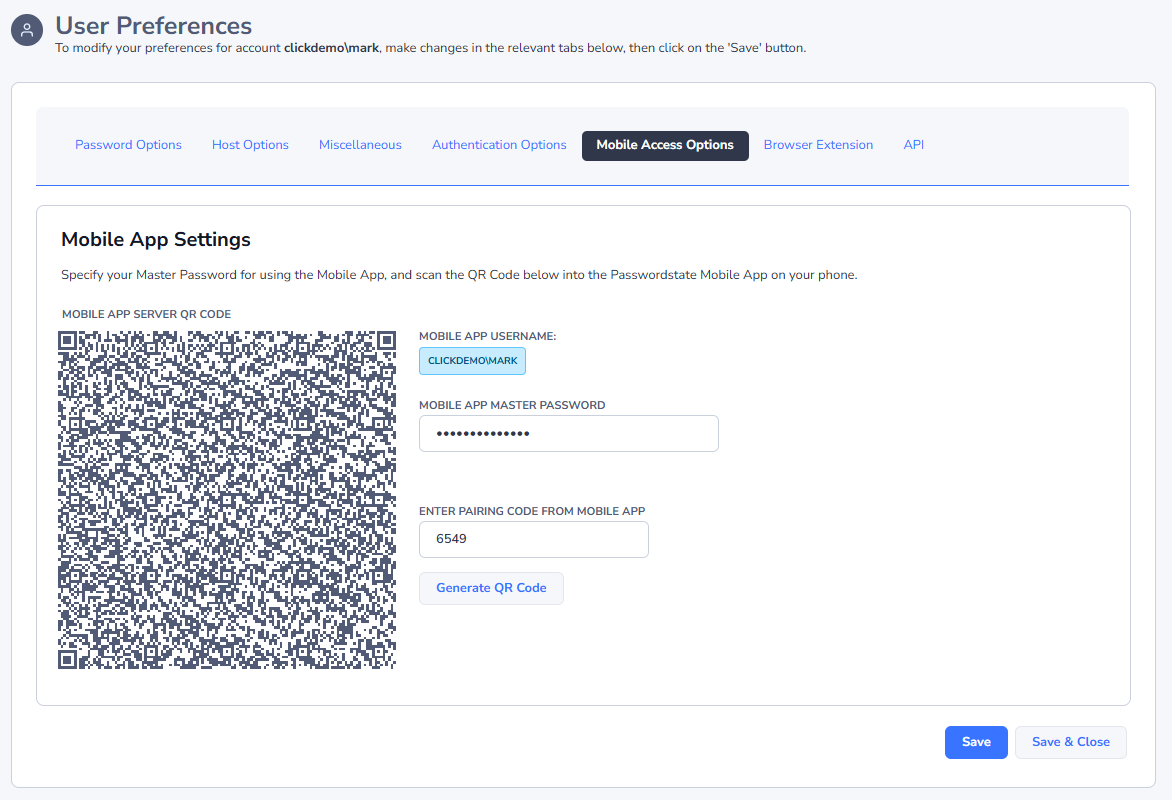
Mobile Access Options Tab
The Mobile Access Options tab allows you to specify various settings for the Passwordstate native iOS and Android Apps, and to scan the Mobile App QR code so you can begin using the App.
Full instructions for the Mobile App can be found under the Help Menu in Passwordstate - the menu is called Mobile App Manual.
Note: Please ensure you use a strong Master password for the Mobile App authentication.
Browser Extension Tab
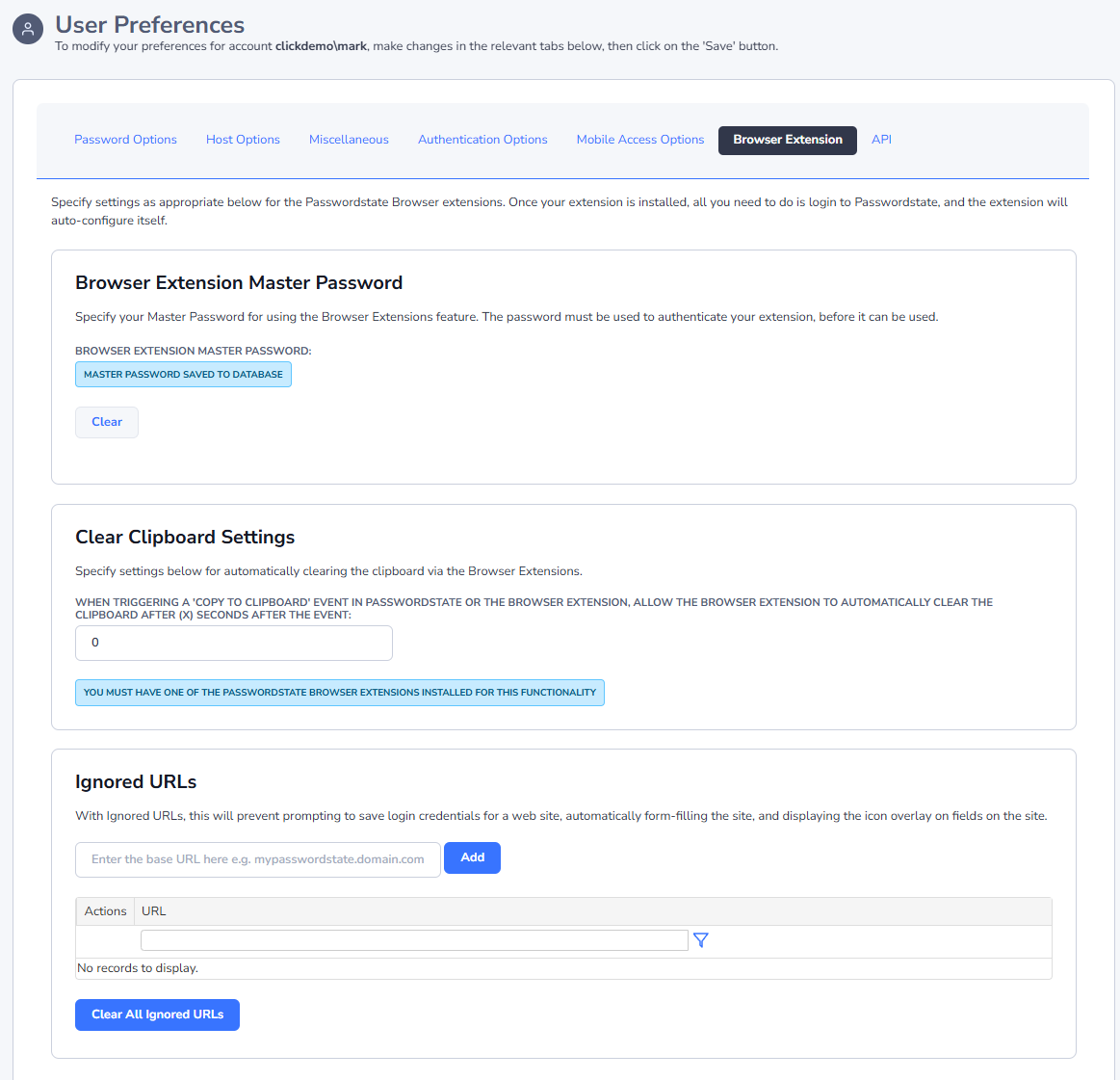
The Browser Extension tab allows you to specify various settings for the Chrome Browser Extension, which is used to automatically form-fill website logins.
In particular, you can:
- Specify your Master Password to be used with the browser extensions
- Specify which URLS will be ignored by the Browser Extension, so that it doesn't prompt you to save login credentials, form-fill the sites, or show the icon overlay
- The browser extension can also be used to automatically clear any contents in your clipboard at a set interval.
Please refer to the Browser Extension Manual for further instructions.
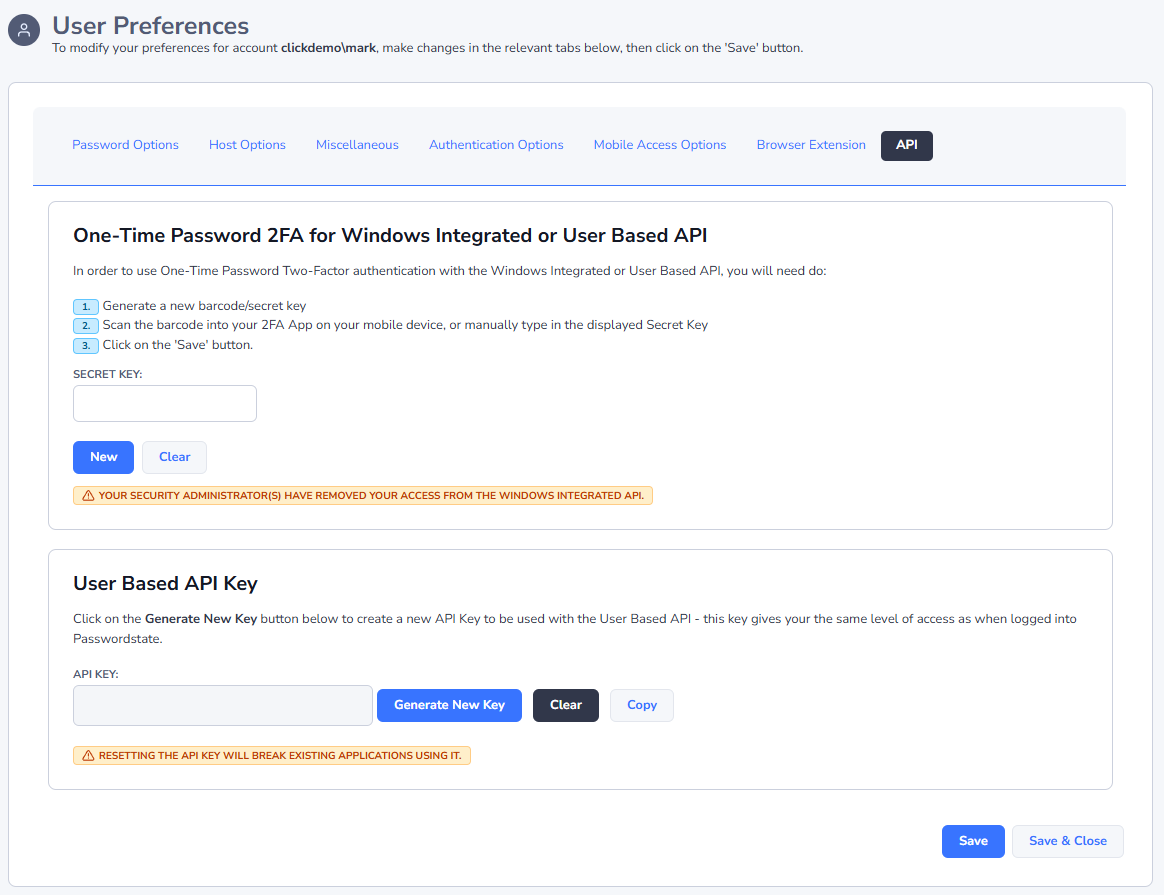
API Tab
Your Security Administrator's of Passwordstate can require Two-Factor Authentication when making calls to the Windows Integrated, or User Based, APIs.
If so, on the API tab on your Preferences screen, you can create the required 2FA Secret and scan the QR Code into your mobile device, or any other compatible app.
The User Based API also requires you to generate an API Key, and when making calls to this version of the API, it provides the same level of access as to when you are logged into Passwordstate.