Import Passwords
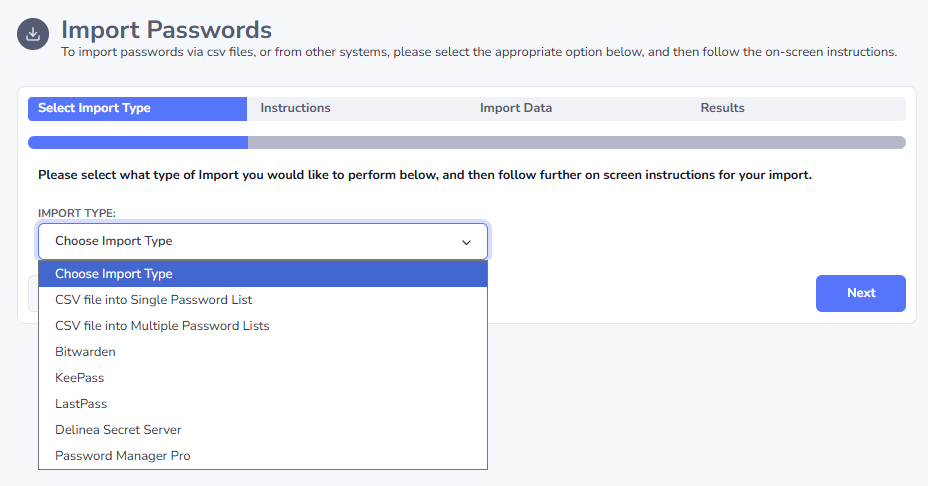
The Import Passwords screen, allows you to import data from different sources into Passwordstate. The options are:
- CSV file into Single Password List
- CSV file into Multiple Password Lists
- Bitwarden
- KeePass
- LastPass
- Delinea Secret Server
- Password Manager Pro
This screen provides you Wizard based functionality, where it guides you through the process of exporting your data, and then importing into Passwordstate.
Note 1: For the CSV imports, you must have created the Password Lists already to import into. And when importing into Multiple Password Lists, you must know the PasswordListID values for each Password List, as you need to specify these in the import CSV file. Please see instructions below of 'Determining PasswordListID's for CSV Imports' for how to determine these ID's.
Note 2: When using the 'CSV file into Multiple Password Lists', you must be a Security Administrator of Passwordstate, which has the Password Lists Security Administrator role. This restriction is in place to prevent standard user accounts from importing data into Password Lists which they have not been given access to.
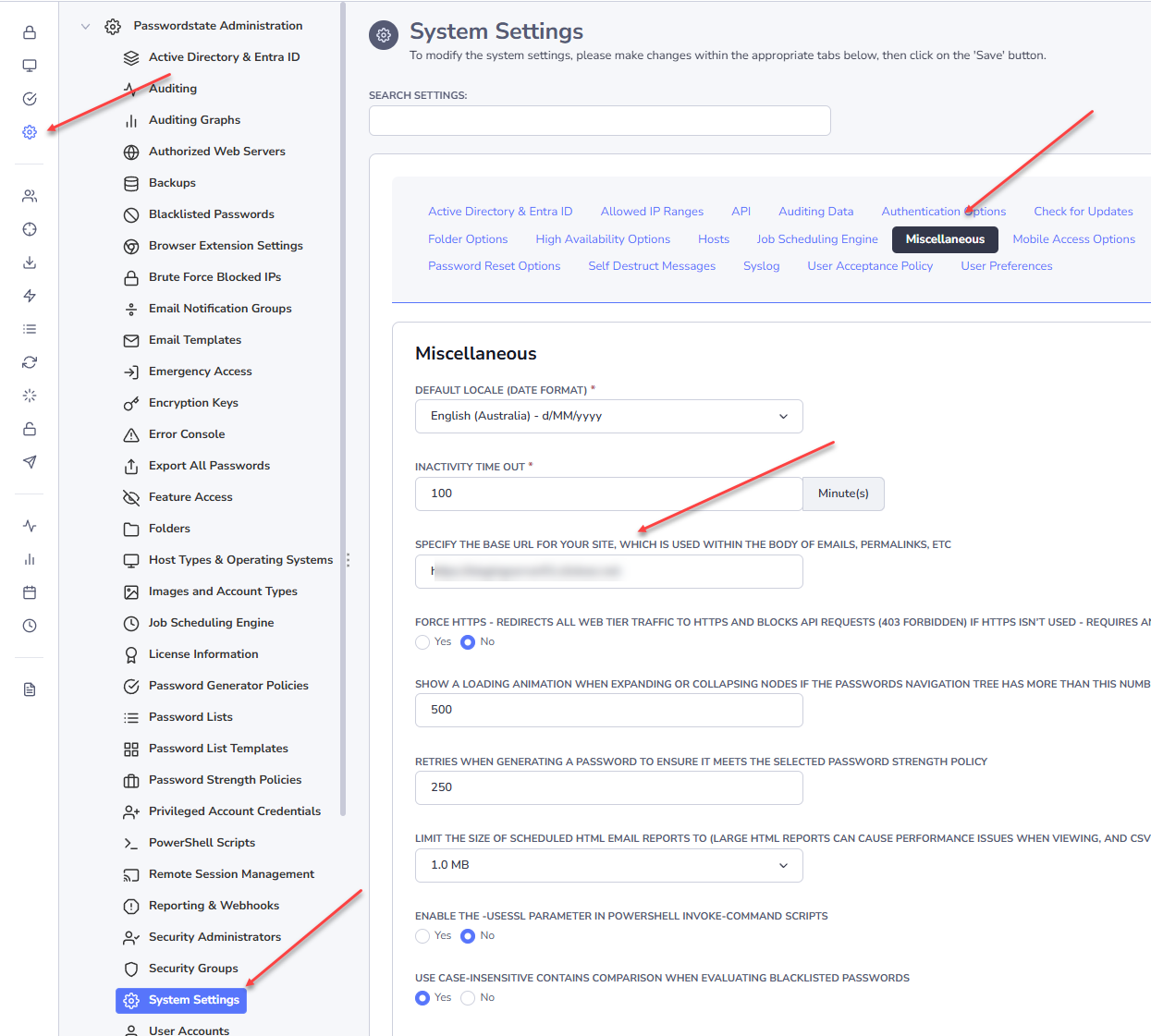
Note 3: For importing from the 4 different products listed above, the Base URL of your Passwordstate website must be recorded correctly in Passwordstate, so the API can be used to perform this import.
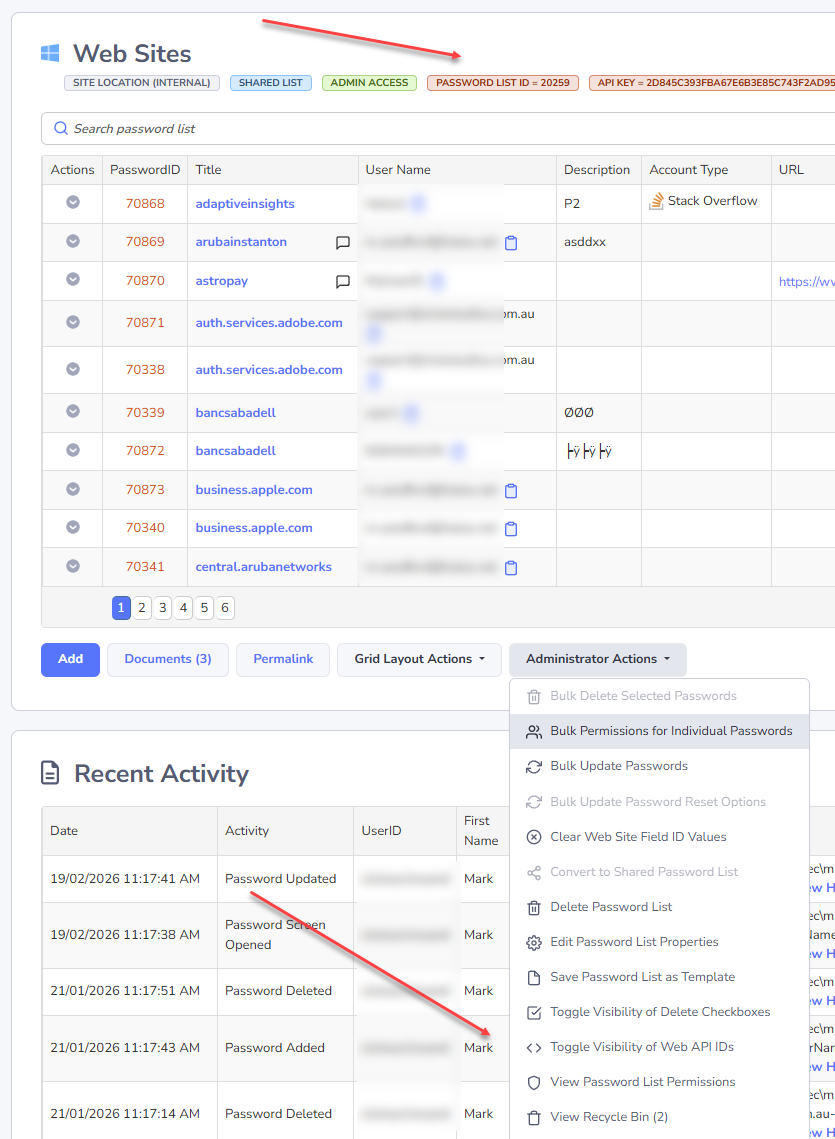
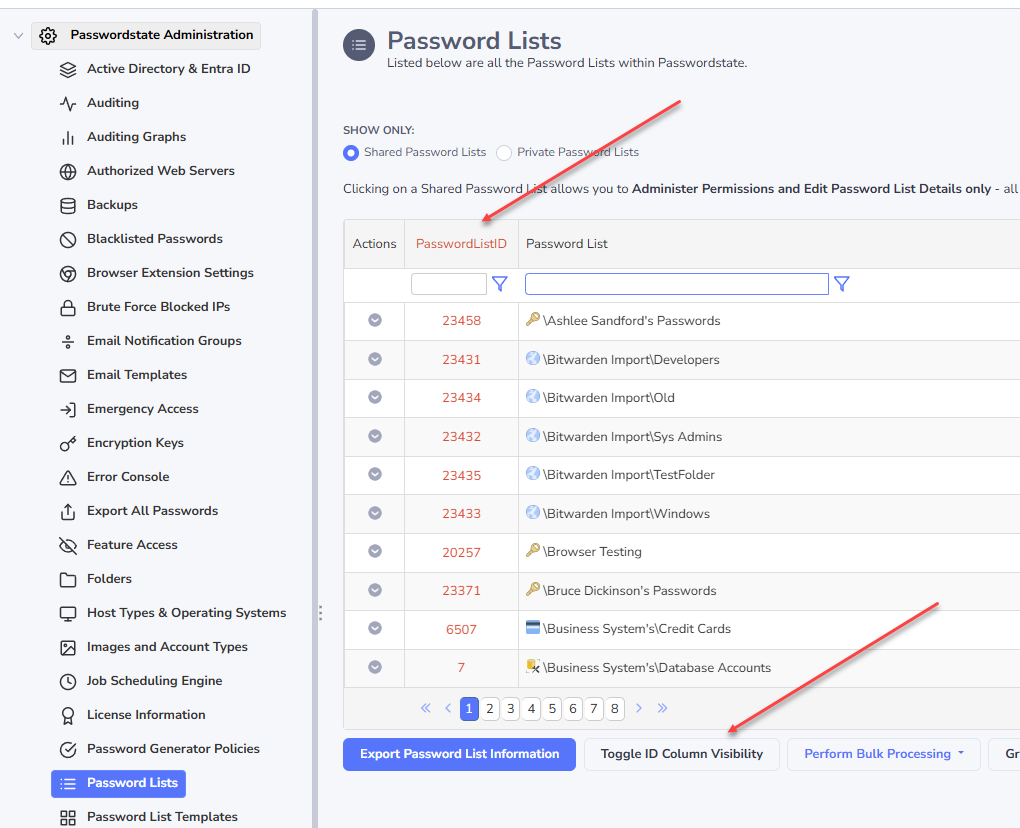
Determining PasswordList ID's for CSV Imports
The PasswordListID's can be viewed on a per Password List level, as per the first screenshot below, or you can view them in bulk as per the second screenshot below.
For the imports of KeePass, LastPass, Thycotic Secret Server & Password Manager Pro, each of these need to communicate to the API in Passwordstate, in order to perform the import.
Please check the Base URL you see in the screenshot below is accurate, and please test this by running on the pre-defined reports on the screen Administration -> Reporting, to confirm API connectivity is working.
Exporting From Other Password Managers
For instructions on how to export data from other Password Managers, please refer to instructions below:
Export Bitwarden Passwords
The instructions below provide guidance on how to export your data from Bitwarden, in order for you to The instructions below provide guidance on how to export your data from Bitwarden, in order for you to import that data into Passwordstate.
When you import the data, it will create a folder in the root of Passwords Home called Bitwarden Import, your account will be given Administrator rights to this folder, and all nested Password Lists beneath it.
Bitwarden does not export the Card, or Identity types of entries, so this import process will only be able to import Login and Secure Notes entries.
Any TOTP codes you have stored in Bitwarden will import successfully as part of this process
Export Instructions
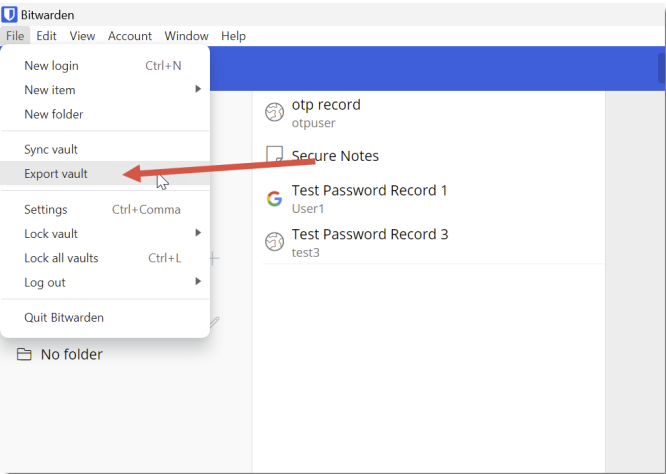
- From the File menu, choose the Export vault option:
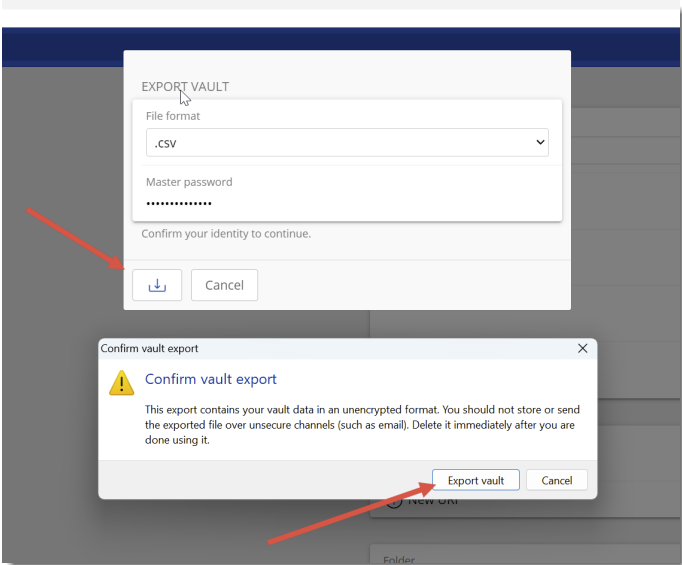
- Select the .csv File format, enter your Bitwarden Master Password and click the Submit button. Then click the Export vault button. Choose a folder on your system to save the csv file.
Export KeePass Passwords
The instructions below provide guidance on how to export your data from KeePass, in order for you to import that data into Passwordstate.
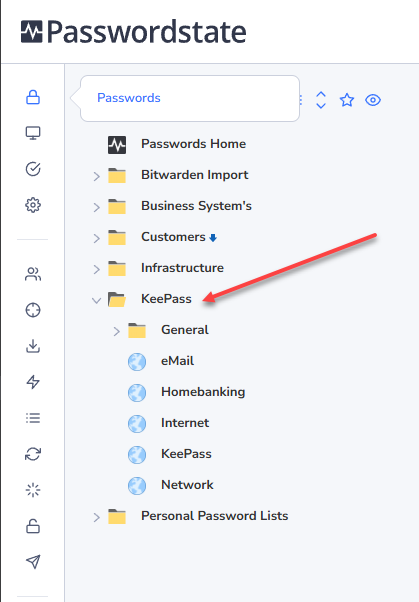
When you import the data, it will create a folder in the root of Passwords Home, and your account will be given Administrator rights to this folder, and all nested folders and Password Lists beneath it.
The folder will be named based on the folders you have within your KeePass database, and below is an example screenshot of what this would look like.
Export Instructions
Please follow these instructions for exporting from KeePass
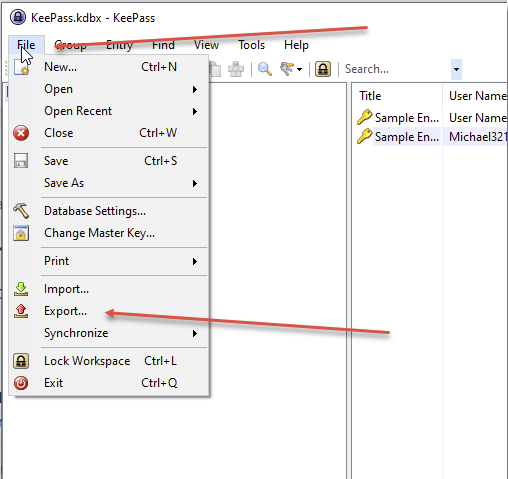
- From the File menu, choose the ‘Export’ option as per below
- Then select the format of ‘KeePass XML (2.x)’ as per below, and save the file to your PC
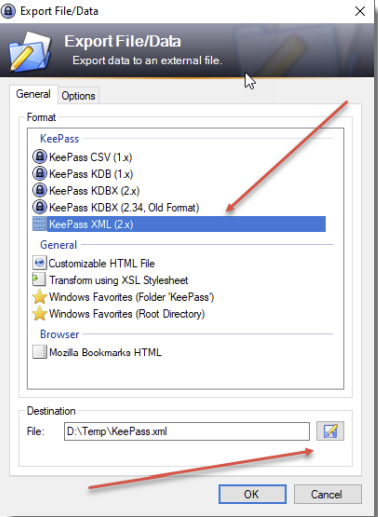
Now that you have exported your passwords, you can return to Passwordstate, and complete the import process.
Unicode Considerations
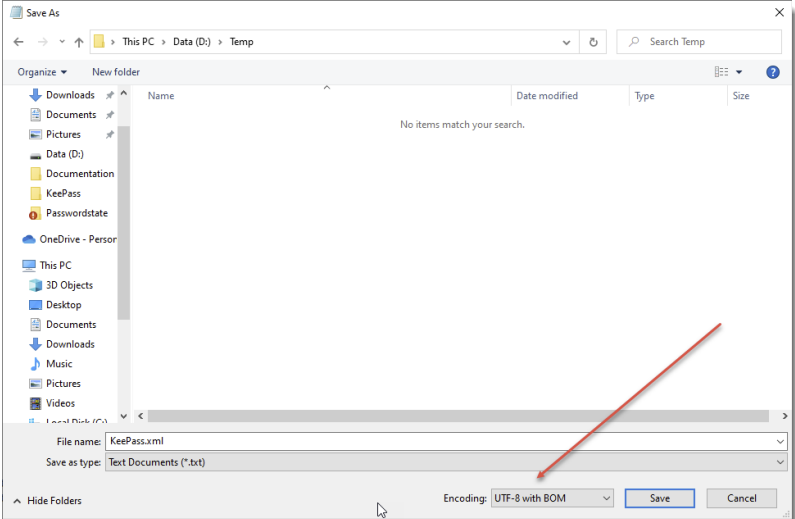
If you have any Unicode characters in your exported XML file, it is recommended you open your xml file in Notepad, and re-save the file after selecting the Encoding option of ‘UTF-8 with BOM’, as per the screenshot below.
This ensures a better chance of the wide range of Unicode characters being imported into Passwordstate correctly.
Export LastPass Passwords
The instructions below provide guidance on how to export your data from LastPass, in order for you to import that data into Passwordstate.
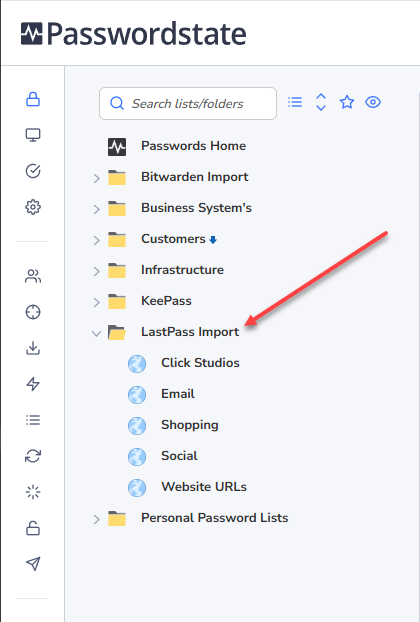
When you import the data, it will create a folder called ‘LastPass Import’ in the root of Passwords Home, and your account will be given Administrator rights to this folder, and all nested folders and Password Lists beneath it. Below is an example screenshot of what this would look like.
Export Instructions
Please follow these instructions for exporting from LastPass.
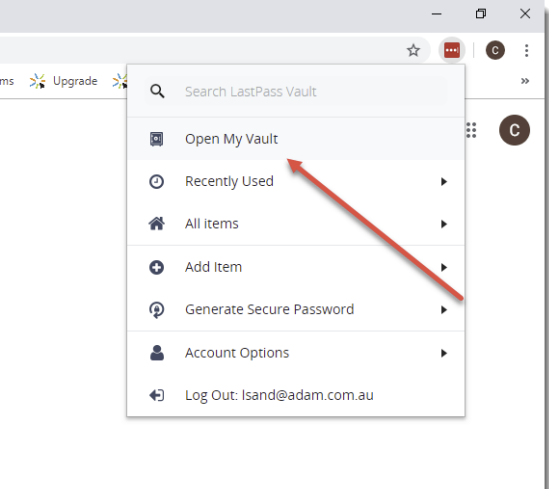
- To export your data from Lastpass, select “Open my Vault”
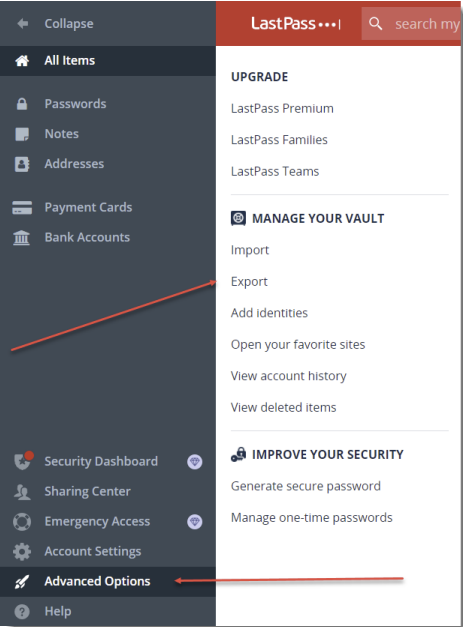
- Go to “Advanced Options” and click “Export”
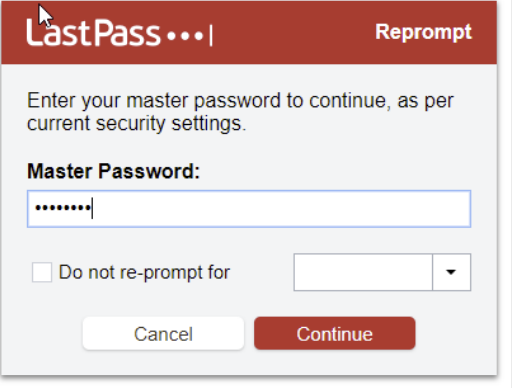
- Type in your Master LastPass password and click Continue:
You will then either be prompted to save a CSV file, or if the data is presented within your browser window, you will need to follow the instructions below to manually move this data into a CSV file.
Highlight all the lines of data you see in the below screenshot, and copy them to your clipboard using Control-A and Control-C.
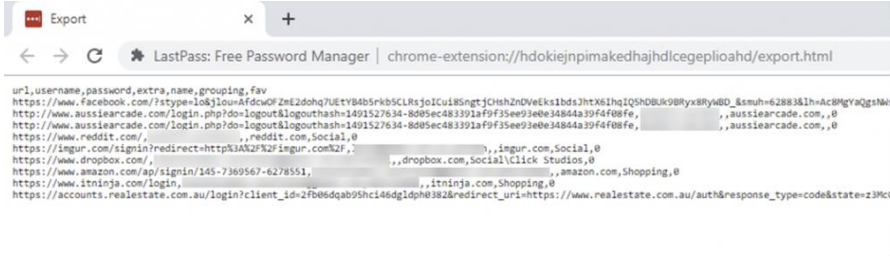
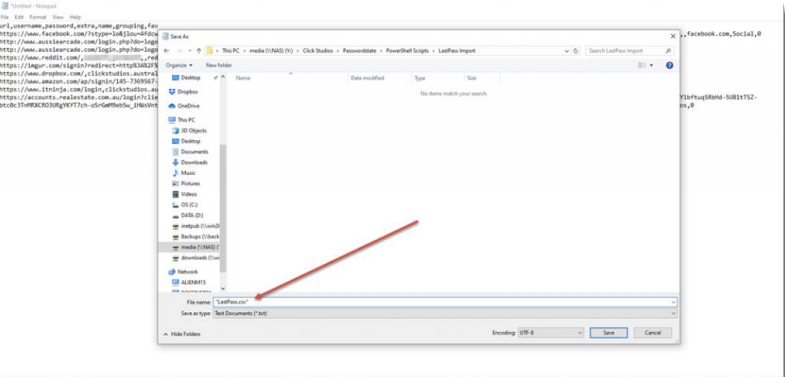
Open notepad, and paste the contents into notepad, then save it as a csv file (if you wrap the LastPass.csv title in double quotes, this saves it as a csv file):
Now that you have exported your passwords, you can return to Passwordstate, and complete the import process.
Validating LastPass Export
There appears to be a bug in the export process from LastPass, where special characters in the URL of your websites, could corrupt the export from LastPass, causing an invalid CSV file.
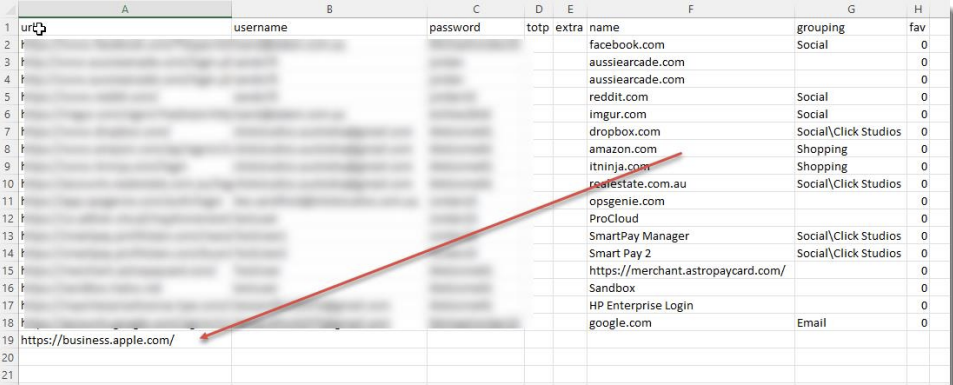
An example of these special characters in a URL is https://business.apple.com/#main/accounts, and as you can see from the screenshot below, no other data has been exported for this account.
Please review the exported file, and delete any rows which are not populated with the required data i.e. username, password, name, etc. These records will need to be manually added into Passwordstate, or if using our Browser Extensions, simply login to the website and you will be prompted to save the record into Passwordstate.
Export Password Manager Pro Passwords
The instructions below provide guidance on how to export your data from Password Manager Pro, in order for you to import that data into Passwordstate.
These instructions have been created using Password Manager Pro version 12.0 (Build 12002), and does not consider any custom columns which may have been added into Password Manager Pro.
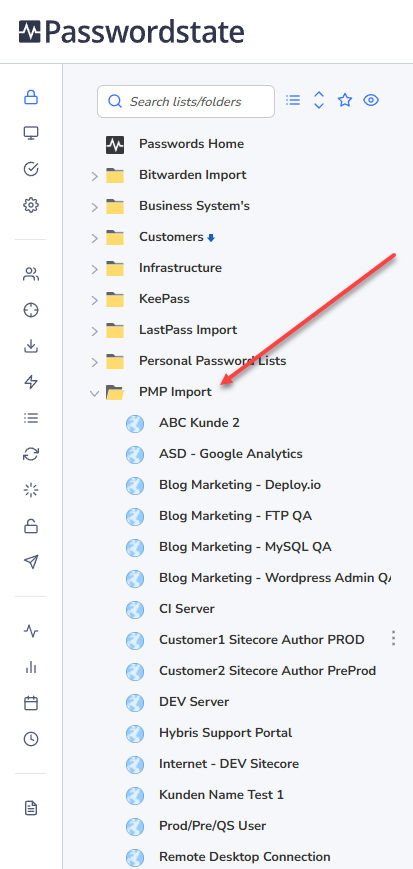
When you import the data, it will create a folder called ‘PMP Import’ in the root of Passwords Home, your account will be given Administrator rights to this folder, and all nested folders and Password Lists beneath it. Below is an example screenshot of what this would look like.
Export Instructions
Please follow these instructions for exporting from Password Manager Pro.
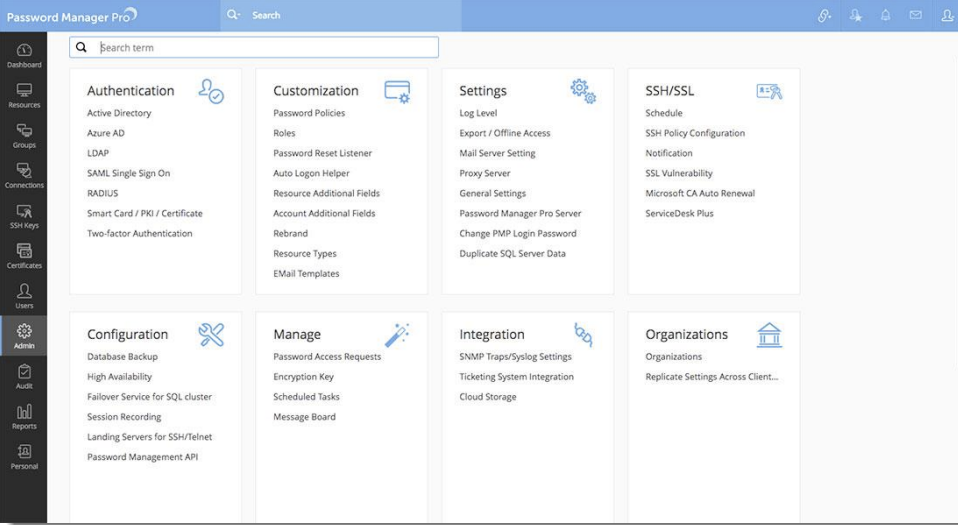
- Navigate to Admin -> Settings -> Export / Offline Access
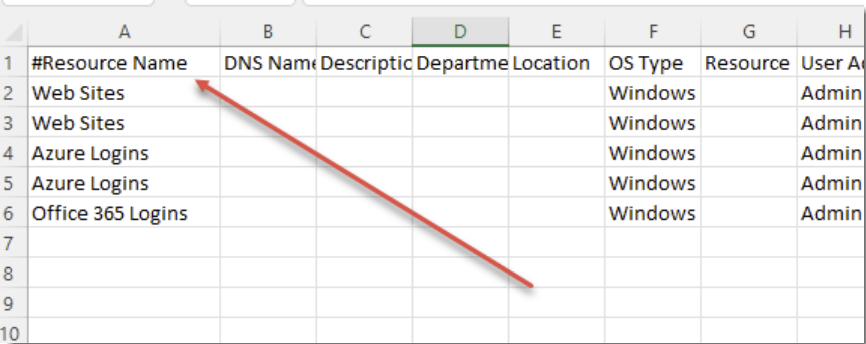
- Once you have exported your csv file and saved it to your PC, if the “Resource Name” column is prefixed with a # character as per the screenshot below, please remove this character and save the file again.
Now that you have exported your passwords, you can return to Passwordstate, and complete the import process.
Export Delinea Secret Server Passwords
The instructions below provide guidance on how to export your data from Delinea’s Secret Server, in order for you to import that data into Passwordstate.
The following documentation has been tested using Secret Server version 10.5.000003, and it would be unlikely Delinea’s Password Templates and XML export feature would be different in other builds.
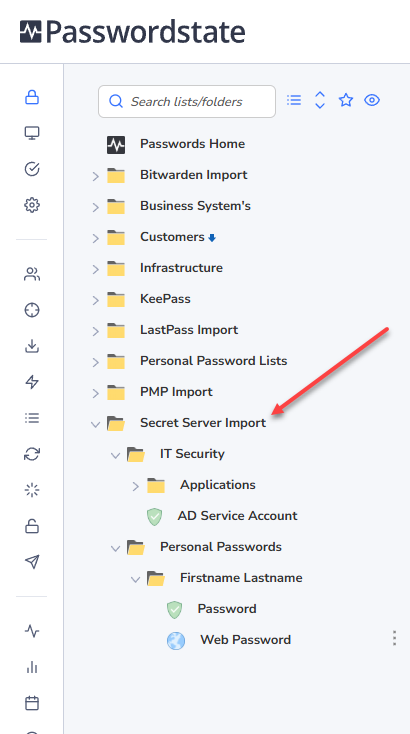
When you import the data, it will create a folder called ‘Secret Server Import’ in the root of Passwords Home, your account will be given Administrator rights to this folder, and all nested folders and Password Lists beneath it. Below is an example screenshot of what this would look like.
Field Mappings
Secret Server handles fields differently to Passwordstate, in that they provide a per password record Template of different types (25 in total). Passwordstate uses Password List Templates instead, and the following instructions will use 5 different Templates for the import.
On the screen you opened these instructions from, you will also find a link to the file ‘SecretServer_Passwordstate_FieldMappings.xlsx’. This spreadsheet documents the field mapping from the various Secret Server Password Templates, to the Passwordstate Password List Templates. The only Secret Server template which will not be imported is ‘Contact’, due to Secret Server exceeding the maximum number of Generic Fields Passwordstate supports.
It is possible that over time you have modified the fields associated with the default Password List Templates in Passwordstate, but the import process will create temporary templates, based on what fields are documented in this spreadsheet.
Export Instructions
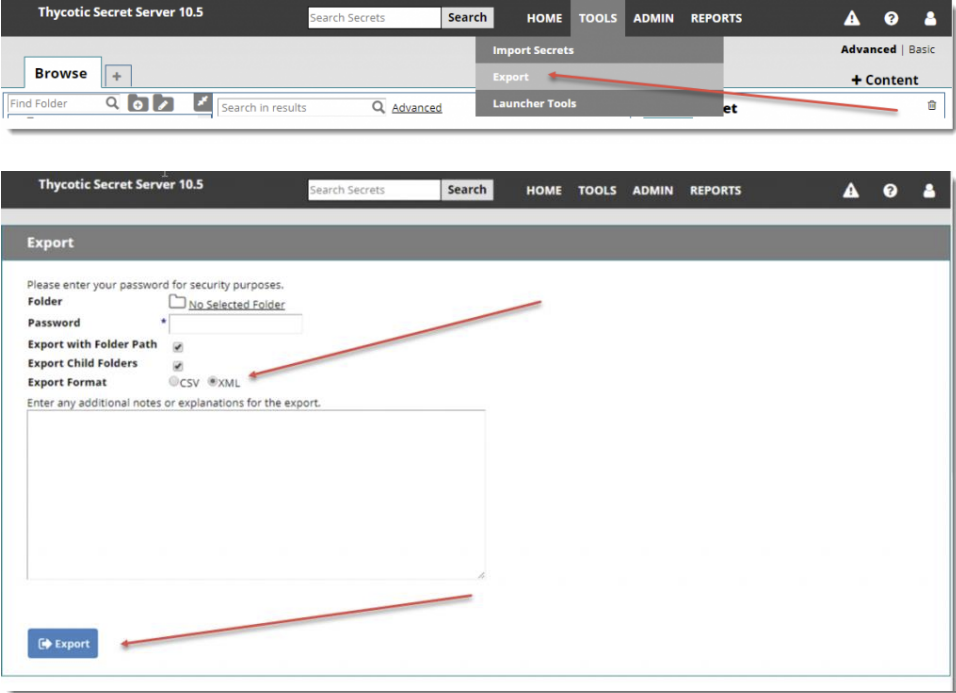
To export your Secret Server data in XML format, please use the screenshots below for guidance. Please save the XML file locally to your PC.
Now that you have exported your passwords, you can return to Passwordstate, and complete the import process.
Unicode Considerations
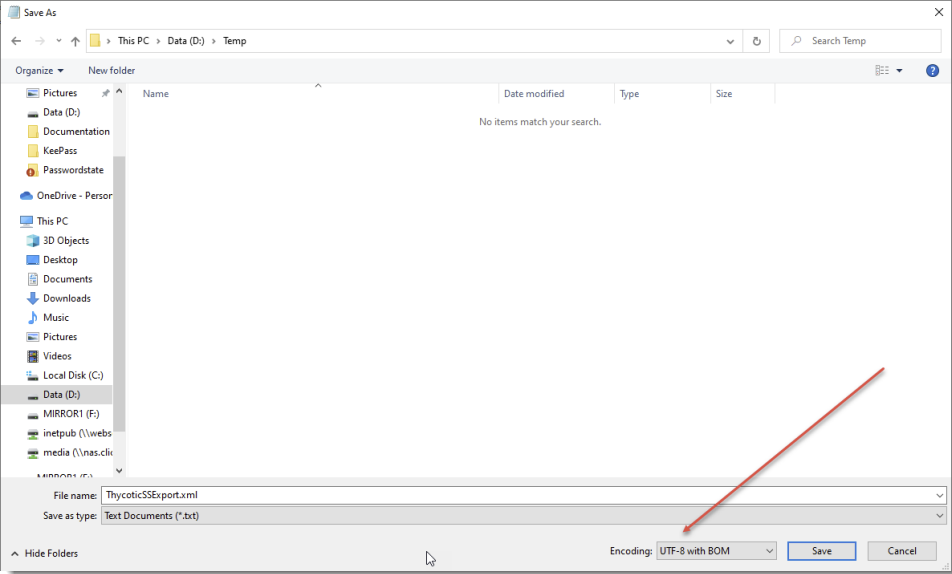
If you have any Unicode characters in your exported XML file, it is recommended you open your xml file in Notepad, and re-save the file after selecting the Encoding option of ‘UTF-8 with BOM’, as per the screenshot below.
This ensures a better chance of the wide range of Unicode characters being imported into Passwordstate correctly.
Delete Imported Data
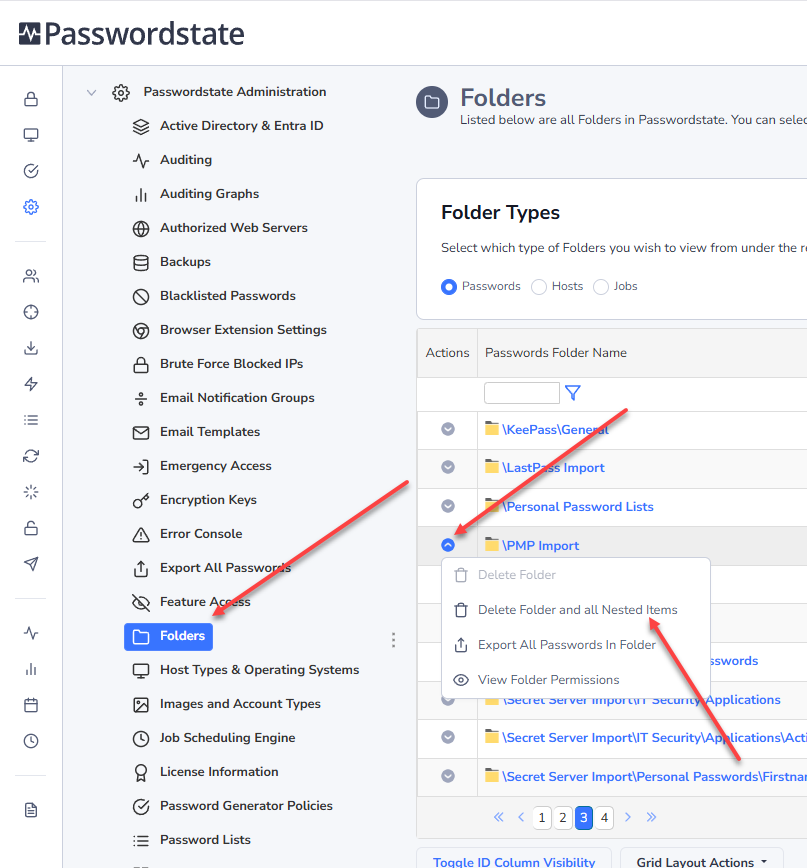
If you need to test the import process multiple times, you can delete this parent folders that are created, and all nested Password Lists, from the screen Administration -> Password Folders – as per the example screenshot below.