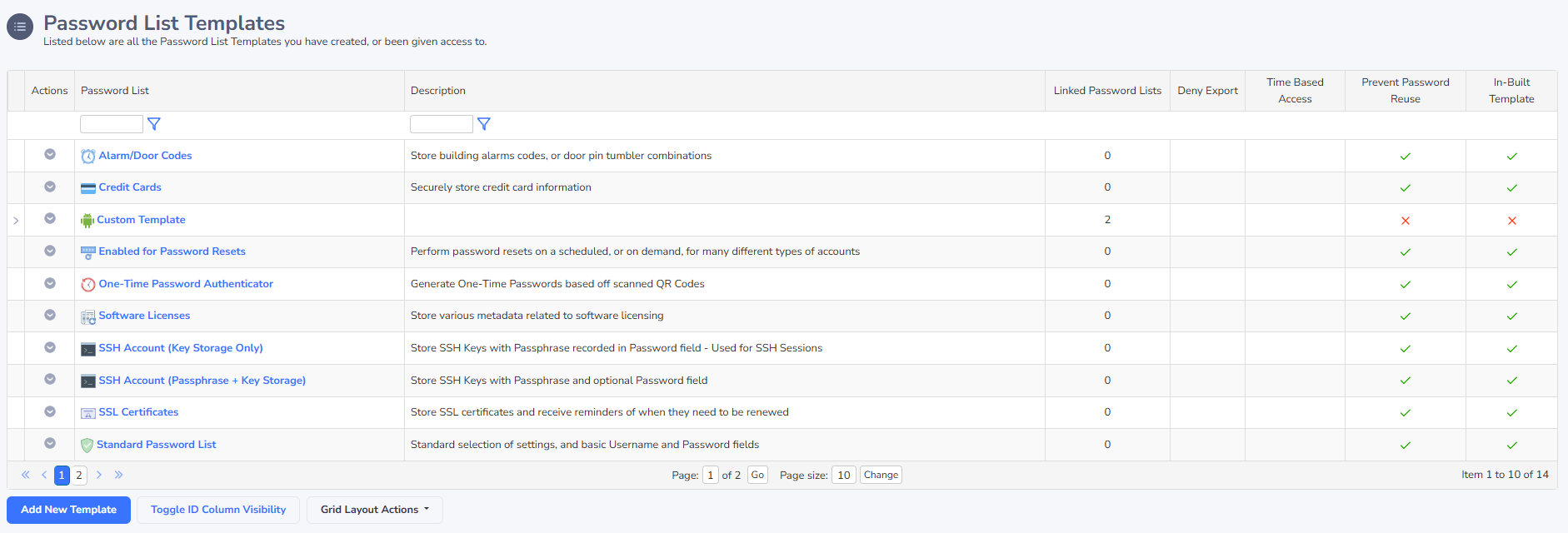
Password List Templates
Password List Templates can be used to apply consistency to settings for your Password Lists. They can be used in the following way: You can apply a Template's settings as needed (once off) when you add a new Password List, or edit an existing Password Lists' settings ( Password List Details Tab )
- You can link Password Lists to a Template, and then manage all settings from the Template. When you do this, the majority of options for the Password List will be disabled when you chose to Edit Password List Details
- You can also apply permissions to a Template, and these permissions can be used for:
- Allow other users to see the Templates via the 'Password List Templates' menu option
- Allow other users to also modify the settings for the Template via the 'Password List Templates' menu option
- Applying permissions to a Password List as needed (once off) when you add a new Password List, or edit an existing Password Lists' settings ( Password List Details Tab )
Note: Permissions on a Template are not used when Linking Password Lists to a template - this can only be done when adding a new Password List, or editing the settings for an existing one.
You can either create Templates by clicking on the Add New Template button on this screen, or via the Save Password List as Template option for an existing Password List.
Editing a Template Settings
Editing the settings for a Template is almost identical to that of a Password List, and can be accessed via clicking on the appropriate 'Password List' hyperlink you see in the Grid above. Please reference the documentation for each of the tabs here - Password List Details Tab, Customize Fields Tab & Guide.
Caution: When editing a Template's settings when it is linked to other Password Lists, if you change any of the Field Types for any Generic Fields, these fields will have their data cleared/blanked in the database when you click on the 'Save' button. This is because the different Generic Field Field Types need to have their data treated differently. There are multiple warning messages within Passwordstate as well for this, so please be aware.
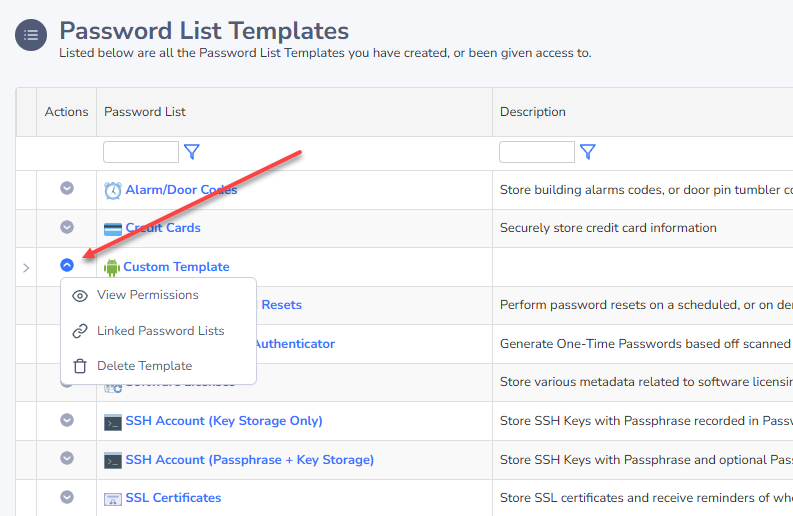
Password List Template Actions
From the 'Actions' drop-down menu, you have various features available:
- View Permissions applied to the Template - this also allows you to add/update/delete permissions as required
- You can Link Password Lists to the Template
- You can delete the template
Note: If you delete a Template which is linked to one or more Password Lists, these Password Lists will bet set to use the Templates' settings as there were prior to you deleting the Template. You can then modify the settings of the Password Lists as required.
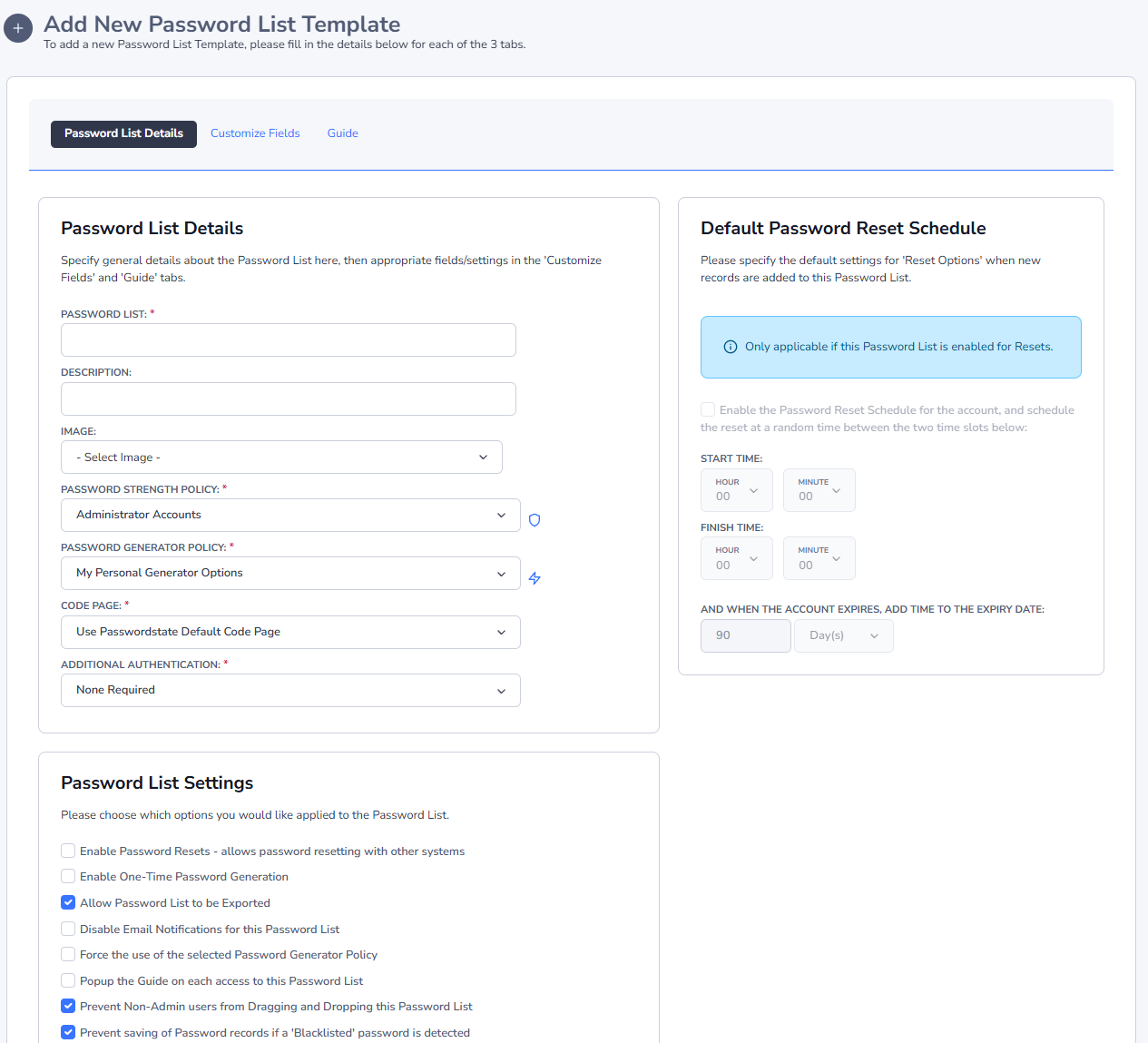
Add New Template
You will notice from the screenshot below the settings for a Template are almost identical to a Password List, so please reference the documentation for each of the tabs here - Password List Details Tab, Customize Fields Tab & Guide Tab. One exception to this is the API Key tab, as each Password List's API Key details must be unique.
Note: When you add a new Template, you will be giving Administrator rights to it.
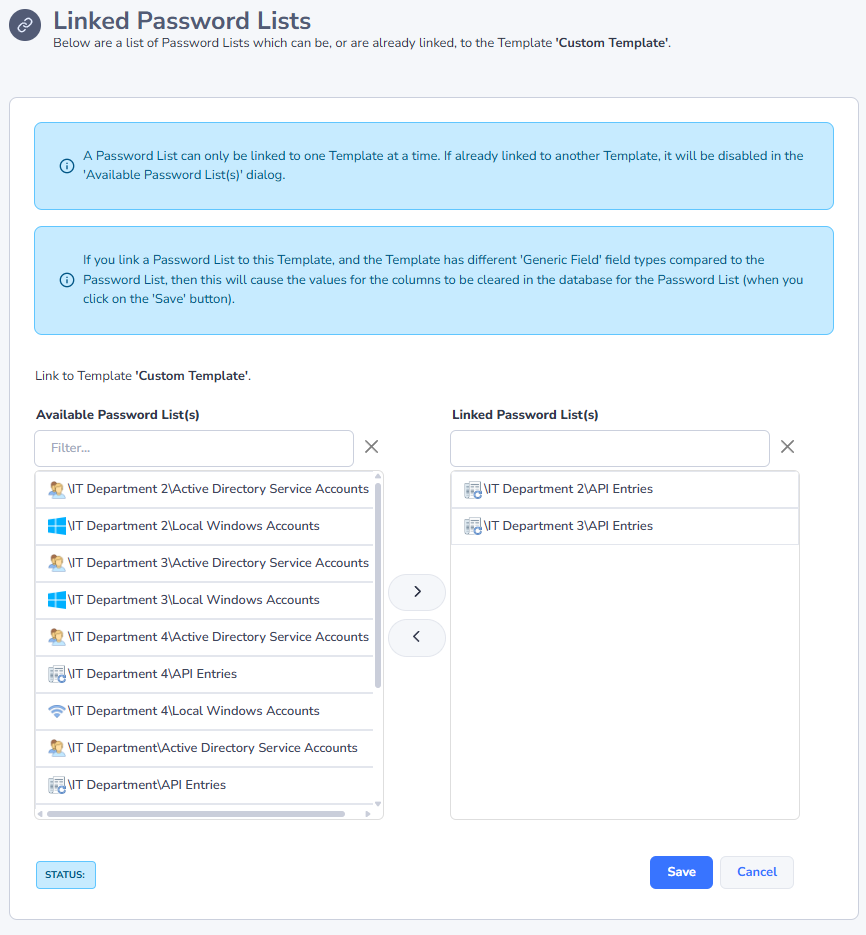
Linked Password Lists
When you link one or more Password Lists to a Template, the majority of settings for the linked Password Lists are then managed via the Template - which the exception of the details on the API Key & Settings Tab.
Linking Password Lists to a Template is a very simple process - move the Password List you want to link into the 'Linked Password List(s)' text box, and click on the 'Save' button.
Caution: When linking Password Lists to a Template for the first time, if the Password List has some Generic Fields specified which are different to any Generic Fields specified for the Template, these fields will have their data cleared/blanked in the database when you click on the 'Save' button. This is because the different Generic Field Field Types need to have their data treated differently. There are multiple warning messages within the Passwordstate as well for this, so please be aware.