
Passwords Home
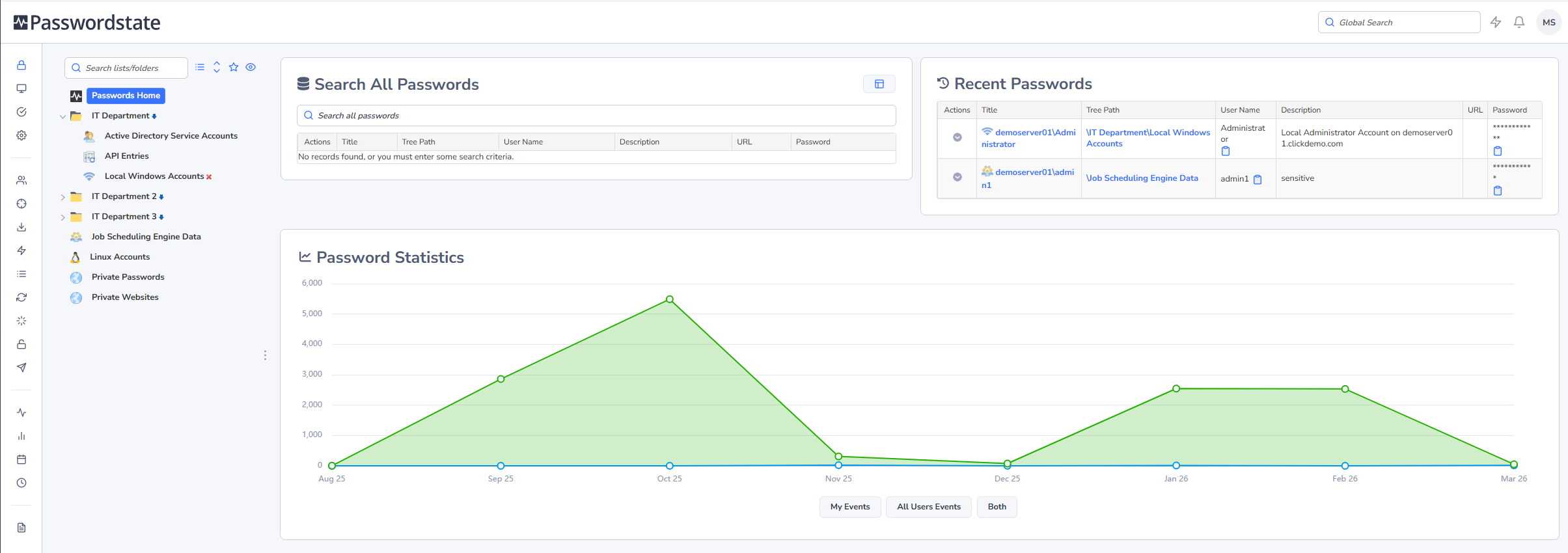
Clicking On the Passwords Home icon, displayed in the image below, will be a filtered view of all Password Lists you have access to.
Note: Some of these features detailed below may be hidden or disabled for you, depending on your access rights, and what settings have been applied to the various Password Lists you have access to.
On this screen you can:
- Search for Passwords across all the Password Lists you have access to (from Passwords Home), or all passwords within the selected Folder. Note: To perform an exact match search, enclose your search term in double quotes i.e. "root_admin"
- View and access Passwords you've recently used i.e. viewed/editing/copied to clipboard, etc
- View your tagged Favorite Passwords
- View your tagged Favorite Password Lists
- View some basic auditing statistics data
- Customize the screen by clicking on the Screen Options button

- You can edit/view a password by clicking on the hyperlink in the Title column
- You can view a password on the screen by clicking the masked ******* (the speed at which the password is again hidden can be control by your Security Administrators)
- You can copy a password to the clipboard by clicking on the icon (The clipboard can be cleared after a set time, which is set by your Security Administrators)
- You can perform various 'Password Actions' by selecting the appropriate menu option from the Actions drop-down menu
Note: For the Recent Passwords Grid, none of the icons next to the Title field will be visible, due to performance reasons. When there are thousands of recent auditing records for a user, having these icons could cause performance issues due to the volume of data.
Screen Options
Screen Options allows you to specify various settings for how you would like to see the grids and charts displayed on the screen.
Note: Some of these settings may be set by your Security Administrator(s) of Passwordstate, and if so the controls will be disabled and a message will be displayed on the screen.
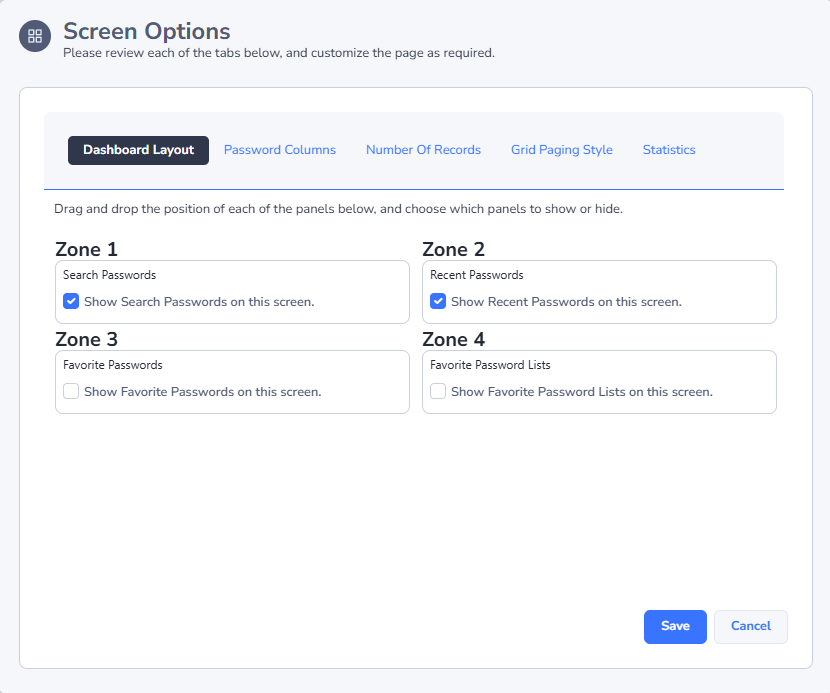
Dashboard Layout Tab
The Dashboard Layout tab allows you to select which Panels you would like to display, and in which Zone position. You can drag-n-drop the Panels around within the different Zones, so they appear in the position you like.
Password Columns Tab
The Password Columns tab allows you to select which columns you want displayed for each of the Passwords Grids.
Number of Records Tab
The Number of Records tab simply allows you to specify how many records you would like displayed within any of the Grids, before the 'paging' controls will be displayed.
Grid Paging Style Tab
The Grid Paging Style tab allows you to choose one of three different types of 'Paging' styles, which will be used when there are more records returned than the grids are set to display.
Statistics Tab
The Statistics tab allows you to either hide or show the statistics graph on the page, and which style and color of graph you would like to be displayed.