
Password Lists
The Password List screen shows you the Passwords stored within the selected Password List. Not all Passwords may be visible to you here, as permissions can be applied to individual records within the Password Lists, as opposed to the whole Password List.
Note: Some of these features detailed below may be hidden or disabled for you, depending on your access rights, and what settings have been applied to the selected Password List.
On this screen you can:
- Search for Passwords contained within the selected Password. Note: To perform an exact match search, enclose your search term in double quotes i.e. "root_admin"
- View various statistics about the selected Password List
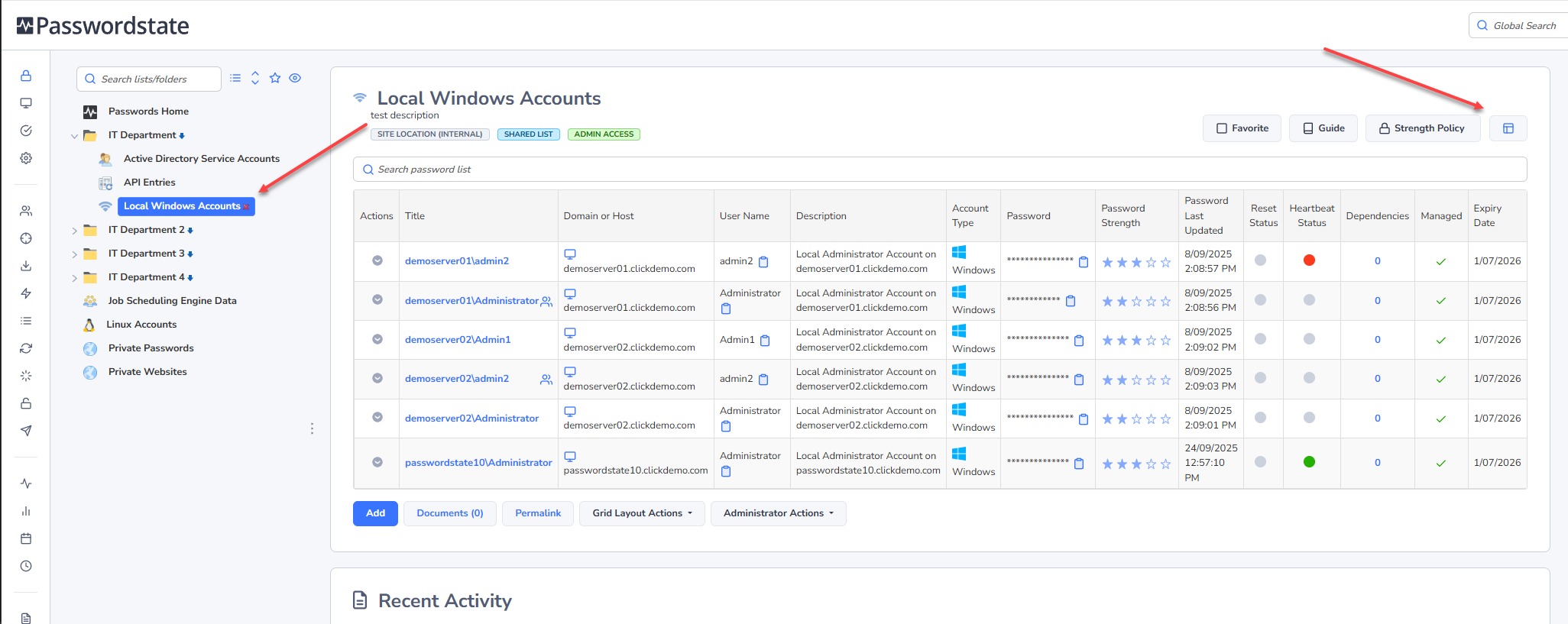
- Customize the screen by clicking on the Screen Options button

- View what access you have to the Password List, and 'Guide' which has been added for the Password List, and also the specific Password Strength Policy settings which have been applied
- View Auditing data related to the Password List (Recent Activity)
- You can edit/view a password by clicking on the hyperlink in the Title column
- You can view a password on the screen by clicking the masked ******* (the speed at which the password is again hidden can be control by your Security Administrators)
- You can copy a password to the clipboard by clicking on the Copy to Clipboard icon (the clipboard can be cleared after a set time, which is set by your Security Administrators)
- You can perform various Password Actions by selecting the appropriate menu option from the Actions drop-down menu
- Add Passwords, view Uploaded Documents, or Email Permalinks
- If you have Admin privileges to the Password List, there will also be multiple options available to you via the List Administrator Actions drop-down list
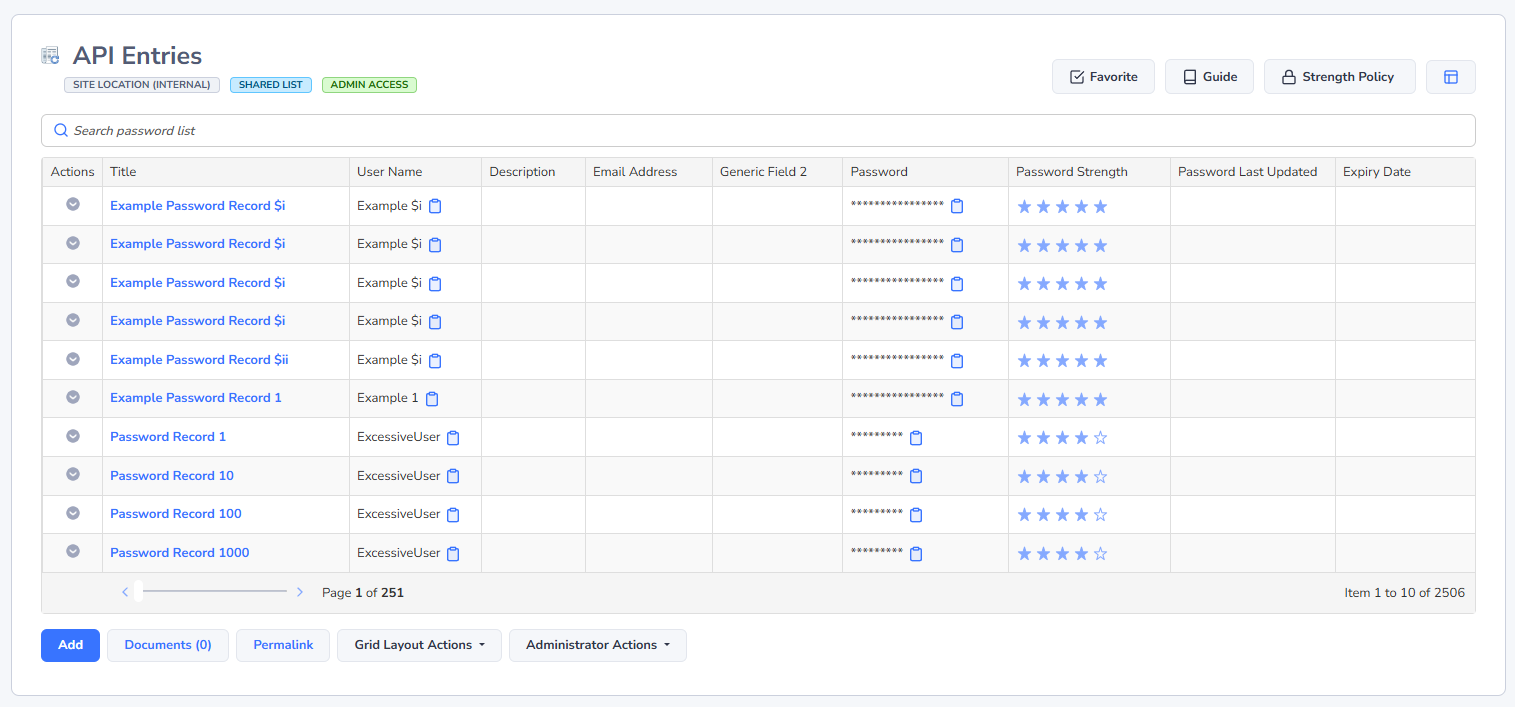
The first screenshot below shows a standard Password List which is not configured to perform Password Resets on remote systems.
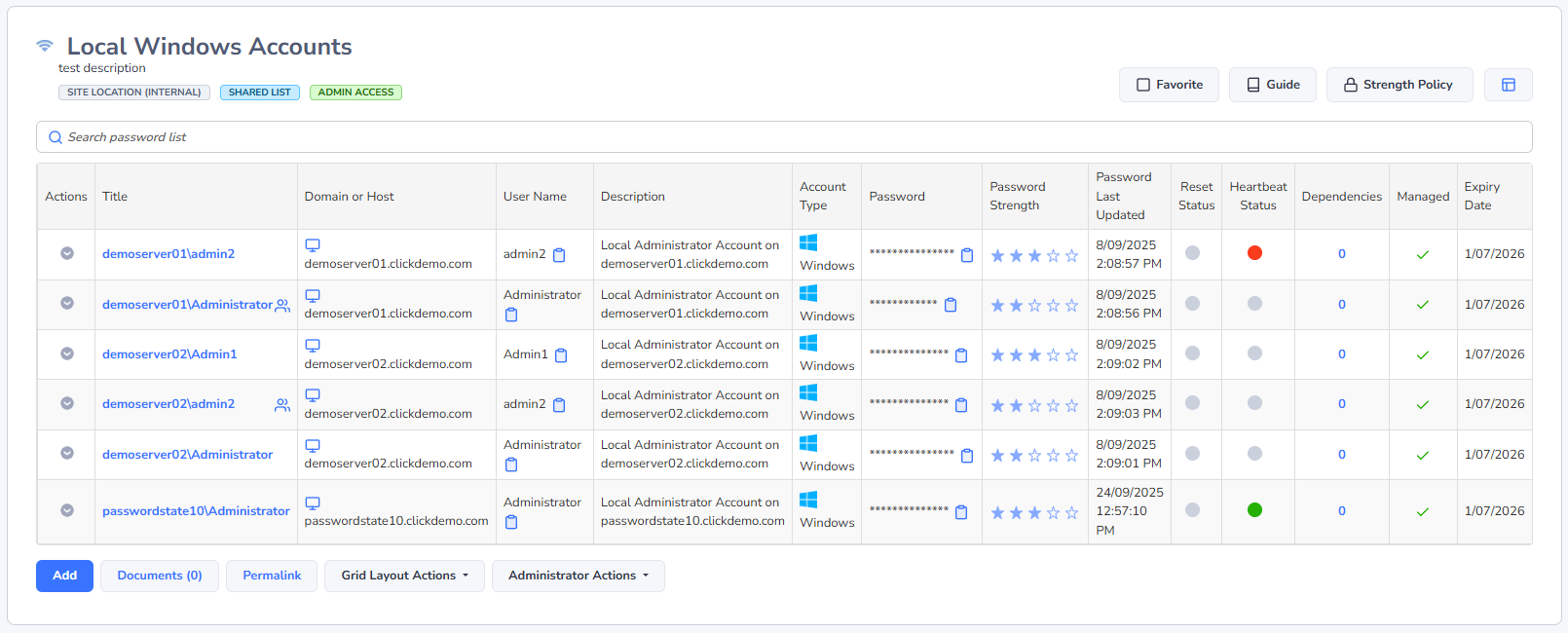
The second screenshot below shows a Password List configured for this, and shows the additional columns you would expect to see.
Screen Options
Screen Options allows you to specify various settings for how you would like to see the grids and charts displayed on the screen.
Please note: Some of these settings may be set by your Security Administrator(s) of Passwordstate, and if so the controls will be disabled and a message will be displayed on the screen.
Password Columns Tab
The Password Columns tab allows you to choose which columns are visible in the Passwords grid.
Once you've chosen the columns you want visible, simply click the 'Save' button. If you also want to apply the same 'view' to other Password Lists, click on the 'Show All Button', select the Lists you want to apply the view to, then click on the Save button.
Note: Each Password List can be configured to use different columns, so some columns may or may not show for other selected Password Lists.
Passwords Grid Tab
The Passwords Grid tab allows you to show or hide the Header and Filters feature for the Passwords grid, as well as specify the number or records to display in the grid.
Recent Activity Grid
The Recent Activity tab allows you to show or hide the Recent Activity grid (auditing data), as well as the grids header, and how many records you would like to be displayed in the grid.
Grid Paging Style Tab
The Grid Paging Style tab allows you to choose one of three different types of 'Paging' styles, which will be used when there are more records returned than the Password grid is set to display.
Chart Settings Tab
The Chart Settings tab allows you to either hide or show the Password Strength Summary and Most Active Users pie charts on the right-hand side of the screen. You can also choose the colour scheme for the pie charts.
Add Password
The Add Password screen allows you to add a new Password record to the selected Password List.
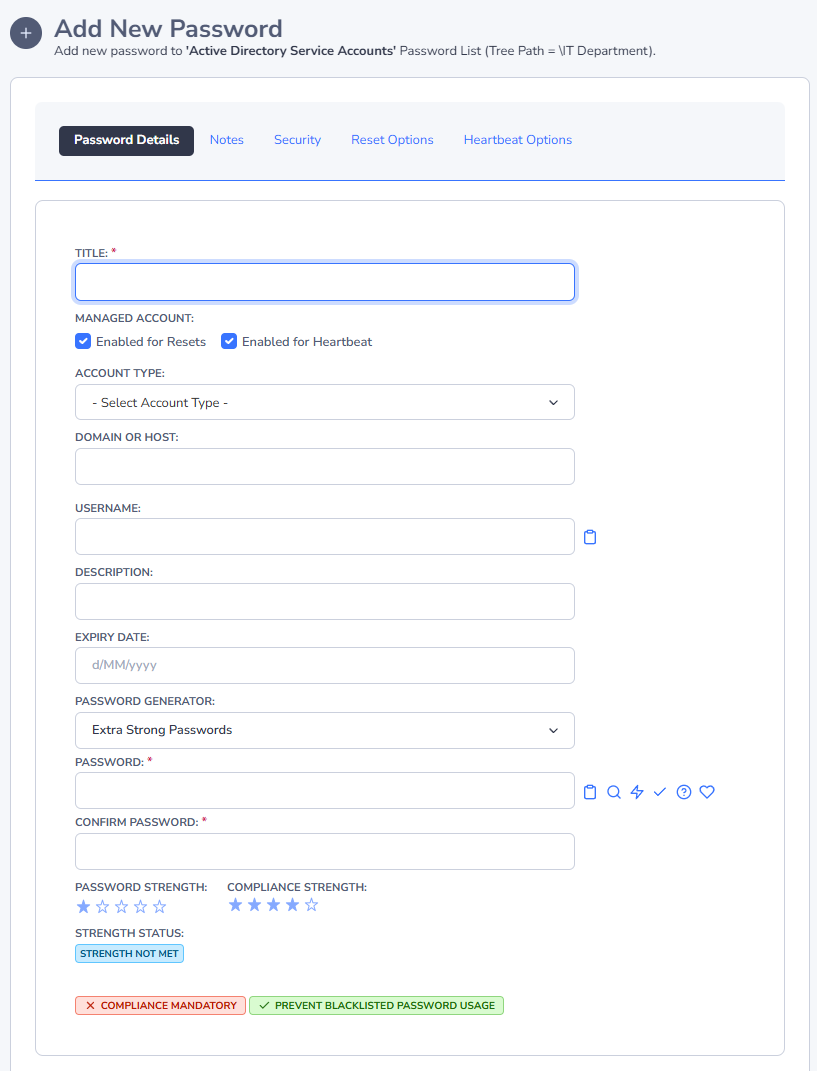
When adding a new password record, the fields visible on the screen can be different for each Password List, as each Password List can be configured to use different fields. There are a total of 9 fixed fields which can be used, and 10 Generic Fields which can take on different field types.
Password Details Tab
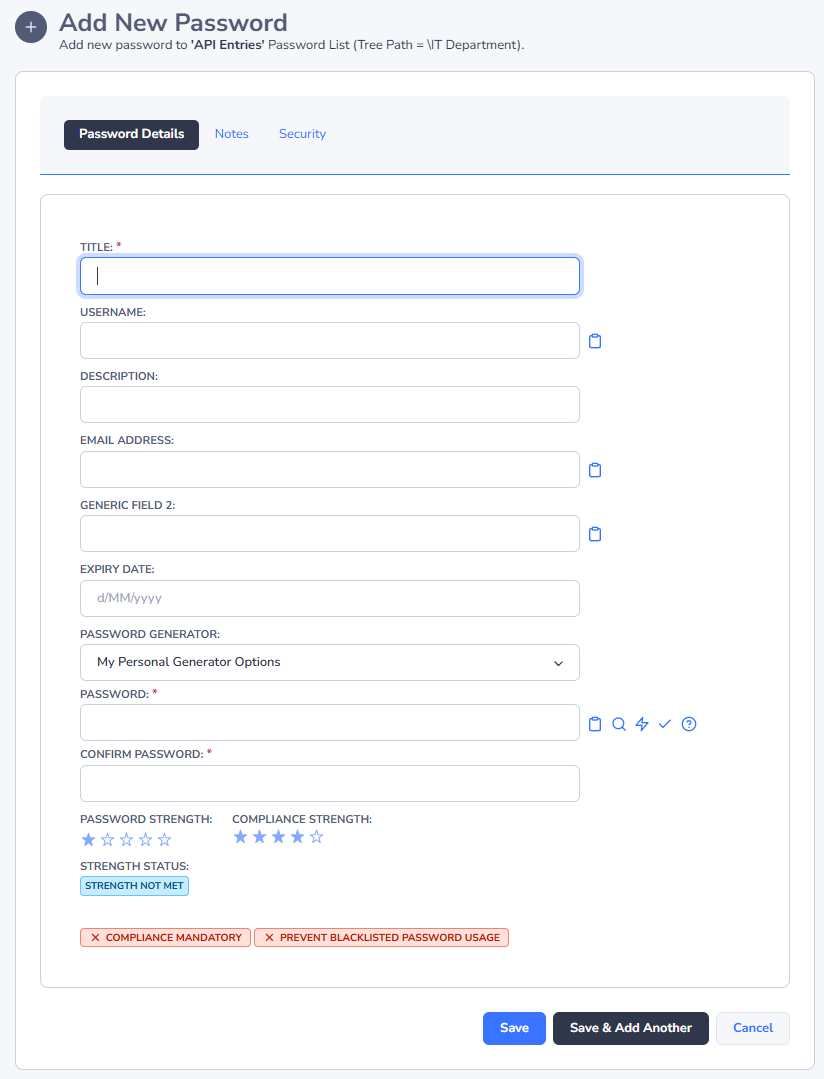
The Password Details tab is where you specify the values for the majority of fields associated with the selected Password List, and each field can be configured of different types i.e. URL, Text, Date, Radio Buttons, etc.
A few things to note on this tab is:
- Any fields which are denoted with * are mandatory fields, and you must specify a value for them
- The Password Strength indicators and text at the bottom of the screen only apply to the 'password' field - they do not apply to any Generic Fields which may be configure of type Password
- You can choose to prevent exporting of this Password record if required
- You can choose to generate a new random password by clicking on the icon, copy the password to the clipboard by clicking on the icon, or show the password on the screen by clicking on the icon.
- The policy set for the selected Password List may also place certain restrictions to the Password record, like a certain Password Strength must bet met before the record can be saved, or that passwords deemed as 'Bad' cannot be used. You will need to refer to one of the Administrators of the Password List to understand what settings and restrictions have been applied
- The Spell Check type icon shows a popup window which spells out the password in the format of 'PAPA alpha sierra sierra whiskey oscar romeo delta'
The Add Password screen will also look different, depending on whether it's Password List is configured for Password Resets or not. In the two screenshots below, the first is from a Password List which is not configured to allow Password Resets on remote systems, and the second screenshot is from a Password List configured to allow this.
Notes Tab
The Notes tab allows you to specify longer verbose text to explain what the record is for, and also allows basic HTML formatting.
Security Tab
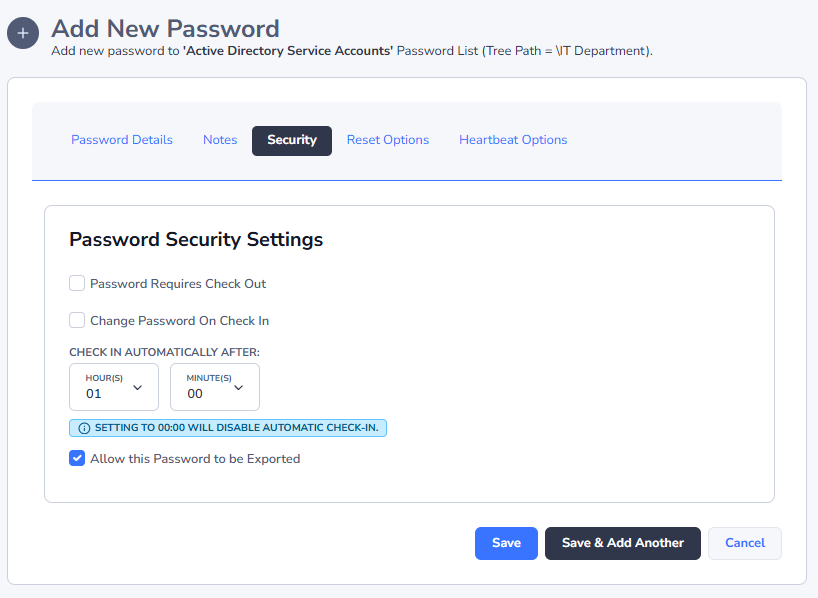
Using the Security Tab, you can also require the password record be exclusively checked-out to a user so they can access it - when checked-out, no other users can access the record. There are options to perform a password reset on check-in as well, and also a timer for when the password should be automatically checked in if the user forgets to manually check the record in.
If needed, Security Administrators can also check the password back in manually. Manual check ins can be done from the 'Actions' menu for the password record.
Reset Options and Heartbeat Options Tab
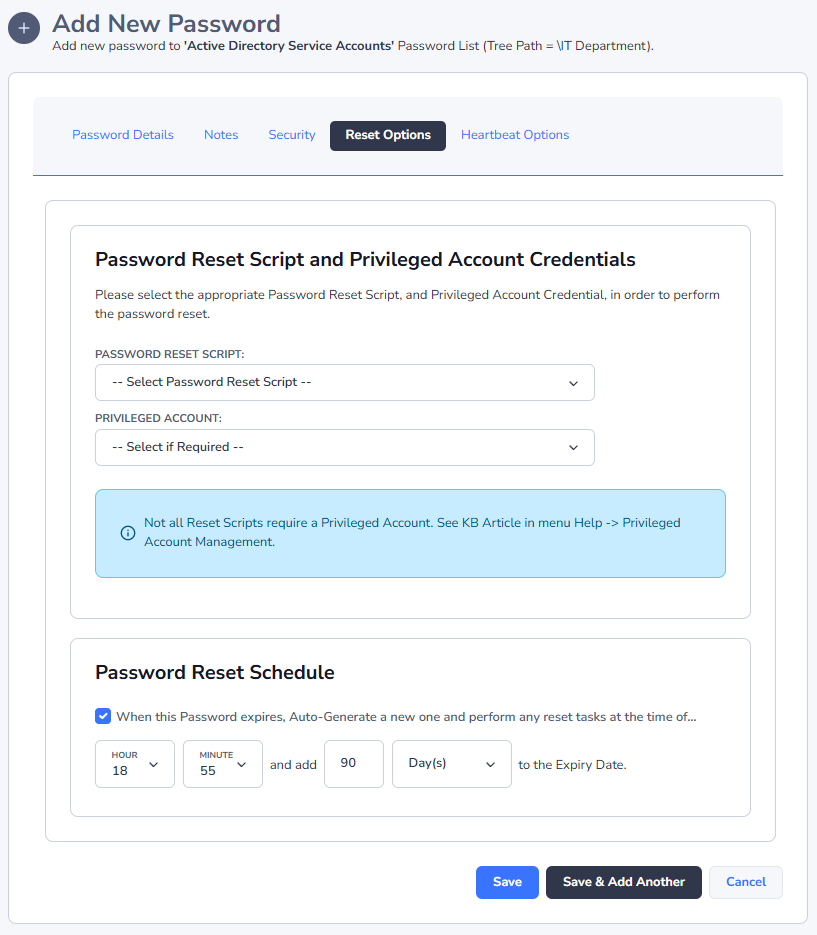
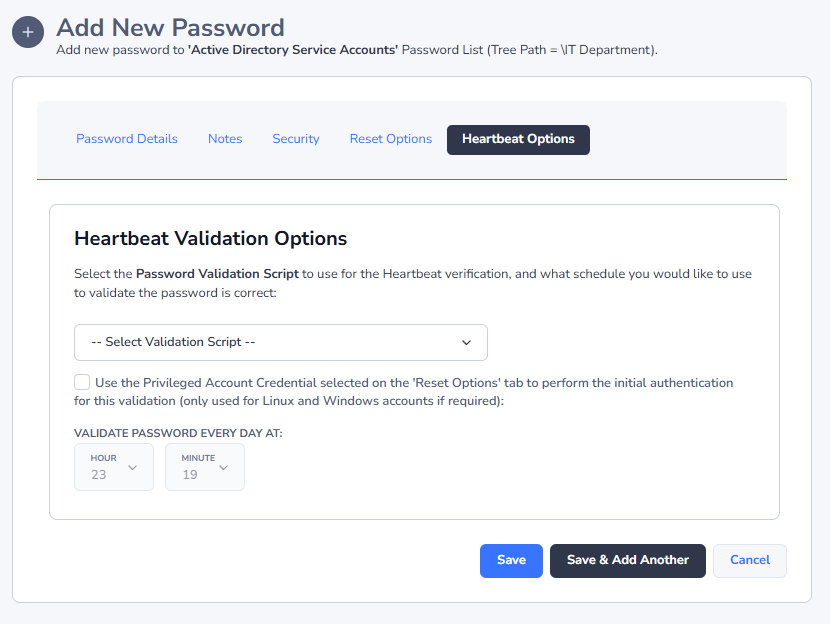
The Reset Options and Heartbeat options tabs will only be visible if the password record has been configured to perform password resets. For a complete example of how to configure a password for resets, please reference the Privileged Account Management manual under the Help menu in Passwordstate.
Options available are:
- The Password Reset Script to be used for this account
- The Privileged Account Credential to associate with the record so a Password Reset can occur - not all Reset Scripts require this, so please reference the Privileged Account Management manual under the Help menu in Passwordstate
- Whether to auto-generate a new password for the record
- At what time of the day should the password be reset, once the Expiry Date has been reached
- How many days should be added to the Expiry Date field, once the password has been automatically reset.
- And what Validation Script and schedule to use for the Heartbeat process
The Administrators of the Password List can also set the default options for all password records at the Password List level. Once set, new password records will inherit the settings, but can be changed in individual records at any time, or by bulk using the Bulk Update Password Reset Options feature
Validating Linux Passwords using a Privileged Account Credential
By default, most Linux Operating Systems do not allow you to SSH in using the root account – for security reasons.
Because of this restriction, on the ‘Heartbeat Options’ tab for password record, we have an option you can select to SSH in with the Privileged Account Credential that is selected for the record, and then validate the password for the root account.
In order for this functionality to work, changes are required to each of the Sudoers file on your Linux desktops/servers. Below are the changes required:
- Open the Sudoers file with visudo using the following command:
Linux
Sudo visudo -f /etc/sudoers- When editing the Sudoers file, scroll to the bottom and add the following two lines, entering in the appropriate username you use in Passwordstate as your Privileged Account:
Linux
## Enable sudo rootpw for Passwordstate Privileged Account
Defaults:<username> rootpw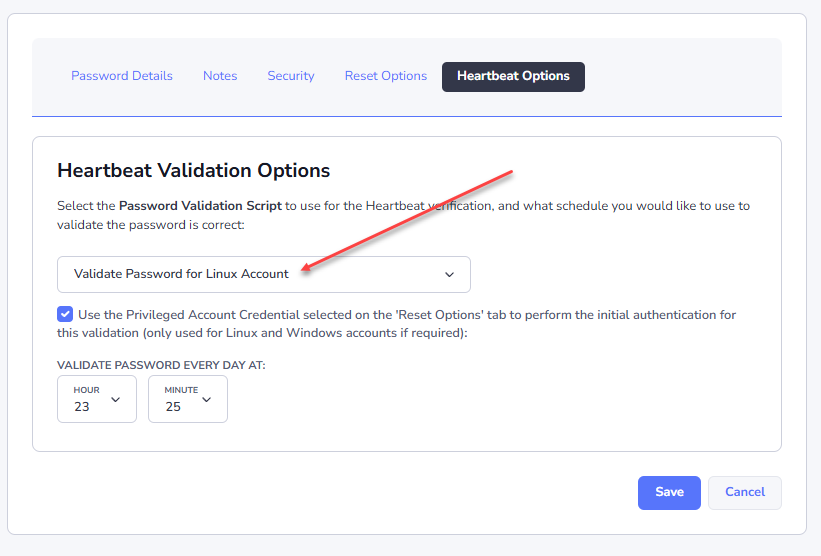
Validating Windows Passwords using a Privileged Account Credential
The same security can be applied to local Windows Accounts, where validating credentials from a remote host is only using a domain account.
If required for 'Windows' accounts, you can select a Privileged Account Credential also to connect to the remote host, and then you can validate the local Windows account once connected.
Edit Password
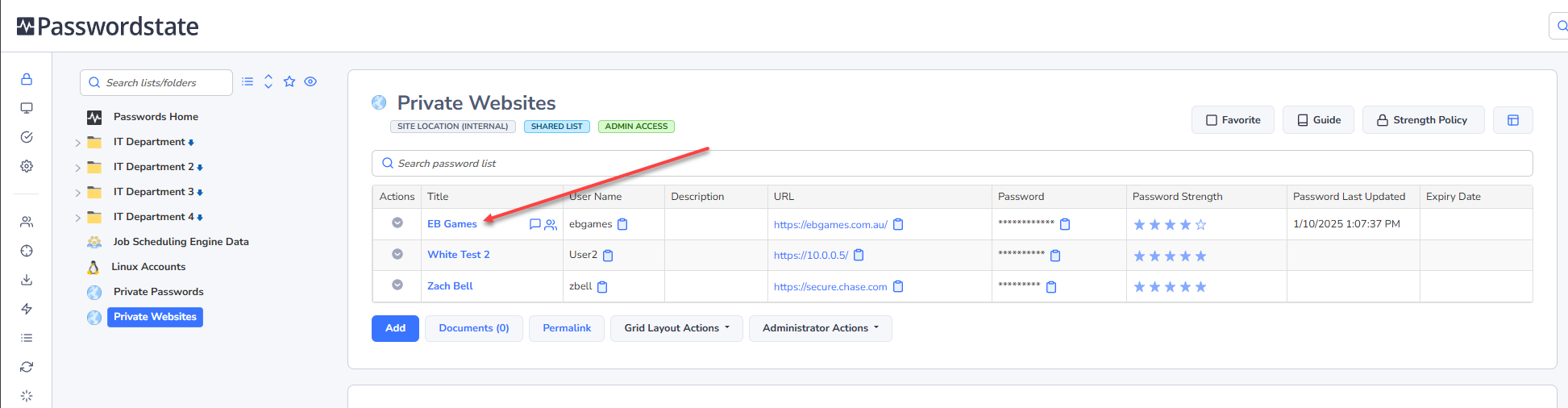
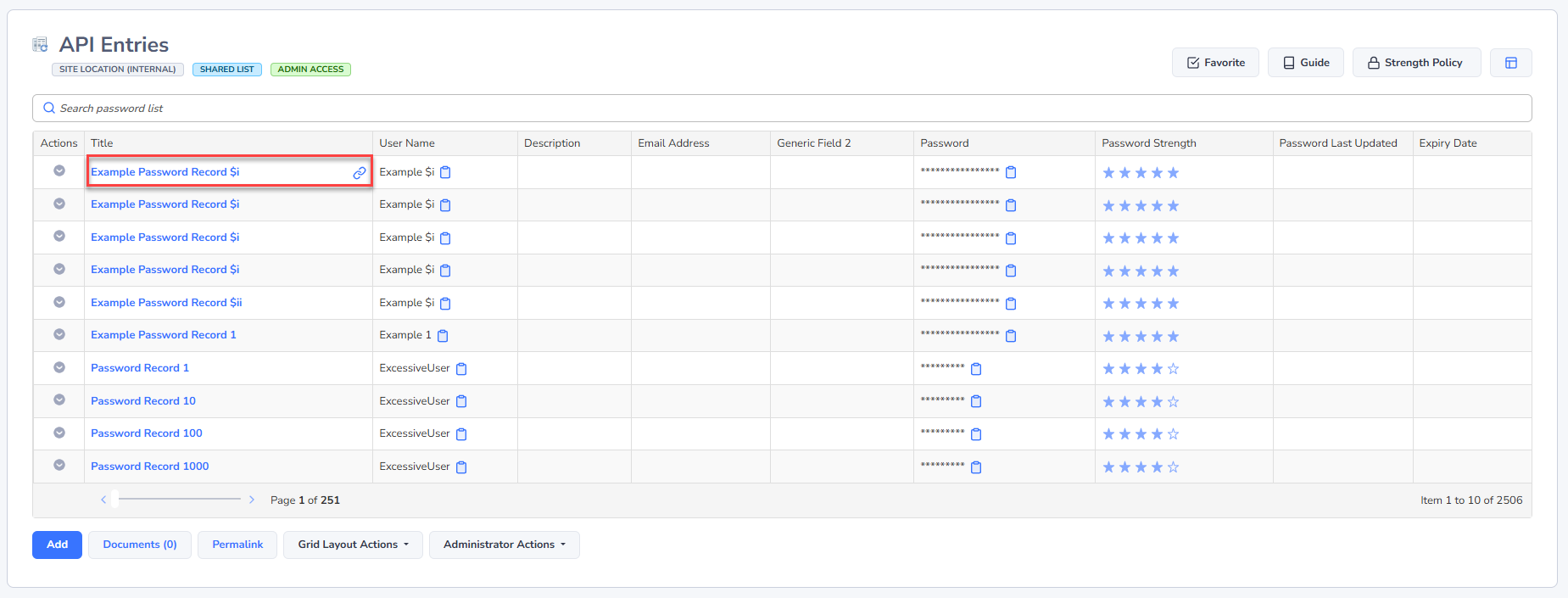
Editing a Password is possible by clicking on the Title field hyperlink you see in the grids as per the below screenshot.
Once the Edit Password screen is open, each of the fields and options on the Tabs is similar to the Add Password screen.
Password Details Tab
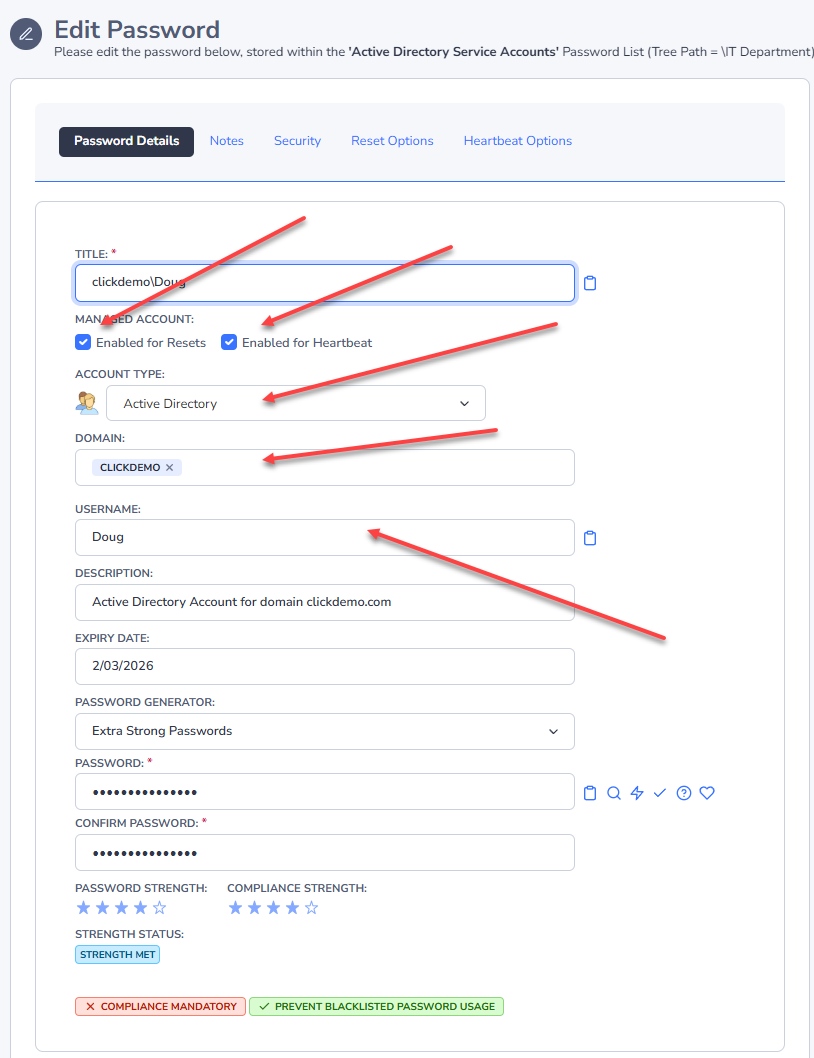
The fields available on the Password Details tab will look different, depending on what fields you have selected for a Password List, and also if the Password List is configured to allow Password Resets to occur. The screenshot on the left is of an Active Directory account, which is configured to perform password resets.
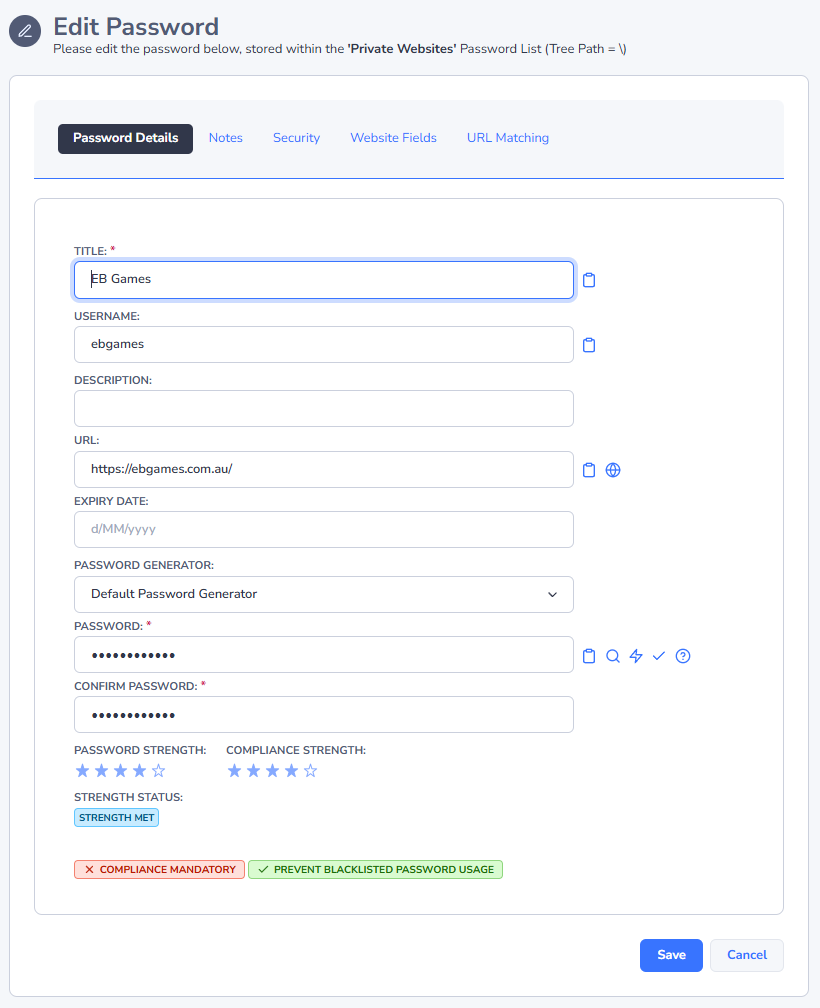
If the Password List is not configured for Password Resets, then the Password Details tab would look similar to the screenshot on the right.
Note: Please refer to the Privileged Account Management manual under the Help menu in Passwordstate.
 |  |
Active Directory Actions Tab
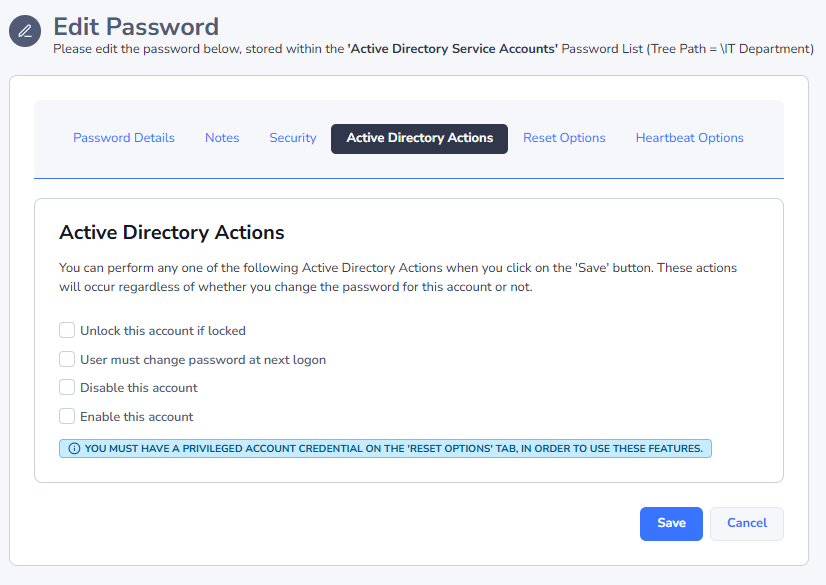
If the Password List has the option to show Active Directory Actions, then you can perform various AD functionality as well, as per the options in the screenshot below.
Reset Options and Heartbeat Options Tab
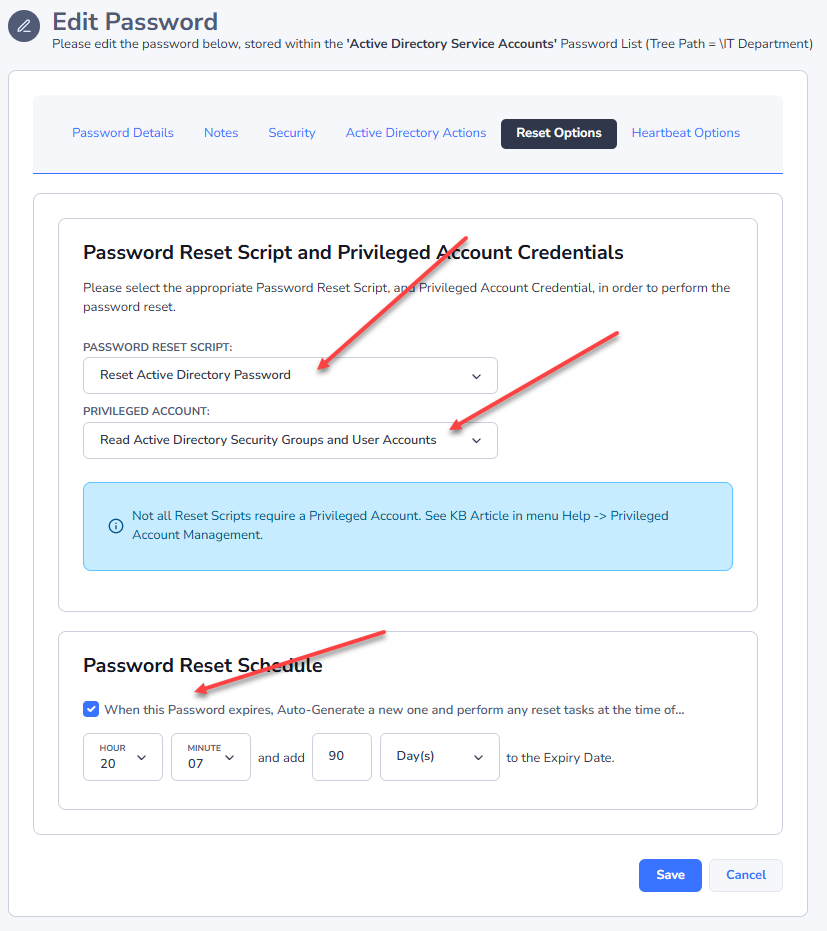
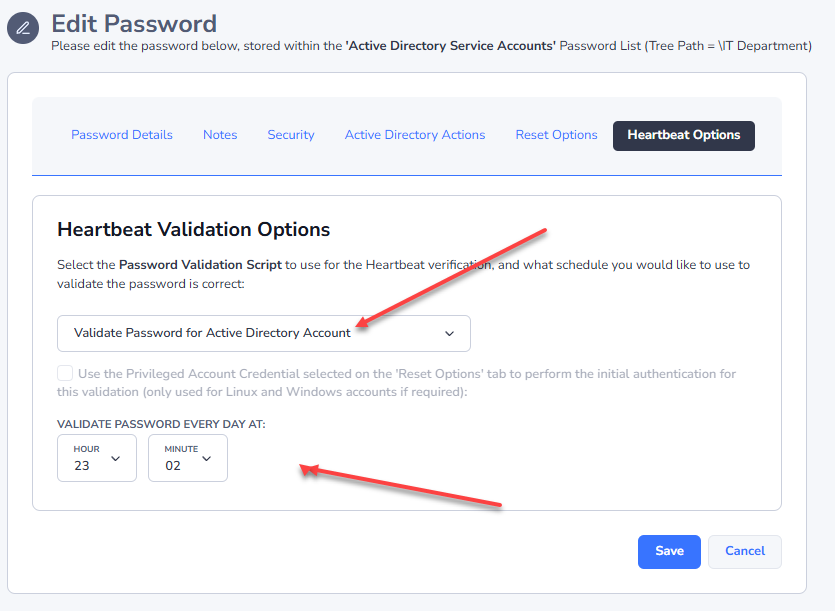
The Reset Options and Heartbeat options tabs will only be visible if the password record has been configured to perform password resets. For a complete example of how to configure a password for resets, please reference the Privileged Account Management manual under the Help menu in Passwordstate
Options available are:
- The Privileged Account Credential to associate with the record so a Password Reset can occur - not all Reset Scripts require this, so please reference the Privileged Account Management manual under the Help menu in Passwordstate
- Whether to auto-generate a new password for the record
- At what time of the day should the password be reset, once the Expiry Date has been reached
- How many days should be added to the Expiry Date field, once the password has been automatically reset
- And what Validation Script and schedule to use for the Heartbeat process
The Administrators of the Password List can also set the default options for all password records at the Password List level. Once set, new password records will inherit the settings, but can be changed in individual records at any time, or by bulk using the Bulk Update Password Reset Options feature
 |  |
Upload Documents
It is possible to upload one or more document/attachments to Passwordstate, and associate them with either the Password List itself, or individual Password records. Uploaded documents are also encrypted within the database, using the same type of 256bit AES encryption as other encrypted data.
On the 'Documents' screen for Password List, the following is possible:
- Adding a new document
- Retrieving a document from the database by clicking on the 'Document Name' hyperlink
- You can edit some basic properties for the document
- Add also delete the document if required. Note, deleting a document does not place it in any recycle bin.

Email Permalinks
Passwordstate supports the concept of 'Permalinks' for Password Lists, or individual Password records.
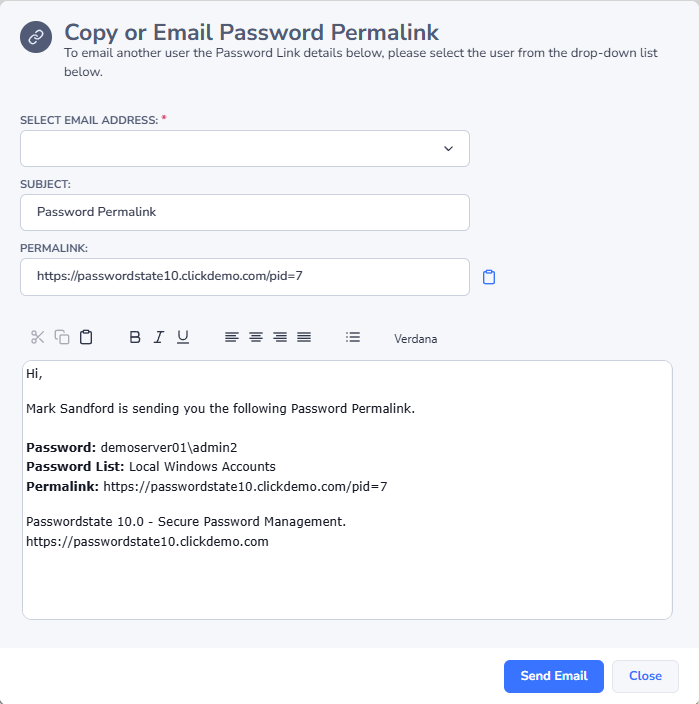
A Permalink is a shortened URL which can be copied to the clipboard, or emailed to other users, and allows easy access to a resource by simply clicking on the provided URL.
Note: If you provide a Permalink to another user who does not have access to the Password List, they will be redirected to another screen where they can request access. All requests for access will be sent to the Administrators of the Password List.
Password Actions
Every Password added to a Password List has certain functions, or 'Actions', which can be performed for the record. Below is a table summarizing each of the Actions, and more detail can be found by clicking on each of the hyperlinks.
Check-in Password
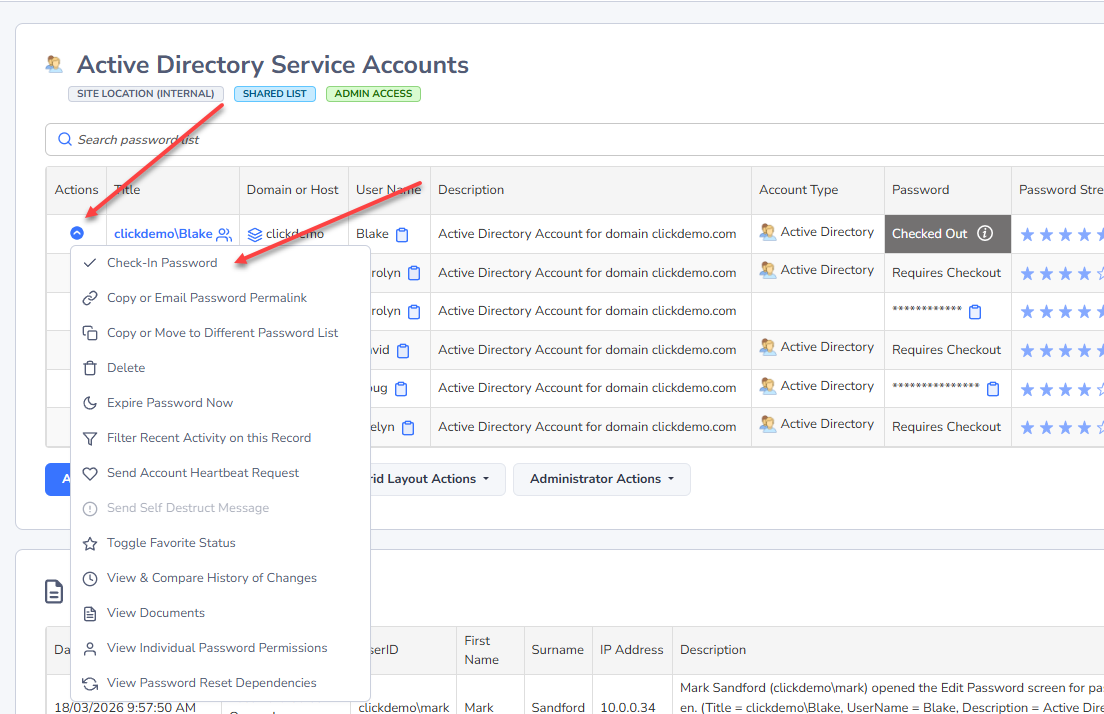
When a password is configured to require exclusive access via the Check-In/Check-Out process, a menu item called 'Check-In Password' will be visible when the password is checked out. This menu item will only be available to the user who checked the record out.
When a password is required to be checked out, it hides the value of the password, and instead indicates a check-out is required.
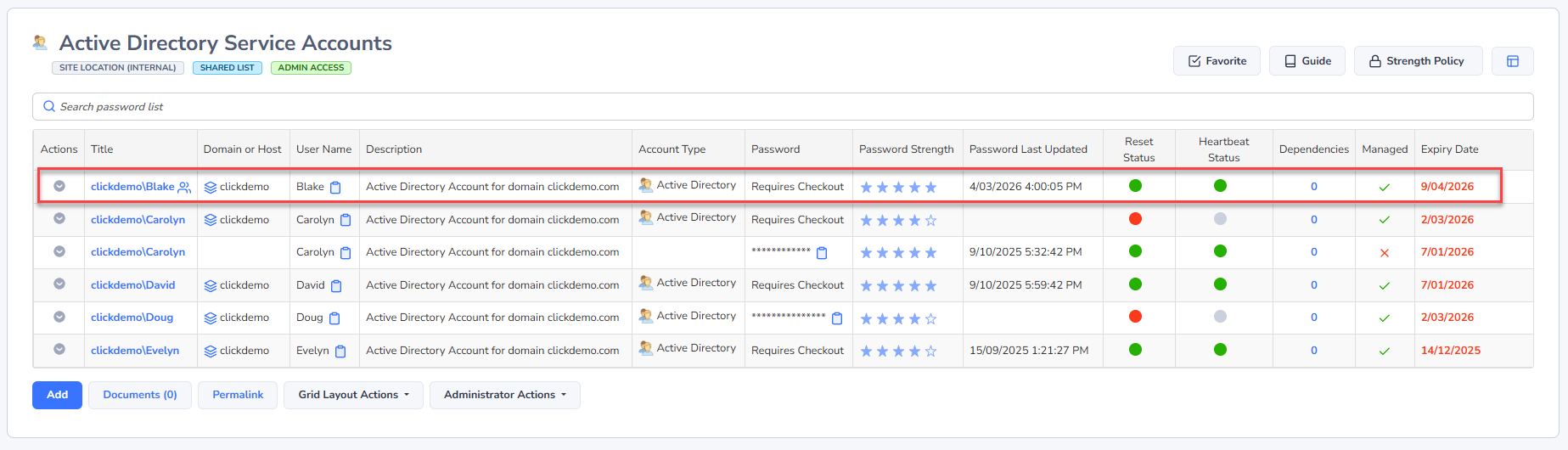
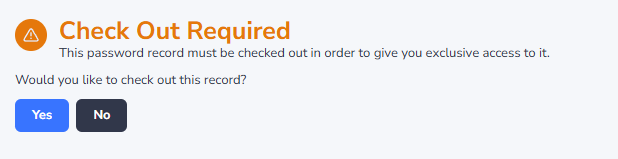
When you click on the Title for the record to access it, you will be asked to check the record out.
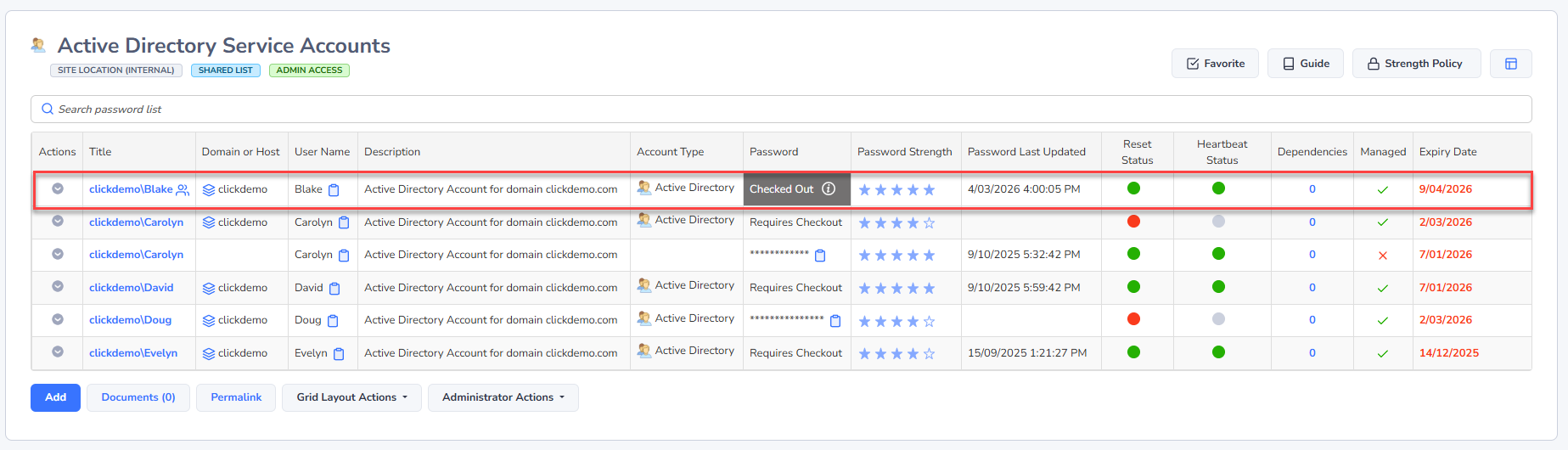
When checked out, it also indicates this in the password grid, and no other users can access the password until it is checked back in.
And the user who checked the record out, can check it back in via the Action menu.
Copy or Move to Different Password List
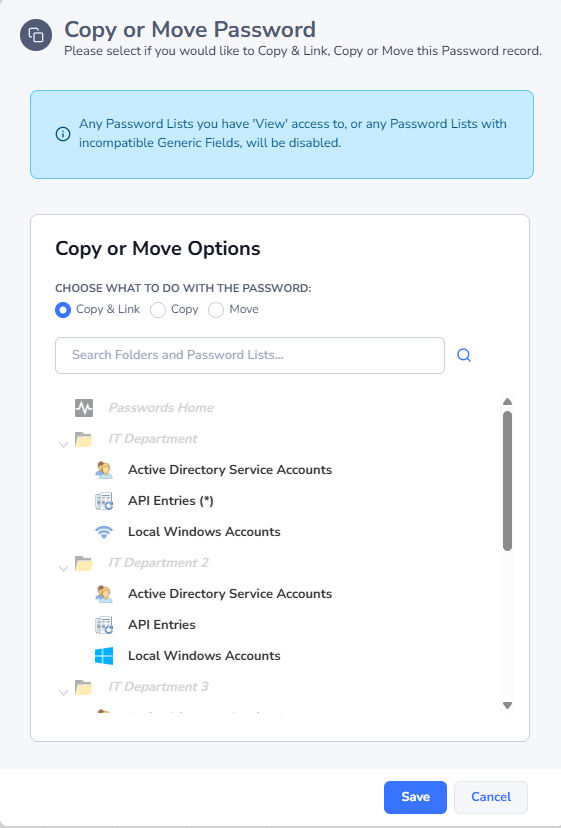
It is possible to copy or move a Password record to a different Password List, but there are a couple of exceptions which may prevent you from doing this:
- You need at least Modify rights to the Destination Password List
- The Destination Password List must have the same selected fields as the Source Password List
- For security reasons, you cannot move a password in a Shared Password List, into a Private Password List
- You cannot copy records into Private Password Lists
If a Password List is grayed out and disabled on the pop-up windows below, then one of the three restrictions above would be the cause. Hovering over the disabled item, should provide you a Tooltip with the specific reason why.
Copy & Link will create a duplicate record in the Destination Password List, and all linked records will be kept in sync when any changes are made to either of the records. When a Password record is linked, you will see a linked chain icon next to the Title, similar to this image
Note: There is a System Setting called "Synchronize the 'Deleted' status of Linked Password records across all affected Password Lists" which can be configured to delete records in other linked Password Lists, or not, when you delete from a Password List.
Filter Recent Activity on this Record
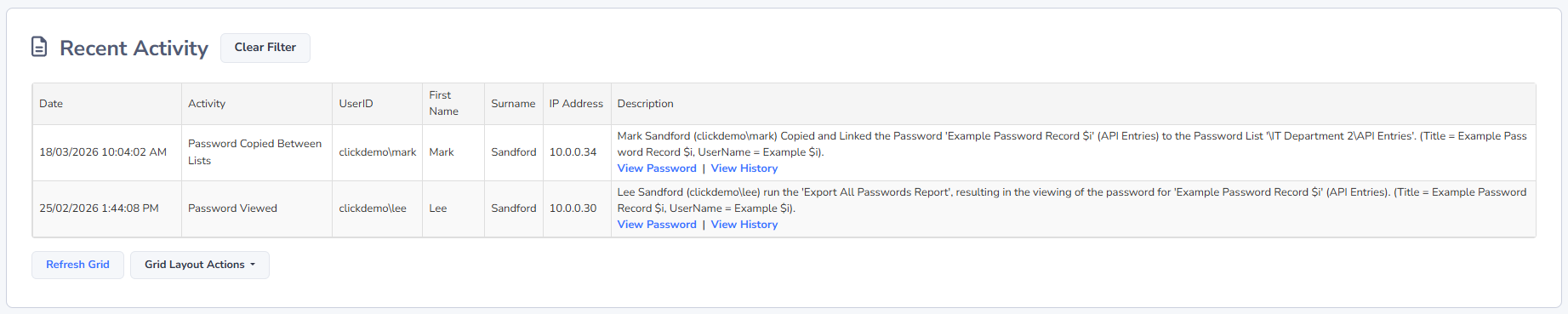
Sometimes it might be useful to quickly filter all the auditing data on information relevant to a single Password. When selecting 'Filter Recent Activity on this Record', all contents of the Recent Activity grid will be filtered, and the 'Clear Filter' button will be displayed, allowing you to remove the filter.
Link Account to Multiple Website URLs
If using our Chrome or Browser extensions, and you use the same account to login to multiple different websites (normally internal sites), then you can add those additional URLs to the screen you see below.
After you make changes here, you can restart your browser so the extension picks up the changes immediately, or after 1minute the extension will pick up the changes automatically.

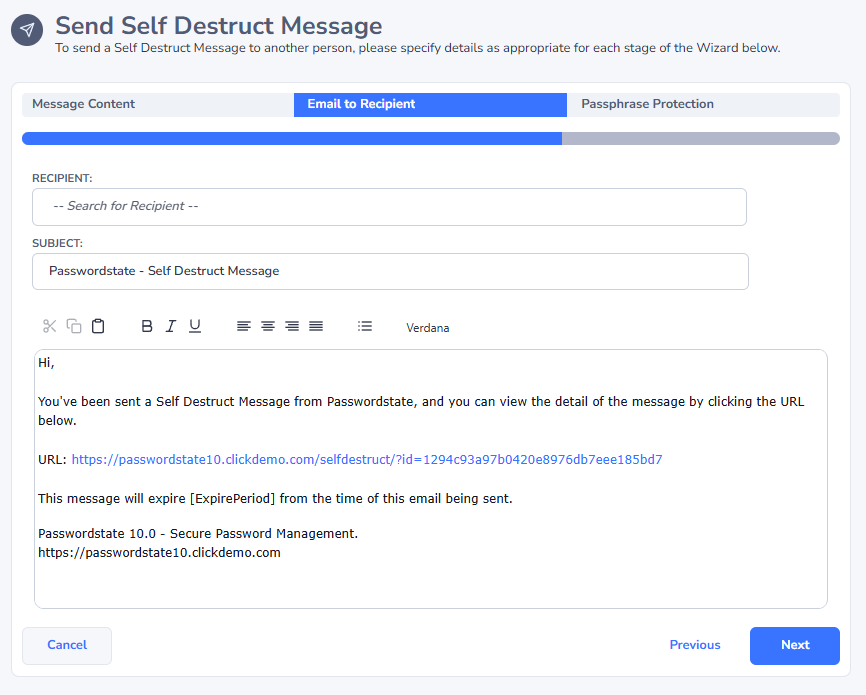
Send Self Destruct Message
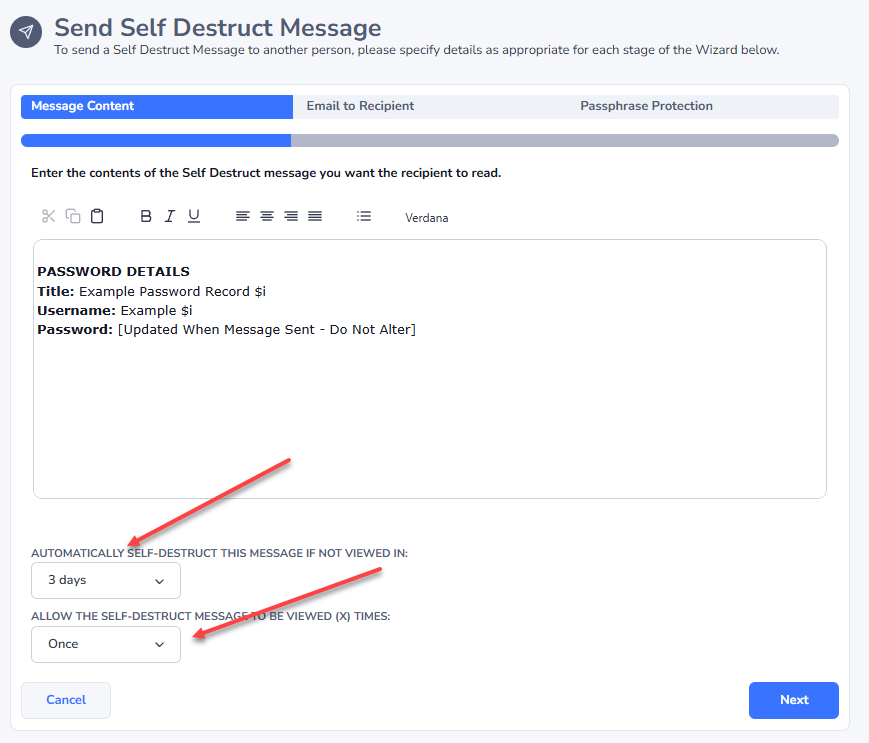
This menu option allows you to send a Self Destruct Message, with the contents being details for the selected Password record.
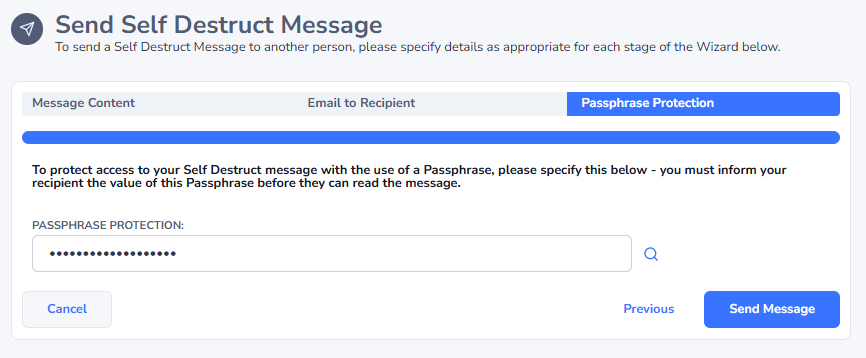
Creating a Self Destruct message is a three step process:
- Specify the message, how long the message will be active for, and how many times the message can be viewed
- Choose the user you want to send the message to - this can either be another user of Passwordstate, or a recipient from the Address Book, or someone else simply by typing their email address
- Specify any Passphrase protection you might want - there is a default Passphrase value which can be configured by your Security Administrators on the screen Administration -> System Settings -> Self Destruct Messages, or contacts in the Address Book can also have their own Passphrase. The intended recipient need to know what this Passphrase is prior sending them messages
The message will no longer be available for viewing either when the user has viewed it the specified number of times, or the message has expired.
 |  |  |
View & Compare History of Changes
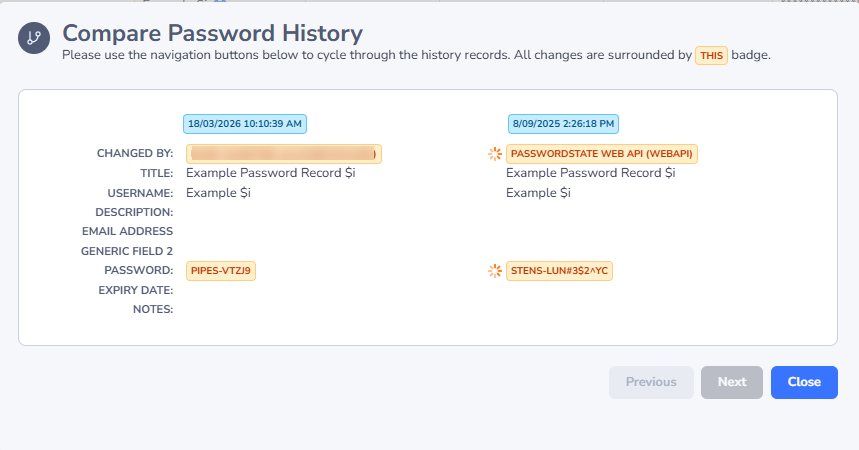
Any changes made to a Password record will not only generate an audit log record, but also the history of changes will be maintained so you can easily compare what has change, when, and by whom
When you open the Compare Password History screen, you can:
Note: An audit log record will be added when you open this screen, as it's possible to see Password values here.
View Documents
As with Password Lists, it's also possible to upload one or more document/attachments and associated them with an individual Password record. Uploaded documents are also encrypted within the database, using the same type of 256bit AES encryption as other encrypted data.
On the 'Documents' screen for a Password record, the following is possible:
- Adding a new document
- Retrieving a document from the database by clicking on the 'Document Name' hyperlink
- You can edit some basic properties for the document
- Add also delete the document if required. Note, deleting a document does not place it in any recycle bin.
View Individual Password Permissions
In addition to applying permissions to an entire Password List for users, you can choose to apply permissions just to individual Password records if required. When the user browsers to the Password List, they won't see all the records, just the individual ones they've been given access to.
When you click on the 'View Individual Password Permissions' menu item, you will be directed to a screen which shows what permissions have been applied to the individual Password record.
Note: If a user doesn't already have access to the Password List, and you grant access to an individual Password record, then they will be given 'Guest' access to the Password List. Guest access is required so the Password List will show for the user in the Navigation Tree.
You can grant access to either user accounts or security groups, and the types of permissions you can apply are:
- View - only allows read access to the record
- Modify - allows the user to update and delete the Password record

From the 'View Individual Password Permissions' screen, you have the following features available:
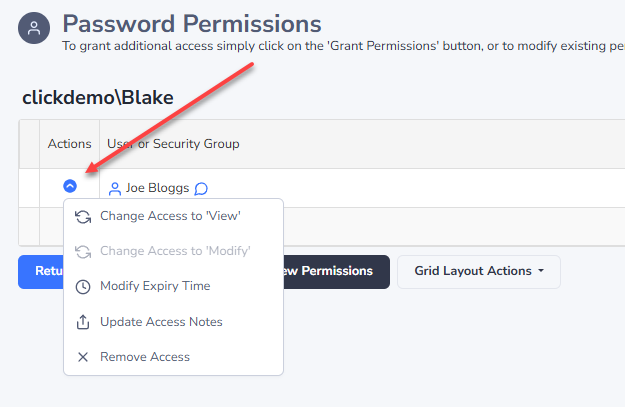
Password Permission Actions
When you click on the 'Actions' menu item for access which has been granted to a user or security group, you can:
- Change the permissions to View or Modify
- Set or modify the time in which their access will be removed - if required
- Allow you to update a notes field as to why the access was given
- Or remove the access altogether
Grant New Permissions
To grant new permissions to a user's account, or to the members in a security group, you can click on the Grant New Permissions button.
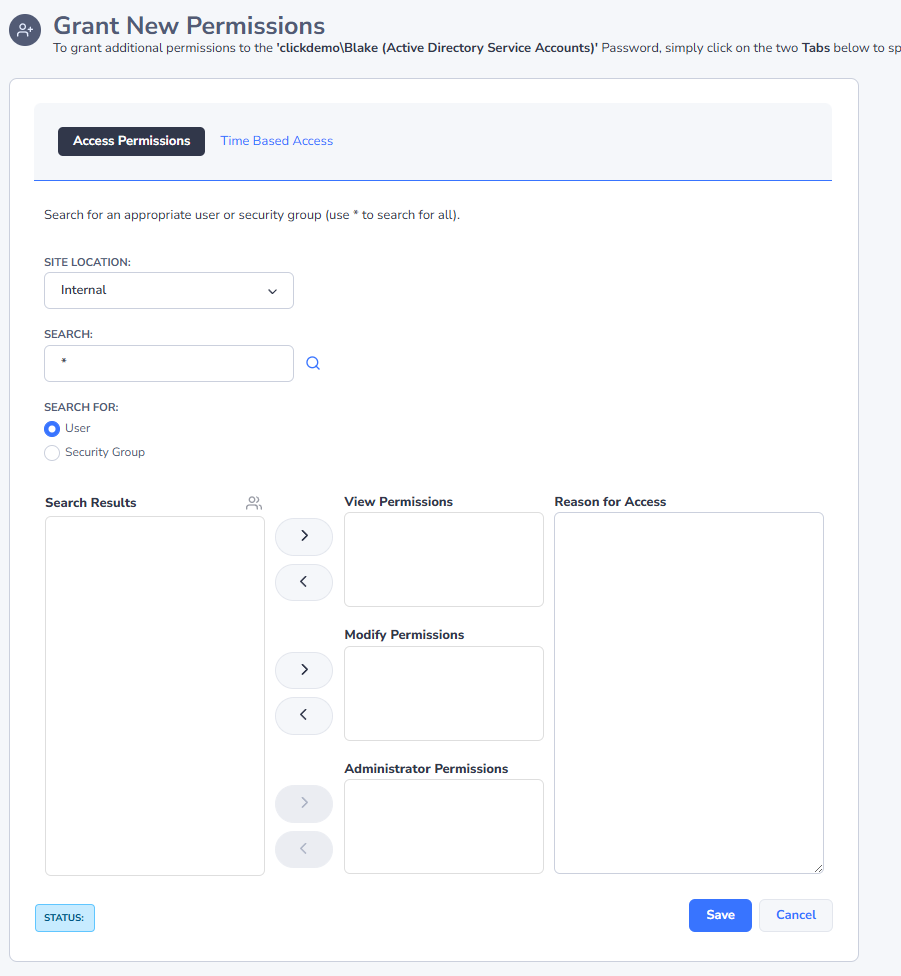
When granting new permissions (access) to a Password record, there are two tabs of features available to you:
Access Permissions
The 'Access Permissions' tab allows you to search for users and/or security groups, and either grant View Access, or Modify Access
Note: You cannot apply Administrator permissions to an individual Password record - this is reserved for Password Lists only.
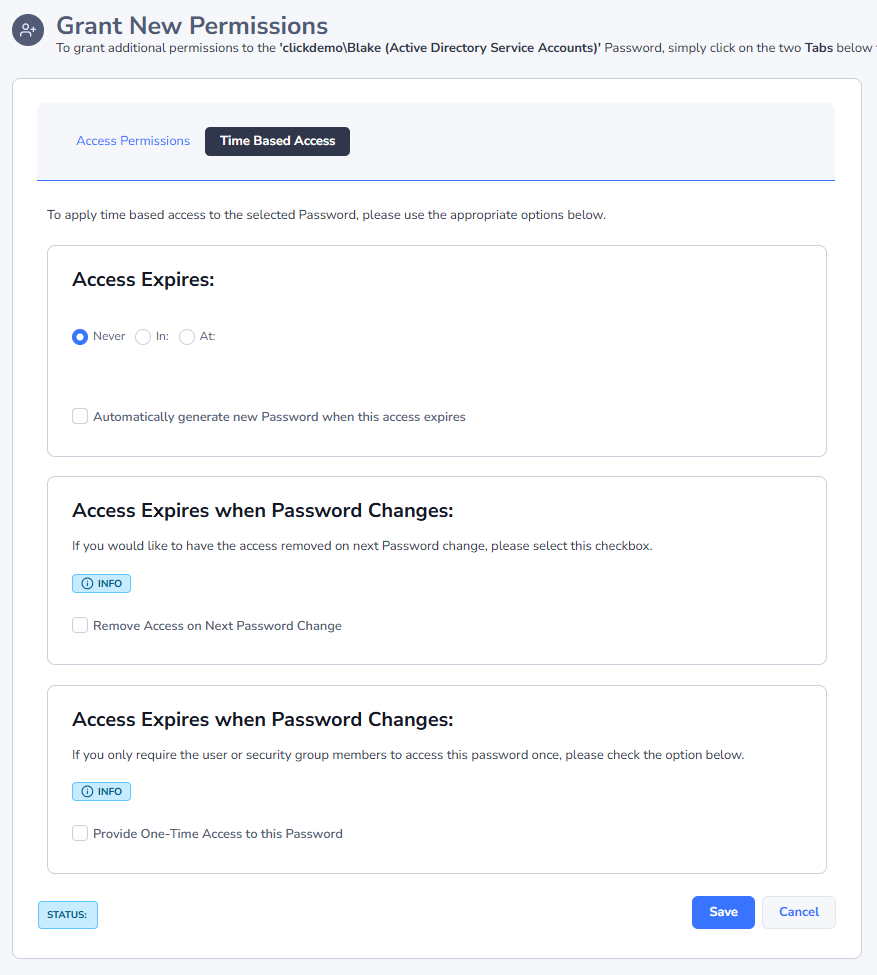
Time Based Access
There are multiple 'Time Based Access' features available for individual Password records, and they are:
- Access Expires - specify a future date and time in which the users/security groups access will be automatically removed
- Access Expires when Password Changes - any event which changes the actual value of the password field for the record, will cause this access to be removed
- One-Time Access - you have the option to only allow access to the Password record once. Once the user has viewed the password, their access will be removed. You also have the option of generating a new random password when this event occurs as well.
View Password Reset Dependencies
In addition to performing Password Resets for accounts, you can also add various 'dependencies' to a password record, which can also trigger a Password Reset script after the password for the account has been reset.
A typical example of this would be where the account is an Active Directory account, and it's being used as the "identity" for operations of Windows Services, Scheduled Tasks, IIS Application Pools or COM+ Components. It is also possible to automate account discovery, and these dependencies as well - Account Discovery
It is also possible to execute any custom type of PowerShell script you want as well, and the script does not necessarily have to be associated with a Host record.
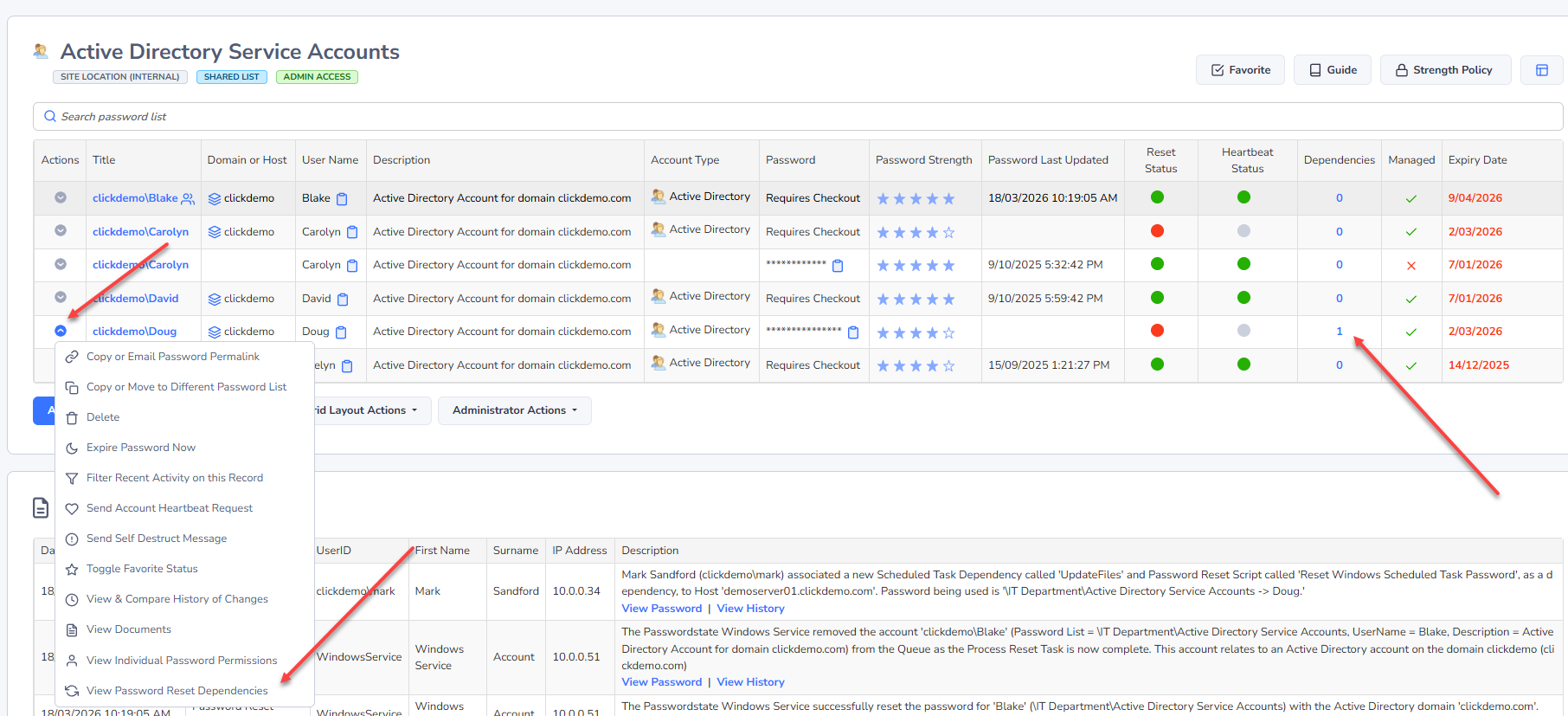
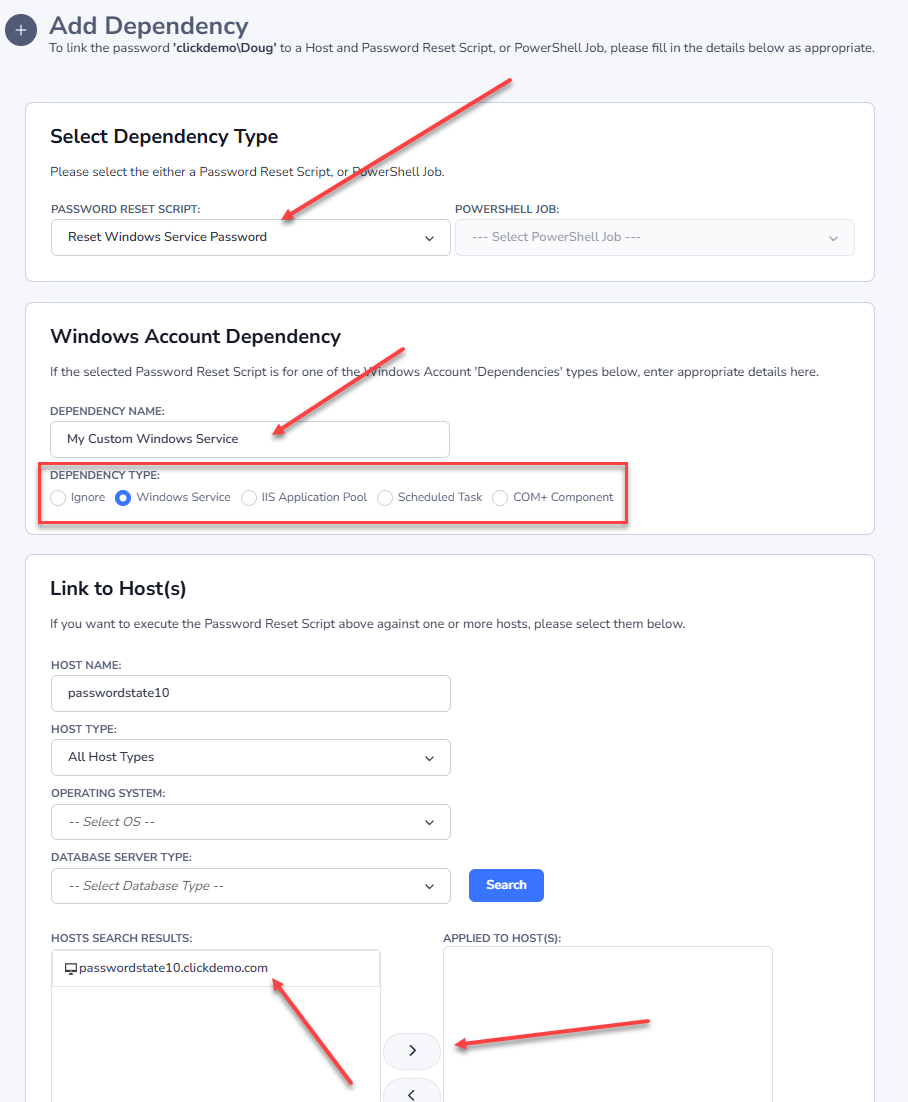
To add a "dependency" to a password record, you can either select the 'View Password Reset Dependencies' menu item, or click in the count in the Dependencies column in the grid.
Then you click on the 'Add Dependency' button.
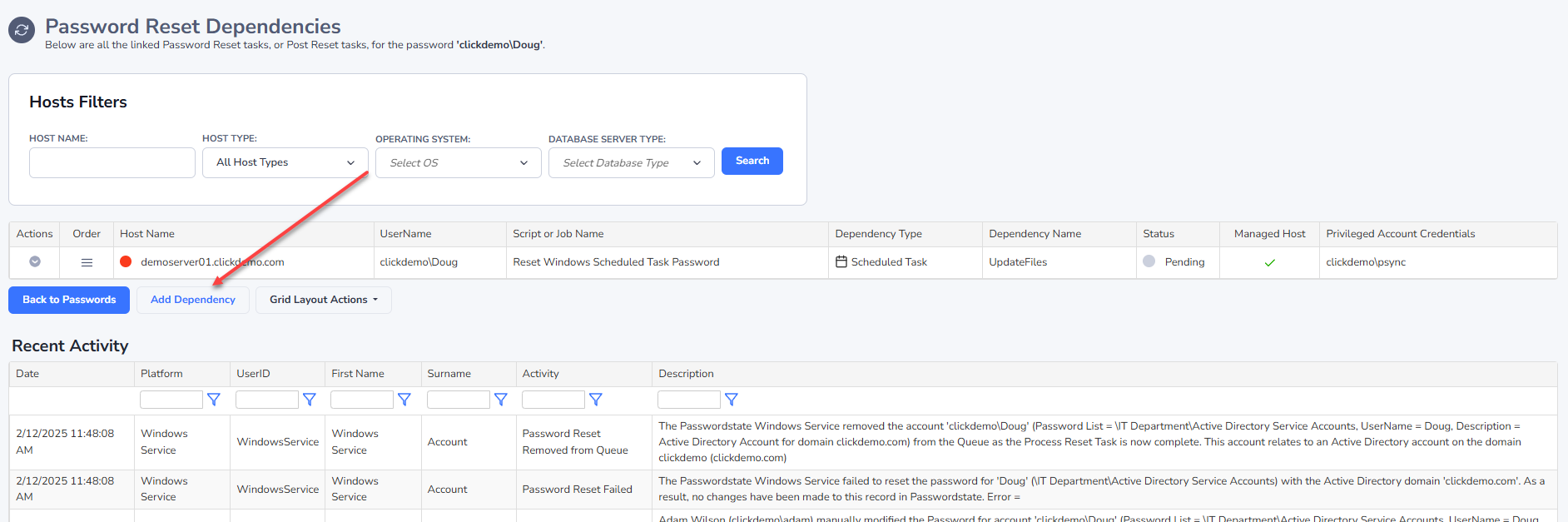
And then select the following options as appropriate:
- The Password Reset Script
- If this dependency relates to a 'Windows' type resource, specify the name of the dependency and select the appropriate Dependency Type as well
- And to specify which Host the dependency is currently is installed on, search for the appropriate host and select it
Note 1: Any custom PowerShell script can be selected here, and it does not need to be associated with a Host either.
Note 2: This dependency will use the selected Privileged Account Credential to execute, of which is selected for the password record itself.
List Administrator Actions
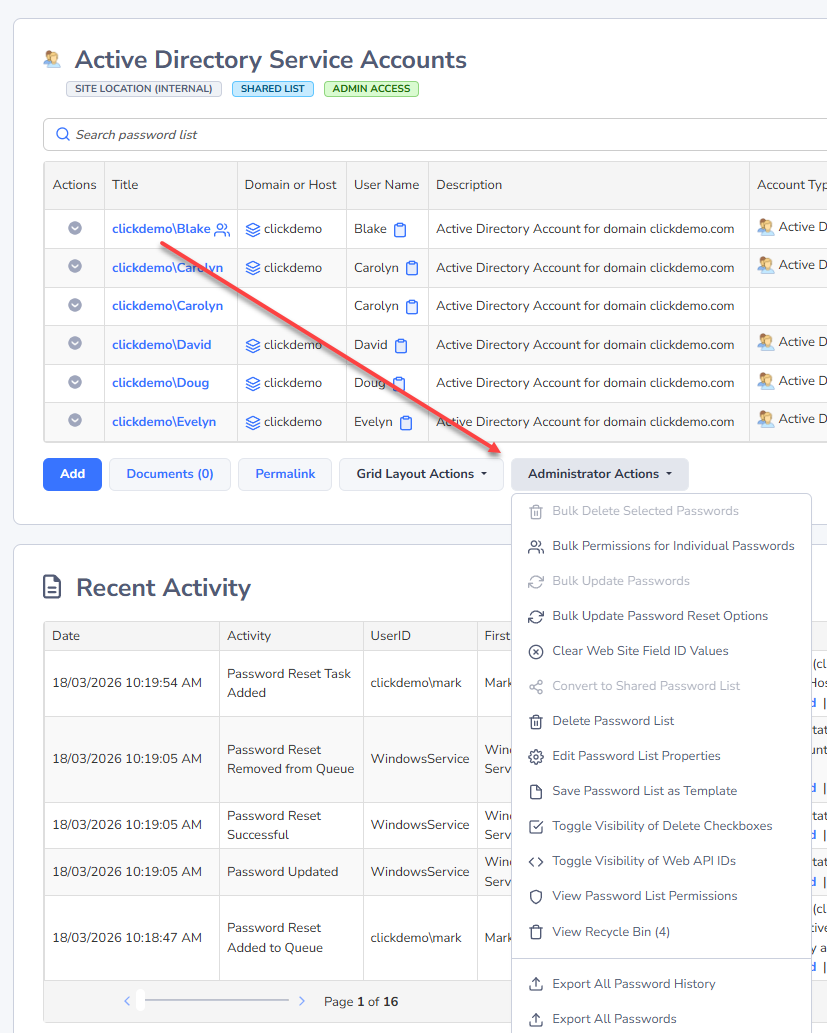
If you have 'Administrative' privileges to a Password List, all of the features in the 'List Administrator Actions' drop-down list will be available to you.
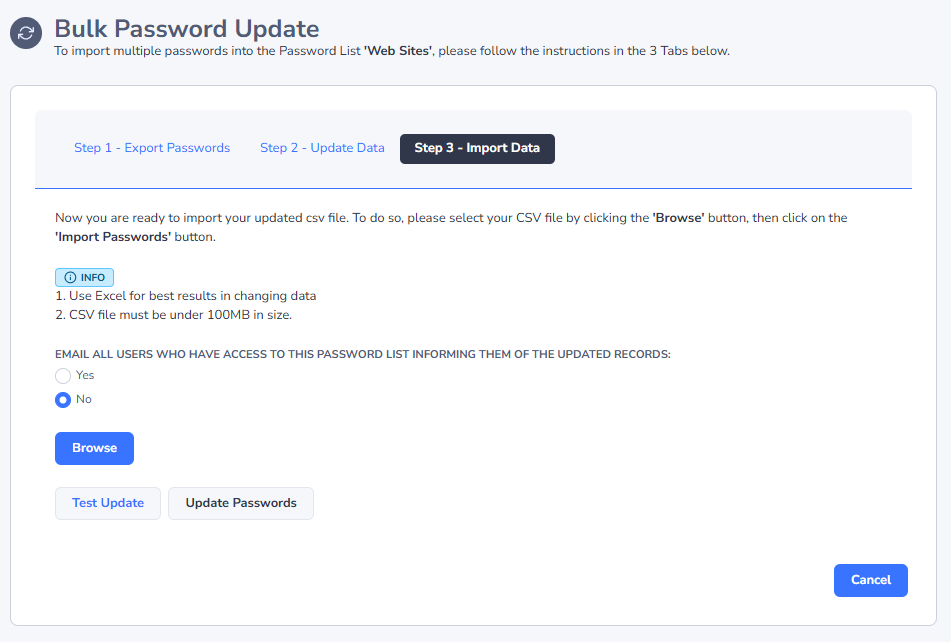
Bulk Update Passwords
If you have a requirement to update more than one Password record at a time, then you can use the 'Bulk Update Passwords' feature.
This feature will allow you to export all the passwords to a csv file, which you can then update as appropriate, and then re-import back into the Password List.
Note: This feature will not update passwords in Active Directory for any records configured as Active Directory accounts, and it will not execute any related Password Reset Tasks.
Note: The 'Export Passwords' button on the Step 1 tab will export all Passwords to the csv file. It's okay to delete any records from the CSV file which you don't intend on updating.
Note: Please do not delete or modify the contents of the PasswordID column in the csv file - this is what is used to know which records to update in the database.
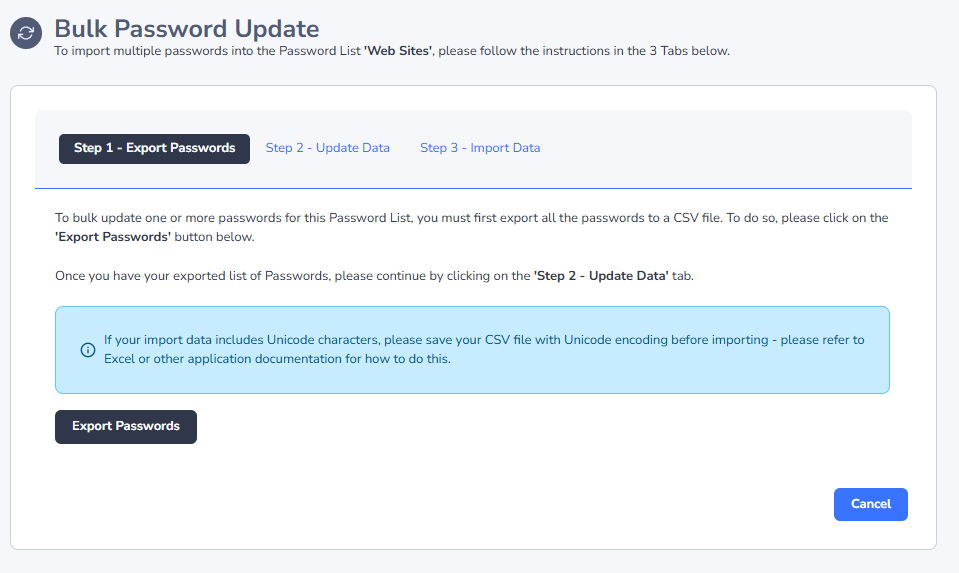
Step 1 - Export Passwords
Clicking on the 'Export Passwords' button will export all Password records to a csv file. Once you have your csv file, you can move onto the next tab 'Step 2 - Update Data'.
Step 2 - Update Data
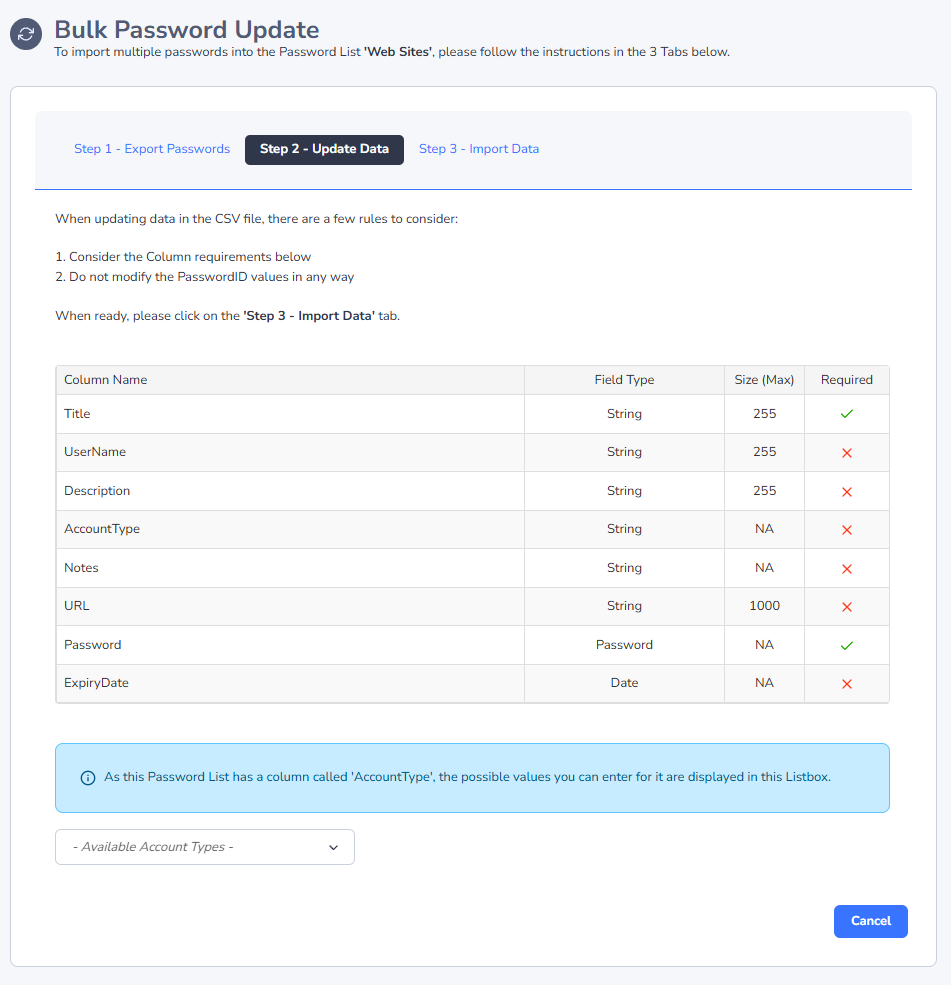
The Step 2 tab shows you what fields can be updated as part of this process, and if any of the fields are mandatory. As mentioned previously, you can delete any rows in the csv file you do not wish to update. Once you have the csv file updated as required, you can move onto the next tab 'Step 3 - Import Data'.
Note: If a field already has data associated with it, but you don't wish to update the data for this field, you simply leave the value as it is - if you remove the data for this field, it will also remove it in the database when the import process occurs.
Step 3 - Import Data
The final tab allows you to upload your csv file to the Passwordstate website, and then either test the import first, or perform the actual import. Both the test and actual import will report back to you if there are any errors experienced with the import process, and they will also tell you what row in the csv file the error occurred.
Note 1: This is not an import in the traditional sense, as it won't add new records, simply update records as appropriate.
Note 2: While the option is available, it's not recommended you select the option to email all users who have access to the Password List, unless it is a small number of records you are importing - otherwise, each user who has access to the Password List will receive one email per record, indicating a new record has been added to the Password List.
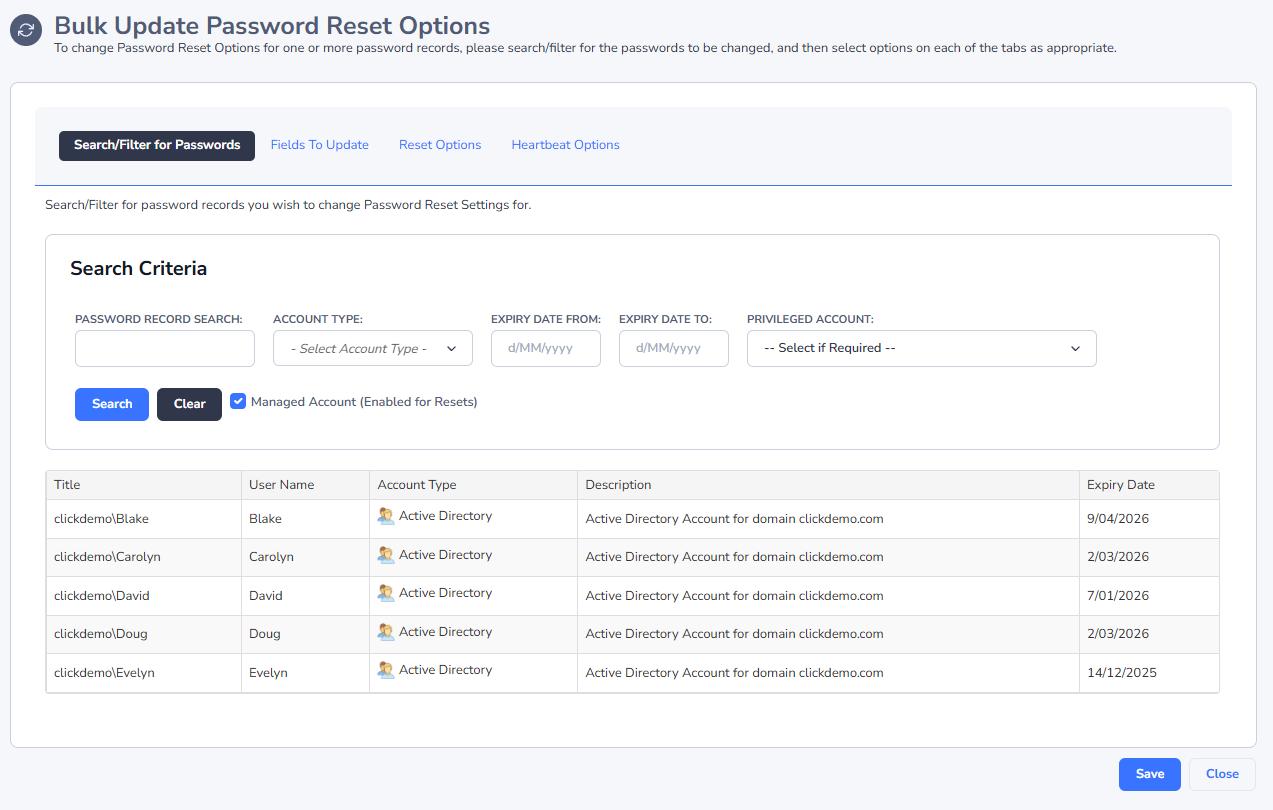
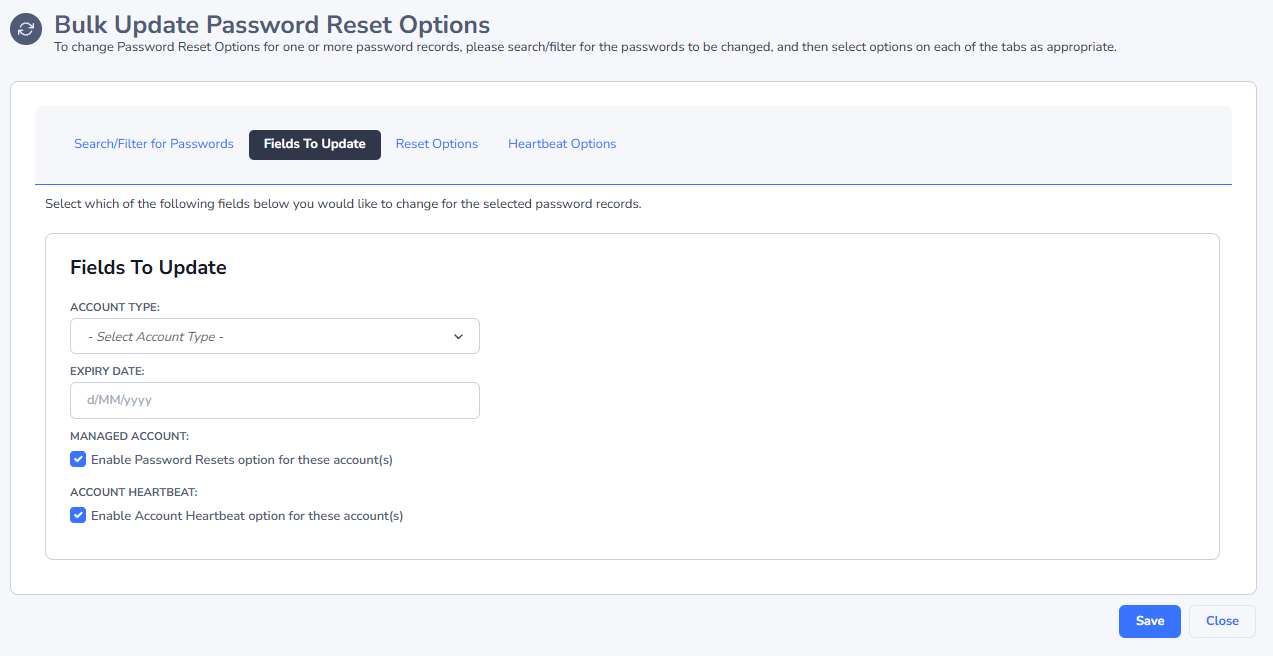
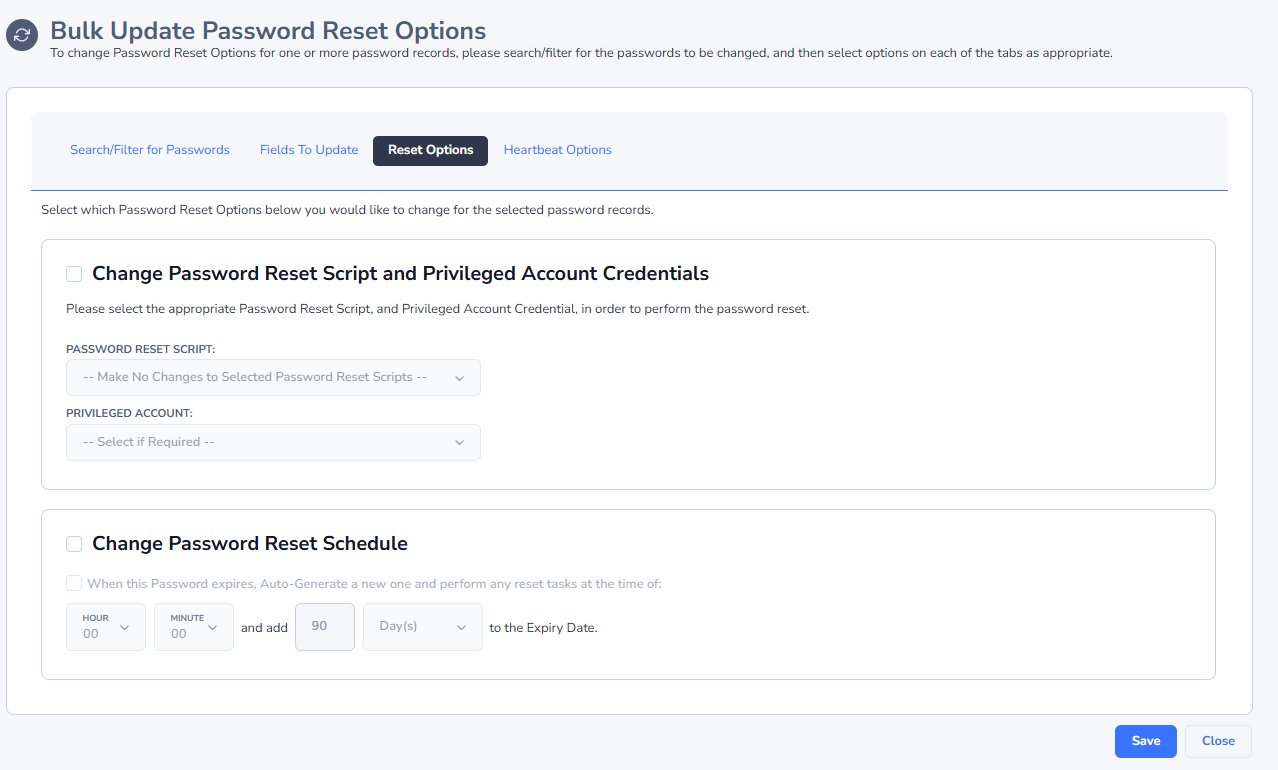
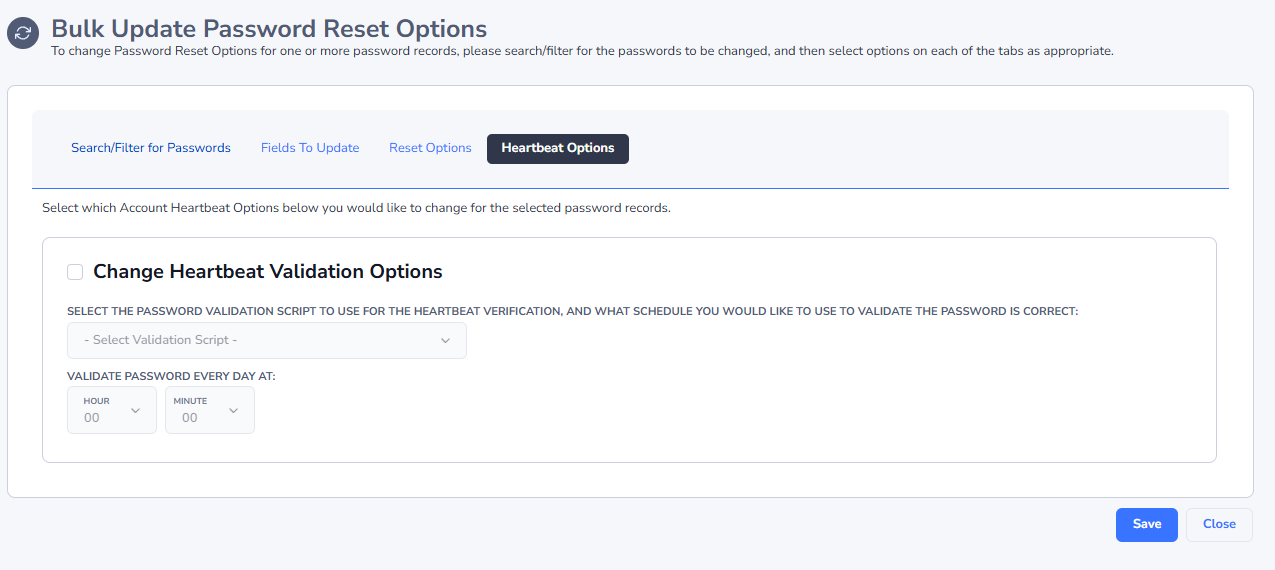
Bulk Update Password Reset Options
If you need to update Password Reset settings for more than one password record at a time, then you can use the 'Bulk Update Password Reset Options' available from the 'List Administrators Actions' dropdown list on each Password List.
With this feature you can:
- Search for the password records you wish to update - based on certain criteria
- You can then update various fields, scheduled reset options, and the Heartbeat validation options as well
Edit Password List Properties
The Edit Password List Properties feature allows you to change any number of settings associated with the Password List, and choose which fields (columns) you would like to use.
Note: If the Password List is 'Linked' to a Template, then the majority of options on this page will be disabled, as the settings are meant to be controlled centrally from the Template.
The following four tabs allows you to configure the Password List with the options are fields required.
| Menu Item | Description |
|---|---|
| Password List Details Tab | This tab is where the majority of settings are configured for the Password List |
| Customize Fields Tab | This tab allows you to choose which fields you would like to use with the Password List |
| Guide Tab | The Guide Tab allows you to provide some instructions to your users as to the intended use of the Password List |
| API Key & Settings Tab | If you need to take advantage of the API (Application Programming Interface) for the Password List, you will first need to create and API Key - each Password List has it's own separate API Key |
The Password List Details tab is where the majority of settings are specified for the Password List, and it also allows you to copy settings from another Password List or Template, and copy permissions form another Password List or Template.
Note: The various Password related options below do not apply to any Generic Fields - Customize Fields Tab you configure of type 'Password' i.e. prevent password reuse, prevent saving bad password, reset expiry date field, etc.
Below is some detail for each of the sections in the Password List Details tab.
Password List Details tab
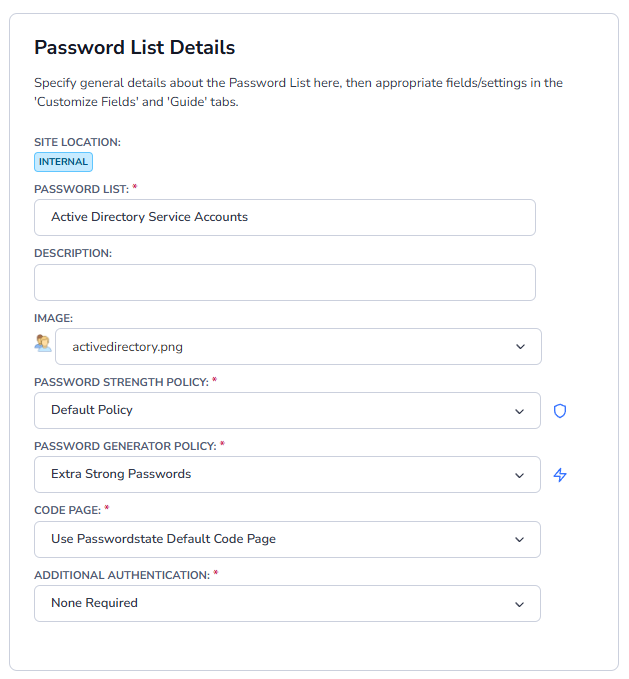
The following table describes each of the fields/options for the Password List Details section:
| Menu Item | Description |
|---|---|
| Site Location | A Site Location of "Internal" will be used if the Password List is being created in the root of Passwords Home, or it will inherit the location of its parent Folder. Adding different Site Locations requires an active subscription for the Remote Site Locations module |
| Password List | The Title for your Password List, as it would be displayed on the Navigation Tree |
| Description | A brief description outlining the purpose of the Password List |
| Image | An image you would like displayed for the Password List in the Navigation Tree |
| Password Strength Policy | The Password Strength Policy you would like applied to the Password List. Clicking on the icon will provide detail for the selected policy |
| Password Generator Policy | The Password Generator Policy you would like applied to the Password List. Clicking on the icon will provide detail for the selected policy |
| Code Page | The Code Page (character encoding) you would like to use when importing or exporting data from the Password List |
| Additional Authentication | If you want a second level of authentication for your users before they can access the Password List, you can choose any one of the authentication methods in this drop-down list |
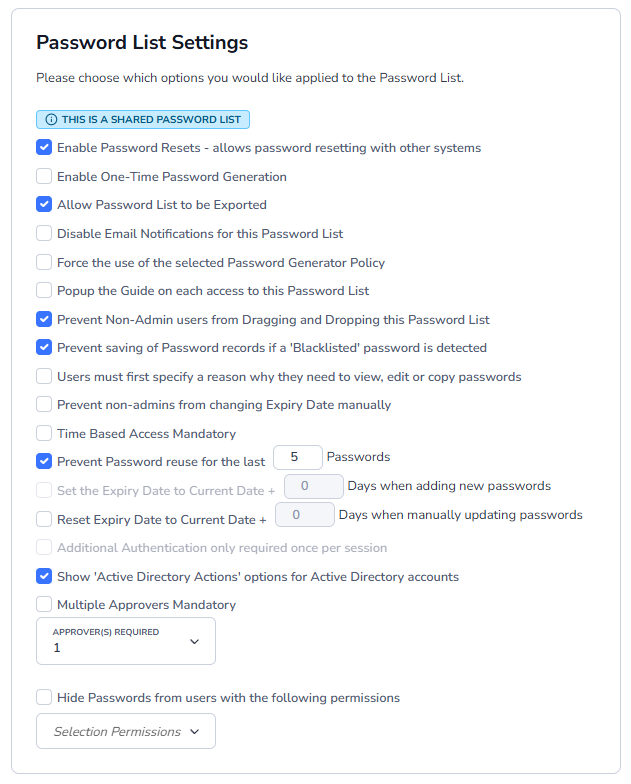
Password List Settings Section
The following table describes each of the options for the Password List Settings section:
| Menu Item | Description |
|---|---|
| Enable Password Resets | Allows passwords stored within the Password List to perform Password Resets on other remote systems/hosts |
| Enable One-Time Password Generation | Store One-Time Passwords for logging into web sites by scanning a QR Code for your login |
| Allow Password List to be Exported | Allows or prevents the passwords and their history from being exported |
| Time Based Access Mandatory | If this option is set, any time new permissions are applied to the Password List for user accounts or security groups, you must specify a future date/time when the permission will be automatically removed |
| Multiple Approvers Mandatory | If required, you can specify that more than one administrator must approve access to the Password List, or to records contained within it |
| Prevent Password reuse for the last [x] passwords | You can choose to prevent reusing of Passwords (the password value) by selecting this option, and specifying how many password changes are required before a password can be reused |
| Disable Email Notifications for this Password List | Disable email notifications for this specific Password List i.e. Password Added, Updated, Deleted, Copied to Clipboard, etc |
| Force the use of the selected Password Generator Policy | With this option set, users cannot enter their own passwords manually - they must use the Password Generator button to generate new passwords |
| Hide Passwords from users with the following permissions | You can hide passwords, and disable copy to clipboard, based on permissions the user has to the Password List i.e. View, Modify or Admin |
| Popup the Guide on each access to this Password List | If you would like the 'Guide' to be displayed every time a user accesses this Password List, you can select this option |
| Prevent Non-Admin users from Dragging and Dropping | You can select this option to minimize who can drag and drop the Password List around in the Navigation Tree |
| Prevent saving of Password records if a 'Bad' password is detected | Your Security Administrators maintain a list of passwords in Passwordstate which are deemed to be 'bad' i.e. common, or easy to guess/brute force. By selecting this option, user's won't be able to save any changes to the record if a Bad Password is used - the user is also shown what the Bad Password is, to educate them on not what to use |
| Users must first specify a reason why they need to view, edit or copy passwords | If you would like your users to specify why they need to view a Password prior to being able to view it, then select this option. Your users will be presented with a dialog window asking them for the reason they wish to use the Password, and this reason is then added to auditing data, which can be reviewed at a later date if needed |
| Prevent Non-Admin users from manually changing values in Expiry Date fields | You can choose to prevent users with View or Modify rights from changing the Expiry Date field value for password records. This is useful for ensuring the Expiry Date isn't reset, without the actual Password being reset |
| Set the Expiry Date to Current Date + [x] Days when adding new passwords | When adding new Passwords to the Password List, you can automatically generate the Expiry Date field value based on a certain number of days in the future, by selecting this option |
| Reset Expiry Date to Current Date + [0] Days when manually updating passwords | When updating Passwords in the Password List, you can automatically generate the Expiry Date field value based on a certain number of days in the future, by selecting this option |
| Additional Authentication only required once per session | If you choose one of the 'Additional Authentication' options for the Password List, you can choose to make your users authenticate every single time they wish to view the contents of the Password List, or only once per session - once per session means once they have authenticated to the Password List, they won't need to authenticate again while their session on the web site is active i.e. if they log out of Passwordstate, they will need to re-authenticate again to the Password List |
| Show 'Active Directory Actions' options for Active Directory Accounts | Provides you with another Tab on the Edit Password screen which allows: · Unlock this account if locked · User must change password at next logon · Disable this account · Enable this account |
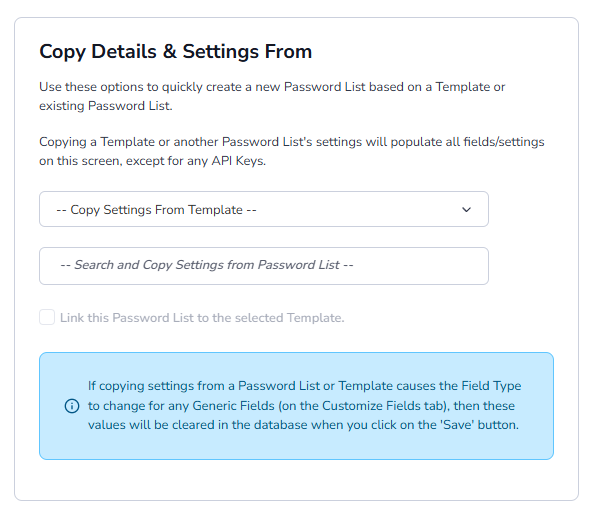
Copy Details & Settings from Section
This section allows you to copy Password List settings, and fields to use, from another Password List or Template.
Note 1: When copying settings from another Password List or Template, you need to be aware of incompatible field types for Generic Fields. If a selected Generic Field in one Password List/Template is of type 'Text Field', and of type 'Password' in the Password List you are editing, then the values in the Password List you are editing will be erased/blanked in the database - this is because you cannot mix different Generic Field data types. There are multiple warning messages within the Passwordstate as well for this, so please be aware.
Note 2: If you select to copy settings from a Template, you can also link the Password List to the Template at the same time. By doing this, all subsequent changes to settings and fields needs to be done on the Template itself, and not on the Password List.
Copy Permissions From Section
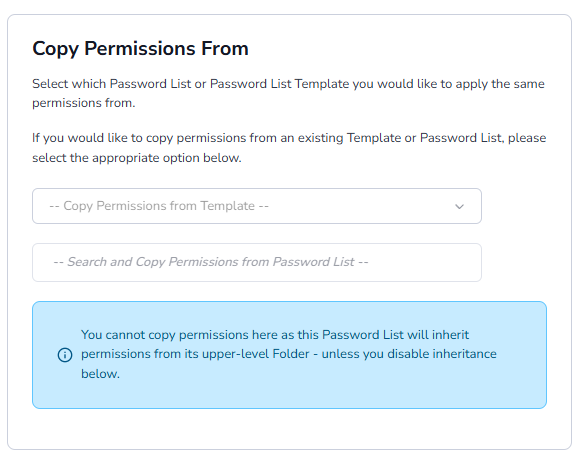
This section allows you to apply permissions based on what's set for another Password List, or Template. This will override any permissions you already have applied to the Password List.
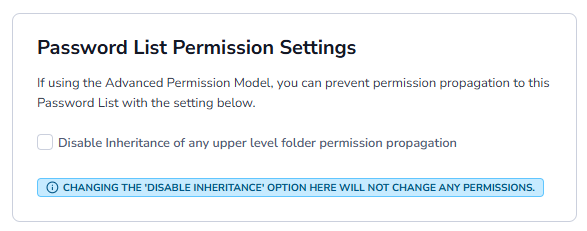
Password List Permission Settings
When using the Advanced Permission Model, you can prevent permissions propagating down to a Password List, by using the 'Disable Inheritance' setting you see below. You can then manage permissions on the Password List, independently of any upper level folders.
Note: If you are un-ticking this option when it was previously ticked, it is first recommended you review the permissions on the Password List and set the as required, prior to un-ticking this setting.
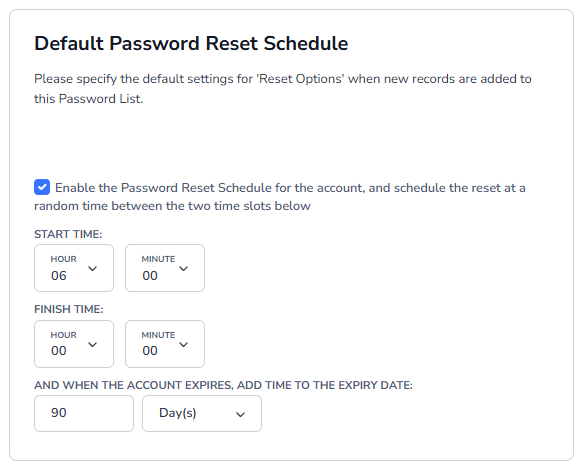
Default Password Reset Schedule
If a Password List is 8configured to perform Password Resets with other systems/hosts, you can then set various Automatic Password Reset settings - used for resetting a Password once the Expiry Date field value is reached.
You can set what the 'default' values are for each of the individual Password records for these settings, by setting them here at the Password List level.
Note 1: Once these default options have been applied to a Password record, and the record saved, making changes for these default values at the Password List level will have no effect on Password records. There is a feature where you can update these settings in bulk though, and you can find the detail here - Bulk Update Password Reset Options.
Note 2: Making changes to these default values at the Password List level will have no effect on Password records where their settings have already been saved. This allows you to have different Password Reset schedules for each of the Passwords stored in a Password List - if required.
Customize Field Tab
The Customize Fields tab is where you specify which fields you would like to use with the Password List, which of the fields are mandatory, and specify certain 'Field Types' for any one of the 10 Generic Fields.
The fields can be categorized in one of two ways - Standard Fields which are fixed and cannot be modified in any way, and Generic Fields which can be renamed and their Field Type changed. A summary of the different fields available are:
| Menu Item | Description |
|---|---|
| Title | This is the one mandatory field you must specify, and it's intended as a brief description as to what the Password record relates to |
| Username | If you must specify a username to authenticate against the end resource, this is the field you would use i.e. Username and Password to authentication to a web site, or network switch, etc |
| Description | A longer description as to what the Password record relates to |
| Account Type | Account Type can be used to visually show the type of account the record belongs to i.e. a switch, a firewall, and web login, etc. |
| URL | If you would like to associate as web sites URL with the Password record, then you can use this field. You can launch the URL by clicking on it when shown in the Passwords grid |
| Password | The actual password itself |
| Password Strength | You cannot enter any data for the Password Strength field - it's a graphical representation of how strong the password is, based on the selected Password Strength Policy |
| Expiry Date | All passwords should be reset after a certain period of time. The Expiry Date field can be used to indicate when this time is, and can be used for reporting purposes, or for Automatic Password resetting |
| Notes | Allows you to specify longer HTML formatted text for any general notes you need to maintain for the record |
| Generic Fields (1 to 10) | Generic Fields can be configured for any purpose you like, and also named any way you like. The following Field Types are available for Generic Fields: · Text Field - A single line text field · Free Text Field - Multiple line text field · Password - An encrypted password field · Select List - A vertical drop-down list of predefined values · Radio Buttons - A horizontal checklist of predefined values · Date Picker - A popup calendarstyle control for picking date values · URL Field - Allows you to click on the URL in the Grid view and launch the web site |
Note 1: If you change a Generic Field's Field Type after the fields have been populated with data, then the values for the changed field will be erased/blanked in the database when you click on the 'Save' button - this is because the different Generic Field Field Types need to have their data treated differently. There are multiple warning messages within the Passwordstate as well for this, so please be aware.
Note 2: Selecting/deselecting the 'Encrypt' option for any of the Generic Fields will perform the encryption/decryption in the database for all existing records in the Password List when you click on the Save button.
Note 3: By checking one of the 'Hide Column' checkboxes, this will hide the column in the Passwords Grid from all users - so they do not need to do this under their own 'Screen Options' area. This only applies to the standard Password List page, not when searching for passwords on Passwords Home, or from within a Folder.
Guide Tab
The Guide tab allows you to provide detail as to the intended use of the Password List, and can include some basic HTML style formatting.
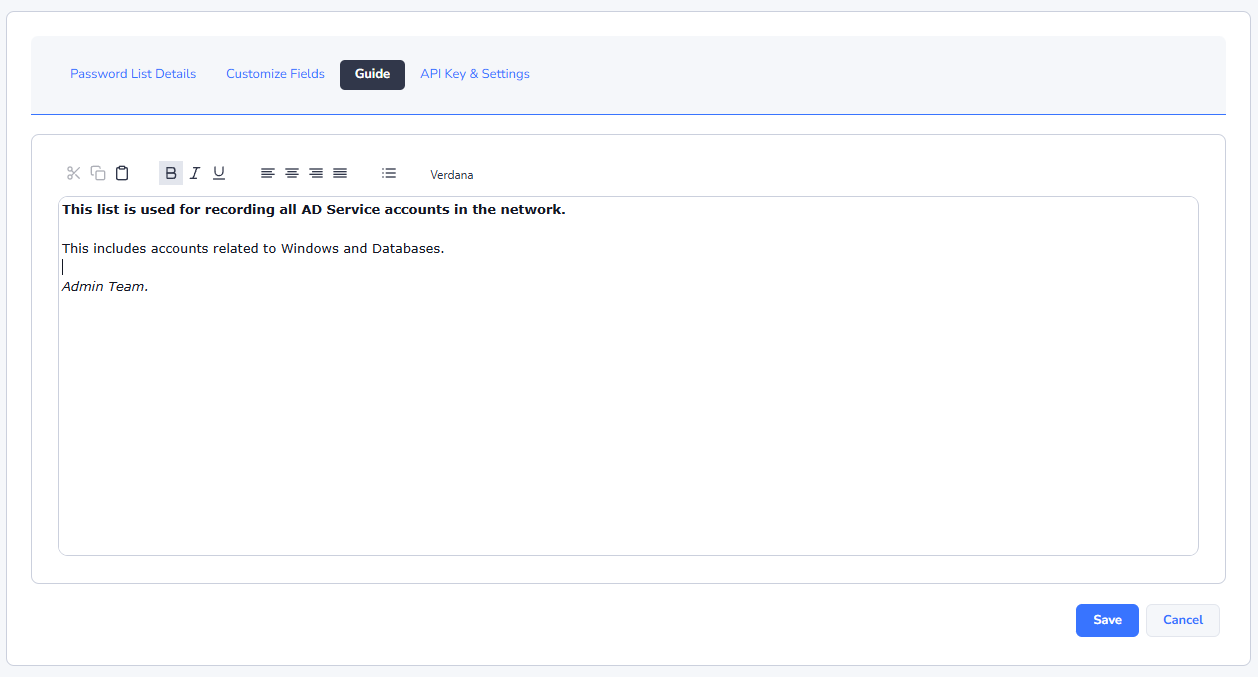
Once you have specified the required detail in the Guide tab, your users can view the guide by clicking on the 'View Guide' button at the top right-hand side of the Password Grid.
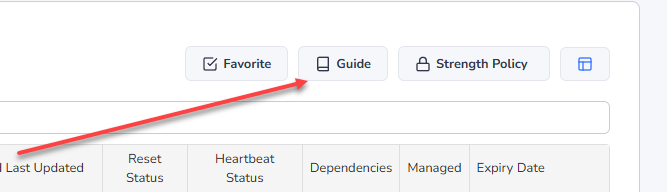
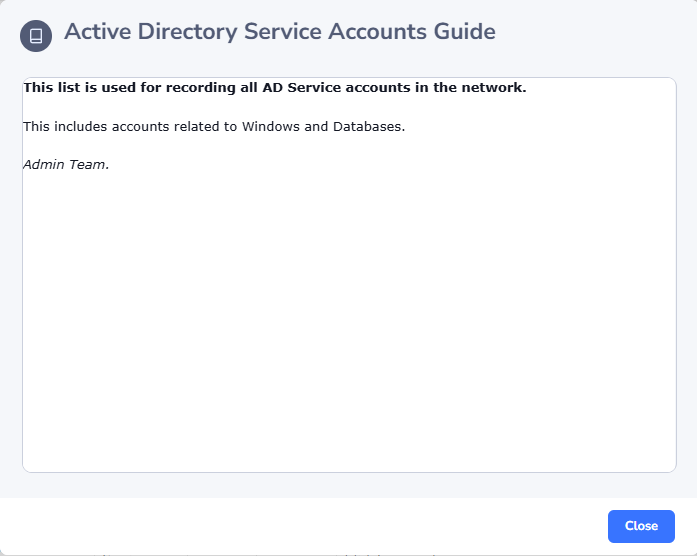
When the click on the 'View Guide' button, they will be presenting with a popup window with the Guide.
API Key & Settings Tab
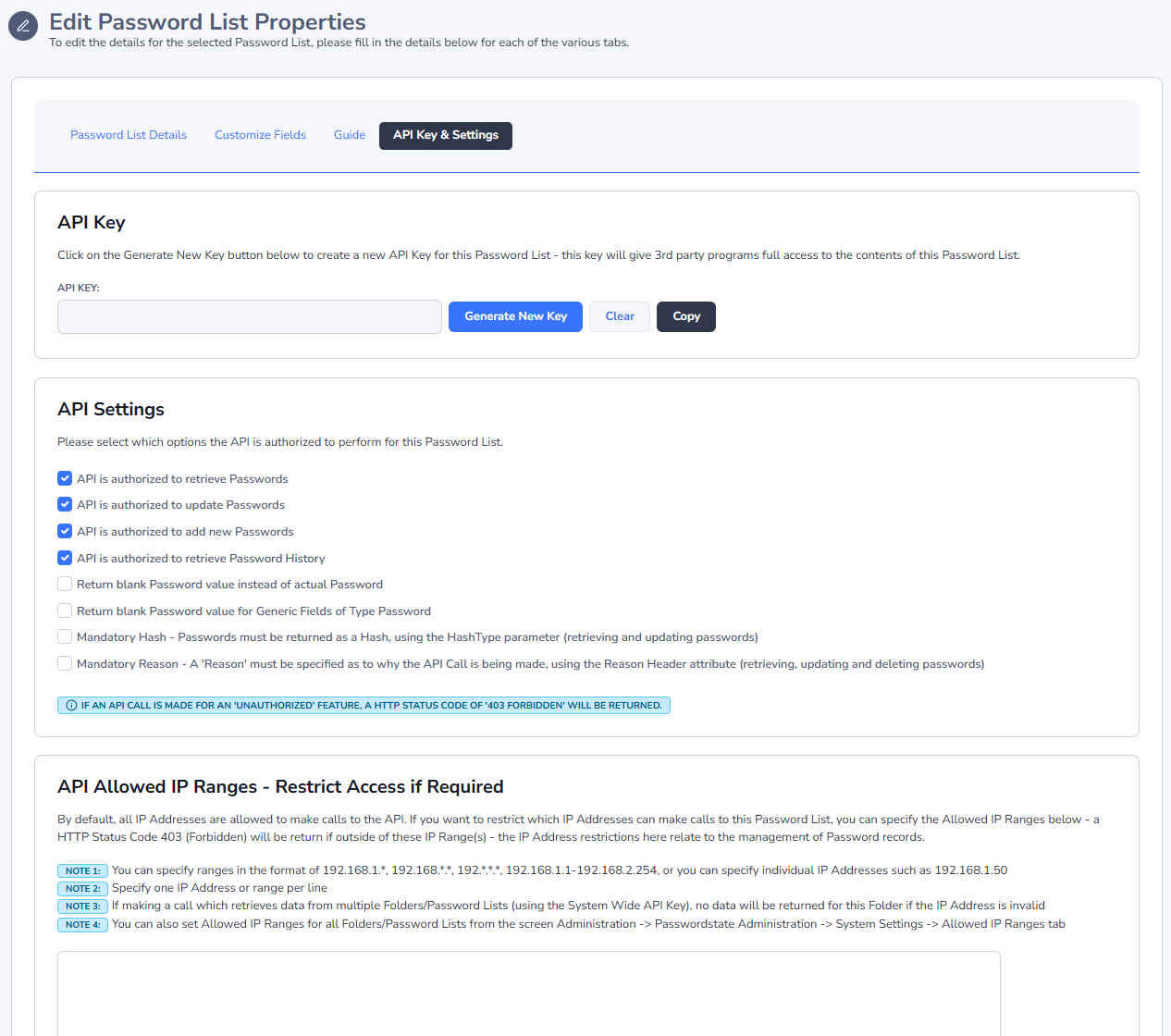
Passwordstate has two types of APIs available (Application Programmable Interface):
- Standard API - One in which requires the use of API Keys, and is not 'user account' aware
- Windows Integrated API - One which is integrated with Active Directory and is 'user account' aware
If using the Standard API, either a System Wide API Key can be used, or per Password List API Keys. If you are using the Windows Integrated version, there is no need to generate any API Keys, as the API Integrates with the logged on user account - with access being the same as the user logging into the Passwordstate UI.
In addition to specifying the API Key if required, you can set certain options to authorize various API Calls:
- To retrieve Passwords or Password History from the API
- To update Passwords via the API
- To add new Password records via the API
- To return blank values for Password fields, instead of returning plain-text Passwords - some customers may find this useful for additional security, where they can write their own code to to compare hashed strings stored in other fields to validate the password
- Whether you want to make the HashType and Reason parameters mandatory when making calls to this Password List
- Allowed IP Ranges - in addition to the System Wide Setting for restricting access to the API via trusted network ranges, you can also specify IP restrictions for individual Password Lists as well
Caution: It is imperative that you take great precautions in ensuring the API Key is not exposed to any users who should not have access. Doing so means they have unrestricted access to all the API function calls relevant to the Password List.
Note: If an API Key is set to restrict retrieving of passwords, then any API Calls which retrieve passwords from more than one Password List at a time will simply ignore Password Lists which have this setting - as opposed to returning a HTTP Status code of '403 Forbidden'.
For more information about the functions the Passwordstate API can perform, please reference the 'Web API Documentation' from the Help navigation menu within Passwordstate.
Save Password List as Template
Password List Templates can be used for applying consistency to the settings for your Password Lists, either as a once of when you are creating or editing Password Lists, or on an ongoing basis when you link Password Lists to Templates ( Linked Password Lists ).
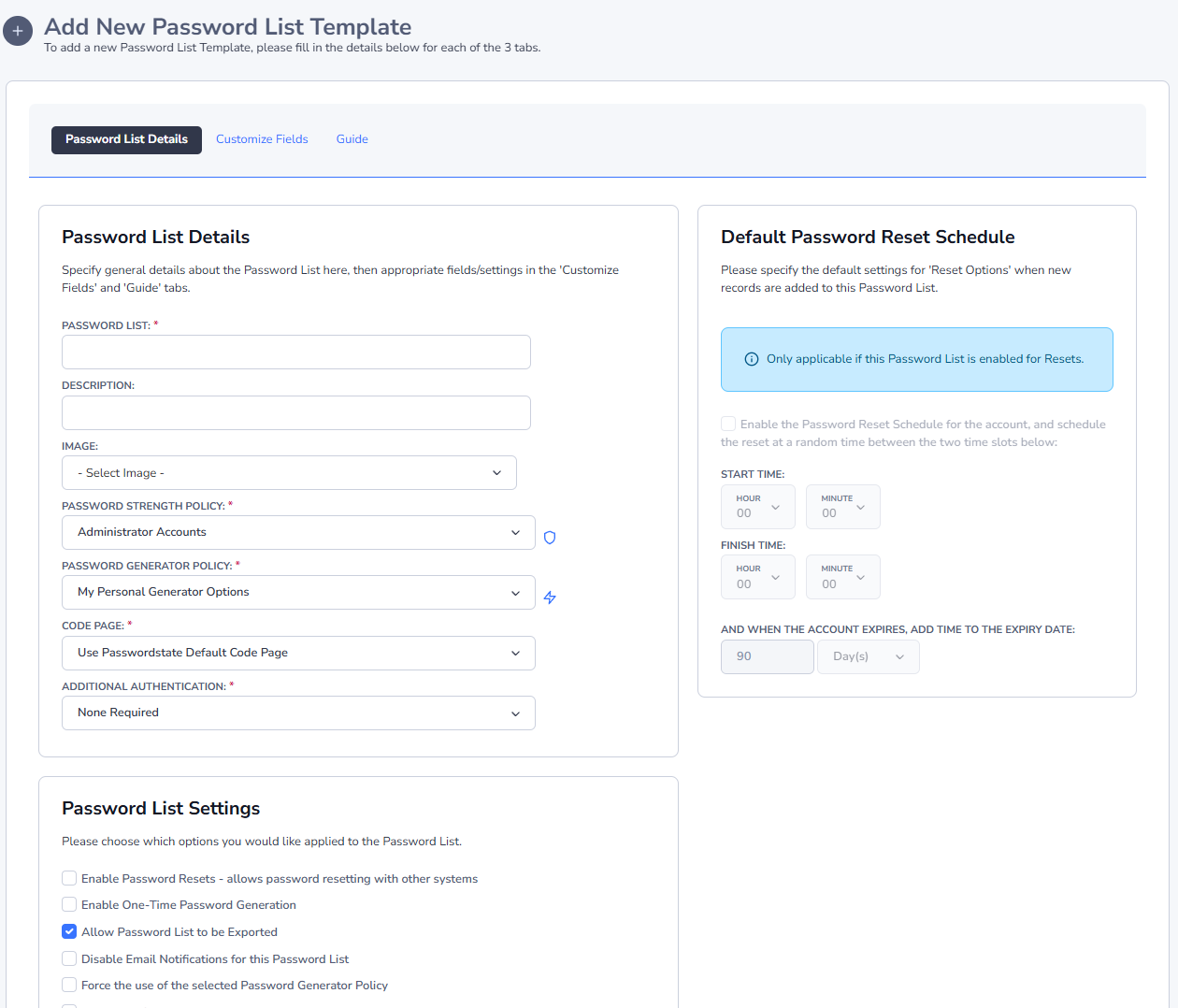
When you click on the menu item 'Save Password List as Template', you will see a screen very similar to the Add/Edit Password List screen, with a few small exceptions:
- The options under 'Copy Details and Settings From' is not visible or relevant
- The options under 'Copy Permissions From' is not visible or relevant
- The API Key tab is missing, as each Password List must have it's own unique API Key
Excluding the exceptions above, each of the settings on the various tabs is the same as the Add/Edit Password List screen, and you can view each of the documentation for them here - Password List Details Tab, Customize Fields Tab & Guide Tab.
Once you have saved the Password List's setting as a template, you can access them from here - Password List Templates.
Toggle Visibility of Web API IDs
When working with the Passwordstate API, you will often need to know various ID values for Password Lists (PasswordListID) and Password records (PasswordID), to perform one or more of the API Calls. By default, these ID values are not exposed within the web interface of Passwordstate, but they can be accessed using the 'Toggle Visibility of WEB API IDs' menu item.
When you select this menu option, the ID values will be shown on the screen, and can be again hidden by clicking on the same menu item.
For more information about the functions the Passwordstate API can perform, please reference the 'Web API Documentation' from the Help navigation menu within Passwordstate.
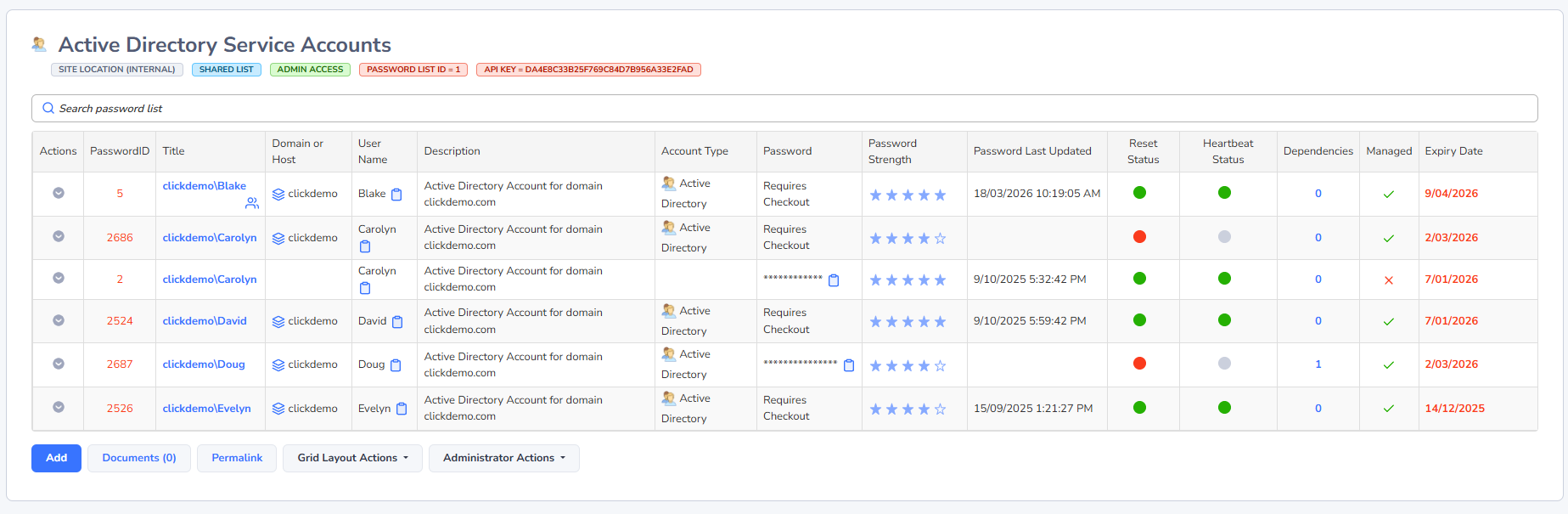
View Password List Permissions
When you click on the 'View Password List Permissions' menu item, you will be directed to a screen which shows what permissions have been applied at the Password List Level.
You can grant access to either user accounts or security groups, and the types of permissions you can apply are:
- Guest - is granted to a user when they don't have access to the Password List, but are granted permissions to an individual Password record within the Password List
- View - only allows read access to Passwords within the Password List
- Modify - by default, allows the user to view, add, update and delete Password records Note: The Security Administrators can change the behavior of 'Modify' permissions on the page Administration -> System Settings -> Password List Options
- Admin - Provides modify access, plus all the features under the List Administrator Actions dropdown menu
- Mobile Access - In addition to access Password Lists through the web interface, you can also grant Mobile App Access for each of the different permissions as well
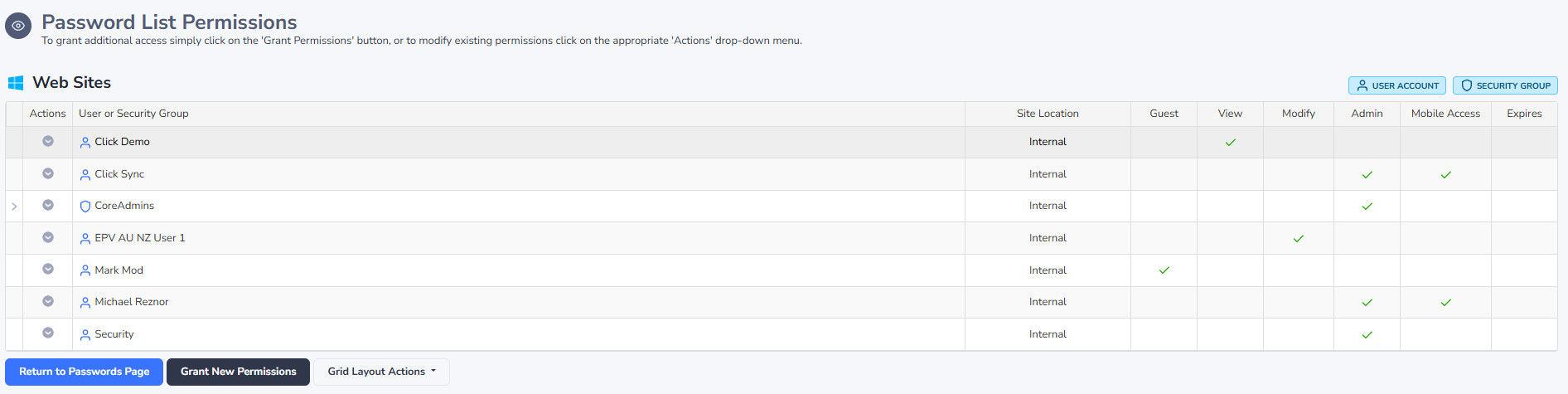
From the 'View Password List Permissions' screen, you have the following features available:
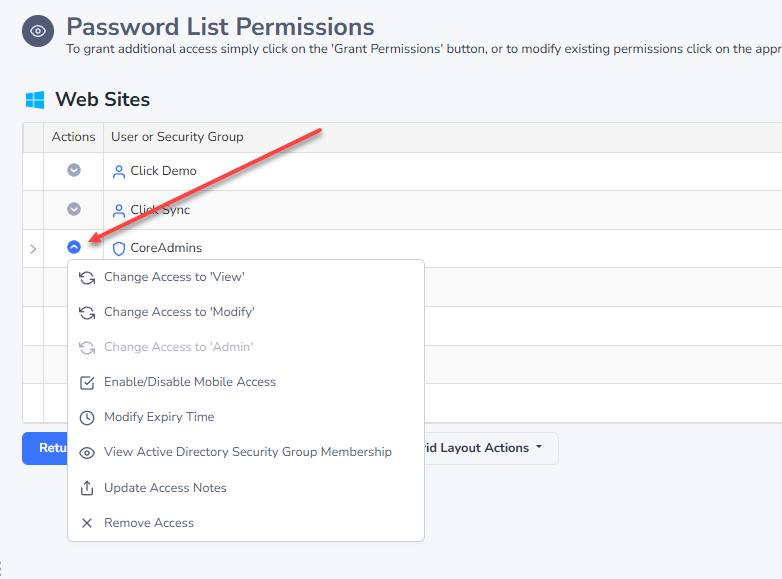
Password List Permission Actions
When you click on the 'Actions' menu item for access which has been granted to a user or security group, you can:
- Change the permissions to View, Modify or Admin
- Enable or disable Mobile App access for the permission
- Set or modify the time in which their access will be removed - if required
- Allow you to update a notes field as to why the access was given
- Or remove the access altogether
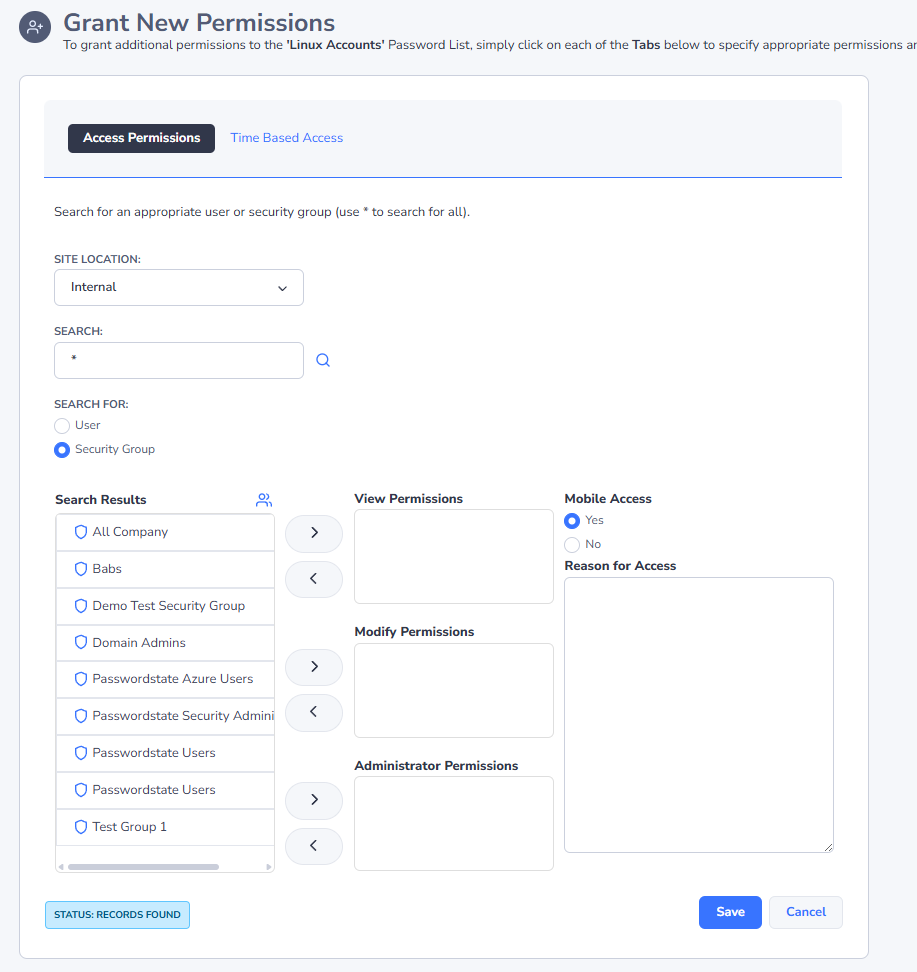
Grant New Permissions
To grant new permissions to a user's account, or to the members in a security group, you can click on the Grant New Permissions button.
You can grant new permissions to either User Accounts, or members of a Security Group - either local Security Groups within Passwordstate, or Active Directory based Security Groups.
As you apply new permissions for users, they will also be granted permissions to any upper-level Password Folders the Password List may be nested beneath - there may be an exception to this if a Folder is configured to manager permissions manually, but this is the default setting.
When granting new permissions (access) to a Password List, there are two tabs of features available to you:
Access Permissions
The 'Access Permissions' tab allows you to search for users and/or security groups, and either grant View, Modify or Admin Access. You can also enable or disable Mobile App Access for any permissions added here.
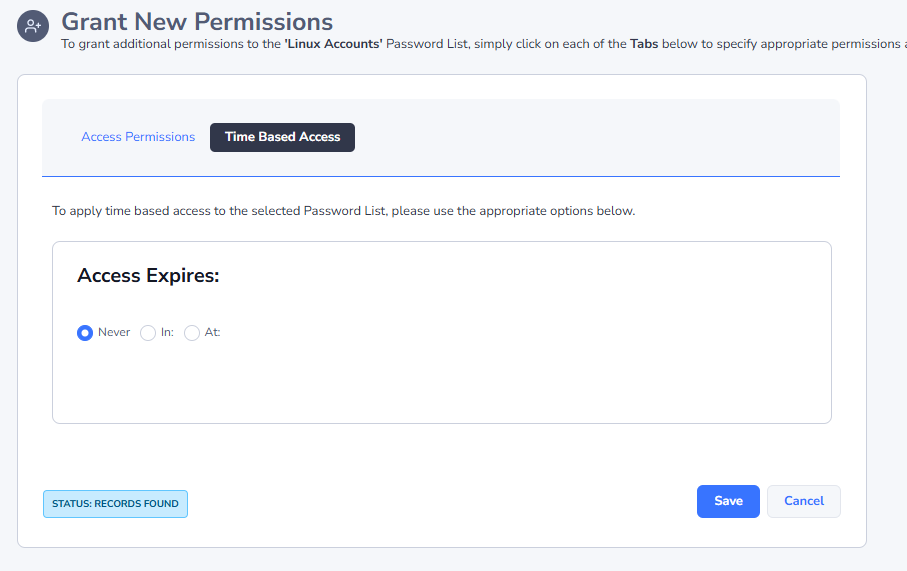
Time Based Access
If you require the permissions to be removed after a certain period of time, or at a set time, you can specify the appropriate time period on the 'Time Based Access' tab.
View Recycle Bin
When a Password record is deleted by the user, it is moved to the Recycle Bin, where it can be later restored or permanently deleted.
Note 1: Clicking on 'Empty Recycle Bin, or 'Delete' from the Actions drop-down menu will permanently delete the record(s), along with other related data.
Note 2: There is an option Security Administrators can set on the page Administration -> System Settings -> Password Options Tab which can also permanently delete linked Password records as well if required - by default, this is disabled.