Password Folders
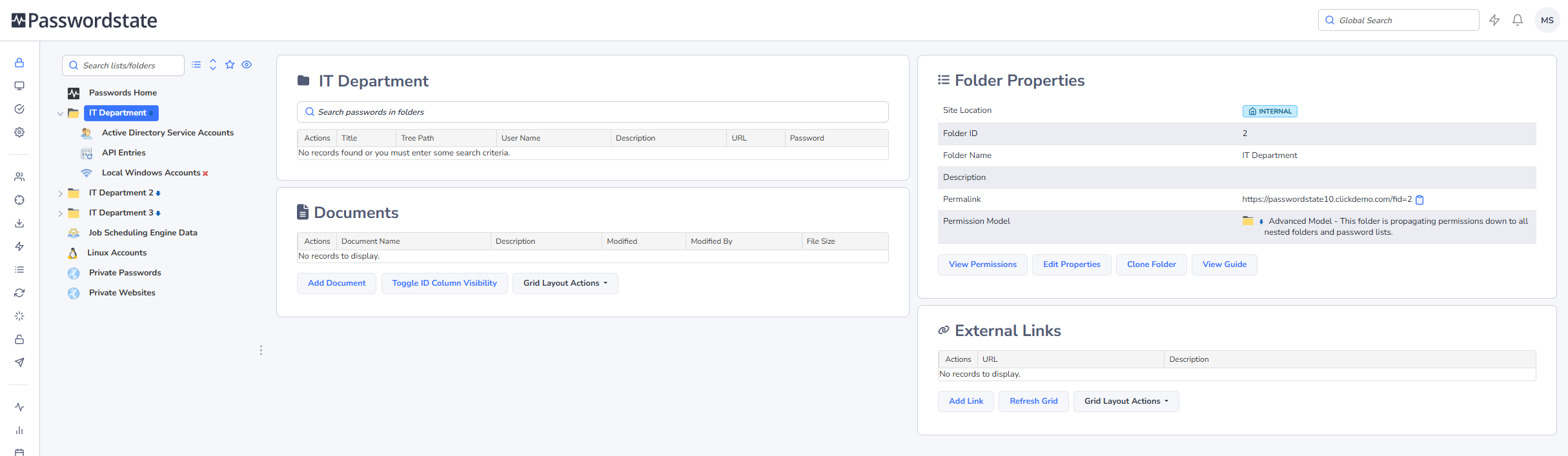
Clicking on a Folder will display a screen similar to below. This screen will show the following details for the Folder:
- Properties of the Folder - depending on your access level, you can edit these properties
- Permissions for the Folder
- The Guide for the Folder
- Any Documents which have been uploaded and associated with the Folder
- Any external website links which have been associated with the Folder
Folder Properties
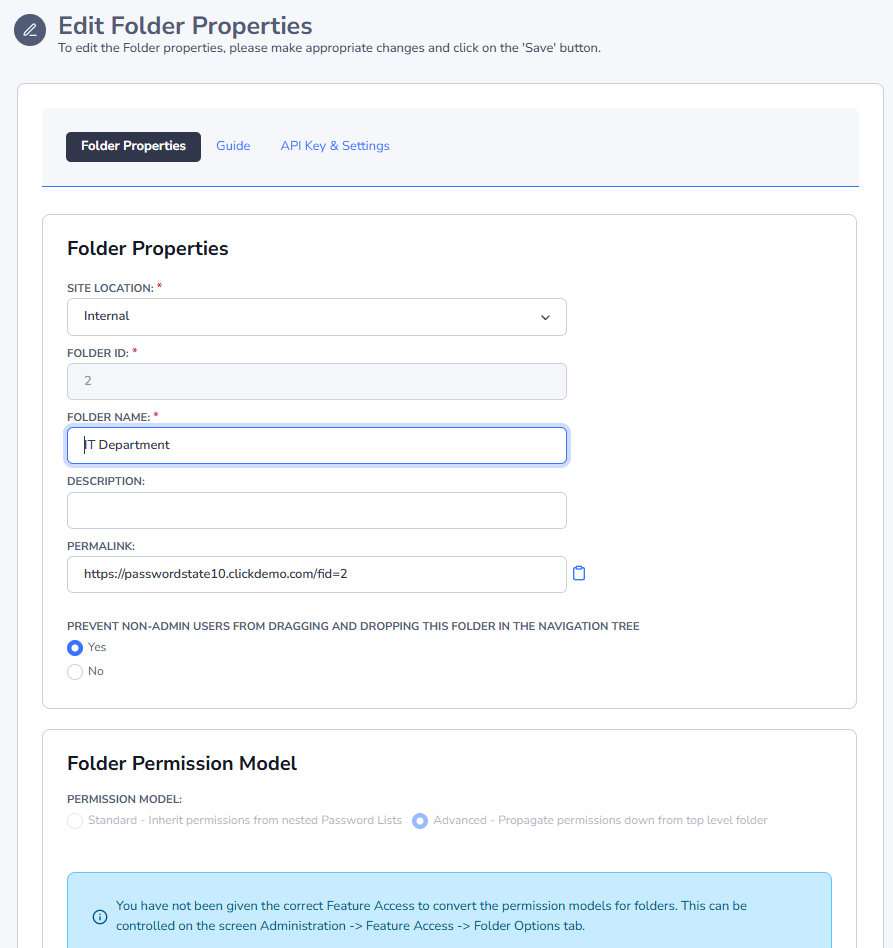
The Folder Properties screen allows you to edit various settings related to the selected Folder, as well as various options for how permissions work for the Folder.
Folder Properties Tab
On the Folder Properties tab you can:
- Select the Site Location - By default, the "Internal" site location will be the most common, unless you have purchased a subscription for the Remote Site Locations module
- Specify the Name and Description for the folder
- Choose to prevent users with non-admin rights from dragging-and-dropping the folder in the Navigation Tree
- The Permalink allows someone to click on the URL specified, and navigate directly to the Folder
Folder Permissions Model
There are two types of permission models available in Passwordstate:
- Standard - the folder will inherit permissions from any nested Password Lists beneath it
- Advanced - the folder will propagate permissions down to all nested Folders and Password Lists
When using the Advanced Permission Model, it's also possible to select the option to "Disable Inheritance of any permissions from upper-level folders" for any nested Folders or Password Lists. By doing this, you can have different permissions set, in this propagating structure.
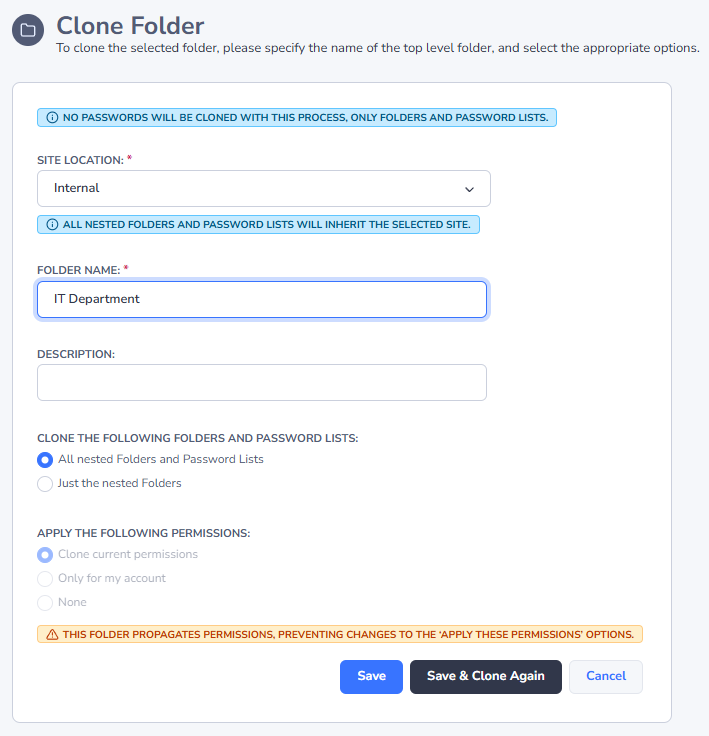
Clone a Folder
By clicking on the 'Clone Folder' button, there are various options available for you to clone the selected folder. The Options are:
- Clone all nested Folders and Password Lists, or just the nested Folders
- You can also choose to clone the current permissions applied to all the nested Folders/Password Lists, or apply just permissions for your own account, or you can choose not to clone any permissions
When cloning a folder, it will be positioned in the root of the Navigation Tree, and you can then drag-n-drop to wherever needed.
Note: No passwords are actually cloned using this method - Only Folders, Password Lists, plus any settings and permissions which are cloned.