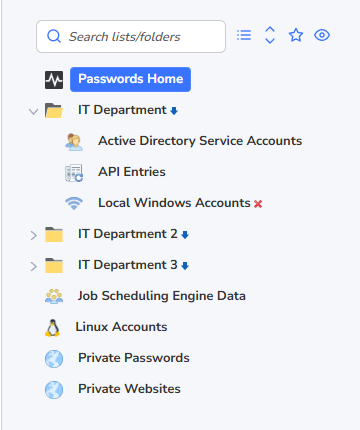
Navigation Tree
The Passwords Navigation Tree is used to access all the Password Lists you have been given access to, and it is used to logically group together related Password Lists and Folders. The only Folders and Password Lists visible in this panel are the ones you have been given access to.
Some of the features of the Navigation Tree are:
- The Search Password Lists or Folder textbox allows you to quickly search for the desired Password List or folder, and can be useful if you have many Password Lists and Folders displayed
- Clicking on a Folder will display a screen to the right which allows you to:
- View/Edit Settings for the Folder if your account has access to it
- View a Guide for the Folder
- View/Manage Documents and External Links for the Folder
- Clicking on a Password List will display a screen on the right which shows all the passwords in the selected Password List. Note: not all passwords for the selected Password List may be displayed, as it's possible you may have been given access to individual passwords within the Password Lists, instead of the entire Password List
- It is possible to drag-n-drop the Folders and Password Lists around in the Navigation Tree, although the default settings only allows users who are Administrators of the Folders and Password Lists to do this
- The view/structure you see in the Navigation Tree is the view all users who have been given access will see - it's a shared view. The only time it will look different is if they haven't been given access to all of the Folders Password List in the tree structure you see
- Re-organizing items in the Navigation Tree will generate email alerts to other users who have the same access
- When expanding/collapsing tree nodes, if you hold down the Control Key while doing so, it will expand/collapse all nested Password Lists/Folders beneath the one you are clicking on
- The Star symbol also allows you to filter any Password Lists you have marked as being your 'Favorites'.
You can also right-click on the Navigation Tree, and create Folders or Password List beneath the item you right-click in.
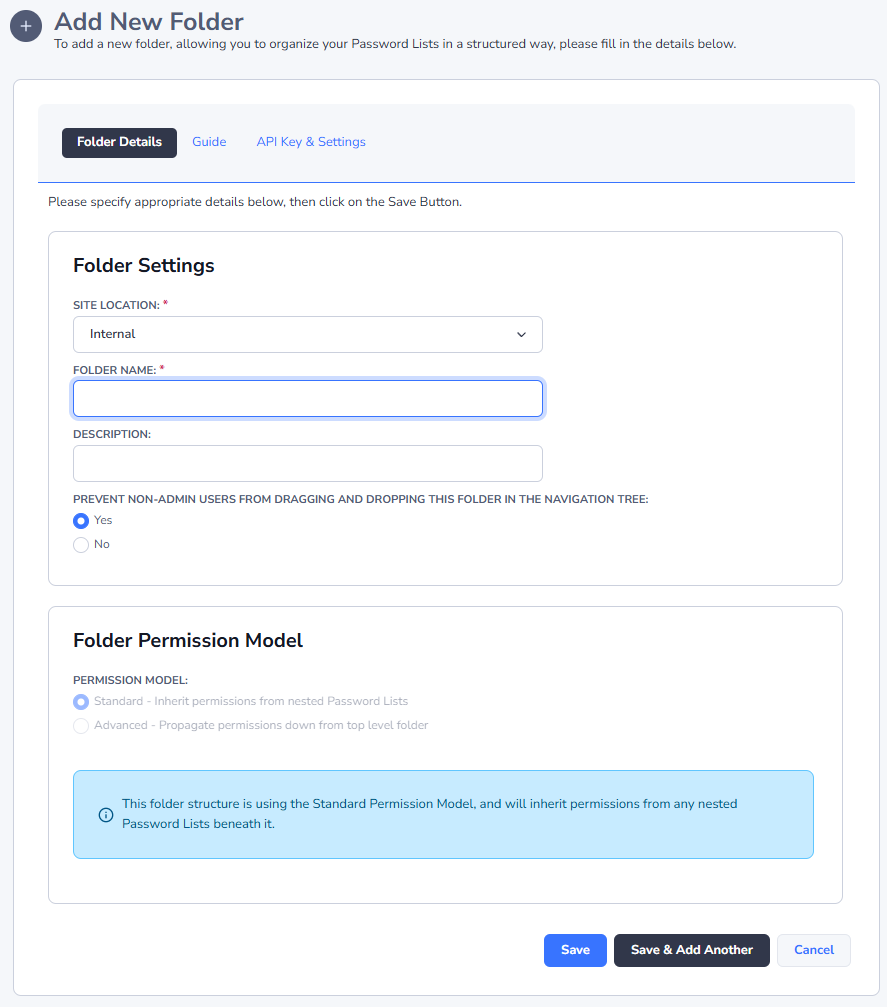
Add Folder
Folders are used to simply logically group other Folders or Password Lists - similar to a directory structure on a file system.
When adding a new folder, there are only a few options you must specify, and they are:
| Menu Item | Description |
|---|---|
| Site Location | By default, the "Internal" site location will be the most common, unless you have purchased a subscription for the Remote Site Locations module |
| Folder Name | The name of the Folder as it will be displayed in the Navigation Tree |
| Description | A description of the folder describing it's purpose |
| Prevent Non-Admin users from Dragging and Dropping this Password Folder in the Navigation Tree | You can prevent users with Non-Admin rights to the Folder from dragging-and-dropping the position of the folder in the Navigation Tree |
| Folder Permission Model | Select from one of the two permission models available |
Folder Permissions Model
There are two types of permission models available in Passwordstate:
- Standard - the folder will inherit permissions from any nested Password Lists beneath it
- Advanced - the folder will propagate permissions down to all nested Folders and Password Lists When using the Advanced Permission Model, it's also possible to select the option to "Disable Inheritance of any permissions from upper-level folders" for any nested Folders or Password Lists. By doing this, you can have different permissions set, in this propagating structure.
Add Private Password List
Private Password Lists are almost identical to Shared Password Lists, except the only person who can see a Private Password List and its contents, is the person who created it.
One other difference to Shared Password Lists is 'permission' related options - any options which relates to permissions will be disabled, as you cannot grant permissions to other users to a Private Password List.
When creating the Private List, you will by default be presented with the following Add Password List Wizard, where you can specify basic details about your Password List, based on settings from one of the available Password List Templates.
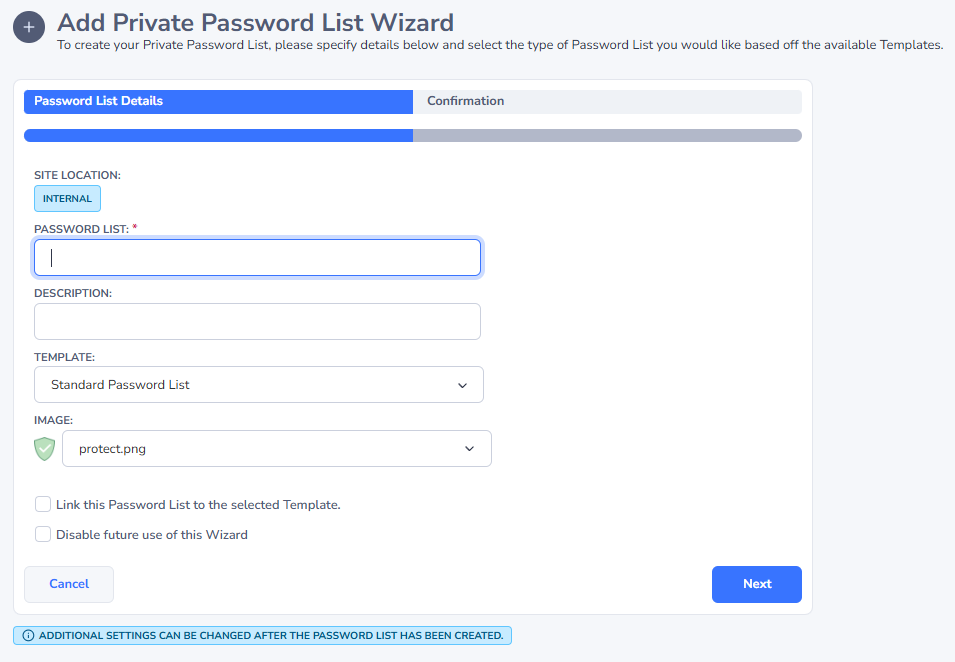
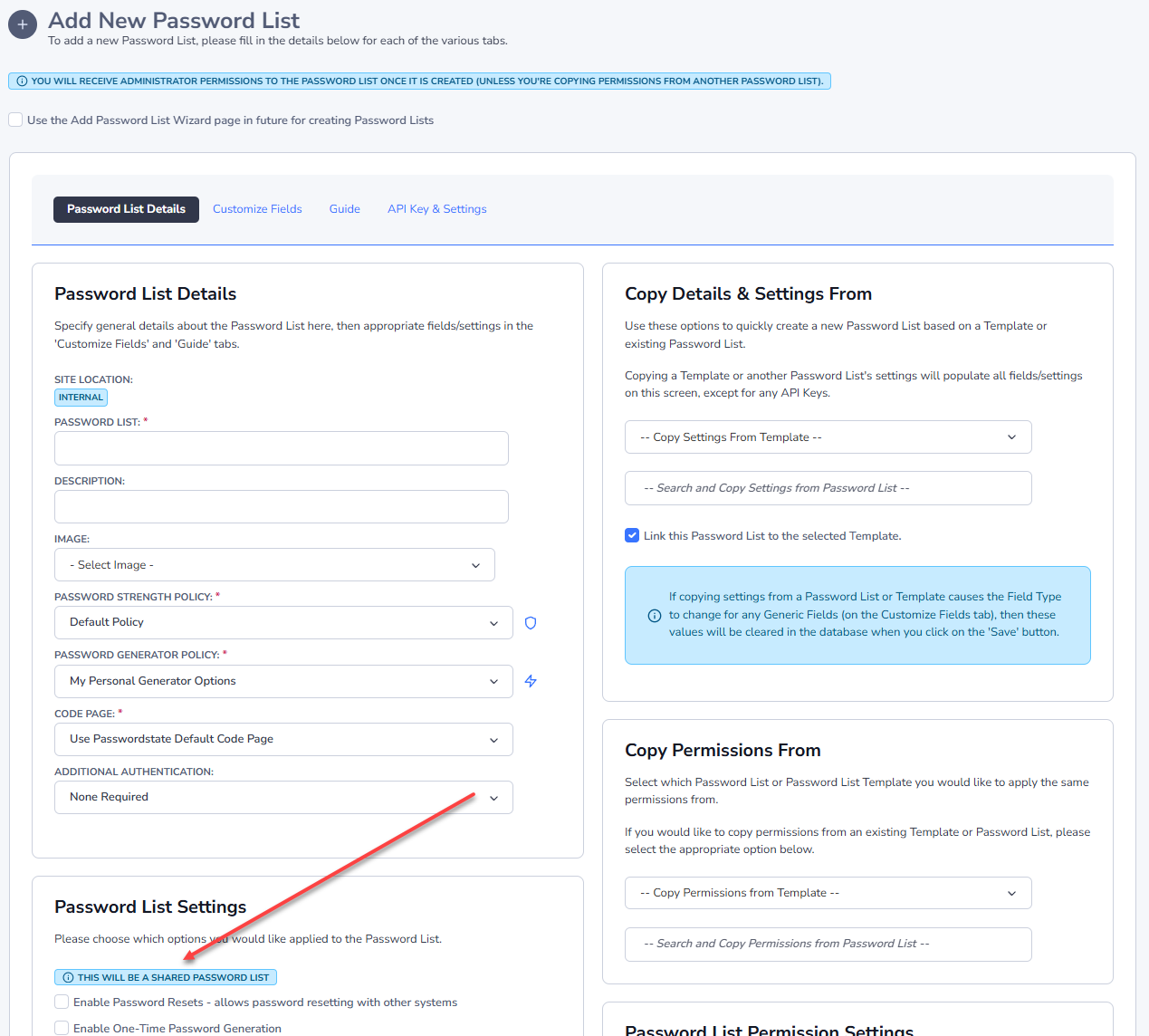
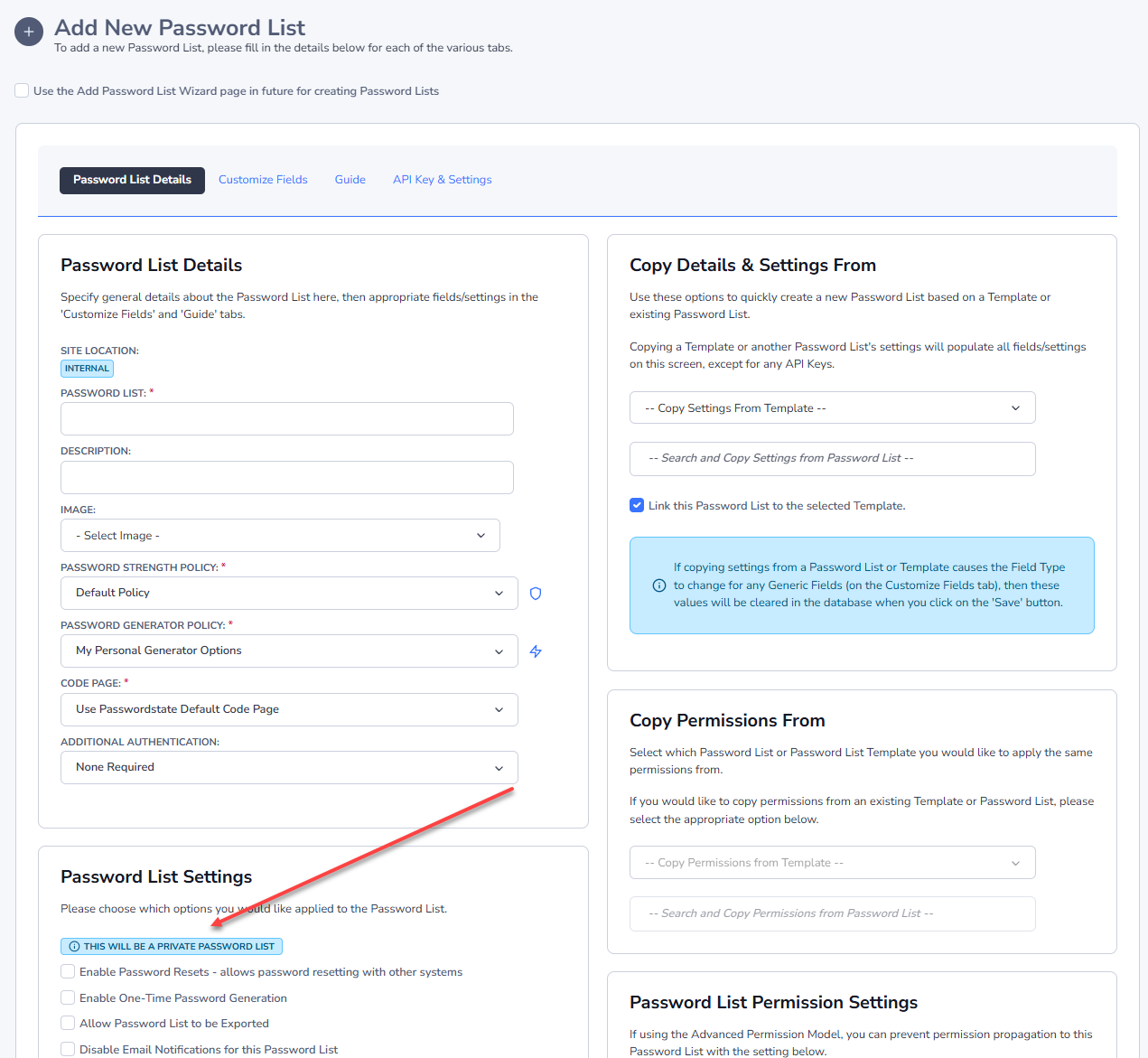
If you would like more granular settings when creating your Password List, then you can tick the option to disable future use of the Wizard. When the Wizard is disabled, then all the settings will be available to you, as per the screenshot and detail below.
As the majority of settings and features available when creating a Private Password List are the same as Adding/Editing a Shared Password List, you can view the documentation for each of the tabs here - Password List Details Tab, Customize Fields Tab, Guide Tab & API Key & Settings Tab.
Note 1: Be careful if you choose the 'Use Separate Password' Additional Authentication option for your Private Password Lists. If you forget this Password, Security Administrators of Passwordstate are not able to reset it, meaning you will have lost access to the Password List.
Note 2: When you add a new Private Password List, your account will be granted Admin rights to the Password List, and it will be positioned in the Navigation Tree just below the selected node (Password List or Folder). You can then drag-and-drop the Password List to any position in the Navigation Tree that you like.
Note 3: The Site Location for Password Lists will always be 'Internal' if created in the root of Passwords Home, otherwise if nested beneath a Folder, it will use the same Site Location the Folder is set at.
Add Shared Password List
Shared Password Lists are used to share Passwords with teams of people, and allows various types of permissions to be applied - View, Modify or Administrator.
Once a Shared Password List is created, you can then start adding passwords to it, and then sharing those passwords with other team members.
When creating the Private List, you will by default be presented with the following Add Password List Wizard, where you can specify basic details about your Password List, based on settings from one of the available Password List Templates.
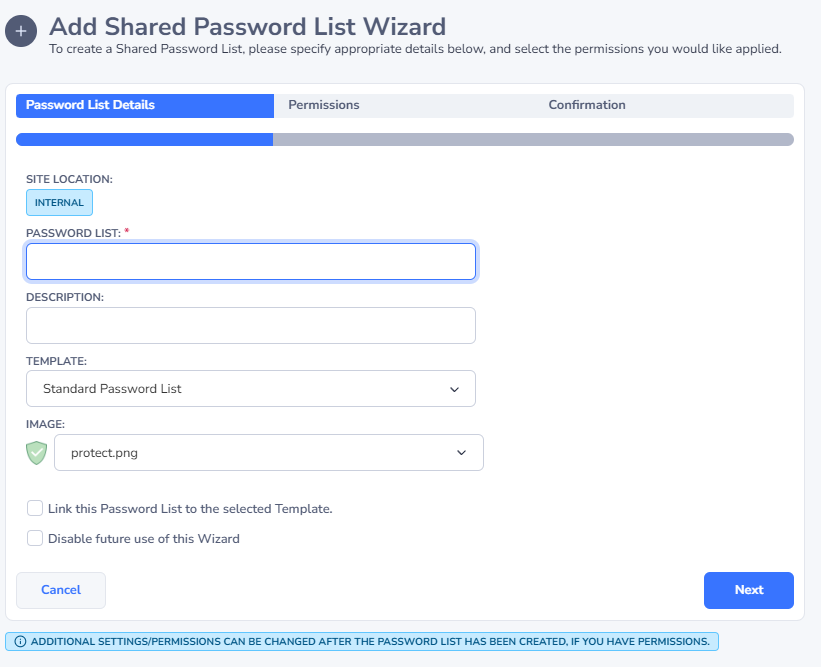
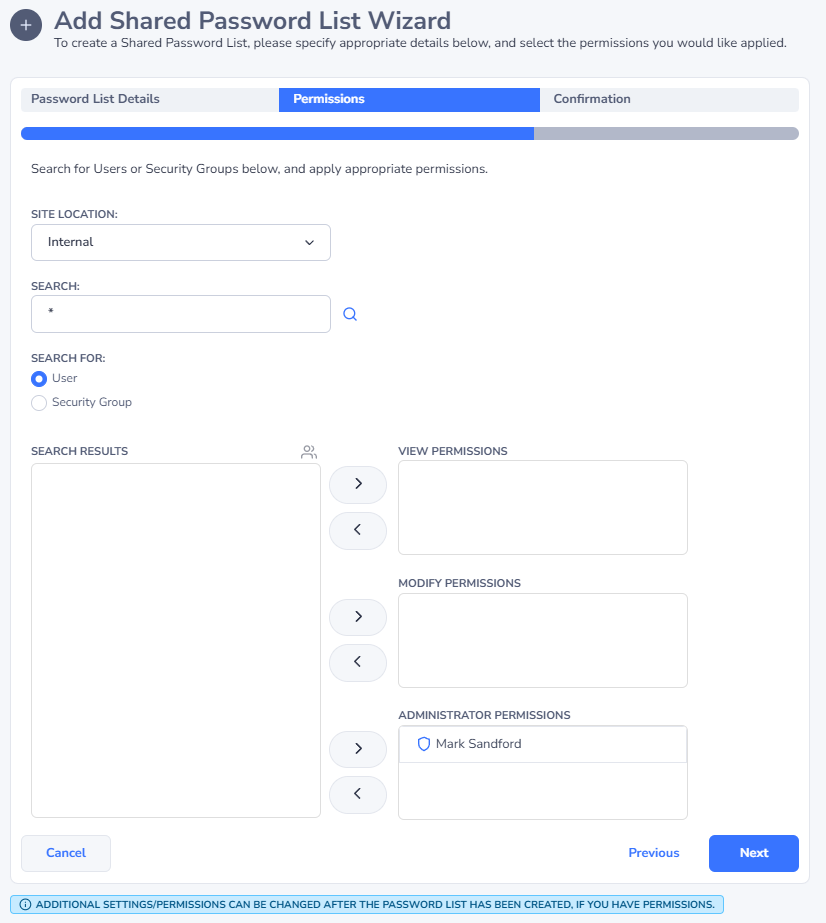
If you would like more granular settings when creating your Password List, then you can tick the option to disable future use of the Wizard, or your Passwordstate Security Administrators can also control this on the screen Administration -> Feature Access -> Password List Options tab.
When the Wizard is disabled, then all the settings will be available to you, as per the screenshot and detail below.
As the settings and features available when creating a Shared Password List are the same as Editing a Shared Password List, you can view the documentation for each of the tabs here -Password List Details Tab, Customize Fields Tab, Guide Tab & API Key & Settings Tab..
Note 1: When you add a new Shared Password List, by default your account will be granted Admin rights to the Password List (Security Administrators of Passwordstate can change this setting though), and it will be positioned in the Navigation Tree just below the selected node (Password List or Folder). You can then drag-and-drop the Password List to any position in the Navigation Tree that you like.
Note 2: The Site Location for Password Lists will always be 'Internal' if created in the root of Passwords Home, otherwise if nested beneath a Folder, it will use the same Site Location the Folder is set at.