
Hosts
Within the Hosts Menu, there are two primary functions which can be used:
Adding Hosts records into the system so that accounts on them can be managed (account discoveries, password resets and account heartbeats)
Use the Remote Session Launcher utility. With the Remote Session Launcher utility, there are two different types available:
Browser Based Remote Session Launcher
Runs from within your Browser - can be used on all Operating Systems
RDP & SSH Sessions
All sessions are initiated (proxied) from the Passwordstate web server
Session Recording and Playback
Client Based Remote Session Launcher
Requires Client Install - Windows Operating Systems only
RDP, SSH, Telnet, VNC, SQL and Teamviewer Sessions
All sessions are initiated from the user's PC
No Session Recording
Note 1: By default, all users have access to all features under this Hosts tab. It is recommended a Security Administrator of Passwordstate visit the page Administration -> Passwordstate Administration -> Feature Access -> Hosts tab and Remote Sessions tab, and review each of the varying levels of access, and modify permissions as appropriate.
Note 2: Microsoft have removed the ability to pass a SQL Server account password value to SQL Server Management Studio via the command line, in Management Studio 2018. Authenticating with Active Directory accounts works with Management Studio 2018, but if you wish to use SQL Accounts you will instead need to use Management Studio 2017.
Hosts Home Screen
When you click on the Hosts Home icon, you will be presented with a screen where you can see some statistics regarding the number of Host records which have been added to Passwordstate, as well as any Remote Session Credentials your account has access to.
From this screen you can:
Click on View All Host Records to see all Host records, and manage them
Add or import Host records manually
Manage Remote Session Credentials which can be used with the Remote Session Launcher Utility.
View All Host Records
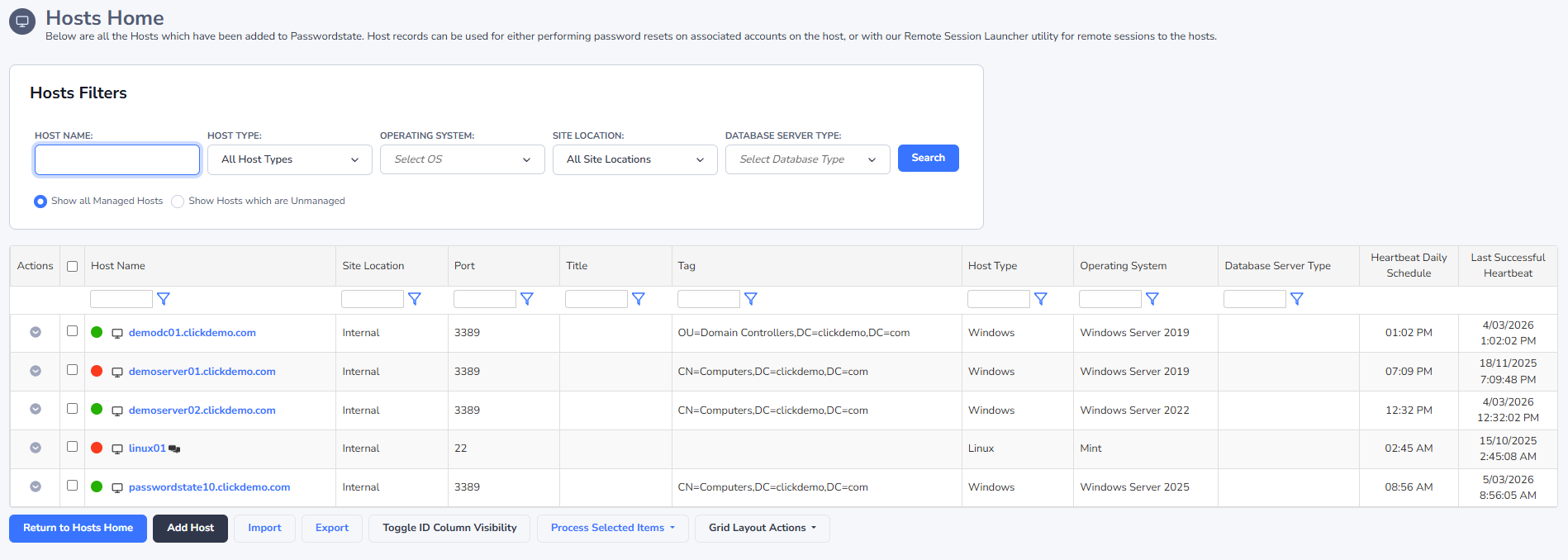
On the View All Host Records screen, you can Add/Import/Edit hosts into Passwordstate, so they can be used to perform Password Resets for accounts on the Hosts, or so they can be used for the Remote Session Launcher feature.
On this screen there are various features available to you, in particular:
Adding Hosts manually
Importing Hosts via a CSV file
Exporting Hosts to a CSV file
Setting a Host to 'Unmanaged' status - setting a Host to unmanaged means no Password Resets occur for accounts on the Host.
Send a Heartbeat request to the Host to see if it is available on the network. You can also set the time frame in which regular scheduled Heartbeats occur for different operating systems, on the screen Administration -> Host Types & Operating Systems
Deleting a Host
Note: It is also possible to import Hosts via the Passwordstate API, or use a Host Discovery Jobs to import them from Active Directory.
Adding New Hosts Manually
When adding in new Hosts there are a few things to consider:
Specifying the FQDN for the host name results in improved performance when resetting passwords, and launching Remote Sessions. It also offers greater flexibility for non-trusted Active Directory Domains, as you can apply Password Reset Scripts, Password Validation Scripts, or Remote Session Credentials, based on the domain name the host is joined to.
The Tag field can be any value you like, and is included in the search results when searching for the 'Host Name'. If using a Discovery Job for searching Hosts in Active Directory, there's an option to include the Host's OU in the Tag field.
If the Host is a MS SQL, MySQL Server or Oracle Server, you can specify Instance details and port numbers if needed, so Passwordstate can connect to it to execute Password Reset Scripts.
If using the Remote Session Launcher utility, you can specify various properties for launching remote sessions i.e. Connection Type, Port Number, and possibly any other Remote Session Parameters needed for the Remote Session client program you're using.
Note: As Telnet traffic is unencrypted, it is recommended you avoid using Telnet for connectivity if possible.
Remote Session Management
For full instructions of how to install/configure and use either of the two Remote Session Launchers available in Passwordstate, please refer to the 'Remote Session Management' menu under the Help Menu in Passwordstate, or download the Remote Session Management Manual