Session Recording
One of the features that you can use with the Browser Based Launcher is Session Recording. This will record the screen so an appropriate person in your company can later play it back to review what work a particular person has performed whilst in a remote session.
An example of when you might want to use this is if you have a contractor coming on site to perform some work for you, you can advise them ahead of time that their work will be recorded. This can be handy if you need to get video footage of their work for documentation purposes, or maybe even if you need to have evidence of what work was actually performed.
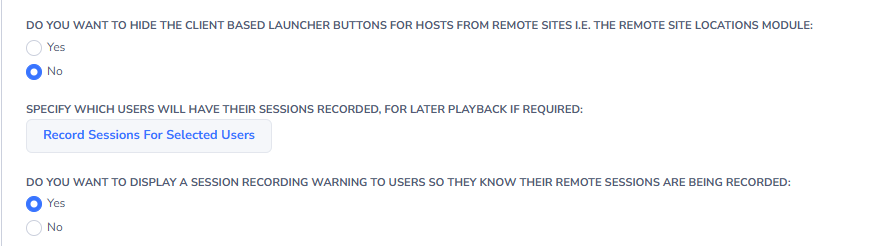
You can control who has their sessions recorded under Administration -> Feature Access -> Remote Sessions by configuring this setting below (By default no one has their sessions recorded)
You can also choose whether to display a warning that the session will be recorded by enabling this option on the same page:
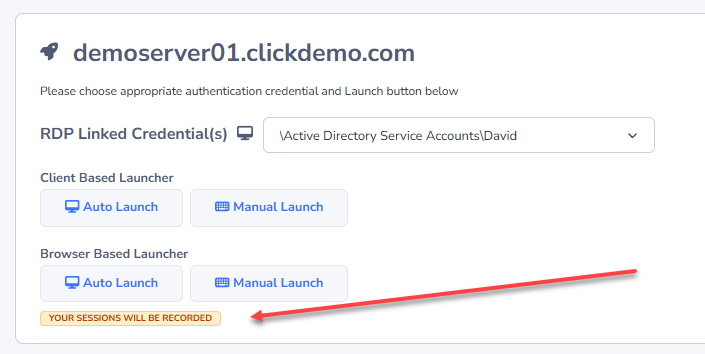
If you turn on the warning for the user, they will see this message before they attempt to connect:
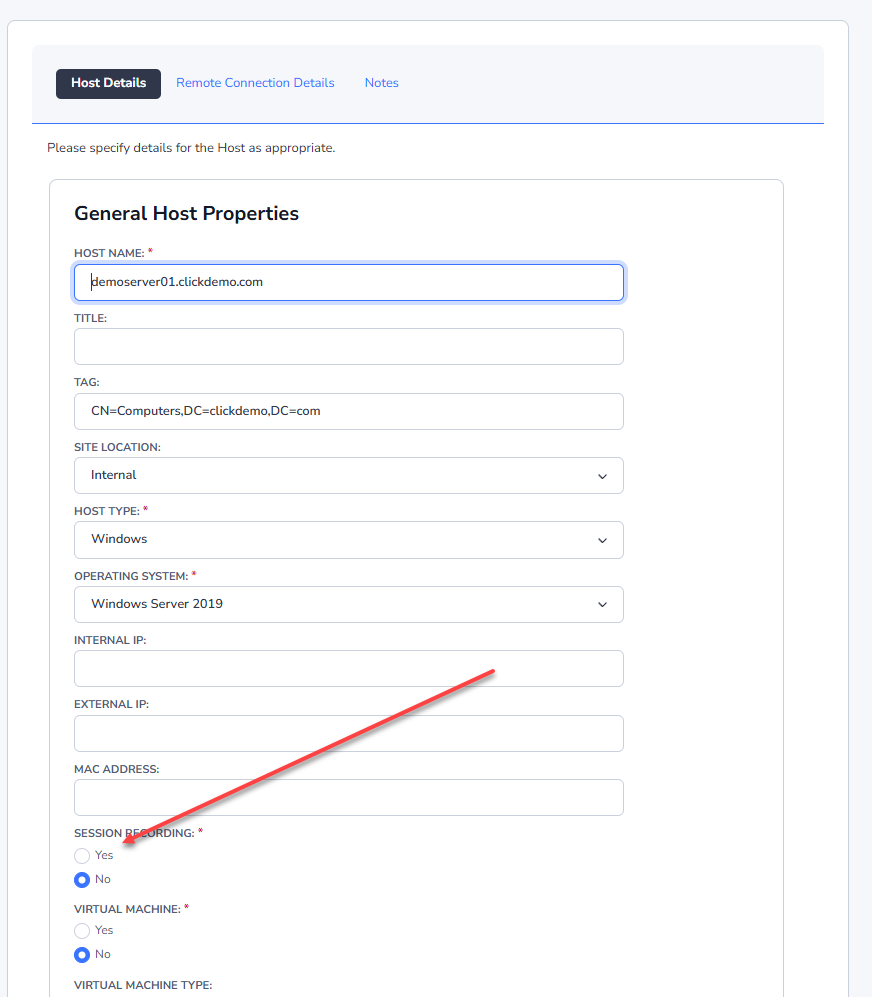
If you would prefer to record all sessions for a specific Host, rather than per user, you can set this option on the Host when editing it:
Session Recording Settings
Session recordings can be saved in one of three locations:
- The default path is c:\inetpub\passwordstate\hosts\gateway\rec (your path may be different if you’ve installed Passwordstate into a different folder, or deployed the Gateway separately)
- Or you can save to a different folder or disk on your Passwordstate web server
- Or you can save to a network share.
Note: If you are using the High Availability module for Passwordstate, it is recommended you save recorded sessions to a Network Share, so both instances of Passwordstate have access to replay the session recordings.
When changing the path to where you wish to save session recordings, this needs to be done in two locations:
- On the screen Administration -> Remote Session Management -> Configure Remote Session Gateway
- In the file C:\inetpub\Passwordstate\hosts\gateway\gateway.conf
The different formats that can be used are:
- rec -> to save recordings in the default folder of 'c:\inetpub\passwordstate\hosts\gateway\rec'
<drivename>:\\<foldername>-> to save recordings to a different disk on your Passwordstate web server//<servername>/<sharename>-> to save recordings to a network share
Example of changing the path in the User Interface:
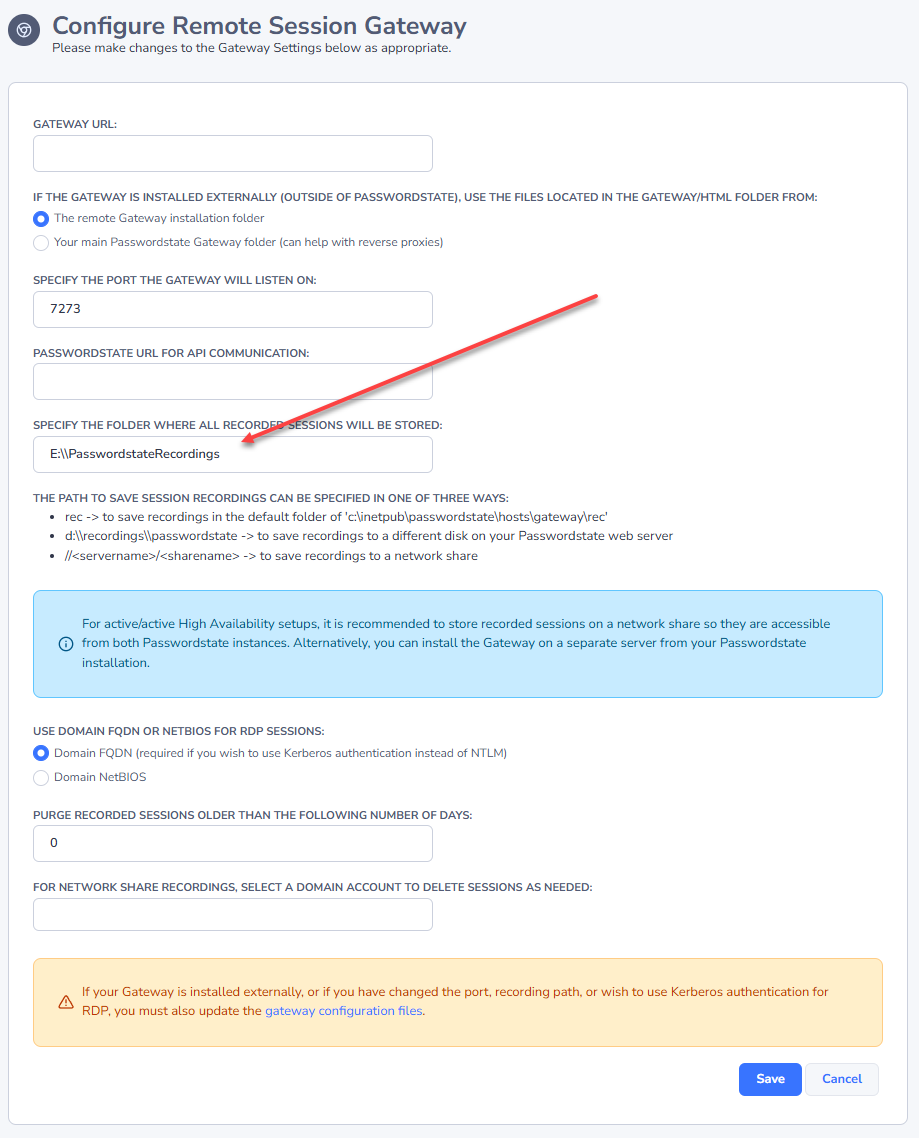
Example of the changing the path in the gateway.conf file:
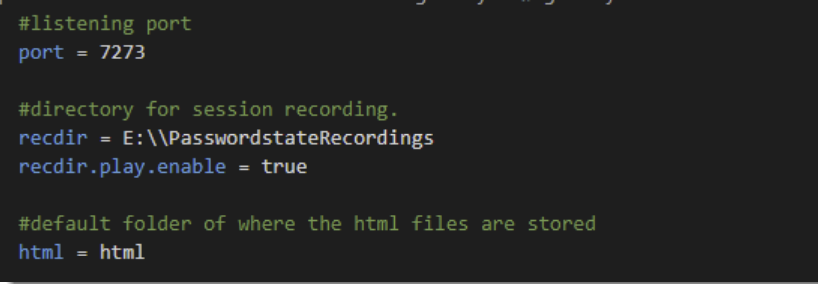
Note 1: the rec dir setting is used to tell the gateway where to save the Session Recordings.
Note 2: When changing this setting, you need to restart the Passwordstate-Gateway Windows Service to pick up the change.
Session Recording Permissions
When storing session recordings using the default rec value, the NTFS permissions are already correct.
If, however, you specify a different location such as static folder on a different disk, then you need to ensure at least Authenticated Users have modify access to the folder.
When using a Network Share, you must modify the ‘Log On’ rights for the Passwordstate-Gateway Windows Service, with an account that has read/write to the share – screenshot below for this.
If you want Passwordstate to delete session recordings from the network share, please set an account on the Configure Remote Session Gateway page that also has permissions to delete from the network share.
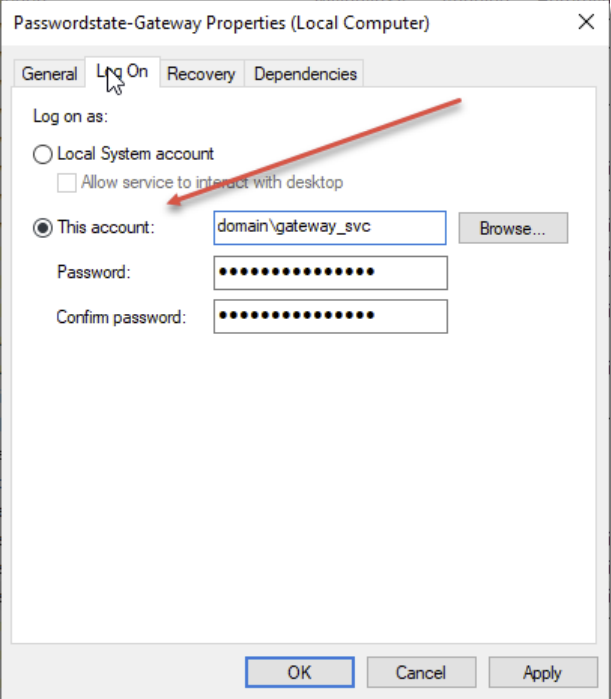
Note: Session Recordings will not be included in the standard Passwordstate backup functionality, due to the potential size of the files. If you have left the recording folder in the default path, then you need to organize your own backups of these files if required.
To play back the recorded session, navigate to Administration -> Remote Session management -> Recorded Sessions and from this page you can watch the video within your browser by clicking on the Media button, or you can delete the session from the Actions Menu:

Session Recording File Size
By default, all users have performance enhancing options turned on under their own Personal Preferences. These options not only ensure the remote sessions perform well, but it also reduces the size of the session recording files on disk.
Below is a screenshot of these performance settings under every user's preferences page:
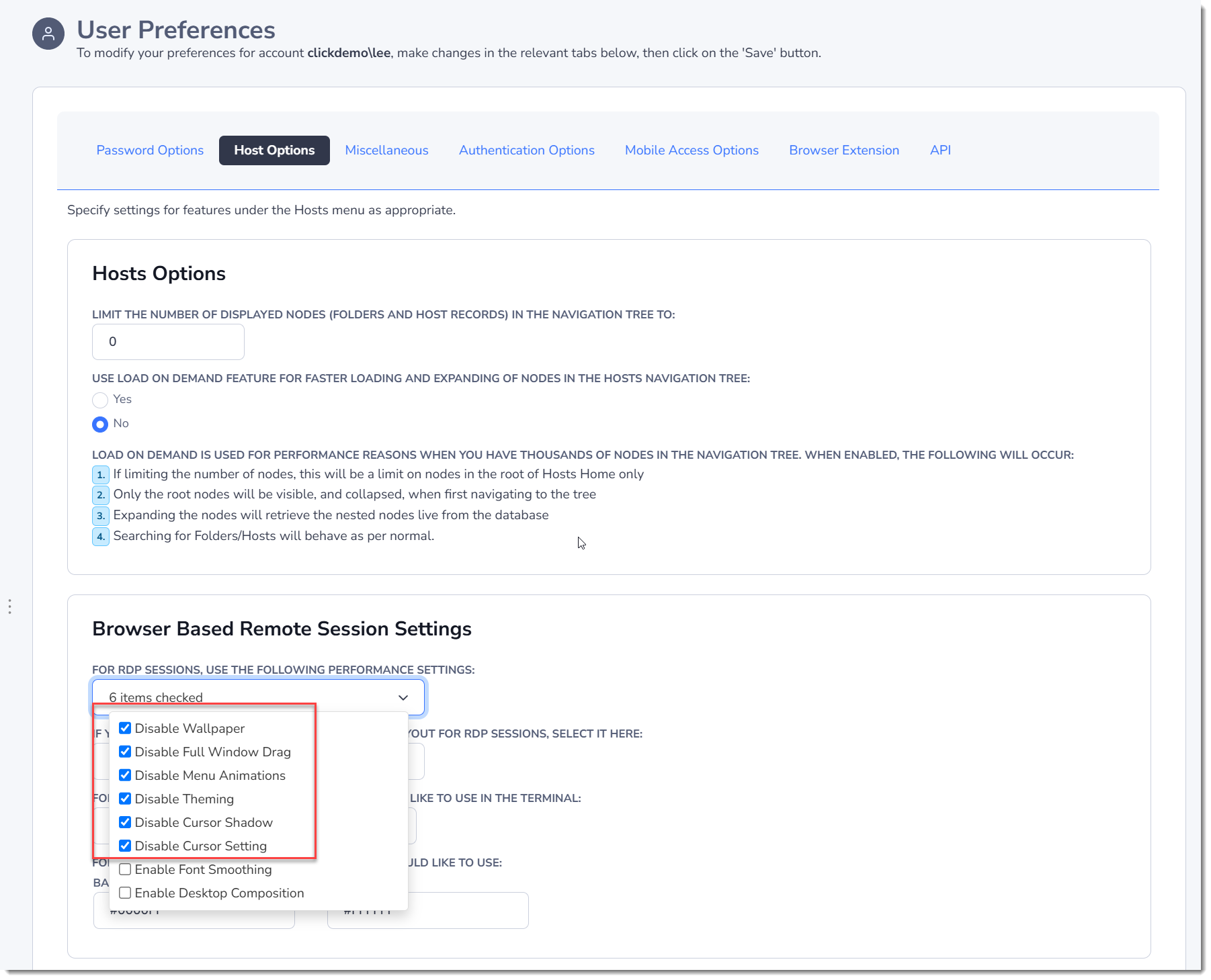
With the default settings, a fully active session where a user is working within the remote machine constantly, the recoding file is approximately 750KB per 1 minute of recording. This type of activity would be browsing the file system, deleting files etc.
If you turn off the performance enhancing option, the file size doubles to 1.5MB.
If the user is doing something graphically intensive within the remote session, such as dragging a window around the desktop constantly, or watching Youtube video for example, then this will significantly increase the size of the file to approximately 15MB per minute. This equates to 900mb per hour, or if the session was open for the whole day of 8 hours, then the size of this one file would be approximately 7GB.
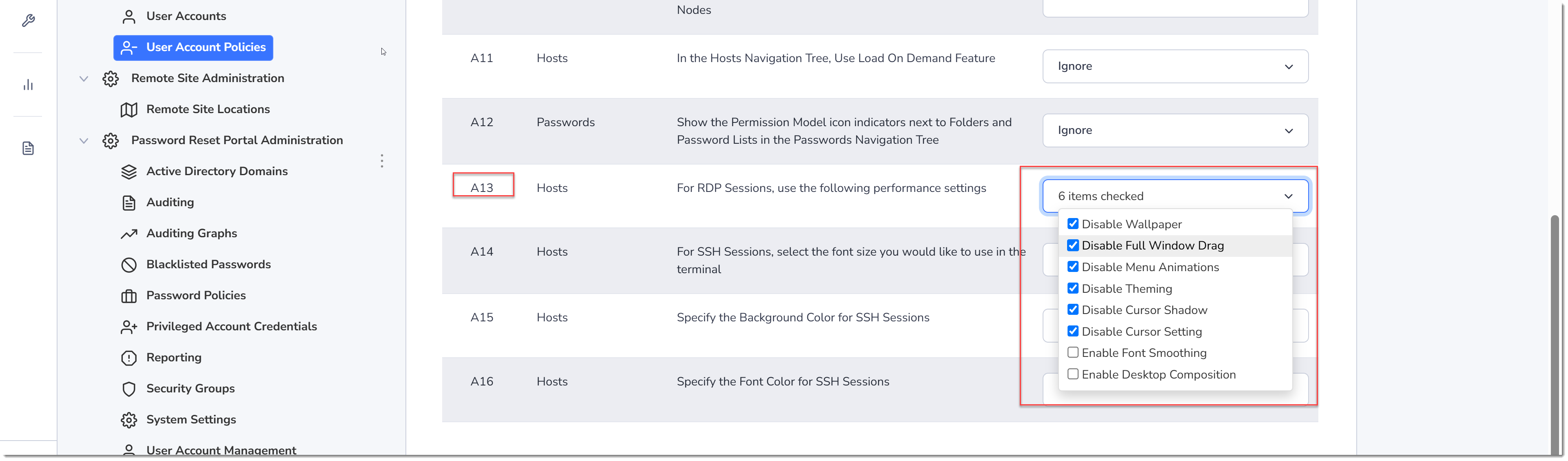
For this reason, we'd recommend not disabling the performance settings, and if needed, you can set up a User Account Policy and lock these settings down, so the end user cannot change them.
Information about User Account Policies can be found here: User Account Policies
Below is a screenshot of the setting in the User Account Policy that can be configured to lock these settings down: