TeamViewer Connections
If you use TeamViewer to do Remote Sessions over the internet, it’s possible to launch these sessions automatically using our Remote Session Launcher. You must have TeamViewer installed on the computer you are accessing Passwordstate from, and source files for this software can be found here: https://www.teamviewer.com/en/.
You’ll also need to ensure the remote machine you are connecting into has Teamviewer installed and set up for unattended access. This ensures you have a static password configured for the remote TeamViewer machine.
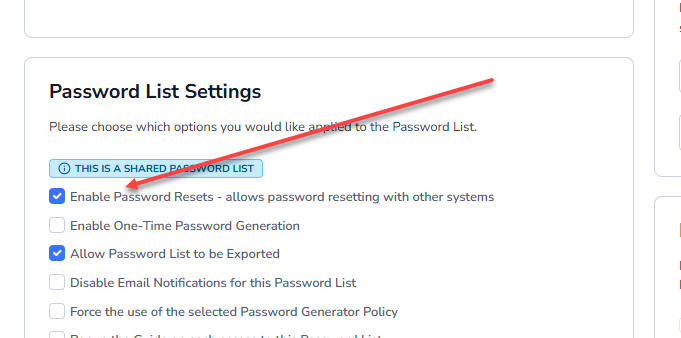
Next, ensure you have a Password List created for your TeamViewer Credentials, with the “Enable Password Resets” option enabled:
Next, we’ll add in a Password Record with the following configuration:
Deselect the ‘Managed Account’ options, select the ‘Teamviewer’ Account Type, lookup the appropriate Host, and specify the TeamViewer ID as the Username field – like in the screenshot below.
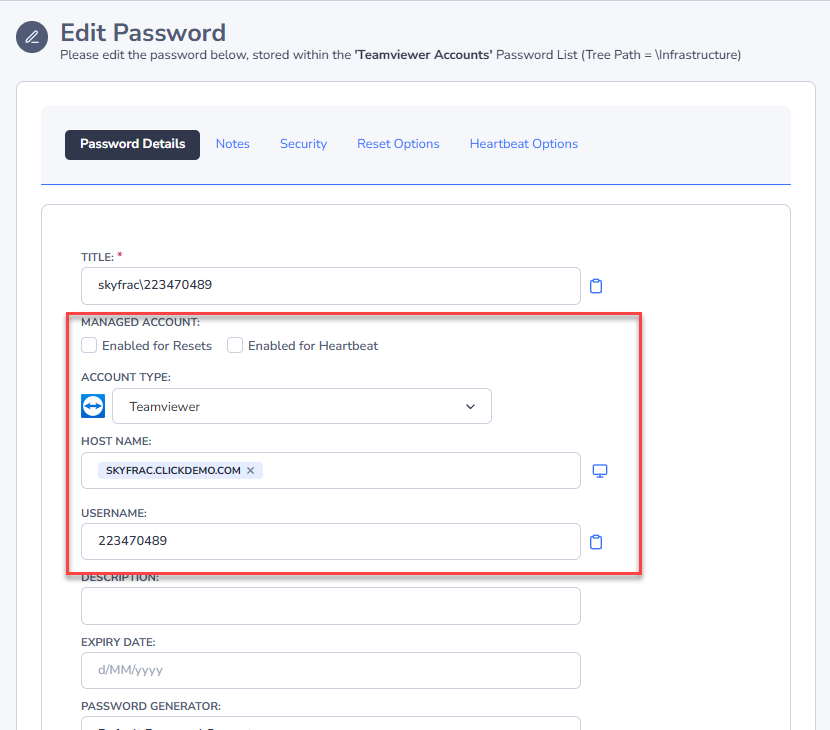
Note: The reason we need to configure the Password List and Password record in this manner, as we need the Remote Session Credentials to be able to find a match against the Host Name and UserName field in the password record itself. This is the only way currently to guarantee this sort of accuracy with the match.
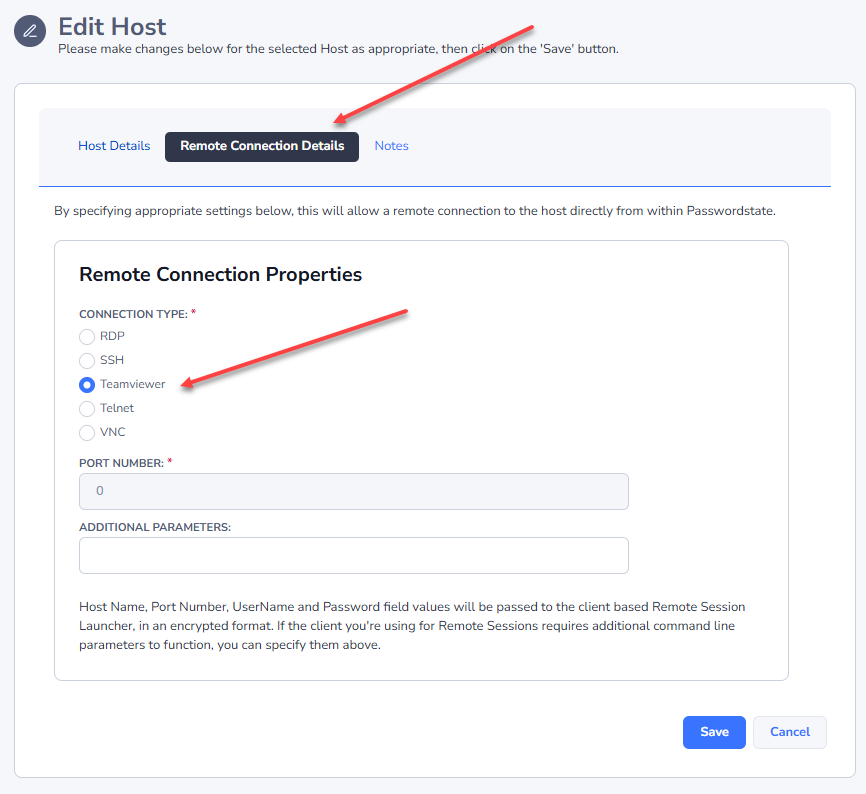
The Host you are connecting to must have the TeamViewer option selected:
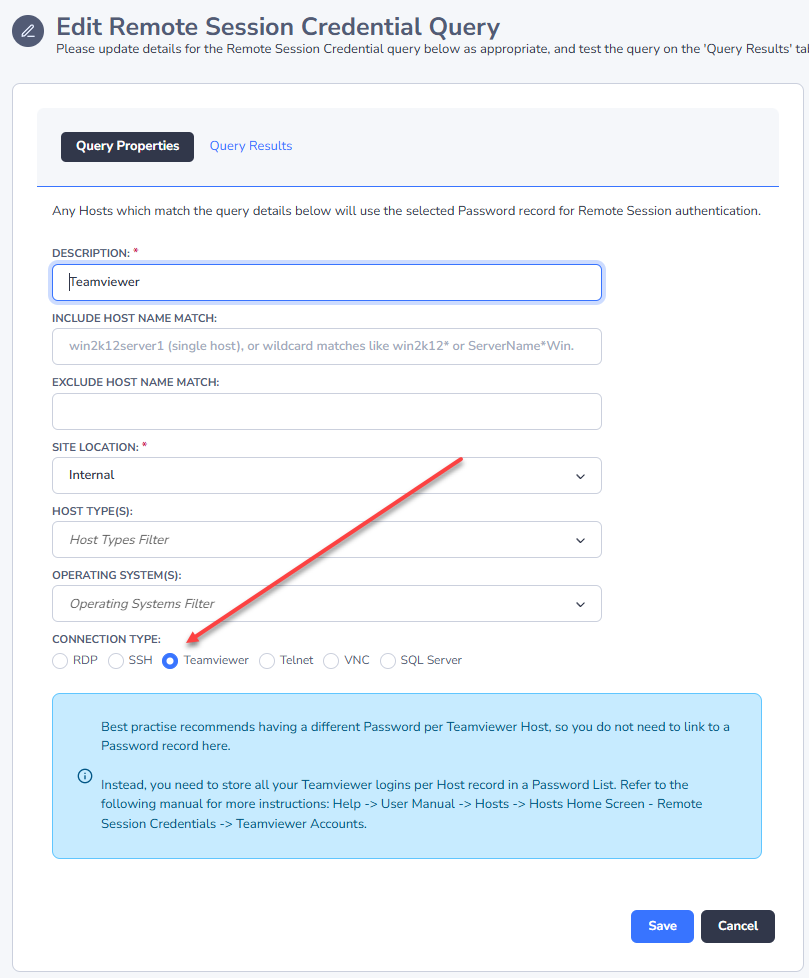
Now you’ll need to set up a Remote Session Credential, from under the Hosts tab -> Hosts Home screen. When creating this Remote Session Credential, you only need to select the “TeamViewer” Connection Type, and are not required to link it to any Password Record
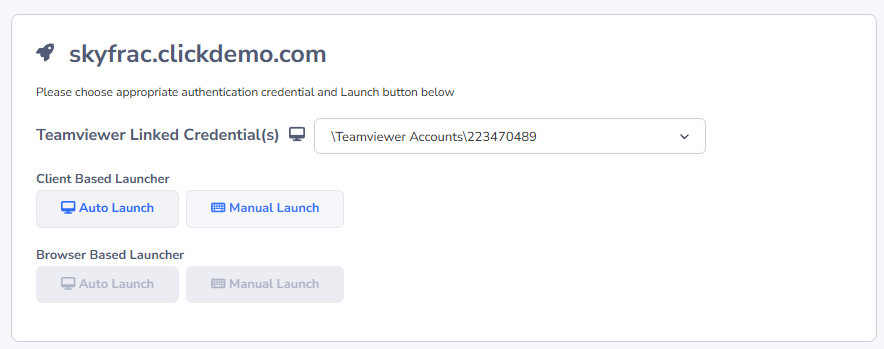
Now if you click on your Host to launch a session, you should notice a new Teamviewer button that you can use to launch the session: