
SSH With Private Public Key
It is possible to perform SSH connections using Public/Private Key Authentication. The Client Based Launcher works with both Putty and OpenSSH keys, whereas the Browser Based Launcher only works with OpenSSH keys.
To do this, you must configure a Generic Field on a Password List and call it 'Private Key', and then you can store your private key in this field. When you have a field configured in this manner, then the authentication for the Remote Session Launchers will use this as precedence over the standard password for the user.
If you use the same private key to authenticate against multiple Linux hosts, then you should use a Remote Session Credential for this.
If you have separate private keys for different hosts, then you can authenticate directly from a password record that has the SSH keys configured. You can also use the Manual Launch option when clicking on a Host under the Hosts tab, and search for your Password record there that has the SSH key set. If you choose this option, your Password List where you are storing your credentials to login with must be enabled for resets, and you need to have the Host configured on this password record too. More information about this below
Password List Requirements for using SSH Keys
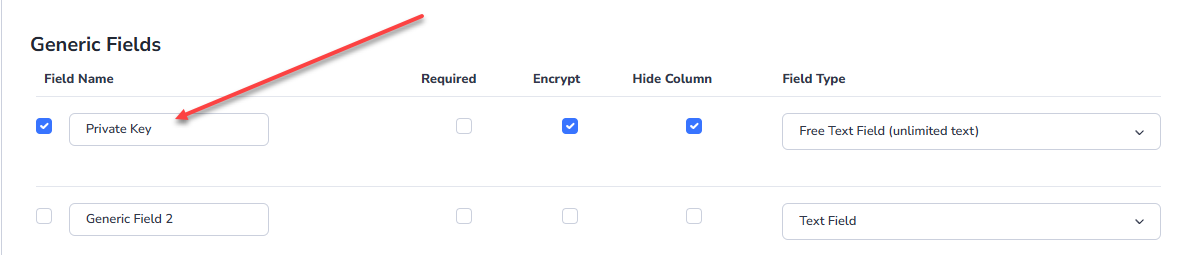
In order to create Password Records that you can set your SSH keys with, you must first ensure your Password List has Generic Field configured. This field must be called “Private Key” and it must be Generic Field #1. You should also select this field to be encrypted and the Field Type is Free Text Field (unlimited text).
Hiding the field is also recommended, so your User Interface is not cluttered by lengthy text:
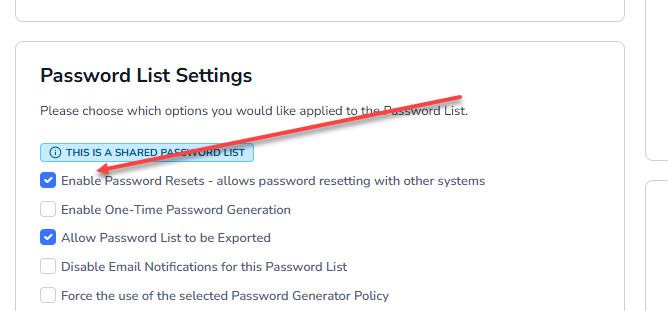
If you have multiple Private Keys for different Hosts, you will need to enable the resets option on the Password List too:
Creating a Password Record
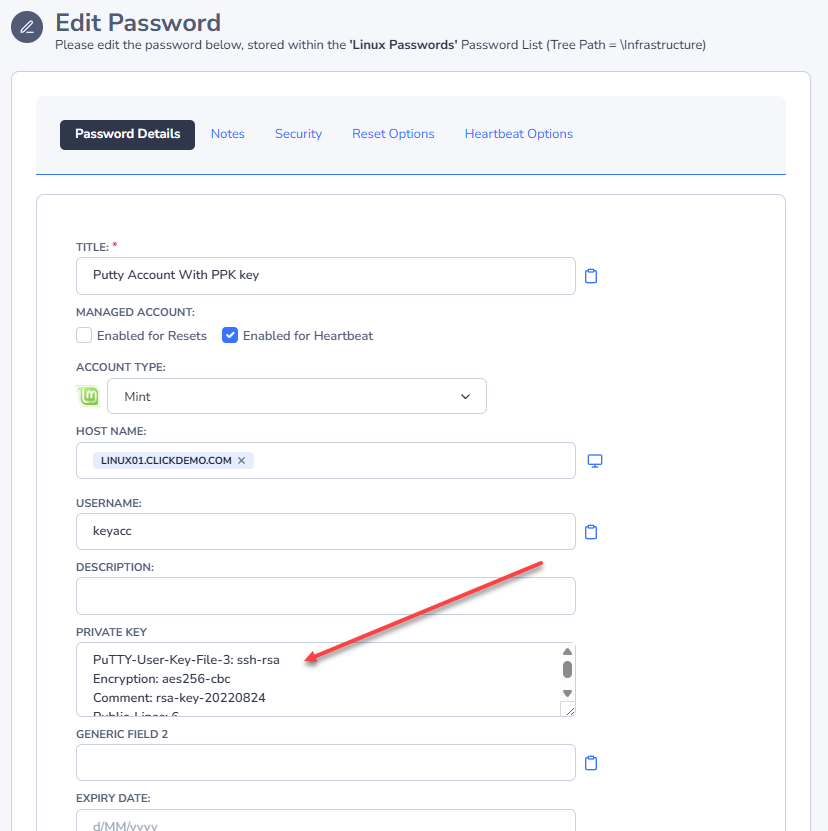
When creating a Password Record, you should deselect the “Managed Account” options. Set the Host name if the SSH Private key is only going to be used for this one machine, otherwise we will create a Remote Session Credential in the next section so the Private Key can be used with multiple Hosts.
The password that you enter on this screen is the Pass Phrase for the Private Key, not the standard user account password:
Creating a Remote Session Credential
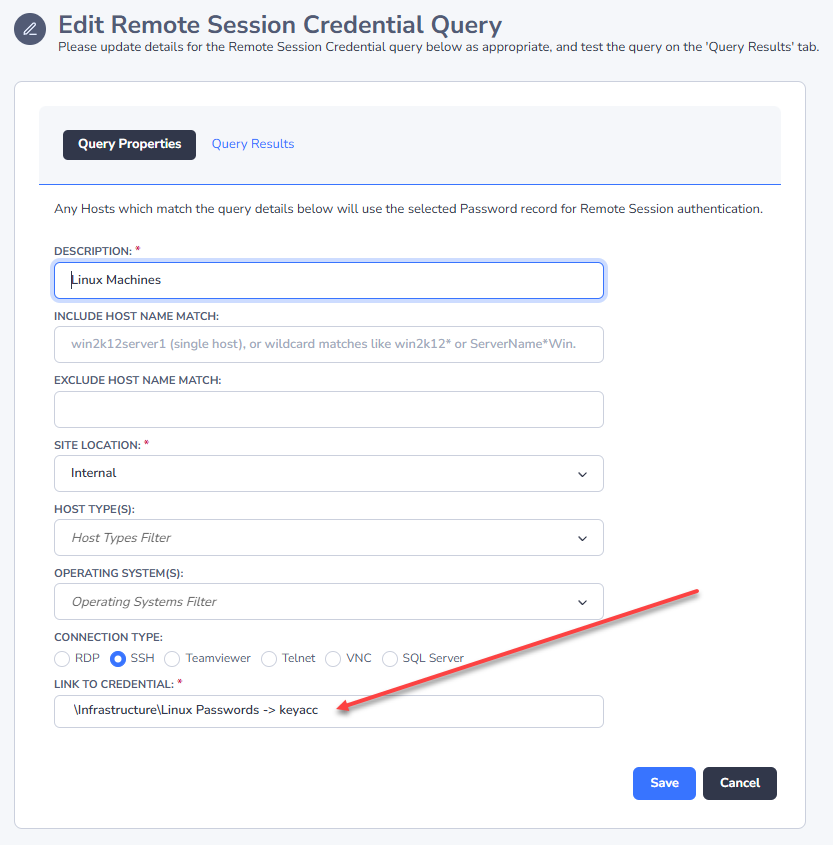
Under Hosts menu -> Hosts Home, click the Add Credentials button under the Remote Session Credentials section. Give your Remote Session Credential a description, ensure the connection type is SSH and apply any filters you deem appropriate.
Then link this Remote Session Credential to the Password Record we created in the step above:
Now you can launch a session as you would normally, by clicking the Auto Launch button, and if this Remote Session Credential is selected for that session, it will use the Private Key to authenticate.
Convert Putty Private Key to OpenSSH Format
The Browser Based Launcher will not accept Putty key combinations, so you will need to create a set of OpenSSH keys or you can optionally convert your Putty keys using this process below:
- Download PuTTYgen from here - https://www.ssh.com/ssh/putty/windows/puttygen#sec-PuTTYgendownload-and-install
- Open PuttyGen
- Click Load
- Load your private key
- Go to Conversions->Export OpenSSH and export your private key, then save back into your password record