
Install the Client Based Launcher
Installing and configuring the Client Based Launcher is a per machine process.
In Passwordstate, go to Passwordstate Administration home page and click the download button for the Client Based Launcher. A file will download in your browser, and you’ll need to transfer this to the machine you are installing the Remote Session Launcher on.
If you do not have access tot his Administration tab, you'll need to request the file from your Passwordstate Security Administrator.
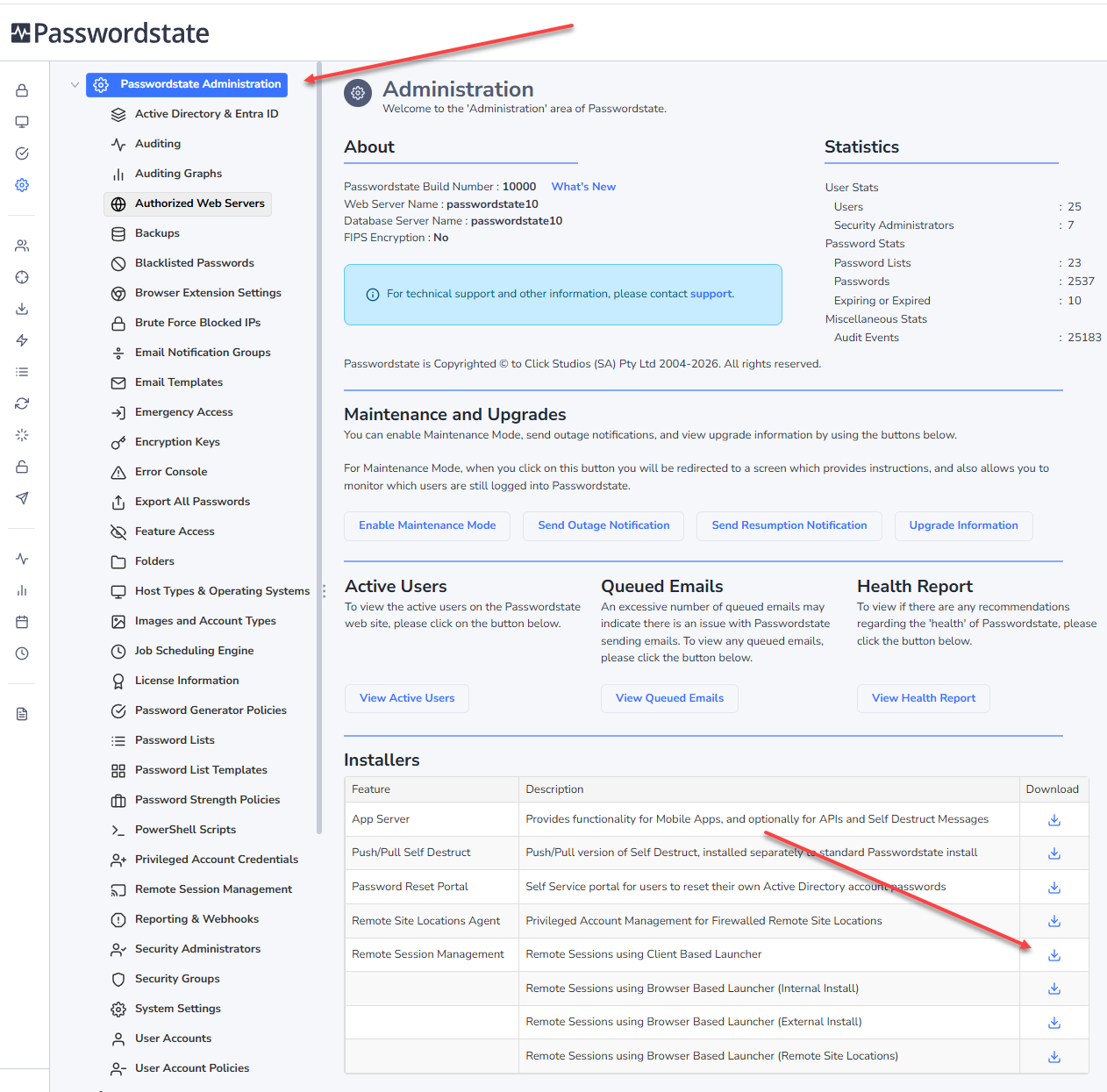
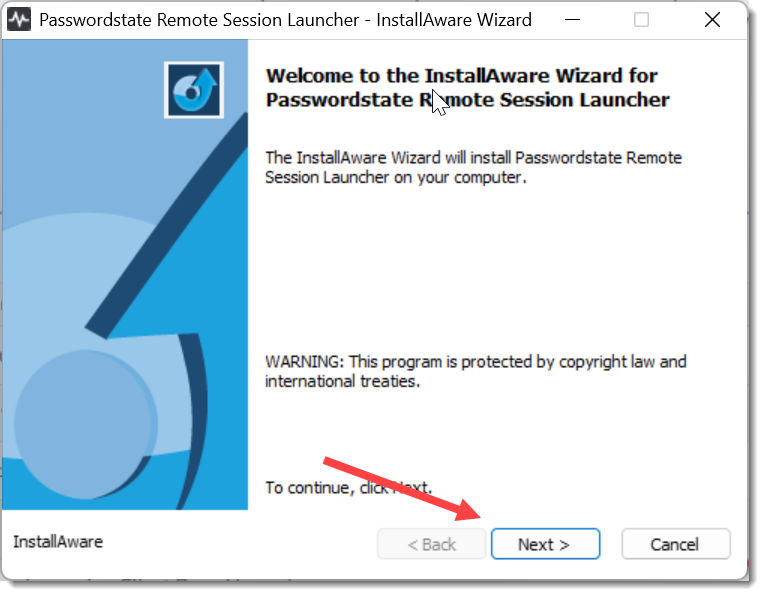
- Right click and run PasswordstateLauncher.exe and select Run as Administrator
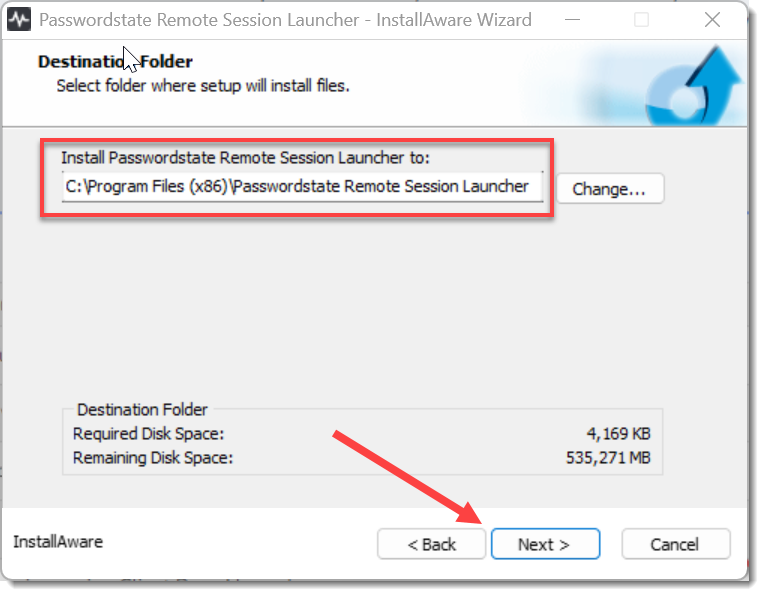
- Change the default install path if desired, and click Next
- Click Next
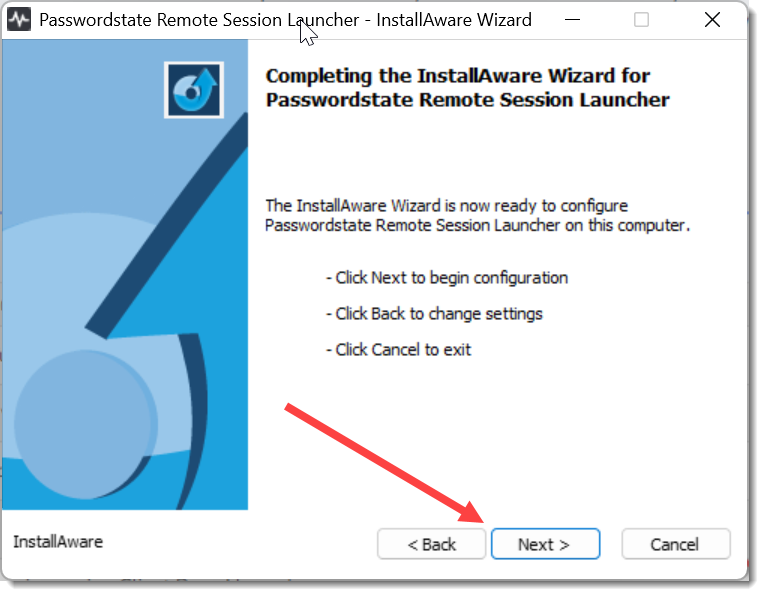
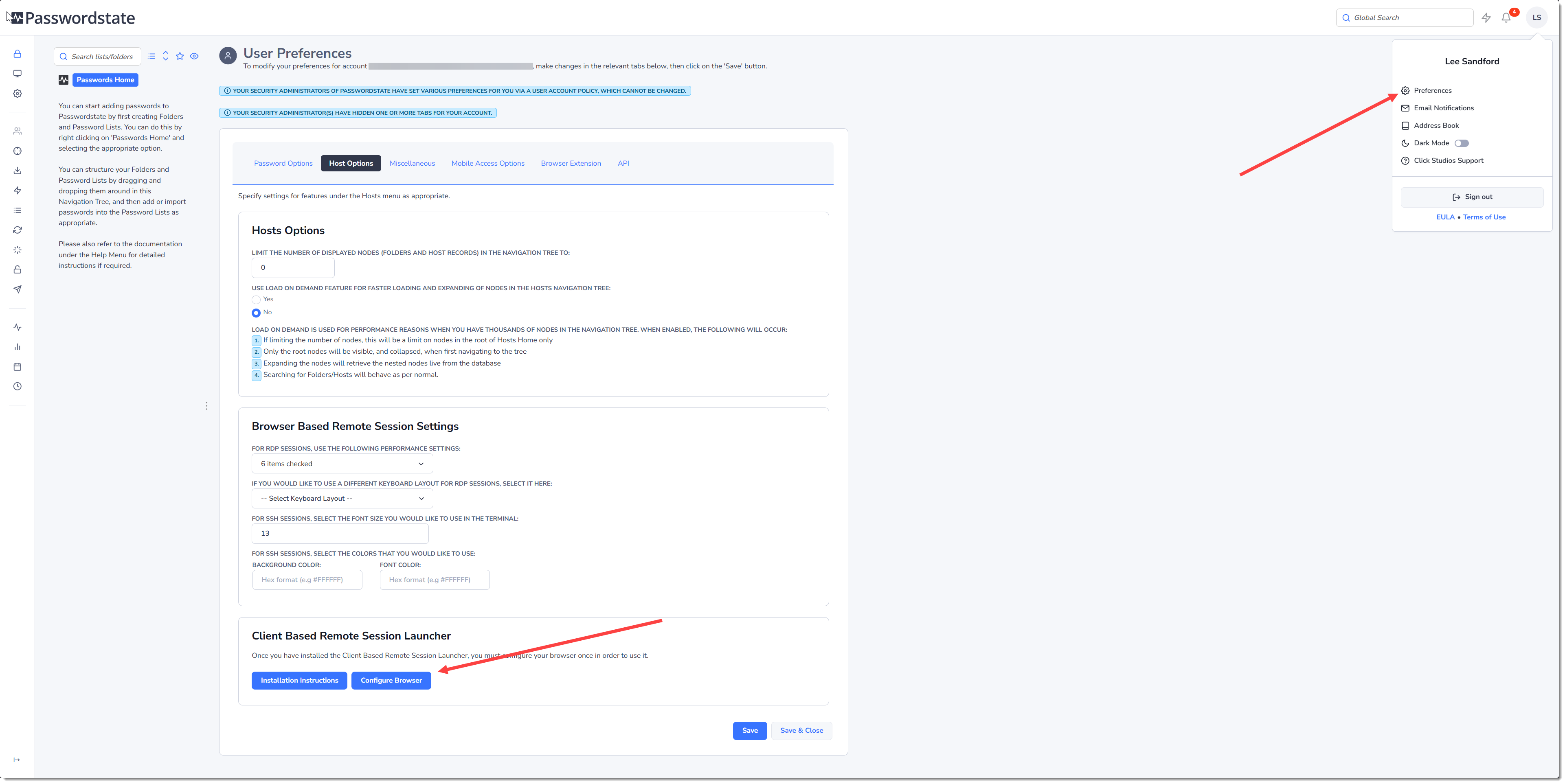
- The installation is now complete, and you'll now need to configure your browser as a once off process to give the browser permissions to install the physically installed app on your machine. Browse to yoru personal prefernces, and click the Configure Browser button:
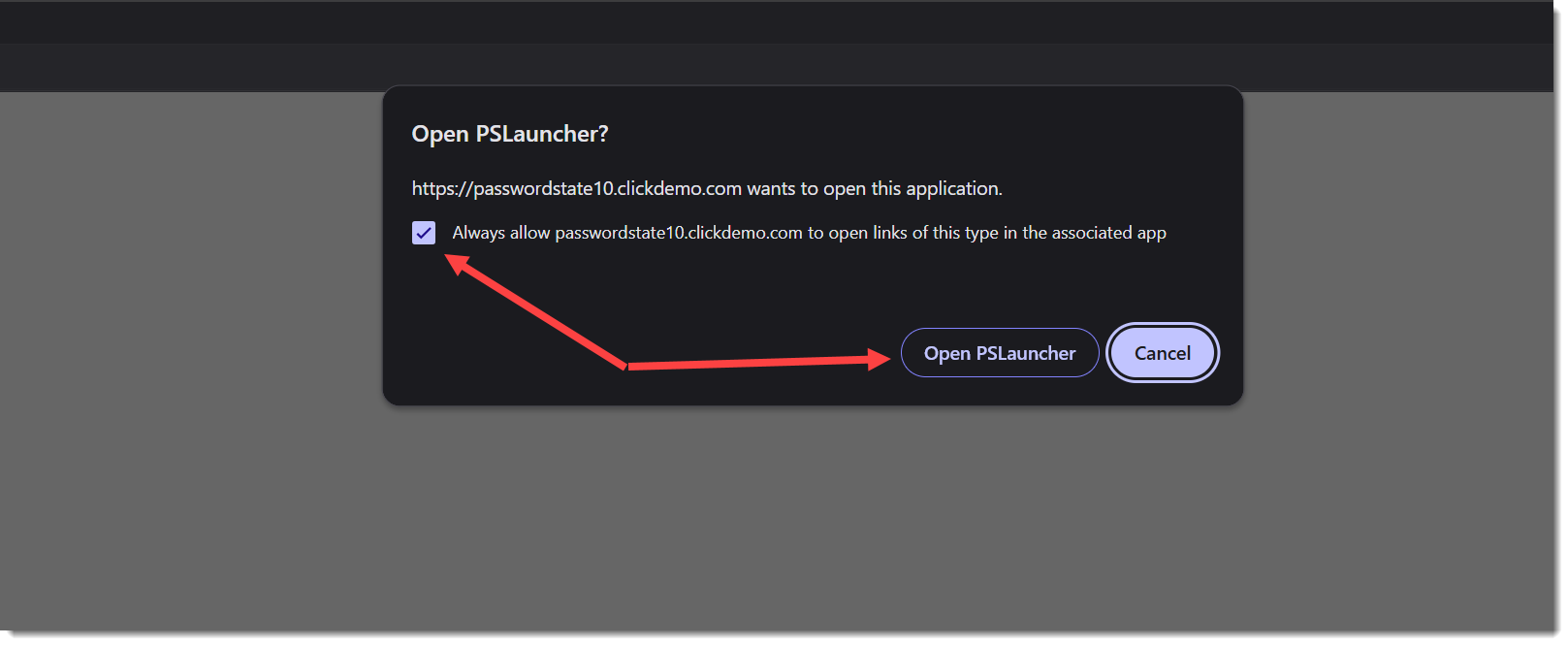
- Now enable the option to Always allow your website to open links of this type, and click the Opan PSLauncher** button:
Note 1: Configuring the Browser is a once off process, which allows the browser to launch the physically installed app on your machine. If you clear your Browser cache, you will need to follow this process again.
Note 2: The Client Base launcher will fail to launch a session if you have popups being blocked in your browser. Please check popups are allowed in your browser if your sessions appear to “Do Nothing” when attempting to connect.
Note 3: If you would like to install the client based launcher using your software deployment tool, you can use the following switch to install it silently without the installer GUI – passwordstatelauncher.exe /s.