Remote Session Credentials
Now that we have the Hosts entered into the system, we need to set up credentials which will be used to connect into the Hosts. Primarily we do this by way of a Remote Session Credential, and we use one Remote Session Credential to connect to multiple Hosts if desired, or we can filter them to only be used to log into specific Hosts.
In the example below, we’ll set up a Remote Session Credential that uses an Active Directory Domain account. This domain account has enough permissions to RDP into any Windows Server on the network.
Configuring a Password Record
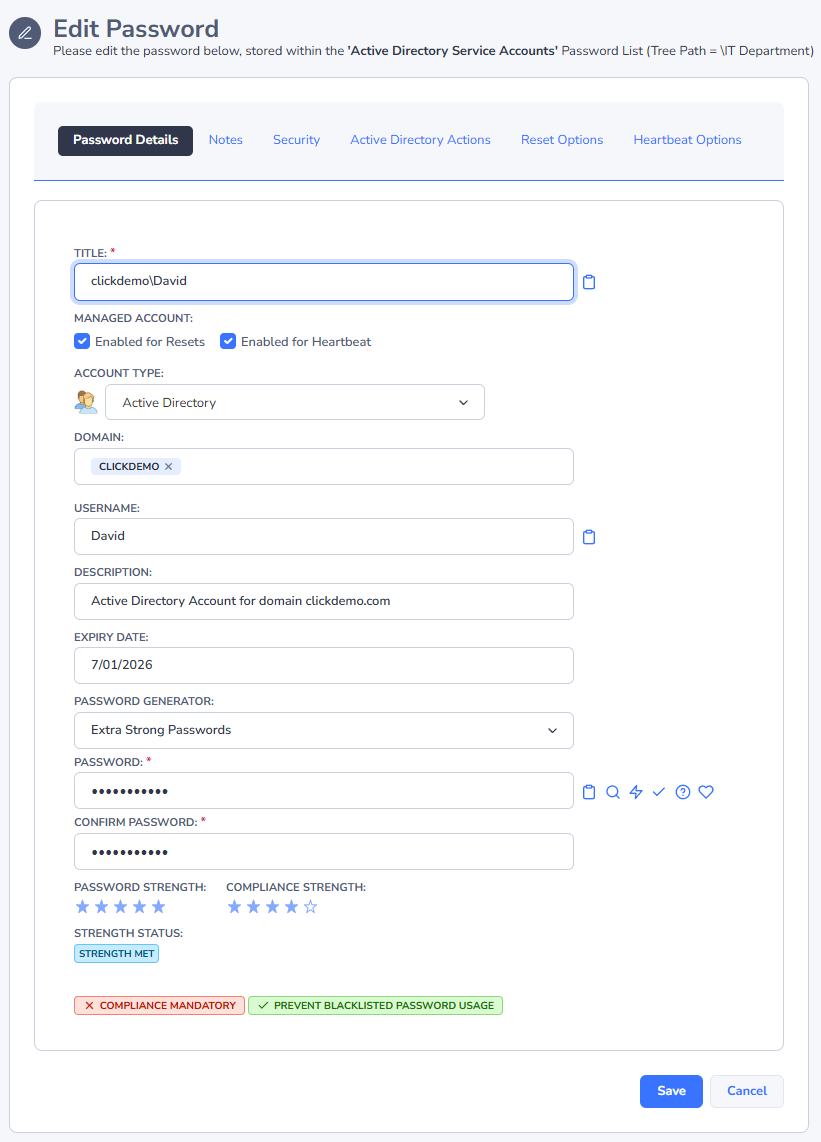
In this example, we will be using an Active Directory account, to perform remote sessions to hosts.
For your password record, choose the account type as Active Directory, and set the Domain, Username and Password for this account. If you want to confirm the password is in sync with Active directory, click the Heartbeat icon.
The record needs to be saved in a Password List that is enabled for resets (However you can un-tick the “Enabled for Resets Option” on the record if you do not want Passwordstate to automatically reset this account’s password on a schedule).
Adding a Remote Session Credential
After creating a Password Record, go to Hosts Menu -> Hosts Home and select Add Credential.
On this screen you should give your credential a Description, choose what type of Connections it can make, and link it to the password record we created in the step above (Hint - Start typing the username in the Link To Credential field):
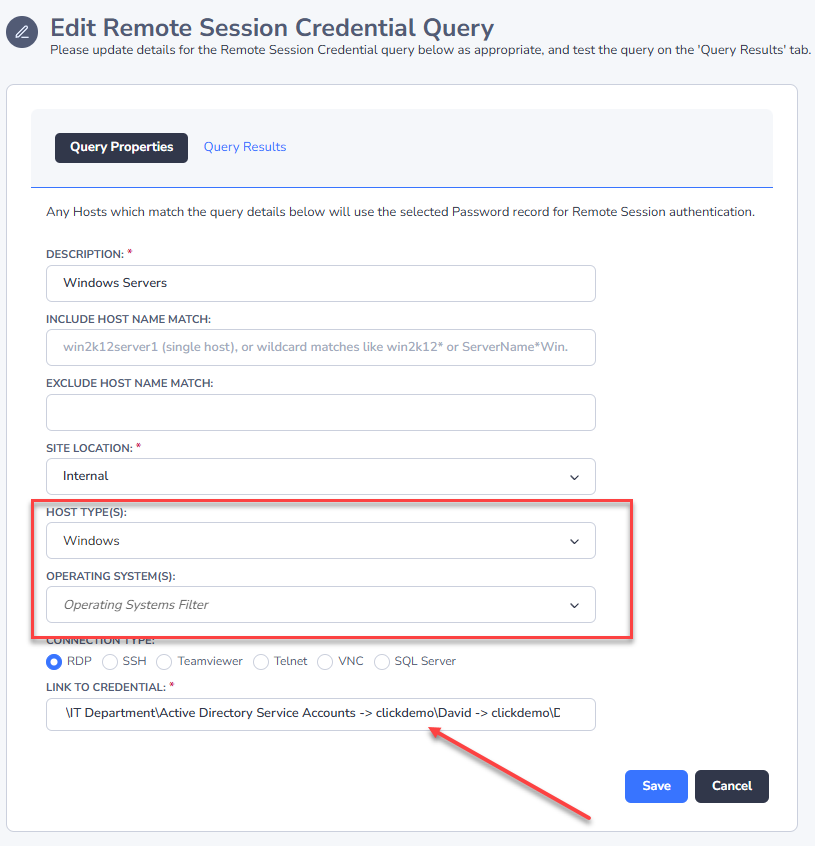
Note: On this page you can filter on which Hosts this Remote Session Credential can connect to with wildcard matches by using the “Include Host Name Match” or the “Exclude Host Name Match” fields.
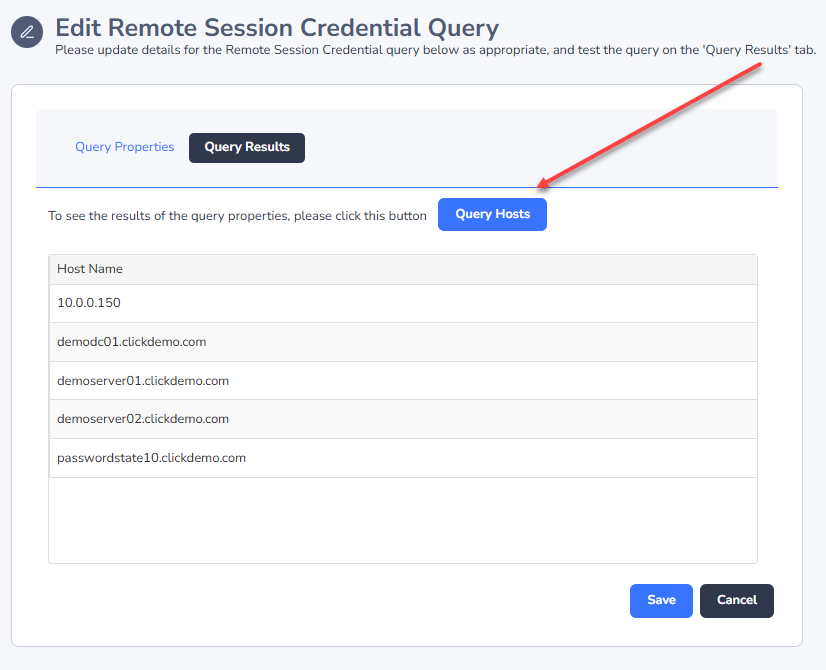
To easily be able see which Hosts this credential can connect into, click the “Query Hosts” tab under the Query Results tab:
Sharing out a Remote Session Credential
If you want to share this Remote Session Credential out, so other team members can also use it to connect into Hosts, you can do so via the Actions menu:
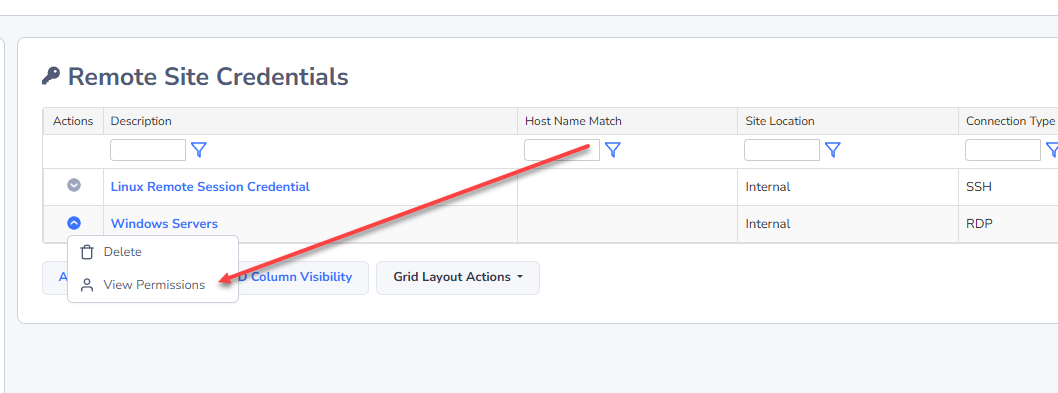
One benefit of sharing out Remote Session Credentials like this, is the user does not need to have access to the password record that it is linked to. This means those users can use this Remote Session Credential to connect to your Hosts, but they will not even know the password they are using to connect in with.
This feature is useful if you have contractors on site with a requirement to remote into different machines. As they do not know the password they are authenticating with, there is no need to reset account passwords when the contractor leaves.
If the contractor attempts to edit the Remote session Credential, the Save button will be disabled for them.
Time-Based Access to Remote Session Credentials
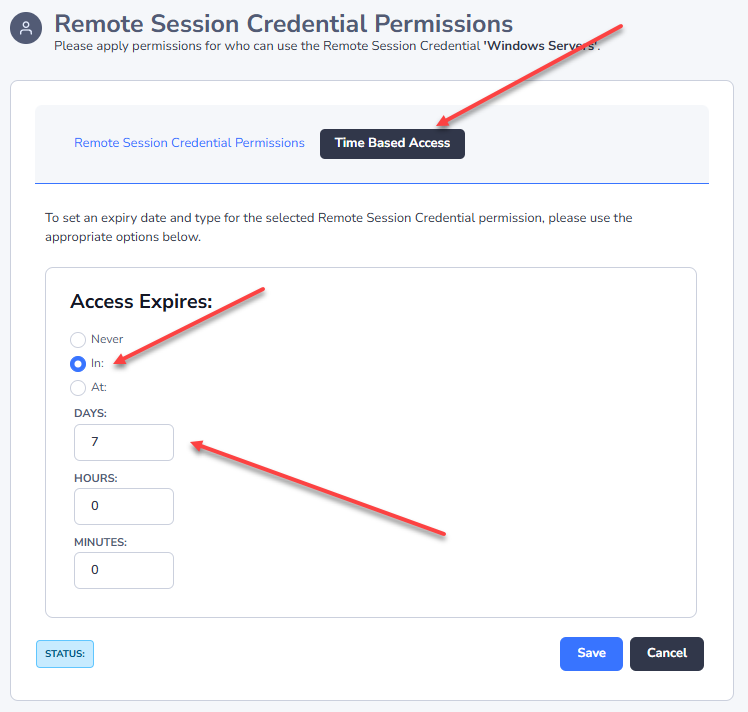
When applying permissions via the Actions Menu, you are also able to set an expiry date so access will be automatically removed when your contactor leaves: