File Transfer with Browser Based Launcher
The Browser Based Launcher has the ability to transfer files from your local desktop to the remote machine, or vice versa. This can make data transfer easy instead of mapping drives, or browsing to a UNC path.
File transfer is different depending on if you have an SSH session established, or an RDP session. Below we will explain how we can do both.
RDP File Transfer
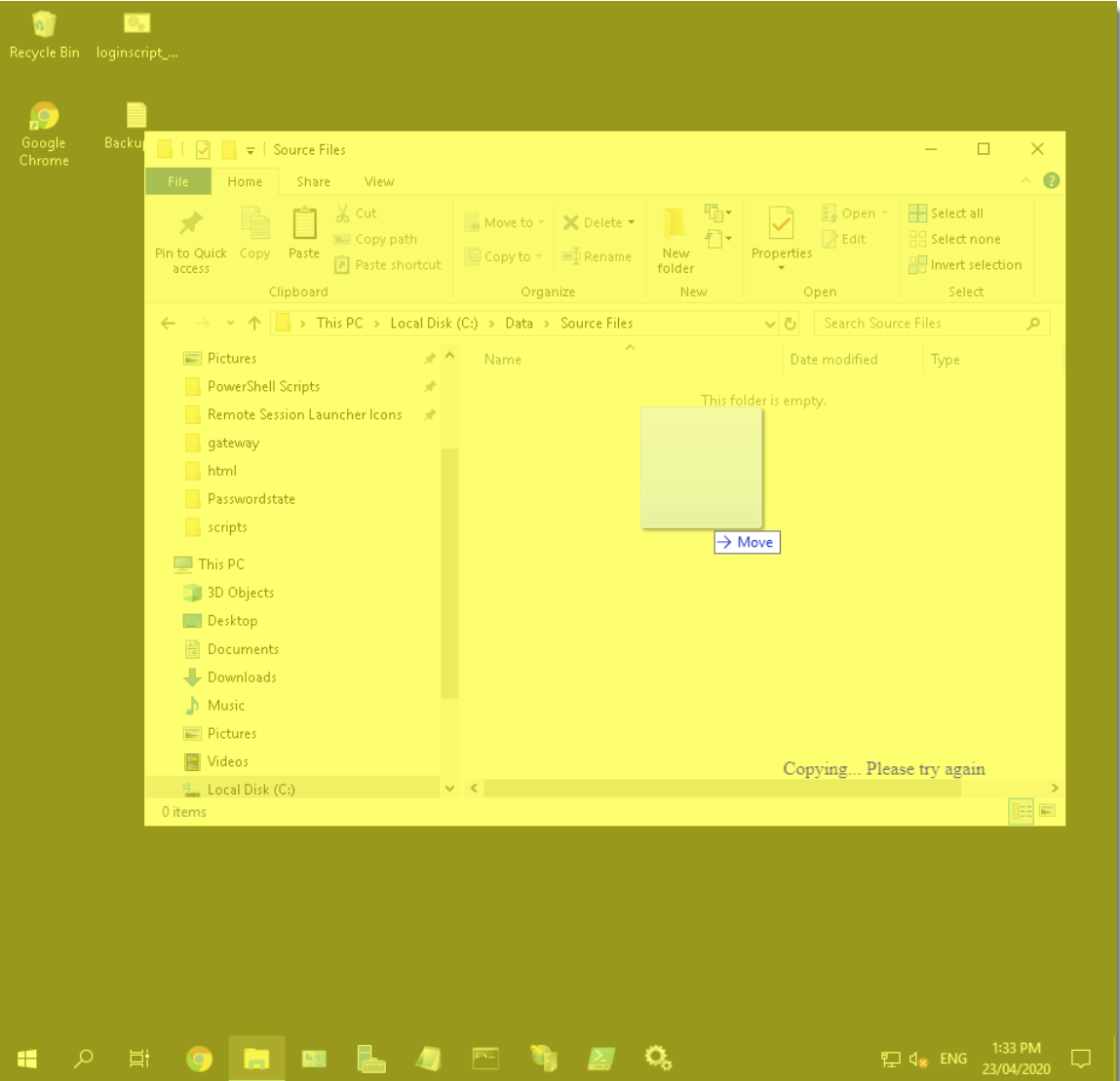
If you drag and drop a file from your local desktop, into a folder inside your RDP session, you’ll see the screen turn yellow. When you release the mouse, this will copy the file into that remote folder. The remote folder, which in this below example is “C:\Data\Source Files”, need to be the active window in the remote session:
Note: There is a 2GB file limit when transferring files into a remote session.
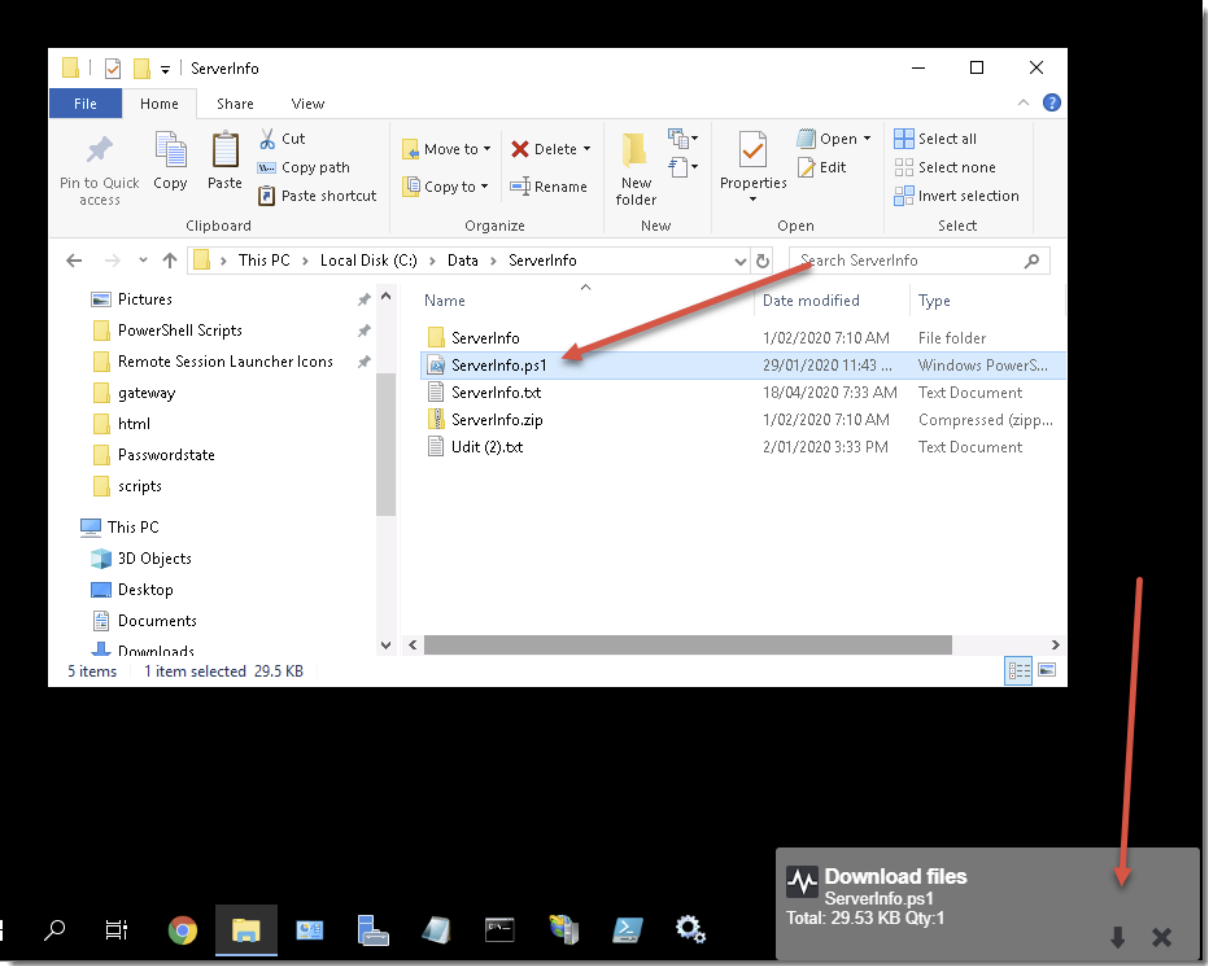
To copy a file out of an RDP session, Right Click the file and select Copy, and you’ll see a pop-up window in the bottom right hand corner of your remote session. This will give you some information about the file you are copying, and you can either cancel the file copy, or click the Download button.
When clicking the Download button, this will download the file through your local browser to a directory on your local machine. This directory is determined by what settings you have configured in your browser, but generally this is your Downloads folder inside your User Profile.
SSH File Transfer
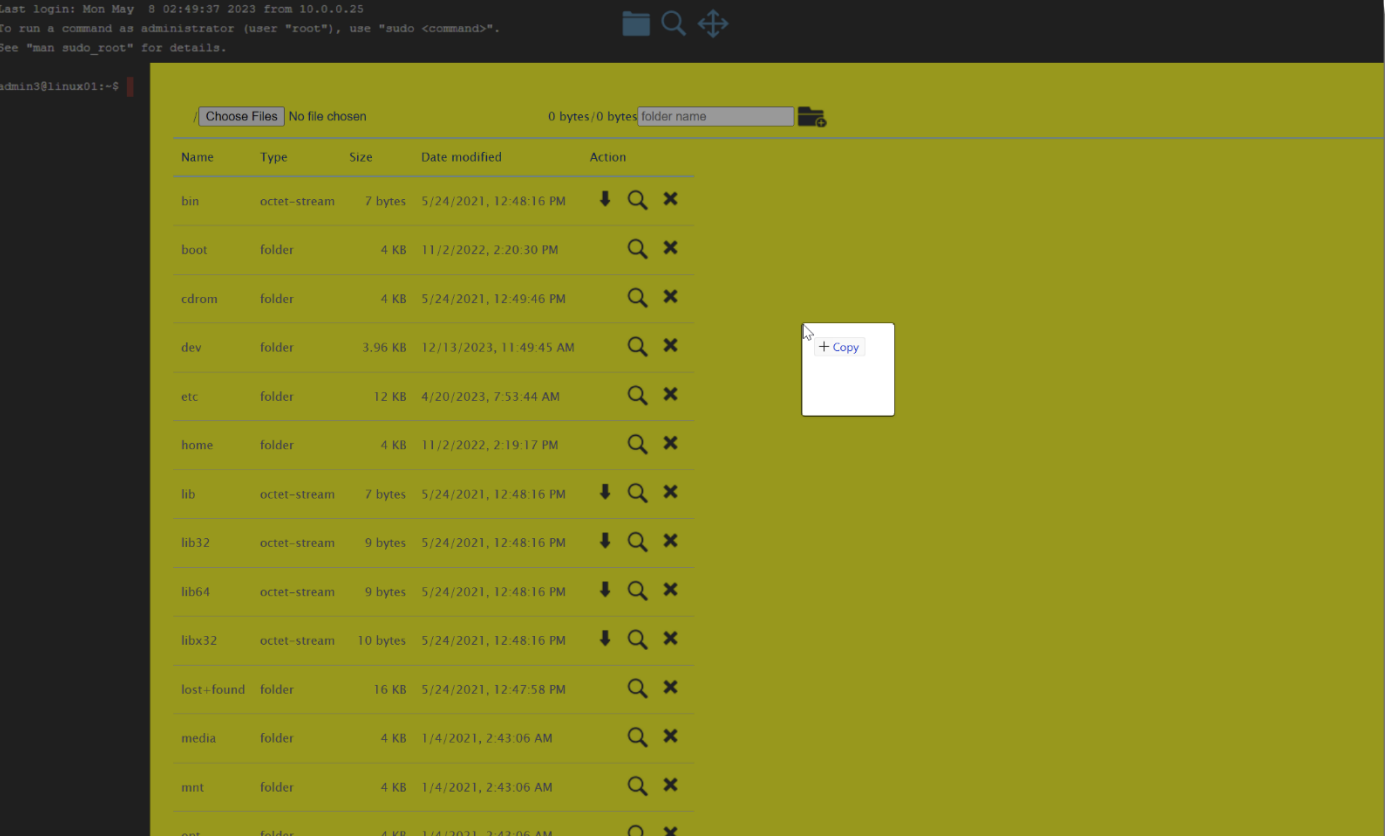
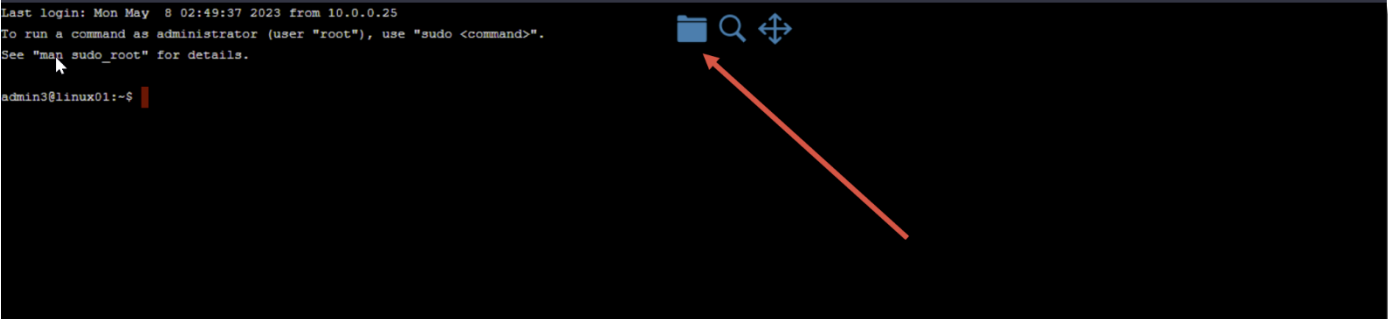
SSH sessions have a built-in file transfer tool that you can access by left-clicking anywhere in the empty space within your SSH session. You’ll see this tool pop up at the top centre of your page:
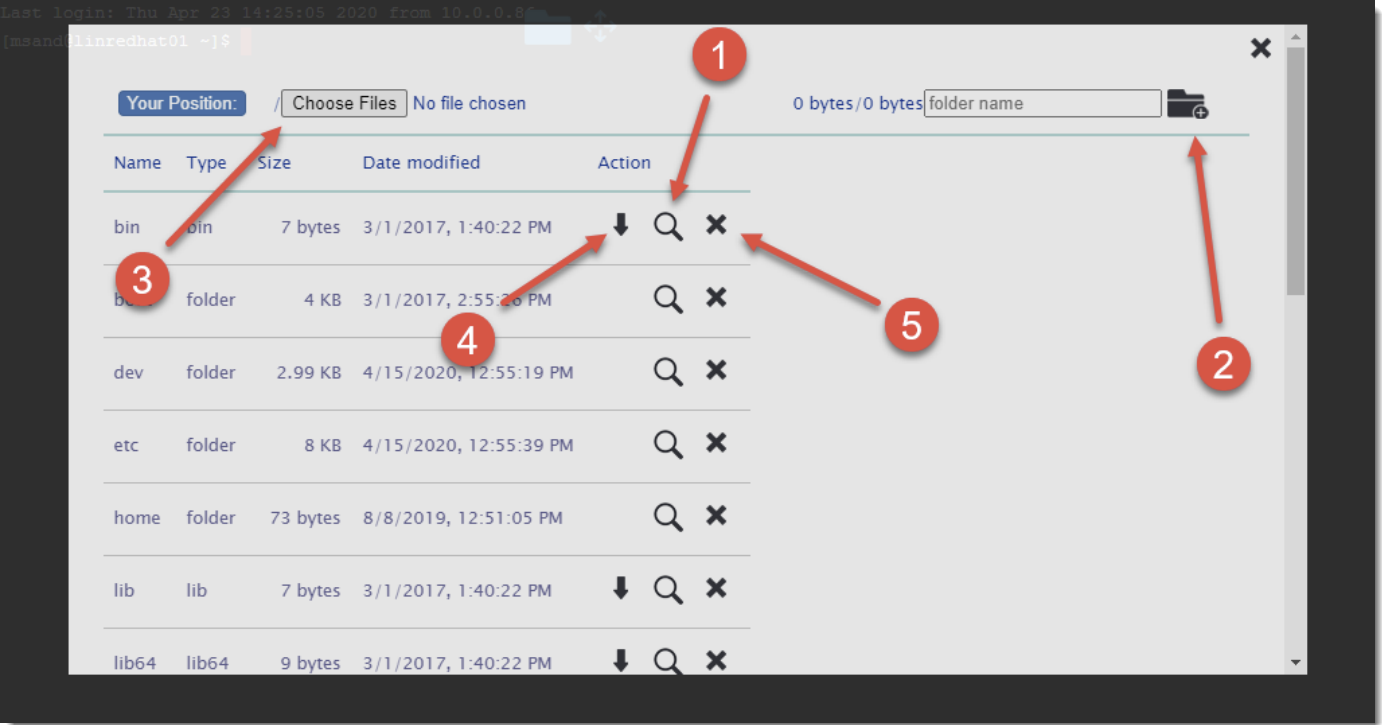
When clicking on this File Transfer tool, you’ll be presented with a window similar to this screenshot below, where you can:
- Browse into the relevant folder
- Create a new folder
- Upload files to the current position
- Download file to local desktop
- Delete file from remote file system
You can also drag and drop a file from your local desktop onto this File Transfer tool in your remote session, and it will turn yellow indicating it is ready to drop into the currently selected folder.