Adding Hosts into Passwordstate
In our software a “Host” can be any type of Server, Desktop, Laptop, or other devices such as a Firewall or a Switch. In order to make connections to Hosts, you must first have the Host added into Passwordstate.
There are a few different methods on how to add Hosts:
- Manually add them one by one
- Import them from a csv file in bulk through the User Interface
- Add them automatically on a schedule by a Host Discovery job
- Add them via the Passwordstate API
Manually Adding Hosts
To add them manually, select the Add Host option under Hosts Tab -> Hosts Home:
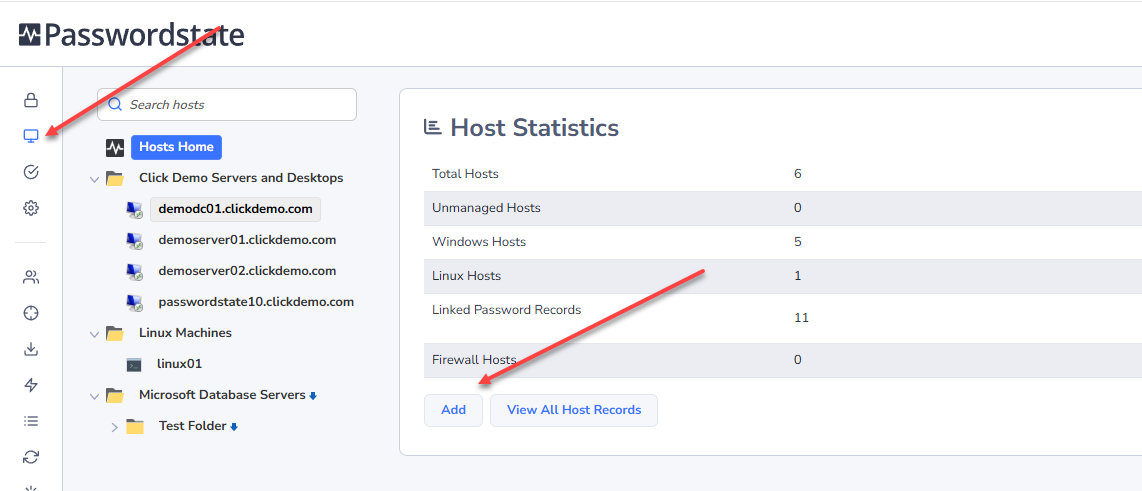
When adding in a host manually, there are many different options you can set, but the most important ones that you’ll need to configure to perform a remote session to it are the Host Name, the Host Type and the Connection Type.
Adding Hosts in Bulk via CSV File
Importing in bulk via a csv file can be initiated from Hosts Tab -> View All Hosts Records -> Import. This process will generate a csv file for you, which you’ll need to populate with relevant data, save, and then import back into the system.
Adding Hosts Automatically using a Hosts Discovery Job
A very easy way to import your Hosts into Passwordstate automatically is via a Hosts Discovery Job. These are mainly used for Windows Servers and Desktops, but if you have Linux Servers or other operating systems added into your Active Directory domain as a computer object, it’s possible to import these too via a Host Discovery Job.
To set up a Hosts discovery job to scan Active Directory and import hosts automatically, please see the following section of the Privileged Account Management manual - Host Discoveries
Adding Hosts via API
Passwordstate has three different types of API's available, where you can also add host records - Passwordstate APIs
Organising Hosts ready for Connections
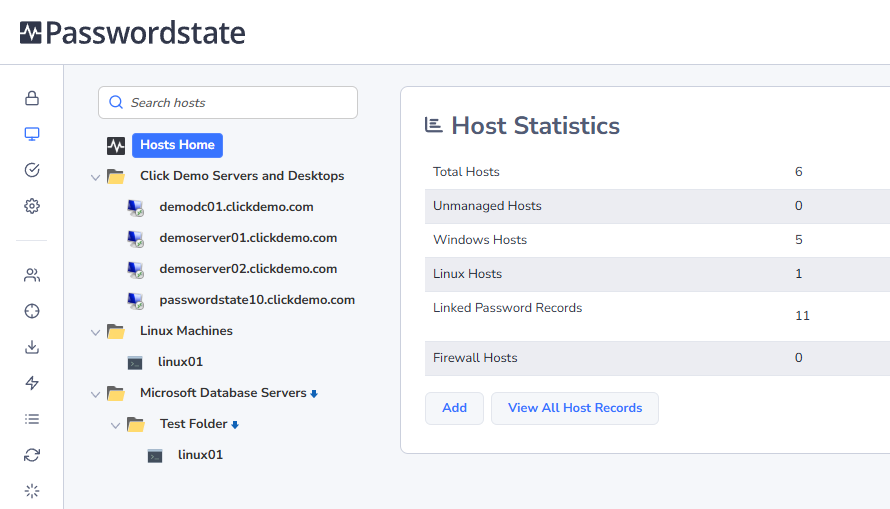
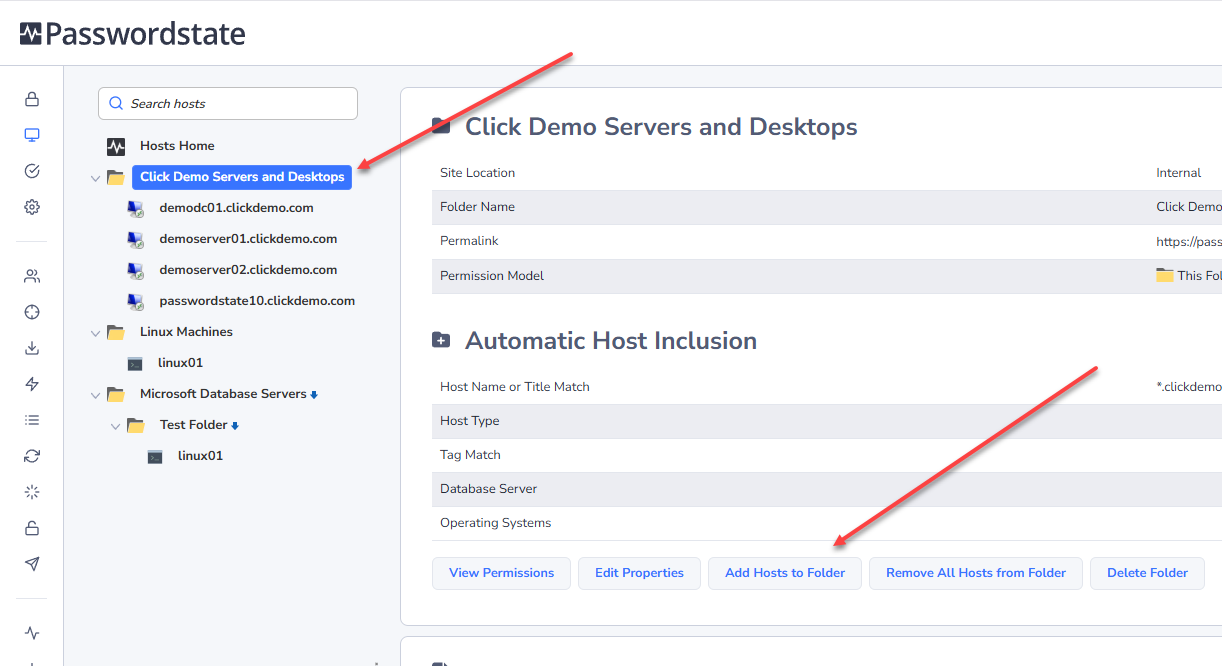
Once your hosts records have been added into Passwordstate, you can start organizing them within folders as per the screenshot below:
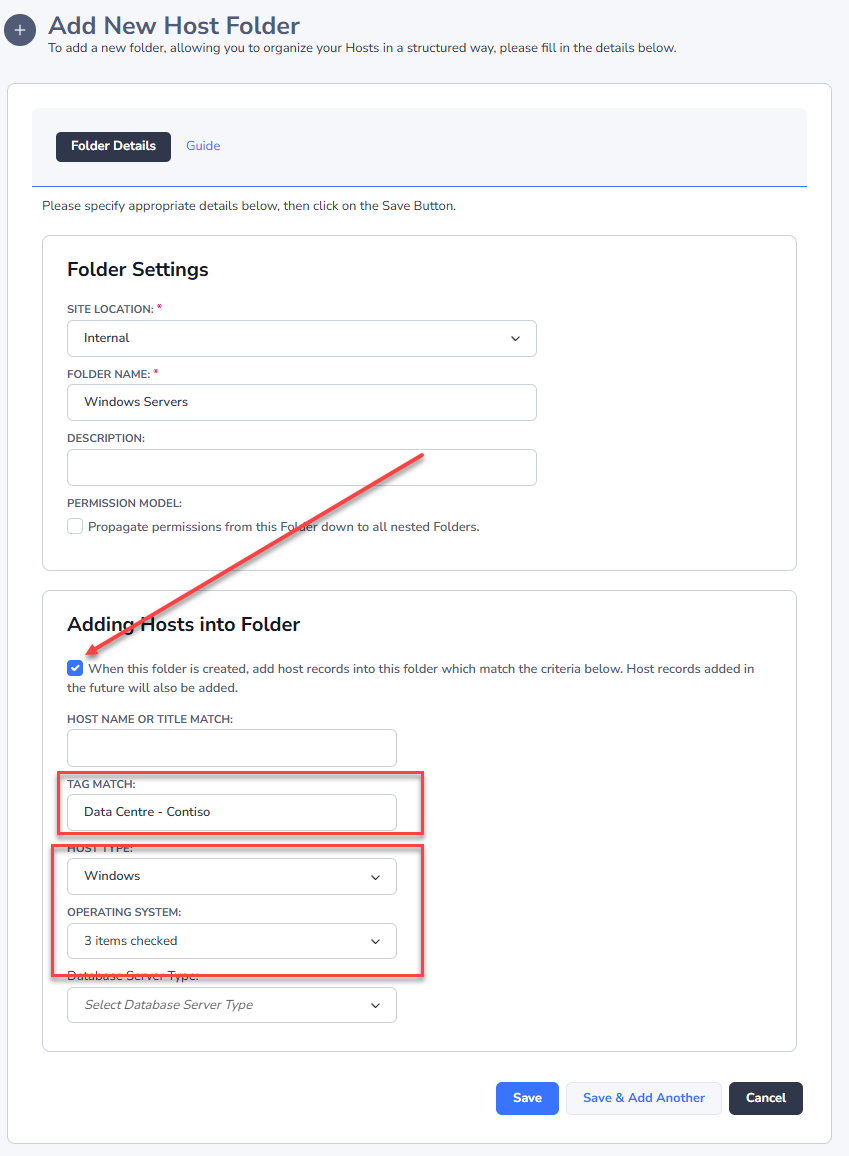
You’ll need to create at least one folder by right-clicking Hosts Home and select Add Folder. When adding this Folder, give it a relevant name such as “Windows Servers”. If needed you can automatically add Hosts into the Folder based on certain criteria. For example, you could choose Server 2019, 2022 and 2025 machines and if you have tagged your Hosts you could potentially use that information as well. Using this example, all Server 2019, 2022 and 2025 machines that have a matching tag will be added to this folder at the time of creation, and any new Server 2019, 2022 or 2025 machine added to Passwordstate will be added to this folder as well.
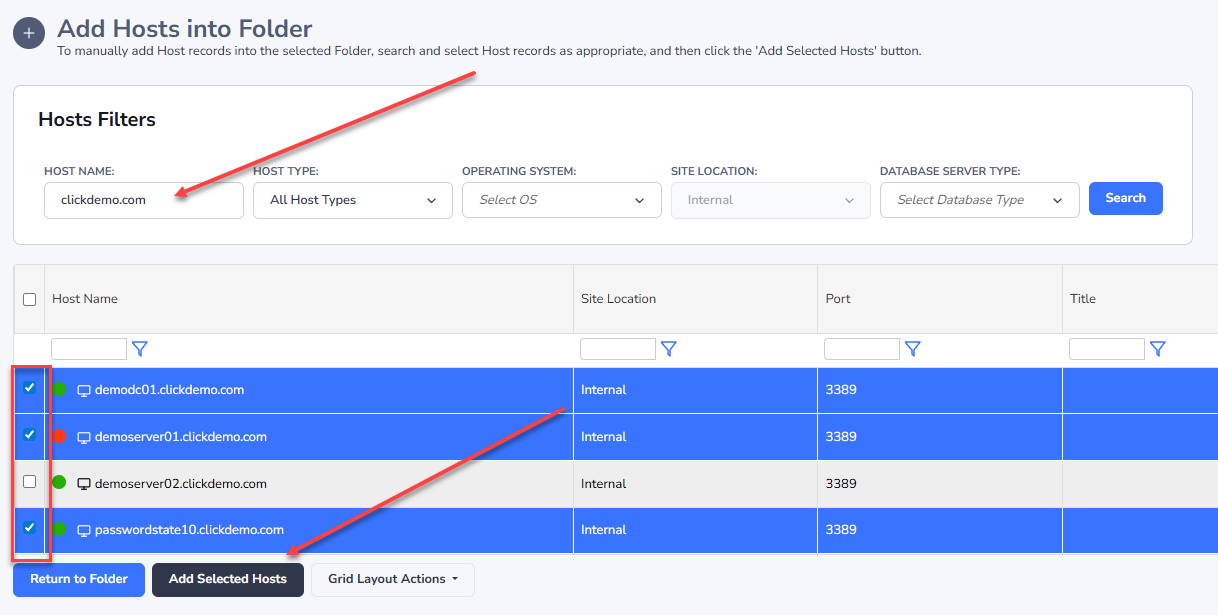
You can also manually add Host records to a folder, as per the screenshot below.
Now find the Host/s you want, and select this option to add them into the Folder:
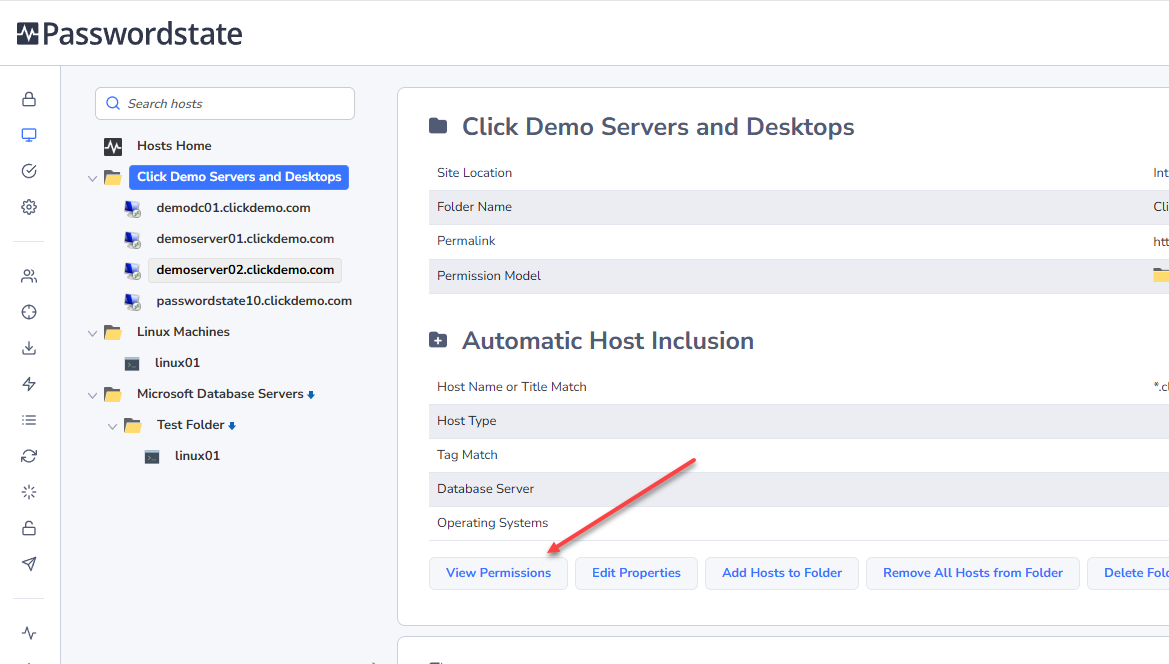
If you’d like to share this Folder out with another team member, or any other Passwordstate user, use the View Permissions button to add them in: