Host and Account Discoveries
Explanation of Discovery Jobs
So far in this manual we’ve covered how to manually set up password records for automatic resets, with or without dependencies. There is a way to fully automate this using our Account Discoveries.
For all Discovery Jobs in Passwordstate bar the Active Directory Accounts job, you’ll first need to import your Hosts into Passwordstate. A Host is otherwise known as a Windows Desktop/Server, Linux Desktop/Server, Switch or Firewall device.
Hosts can be added manually into the system one by one under the Hosts tab in Passwordstate, Imported via CSV file or there is a Hosts Discovery Job that will import all Windows Servers and/or Desktops in Active Directory. If your Linux machines are stored in Active Directory, the Host discovery job can automatically import these too.
As the Host Discovery job is only looking in AD, no specific system requirements are necessary, except you’ll need a domain account with privileges to query Active Directory.
The following Account Discovery jobs are available:
- Active Directory Accounts
- Cisco IOS Accounts
- Fortigate Accounts
- HP H3C Accounts
- Juniper Junos Accounts
- Linux and Mac Accounts
- MS SQL Database Accounts
- MySQL Database Accounts
- Oracle Database Accounts
- PostgreSQL Database Accounts
- SonicWALL accounts
- Windows Dependency Accounts - Windows Services, IIS Application Pools and Scheduled Tasks which are configure to use a domain account as their identity
- Windows Local Admin Accounts
Note 1: If discovering accounts on a Mac, the option to reset the password on discovery will be ignored, as another account (the Privileged Account Credential) cannot update the keychain for a different account - this is by design by Apple.
Note 2: For the 'Active Directory Accounts' discovery job, this job should not be used for Privileged AD Accounts which are used on Windows Services, IIS App Pools and Scheduled Tasks - you should use the Windows Dependency Discovery Job for that purpose.
Note 3: For the 'MS SQL Database Accounts' discovery job, the Privileged Account to be used to can be either a SQL Account, or an Active Directory account.
Setting up a Host Discovery
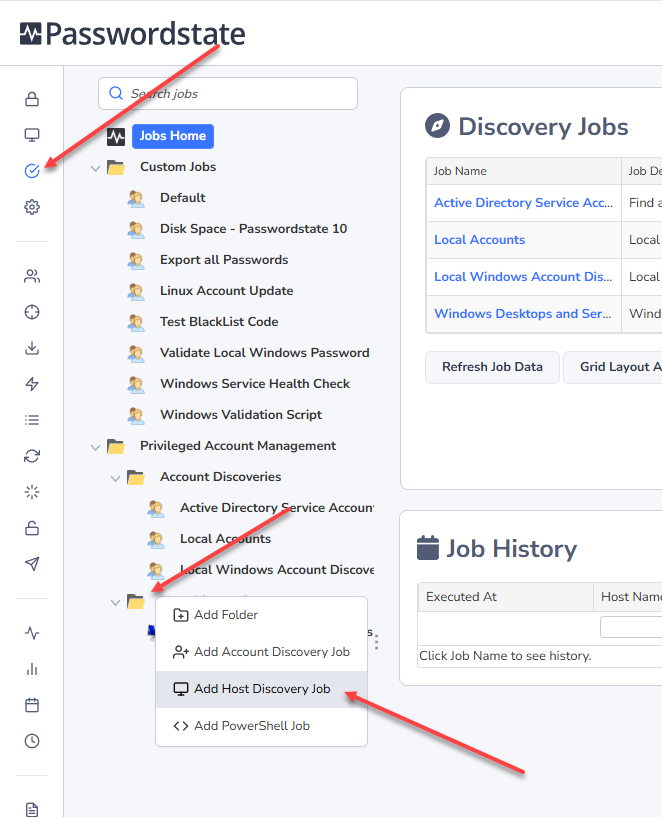
Setting up a Host Discovery job can be done by going to the Jobs menu -> Right Clicking on a Folder -> Add Host Discovery Job:
On this page, you have the following options available to you:
- Which Active Directory domain to query
- To query specific AD OUs, you can click on the 'Active Directory OUs' tab and specify them here
- Run the job in Simulation Mode – This will execute the job, but not add any data into Passwordstate. This is handy to see what will happen before adding any data into your production system
- Which type of Hosts you want to discover, based on the Operating System
- Only discover Hosts which have been logged into based on a set date i.e. only machines logged into since July 2020
- You can also set the Tag field for a Host to be the value of the Active Directory OU it belongs to
- You also need to specify the 'Privileged Account' identity which will be used to query your Active Directory Domain. These Privileged Account Credentials can be added/editing/updated on the screen Administration -> Privileged Account Credentials
- The Schedule for how often you want the Discovery Job to be executed
When creating the discovery job, you will automatically be given permissions to edit it. You can grant permissions for any other Passwordstate user so they can also help you administer and monitor the discovery jobs.
Note 1: When query Active Directory for Hosts, it is the value of the OperatingSystem AD Attribute which is queried. If you go to the screen Administration - Passwordstate Administration -> Host Types & Operating Systems, you can see what attribute is currently set for each different operating system.
Note 2: If you have configured emails in Passwordstate, anyone who has access to the discovery job will receive an email each time the job executes, advising the results.
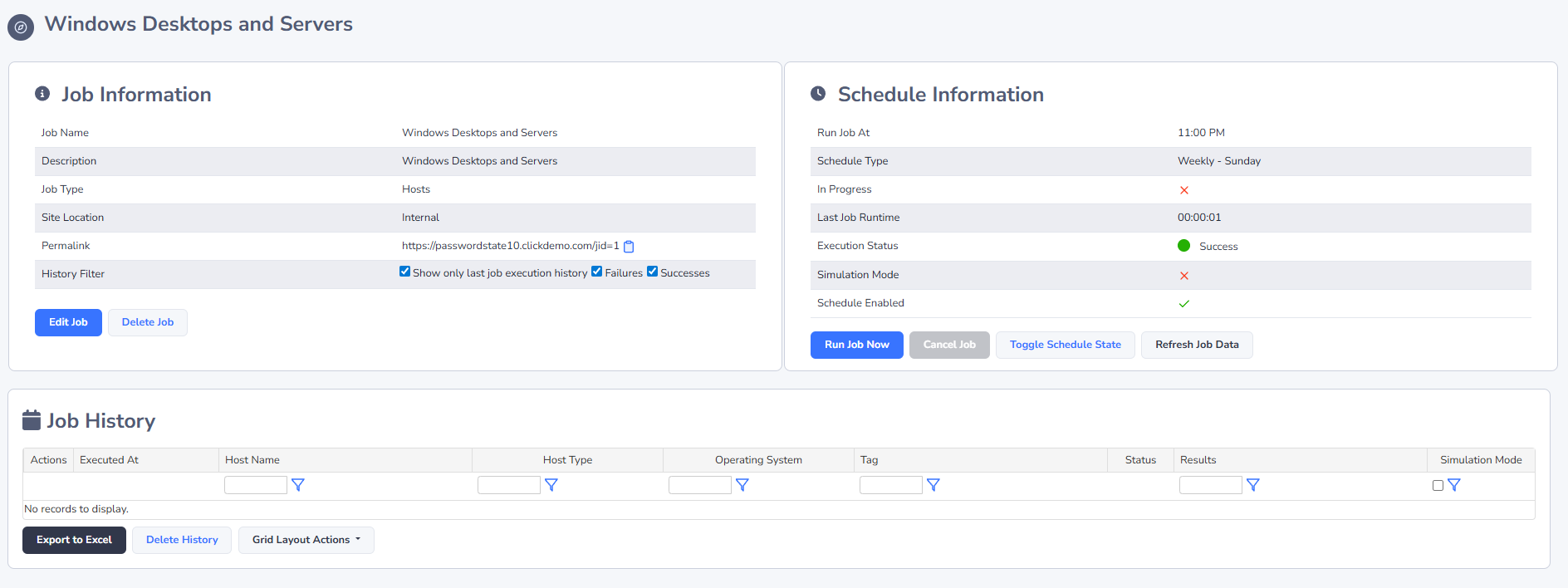
Once a Host Discovery Job is created, you can manage all settings for the Job, as well as execute the Job now, from the screen below:
Setting up an Account Discovery
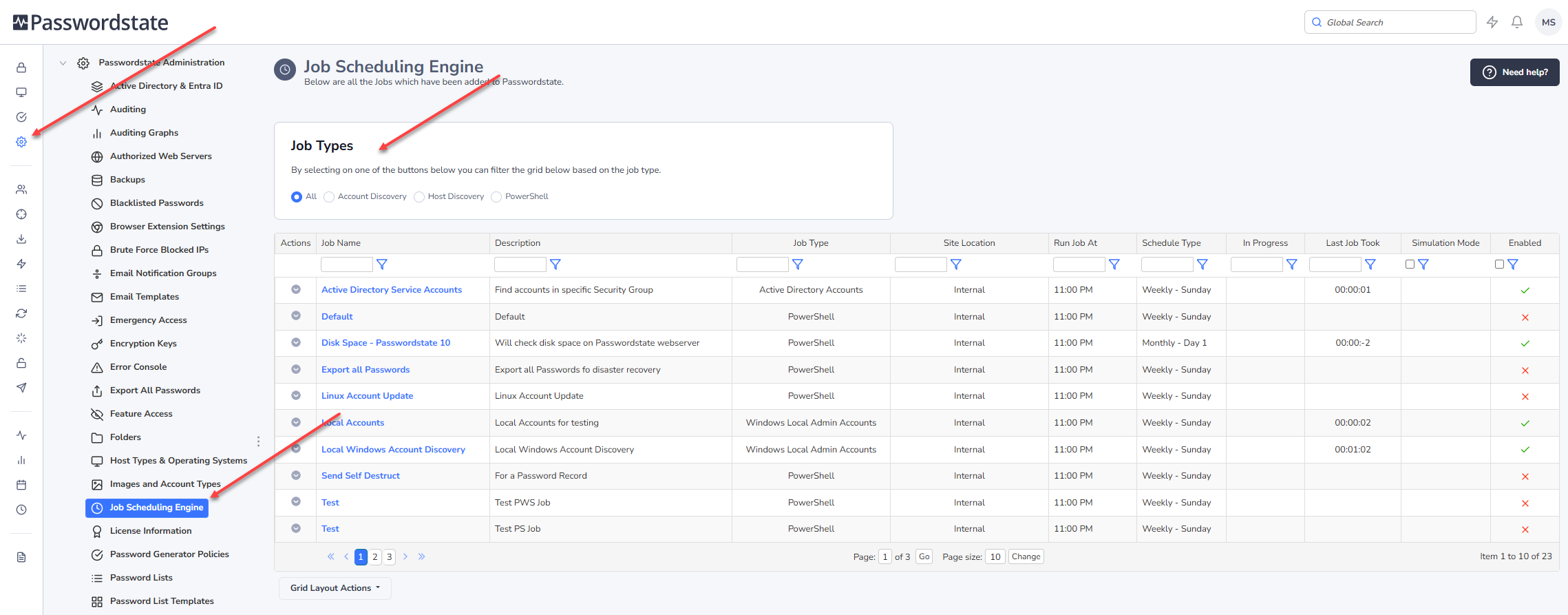
There are many different types of Account Discoveries which can be added, and these can be found under the Jobs menu as well. As a Passwordstate Security Administrator, you can view and manage Account Discoveries that other users have set up under Administration -> Job Scheduling Engine.
Active Directory Accounts is the only job which does not scan Hosts attached to your network, rather this job scans Active Directory itself, and an explanation of this job can be found below.
All other discovery jobs reach out to the host on the network, and will scan the host for any new accounts and add them into Passwordstate if they do not already exist. As with all Discovery jobs, you can run them in Simulation Mode so you do not impact production data.
Active Directory Discovery Job Explained
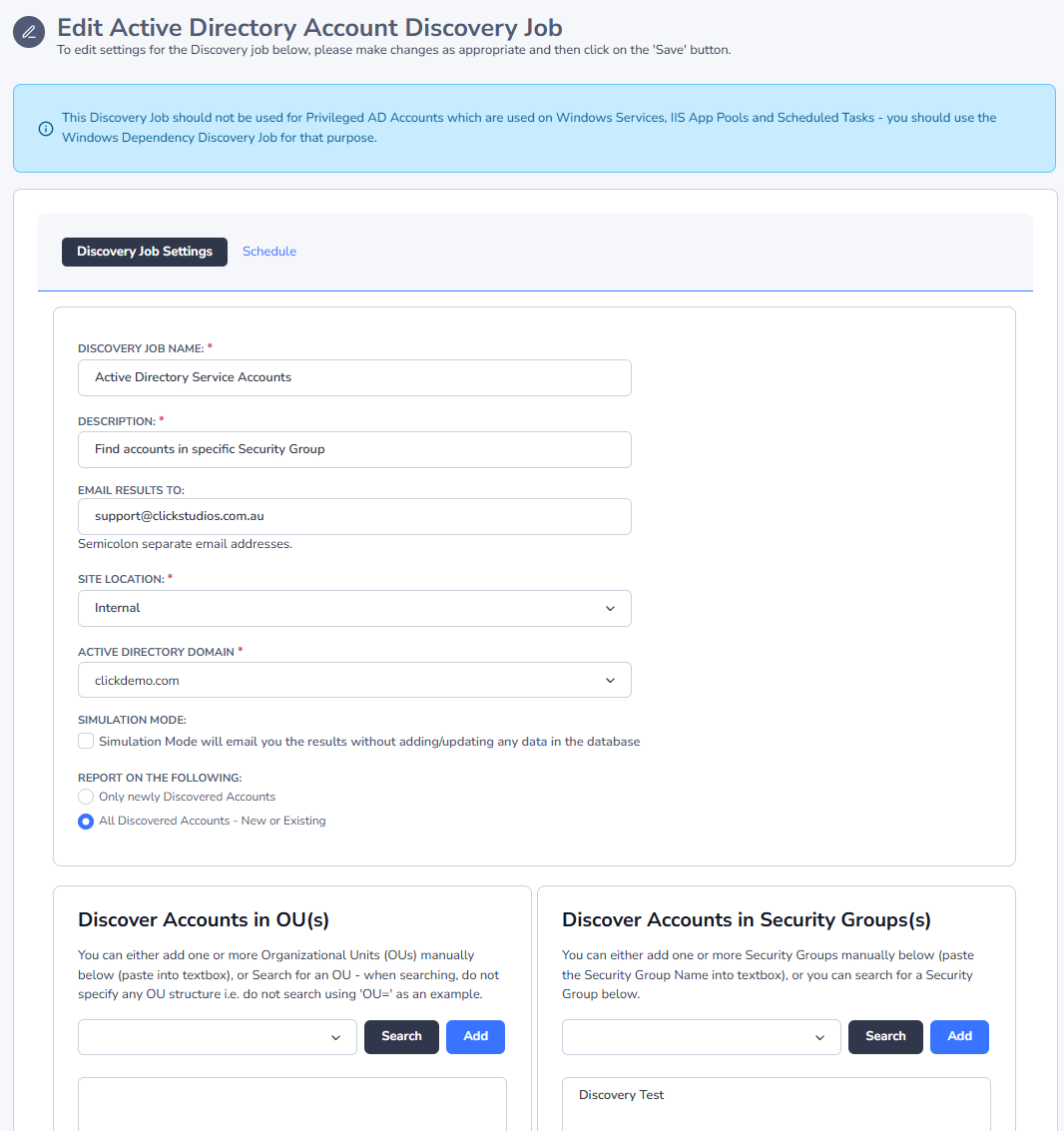
When creating an Active directory job, you have the following options available to you:
- Which Domain you will be querying
- Whether or not to run the job in Simulation Mode
- Should the Discovery job report back all accounts it finds, or just the new ones? This can be handy of you want to troubleshoot a discovery job that you think may not be finding a specific account
- You can either query one or more specific OUs, or Security Groups. In the example below, I’m discovering accounts in a specific Security Group
- You can filter what accounts are discovered based on usernames, comma separated if you have multiple
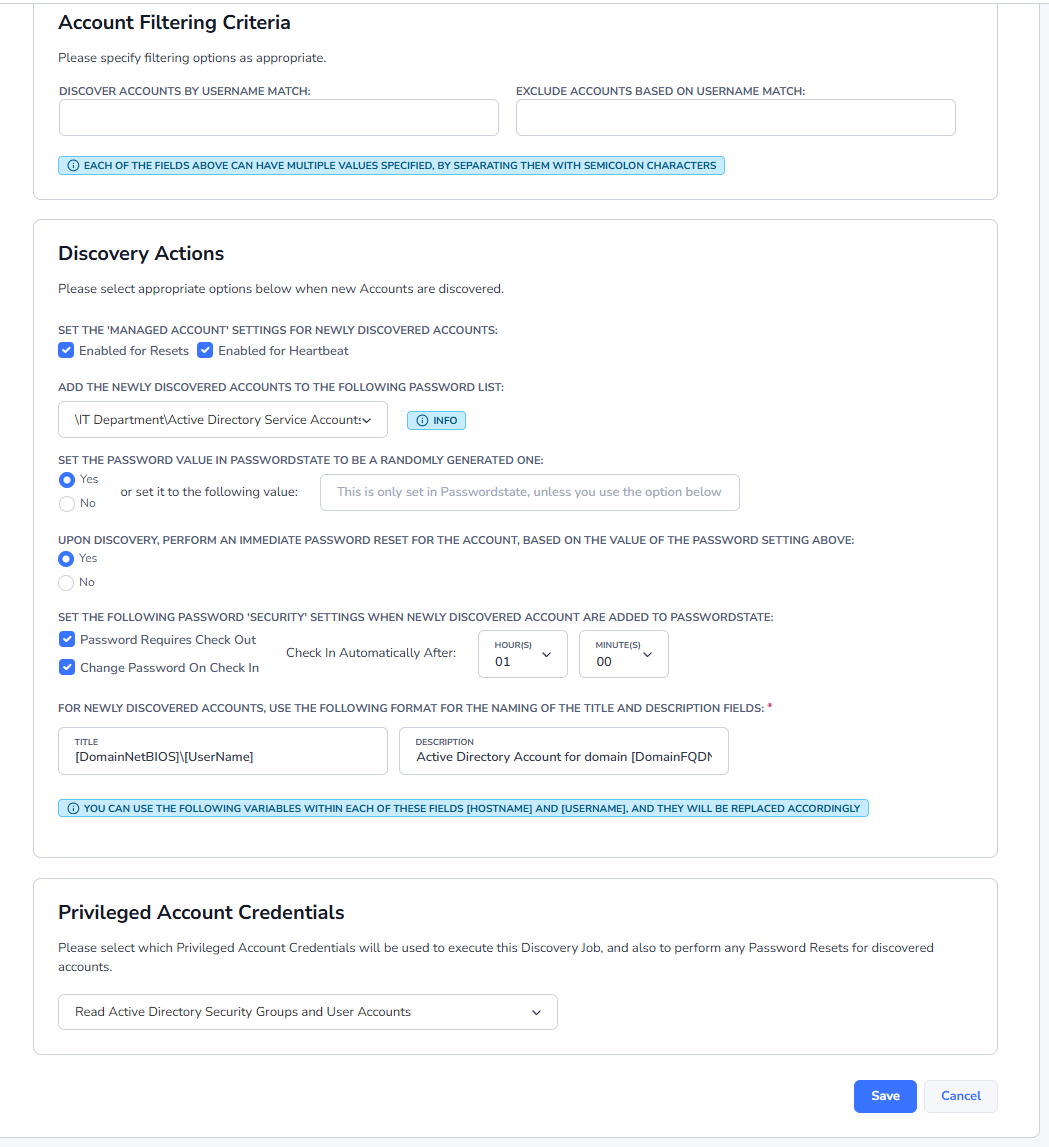
- If you want Passwordstate to automatically manage the passwords for the accounts the Discovery Job finds, you should select “Enabled for Resets” and “Enabled for Heartbeats”. If you deselect these options, the Discovery job will add the account into Passwordstate for you, but it will never manage the password for it, unless you explicitly tell the Password record to do so at a later date
- The Password List you select needs to have the “Enabled Password Resets” option enabled on the actual Password List. If you do not have that Password List setting configured, it will not be available for you to choose from on your Discovery job. If the account is found in another Password List when the discovery executes, it will not add in a duplicate record
- You can set a static password upon discovery for the record in Passwordstate, or generate a random one for every account that is discovered - it is not possible to detect the value of an account password during discovery
Local Admin Discovery
Passwordstate has several different types of Local Admin account discovery jobs available to you, depending on the Operating system. When discovering Accounts on various Hosts, there are many options available to you, and they are similar to the options for Active Directory Discoveries above:
- Whether or not to run the job in Simulation Mode
- Should the Discovery job report back all accounts it finds, or just the new ones? This can be handy if you want to troubleshoot a discovery job that you think may not be finding a specific account
- You can filter on the type of Hosts you want to query, based on the Operating System type, or various other filters
- If the Local Administrators group is in a different language, you can change the name of it so the discovery is successful
- If you want Passwordstate to automatically manage the passwords for the accounts the Discovery Job finds, you should select “Enabled for Resets” and “Enabled for Heartbeats”. If you deselect these options, the Discovery job will add the account into Passwordstate for you, but it will never manage the password for it, unless you explicitly tell the Password record to do so at a later date
- The Password List you select needs to have the “Enabled Password Resets” option enabled on the actual Password List. If you do not have that Password List setting configured, it will not be available for you to choose from on your Discovery job. If the account is found in another Password List when the discovery executes, it will not add in a duplicate record
- As it's not possible to decrypt most passwords for discovered accounts, you will need to specify what password will be recorded in Passwordstate initially for the account, or you can generate a random one. You also have the option to perform a password reset for any newly discovered accounts
- When new records are added to the selected Password List, you have the option to also specify some detail for the Title and Description fields.
- You also need to specify the Privileged Account Credential to use when interrogating your Hosts on the network - this account will need sufficient privileges to interrogate the Host for local accounts - generally an account with Admin (elevated privileges) is required here
Windows Dependencies Discovery
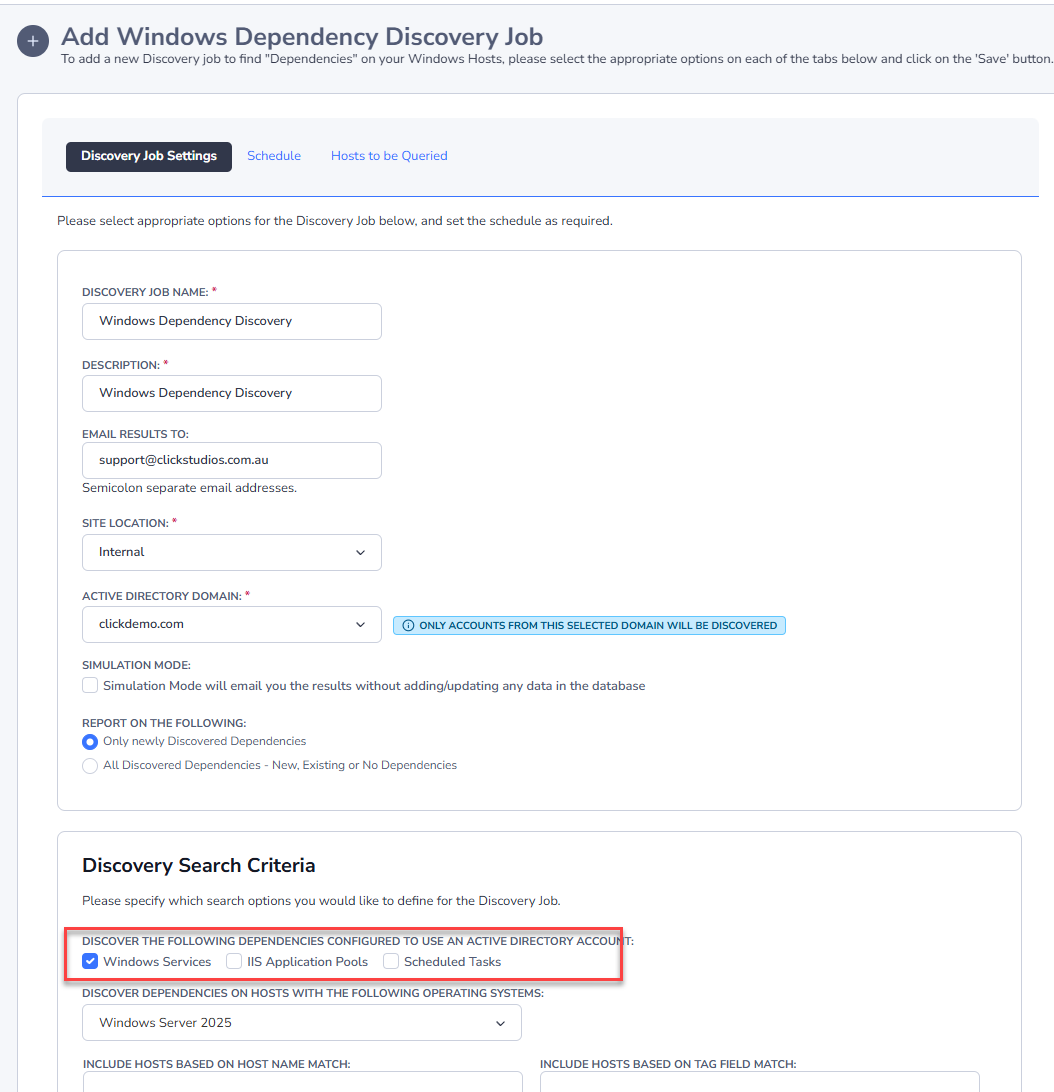
It's possible to also discovery various 'Windows Dependencies’ on your network that are using domain accounts as their identity to run under i.e. Windows Services, IIS Application Pools & Scheduled Tasks. When setting up such a Discovery Job, the following options are available:
- You need to select which 'Dependencies' you want to try and discover - Windows Services, IIS Application Pools or Scheduled Tasks - can you select all of them as part of the same Discovery Job if you want
- The rest of the options are very similar to discovery of other types of Accounts, as specified above
- If you do not wish to automatically configure the discovered accounts to perform scheduled resets, you can set the 'Managed Account' option to No. The later within the Password List, you can enable this option for one or more records at a time
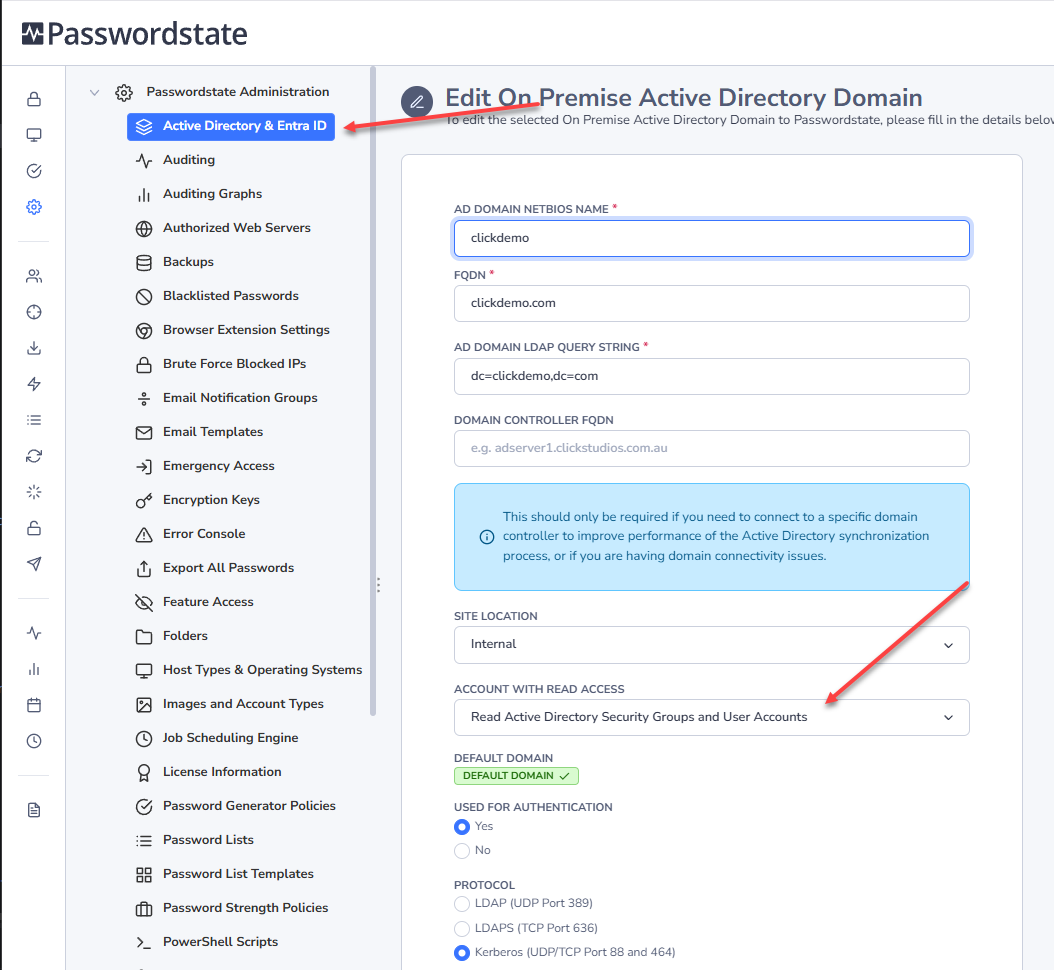
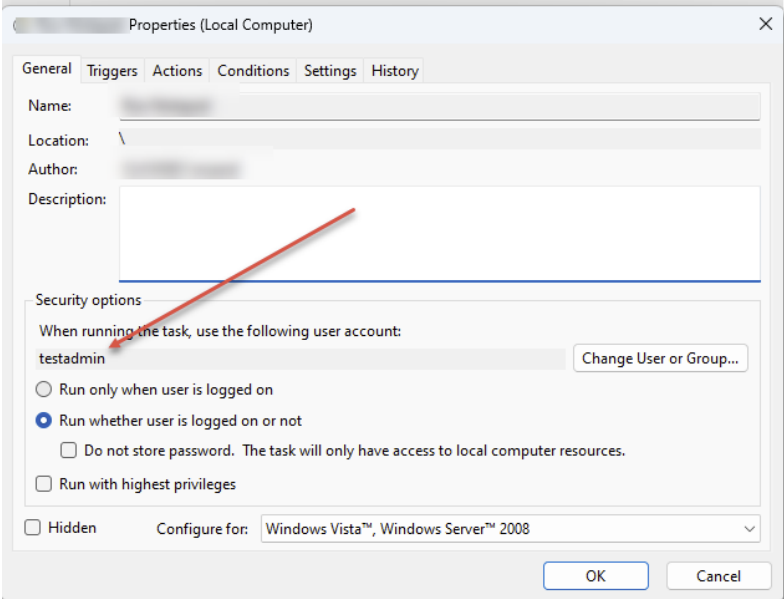
Microsoft Windows also has a bug for Scheduled Tasks, where it can strip the Host Name, or Domain Name prefix for the account being used on the scheduled task, if you manually make any changes to the task – see screenshot below.
To overcome this bug, the following logic is used during discovery – by reading the appropriate XML file in the folder C:\Windows\System32\Tasks:
- Check if the account is a local Windows account on the Host
- If no local Windows Account is found, then it is assumed the account is an Active Directory account. On occasion, the “UserId” element in the XML file can also appear as the account SID, in which case we look up the account details in the registry. As the domain NetBIOS has been stripped from the account details, we will use the domain value that is selected on the Discovery Job itself.
Database Account Discovery
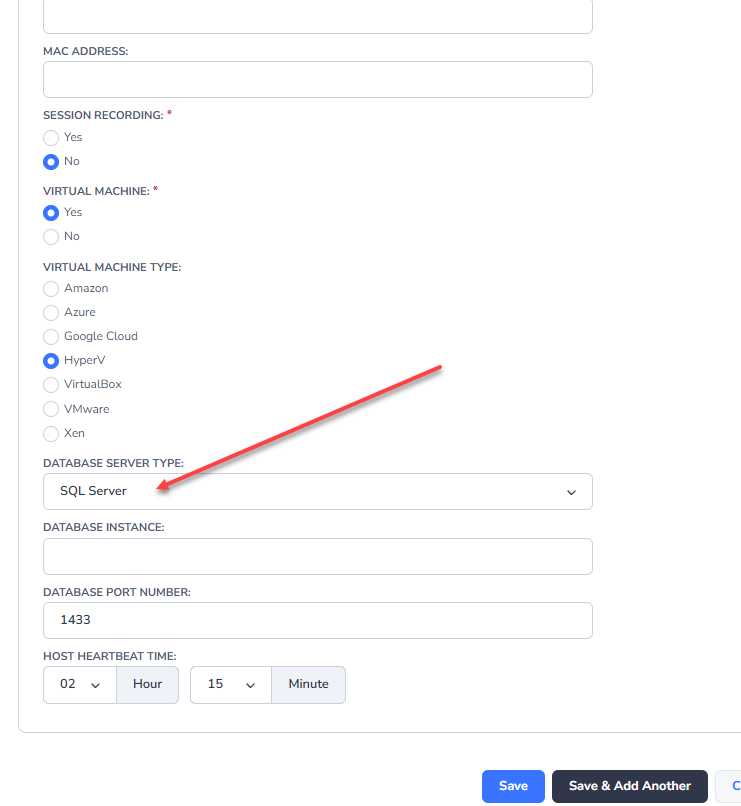
Passwordstate can also discovery accounts in various different types of databases. The options for these discovery jobs are exactly the same as the Local Admin Account discovery jobs, but in order to scan databases on your servers, the Host you have stored in Passwordstate needs to have the database information set.
Below is an example of a server that is hosting a Microsoft SQL Server instance, and you’ll notice the Database Type, Instance and Port number. If using the standard instance name for SQL, and Port Number, these fields can be left blank.
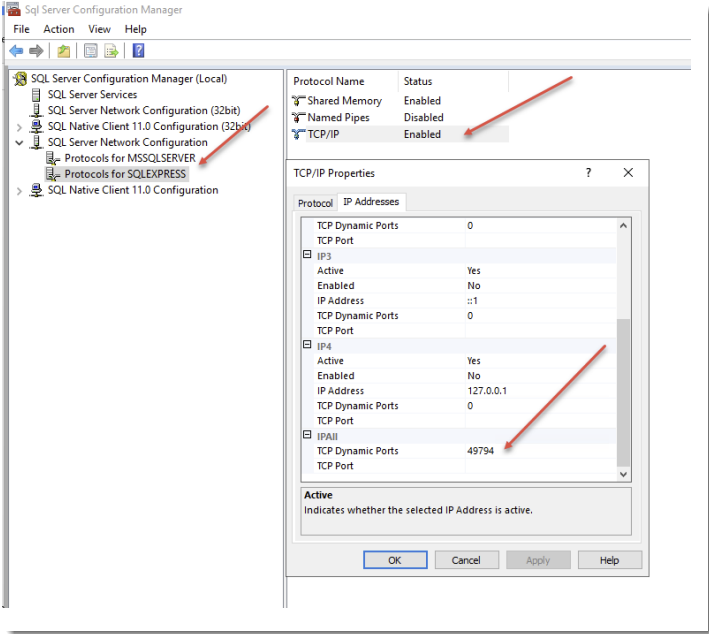
Please Note: MS SQL Server Discovery jobs can work when there are multiple instances of SQL Server installed on the same Host. Within Passwordstate, you need to specify the correct instance names, and ports being used. If dynamic ports are being used, you need to look up the port number using the SQL Server Configuration Management tool, as per the screenshot below.