
SSH Template Scripts
With some default PowerShell Scripts provided by Click Studios, we use an SSH Library from a company called Chilkat. Due to licensing restrictions of this SSH .NET Assembly, customers are not allowed to clone our scripts which use this assembly, and then modify it for their own needs.
To help you build your own custom scripts for systems that use the SSH connection protocol, Click Studios has included two new 'SSH Templated' Powershell scripts, which allow you to specify SSH command line parameters to be passed to the remote system. The two types of Templates Scripts are:
- Remote Commands
- Remote Shell
Please see details below for further instructions on these two templated scripts.
SSH Template - Remote Commands
Typically, this template is used for sending single line commands to the remote host, and receiving output back. Equivalent scripts within Passwordstate which execute commands in this manner are:
- Reset F5 BIG-IP Account Password – AS
- Reset F5 BIG-IP Account Password – TMSH
- Reset IBM IMM Account Password
- Reset Linux Password
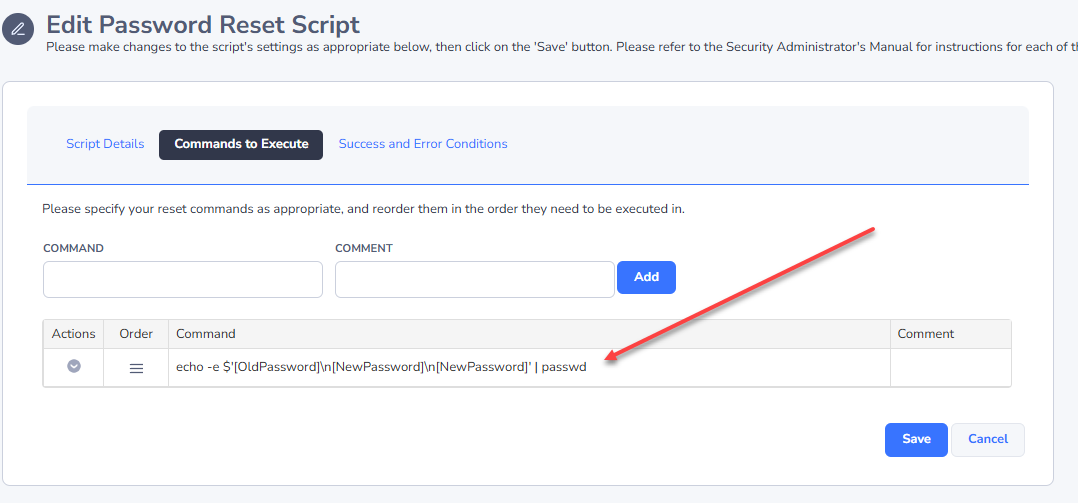
Below is a screenshot of an example for resetting the password on a Redhat Linux account. In the example below, you can see that variables from a password record can be passed in the commands as well, and these are replaced real-time when the script executes. The example below shows [NewPassword], and [UserName]:
Please see section 'SSH Template Variables' below for a comprehensive list of variables you can issue in your commands.
SSH Template - Remote Shell
Typically, this template is used for opening a pseudo terminal on the remote host, and executing one or more commands within the terminal session, where you can also 'wait' for an expected result back from the operating system. Equivalent scripts which execute commands in this manner are:
- Reset Cisco Host Password
- Reset Dell iDRAC Account Password
- Reset Fortigate Password
- Reset Juniper Junos Password
- Reset Palo Alto Password
- Reset SonicWALL Password
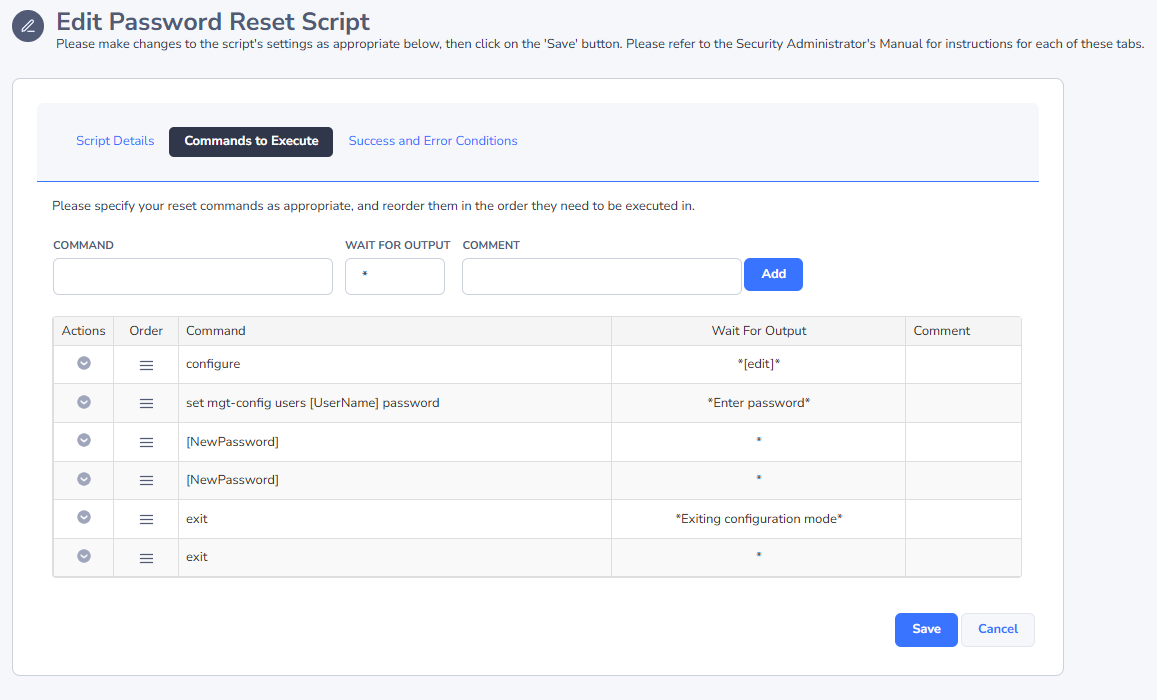
Below is a screenshot of an example for resetting the password on a Palo Alto Firewall account. In addition to the commands being issued, you can also 'Wait' for a certain response from a command, before moving onto the next command. If you do not need to wait for a certain response, then simply include the * symbol:
SSH Template Success and Error Conditions
With the SSH Templated Scripts we provide, it is recommended you specify both "success" and "error" condition capturing, if possible. Some operating systems/devices, do not return any sort of "success" message after a successful password reset, so it is important in this instance to specify as many "error" capturing conditions as possible - otherwise the scripts will assume a successful reset has completed.
In our SSH template scripts, we have our own built-in error capturing for any sort of connectivity issues to the remote host. The error capturing details you provide are designed to report errors once you are already connected to this host, within the SSH session.
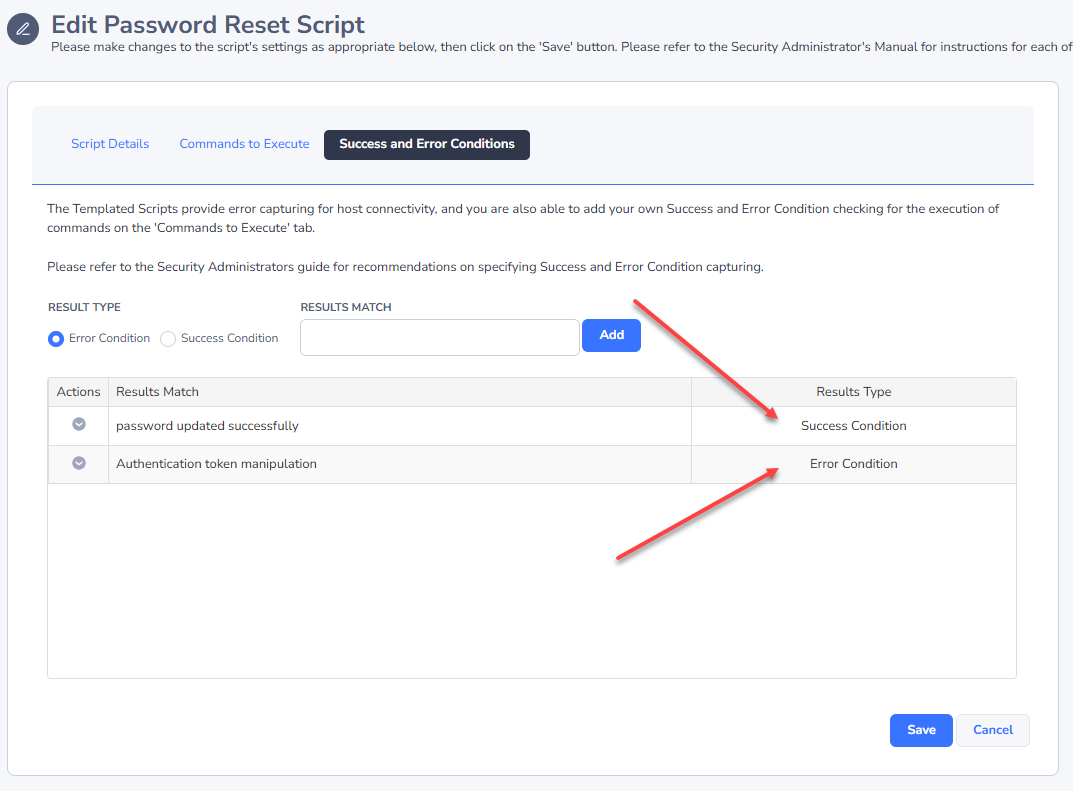
Below is a screenshot of success and error capturing for Linux machines. When you determine which "commands to execute" for your device, it is recommended that during your testing within the SSH session, you try and capture as many possible errors as you can.
Creating SSH Template Scripts
To create a new script, navigate to Administration -> Powershell Scripts -> Password Resets. From here you can add/edit scripts as required.
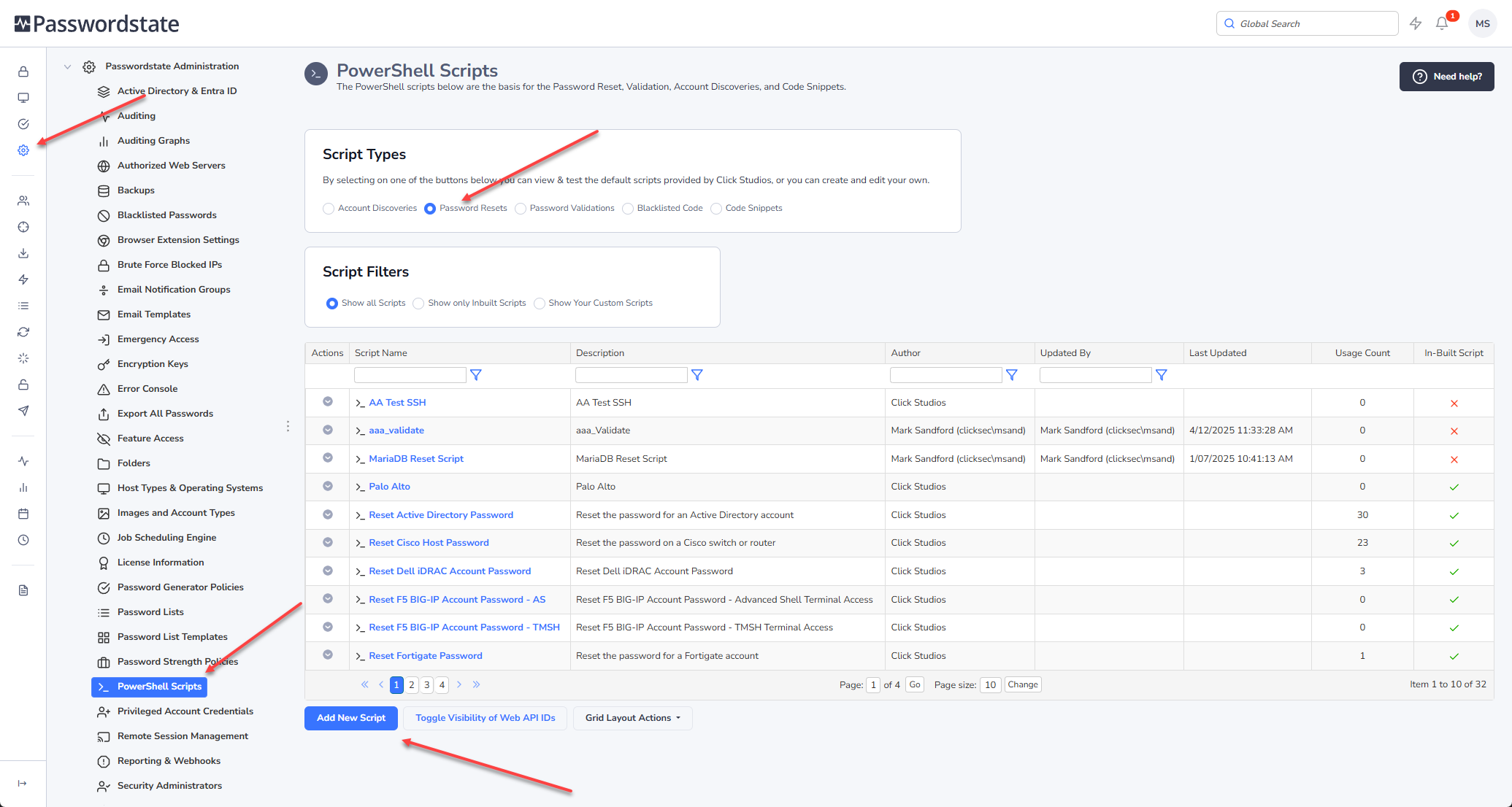
Once your script has been created and tested, then you can associate it with the appropriate password records.