
On Premise Active Directory Passwords
Passwordstate can reset the password for many different types of systems, including Active Directory accounts. This section guides you through the process of setting up an On Premise Active Directory account for automatic resets.
Most other Password Resets are similar in nature to this example below, but for those that require slight customizations, there is more information about these in the Password Record Examples section below in this manual.
The Active Directory ‘Password Reset’ and ‘Account Discovery’ features requires the ‘Remote Server Administration Tools (RSAT)’ to be installed on your Passwordstate web server, or where you have deployed the ‘Remote Site Locations Agent’. On Windows Server Operating Systems, you can install this by running the following PowerShell command (run PowerShell as Admin):
Powershell
Add-WindowsFeature RSAT-AD-PowerShellPrivileged Account Credential
For Passwordstate to be able to update passwords in Active Directory, it needs to use a domain account with elevated privileges to do so. While it’s possible to customize permissions in Active Directory, generally adding your Privileged Account to the “Account Operators” security group in Active Directory will be enough to reset the passwords for most accounts.
If you are resetting passwords on accounts with a higher level of permission, such as a Domain Administrator account, you may need to elevate the permissions on your privileged account to achieve a successful reset.
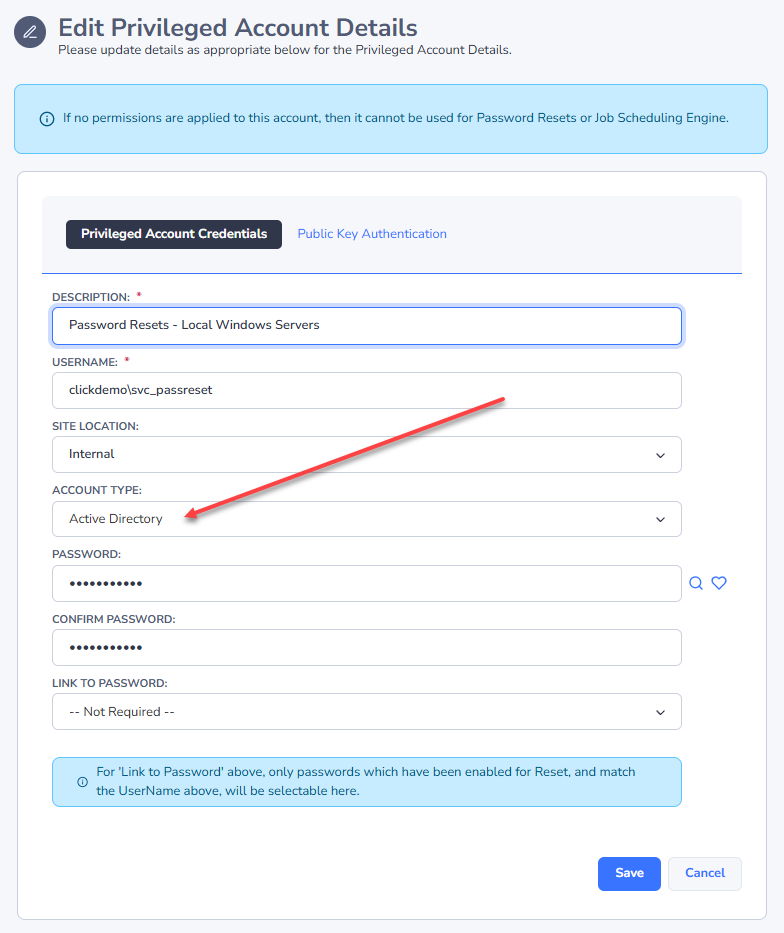
To add a Privileged Account, first ensure you have created a user in Active directory and add it to the “Account Operators” security group. Next, in Passwordstate, go to Administration -> Privileged Account Credentials, and click the Add button. On the screen, enter a Description, enter the username in the form of domain\username, select the account type as “Active Directory”, and set the current password for the account in Active Directory.
Add Appropriate Domains to the Active Directory Domains Screen
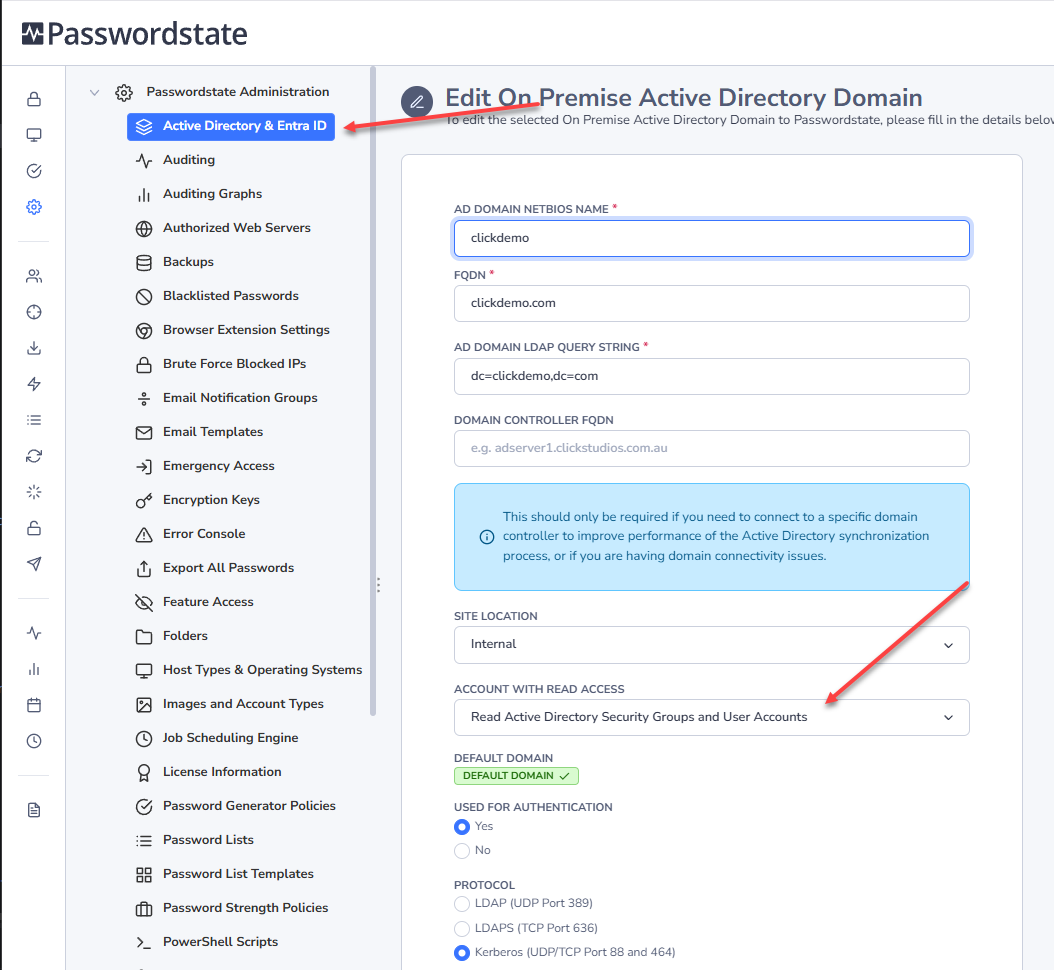
Active Directory Domains can be added on the screen Administration -> Active Directory & Entra ID. Ensure you assign and appropriate Privileged Account Credential here - this Privileged Account Credential is used for synchronizing User Accounts and Security Groups into Passwordstate (the Admin area), and the same account can also be selected on Password records to perform resets - or a different one can be used.
Configure a Password List for Password Resets
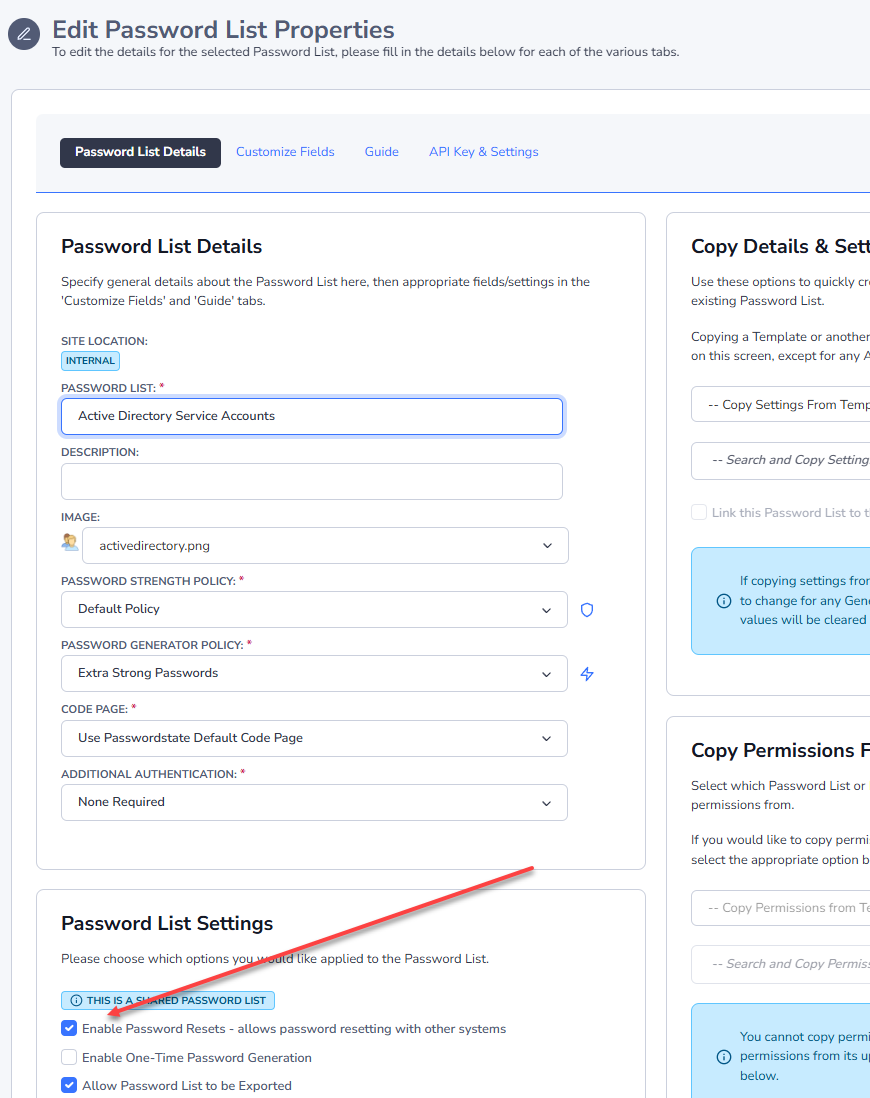
Now that the domain and privileged account is set, we need to configure a Password List so that it is enabled for Password Resets. To do this you need to check the option 'Enable Password Resets' on your Password List:
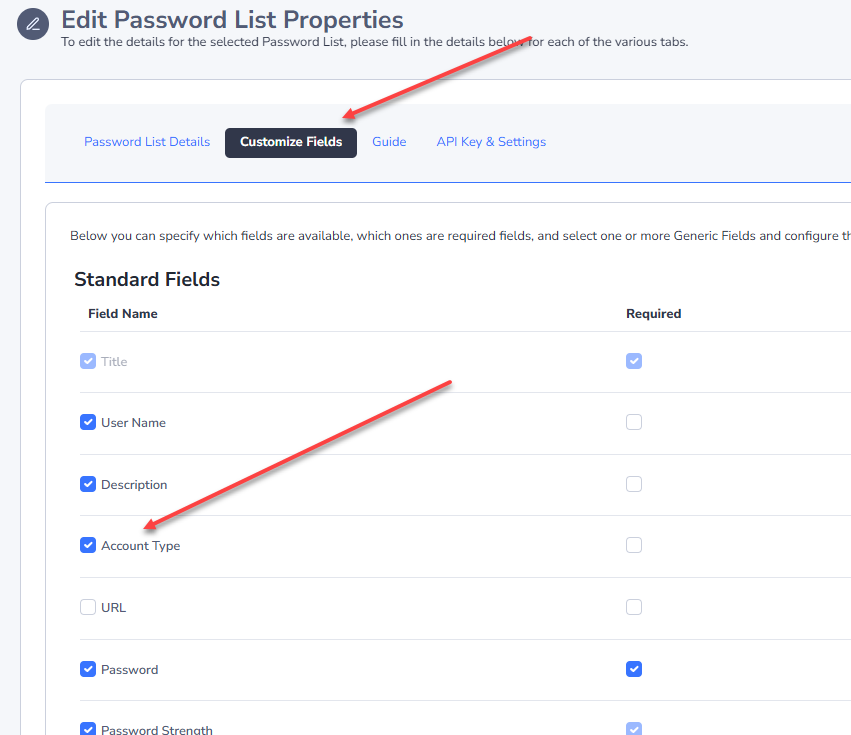
Setting this option above will also enable the Account Type field on your Password List, which will allow you to select any type of managed account when adding in a new password record:
Configure a Password for Password Resets
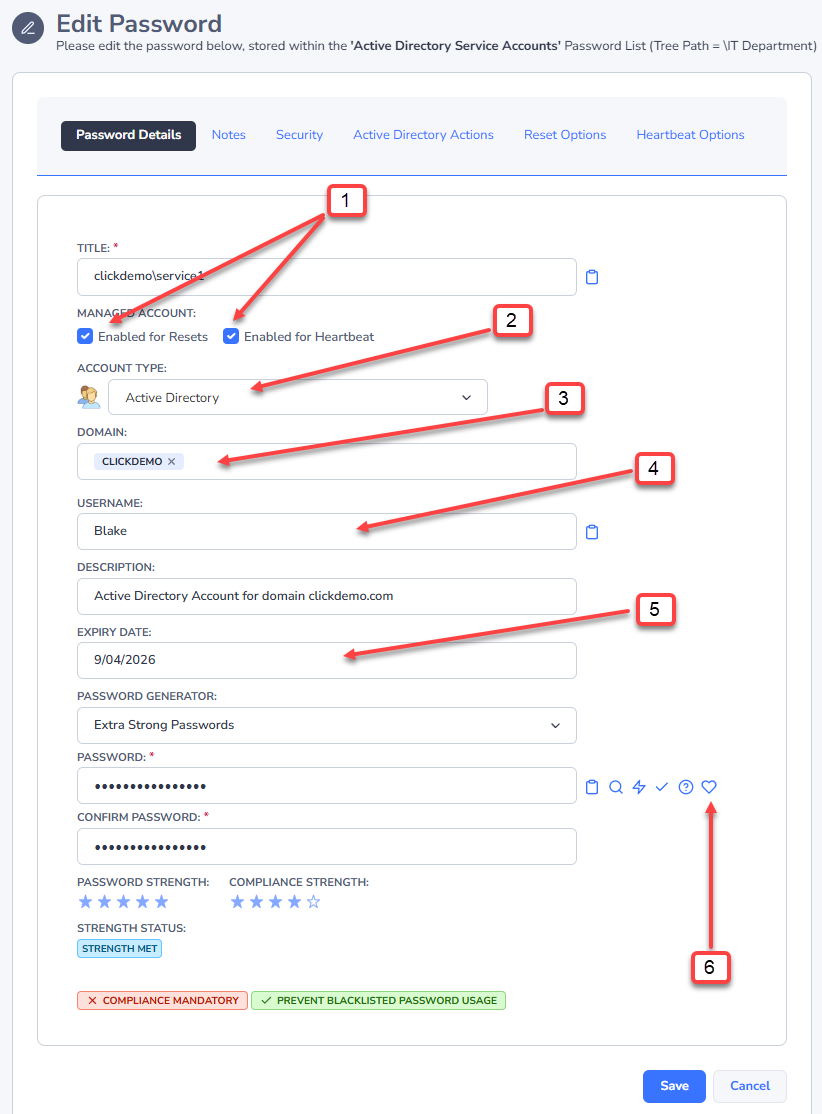
When adding in a new account into your Password List that is enabled for resets, you should specify the following:
- Enable the option to perform Password Resets and Heartbeats
- Select the 'Active Directory' Account Type
- Select the appropriate Domain by searching for it
- Specify the Username of the account
- Setting an Expiry date will trigger an automatic reset once it occurs
- Clicking the Heart icon will do a live test to see if the password is in sync with Active Directory
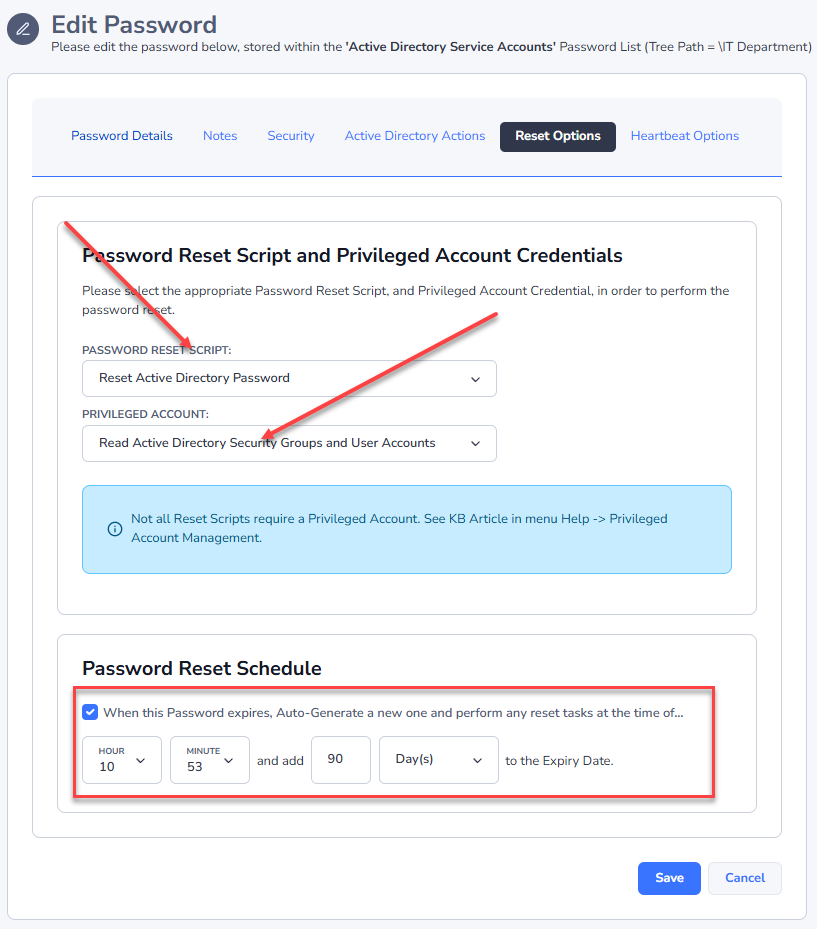
On the Reset Options tab, you must also select the Privileged Account Credential with sufficient permissions to reset the password in Active Directory. The Password Reset Script will automatically be selected for you, and if you want to set a future time and date for when to automatically reset the password again, set the appropriate option under the Password Reset Schedule:
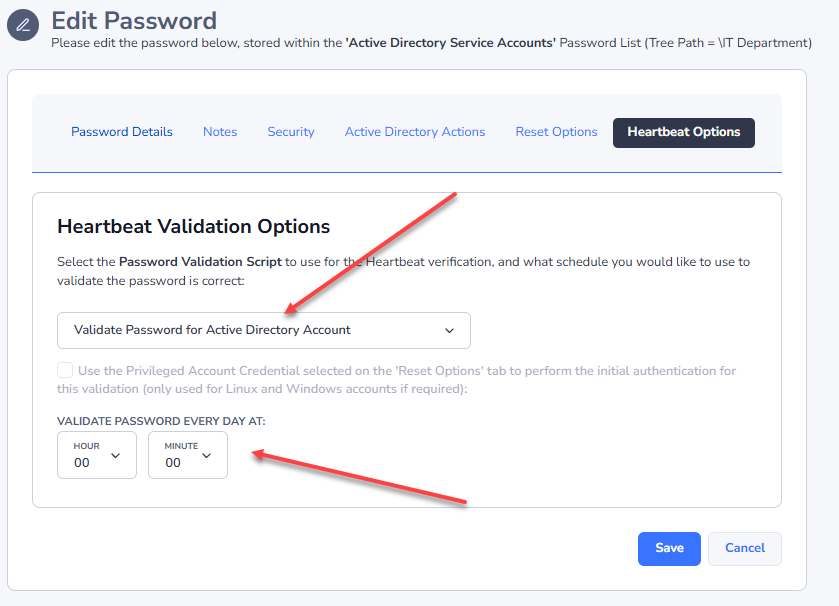
Under the Heartbeat Options tab, a Validation Script will be automatically set for you, and you can choose a custom time of the day to perform a Heartbeat:
Triggering a Reset
There are a few different ways a password can be reset once you have set up your record:
- If you open the record, and set a new password, and then save your changes, this will then update the password in Active Directory
- If the Expiry Date on the password record expires, this will change the password to a random password, based on the Password Generator Policy you have set on your Password Record
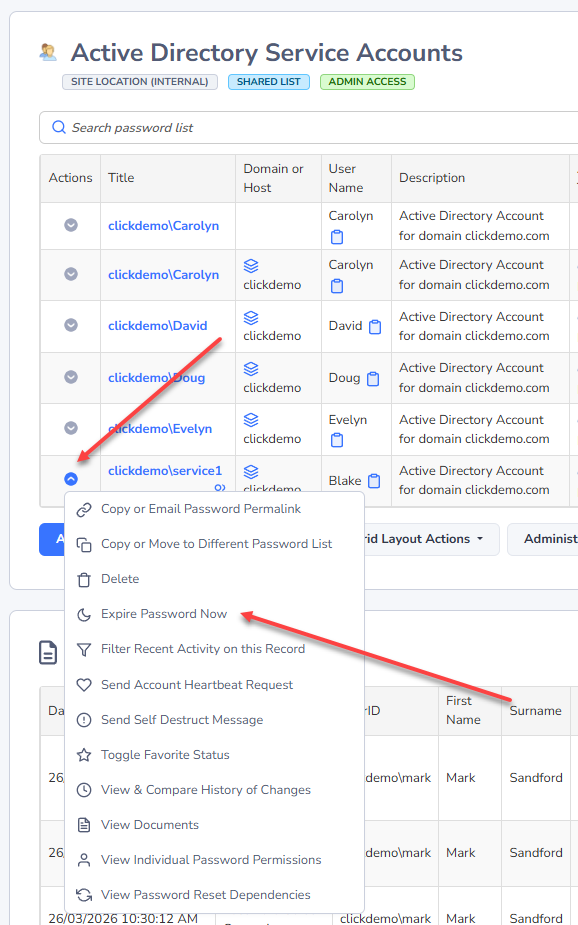
- You can Expire the Password Now from the Actions Menu of the Password Record:
Note 1: If a Scheduled reset was to fail for any reason, no changes will be made to the password record, and the Expiry Date field will not be updated. By not updating the Expiry Date field, another attempted reset will occur at the same time the following day.
Note 2: It’s not recommended to set up a standard user Active directory account to do automatic resets as per the above example. If Passwordstate were to automatically reset a user account, then that user would not be able to log into Passwordstate to retrieve the new password. Resetting Active Directory accounts in Passwordstate is mainly designed for things like Privileged Service Accounts, or shared accounts, not user’s primary domain accounts.