
Password Resets and Account Validation for Linux Root Accounts
By default, most Linux Operating Systems do not allow you to SSH in using the root account – for security reasons.
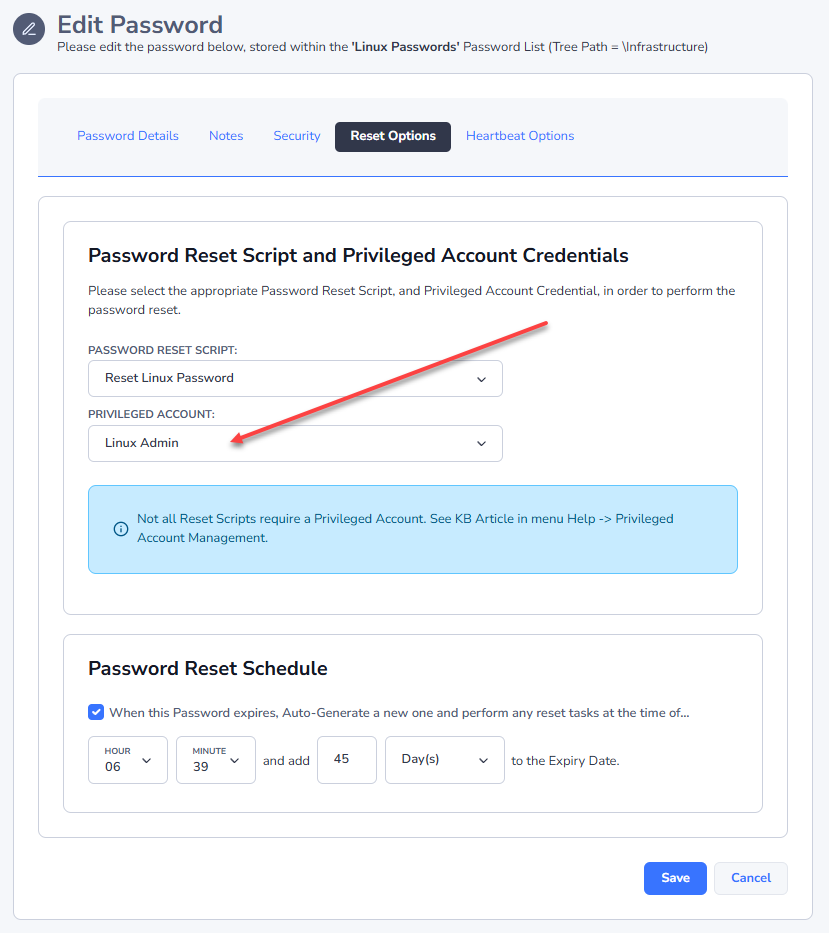
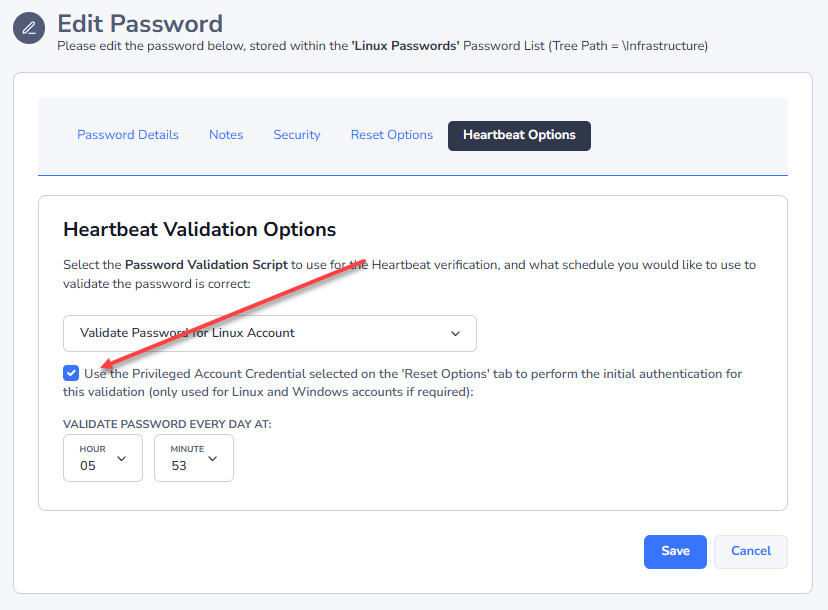
Because of this restriction, it is recommended on the root password record in Passwordstate, that you select a ‘Privileged Account Credential’ which can SSH into the Linux Host, and perform Password Resets and Account Heartbeats.
Example Screenshots of a Password Record configured to use a Privileged Account to reset and validate a root account:
 |  |
|---|
In order to perform an Account Heartbeat in Passwordstate for the root account, when using a different Privileged Account credential, changes are required to each of the Sudoers file on your Linux desktops/servers. Below are the changes required:
- Open the Sudoers file with visudo using the following command:
Linux
Sudo visudo -f /etc/sudoers- When editing the Sudoers file, scroll to the bottom and add the following two lines, entering in the appropriate username you use in Passwordstate as your Privileged Account:
Linux
## Enable sudo rootpw for Passwordstate Privileged Account
Defaults:<username> rootpw
Password Reset Implications
With this change above to the sudoers file, this has implications for password resets for the root account, as the “current” password value for the root account must be set correctly in Passwordstate for this to work. Below is example PowerShell code for how password resets are occurring with this type of configuration:
Linux
echo -e $'$OldPassword\n$NewPassword\n$NewPassword' | sudo -S passwd $UserNameThe $ symbol represent parameters passed to the reset script, and $OldPassword in this case is the current value of the password stored in Passwordstate.
Account Discovery Implications
If you are wanting to configure an Account Discovery Job for root accounts, this requirement for password resets to have the current password stored for the root account in Passwordstate can cause complications. The two options for this are:
- If your root accounts on all machines use the same password value, then on the Discovery Job you can specify this password to be set on discovery
- If the above is not possible, then each of the accounts added into Passwordstate will need to be modified after they are discovered, and have the password set with the correct value. To do this you can edit the password record and:
- Untick the option 'Password Enabled for Resets'
- Reset the password to the correct value save the record
- Edit the record again, tick the 'Password Enabled for Resets', and save the record again
Once this is done, scheduled and manual password resets can occur for your root accounts.