
Enabling PowerShell Remoting via Group Policy
To enable PowerShell Remoting for multiple hosts at a time in your environment, you can use Group Policy to make the required changes. The following instructions provide detail of how to do this (screenshots here are from a Windows Server 2012 R2 domain controller):
- Open the Group Policy Management Console
- Create or use an existing Group Policy Object, open it, and navigate to Computer Configuration -> Policies -> Administrative templates -> Windows Components
- Here you will find the available Group Policy settings for Windows PowerShell, WinRM and Windows Remote Shell:
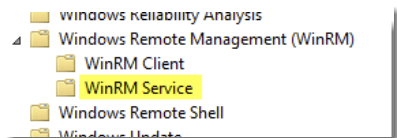
- Open “Allow remote server management through WinRM” setting
- Enable the Policy and set the IPv4 and IPv6 filter values to *
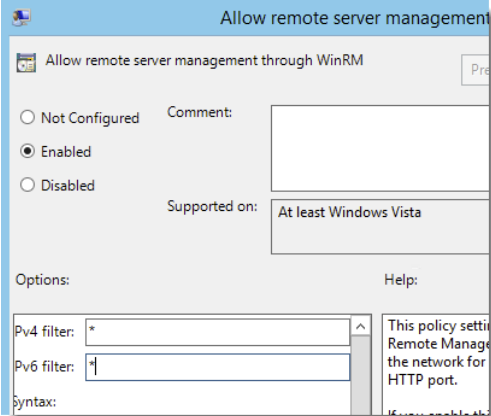
- Click OK
- Navigate to Windows Settings -> Security Settings -> System Services
- Select Windows Remote Management (WS-Management) Service and set the start-up mode to Automatic
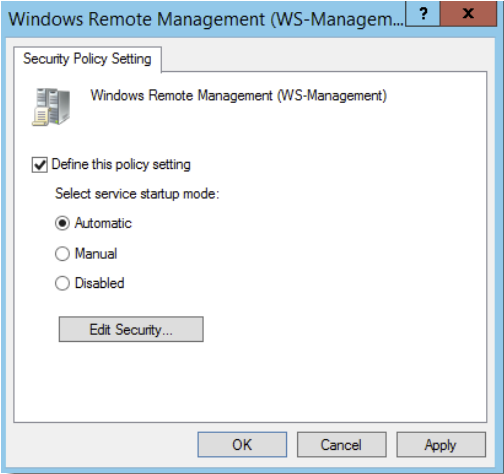
- Click OK
- You need to create a new Inbound Rule under Computer Configuration-> Policies -> Windows Settings -> Windows Firewall with Advanced Security- > Inbound Rules:
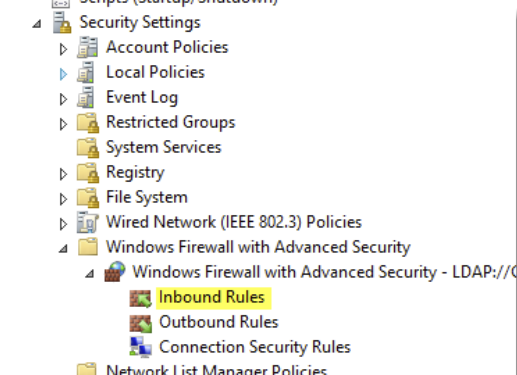
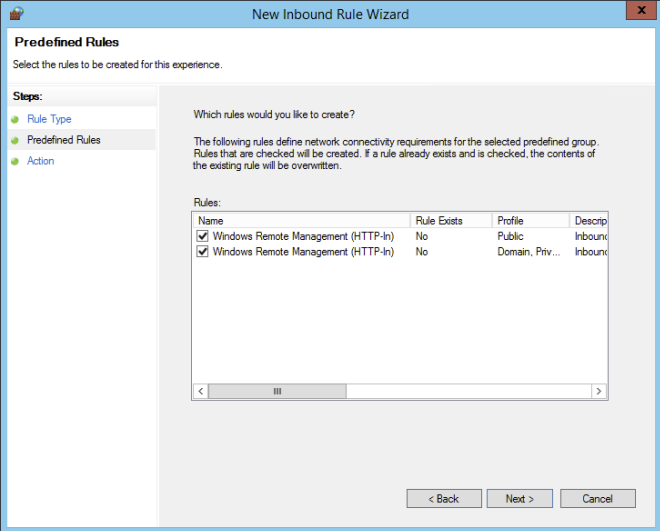
- The WinRM port numbers are predefined as “Windows Remote Management”:
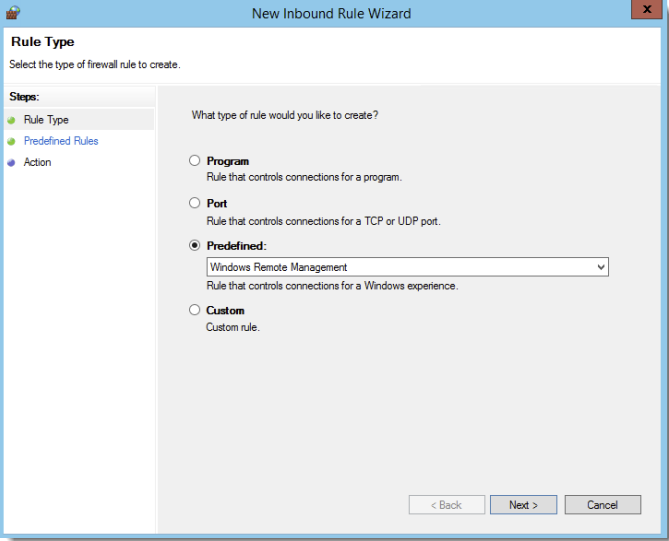
- With WinRM 2.0, the default http listener port is TCP 5985.
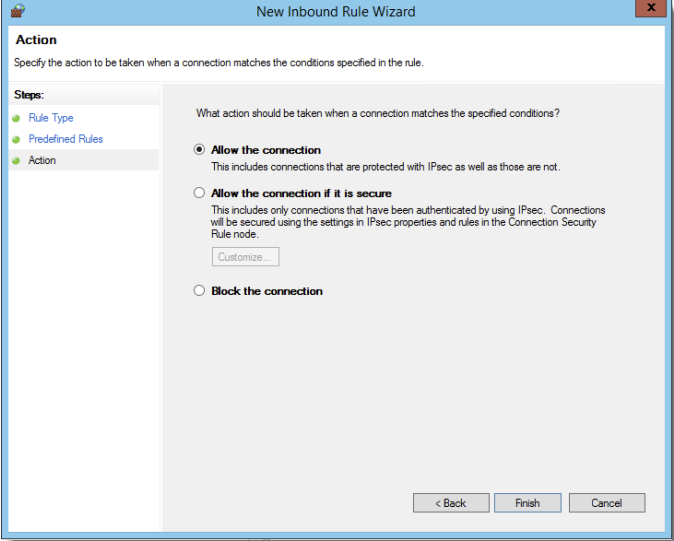
- Select “Allow the Connection”
- Close the Group Policy Editor
- Link the PowerShell Settings GPO to correct OU for testing
- Run gpupdate on your test computers, or reboot them