Password Record Examples
In this document, we’ve given an example of how to set up an Active Directory account for automatic password resets, and heartbeats. The same settings and principles apply when adding in other types of accounts, like Windows or Linux accounts. For example, you choose an Account Type, set the Username and Password, and possibly assign a Privileged Account.
There are some other Account Types which require some additional information, and this is explained below:
Office 365/Azure AD Accounts:
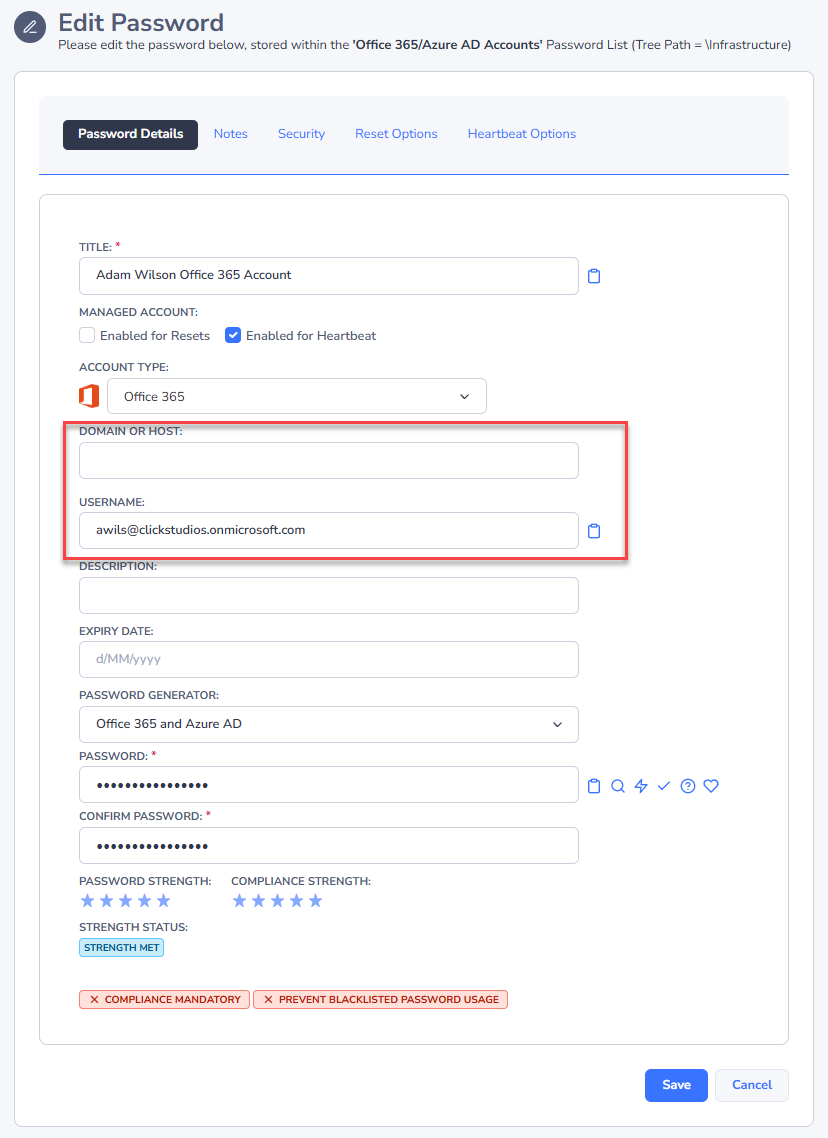
When setting up an Office 365 or Azure AD account, you do not set a Domain, rather you enter the username in as username@office365domain.com format:
Workgroup/Non-Domain Local Administrators
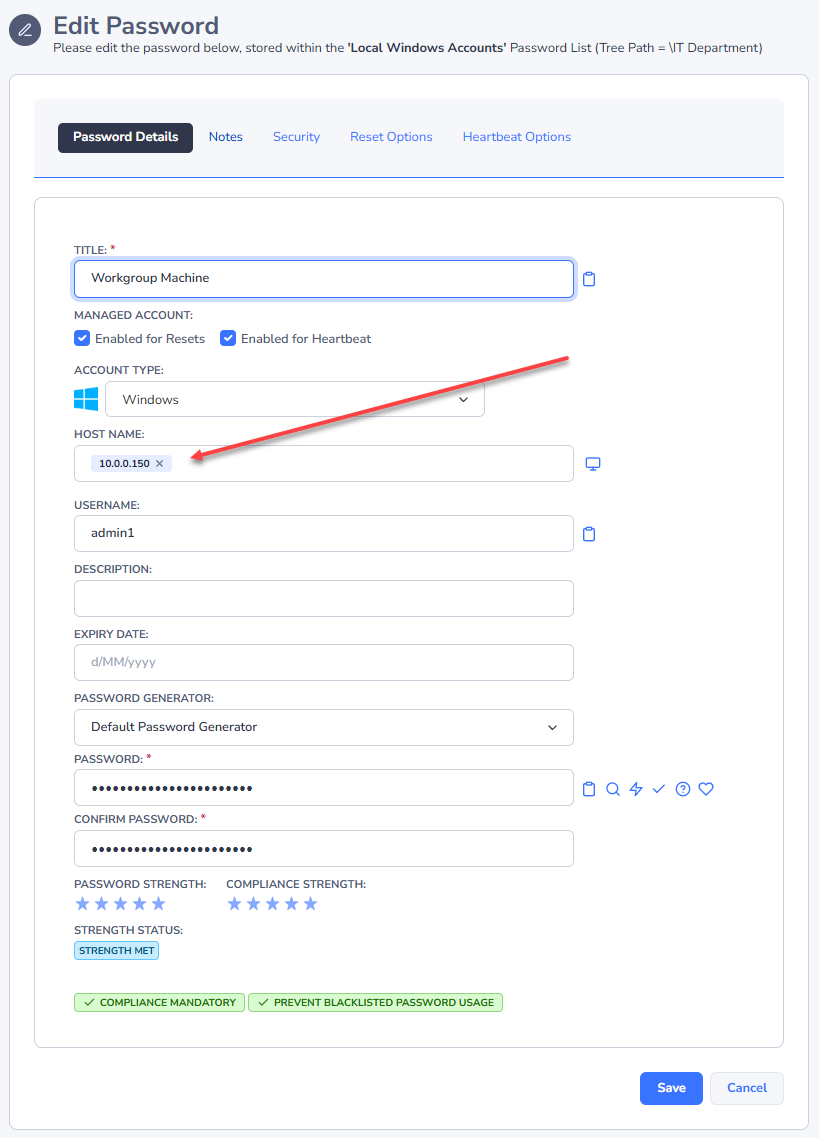
If you do not have functioning DNS for your WorkGroup computer, you should add the Host into Passwordstate using the IP Address. You then set the IP Address on the Password Record:
- On your Passwordstate webserver, execute the following Powershell command to trust all hosts:
Powershell
Set-Item WSMAN:\localhost\Client\TrustedHosts -value *(It's possible to specify your workgroup server instead of the wildcard * if you prefer)
- Ensure you have enabled Powershell Remoting on the Workgroup machine. To do this open Powershell "As Administrator" and execute:
Powershell
enablepsremoting -force- On the same Workgroup machine, you must enable remote connections to the server for your Administrator account. To do this, open Powershell "As Administrator" and execute the command below, which adds a registry key to your system. This is a Microsoft requirement and you can read more about it in this link: https://docs.microsoft.com/en-us/powershell/module/microsoft.powershell.core/about/about_remote_troubleshooting?view=powershell-5.1
Powershell
New-ItemProperty -Name LocalAccountTokenFilterPolicy -Path `HKLM:\SOFTWARE\Microsoft\Windows\CurrentVersion\Policies\System` -PropertyType
DWord -Value 1
Database Accounts (Microsoft SQL Server, Oracle, PostGre, MySQL, MariaDB)
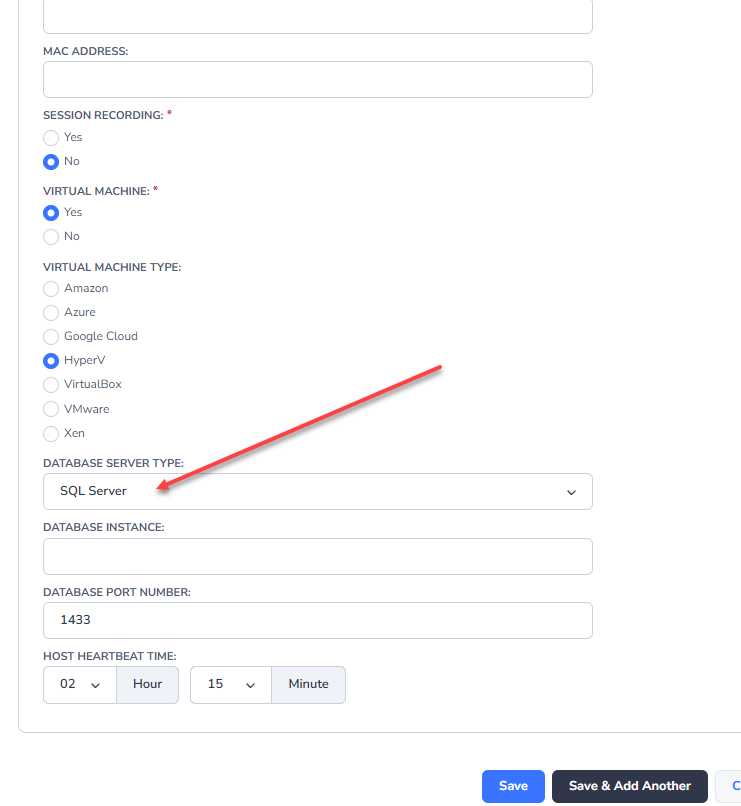
For database accounts, the Host must be configured with the appropriate database type, instance and port number:
IBM IMM Accounts
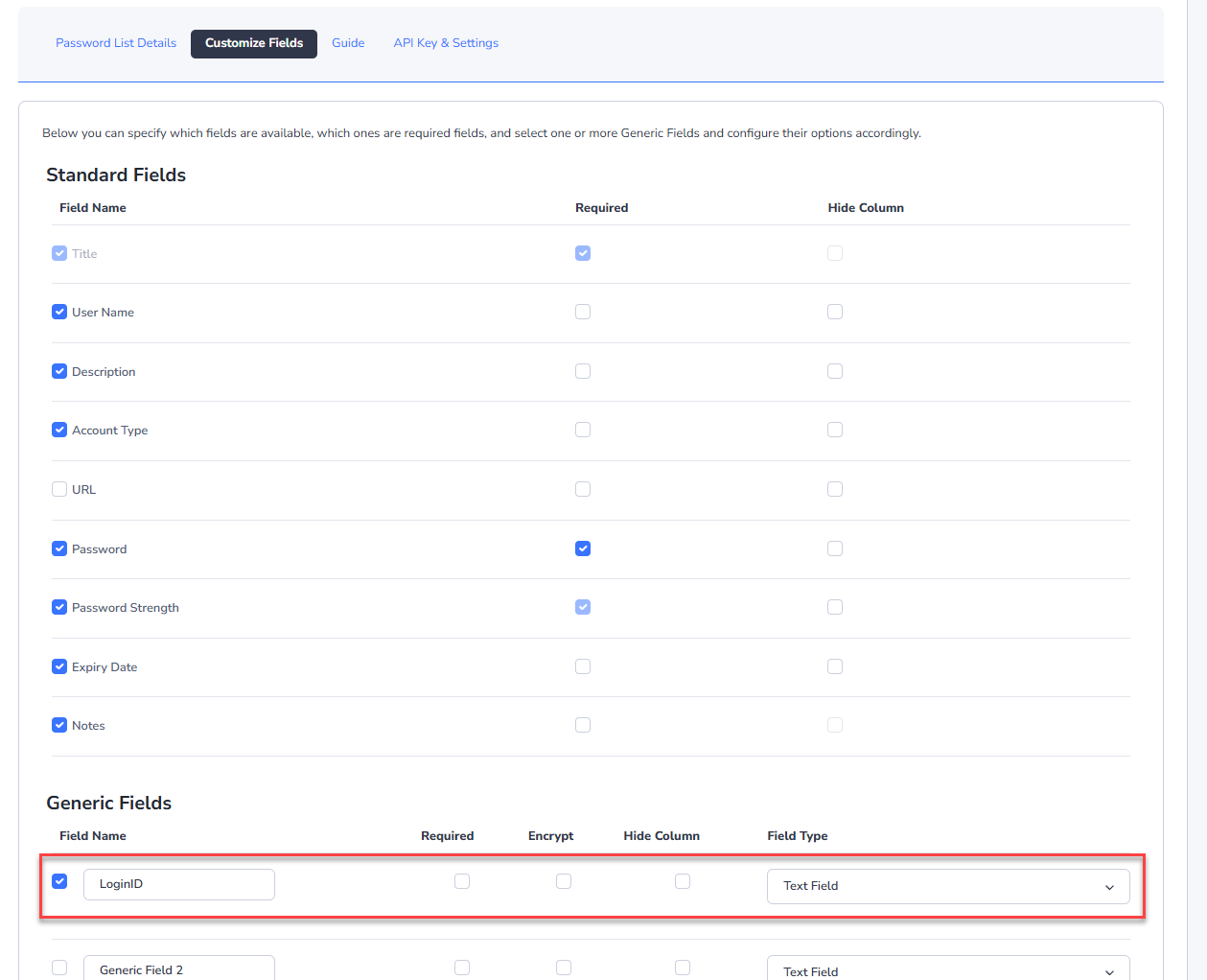
IBM IMM accounts require you to also set the LoginID of the account, and this means you will have to enable Generic Field 1 on your Password List as a “Text Field”, and name it as LoginID:
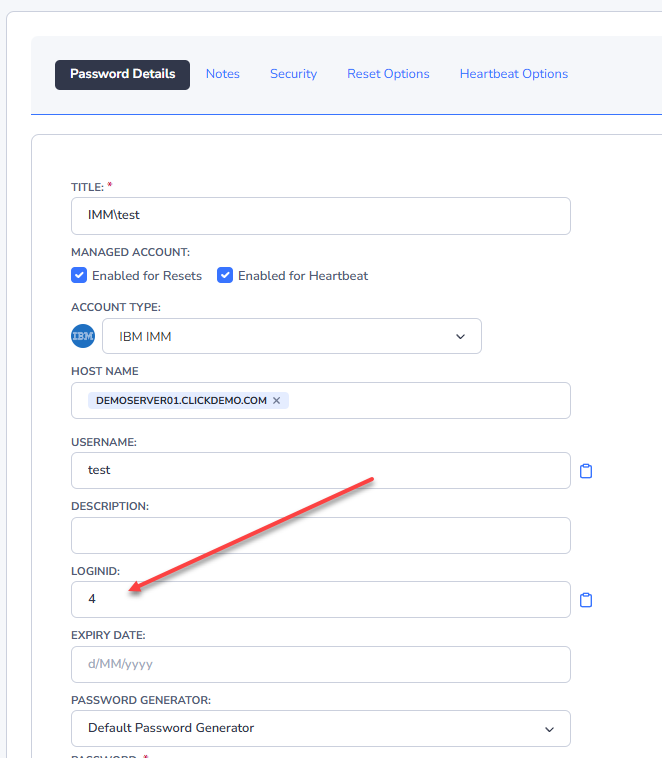
Now when adding in your account into a password record, you set the LoginID as follows, and this ID can be found in your IMM Console:
SSH Accounts with Public/Private Key Authentication
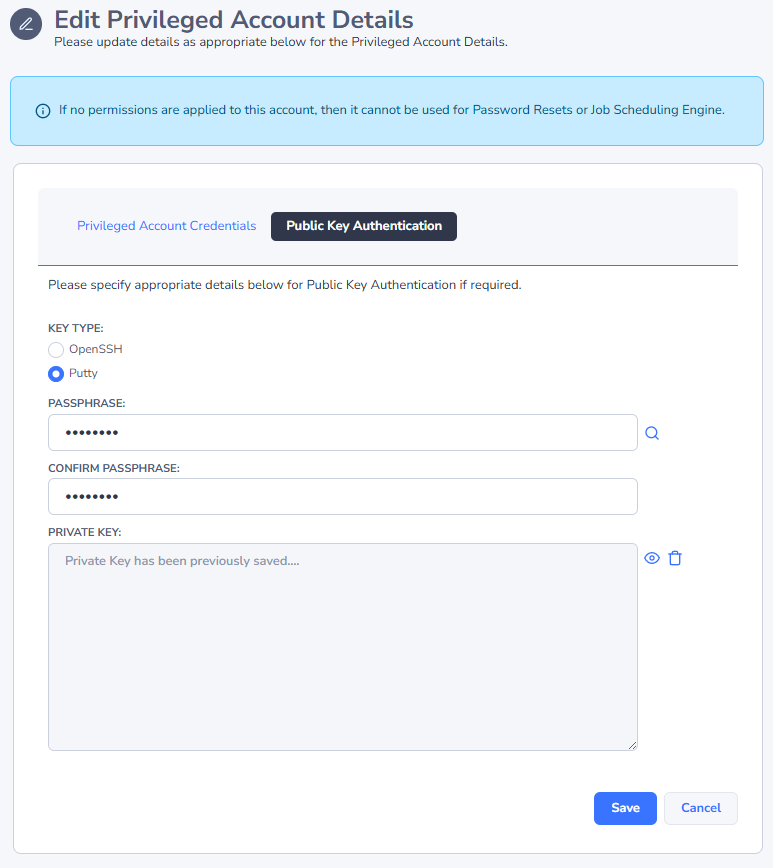
If the Privileged Account you use to reset other SSH Accounts uses a Public/Private key to authenticate, you can set your Private Key and Passphrase on this screen – It will connect using the Passphrase instead of the standard password, and then perform the reset for the appropriate account.
Cisco IOS Enable Account
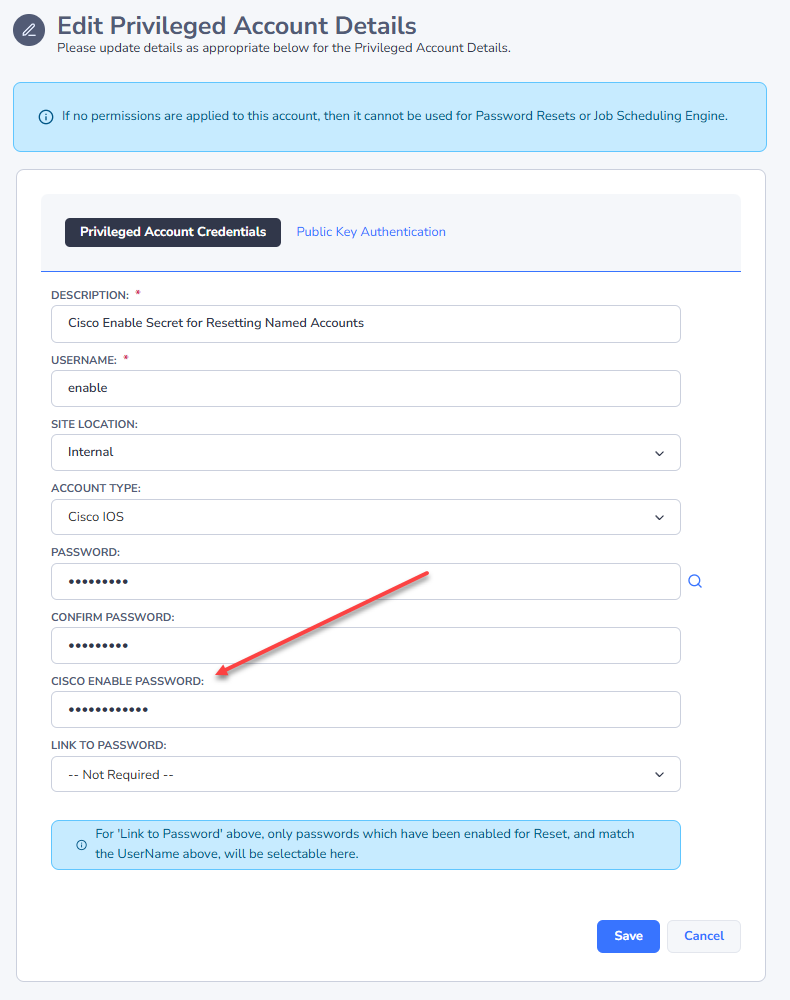
If your Privileged Account needs the Enable password to perform the password reset, you can set this on this screen:
Dell iDrac Accounts
Dell iDrac 9 accounts that are running Firmware 4.40 or higher require you to also set the ID of the account, and this means you will have to enable Generic Field 1 on your Password List as a “Text Field”, and name it as LoginID:
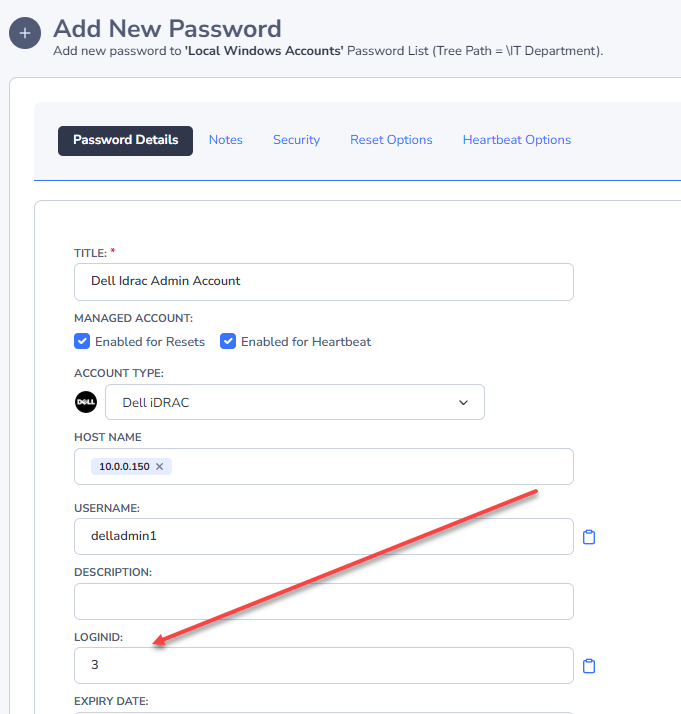
Now when adding in your account into a password record, you set the LoginID as follows:
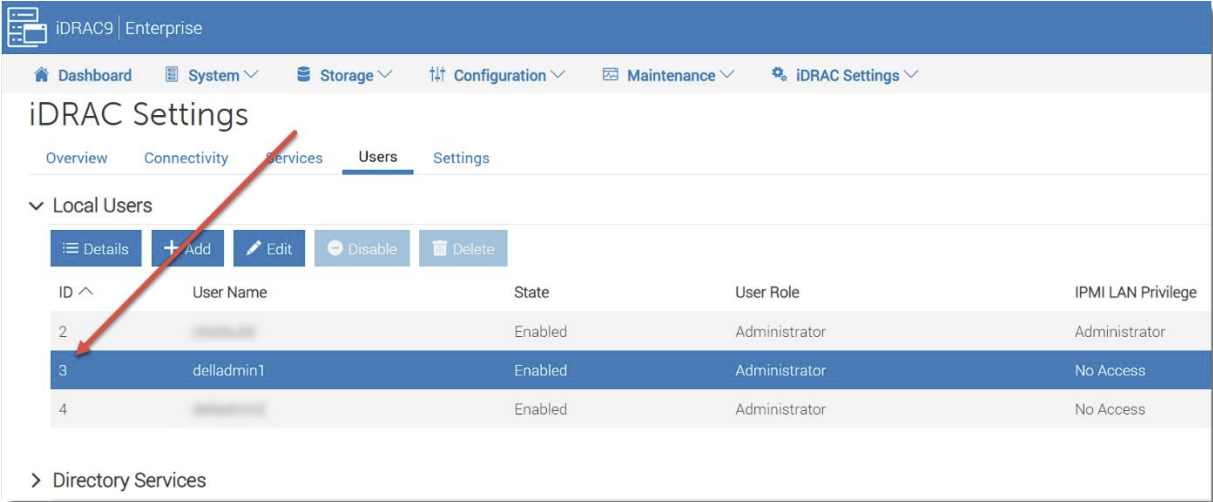
You can find the ID number of your iDrac Account in the Dell web console: