
Office 365 and Microsoft Entra ID Accounts
Powershell Module Requirements
In order to perform Password Resets and Account Heartbeat validations, you must first install the Azure Az PowerShell module on your Passwordstate Web Server. To do this, open PowerShell as an ‘Administrator’ and type in the following command:
Powershell
Install-Module -Name Az -AllowClobber -Scope AllUsersAccept the two prompts to install the module, and wait for it to complete – it can take several minutes to complete. Best practice is to reboot your server after making this change.
If you have the old legacy Powershell module installed (AzureRM), this is being deprecated in February 2024 by Microsoft. You will need to uninstall this module after the Azure Az module is installed, as per this Microsoft article: https://learn.microsoft.com/en-us/powershell/azure/uninstall-az-ps?view=azps-10.4.1#uninstall-the-azurerm-module
To achieve this, run this command in an elevated command prompt:
Powershell
Uninstall-AzureRmYour Passwordstate web server must have Internet access to reach out to your Azure tenant when installing and using this PowerShell module.
Microsoft Entra ID Permissions
A standard user in Microsoft Entra ID cannot reset their own password when using the Powershell module. You can either grant the user access to reset their own password, or you can use a privileged account in Entra ID to reset passwords on behalf of users.
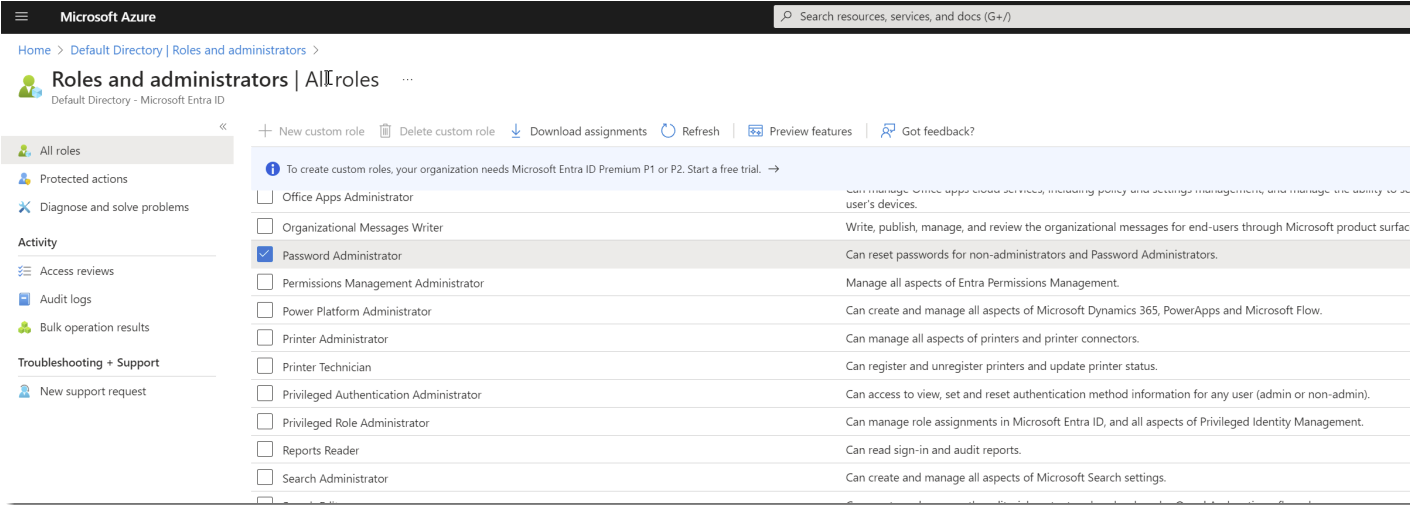
The Password Administrator role in Microsoft Entra ID will allow a user to reset their own password, or will give your privileged account enough permissions to reset another user’s password. Screenshot of this role can be found below.
Please refer to Microsoft documentation for detailed and current information about password reset permissions required in Microsoft Entra ID.
Office 365 and Entra ID Heartbeats
When performing a heartbeat on an Office365 or Entra ID account to check if it is valid, it will attempt to log in to the tenant as part of the Powershell script that gets executed. If the account has Multi-factor Authentication (MFA) applied to their account, then there is no way to automate this process.
Auditing in Passwordstate will alert you if a heartbeat has failed due to MFA limitations, and you should disable the heartbeat option on your password records for these accounts, to prevent reoccurring failed heartbeat attempts.