
Exporting Certificate from Passwordstate Server
You only need to follow this process if you are installing the Gateway on a separate server to your Passwordstate web server, or if the Install-Gateway-Internal.ps1 installer script cannot automatically export your certificate.
Method #1 to export certificate:
- On your Passwordstate web server, open IIS and Select your server in the left-hand side connections pane
- Double click Server Certificates button
- Find the certificate you are using on your Passwordstate website, right click it and select “Export”
- Choose a path to store the certificate, and make sure the file is saved as “Passwordstate.pfx”
- Set a password for the certificate, confirm the password and then click OK
Note 1: If you have multiple certificates on the machine, but you do not know which one is being used on your Passwordstate website, open the https binding of your Passwordstate website in IIS:
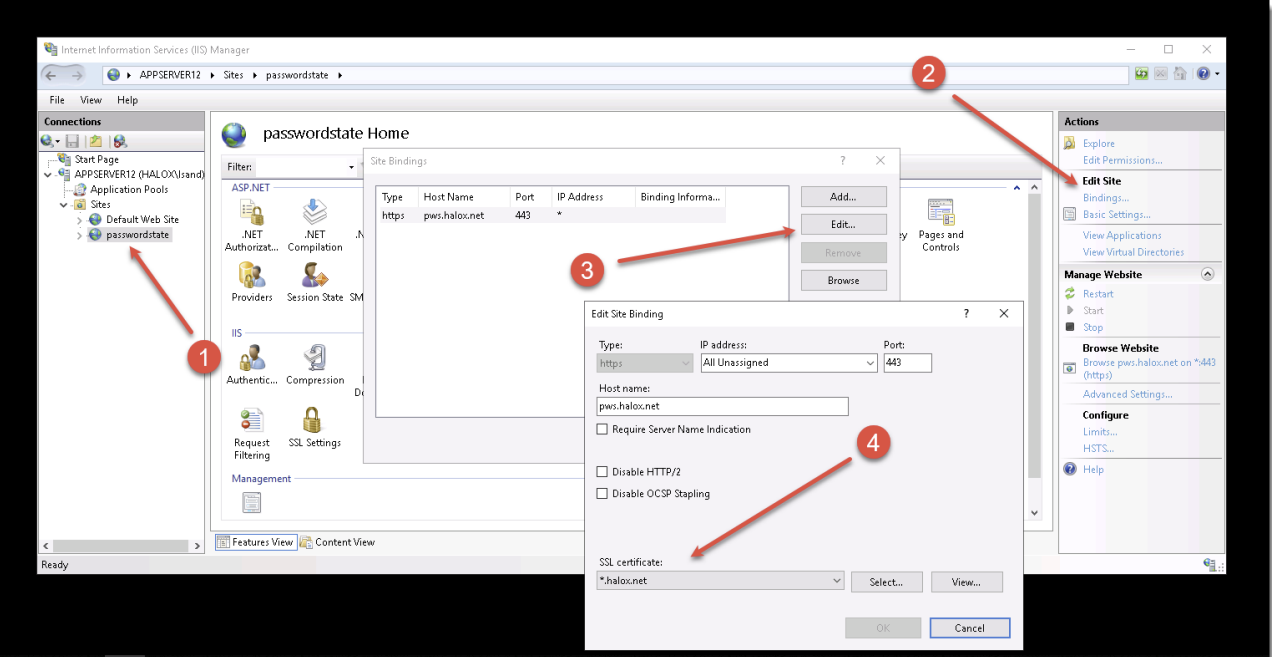
Note 2: If you do not see the Export option on the right click menu, this means your certificate is not marked for exporting. Try using Method #2 below as an alternative way to export your certificate, otherwise you’ll need to source a certificate that can be exported
Method #2 to export certificate:
- On your Passwordstate web server, go to Start -> Run and type in certlm.msc* and hit enter
- Browse to Personal -> Certificates, and double-click your Passwordstate certificate. The certificate may also reside under Trusted Root Certification Authorities -> Certificates
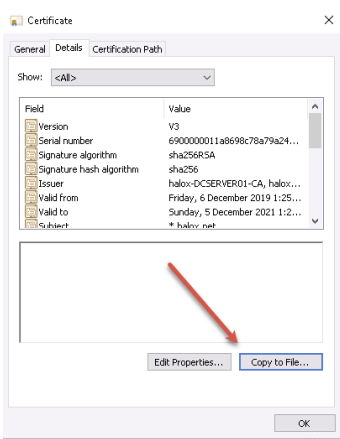
- Under the Detail tab, click “Copy to File”
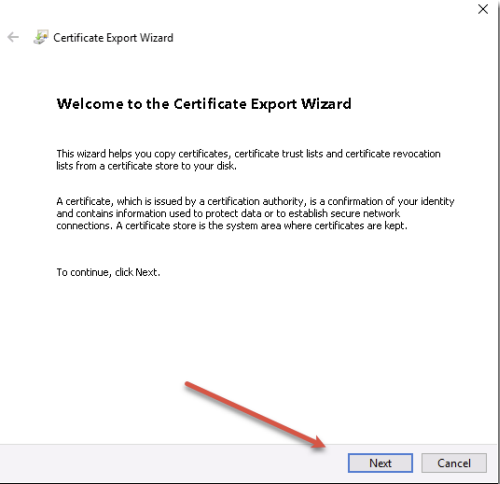
- Click Next
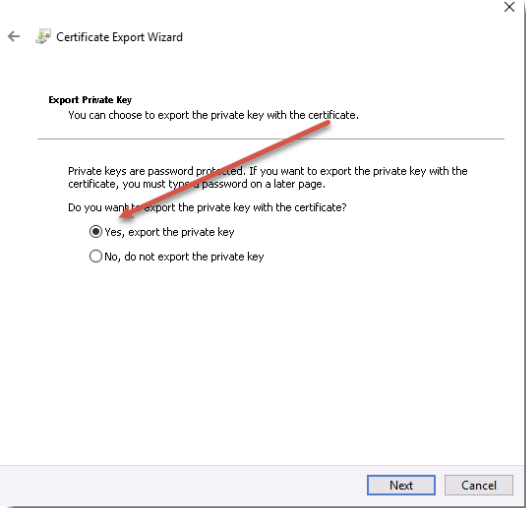
- Click Yes to export the Private key:
- Select Personal Information Exchange
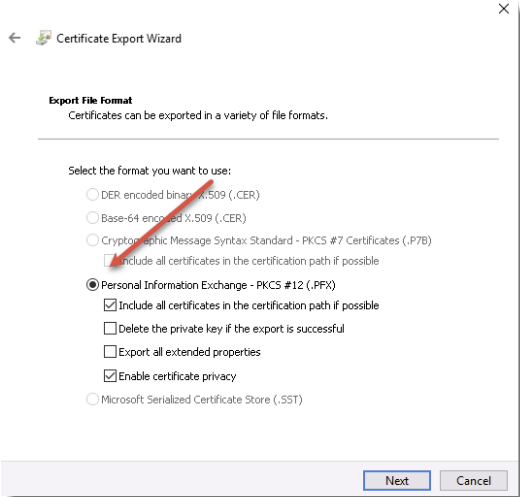
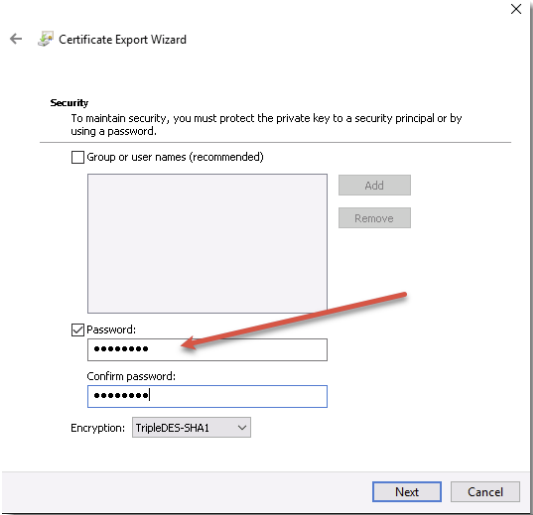
- Set a Password and click Next
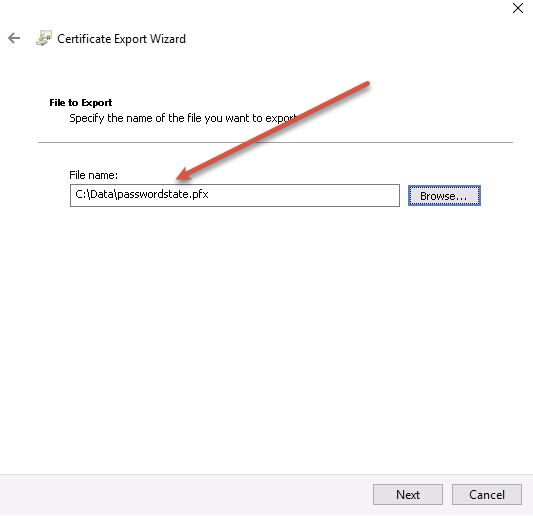
- Ensure you name the certificate Passwordstate.pfx
- Click Finish
If you cannot export your certificate, then you will need to go to your certificate source and mark the certificate as exportable. You can then try to export again using one of the methods above.
If you would like to set up an Internal Certificate Authority, and generate a new wildcard certificate from there that can be exported to a .pfx file, please see these links below:
Set up Certificate Authority: How to Set Up a Internal Certificate Authority
Request a certificate that is marked as “Exportable”: Generate a New Certificate from Active Directory Certificate Authority