
How to Trust a Self-Signed Certificate
For a seamless experience with the Remote Session Launcher, you should use a trusted certificate, which can either be issued from your own internal Certificate Authority, or from an online provider. If you have no choice but to use a Self-Signed Certificate, then you will need to force your browser to trust this certificate. Below are some instructions on how to do this in Microsoft Edge:
When trying to establish a Remote Session, and you receive the error below, one of the reasons this can occur is if your browser does not trust the certificate that is installed with your Browser Based Gateway.
Click on the Gateway SSL Certificate Test link:
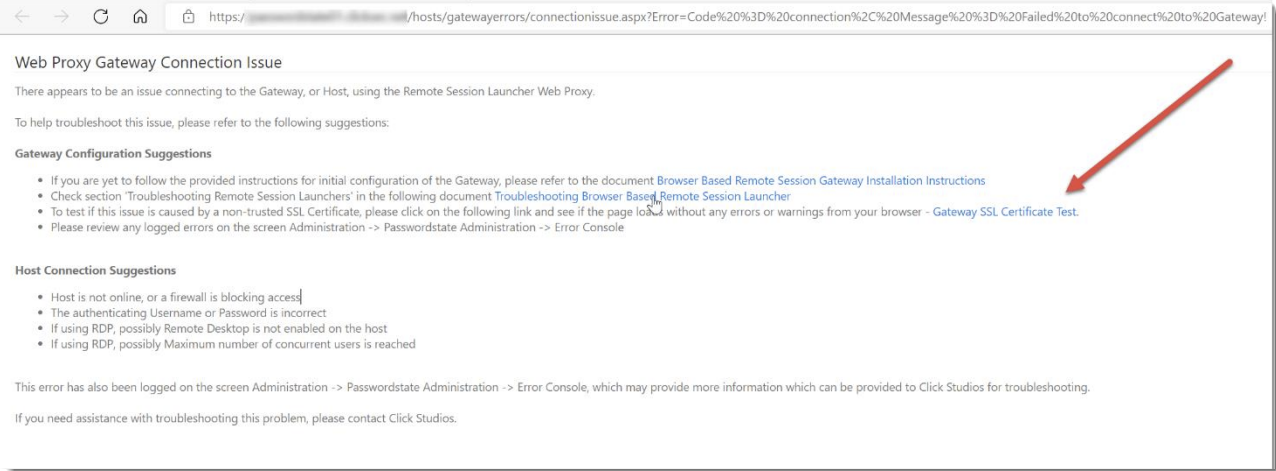
If you then get redirected to a page that looks like the screenshot below, the certificate is not trusted by your browser:
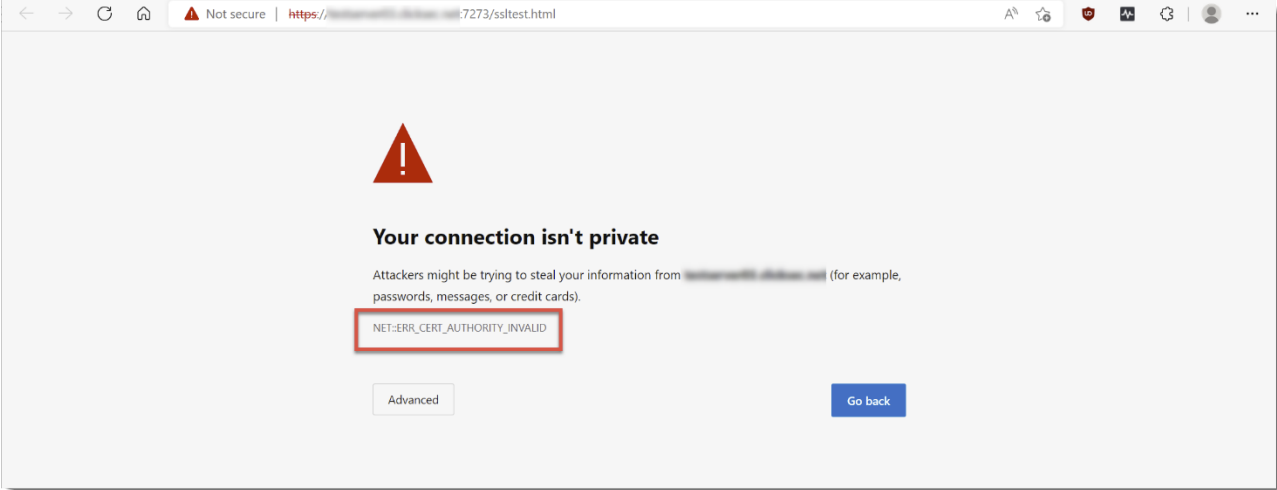
To fix this, you will need to follow this process on every machine that you intend on establishing remote sessions from. First, click the Warning button in Edge, and then click the Warning message:
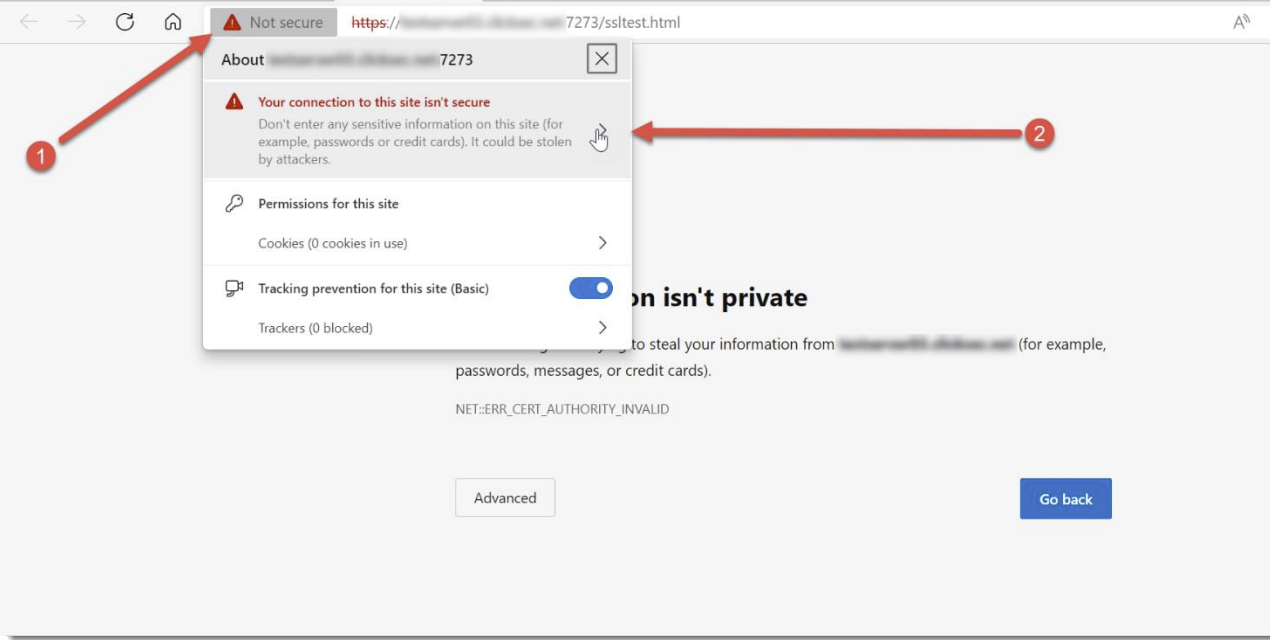
Click the Certificate button:
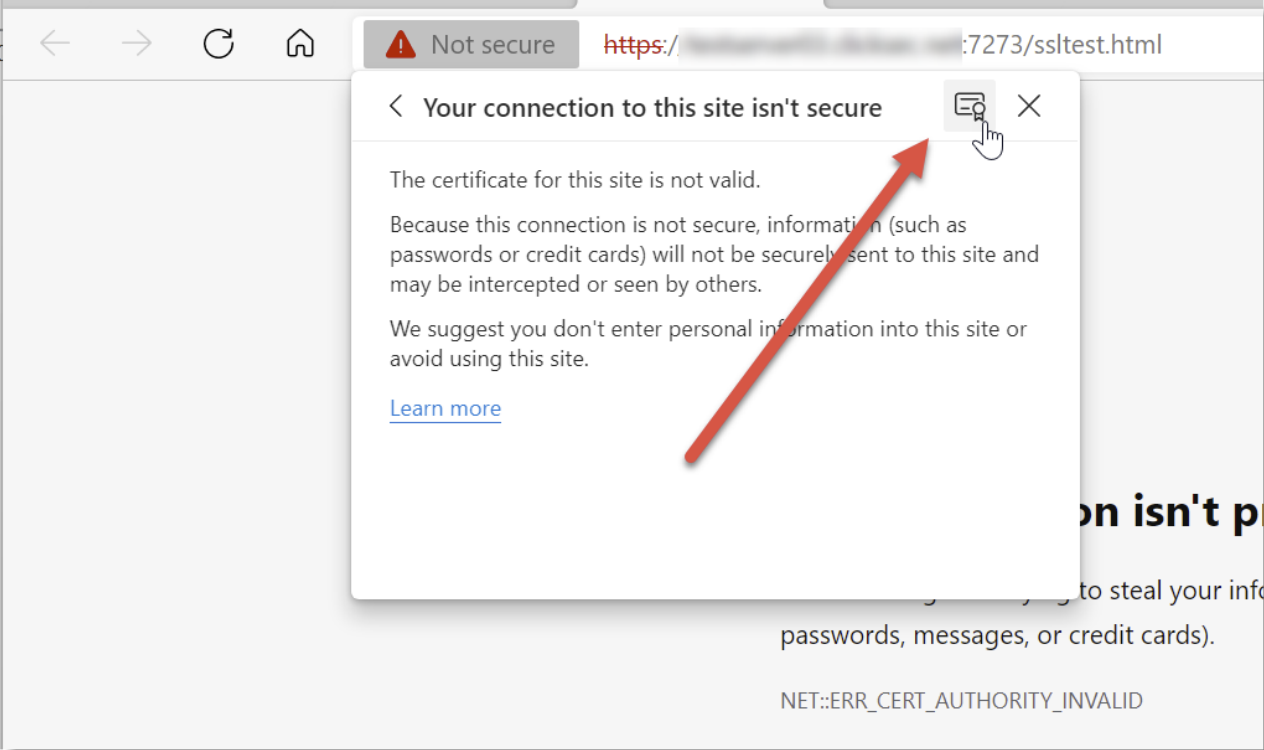
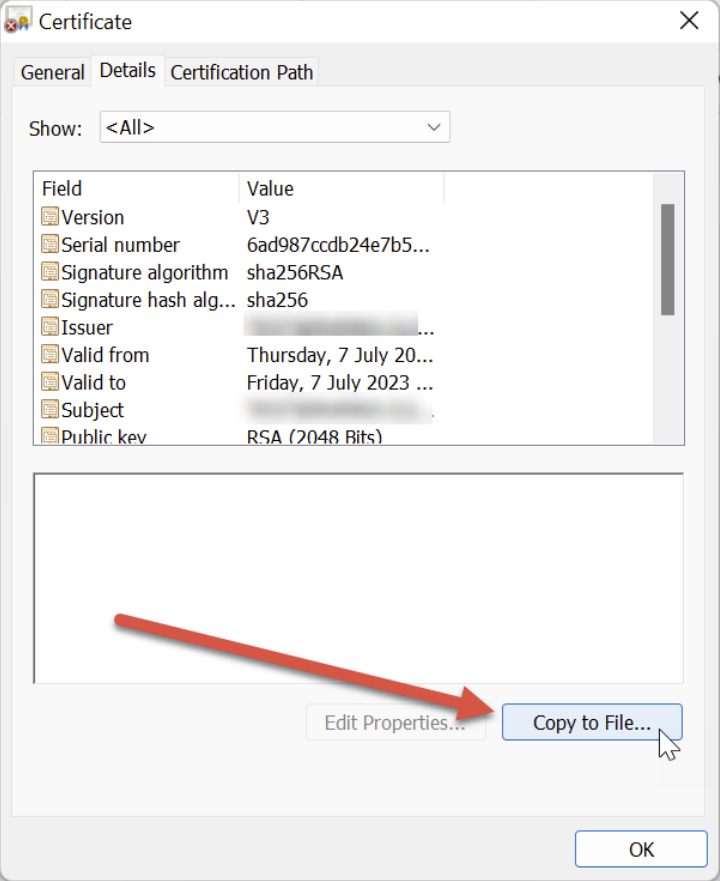
Under the Details tab, click Copy to File. Follow the prompts to save the certificate to disk, and you can choose all the default options during this process.
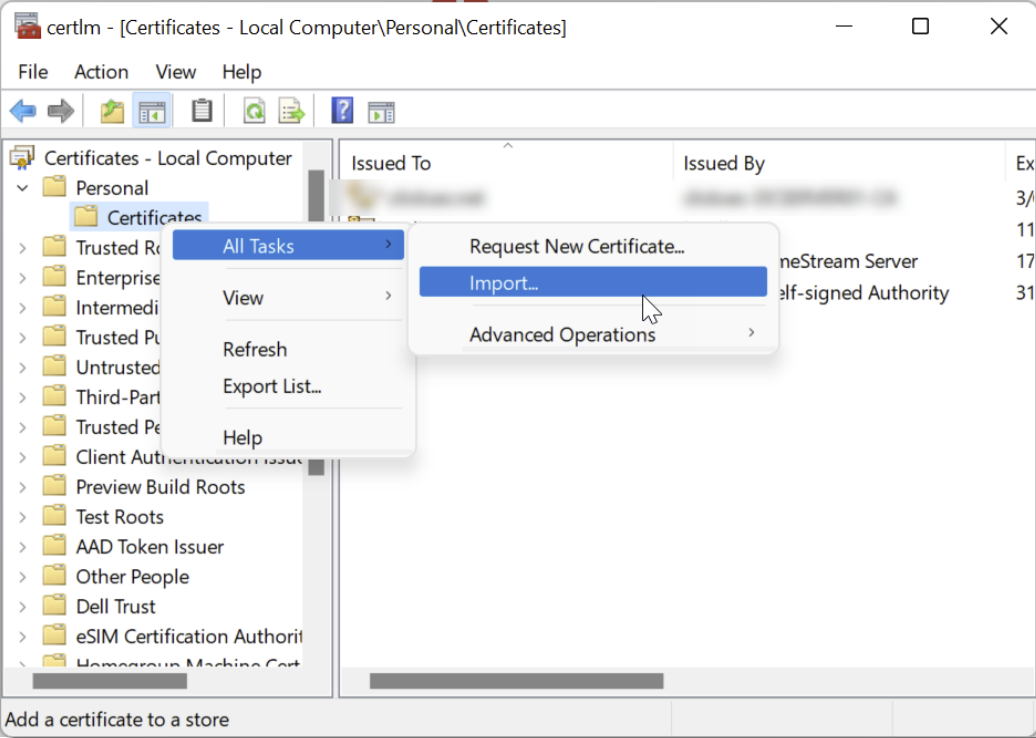
Now in Windows, go to Start -> Run and type in certlm.msc, and this will open the Local Certificate Store on your machine. Expand out Personal, right click Certificates -> All Tasks -> Import:
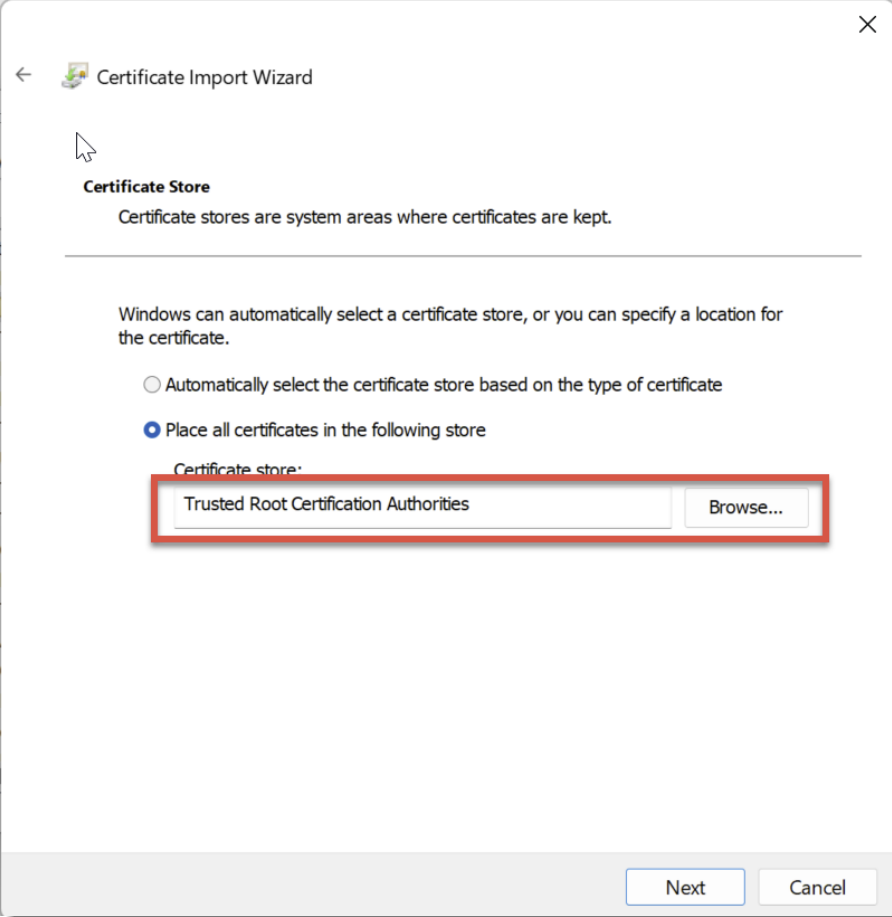
Follow the prompts and browse to the certificate you saved to disk, and ensure you place the certificate in the Trusted Root Certificate Authorities store:
At this point, you should be able to close your browser and reopen it, and try launching a new session. It should connect successfully.