
Installing Gateway on A Separate Server
Steps to execute the automatic installer on a standalone server:
- In Passwordstate, go to Passwordstate Administration home page and click the download button for the External Browser based Launcher, and transfer it to the server of your choice
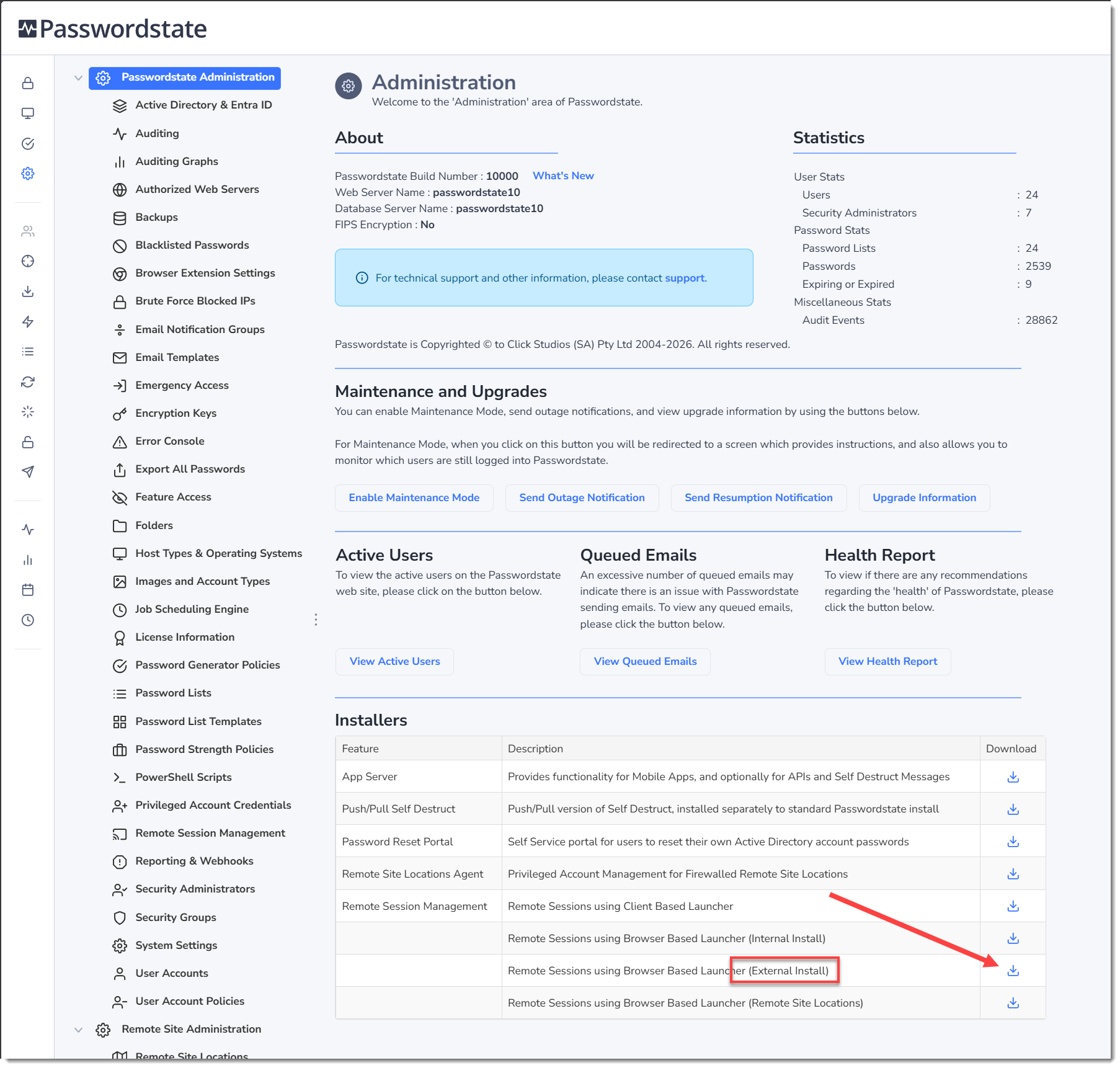
- Extract the zip file to the same folder, revealing a 7za.exe, PasswordstateGatewayInstaller.exe and an Install-Gateway-External.ps1 file
- Export a copy of your certificate from your Passwordstate web server by following the instructions in section “Exporting Certificate from Passwordstate Server” below in this document, or use any other password protected .pfx certificate of your choice. It does not have to be your Passwordstate certificate. Place this exported certificate in the same folder that you are extracting the zip file to, in the step above
- Open PowerShell ISE “As Administrator”, and then open the Install-Gateway-External.ps1 script
- At the beginning of the script, after all the initial comments, you will see a Powershell variable called $passwordstateurl. Enter your Passwordstate URL into this variable. I.e.
https://passwordstate.contoso.com - On the very next line, enter the password you set for the certificate
- Press F5 to run the script, or use the Run button in PowerShell to run the script
- In Passwordstate, navigate to Administration -> Remote Session Management -> Browser Based Gateway Settings, and enter in your Gateway URL. By default, the URL you will use is the FQDN name of the server. An example of this is if you install the gateway on a server called “AppServer01” that belongs to the “Contoso.com” domain, then the URL created for you is
https://appserver01.contoso.com. If you prefer to use a custom URL, create a functioning CNAME DNS record to forward traffic to your server where you have installed the gateway, then use that URL on the Browser Based Gateway Settings instead.
A log file will be created and placed in the directory where you executed the PowerShell script from and can be used to troubleshoot any issues.
There will also be an output in the PowerShell console advising what step the installer is up to. Once the script has finished, the Gateway is ready to be used and this video is a quick tutorial on how to do this: https://www.youtube.com/watch?v=E_PHLAfQe7c
Note 1: If you receive an error during the install stating:
“Combination test failed. It appears your server does not have access to the internet, and the install source files were not supplied”
You will need to manually download the Java source files on another computer, and place them in the same directory where you are running the Install-Gateway-External.ps1 script from.
The source files can be downloaded from this link: https://cdn.azul.com/zulu/bin/zulu21.32.17-cajdk21.0.2-win_x64.zip