KB: Generate a New Certificate from Active Directory Certificate Authority
Purpose:
This process shows you how to generate a new wildcard certificate from your AD Certificate Store, which can be used for your Browser Based Gateway or you can assign it to your Passwordstate URL.
Assigning it to your URL will make for a nicer end user experience, as the all browsers will automatically trust the certificate, assuming the user is accessing Passwordstate from a domain joined machine.
Disclaimer:
These instructions involve granting your web server permissions to a Web Server Certificate template in your AD Store. We encourage you to review and have this process approved before applying to your production environment.
Log into your Active Directory Certificate Authority server as a Domain Administrator
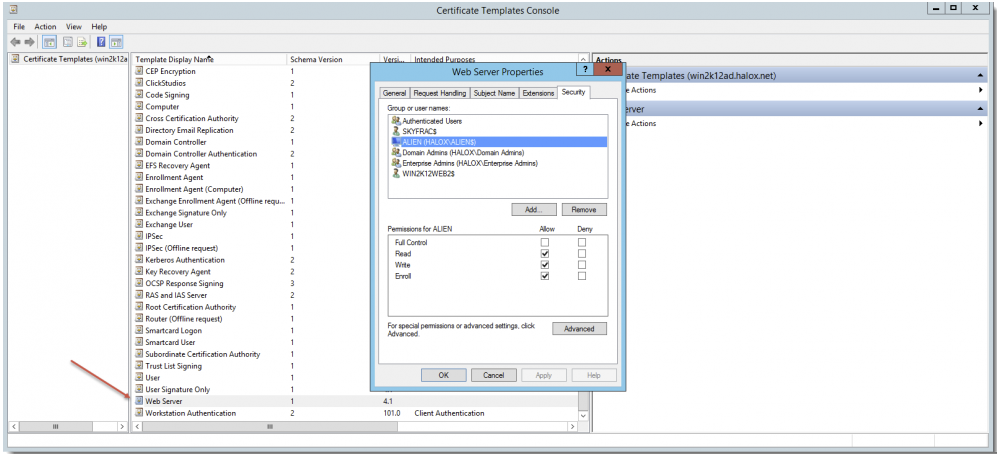
Open certtmpl.msc
In the Properties of the Web Server template, give your Passwordstate web server Read, Write and Enroll permissions, and click OK.
Log into your Passwordstate web server as Domain Administrator, open certlm.msc
Expand Personal -> Certificates
Right click Certificates -> All Tasks -> Request a New Certificate
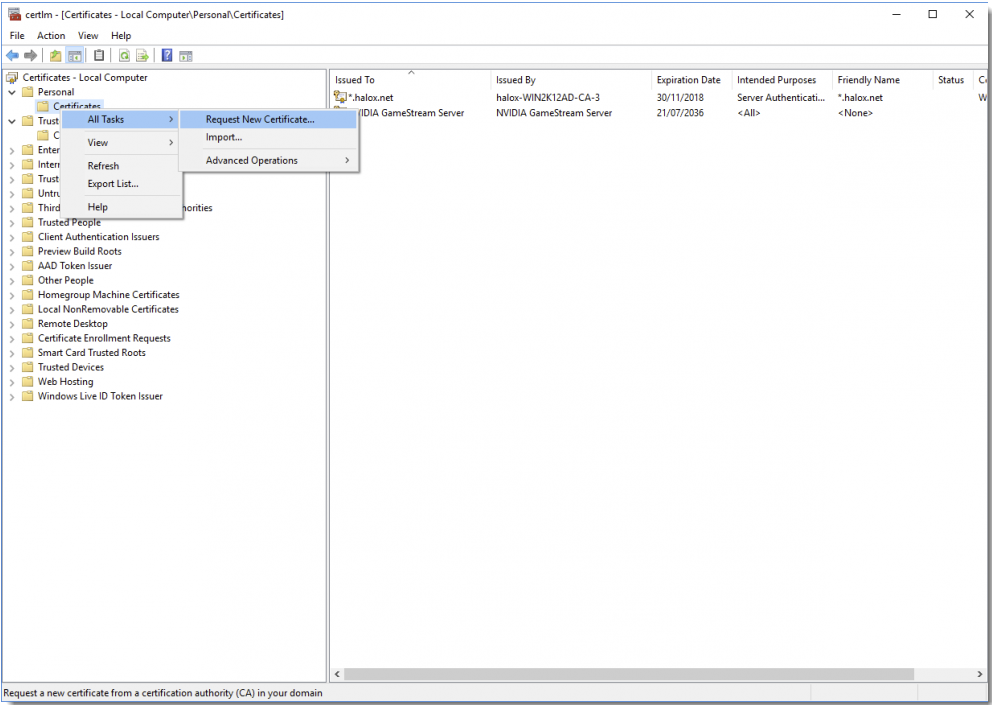
- Click Next
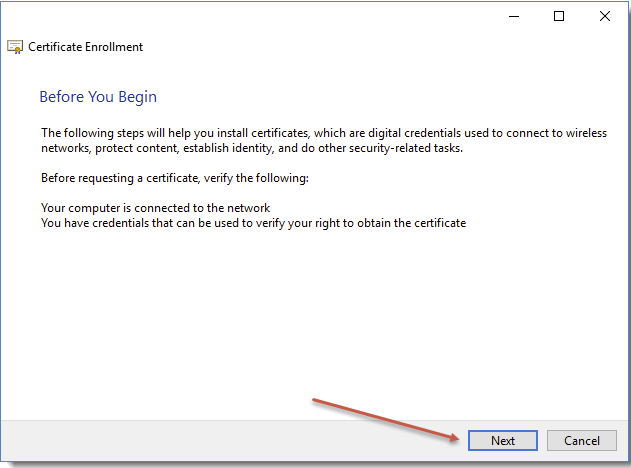
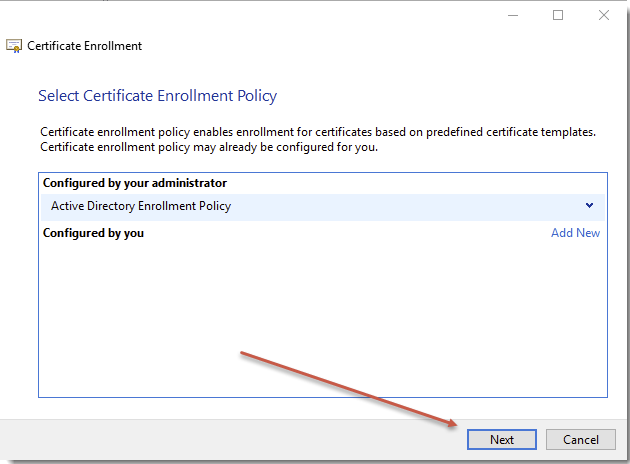
- Click Next
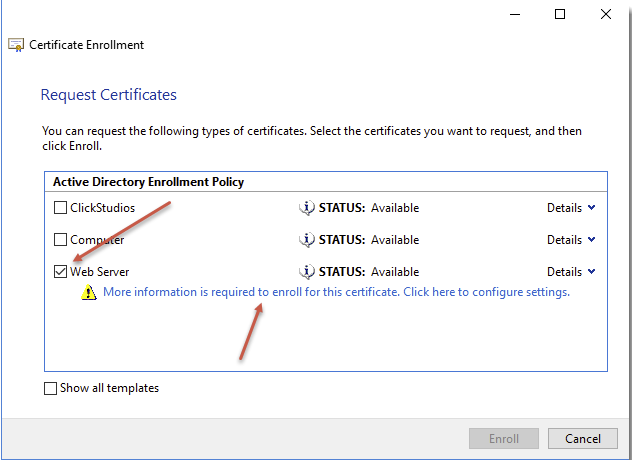
- Select the Web Server template, and click "More information is required to enroll for this certificate"
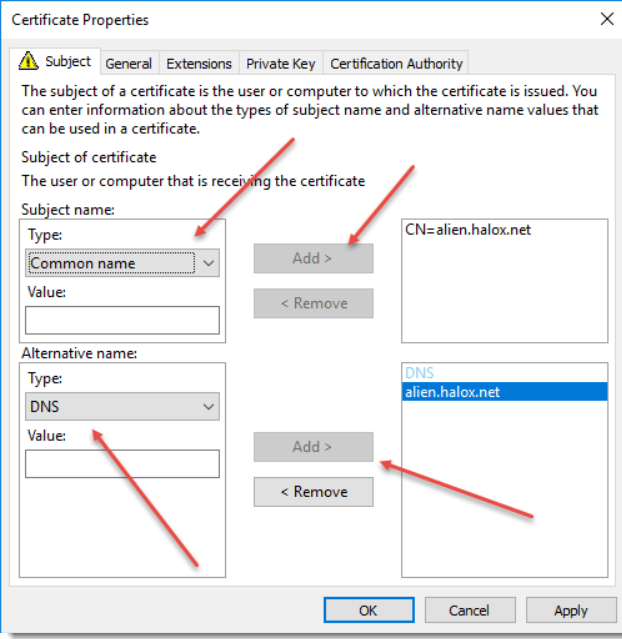
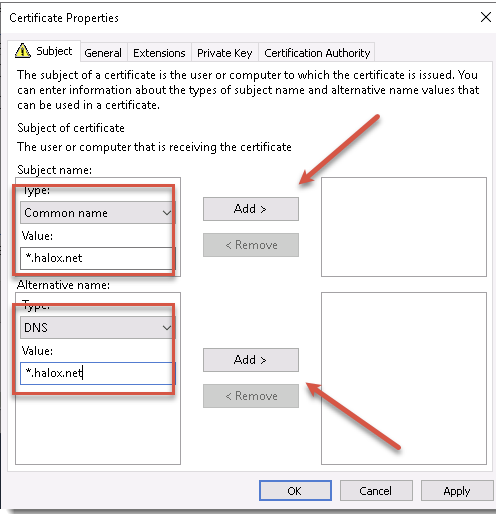
- Change Full DN to Common Name and type in your domain as a wildcard. Click Add. Change the Directory Name to DNS and also type in your domain as a wildcard. Click Add
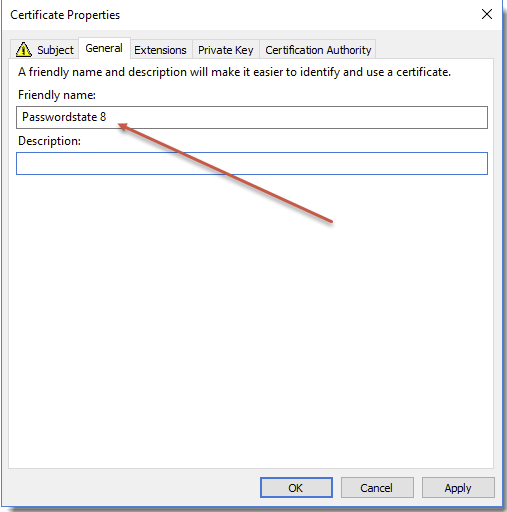
- Under the General tab, enter a Friendly name
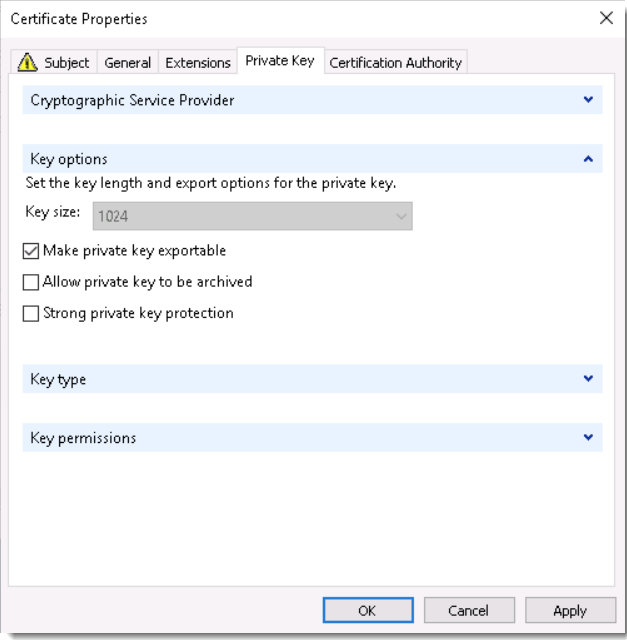
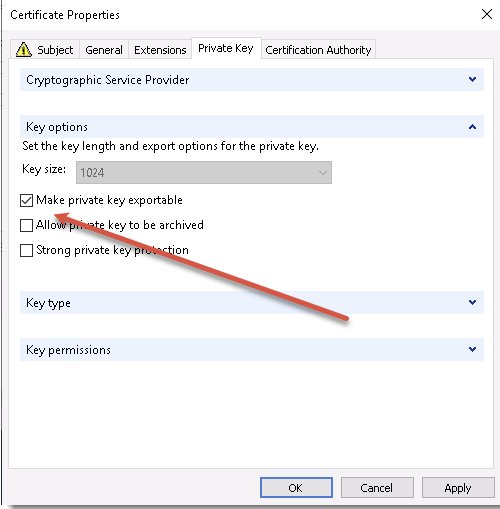
- Under the Private Key tab, select the option to make the certificate exportable
Click OK and then click Enroll
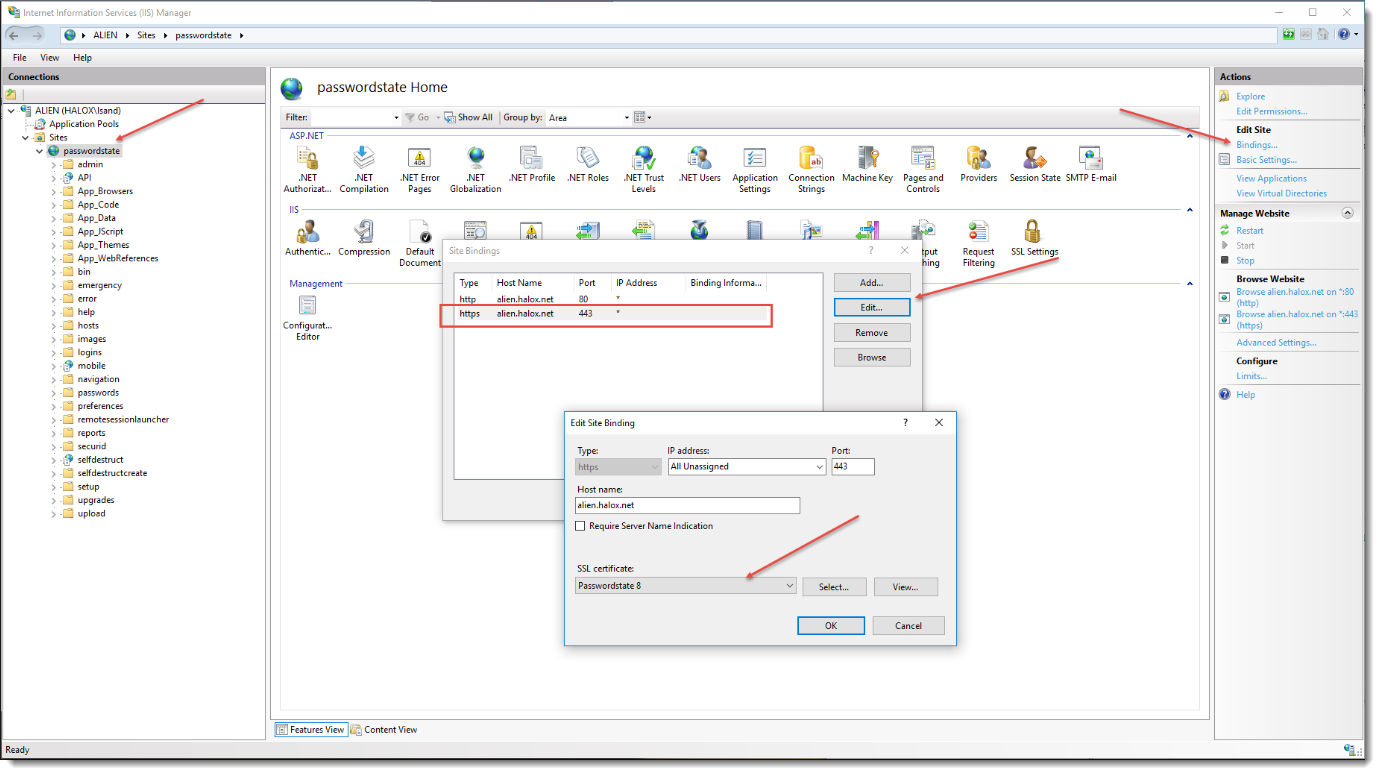
Open IIS, and set the new certificate to your HTTPS web binding
- Now from your desktop, you should be able to browse to your Passwordstate website, and your browser will now treat the site as secure.
Related Error #1:
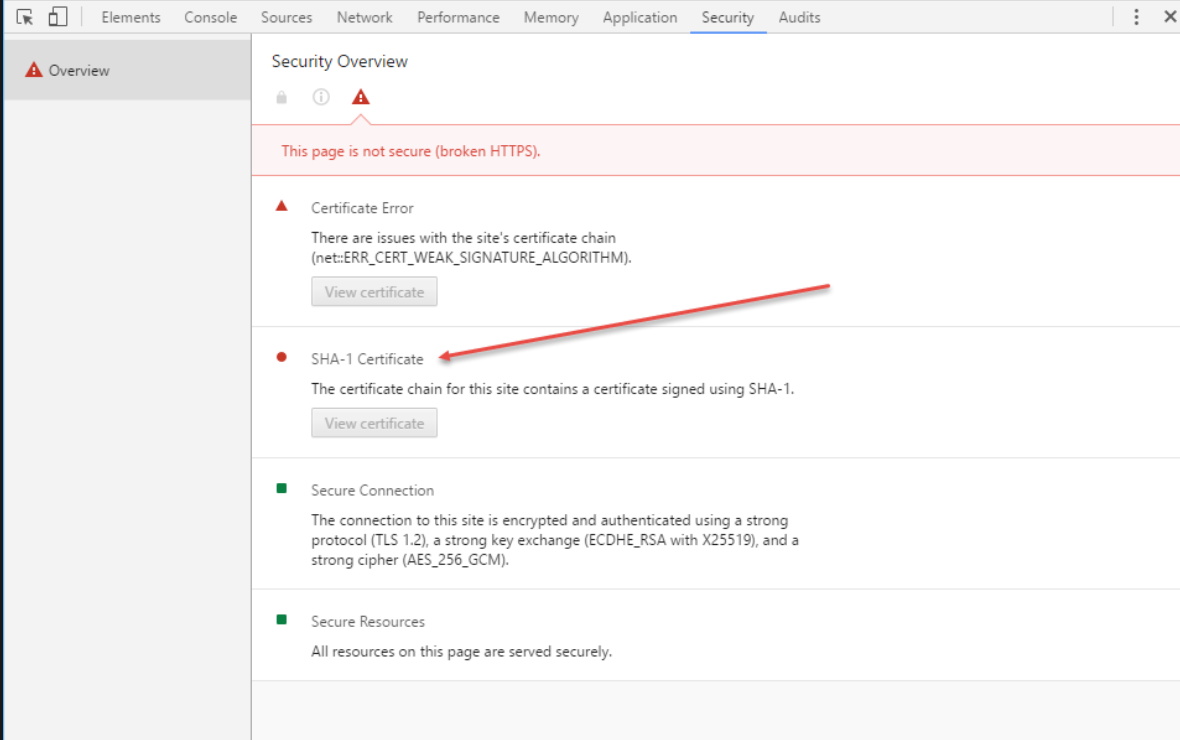
Certificates with a Signature Hash Algorithm of SHA-1 can also generate security warnings in later versions of Chrome.
You may see this error below if your certificate is signed using SHA-1. There are different ways to upgrade your Certificate Store to SHA-256, and please refer to the following Microsoft article for assistance if required - https://technet.microsoft.com/en-us/library/dn771627.aspx
Related Error #2:
When requesting this certificate on your web server, the wizard installs it in the Intermediate Certificate Authorities store, which can cause the browser on the web server not to trust the certificate. You may notice this behavior where the certificate is not trusted, and when inspecting the certificate in your browser, if gives the following Certificate Status: "This CA Root certificate is not trusted because it is not in the Trusted Root Certification Authorities store".
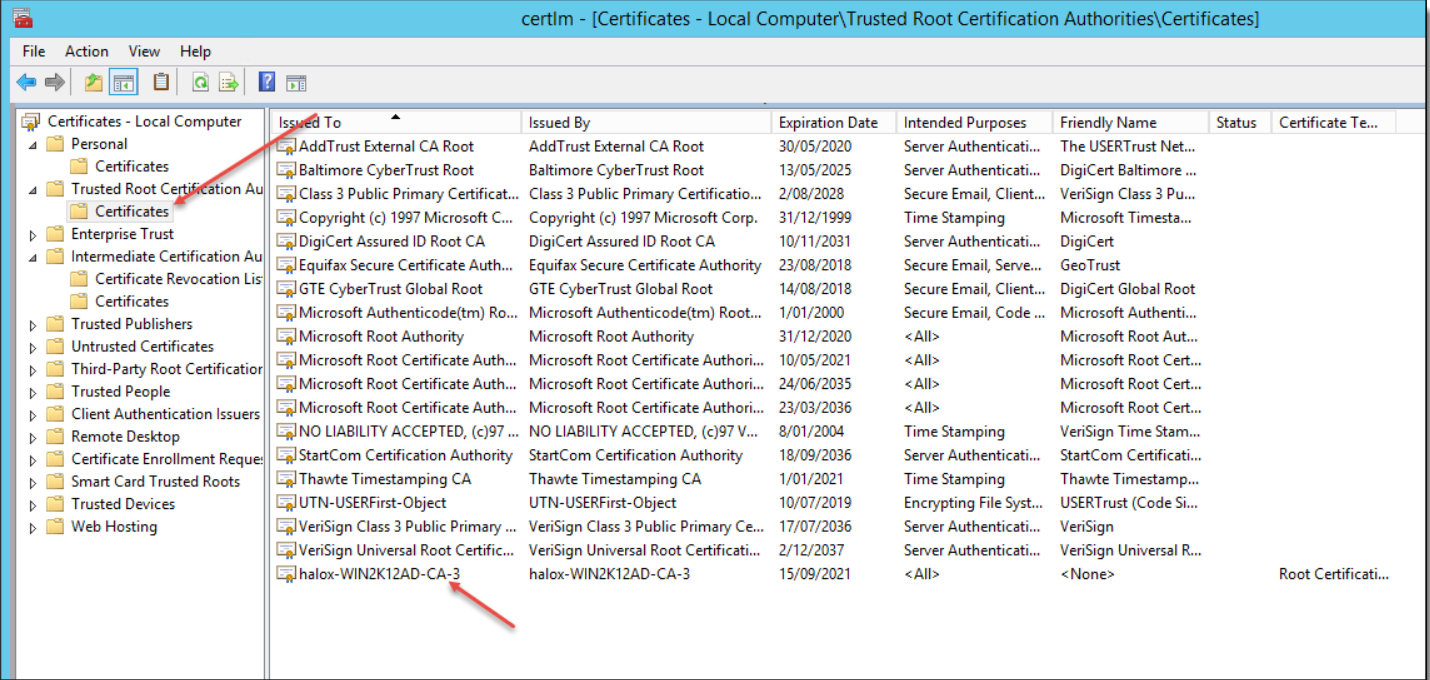
To fix this, either install the certificate using Internet Explorer into the Local Machine Trusted Root Certification Authority, or just copy and paste the certificate as per the below two screenshots. You'll need to restart your browser for this to become effective:
Copy Certificate from This Location:
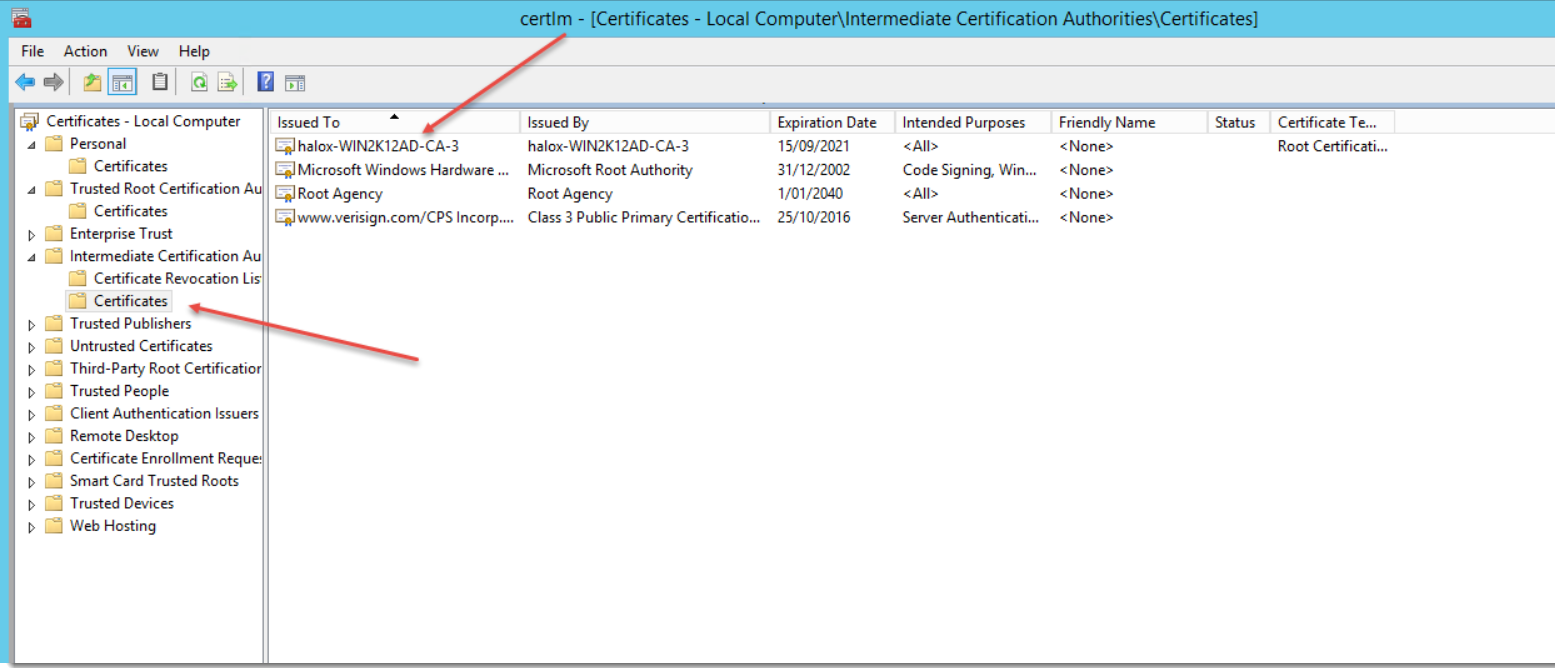
Into this Location: