
Configure Passwordstate to use a Managed Service Account (MSA) to connect to the database
It is possible to configure Passwordstate to use a Managed Service Account to communicate with the database server, instead of a SQL Login Account. Below are the following steps required in order to configure support for this.
Note: If you are wanting to do Password Resets and Account Heartbeat validations across non-trusted domains, then you cannot use a MSA account for database connectivity – the Application Pools in IIS and the Passwordstate Windows Service executes the PowerShell scripts for these features, initiating connections to the remote hosts. If there are no domain trusts in place, this will cause issues as the MSA account makes the connection to the remote host.
Create a Managed Service Account (MSA)
On your domain controller, open PowerShell console as an Admin, and execute the following commands – Please note you will be prompted for a password, to which you can enter any password of your choice:
Powershell
New-ADServiceAccount -Name <MSAAccountName> -RestrictToSingleComputer -AccountPassword
(Read-Host -AsSecureString) -Path "cn=<MyCN>,dc=<MyDC>,dc=<MyDC>" (replace the variables in
<> as appropriate)
Add-ADComputerServiceAccount -Identity "<MyWebServerName>" -ServiceAccount
"<MSAAccountName> " (The Web Server Name is where the MSA Account will be used)
On your Passwordstate Web Server, open PowerShell console as Admin, and execute the following commands:
Powershell
Add-WindowsFeature RSAT-AD-PowerShell (this role may already be installed)
Import-Module ActiveDirectory
Install-ADServiceAccount -Identity <MSAAccountName>
MSA Account and SQL Server
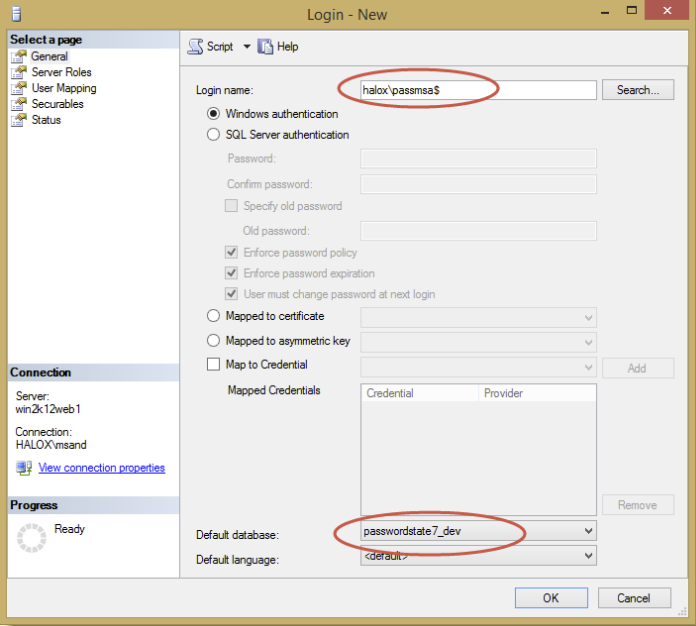
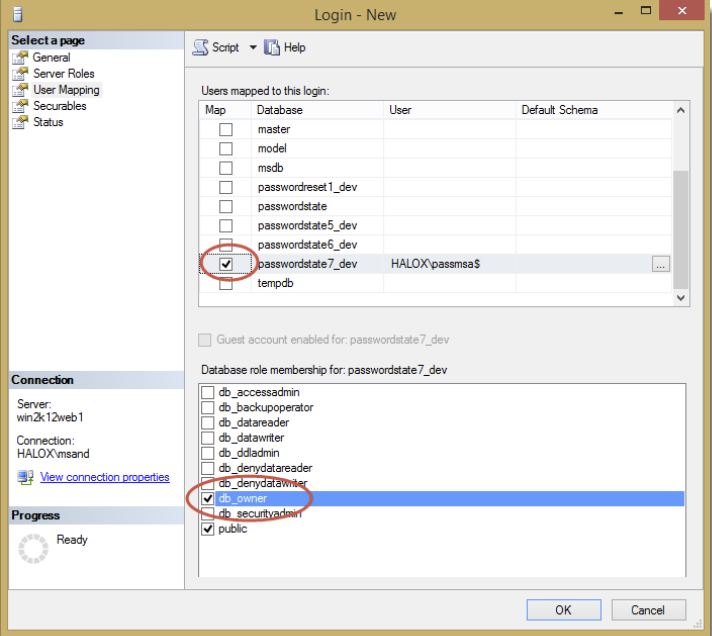
You now need to add a new Windows login within your SQL Server using SQL Management Studio Tools, and you can use the screenshots below as a guide – in our example, the MSA account is called passmsa, and whenever referencing an MSA account you must append the $ symbol to the end.
- Create the MSA Login Account
- Grant the MSA Account db_owner rights to the Passwordstate database
Configure Passwordstate IIS Application Pools
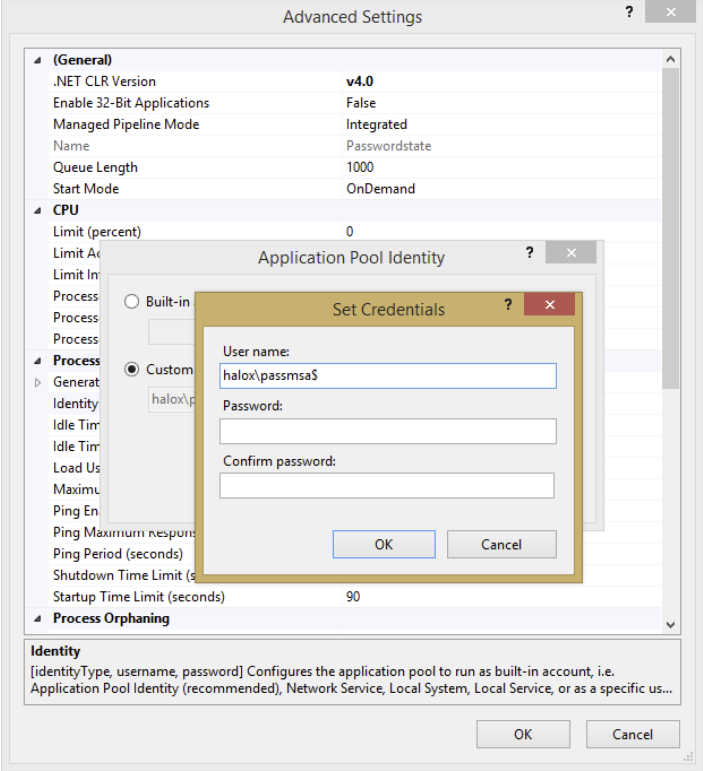
You need to open Internet Information Services Manager, and modify the “Identity” for all of the Passwordstate Application Pools so it uses the MSA Account. When specifying the MSA Account to use, you leave the password fields blank, as per the screenshot below.
Modify the Passwordstate web.config file
Open the web.config file in the root of the Passwordstate folder (open as Admin with notepad or equivalent)
- Change the line:
<add name="PasswordstateConnectionString" connectionString="Data Source=<ServerName>;Initial
Catalog=passwordstate;User ID=passwordstate_user;Password=<MyPassword>"
providerName="System.Data.SqlClient" />- to read like:
<add name="PasswordstateConnectionString" connectionString="Data Source=<ServerName>;Initial
Catalog=passwordstate;Integrated Security=SSPI;" providerName="System.Data.SqlClient" />
Now save the file and exit notepad.
Configure Passwordstate Windows Service
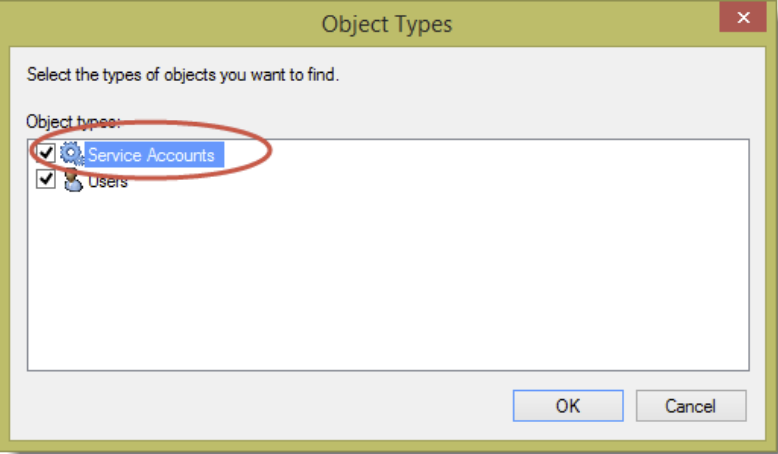
We now need to change the ‘Log On As’ property for the Passwordstate Windows Service to use the MSA Account.
When doing so, you may need to select the ‘Service Accounts’ Object Type in order to find the account in Active Directory, as per the screenshot below:
And also leave the password for the account blank, just like the Application Pools.
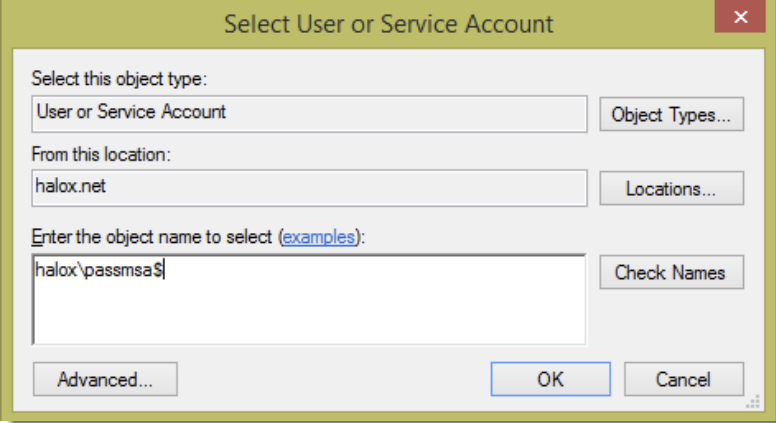
Now restart the Passwordstate Windows Service.
File System NTFS Permissions
There are certain features where images and logos need to be written and read from the file system, requiring your MSA account to have access to do so. Please also apply Modify NTFS Permissions for the MSA Account to the Passwordstate folder, and all nested files/folders. (default folder path is c:\inetpub\passwordstate)
Encrypted Web.config Settings and MSA Account
If you have encrypted either of the database connection string or AppSettings section in the web.config file, and you are using an MSA account, you also need to apply permissions to the RSA Key Container for the MSA Account, so the account can decrypt these settings. Below are instructions for how to do this:
- Open a command prompt as Admin and type CD C:\Windows\Microsoft.NET\Framework64\v4.0.30319
- Type the following:
- aspnet_regiis.exe -pa "NetFrameworkConfigurationKey" "Domain\MSA-AccountName$" (change the path if you’ve installed Passwordstate to a different location)
- Then restart the Passwordstate Windows Service
Using the WinAPI with an MSA Account
Passwordstate has an API which uses identity of the script runner to authenticate. If you are using an MSA account on your Passwordstate website, the WinAPI will not work by default, and you’ll need to use a SQL account to establish connections for the WinAPI only.
Steps to Configure the WINAPI to work with an MSA Account:
- Ensure you have a SQL account that has db_owner permissions to your Passwordstate database.
- Open the c:\inetpub\passwordstate\WinAPI*web.config* file as an Administrator and insert the following code. This code assumes your SQL account is called “passwordstate_user” and the password is “Welcome01”
<connectionStrings>
 <remove name="PasswordstateConnectionString" />
 <add name="PasswordstateConnectionString" connectionString="Data Source=webserver01;Initial
 Catalog=passwordstate;User ID=passwordstate_user;Password=Welcome01"
 providerName="System.Data.SqlClient" />
 </connectionStrings>