Configuring Passwordstate for First Time Use
Introduction
Now that Passwordstate is installed, you can direct your browser to the URL you specified during the initial install, and follow the initial Setup Wizard – this wizard will guide you through a series of questions for configuring Passwordstate for use.
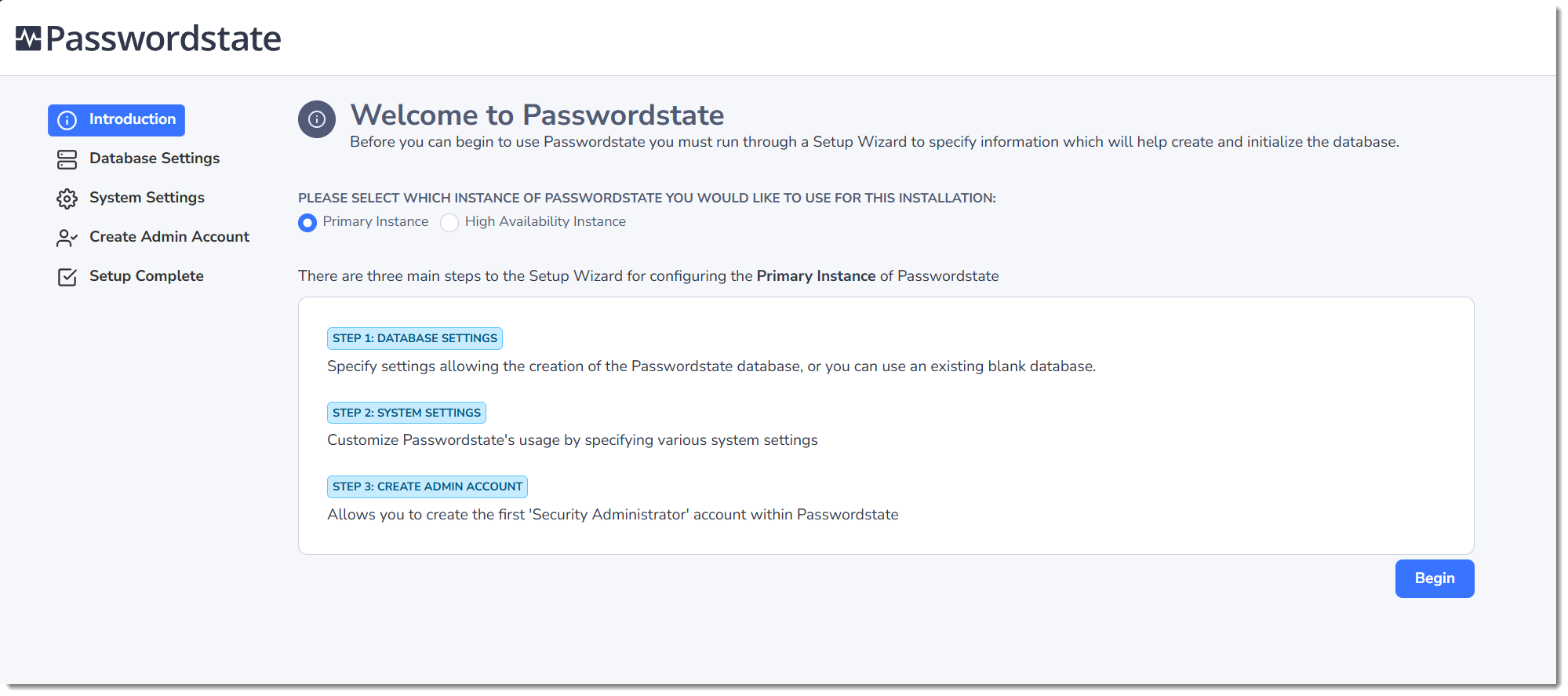
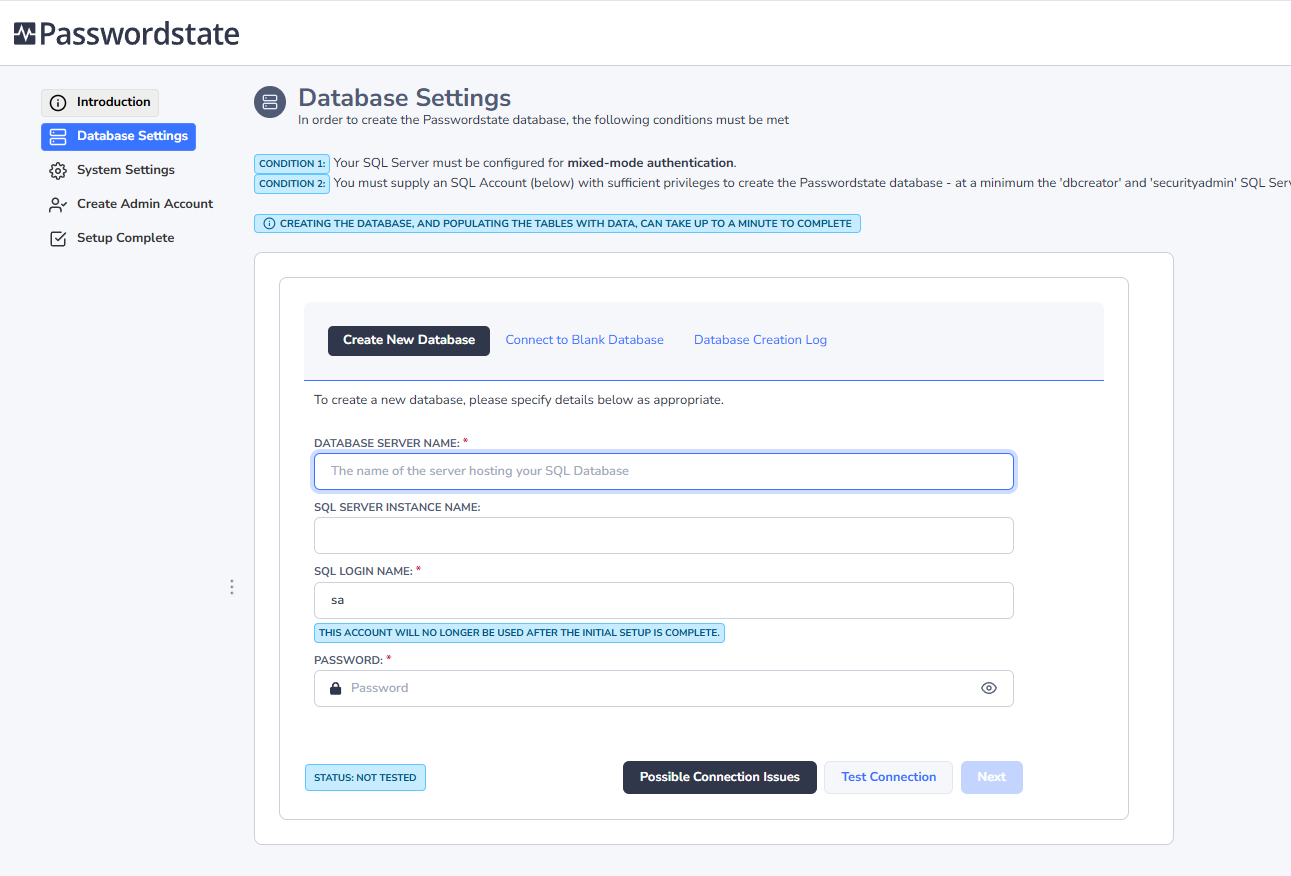
Database Settings – Create New Database
On this screen you will need to specify database settings for creating the Passwordstate database. Please use the onscreen instructions if you have any issues connecting to the database.
Please Note: Creating the database, and populating the tables with data, could take up to a minute to complete.
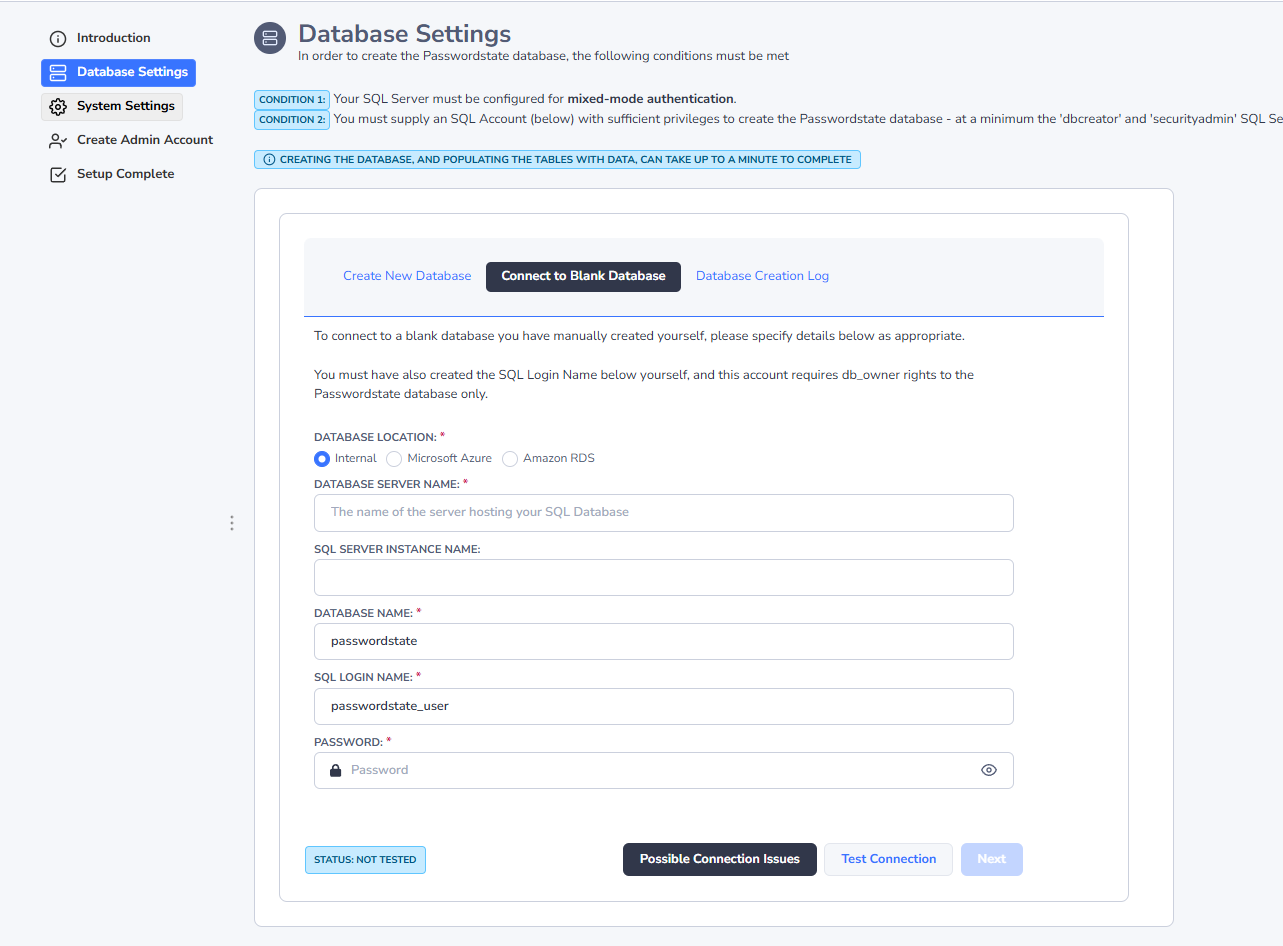
Database Settings – Connect to Blank Database
If you prefer to create the blank Passwordstate database yourself prior to tables being created and populated with data, you can do so by clicking on the ‘Connect to Blank Database’ tab first.
Please Note: You must first create a blank database to connect to, and an appropriate SQL Account which has db_owner rights to this database. If connecting to a Microsoft Azure or Amazon AWS database, please refer to their documentation for how to create the database and SQL Account.
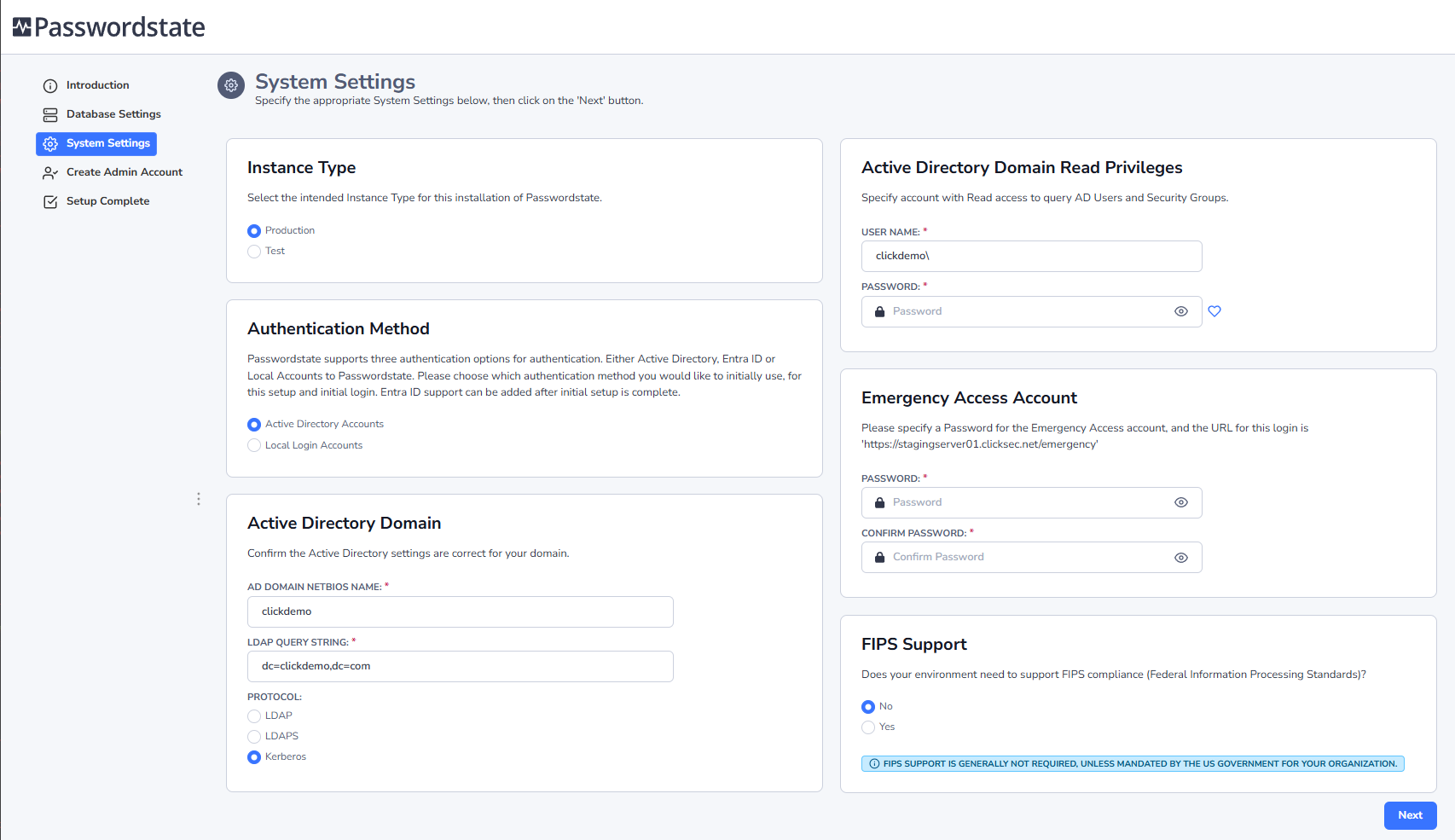
System Settings
On this screen you specify various system-wide settings for Passwordstate usage. Please take note of fields with a red * as these are required fields. Excluding the Global License, each customer is entitled to have one Production and one Test instance of Passwordstate installed.
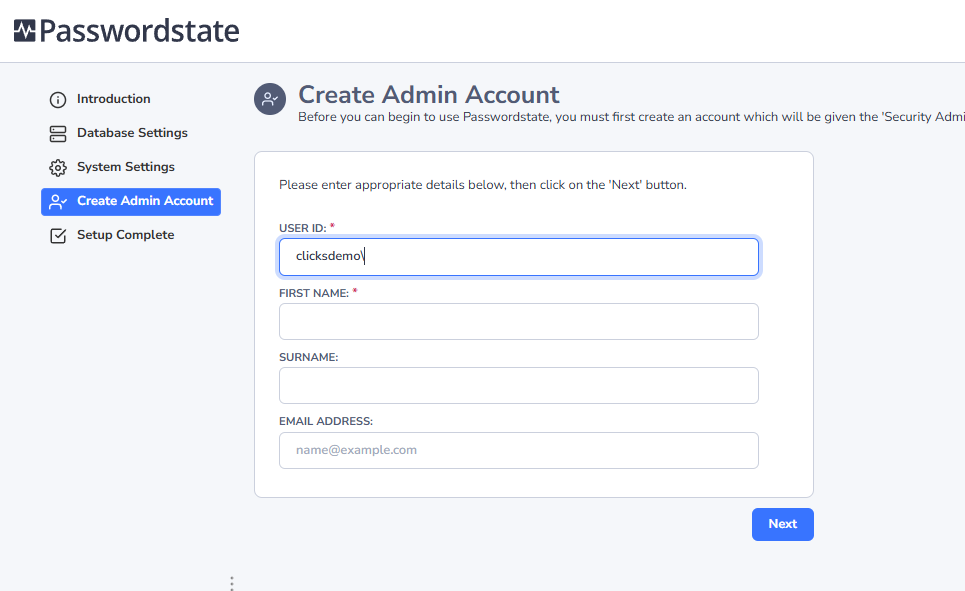
Create Admin Account
On this screen you specify details for the first user account to be created in Passwordstate. This account will be granted Security Administrator privileges, and assign all of the Security Administrator roles
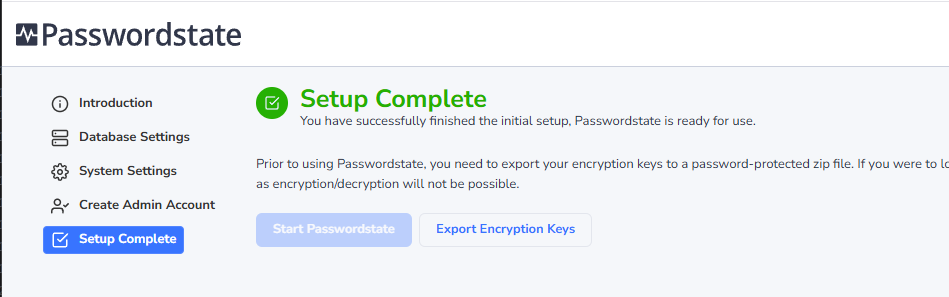
Setup Complete
The installation is now complete, and you can begin using Passwordstate. Prior to granting access, or informing users of the new version, you may wish to review some of the system-wide settings found under the ‘Administration’ area of Passwordstate.
Export Encryption Keys – It is very important you export your encryption keys for safe storage outside of Passwordstate. If you were to lose your web.config file in a disaster, Click Studios would not be able to help you rebuild your Passwordstate environment. The split encryption keys are stored in the web.config file, and within the database.