
Installation of Remote Site Agent
Prior to deploying any Agents, please ensure your firewall allows access through from the remote networks to your Passwordstate web server. The agents communicate back to the API in Passwordstate only. See the open Ports document for more information about this: Open Port Requirements
Note 1: It is not recommended or supported to install the Agent on a Domain Controller, WSUS Server, or SharePoint Server.
Note 2: The Server or Desktop where you install the Agent must have .NET Framework 4.8.1 or above installed, and PowerShell 5.0 or above. This version of the .NET Framework requires Windows Server 2022, 2025, or Windows 11.
_Note 3: For Account Discovery and Password Resets at remote site locations, please refer to the Privileged Account Management Manual
Note 4: Once the agent is installed, it will automatically upgrade itself if required, when you upgrade your core instance of Passwordstate. There is a Windows service called 'Passwordstate Agent Upgrade Service' which will automatically upgrade the agent within 10 to 15minutes of you upgrading your Passwordstate website. This Upgrade service reaches back to your Passwordstate instance to download the latest agent_upgrade.zip file.
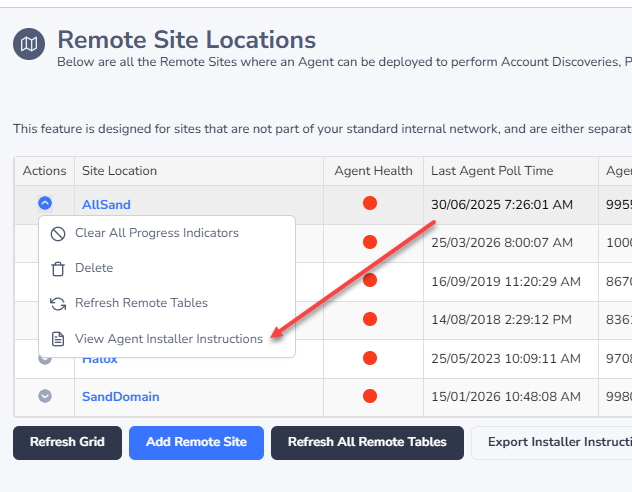
Once you have added the required number of Remote Site Locations into the Administration area of Passwordstate, you can select the 'View Agent Installer Instructions' Actions menu for the appropriate site, and it will give you the installer command line options for the Agent.
With the installer command line parameters you see in the below screenshot, this will install the Agent silently, as well as configure the required settings in the C:\Program Files (x86) \Passwordstate Agent\PasswordstateAgent.exe.config so the Agent can communicate back to your Passwordstate API. This install process takes approximately 10 seconds.
Click the Download Agent button, and transfer that to the remote machine where you want the agent to run, and then use the command prompt on that machine to run the command line parameters.
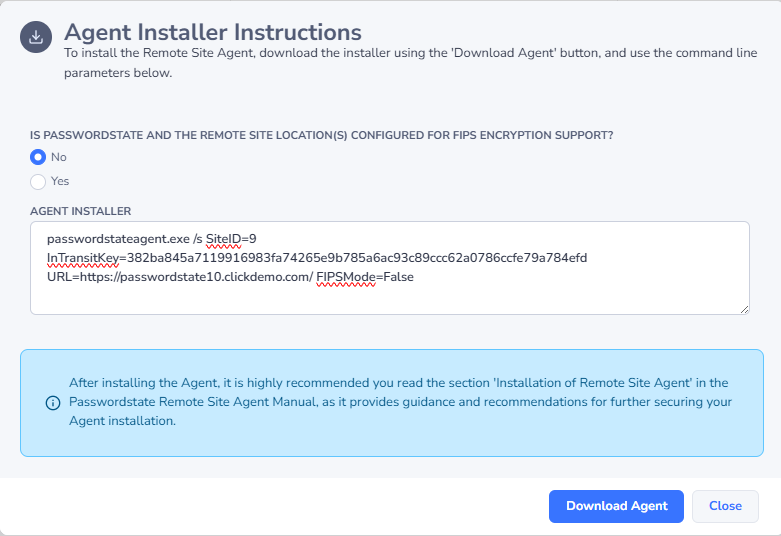
Note 1: You will need to select FIPS encryption if your main Passwordstate website is configured for FIPS. To find out if you are using FIPS encryption, log into Passwordstate and look under the Administration tab -> Password Administration page.
Note 2: The install location for the agent is C:\Program Files (x86)\Passwordstate Agent.
Encrypting Settings in the AppSettings Section in the PasswordstateAgent.exe.config File
It is highly recommended to encrypt the AppSetting section of the PasswordstateAgent.exe.config file. Without encrypting this file, you will receive alert reminders when you log into Passwordstate.
To encrypt this file, follow this complete guide: Encrypt Configuration Files
Firewall Considerations and Recommendations
When installing the Passwordstate agent, your Passwordstate URL is recorded in the PasswordstateAgent.exe.config file. The agent itself, does push/pulling of data, back to your instance of Passwordstate, based on this URL.
For the Privileged Account Management features of the agent i.e. discovery, resets, and heartbeats, only one port is required to be open between where the agent is installed, and your Passwordstate instance - the port that your Passwordstate instance communicates on, which by default is port 443.
If your network design is to use the Agent over the Internet, then it is recommended on your firewalls that:
- The firewall on your internal network, where Passwordstate is installed, only allows incoming traffic from the IP Address of the firewall where your Agent is installed
- And where the agent is installed, on this firewall you only allow outbound internet traffic from the IP Address of the Host where the agent is installed, to the IP Address of your firewall above