
Installation
Please follow these steps for installing and configuring our Browser Extension. The majority of the screenshots provided in this manual have been taken using the Brave Browser with the Browser Extension obtained from the Chrome Web Store. The screenshots for Chrome, Edge and Firefox look similar to those of the Brave Browser.
Note 1: In order to use one of the Browser Extensions, to save and automatically form-fill credentials for websites, you must have access to one or more Password Lists configured to use the 'URL' field.
Note 2: Our extensions support websites with multiple login fields, not just the typical username and password input fields. A total of 13 input fields can be catered for by using the Username, Password, OTP (enabled at the Password List Level) and up to 10 Generic Fields.
Note 3: Click Studios does not provide a Browser Extension for the Apple Safari browser. We recommend using Chrome on Apple MACs as a workaround if required.
Brave Installation
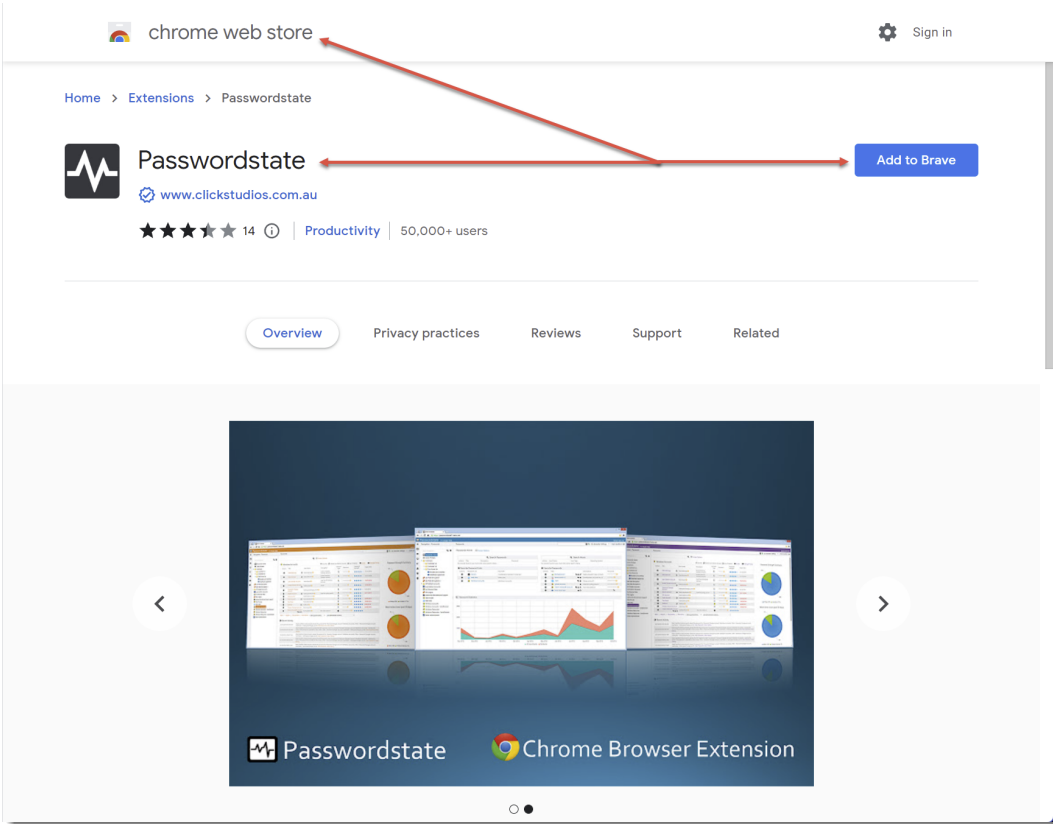
- Visit the Google Chrome Web Store URL https://chrome.google.com/webstore/category/extensions and search for the extension name Passwordstate. Alternatively, you can download it directly from https://chrome.google.com/webstore/detail/passwordstate/appojfilknpkghkebigcdkmopdfcjhim
- Click the Add to Brave button to install the extension, then click the Add Extension button
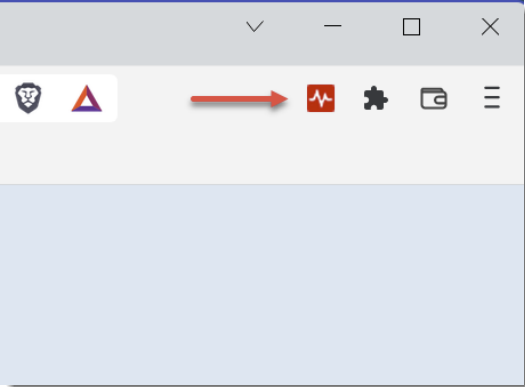
- Once installed, you should see the Passwordstate icon in the top toolbar
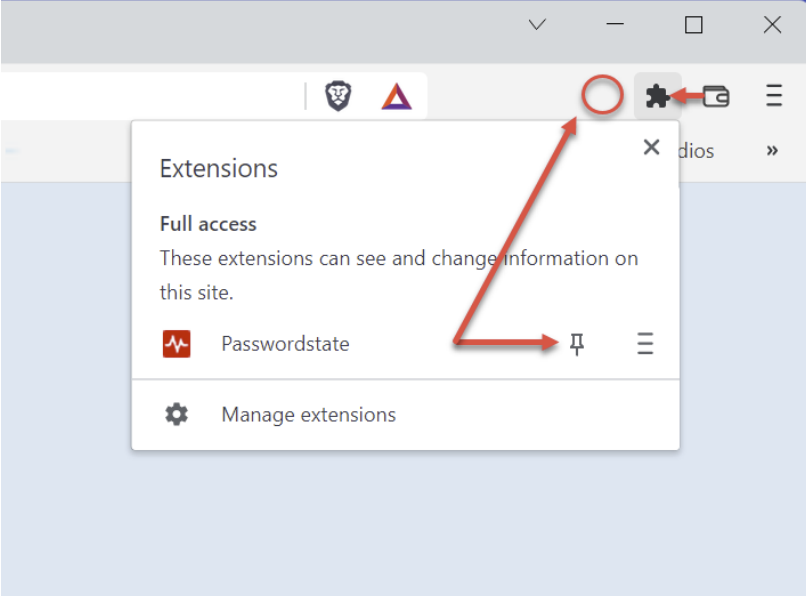
- If you don’t see the Passwordstate extension, click on the Extensions button and pin the extension as per the screenshot below:
Chrome Installation
- Visit the Google Chrome Web Store URL https://chrome.google.com/webstore/category/extensions and search for the extension name Passwordstate. Alternatively, you can download it directly from https://chrome.google.com/webstore/detail/passwordstate/appojfilknpkghkebigcdkmopdfcjhim
- Click the Add to Chrome button to install the extension, and click the Add Extension button. The images for this will appear very similar to those for the Brave installation in the section above
- Once installed, you should see the Passwordstate icon in the top toolbar
- If you don’t see the Passwordstate extension, click on the Extensions button and pin the extension as per the Brave Installation image.
Edge Installation
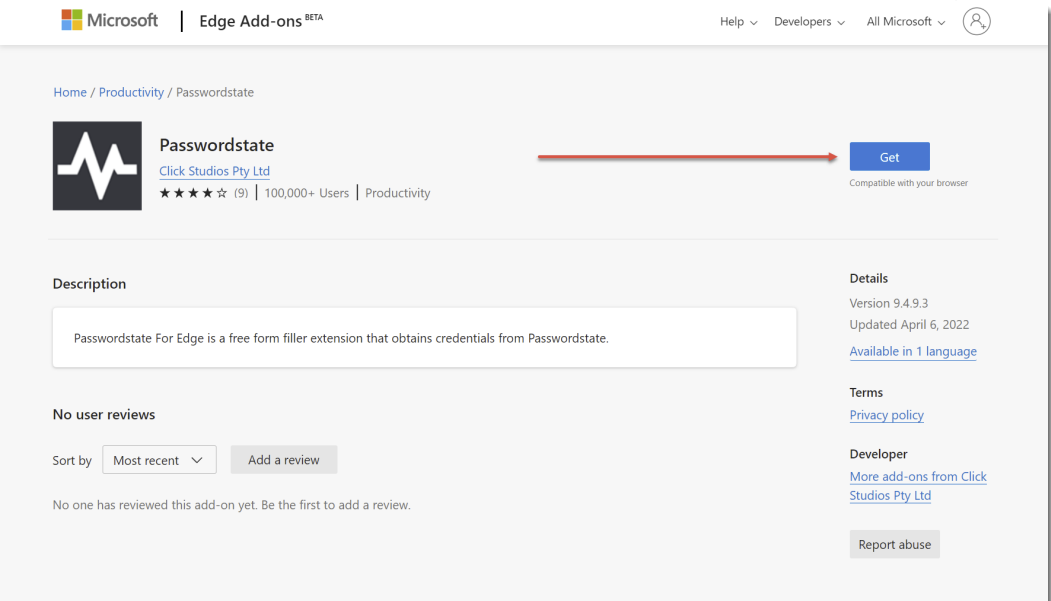
- Open Microsoft Edge and browse to https://microsoftedge.microsoft.com/addons/detail/passwordstate/pbbamlchainnpdodbeobfpgcpffpclka?hl=en-US and click the Get button:
- Click the Add extension button:
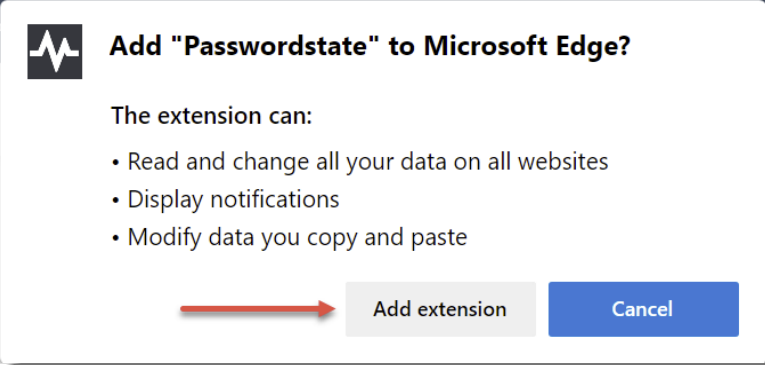
- Once installed, you should see the Passwordstate icon in the top toolbar Similar to the Brave installation image.
Firefox Installation
- Visit the Mozilla Add-ons store URL https://addons.mozilla.org/en-US/firefox/ and search for the extension name Passwordstate. Alternatively, you can download it directly from https://addons.mozilla.org/enUS/firefox/addon/passwordstate-password-manager/
- Click the Add to Firefox button
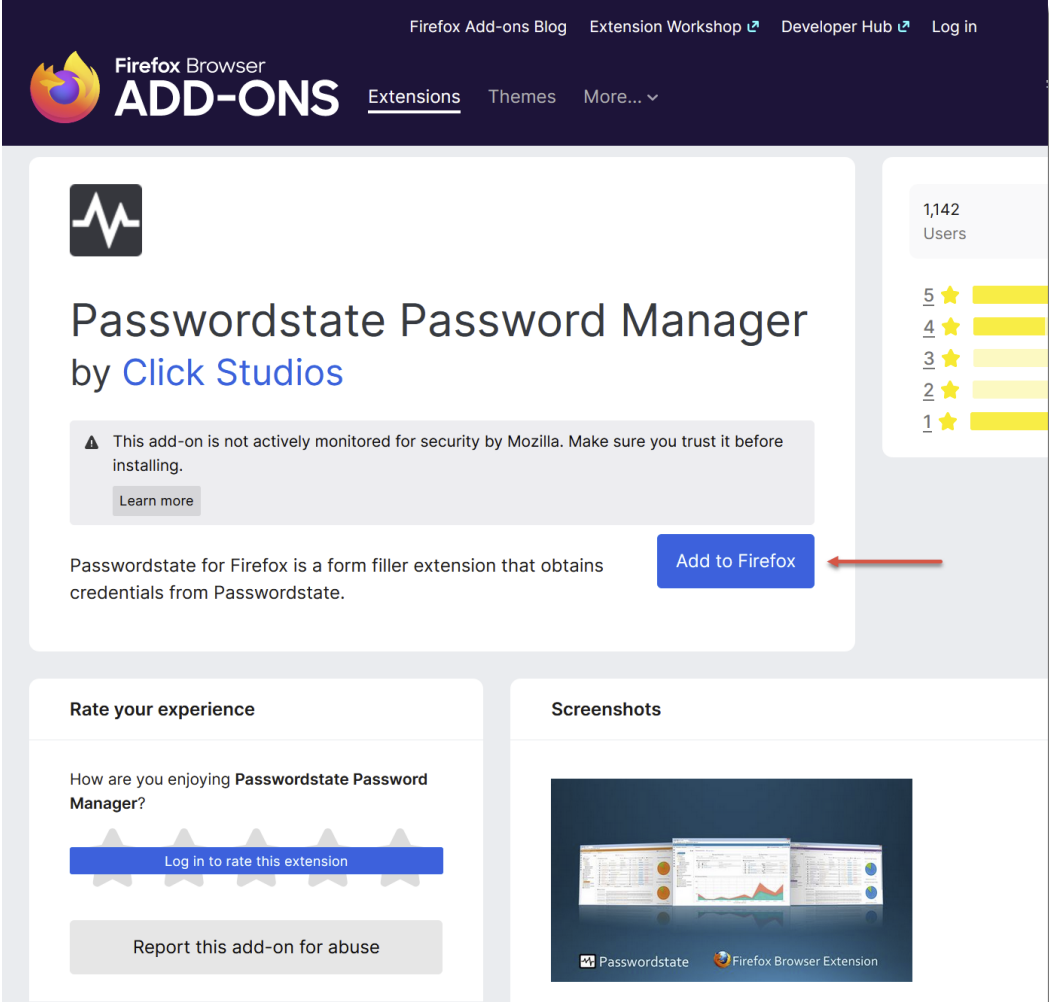
- Click the Add button
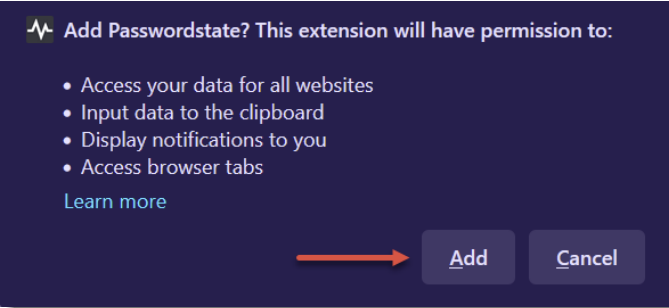
- Once installed, you should see the Passwordstate icon in the top toolbar similar to the Brave installation. You may also receive the following prompt
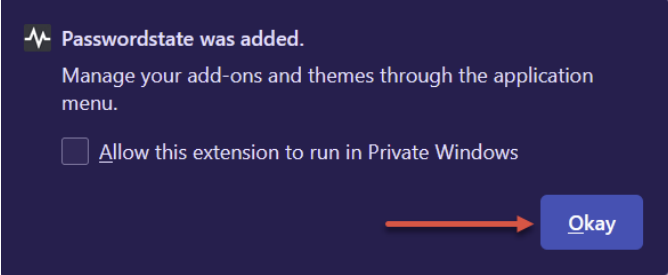
Simply click Okay to close this prompt.
Your extension is now ready to configure for the first time, and more information about this can be found in the Browser Extension Usage section of this manual.