
Browser Extension Usage
This section of the manual applies to our Chromium based browsers and Firefox Extensions.
Configuring the Browser Extension
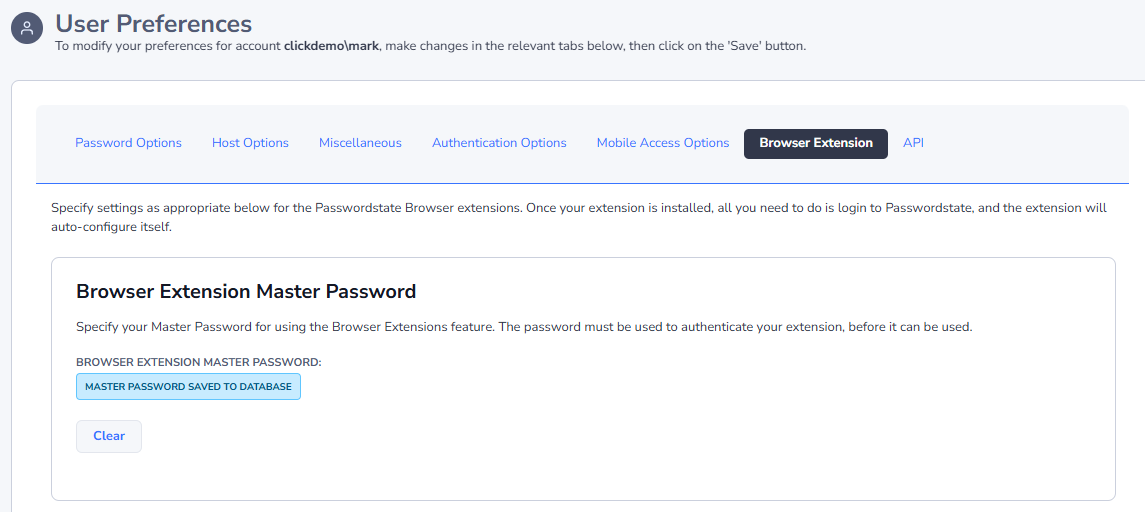
Prior to using the browser extensions, you must go to your Preferences screen, and specify a Master Password to be used for authentication.
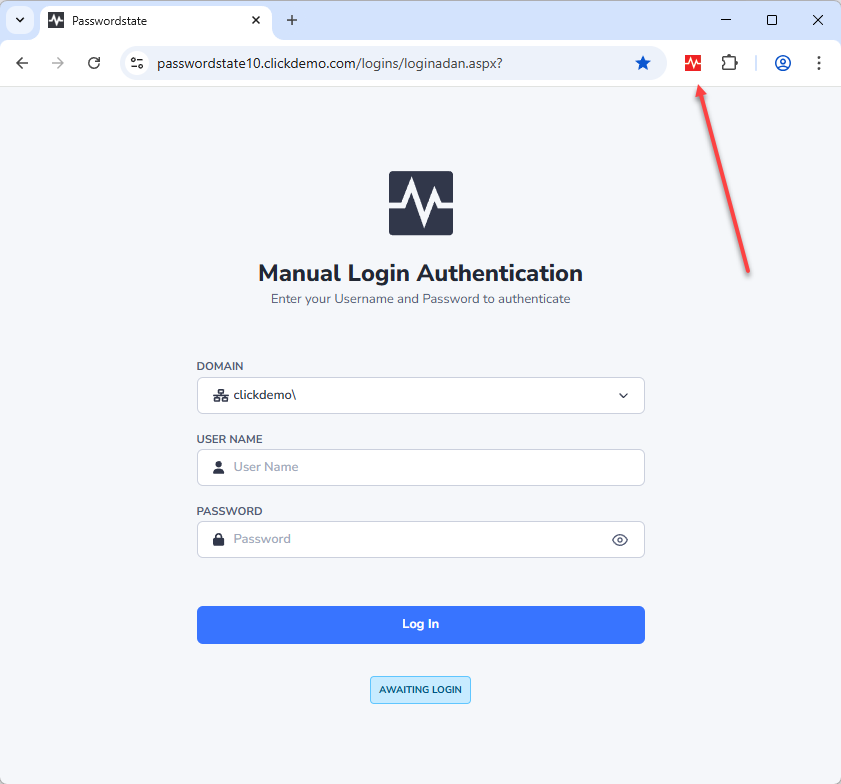
When your Browser Extension is first installed its icon will show as red, indicating it is not currently configured and syncing with your Passwordstate instance.
Note: it will also show as red if your Browser Extension is currently logged out.
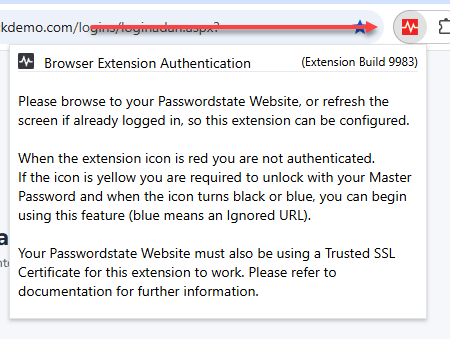
If you click on your extension, you will see a message advising that you need to browse to your Passwordstate website which will initiate the connection process:
To connect your extension to your Passwordstate instance, first browse to your Passwordstate URL, and log in. You can then return to the red Extension icon, where you can enter your Master password to authenticate.
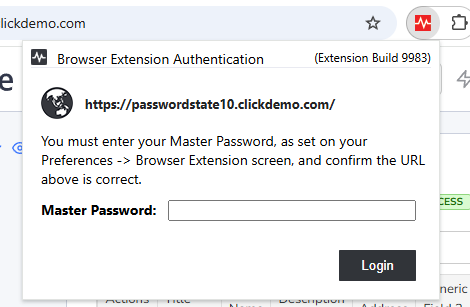
The Browser Extension will now connect to your Passwordstate instance and authenticate using the credentials you logged in with. Your Browser Extension icon will now turn either blue or black.
Note: You are asked to confirm the Passwordstate website URL is correct as mitigation against a phishing style attack, where you could be asked to click on a link to login to an imitation of your Passwordstate environment. If you believe the URL is suspicious in any way, report this to your Passwordstate Security Administrators.
ICON Status
Our Browser Extensions use different colors as a quick visual indicator or status of the Browser Extension. The 4 different colors and their meanings are,
Blue indicates the Browser Extension is active and authenticated to your Passwordstate instance. It also indicates the URL on the active tab in your browser is set to be ignored by the Browser Extension. Ignored URLs will not automatically form-fill existing, or prompt to save new credentials for that website. By default, your Passwordstate URL is an Ignored URL.
Black indicates the Browser Extension is active and authenticated to your Passwordstate instance. When the icon is black you are able to automatically form-fill any saved credentials for a website. You will also be prompted to save any new credentials you enter while on a website. These credentials are saved to your Passwordstate instance that you are authenticated against.
Red indicates the Browser Extension is not active. It is either logged out of your Passwordstate Instance, or requires the initial configuration to point to the correct Passwordstate instance’s base URL. In both cases, simply browse to your Passwordstate website login URL and login as normal. This will authenticate the user if they are logged out, or prompt to confirm the URL presented is the same as your Passwordstate instance’s base URL.
Yellow Indicates your browser extension is in a "locked" state, and you will need to unlock it using your Master Password.
User Interface
The Browser Extension interface provides a range of features and options. The following image is taken using the Brave browser, with the Browser Extension loaded from the Google Chrome Web Store.
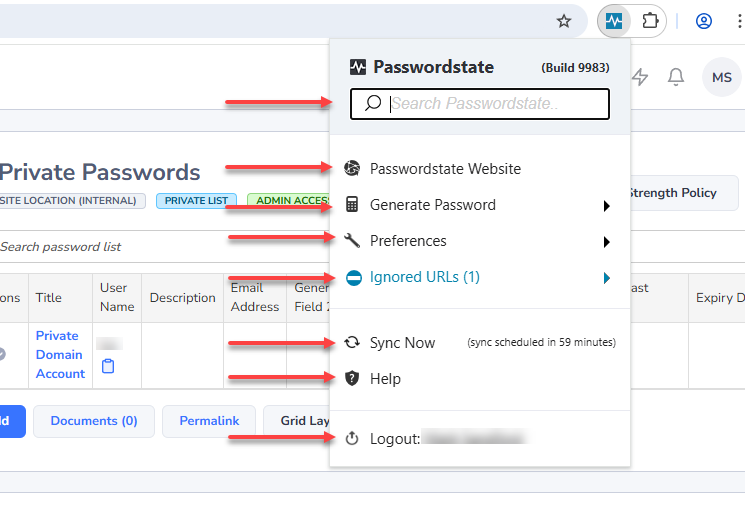
- A Search box, which can be used to quickly search for website credentials across all Password Lists you have been granted access to
- A link directly to your Passwordstate website
- Generate Password, by clicking this you can generate random passwords with different complexities. This is highly recommended when creating new passwords for a website
- Preferences - more about this is explained below
- Ignored URLs – again, more information is provided later in this manual
- Sync Now, which allows you to immediately resynchronize your Browser Extension and pickup any changes made to permissions and credentials within Passwordstate
- A link to open the Browser Extension Help Manual
- Logout button, used to disconnect your extension from your account in Passwordstate
Preferences
On the Preferences screen you have five options:
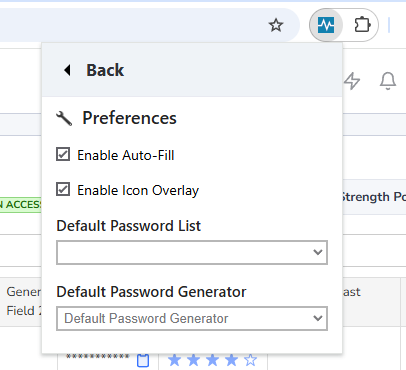
- A Back Button to return to the main page
- A checkbox to Enable Auto-Fill on websites. With this enabled your Browser Extension will automatically form-fill credential input fields. Disabling this will prevent the Browser Extension from automatically form-filling login credentials on any website you visit. You can manually force the Browser Extension to fill the credentials while this is disabled
- The Enable Icon Overlay when enabled will insert the Passwordstate heartbeat icon in all credential input fields. This can be clicked on to select the correct credentials for that site. When disabled it prevents the browser extension icon in the login fields on all websites
- The Default Password List drop down allows you to select which Password List all new login credentials will be saved to. If you have multiple Password Lists with the URL field configured, you can still choose another Password List to save credentials to at the time of saving them
- The Default Password Generator allows you to set a Password Generator of your choice from those available to you in Passwordstate. This is then used by the Browser Extension to generate new random passwords in accordance with the selected generator’s complexity settings
Saving Log in Credentials
When logging into a website for the first time with your Browser Extension active, you will be presented with a page asking if you want to Add Site to Passwordstate? This will save the credentials into Passwordstate if you haven’t already saved them. It won’t ask you to save them a second time.
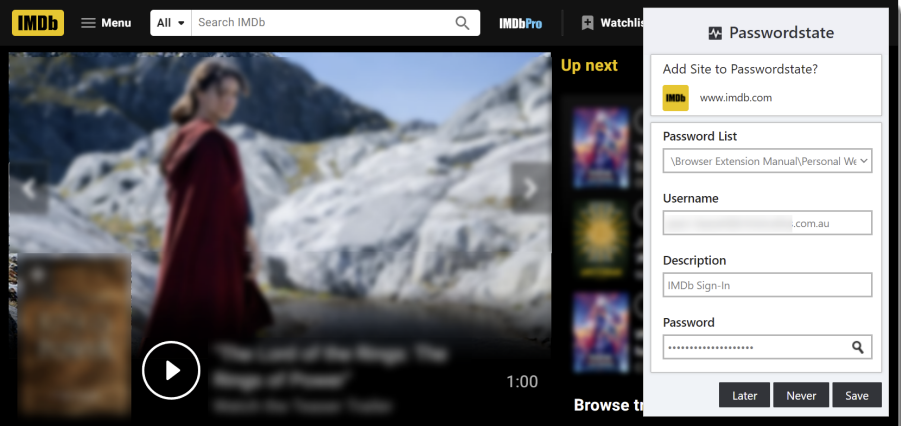
On this screen you have the option to choose which Password List to store the data into, and the Username, Description and Password fields are editable prior to clicking Save. Use the magnifying glass icon to toggle the visibility of the password if required.
Clicking on the Later button will not save the credentials to the Password List this time. Instead, you will be prompted to save the credentials the next time you login to that website.
Clicking on the Never button will save the URL as an Ignored URL in Passwordstate. This will prevent the Browser Extension from asking you to save your login credentials for that website. It will also prevent automatic form-filling for this website even if you have other credentials already saved.
Ignored URLs are saved under your personal Preferences in Passwordstate. If needed, URLs can be removed from or added to your Preferences, or from within the Ignored URLs option on the main Browser Extension screen.
Auto-Filling Login Credentials
When you visit a website that you have a credential already saved for, the Browser Extension will display a number in red. The value of this number indicates how many credentials for that particular website you have saved in Passwordstate.
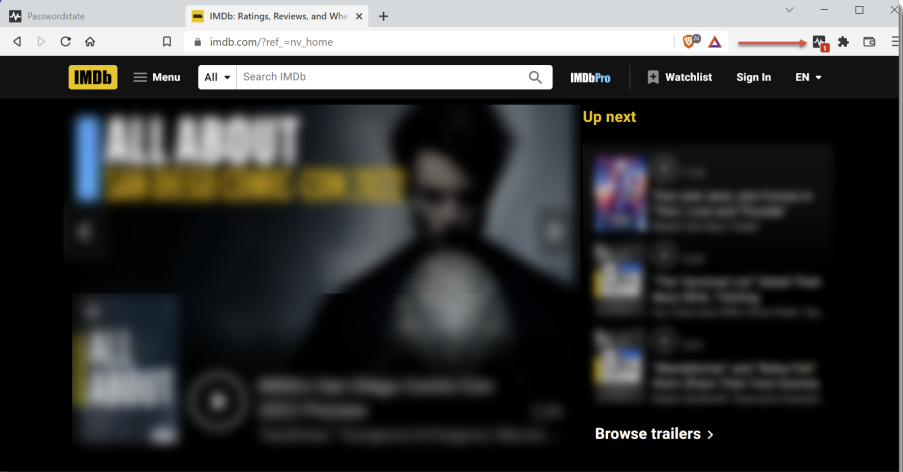
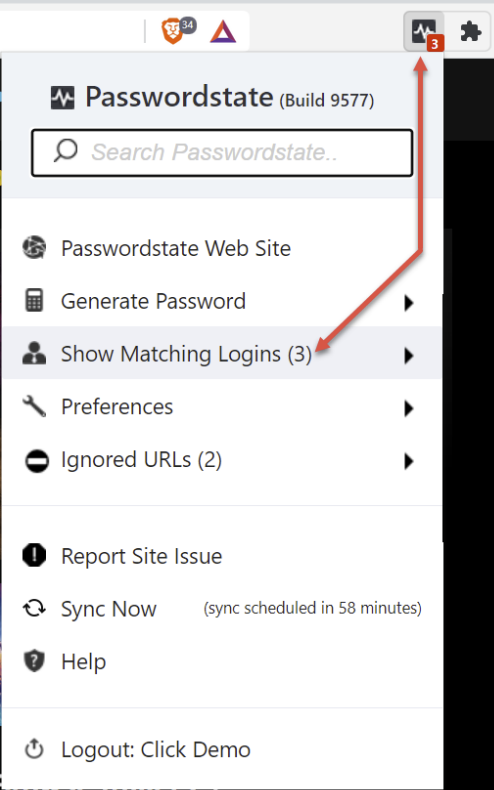
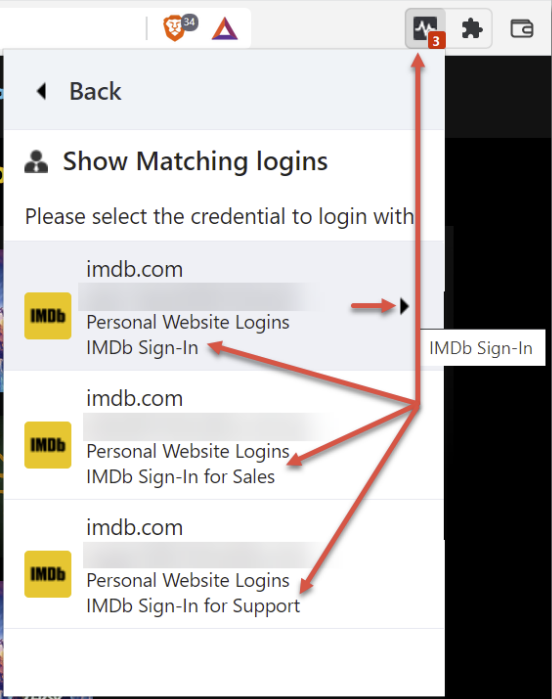
If you only have one set of credentials saved for the webpage, then the browser extension will automatically form-fill that Username and Password for you when you attempt to log in to that page. If you have multiple credentials saved, then you should click the browser extension icon, select Show Matching Logins and then choose the appropriate login to automatically form fill:
Each login you have saved for the site shows the Username, the Password List where it is stored, and also the Description. This will help you determine which credential you should select.
If you need more information about each Password Record, you can click the advance arrow which will take you to another page with more details about the credential:
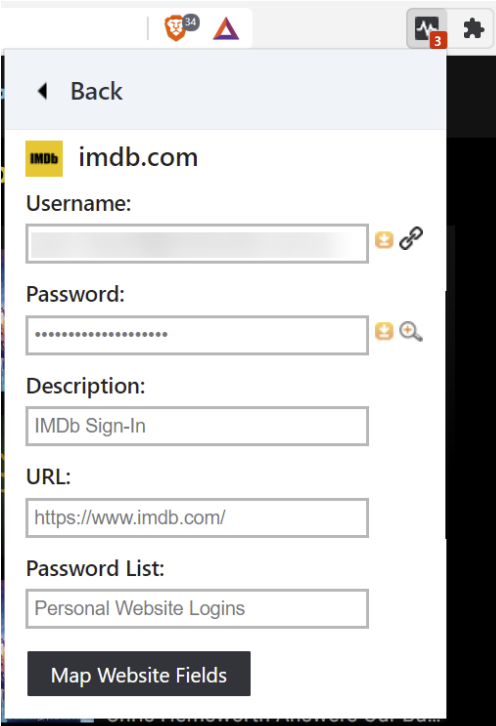
On this page, you can copy the Username or Password to the clipboard, toggle the visibility of the password, or click the link icon next to the Username field which will open up a new browser tab with the Password Record open in Passwordstate.
The MAP Website Fields button is discussed later in this manual.
Web Authentication Passkeys (beta)
The Browser Extension can act as an authenticator for websites that support W3C's Web Authentication (WebAuthn) standard.
Create and Register a Passkey
To create and register a Passkey, you must have an existing record for the website in Passwordstate that does not already have an associated Passkey. Additionally, the Browser Extension must also be unlocked/authenticated.
When the above conditions are met, and a supported website initiates a WebAuthn Registration Ceremony the Browser Extension will show a pop-up dialog offering to save the Passkey.
Note: Records that already have a Passkey will not show in the drop-down.
Authenticate with a Passkey
Similarly, when the Browser Extension is unlocked/authenticated and a supported website initiates a WebAuthn Authentication Ceremony then a pop-dialog will offer to login using a Passkey.
Deleting a Passkey
If you wish to delete or replace a Passkey, you will need to clear it via editing a record in Passwordstate's core web UI and also at the website itself. Once the Browser Extension has synced these changes you will then be able to create and register a Passkey for this record again.
Using the Search Feature
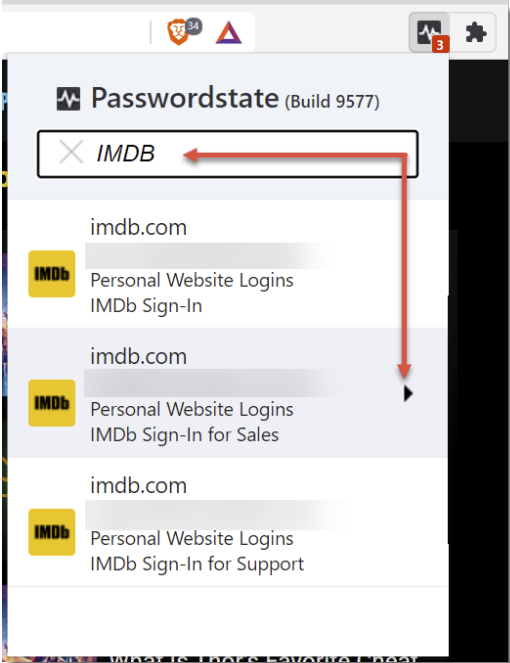
Another way to use the Browser Extension is to search for a website you have previously saved.
When you find a credential via the search feature, you can either click directly on the credential itself, which will open the website in a new tab, or you can click the arrow icon which will open a new page with more details about the password record.
Icon Overlay
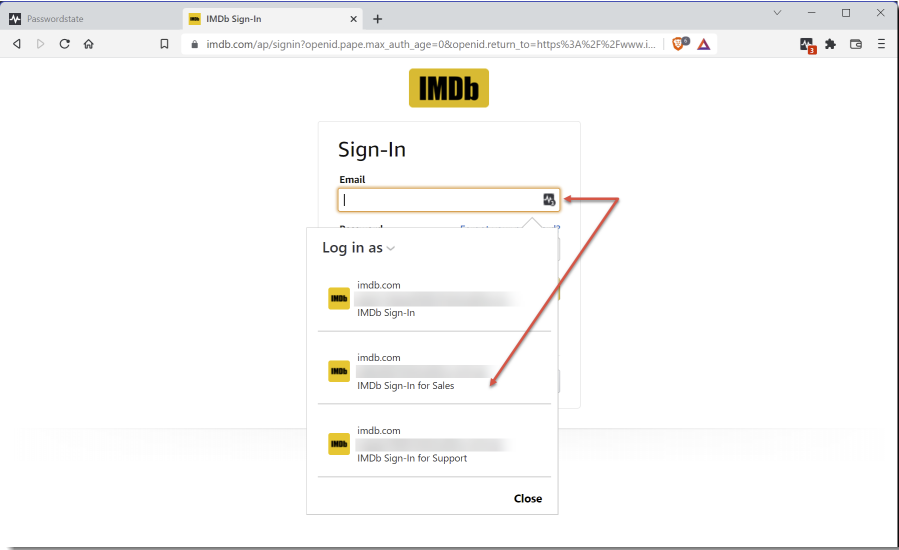
The Icon Overlay is displayed by default in the Username and Password fields. If you have mapped additional input fields then the Icon Overlay will appear in those fields as well.
Clicking on the icon overlay will allow you to choose which credential you want to log in with. It also has its own search feature to make finding saved credentials easy if you have more than 10 saved Password Records for that website.
Updating Passwords on a website
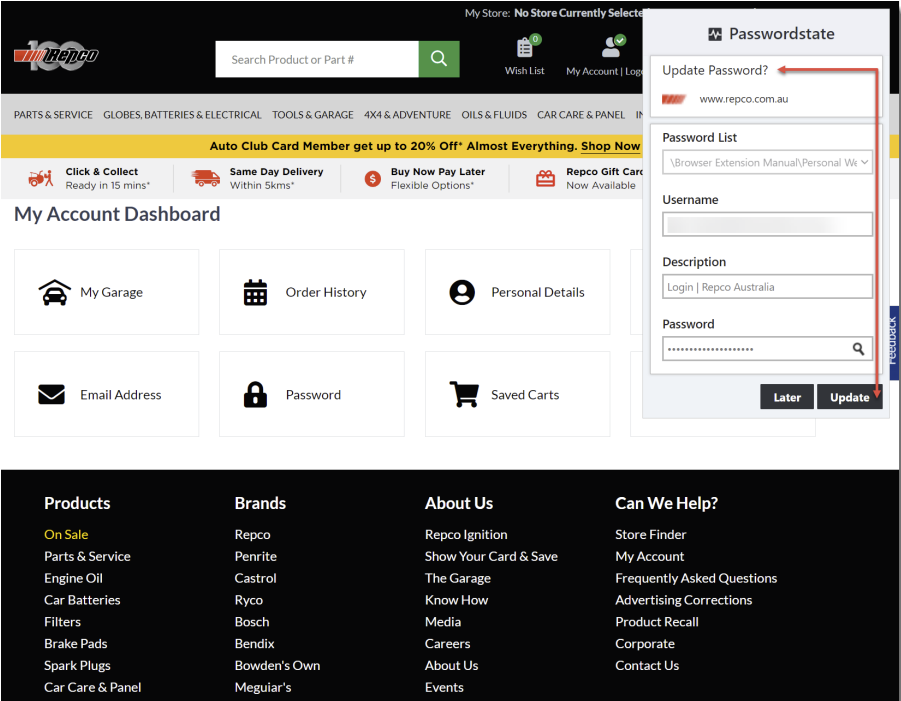
When you change a password, from within the website itself, the Browser Extension will prompt you with Update Password? for the existing Password Record in Passwordstate.
To do this simply click on the Update button. Alternatively, you can click Later to not update your password record within Passwordstate at this time.
One-Time Passwords
If you have any Password Lists configured in Passwordstate for the One-Time Password feature, these OTP codes can be both copied from the Browser Extension and also automatically form-filled into the website’s input fields.
Note: The setting Enable Form-Filling of OTP Codes must be enabled in Administration -> Browser Extension Settings, and this will be disabled by default for a fresh install or upgrade from a build prior to 9583. In addition to this, the password record must have a Website Field ID set for OTP.
The first image shows the automatic form-filling of 3 fields from a Password Record, those being,
- Username, in this case the Email Address
- Password
- One-Time Password code
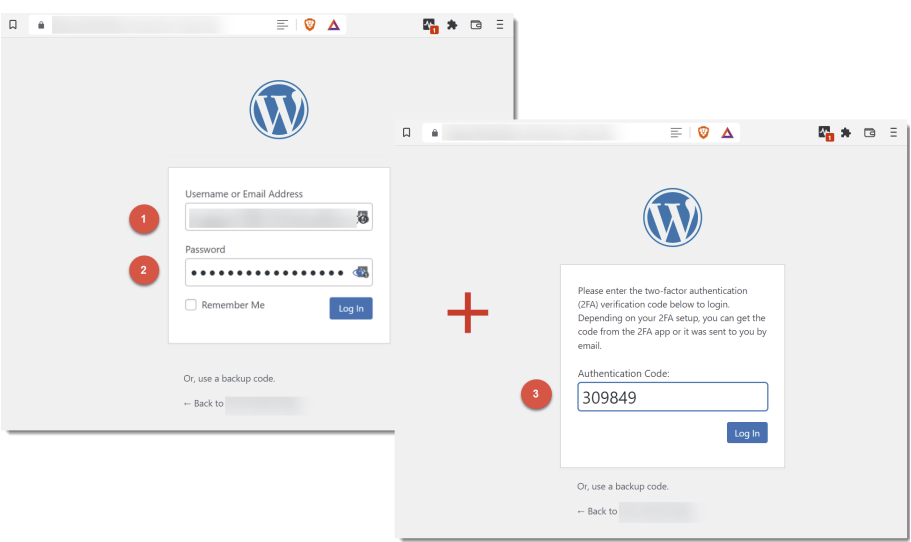
The image is a composite image showing the first screen, which automatically form-fills the Username and Password. On clicking the Login button, the second screen is shown with the OTP Code automatically form filled. From here the Login button is clicked again to login using the 3 credential elements.
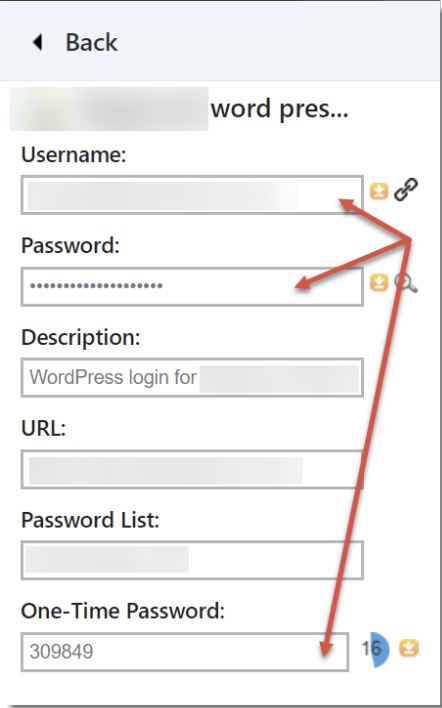
You can also access all 3 credential elements by clicking on the Password Record’s advance arrow. This takes you to the page with all the details about the credential. From here you can copy any of the fields and paste them into the website’s input fields.
Ignored URLs
If you find the Browser Extension doesn't work as expected on a particular website, we recommend setting that website as an Ignored URL. This will set the Browser Extension to not interact with any input fields for the site and the Icon Overlay will be turned off.
If you have an existing Password Record saved for this site you can still click on the Browser Extension icon in the top right hand corner of your browser, and select the Password Record advance arrow and click on the copy icon next to the Username and Password fields to manually paste into the input fields.
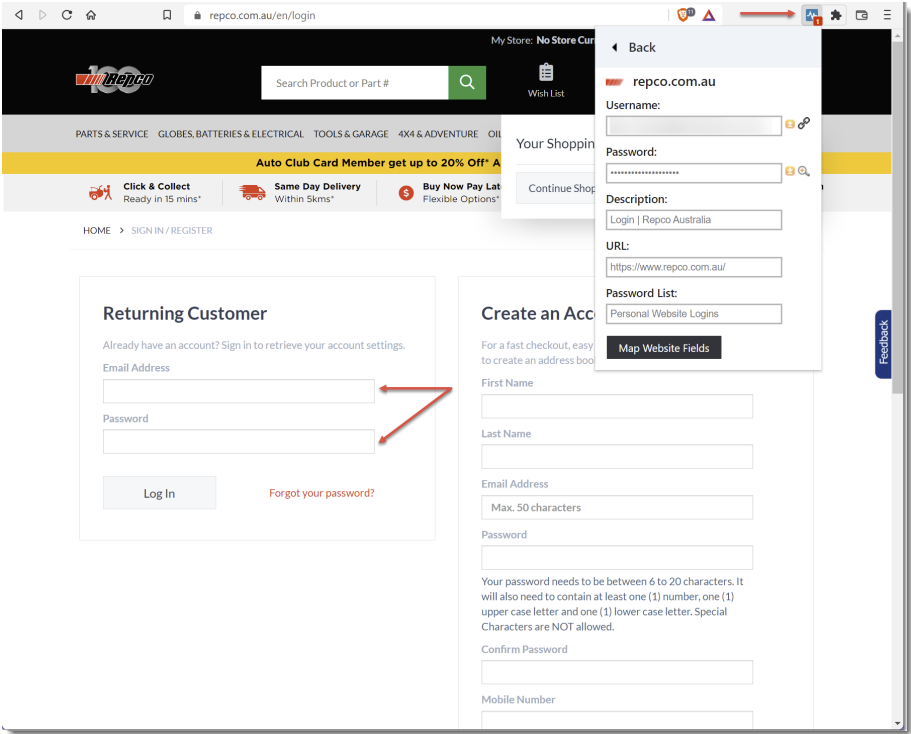
When browsing to a website set as an Ignored URL your Passwordstate Extension icon will turn Blue. You will also see an ignored URL menu in your Browser Extension as per the below screenshot:
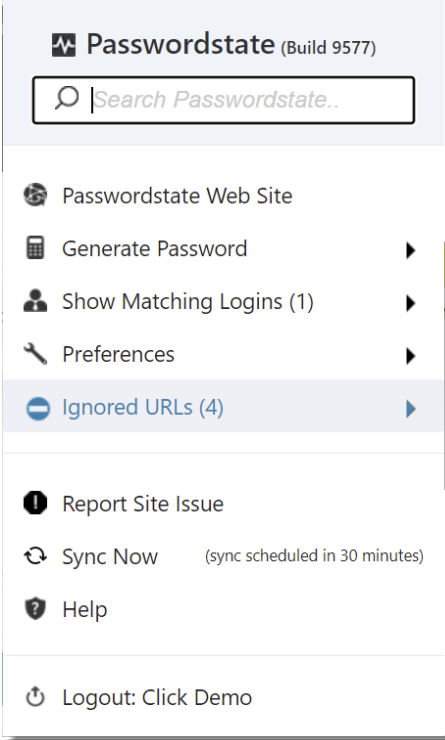
In the screenshot above, there is a counter on the Ignored URLs item with a value of 4. This value is a combination of any personal Ignored URLs previously set, and any that your Passwordstate Security Administrator has set from within the Passwordstate Administration area.
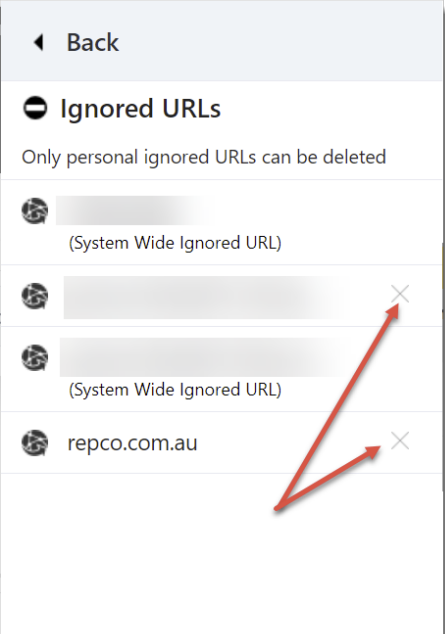
When clicking on the Ignored URLs menu you’ll be taken to another page showing all of the URLs the Browser Extension is set to ignore. On this page you can delete any URL in your own Preferences by clicking on the X to the right of the entry. Entries without an X to the right are System Wide Ignored URLs set by your Security Administrator. These can only be removed by your Passwordstate Security Administrator.
Linking Multiple URLs to one Password Record
Linking Multiple URLs to one Password Record has multiple uses. The first is where your AD Account is used to login to multiple internal websites. In this example you can use the one Password Record linked to URLs for each of the internal websites.
A second use is where some websites use multiple URLs for the login process. As an example, a website may use one URL for the Username input field and a separate URL for the Password input field.
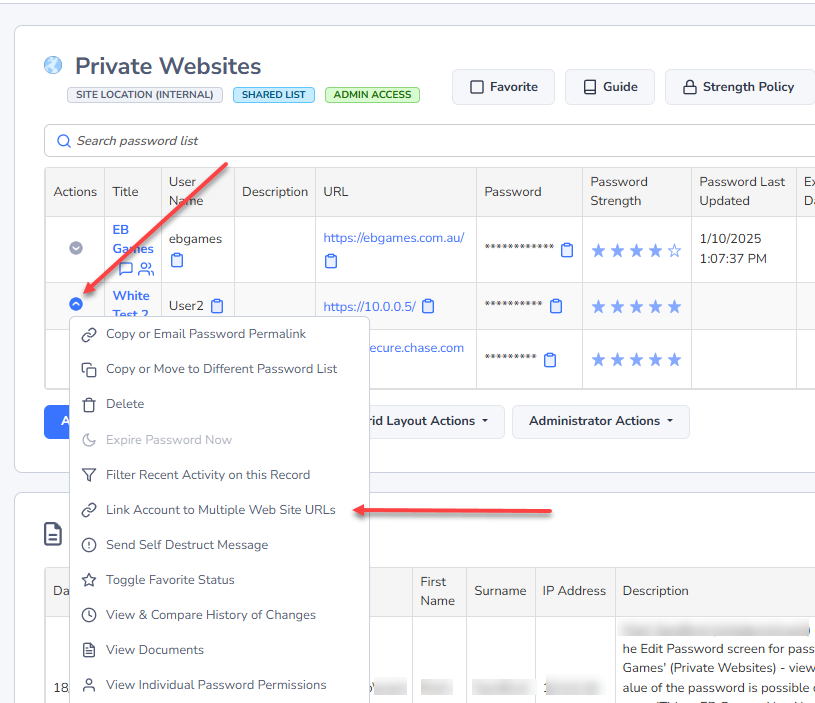
In this situation you can still have the one Password Record but link it to multiple URLs. When saving the Password Record the primary URL will be for the Username input field. The second URL can be added by navigating to the Password Record in Passwordstate, selecting the Action Icon and choosing to Link Account to Multiple Web Site URLs.