Detection & Advanced Functionality
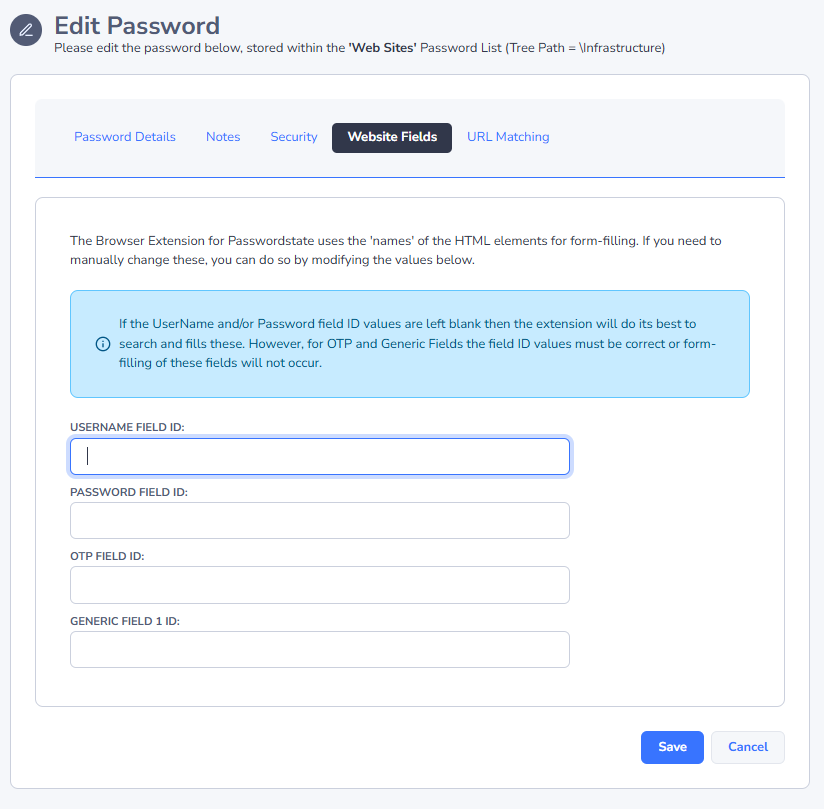
When first saving credentials into Passwordstate, the Browser Extension will not save any website field ID's for the record. This allows the extension to form fill the username and password based on the in-built input detection which mitigates against websites that use dynamic field IDs.
The field ID's are only necessary for the OTP and Generic Fields or for websites where the extension does not form fill the username and password as expected.
If you find you are having issues with automatically form-filling your credentials for a website there are a couple of ways to fix this.
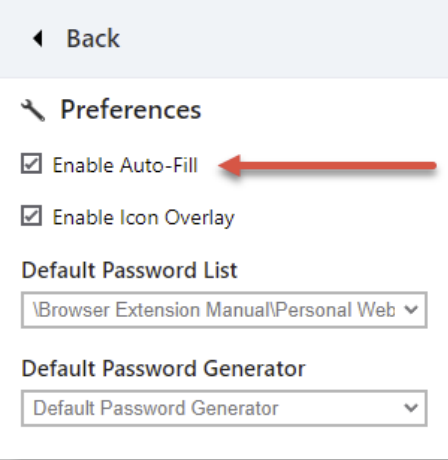
First you should confirm that you still have Enable Auto-Fill selected. This is found on your Preferences screen:
Next, check if the website you have browsed to has an Ignored URL set under either your preferences, or has been set globally by your Security Administrator. Refer to the section on Ignored URLs in this Manual for more information.
Finally, try mapping the website fields either manually via editing the password record or using the Map Website Fields helper tool in the extension to override the in-built input detection.
Mapping Website Fields
As mentioned above, occasionally you may be faced with a particularly hard website where our Browser Extension does not automatically form-fill.
In this situation you can use additional functionality built-in to the Browser Extension to correctly map the website Field IDs which may help depending on the website. To do this select the Password Record in your Browser Extension and click on the arrow icon to open a new page with more details about the Password Record. From here click on the Map Website Fields button,
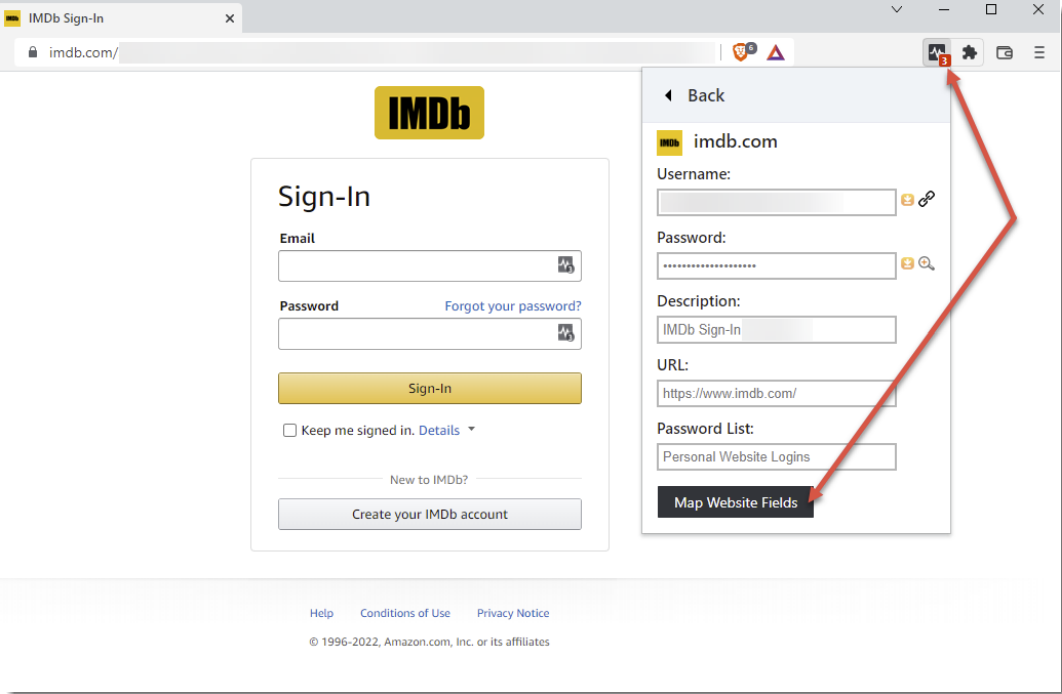
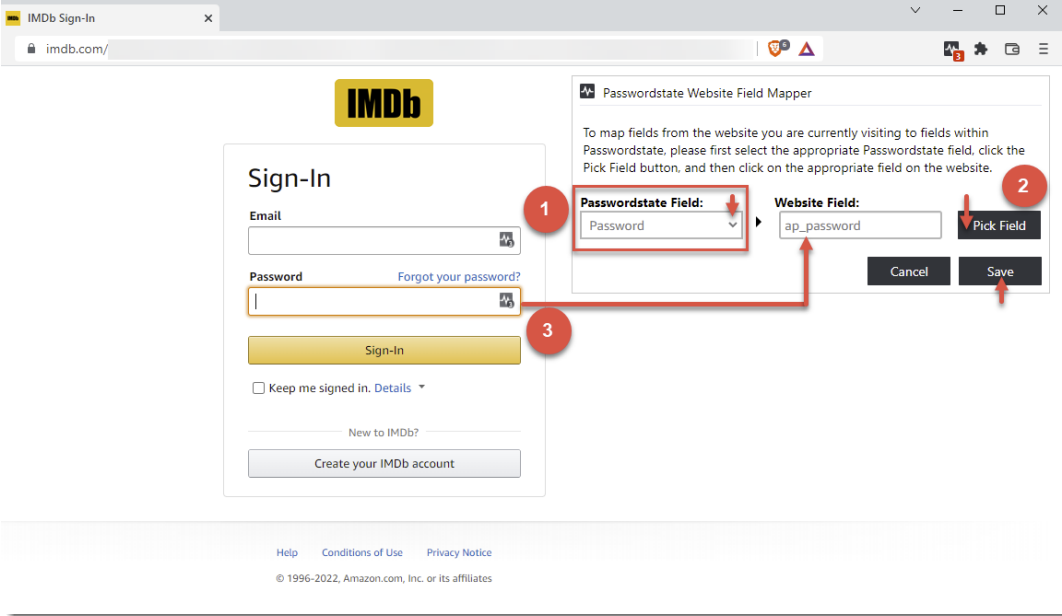
This will open the Passwordstate Website Field Mapper dialog. From here it’s a simple process of mapping each input field;
- Select the type of Passwordstate Field to map
- Click on the Pick Field button
- Move the mouse cursor to the input field, in this case the Password input field on the website and click on it to select it
- Repeat the process for all required input fields
- Click the Save button
This will now save the correct website Field IDs, for all input fields you have selected, to the website fields tab for that Password Record.
Clearing Website Fields
If you find you are having problems with multiple Password Records not automatically form filling, you can clear the username and password website Field IDs for all Password Records in a Password List. This doesn’t affect the credentials, only the associated Field IDs that have been recorded and stored on the website fields tab for each Password Record.
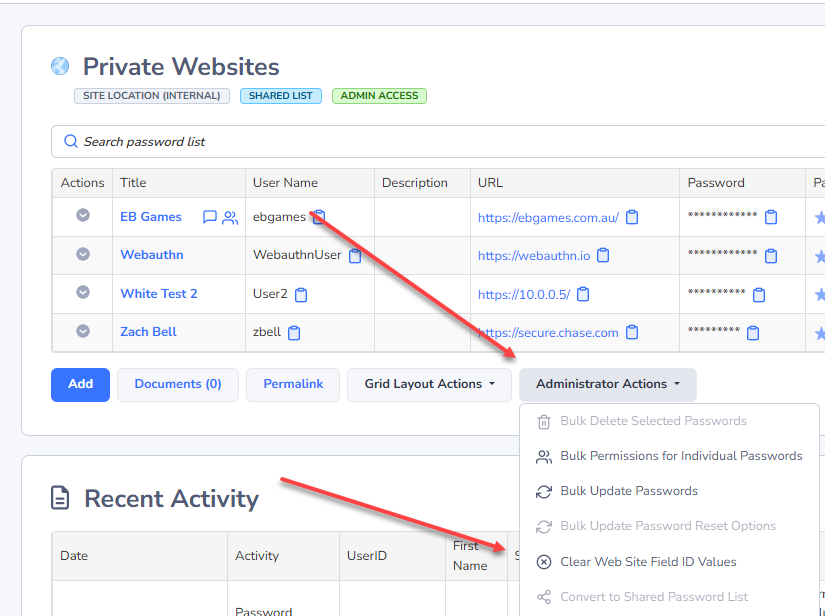
To clear all the website Field IDs, for all Password Records in a Password List, simply login to Passwordstate, navigate to the Password List you want to perform the action against and click on List Administrator Actions…, then click on Clear Website Field ID Values,
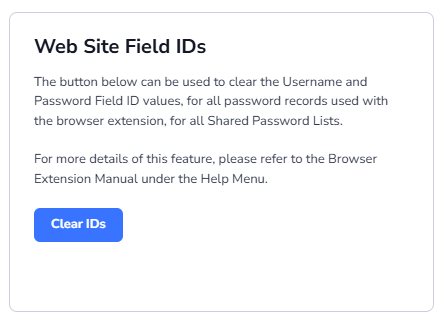
Security administrators have the ability to clear all username and password website Field IDs for Shared Password Lists via Administration -> Browser Extension Settings -> Website Field IDs,
URL Matching
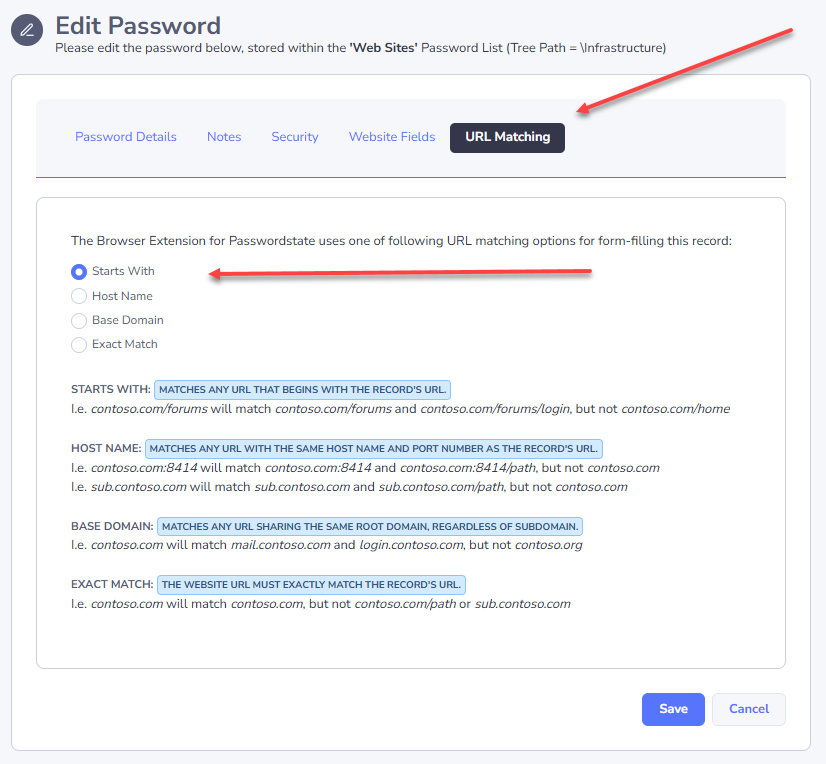
You can specify the URL Matching option for each individual Password Record in Passwordstate. This is particularly helpful in instances where the Username and Password input fields are located on different URLs.
There are 4 URL Matching options available, Starts With, Base Domain and Host Name with the default being Starts With which should cater for most situations.