
AppServer Troubleshooting Guide
In this section we’ll troubleshoot the App Server not working
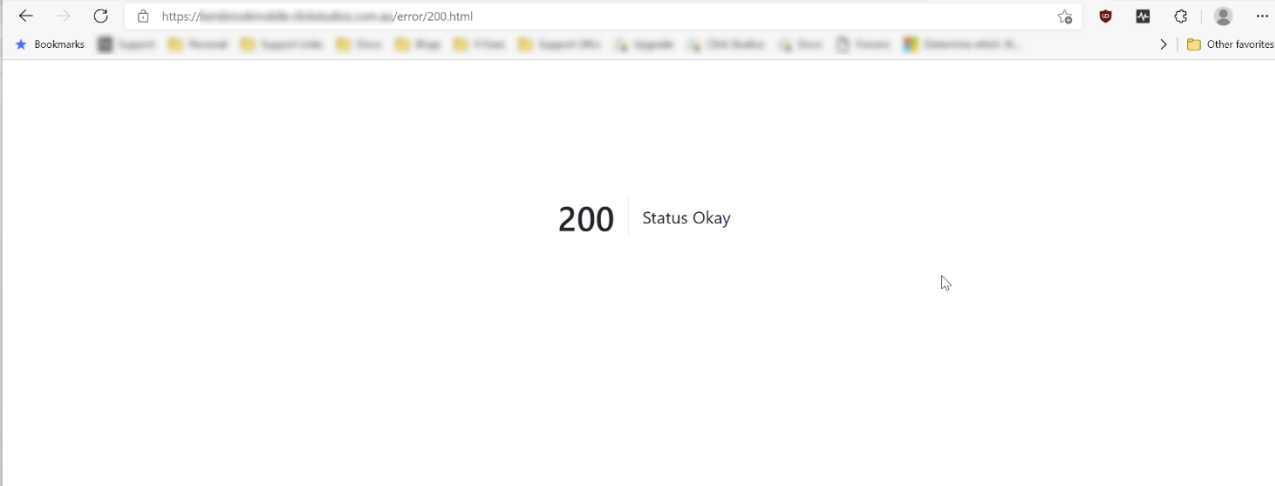
First test to do is try browsing to your App Server URL and if the website is working correctly, you will get a 200 | Status Okay message as per the below screenshot. This is the URL you have set under Administration -> System Settings -> Mobile Access Options
If you see an Error like this screenshot below, log directly into your App Server and try browsing to your URL again. You should get a more verbose error message when logged directly into the server which can help troubleshoot the issue:
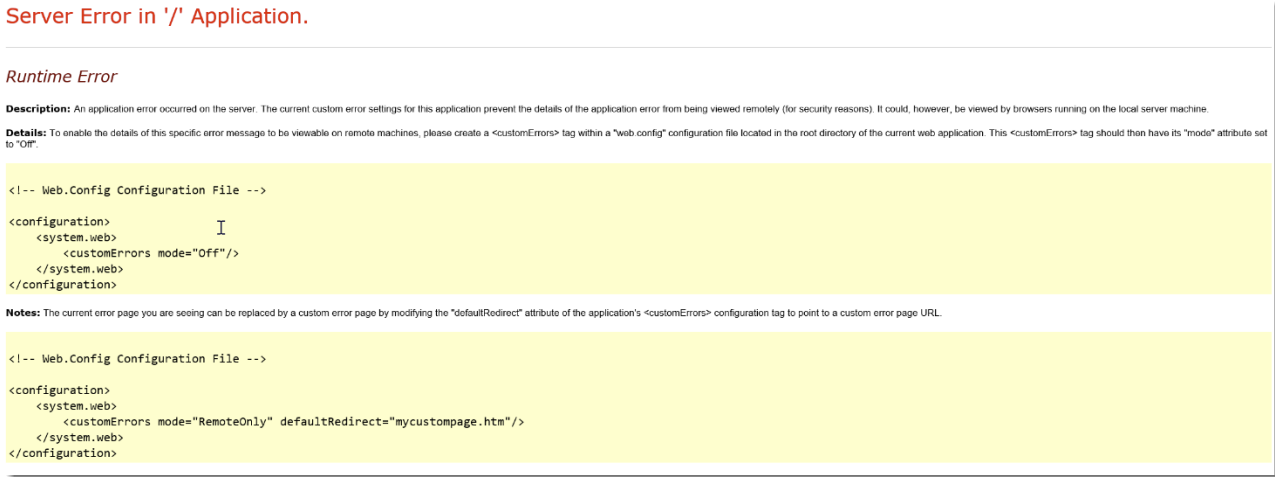
Error 1:
“A network-related or instance-specific error occurred while establishing a connection to SQL Server. The server was not found or was not accessible. Verify that the instance name is correct and that SQL Server is configured to allow remote connections”
What does this mean?
Your App Server needs to be able to communicate directly to your Passwordstate database in order for it to work successfully. There’s a few possible reasons why your App Server cannot communicate to your database server, and below are some possible fixes for this:
Fix 1:
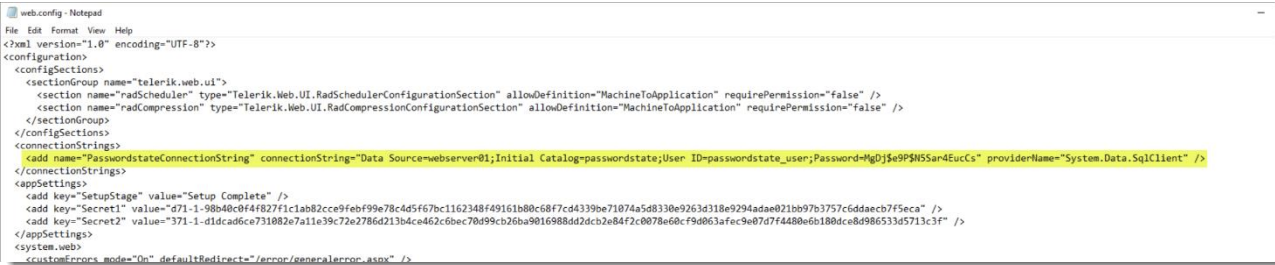
First confirm that you have copied the Connection String out of your web.config file from your core Passwordstate webserver across to the App Server web.config file. The database server name, SQL user and password need to be the same on both servers.
Please note if your web.config file is encrypted, you cannot copy the encrypted text across from the primary web.config file to the App Server web.config. You will need to decrypt it first and copy across the clear text you see. A good tutorial on what an encrypted web.config file looks like can be found here: Encrypting/Decrypting Configuration Files
An example of a clean Connection String to copy across can be seen in screenshot below:
Fix 2:
Remote Directly into the App Server and perform a database connectivity test to you Passwordstate database server. An example of this in Powershell using the connection string above is:
Powershell
Test-NetConnection webserver01 -Port 14331433 is the default port used for SQL, but is configurable. If you have changed the port, it will be referenced in your Connection String as per below screenshot:
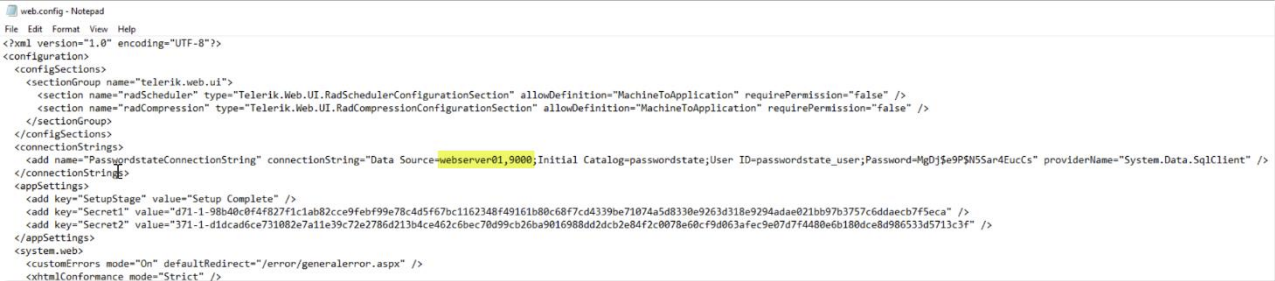
If this Open Port test returns a failure, then most likely a firewall is blocking access between your App Server and Database server.
If this test fails, it could possibly be DNS for the Database server name is not resolving from your App Server. A quick test to check DNS is working when logged into your app server is as follows, either in a command prompt, or in Powershell:
Powershell
NSLookup webserver01If this test fails, please investigate DNS to confirm it is set up correctly.
Fix 3:
If you are using SQL Express you may need to enable TCP/IP on your database server, and possibly set a static Port. SQL Express by default uses a dynamic port and setting a static port can ensure firewall rules are working correctly. An example of what a SQL Express instance looks like in you web.config file is as per below screenshot:

To learn how to fix this issue, please see Section 3 in this document - SQL Server Express And Port Number Considerations.
Fix 4:
If you are using the High Availability Module of Passwordstate, it’s possible you are also using SQL Replication with a “SQL Listener”. If using one of these you may need to open port 1434 UDP on your database server, unless you have specifically changed this port.