Initial App Sever Configuration
Please follow these instructions for the initial configuration of the App Server, before it can be used.
Authorized Web Server
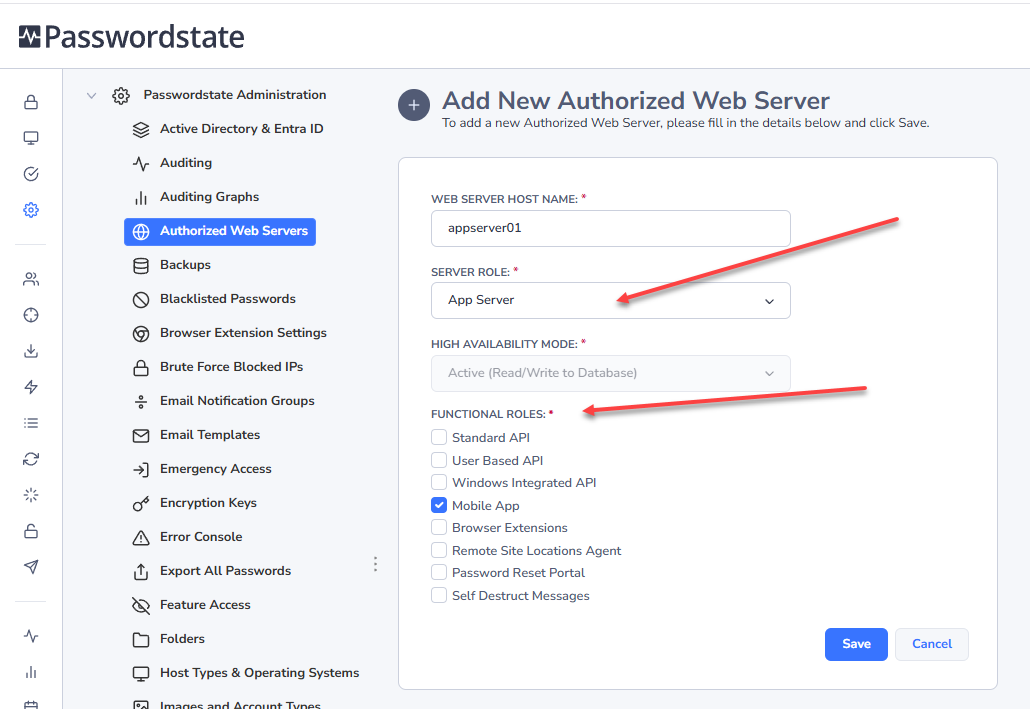
In Passwordstate, under Administration -> Authorized Web Servers, click the Add button to add in the App Server. Enter in the netbios name of the server where you installed the App Server, and also assign the App Server role. Once this is done, click Save.
Web.config File Changes
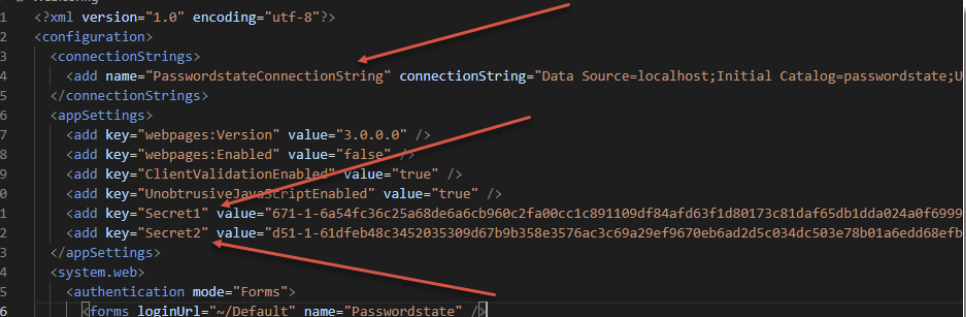
As a once off process, you will need to copy the following 3 lines from the web.config file from your main Passwordstate website folder, to the web.config file in this App Server folder.
- Core Passwordstate vault web.config file default location: c:\inetpub\Passwordstate\web.config
- App Server web.config file default location: C:\inetpub\PasswordstateAppServer\web.config
Note: Only copy PasswordstateConnectionString and Secret1 and Secret2 lines.
When looking at the web.config file for your main Passwordstate installation, if you do not see your database connection string, or appSetting section, then most likely you have encrypted these sections of the file, and you will need to decrypt them in order to copy across the contents. To do this, follow the instructions below – and only do this when users are not using Passwordstate:
- Open command prompt as Administrator, and run the following commands
- CD C:\Windows\Microsoft.NET\Framework64\v4.0.30319
- aspnet_regiis.exe -pdf "connectionStrings" "c:\inetpub\passwordstate"
- aspnet_regiis.exe -pdf "appSettings" "c:\inetpub\passwordstate" To re-encrypt them again afterward, use the commands:
- aspnet_regiis.exe -pef "connectionStrings" "c:\inetpub\passwordstate"
- aspnet_regiis.exe -pef "appSettings" "c:\inetpub\passwordstate"
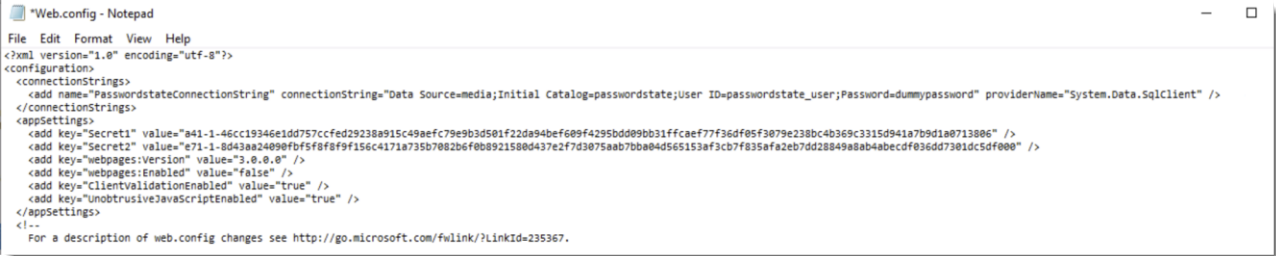
Example of App Server web.config file after inserting connection string and secret keys
Note: From where your App Server is installed, you must have an open port for it to connect back to your SQL Server – this port is 1433 by default. If you are using a SQL Listener for database connectivity, you will need to allow port 1434 UDP – unless you have modified the default port.
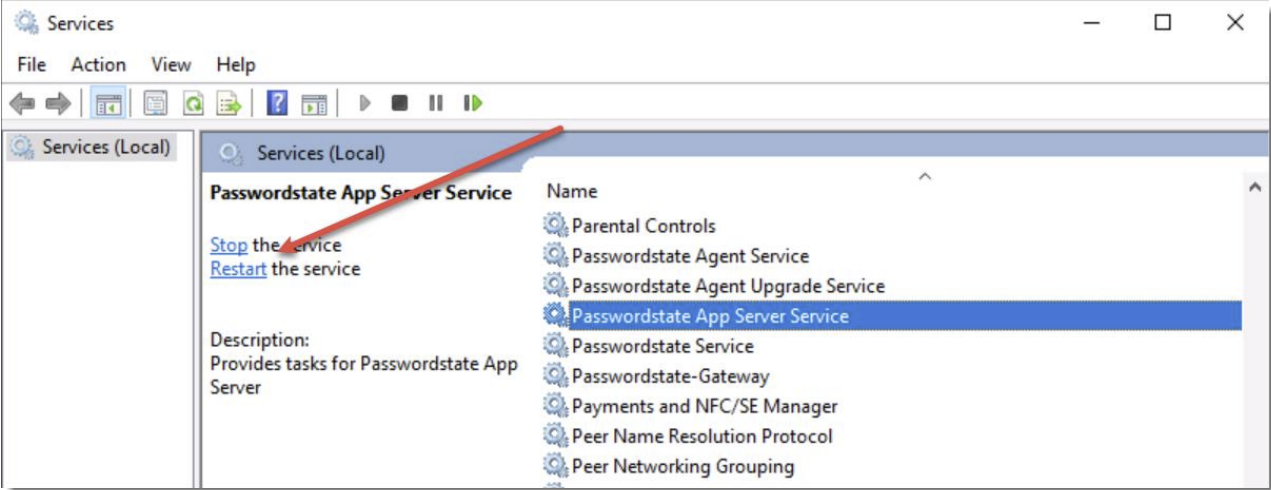
Now restart the Passwordstate App Server Windows Service:
URL and APP Server Public Key
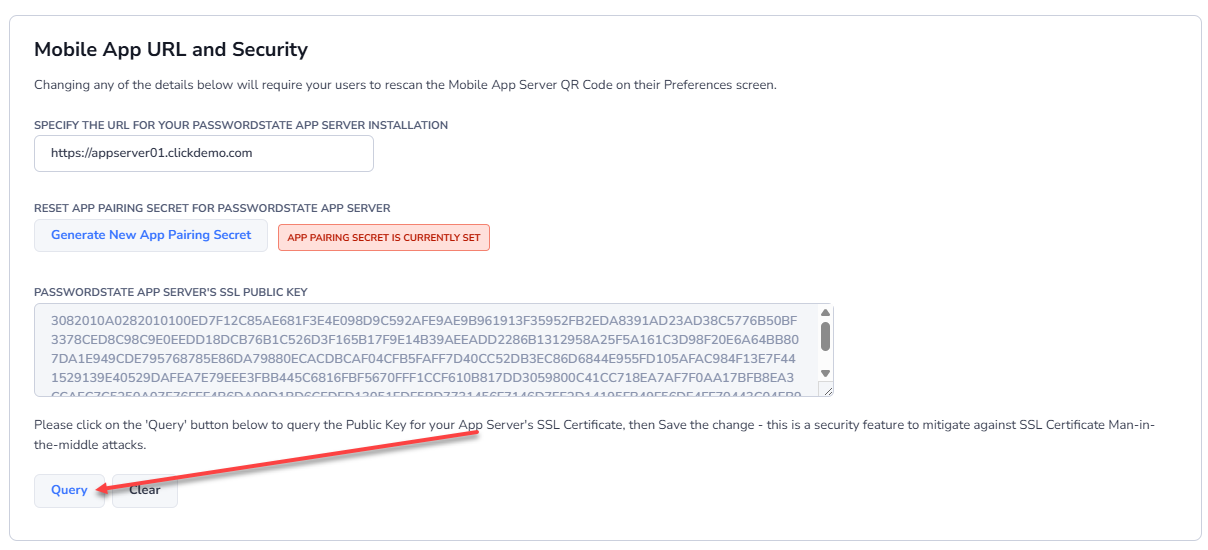
In Passwordstate, under Administration -> System Settings -> Mobile Access Options, set your URL for your App Server, including port if it is different to 443. Also, for added security, you should generate a SSL Public Key by clicking the Query button.
Once these fields are populated, click the Save button: